# How to Configure Custom NGINX in xCloud
> Add NGINX rules from the xCloud dashboard: choose the insertion point (main location included), validate with Run & Debug, toggle each rule on or off.
Custom NGINX lets site administrators add NGINX directives from the xCloud dashboard without editing generated server files manually. This guide explains how to choose the correct insertion point, add and validate a rule, use **Inside Main Location Block** for a PHP application, and disable or re-enable a saved rule without deleting it.
> **Important:** Custom NGINX rules can affect site availability, redirects, caching, and security. Test one change at a time, keep a copy of the previous rule, and use **Run & Debug** before saving.
## Prerequisites
- A site hosted on a server that uses NGINX.
- Access to the site's **Tools → Nginx Customization** page.
- Permission to manage Custom NGINX settings for the site.
- A tested NGINX directive or rule and a rollback plan.
- A terminal with `curl` if you want to verify response headers from outside xCloud.
## Choose the correct insertion point
The available choices depend on the site's application type and enabled features. PHP applications show the main and PHP location options, while non-PHP applications show the proxy location option.
| xCloud option | Internal type | Use it when the directive belongs… | Availability |
|---|---|---|---|
| **Before Server Block** | `before` | Before the generated `server {}` block | NGINX sites |
| **Inside Server Block** | `server` | Directly inside the generated `server {}` block, but outside its location blocks | NGINX sites |
| **Inside Main Location Block** | `main_location` | Inside the main PHP application `location /` block | PHP applications |
| **Inside PHP Location Block** | `php` | Inside the dedicated PHP request-handler location | PHP applications |
| **Inside Proxy Location Block** | `proxy` | Inside the location that proxies requests to a non-PHP application | Non-PHP applications |
| **After Server Block** | `after` | After the generated `server {}` block | NGINX sites |
| **7G Block** or **8G Block** | `7g` or `8g` | Inside the corresponding firewall section | Only when that firewall is enabled |
**Inside Main Location Block** is not the same as **Inside PHP Location Block**. The main location handles normal application requests under `location /`; the PHP location handles requests passed to PHP-FPM. Put a directive in the narrowest valid context and check the directive's official NGINX context before saving it.
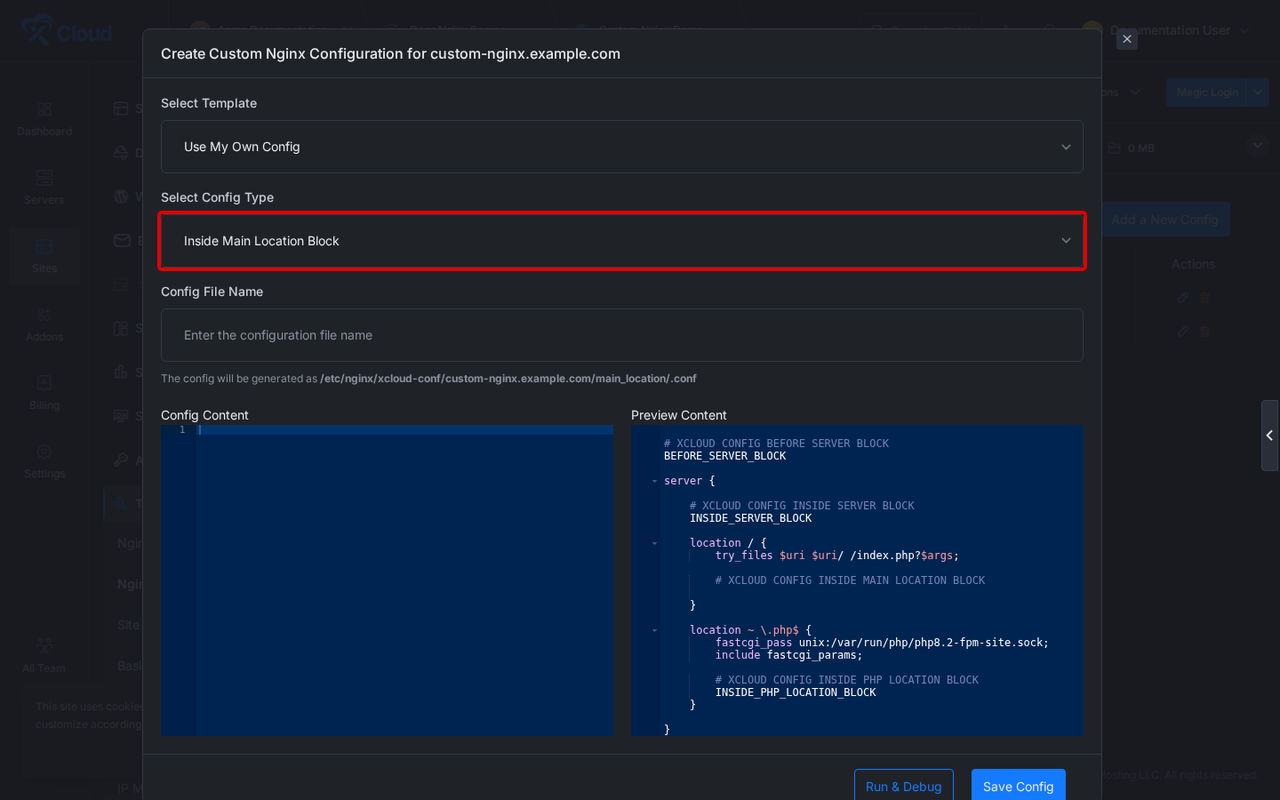
The main_location type appears in the dashboard as **Inside Main Location Block** for PHP applications.
## Step 1: Open Nginx Customization
Select the site in xCloud, then go to **Tools → Nginx Customization**.
**Expected result:** The **Custom Nginx Config** table opens and shows any saved rules, their type, active state, and available actions.
## Step 2: Start a new configuration
Select **Add a New Config**.
**Expected result:** The **Create Custom Nginx Configuration** modal opens.
## Step 3: Choose a template
Select a built-in template when it matches your use case. Otherwise, select **Use My Own Config**.
**Expected result:** When **Use My Own Config** is selected, the config type, file name, and content fields become available.
## Step 4: Select the insertion point
Choose the option that matches the NGINX context required by your rule. For a directive that must run inside a PHP application's main `location /` block, select **Inside Main Location Block**.
**Expected result:** The preview places your content at the selected insertion point. For `main_location`, xCloud stores the file under `/etc/nginx/xcloud-conf//main_location/.conf` and includes it inside the generated main location block.
## Step 5: Name the configuration
Enter a descriptive file name without the `.conf` extension, such as `documentation-header` or `legacy-path-redirect`.
**Expected result:** xCloud previews the generated `.conf` path below the field.
## Step 6: Enter the NGINX directive
For a small, reversible test inside the server block, you can use a response header:
```nginx
add_header X-Documentation-Rule "enabled" always;
```
For a PHP application's main location block, this example redirects one test path:
```nginx
rewrite ^/old-documentation-path$ /new-documentation-path permanent;
```
Replace the example paths with the real paths you intend to use. Do not copy a `server {}` or `location {}` wrapper into an insertion point that is already inside that context.
**Expected result:** The right-hand preview shows the directive in the generated NGINX configuration.
## Step 7: Validate the rule
Select **Run & Debug**.
**Expected result:** xCloud writes a temporary configuration, runs NGINX validation, displays the result, and removes the temporary file after the check. A successful result confirms the syntax is valid in the selected insertion point. It does not confirm that the rule's behavior matches your intent.
A successful check shows a green message:
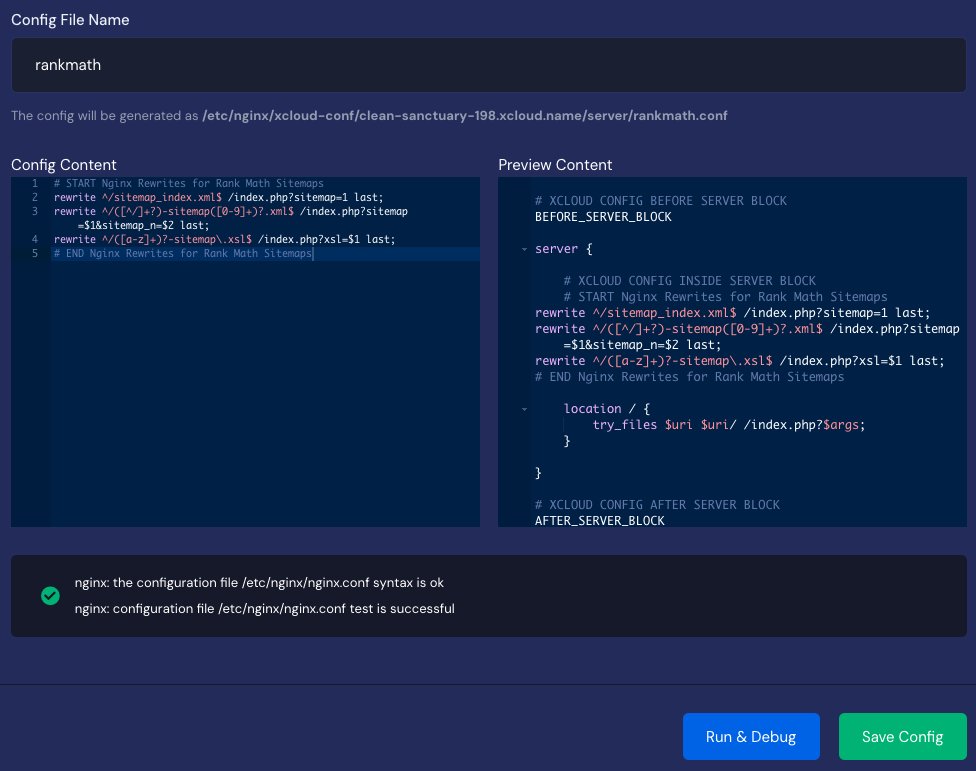
If validation fails, xCloud removes the temporary file and does not reload NGINX. The error is shown in red:
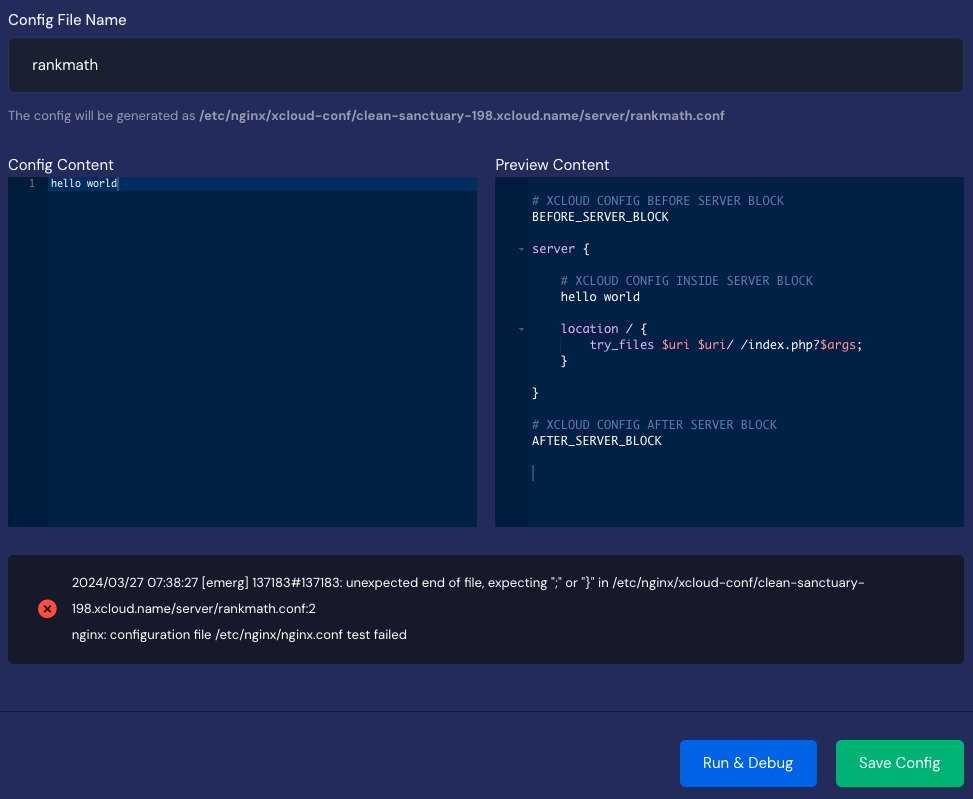
Correct the reported directive, context, or syntax error before continuing.
## Step 8: Save the rule
Select **Save Config** only after **Run & Debug** succeeds.
**Expected result:** xCloud validates the configuration and reloads NGINX only when validation passes. The saved rule appears in the table with an active state.
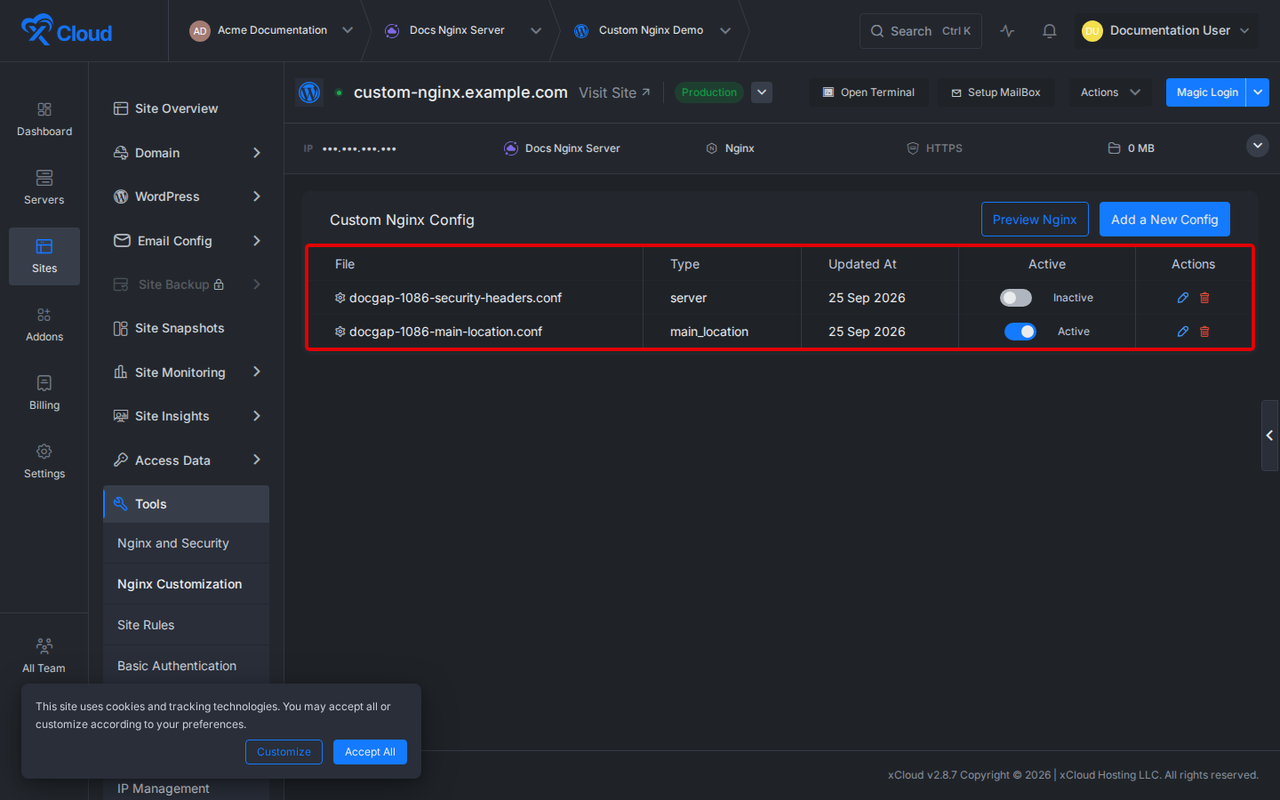
Each saved rule has its own **Active** toggle, so you can roll back one rule without deleting its content.
## Built-in templates
The **Select Template** list ships ready-made rules for [Rank Math](https://wordpress.org/plugins/seo-by-rank-math/) sitemaps and [Hide My WP](https://wordpress.org/plugins/hide-my-wp/). Pick one and xCloud fills the type, file name and content for you; choose **Use My Own Config** for anything else. The Rank Math template, for example, places these rewrites inside the server block:
```nginx
# START NGINX Rewrites for Rank Math Sitemaps
rewrite ^/sitemap_index.xml$ /index.php?sitemap=1 last;
rewrite ^/([^/]+?)-sitemap([0-9]+)?.xml$ /index.php?sitemap=$1&sitemap_n=$2 last;
rewrite ^/([a-z]+)?-sitemap\.xsl$ /index.php?xsl=$1 last;
# END NGINX Rewrites for Rank Math Sitemaps
```
If you use the Hide My WP template, match the plugin's own settings to the rule; see [set up the Hide My WP plugin on xCloud](/docs/how-to-set-up-hide-my-wp-plugin-on-xcloud/). To apply the same rule to many sites at once, use [bulk NGINX customization](/docs/how-to-apply-bulk-nginx-customization/).
## Disable or re-enable a rule safely
### Step 1: Find the rule in the config table
Open **Tools → Nginx Customization** and locate the rule by its file name and type.
**Expected result:** The **Active** column shows whether the rule currently participates in the generated NGINX configuration.
### Step 2: Turn off the Active toggle
Switch the rule from **Active** to **Inactive**.
**Expected result:** xCloud removes the rule's generated configuration file, validates the complete NGINX configuration, and reloads NGINX. The saved rule and its content remain in xCloud so they can be re-enabled later.
If validation or reload fails, xCloud rolls the file change back and reports that the rule could not be deactivated.
### Step 3: Verify the rollback
Repeat the request affected by the rule. For the response-header example, run:
```bash
curl -I https://example.com
```
**Expected result:** The `X-Documentation-Rule` header is no longer present after the rule is inactive. Replace `example.com` with your site's public domain.
### Step 4: Re-enable the rule when needed
Turn the same toggle back to **Active**.
**Expected result:** xCloud restores the saved configuration content, validates the full configuration, and reloads NGINX. If validation or reload fails, xCloud rolls back the activation and keeps the prior working state.
## Verify the completed configuration
Confirm all of the following:
1. **Run & Debug** reports successful NGINX validation.
2. The rule appears in the config table with the intended type.
3. The **Active** column shows the intended state.
4. The site loads normally over HTTPS.
5. The rule affects only the intended request. Check the exact URL, response header, redirect, or application behavior the rule targets.
6. Disabling the rule removes its effect without deleting the saved configuration.
## Limits and safety notes
- Custom NGINX is available only on servers that use NGINX.
- xCloud generates the surrounding server and location blocks. Do not redefine those blocks inside a narrower insertion point.
- `main_location` is shown for PHP applications; proxy-based applications use **Inside Proxy Location Block** instead.
- Firewall insertion points appear only when the corresponding 7G or 8G firewall is enabled.
- A syntactically valid rule can still cause an unwanted redirect, caching policy, access restriction, or application behavior. Test the outcome separately from the syntax.
- Avoid duplicating xCloud-generated directives such as `try_files`, PHP handling, proxy settings, or SSL configuration unless you understand how NGINX resolves duplicates and inheritance.
- Prefer the per-rule toggle for temporary rollback. Delete a rule only when you no longer need its saved content.
## Troubleshooting
| Symptom | Likely cause | Fix |
|---|---|---|
| **Inside Main Location Block** is not available | The site is not detected as a PHP application | Choose the insertion point that matches the application type. Non-PHP apps use **Inside Proxy Location Block**. |
| **Run & Debug** reports an invalid configuration | The directive has invalid syntax or is not allowed in the selected NGINX context | Read the reported line, confirm the directive's allowed context, choose the correct insertion point, and run the check again. |
| Saving or toggling reports a validation or reload failure | The proposed state would make the full NGINX configuration invalid, or NGINX could not reload | Leave the previous state in place, review the displayed output, correct the rule, and retry. xCloud rolls back a failed toggle. |
| The rule validates but has no visible effect | The request does not pass through that block, or another directive takes precedence | Confirm the site type, insertion point, requested URL, and response with browser developer tools or `curl`. |
| The site behaves incorrectly after a successful save | The syntax is valid, but the rule's logic is wrong or conflicts with generated configuration | Turn the rule off immediately, verify the site returns to normal, then narrow or correct the rule before re-enabling it. |
| An inactive rule still appears in the table | Inactive rules are retained by design | Leave it inactive for future use, or delete it only if you no longer need the stored configuration. |
## Common mistakes
- Choosing **Inside PHP Location Block** when the directive belongs in the main application `location /` block.
- Adding a complete `location {}` block inside **Inside Main Location Block**, which is already within `location /`.
- Saving before using **Run & Debug**.
- Treating successful syntax validation as proof that redirects, caching, or access rules behave correctly.
- Deleting a rule when the Active toggle would provide a faster, reversible rollback.
- Editing generated NGINX files over SSH instead of using xCloud's managed insertion points; regenerated site configuration can replace manual edits.
## Frequently asked questions
### Does disabling a Custom NGINX rule delete it?
No. Disabling a rule removes its effect from NGINX while retaining the saved configuration in xCloud. You can re-enable it later.
### What is the difference between main_location and php?
The main_location type inserts directives inside the PHP application's main location / block. The php type inserts directives inside the dedicated location that passes PHP requests to PHP-FPM.
### Does Run & Debug apply the rule permanently?
No. It writes the proposed file temporarily, runs NGINX validation, reports the result, and removes the temporary file. Use **Save Config** to keep a validated rule.
### What happens if a toggle would break NGINX?
xCloud validates the complete configuration before accepting the new state. If validation or reload fails, xCloud restores the previous file state and reports the failure.
## Next steps
- [Apply bulk NGINX customization](/docs/how-to-apply-bulk-nginx-customization/) to push one rule to many sites
- [Add custom security headers](/docs/how-to-add-custom-security-headers-in-xcloud/), a common use of the server block
- [Whitelist 7G and 8G WAF rules](/docs/whitelist-7g-and-8g-waf-rules-in-xcloud/) when the firewall insertion points are what you need
- [Troubleshoot NGINX configuration regeneration failures](/docs/how-to-troubleshoot-nginx-configuration-regeneration-failures-with-xcloud/) if a regenerated site config conflicts with a rule
- Release notes: [v2.7.0](/changelog/v2-7-0/) added the main location insertion point, [v2.7.3](/changelog/v2-7-3/) added the per-rule enable and disable toggle
If a rule validates but the site misbehaves and you cannot narrow it down, feel free to reach out to our [support team](/docs/access-built-in-support-portal-in-xcloud/).