OpenClaw, formerly Clawdbot and later Moltbot, is an open source AI agent that does more than answer questions. It carries out tasks for you. When you connect it to tools like your calendar, email, file system, or terminal, it can create files, send messages, run commands, update systems, and trigger workflows automatically.
People use OpenClaw to handle repetitive admin, support developer workflows, manage long-running jobs, and reduce the mental load of constantly checking dashboards and inboxes.
You can run OpenClaw on a personal device such as a desktop or Mac mini. That setup works for testing and light automation, but it requires the machine to stay powered on and connected to the internet at all times.
For 24/7 reliability, such as scheduled reports, continuous monitoring, or automations that run while you sleep, hosting it on a server makes more sense. Running OpenClaw on your own server gives you full control over your data, integrations, and uptime. Nothing passes through third-party services unless you choose to connect them.
That level of access also comes with responsibility. An agent with system permissions and API keys can cause real damage if misconfigured. Guardrails and limits matter as much as flexibility.
Let’s discuss 15 practical OpenClaw use cases to automate your work and life with better AI automation.
From Daily Tasks to DevOps: 15 Practical OpenClaw Use Cases To Automate & Make Your Work Easier
From daily briefs and inbox management to client onboarding, KPI reporting, infrastructure monitoring, and advanced DevOps workflows, these real-world use cases show how OpenClaw turns repetitive tasks into reliable, automated systems when supported by the best OpenClaw hosting provider.
1. Brainstorm content ideas and generate first drafts faster
Blank pages slow progress. Ideas feel scattered. You know your niche, but you struggle to pick the right angle. OpenClaw can generate focused content ideas based on your audience and goals.
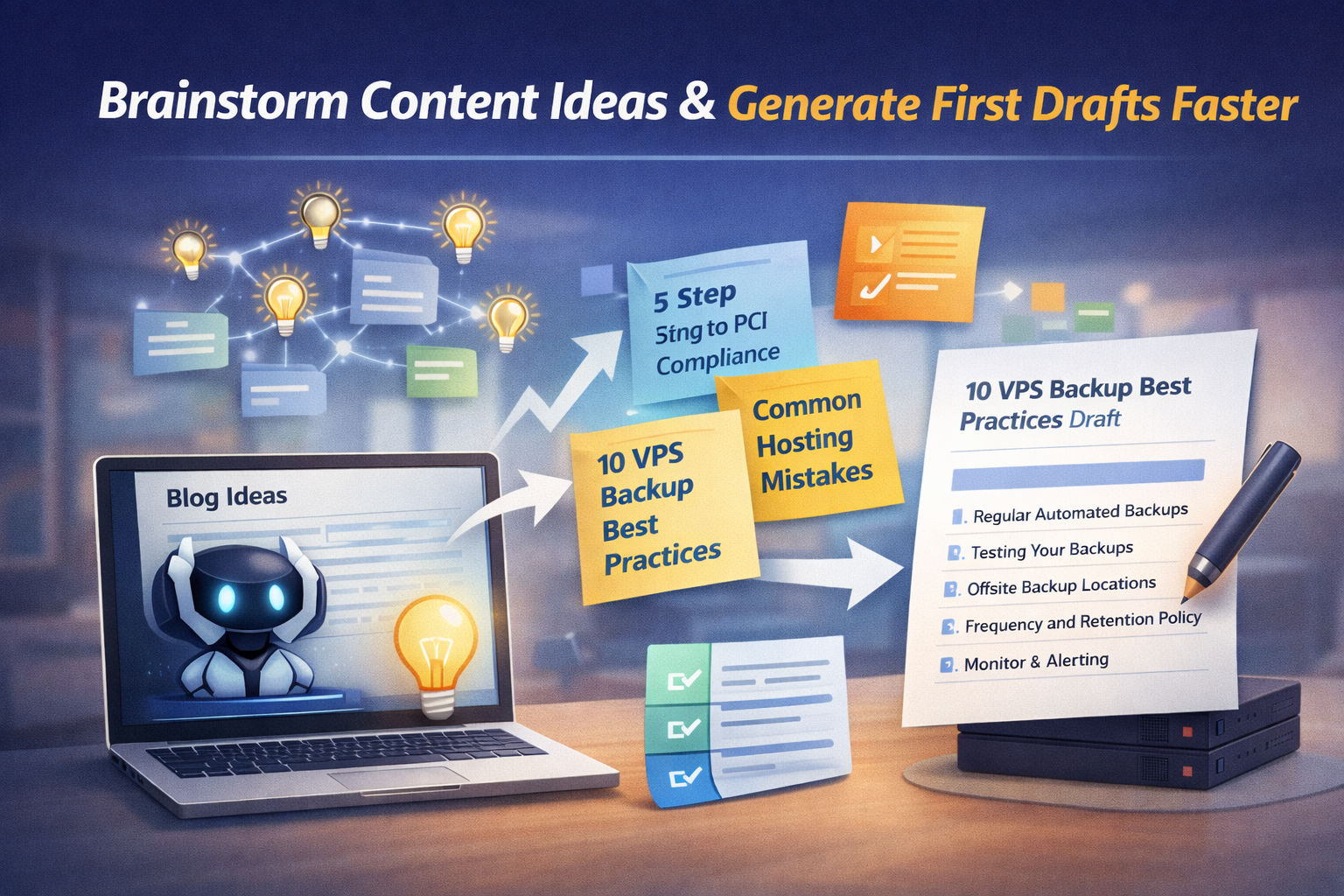
Start by defining who you write for and what problems they face. The agent analyzes your context and produces blog ideas, strong headlines, and structured outlines you can build on.
You can refine results by adding constraints such as tone, format, or stage of the customer journey.
Example:
I write for SaaS founders about infrastructure and hosting.
Generate 10 blog post ideas that they would find useful.
Pick the strongest headline and explain why it works.
Create a five-point outline for that topic.
Instead of staring at a blank document, you begin with direction. A VPS keeps this assistant available whenever inspiration runs low.
2. Repurpose one piece of content across multiple platforms
An outline solves structure, but writing the first draft still takes time. After publishing, adapting the same idea for multiple platforms adds more work.
OpenClaw can expand your outline into a complete draft, then repurpose it for different channels.
Provide your bullet points along with tone, audience, and word count. The agent converts them into a structured article, email, or landing page draft. After that, it adapts the core idea into platform-specific versions.
It can generate:
- An X thread with a strong hook and short posts
- A LinkedIn post with professional framing
- An Instagram caption focused on engagement
- A short email newsletter snippet with a subject line
Example
Expand this outline into a 1,200-word blog post.
Tone: conversational but professional.
Audience: SaaS founders.
Include practical examples.
Then repurpose it into:
- An X thread
- A LinkedIn post
- An Instagram caption
- A short email snippet
You review and refine instead of rewriting from scratch. A VPS ensures drafts and repurposed content stay accessible anytime your publishing schedule demands it.
3. Monitor server health and receive proactive alerts
Small server tasks interrupt your flow. You open an SSH client, type a command, check the output, and switch back to work. OpenClaw lets you run safe, allowlisted shell commands directly from chat.
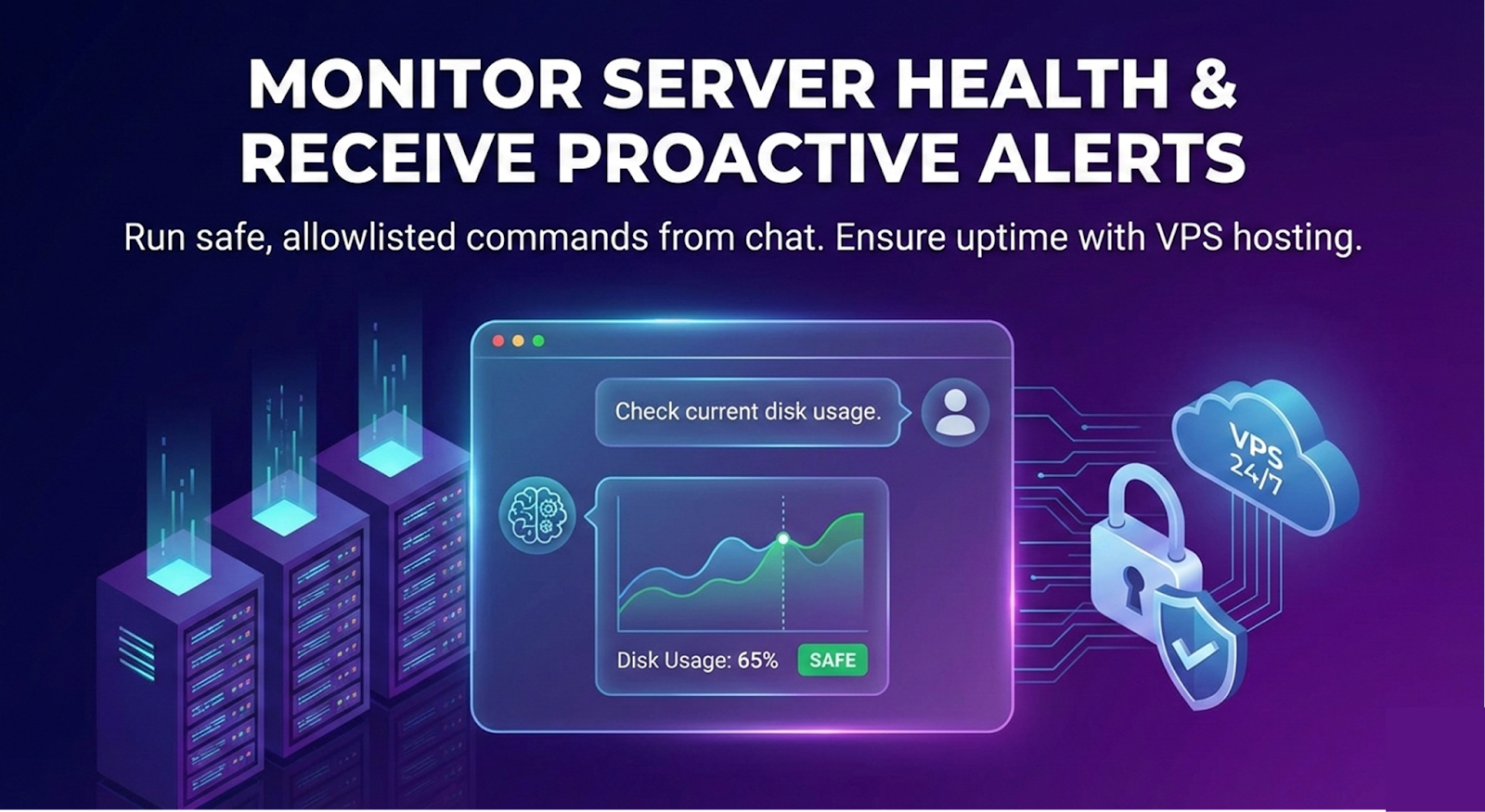
Describe what you need in plain language. The agent translates your request into an approved command, executes it, and returns the result. This works well for routine checks such as disk usage, service restarts, cache clearing, or viewing recent logs.
Safety must come first. Maintain a strict allowlist of permitted commands. Run the agent as a non-root user with limited permissions. Log every executed command for auditing. Never store root credentials inside the configuration.
Example
Check current disk usage.
If usage exceeds 85 percent, notify me.
Otherwise, return a summary of mounted volumes.
A VPS ensures commands execute reliably at any time. With proper guardrails, chat-based server control becomes a productivity boost instead of a risk.
4. Turn messages and meal planning into one smart grocery system
Meal planning fails when ideas, ingredients, and reminders live in different places. Grocery items show up in chat. Recipes stay in your head. Shopping happens under pressure.
OpenClaw can combine both into one loop. It captures grocery items from chat and turns them into a clean shared list. Then it builds a weekly meal plan based on your preferences and what you already have. After that, it generates a final grocery list that covers the full week.
Start with chat-based capture. OpenClaw watches selected channels and extracts items from messages like “we need milk” or “buy eggs.” It removes duplicates and keeps the list tidy.
Next, meal planning kicks in. You tell OpenClaw your constraints such as cuisine, budget, time, allergies, and ingredients already at home. It proposes a week of meals and adjusts based on your feedback. Once you approve the plan, it creates a grouped grocery list by category like produce, dairy, pantry, and household.
Example:
Build a 7 day meal plan for 2 people.
Constraints: 30 minute dinners, high protein, no peanuts.
Use what I already have: rice, eggs, chicken, spinach.
Create a grocery list grouped by category.
Add missing items to my shared list.
A VPS keeps this running continuously, so the list updates as messages arrive and the plan stays ready when you need it.
5. Convert voice notes and meeting recordings into clean, actionable notes
Quick thoughts often stay trapped in voice memos. You record ideas during a commute or after a long day, then never revisit them.
OpenClaw can turn those raw recordings into structured daily entries automatically.
Start by sending your voice note to the agent. OpenClaw transcribes the audio using speech-to-text. If needed, the server converts file formats before transcription. After that, the agent organizes the content into clear sections such as mood, key moments, lessons learned, and priorities for tomorrow.
You can choose whether OpenClaw saves the entry automatically to your notes app or stores it as a local file on your server.
Example:
Transcribe this voice note.
Create a daily journal entry with:
Mood summary
Key events
Lessons learned
Focus for tomorrow
Keep it clear and concise.
A VPS keeps this workflow available anytime. You record. The system organizes. Your journal builds itself without extra effort.
6. Convert voice notes and meeting recordings into clean, actionable notes
Meeting recordings often pile up because reviewing them takes time. Important decisions get buried. Action items lose owners. OpenClaw can turn a recording into a structured output you can act on immediately.
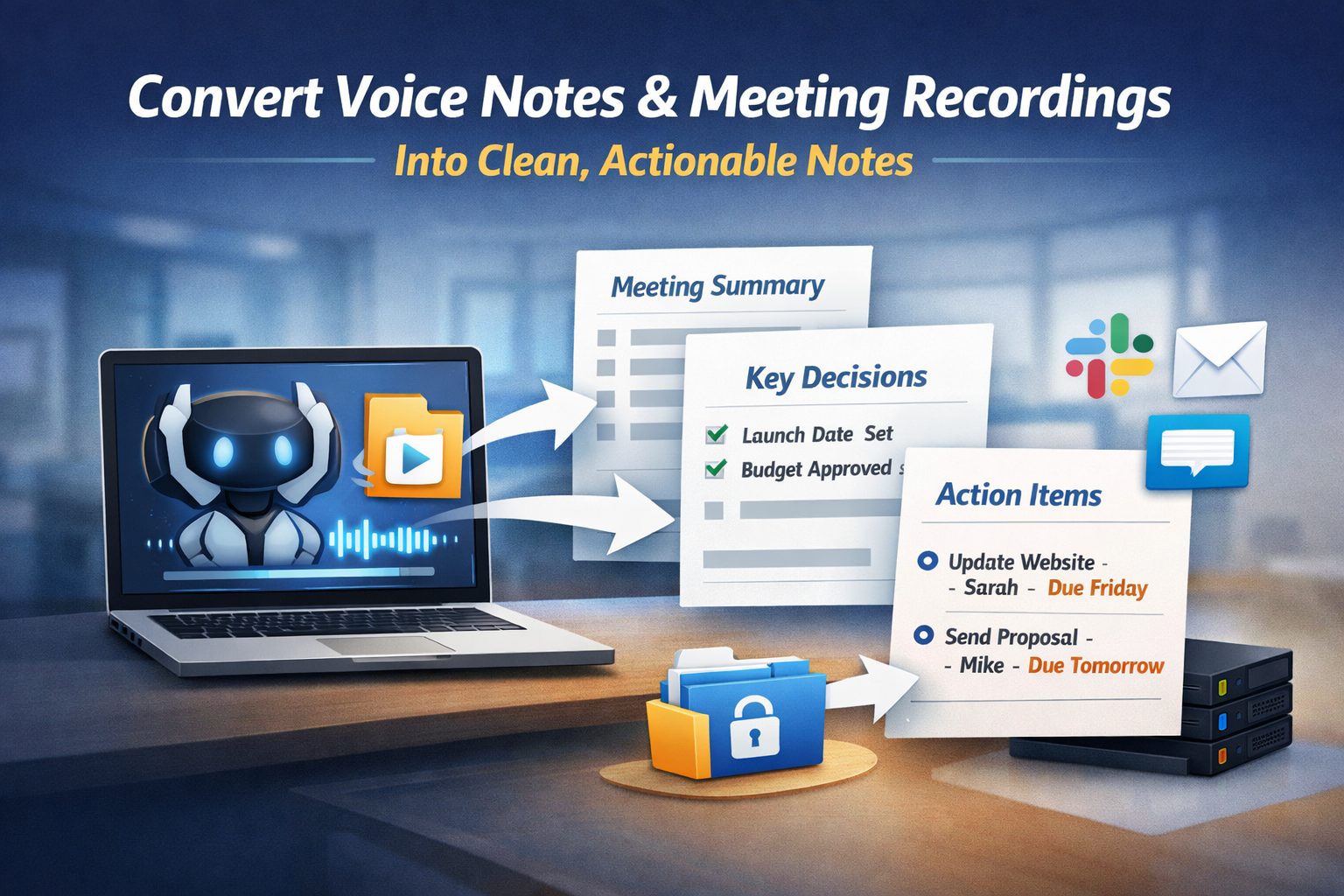
Upload the meeting file to the agent. OpenClaw transcribes the conversation and analyzes it for meaning. It produces a short summary, lists finalized decisions, and extracts action items with assigned owners and deadlines.
You can send the output directly to Slack, email it to participants, or store it in a shared folder for reference.
Example:
Transcribe this meeting recording.
Create:
A three-paragraph summary
A list of finalized decisions
A list of action items with owner and deadline
Keep the language clear and direct.
This workflow replaces replaying meetings with clear documentation. A VPS keeps the process reliable, especially when recordings upload automatically after each call.
7. Track CI/CD pipelines and deployment events
Systems rarely fail without warning. Disk usage climbs. CPU spikes persist. A deployment fails silently. OpenClaw can monitor infrastructure and CI/CD pipelines in real time and notify you when something breaks.
Connect it to your server metrics and pipeline tools such as GitHub Actions, GitLab CI, or Jenkins. Define thresholds and trigger conditions that matter to you.
You can configure alerts for:
- Disk usage above 85 percent
- CPU usage above 80 percent for five minutes
- Memory pressure beyond safe limits
- Failed builds or deployments
- Test suites that exceed the expected runtime
Example:
Monitor my production server and GitHub Actions workflows.
Alert me if disk usage exceeds 85 percent.
Notify me when any workflow fails.
Include the commit message and link to the run.
Instead of checking dashboards constantly, you receive actionable alerts when attention is required. A VPS keeps monitoring active 24/7, even outside working hours.
8. Summarize emails and track deliveries from one inbox workflow
Order confirmations and shipping updates flood your inbox. Tracking numbers hide inside long emails, and you jump between carrier sites just to check status. OpenClaw can handle tracking automatically.
Start by connecting a dedicated inbox where order confirmations arrive. OpenClaw scans incoming emails, extracts tracking numbers, and stores them in a simple list. It then checks carrier APIs for updates such as shipped, out for delivery, delayed, or delivered.
You can configure alerts for important changes. The agent can notify you when a package goes out for delivery or when a shipment stalls and needs follow up.
Example
Monitor my “Orders” inbox.
Extract tracking numbers from new emails.
Check delivery status daily.
Notify me when a package is out for delivery or delayed.
A VPS keeps this monitoring active around the clock. Instead of checking multiple websites, you receive timely updates in one place.
9. Produce marketing visuals faster
Design work often slows publishing. You switch tools, adjust layouts, and tweak colors just to create one social visual.OpenClaw can generate consistent, on brand images using predefined styles and dimensions.
Start by defining your brand rules. Specify colors, fonts, layout style, image size, and tone. The agent follows those constraints every time it generates a visual. You maintain consistency without opening separate design software.
You can store brand presets such as:
- Primary and secondary color palette
- Font style and weight
- Background style such as gradient or solid
- Standard sizes like 1200 × 630 px
Example:
- Create a 1200 × 630 px social image.
- Use my dark blue gradient background preset.
- Add white headline text: “5 VPS Security Mistakes to Avoid.”
- Include minimalist security iconography.
- Save to /images/social/.
The agent generates the image and saves it to your chosen directory. A VPS keeps the workflow available whenever new content goes live.
10. Monitor brand mentions and handle community replies faster
Community questions repeat every day. Pricing details, feature clarifications, setup instructions, and refund policies appear across comments and chat threads. OpenClaw can draft fast, on brand replies based on predefined guidelines.
Prepare approved messaging for common scenarios. Define tone, style, and boundaries. When a new question appears in Discord, Telegram, or social media, you ask OpenClaw to generate a response using those rules.
Example:
A user asked: “Does this plan support multiple domains?”
Draft a friendly, clear reply.
Tone: professional but approachable.
Mention upgrade options if relevant.
Keep it under 120 words.
The agent produces a draft that you review before posting. You stay in control while reducing repetitive typing. A VPS ensures the assistant remains available during busy launches or high traffic periods, so response time stays fast and consistent.
11. Get a daily snapshot of weather, events, and news
A daily morning brief gives you the essentials before you touch any apps. It keeps your brain out of scroll mode and still helps you start informed.

OpenClaw can send one message that includes the weather, your first few calendar events, and the headlines you care about. You control the sources and the length, so it stays readable.
Set a fixed delivery time such as 7:00 AM. Use OpenClaw’s built in scheduler or a cron job to trigger it daily. A VPS keeps the agent online 24/7, so the brief arrives even if your laptop sleeps.
OpenClaw pulls data from:
- Weather APIs
- Calendar integrations
- News RSS feeds
Example:
Every day at 6:30 AM, send me a brief with:
Today’s weather in [your city]
My first three calendar events
Top three headlines from BBC News
Keep it under 150 words.
This workflow replaces three separate checks with one easy update.
12. Send scheduled KPI and performance snapshots to your team
Teams waste time logging into dashboards just to check a few numbers. Repeated questions slow momentum. OpenClaw can pull key metrics and post structured updates to Slack or Discord on a schedule.
Connect it to your data sources such as Stripe, Google Analytics, or internal dashboards. Define which numbers matter most. The agent retrieves the metrics, formats a short summary, and posts it to your selected channel. It can also attach a screenshot if needed.
Example:
Every Monday at 9 AM:
Pull last week’s revenue from Stripe.
Get traffic data from Google Analytics.
Include active subscription count.
Post a concise summary to #weekly-report in Slack.
Attach a screenshot of the dashboard.
This workflow keeps everyone aligned without granting full dashboard access. A VPS ensures the report runs consistently, even during weekends or holidays.
13. Brand Monitoring Reports
Important conversations about your brand often happen when you are not watching. Mentions, complaints, and praise can slip by during busy weeks. OpenClaw can track brand mentions across selected platforms and send you a structured report on a schedule.
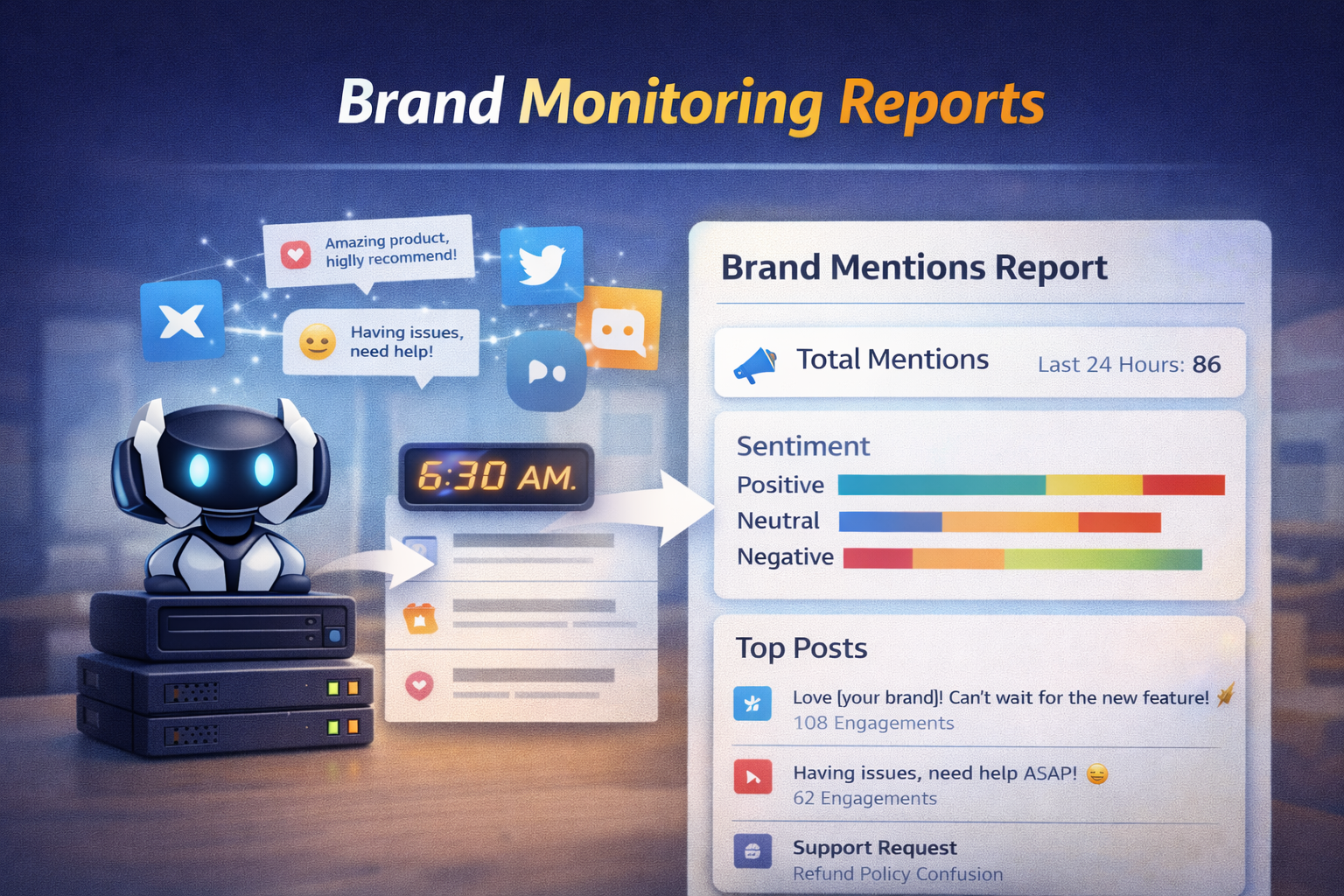
Connect it to platforms such as X or other social channels that provide search access. The agent scans recent mentions of your brand name, analyzes sentiment, and identifies posts that drive engagement or require attention.
The report can include:
- Total mentions in the last 24 hours
- Sentiment breakdown, such as positive, neutral, and negative
- Top engaged posts
- Complaints or support requests that need a response
Example:
Every day at 9 AM, search for mentions of “[your brand name]” from the past 24 hours.
Summarize total mentions, sentiment breakdown, top posts, and any complaints that need action.
A VPS keeps monitoring continuously. You receive clear updates without living inside social feeds.
14. Automate new client onboarding and follow-up tasks
Client onboarding often follows the same checklist. Create folders. Send a welcome email. Schedule a kickoff call. Add tasks. Manual repetition increases the chance of missing a step. OpenClaw can turn onboarding into a repeatable workflow.
When a new client signs, you provide their name and email. The agent then creates a dedicated project folder in Google Drive or Dropbox, sends a welcome email with next steps, schedules a kickoff call based on your availability, and adds follow-up tasks to your task manager.
Example:
New client:
Name: Sarah Ahmed
Email: sarah@email.com
Create a project folder.
Send a welcome email with next steps and the booking link.
Schedule a kickoff call this week.
Add onboarding tasks to my task manager.
Define the workflow once and reuse it for every new client. A VPS ensures the automation runs reliably even when multiple clients sign up at the same time.
15. Advanced Workflows (Dev + Ops Automation)
Some workflows go beyond simple automation. They require analysis, planning, and controlled system interaction. OpenClaw can support advanced development and operations tasks when configured with proper guardrails.
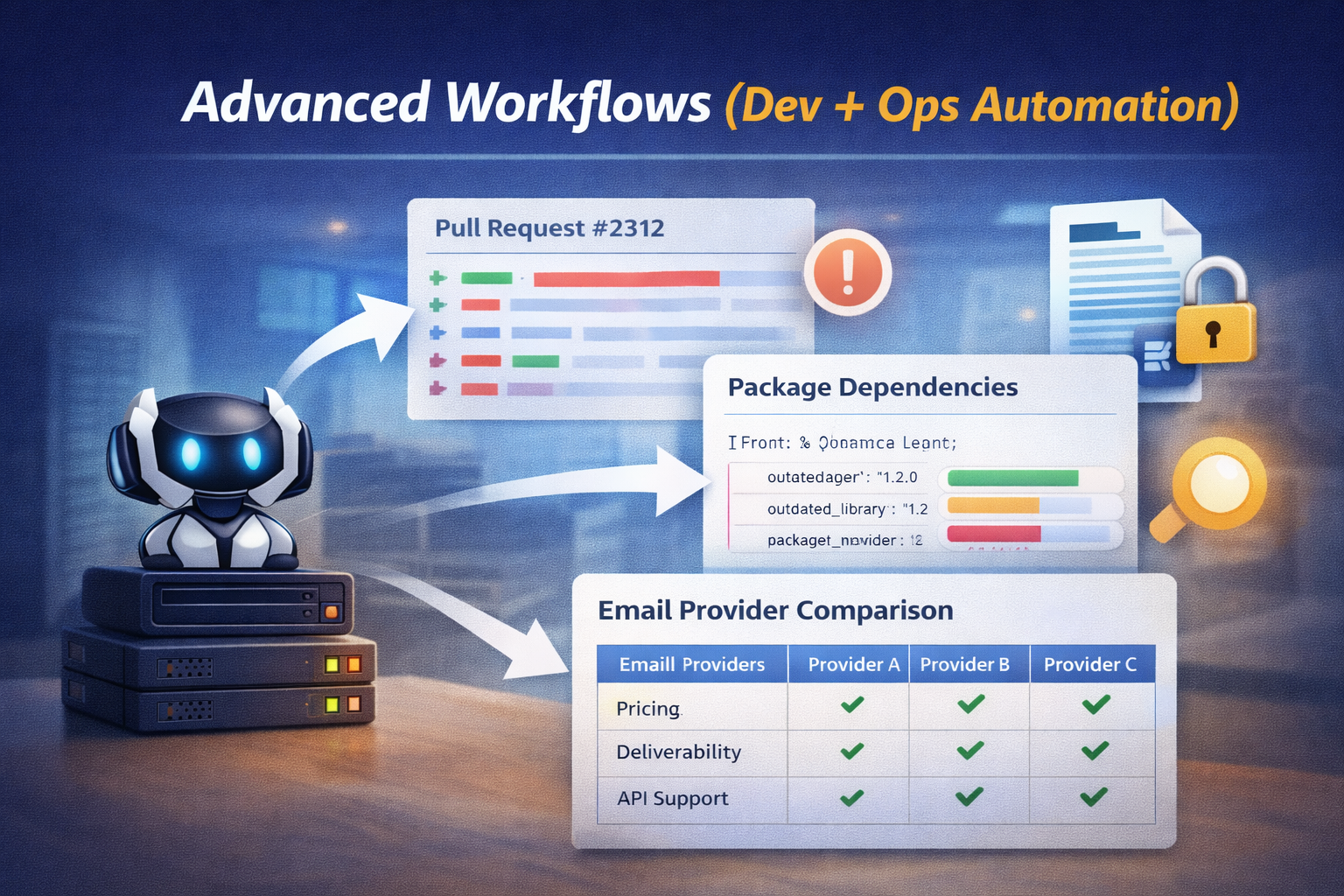
It can summarize pull request diffs and highlight key changes before review. It can scan project files such as package.json or requirements.txt to flag outdated dependencies and suggest upgrade plans. It can research tools or vendors and compile structured comparison reports based on defined criteria.
For sensitive environments, you can run a private document assistant by connecting OpenClaw to a locally hosted model. This setup allows you to analyze contracts, reports, and internal documents without sending data to external APIs.
It can also automate controlled browser tasks for internal dashboards that do not provide APIs. Use this only in trusted environments and avoid high-risk actions such as payments or account changes.
Example:
Summarize this pull request and highlight risky changes.
Scan my dependencies and flag outdated packages with security impact.
Compare three email providers based on pricing, deliverability, and API support.
These advanced workflows require strict permissions, detailed logging, and staged testing. When configured carefully on a VPS, OpenClaw moves from basic automation into structured Dev and Ops assistance without sacrificing control.
🦀 OpenClaw in action: A full SaaS app built in 4 days
OpenClaw shines most when the task goes beyond “generate code” and turns into “ship a real system.” At xCloud, we used an OpenClaw agent running on xCloud to build ManageRoster, a complete support roster and reporting application that solves a daily operational headache for distributed teams.
The agent handled the end-to-end execution loop through Telegram: planning features, writing code, running tests, opening PRs, merging after approval, tagging releases, and deploying through a Git-based Laravel pipeline. The build moved fast, but it stayed structured. The result went far beyond a demo.
The team shipped roster scheduling, leave and holiday logic, missed-report tracking with alerts, “who’s online” visibility, overtime workflows, and Slack integration. The build also produced a full content layer, including documentation pages with real screenshots and SEO posts that match the product’s target audience.
🚀 If you want to see the full build story, the workflow, and the real scope of what shipped, read this blog.
Why You Should Host OpenClaw On A Managed VPS?
Many OpenClaw use cases rely on rock-solid reliability. You can test OpenClaw on a personal machine, but production automation needs true 24/7 uptime.
A VPS gives OpenClaw a stable home with:
- Always-on availability
- Reliable network access
- Controlled system permissions
- Secure environment variables for API keys
- Firewall protection
- Backup and recovery options
When comparing managed vs self hosting, the difference becomes clear very quickly. A self-managed VPS offers full control, but it also requires ongoing effort. You must configure firewalls, manage SSL, apply system updates, monitor uptime, and handle backups on your own. That workload slows momentum for many developers, founders, and agencies.
xCloud removes that friction by offering a managed VPS built for production workloads.
With xCloud, you get:
- Dedicated VPS infrastructure
- Managed firewalls
- Automated backups
- Preconfigured SSL
- A centralized control dashboard
- Simple deployment workflows
You skip the infrastructure grind and focus on what matters most. You design workflows, build automations and ship faster. Reliable hosting turns OpenClaw from a side experiment into a system you can trust, whether you automate meal plans, client onboarding, or CI/CD pipelines
How to run OpenClaw securely on a VPS
Strong automation needs strong guardrails. OpenClaw can execute commands, call APIs, access files, and control external systems. Poor security choices turn power into risk. The practices below rank by real-world impact, starting with the most effective. Follow these security best practices for OpenClaw.
1. Use managed hosting with automatic CVE patching
This step removes the biggest security risk. Most breaches happen because of credential abuse and unpatched vulnerabilities. Managed hosting takes patching out of your hands. When new CVEs appear, the platform applies fixes immediately.
xCloud runs OpenClaw in isolated containers with automatic updates, preconfigured firewalls, SSL certificates, and monitoring. You avoid Docker setup, firewall rules, and exposed ports entirely. Best impact. Lowest effort.
2. Harden your Docker configuration if you self-host
Docker becomes your primary security boundary when you self-host OpnClaw. Run containers as non-root users. Drop unnecessary Linux capabilities. Use read-only filesystems. Mount only the exact directories OpenClaw needs.
Never mount the Docker socket or your home directory. This approach offers strong containment but demands deep Docker knowledge and ongoing maintenance.
3. Lock down network exposure
Many exposed OpenClaw instances still run over unencrypted HTTP. Bind services to localhost. Disable mDNS. Configure a firewall such as UFW. Use a private network like Tailscale for remote access. Encryption and network isolation block unauthorized entry before it starts.
4. Secure API keys and credentials
Leaked secrets cause silent damage. Store all credentials in environment variables or a secrets manager. Lock file permissions. Use dedicated API keys with spending limits. Rotate tokens on a regular schedule. Never hardcode secrets into configs or prompts.
5. Audit and restrict ClawHub skills
Skills act as executable code. Review the source code before installation. Pin versions. Verify publishers. Remove unused skills. Run the OpenClaw security audit command often to catch risky behavior early.
6. Enable sandbox mode and tool restrictions
Prompt injection attacks can trigger harmful actions. Enable sandbox mode. Restrict tool access with allowlists. Require approval for sensitive operations. Choose stronger LLM models, since weaker models fall for injection more easily.
7. Implement logging and monitoring
Visibility prevents surprises. Log every action OpenClaw executes. Track API usage and spending alerts. Rate-limit authentication. Review logs weekly. Fast detection turns incidents into minor events instead of disasters.
Security makes automation sustainable. A properly secured VPS, especially with managed hosting, lets OpenClaw automate real work and daily life with confidence and control
Why Managed Hosting Is the Recommended Way to Run OpenClaw
You can deploy OpenClaw on any VPS. You can provision a server, configure firewalls, install dependencies, secure SSH, set up backups, and manage updates yourself.
It also pulls your attention away from automation design and into infrastructure maintenance.
Most people adopt OpenClaw to automate work, not to babysit servers. xCloud removes that burden.
Instead of managing raw infrastructure, you get a managed VPS environment built for real workloads. xCloud handles firewall configuration, automated backups, SSL support, and server management through a centralized dashboard.
This setup creates clear benefits for different teams:
- Developers deploy faster and spend less time on base security
- Founders get reliable uptime for monitoring, reporting, and operations
- Agencies maintain consistent environments across multiple client automations
- AI builders and tinkerers run a stable sandbox that stays online 24/7
OpenClaw depends on continuous availability. Scheduled tasks, CI/CD monitoring, brand tracking, and system alerts cannot tolerate downtime. Hosting OpenClaw on xCloud turns it from a laptop experiment into production-grade AI infrastructure.
You keep control, get flexibility and remove the friction that slows real automation.
Though, you can also test OpenClaw on a personal machine, but production automation requires constant uptime. A VPS gives you:
- Always-on availability
- Stable network access
- Controlled system permissions
- Secure environment variables for API keys
- Firewall protection
- Backup and recovery options
An unmanaged VPS offers maximum control, but it also demands manual setup for firewalls, SSL, updates, monitoring, and backups. That overhead slows progress for many developers, founders, and agencies. xCloud delivers a managed VPS environment designed for production workloads. With xCloud, you get:
- Dedicated VPS infrastructure
- Firewall management
- Automated backups
- SSL configuration
- Centralized dashboard control
- Simple deployment workflows
Instead of spending hours on infrastructure setup, you focus on workflows and automation logic.
Whether you automate meal planning, client onboarding, or CI/CD pipelines, reliable hosting turns OpenClaw into a system you can depend on.
⚡How to get started with OpenClaw on xCloud
Starting with OpenClaw does not require a complex setup or deep infrastructure knowledge. Begin by deciding what you want to automate first. Pick one low-risk use case such as a morning brief, email summaries, or server health alerts. Clear scope reduces mistakes and builds confidence.
Next, deploy a VPS on xCloud. The managed environment gives you a secure base with firewall rules, backups, and SSH access already handled. You avoid spending days on server hardening before automation even begins. Install OpenClaw on the server and configure only the integrations you need. Add API keys through environment variables. Set limits early. Define which commands are allowed. Enable logging from day one.
Test each workflow manually before scheduling it. Confirm outputs look correct. Adjust prompts and permissions until behavior feels predictable. Once the first automation runs smoothly, expand gradually. Add new workflows one at a time. Review logs regularly. Treat your agent like production software, not a chatbot.
This approach keeps OpenClaw useful, safe, and reliable as it grows with your needs.
Common mistakes to avoid when automating with OpenClaw
Automation saves time, but careless setup often creates new problems that slow progress instead of improving it. Avoid the following mistakes to keep your OpenClaw workflows stable, secure, and predictable.
- Enabling too many permissions at once
Many users activate shell access, email, calendar, browser control, and file system permissions together without clear need. This approach increases security risk and makes debugging far more difficult when something goes wrong. Start with the minimum permissions required for each workflow and expand access only when a real dependency appears.
- Skipping proper logging and visibility
Automation without detailed logs leaves you guessing why a workflow behaved incorrectly or stopped working. Logging provides context, exposes failures, and helps you track changes over time, which turns automation into a system you can confidently operate and improve.
- Automating high-risk actions too early
Payments, account changes, and destructive server operations introduce serious consequences when mistakes occur. Early workflows should focus on read-only tasks, monitoring, and notifications, allowing you to validate logic before moving into actions that modify systems or data.
- Ignoring failure scenarios and edge cases
External APIs can fail, sessions can expire, and rate limits can interrupt execution at any time. Reliable automations include error handling, retries, and alerts so issues surface immediately instead of failing silently in the background.
- Treating OpenClaw as a shortcut instead of software
OpenClaw delivers the best results when you approach it like production software with clear structure, testing, and iteration. This mindset reduces risk, improves reliability, and ensures automation continues working as complexity grows.
Automate Better, Include OpenClaw in Your Workflow & Get Long-Term Value
OpenClaw enables powerful automation, but real value comes from automating the right tasks instead of everything. The gap between a clever demo and a dependable system depends on clear scope, strong guardrails, and reliable hosting.
Running OpenClaw on a stable VPS like xCloud keeps your automations online, secure, and dependable without constant effort. Start with small workflows that solve real problems. Build trust through consistent results. Expand carefully as confidence grows.
With this approach, OpenClaw becomes more than an AI agent. It becomes a reliable part of how you work every day 🚀