










If you have been working with Docker for a while, you already know how powerful it is for packaging and running applications inside containers. But here is a common challenge that most developers face very quickly: what happens when your app needs more than one container to work?

For example, a web app might need a Node.js server, a MySQL database and a caching layer all running at the same time. Managing each of those containers separately using Docker run commands gets messy and hard to maintain very fast. That is exactly where Docker Compose steps in to make your life much easier.


This guide is a complete tutorial built for beginners and intermediate developers who want to understand what Docker Compose is, how it works and how to use it with a real working example.
What Is Docker Compose?
Docker Compose is an official Docker tool that helps you define and run multi-container Docker applications using a single configuration file. Instead of running multiple docker run commands one by one, you describe all your services, networks and volumes in one place and then start everything together with one simple command.
The configuration file is called docker-compose.yml and it uses YAML syntax. Inside this file, you list each service your application needs, what image it uses, what ports it exposes, what environment variables it requires and how the services talk to each other.
It is the glue that connects all your containers so they can work as one complete application. It is especially useful for local development with Docker Compose since you can spin up your entire development environment in seconds without installing anything directly on your machine.
It works by applying all the services and configurations defined in your Compose file to create and manage a full application stack. It handles networking between containers automatically and makes it easy to stop or restart everything at once.
Why Use Docker Compose Instead of Docker Run?
Docker Compose is preferred over docker run when you need to manage multiple containers, define configurations in a reusable YAML file and simplify orchestration. docker run is best for quick, one-off container launches, while Compose is designed for structured, multi-service environments.
Key Differences
If you have ever wondered when to use docker run versus Docker Compose, here’s the breakdown:
| Feature | docker run | Docker Compose |
| Configuration | Command-line only | YAML file (docker-compose.yml) |
| Scope | Starts one container at a time | Can start multiple containers together |
| Complexity | Simple, manual setup | Handles networks, volumes, dependencies |
| Reusability | Commands must be repeated | Config file reusable across environments |
| Best Use Case | Quick tests, single container apps | Multi-service apps (e.g., web + DB + cache) |
🟢 Why Use Docker Compose?
Multi-Container Orchestration: Compose lets you define and run entire application stacks (e.g., Nginx + MySQL + Redis) with one command:
docker compose up
- Declarative Configuration: Instead of long docker run commands, you store settings (ports, volumes, environment variables) in a YAML file. This makes setups repeatable and shareable across teams.
- Networking Made Easy: Compose automatically creates a network for your services, so containers can communicate by service name (e.g., db instead of IP addresses).
- Environment Consistency: The same docker-compose.yml can be used in development, testing and production, ensuring consistency across environments.
- Scaling Services: You can scale services easily:
docker compose up --scale web=3
This spins up multiple instances of a service without extra manual commands.
⚖️ When to Use Each
- Use docker run if…
- You are testing a single container quickly.
- You don’t need persistent configuration.
- Example: Running a one-off Ubuntu container to check a command.
- Use Docker Compose if…
- Your app has multiple services (web, database, cache).
- You want to automate and share configurations.
- You need to scale or replicate services easily.
⚠️ Trade-Offs & Risks
- Learning Curve: Compose requires understanding YAML syntax and service definitions.
- Overhead: For very simple apps, Compose may feel like overkill compared to a single docker run.
- Production Use: While Compose is great for development, production deployments often use Docker Swarm or Kubernetes for advanced orchestration.
👉 In short: docker run is for quick, single-container tasks; Docker Compose is for structured, multi-container applications.
If you are building microservices with Docker or working on a Docker Compose for web apps, it is the standard approach that keeps everything organized and repeatable.
What Is Docker Compose YAML File?
The docker-compose.yml file is the heart of every Compose project. The file is written in YAML format, which is indentation-based and easy to read once you know the basic structure.
Here are the main sections you will find in a typical docker-compose.yml:
- services define each container your app needs. Each service gets a name and a set of options like which image to use, which ports to expose and which environment variables to pass in.
- image tells Docker which image to pull for that service. For example, image: mysql:8 pulls the official MySQL 8 image from Docker Hub.
- build is used when you want Docker to build an image from a local Dockerfile instead of pulling one from a registry. You point it to the folder containing your Dockerfile.
- ports maps a port on your host machine to a port inside the container. The format is host_port:container_port. This is sometimes called Docker Compose port mapping and it is how you access a running service from your browser or terminal.
- volumes lets you persist data or share files between the host and the container. For a database service, this means your data will not disappear when the container stops.
- environment passes environment variables into the container. This is how you provide things like database passwords or API keys securely at runtime. Managing Docker Compose environment variables properly is an important best practice.
- networks give you control over how services communicate. By default, Docker Compose puts all services in the same network so they can talk to each other using service names as hostnames.
- depends_on tells Compose which services must start before a given service. For example, your web app should wait for the database service to be ready before it starts.
How to Write Docker Compose YAML File: Node.js & MySQL Example
Now it is time to put theory into practice with a real Docker Compose example. Before you begin, make sure Docker is installed on your machine. Docker Compose is included with Docker Desktop, so you do not need to install it separately on most systems.
Prerequisites
Before you start:
- Docker Engine installed (v20.10+)
- Docker Compose v2+ (loaded as a Docker CLI plugin)
- Basic Docker knowledge (images, containers, volumes)
- A text editor or IDE for editing YAML
Verify the setup:
docker compose version
If you see a version, you are ready. From here, this guide uses the modern docker compose syntax (not older docker-compose).
Creating Your First Docker Compose File
Creating your first Docker Compose file is the easiest way to run multiple containers together without hassle. Instead of managing each container separately, you define everything in one simple YAML file. This helps you set up services, networks and dependencies in a clean and organized way. Once ready, you can start everything with a single command.
Create a file named docker-compose.yml:
version: '3.8'
sices:
web:
image: nginx:alpine
ports:
- "8080:80"erv
Spin it up:
bash
docker compose up
Stop it:
bash
docker compose down
Even simpler, you can run it in detached mode:
bash
docker compose up -d
docker compose ps
docker compose logs web
docker compose down
This is the basic Docker Compose workflow: define, start, inspect and clean up.
The Docker Compose File Structure
The Docker Compose file structure defines how your containers work together in one place. It uses a simple YAML format to organize services, networks, and volumes. Each section has a clear role, making your setup easy to read and manage. Once you understand the structure, building and scaling apps becomes much simpler.
A docker-compose.yml usually looks like this:
version: '3.8'
services:
web:
image: nginx:alpine
networks:
frontend:
backend:
volumes:
app-data:
db-data:
configs:
nginx-conf:
secrets:
db-password:
At the top‑level, the main keys are:
- services – your containers
- networks – internal networks
- volumes – persistent storage
- configs and secrets (Swarm‑mode, useful later)
A minimal example:
version: '3.8'
services:
web:
image: nginx:alpine
ports:
- "80:80"
Configuring Services in Docker Compose
Configuring services in Docker Compose means defining how each container should run inside your application. You set the image, ports, environment variables, and dependencies for every service. This helps different parts of your app communicate smoothly. With proper configuration, you can control behavior, scaling and runtime settings in a clean and organized way.
You can define services using an image or a build context.
Image‑based Services
Image-based services in Docker Compose are containers created directly from a Docker image. You simply specify the image name and Docker pulls it from a registry if it is not available locally.
This makes setup fast since you do not need to build everything from scratch. It is a simple way to run ready-made applications or preconfigured environments.
services:
database:
image: postgres:15-alpine
environment:
POSTGRES_PASSWORD: secretpass
ports:
- "5432:5432"
Build‑based Services
Build-based services in Docker Compose are created from your own application code instead of a prebuilt image. You point Compose to a Dockerfile and it builds the image before starting the container.
This approach is useful when you are developing or customizing your app. It ensures your latest code changes are always included when you run the service.
services:
app:
build: .
ports:
- "3000:3000"
api:
build:
context: ./api
dockerfile: Dockerfile.prod
args:
NODE_ENV: production
Port Mapping
Port mapping in Docker Compose connects a container’s internal port to a port on your host machine. This allows you to access the running service from your browser or local system.
You define it in a simple format, making services reachable outside the container. It is essential for testing and interacting with web applications running in Docker.
services:
web:
image: nginx
ports:
- "8080:80"
- "8443:443"
- "127.0.0.1:9000:9000"
- "3000-3005:3000-3005"
Environment Variables And .env Files
Environment variables in Docker Compose let you pass configuration values to your containers without hardcoding them. You can define them directly in the compose file or store them in a separate .env file.
This keeps your setup clean and makes it easier to manage different environments like development and production. It also helps protect sensitive data such as API keys and passwords.
services:
app:
image: node:18-alpine
environment:
NODE_ENV: production
DATABASE_URL: postgres://db:5432/mydb
env_file:
- .env
.env file:
text
NODE_ENV=production
DATABASE_URL=postgres://db:5432/mydb
Volumes And Restart Policies
Volumes in Docker Compose let you store data outside the container so it does not get lost when the container stops or restarts. This is useful for databases and files that need to persist over time.
Restart policies control how and when a container should restart if it crashes or the system reboots. Together, they help keep your application stable and data safe without manual intervention.
services:
app:
image: node:18-alpine
volumes:
- ./app:/usr/src/app
- app-data:/app/data
restart: unless-stopped
Dependencies, Health Checks And Resource Limits
Dependencies in Docker Compose define the order in which services start, ensuring one service runs only after another is ready. Health checks monitor whether a container is working correctly and can automatically restart it if something goes wrong.
Resource limits help control how much CPU and memory each service can use. Together, they improve reliability, stability and performance of your application.
services:
web:
image: nginx
depends_on:
- api
- cache
healthcheck:
test: ["CMD", "curl", "-f", "http://localhost"]
interval: 30s
timeout: 10s
retries: 3
start_period: 40s
deploy:
resources:
limits:
cpus: '2'
memory: 1G
reservations:
cpus: '0.5'
memory: 512M
Networks And Volumes in Compose
By default, Compose creates a network where services talk via their names. You can also define custom networks:
version: '3.8'
services:
web:
image: nginx
networks:
- frontend
api:
image: node:18-alpine
networks:
- frontend
- backend
database:
image: postgres
networks:
- backend
networks:
frontend:
backend:
Volumes work the same way:
text
services:
database:
image: postgres:15-alpine
volumes:
- db-data:/var/lib/postgresql/data
volumes:
db-data:
Environment Variables And Substitution
Environment variables in Docker Compose let you pass dynamic values into your services without changing the file each time. Substitution allows you to reuse these variables inside the compose file using a simple syntax.
This makes your setup flexible and easier to manage across different environments like testing and production. It also reduces repetition and keeps configuration clean and consistent.
You can use variable substitution in your docker-compose.yml:
services:
web:
image: nginx:${NGINX_VERSION:-latest}
ports:
- "${WEB_PORT:-8080}:80"
With a .env file in the same directory:
text
NGINX_VERSION=alpine
WEB_PORT=8080
This following example will set up a simple Node.js web app connected to a MySQL database. This is a classic Docker Compose for Node.js and MySQL stack that you will encounter in many real projects.
Project Structure
Your project folder should look like this:
my-app/
├── docker-compose.yml
├── app/
│ ├── Dockerfile
│ └── index.js
The Node.js App (index.js)
The Node.js app (index.js) in Docker Compose is the main entry file that runs your application inside a container.
It defines how your server starts, handles requests, and connects with other services like databases. When used with Docker Compose, this file runs in a consistent environment every time. This makes development, testing and deployment more reliable and predictable.
Here is a Node.js app that connects to MySQL and responds to HTTP requests:
const express = require('express');
const mysql = require('mysql2');
const app = express();
const db = mysql.createConnection({
host: 'db',
user: 'root',
password: 'rootpassword',
database: 'myapp'
});
app.get('/', (req, res) => {
db.query('SELECT 1 + 1 AS solution', (err, results) => {
if (err) return res.send('DB Error: ' + err.message);
res.send('DB result: ' + results[0].solution);
});
});
app.listen(3000, () => console.log('App running on port 3000'));
Notice that the host for the database connection is set to db. That is the service name you will define in the Compose file. Docker Compose automatically handles the DNS resolution between services, so db resolves to the MySQL container.
The Dockerfile for the App
The Dockerfile for the app defines how your application is built into a Docker image. It includes steps like choosing a base image, copying your project files, installing dependencies and setting the startup command.
This file ensures your app runs the same way in any environment. With Docker Compose, it is used to create a service from your custom-built image.
FROM node:18-alpine
WORKDIR /app
COPY . .
RUN npm install express mysql2
CMD ["node", "index.js"]
The docker-compose.yml File
The docker-compose.yml file is the main configuration file in Docker Compose. It defines all your services, images, ports, volumes and environment settings in one place.
This file helps you run multiple containers together with a single command. It keeps your setup organized, repeatable, and easy to manage across different environments.
Here is the complete docker-compose.yml file that defines services with Docker Compose and wires the whole stack together:
version: '3.8'
services:
app:
build: ./app
ports:
- "3000:3000"
environment:
- NODE_ENV=development
depends_on:
- db
networks:
- appnet
db:
image: mysql:8
restart: always
environment:
MYSQL_ROOT_PASSWORD: rootpassword
MYSQL_DATABASE: myapp
volumes:
- db_data:/var/lib/mysql
networks:
- appnet
volumes:
db_data:
networks:
appnet:
This file does several important things at once. The app service is built from your local Dockerfile, maps port 3000 from the container to port 3000 on your machine and waits for the db service to start.
The db service runs the official MySQL image, sets the root password and database name through environment variables and saves data to a named volume called db_data so your database is not wiped when containers restart.
How to Run Your Docker Compose Stack
Running your app once the docker-compose.yml is ready is simple. Open your terminal in the project folder and use the following command.
Start the Stack
docker compose up
This is the Docker Compose up command and it does everything in one shot. It builds the app image, pulls the MySQL image, creates the network and volumes and starts both containers.
You will see logs from both services in your terminal. Once it is running, open your browser and go to http://localhost:3000 to see your app.
To run the stack in the background without filling your terminal with logs, add the -d flag:
docker compose up -d
Stop the Stack
docker compose down
This stops and removes all the containers and the default network. Your named volumes will be preserved unless you add the –volumes flag.
Quick Docker Compose Commands Cheat Sheet
Once your stack is running, you will use a handful of commands regularly. These are the commands you’ll use most:
# start services
docker compose up
docker compose up -d
# list services
docker compose ps
docker compose ps -a
# view logs
docker compose logs
docker compose logs -f
docker compose logs -f web
# execute commands inside a container
docker compose exec web sh
docker compose run web npm install
# build images
docker compose build
docker compose build web
docker compose build --no-cache
# validate and inspect config
docker compose config
# scale services
docker compose up -d --scale web=3
# stop and clean up
docker compose stop
docker compose down
docker compose down -v
docker compose down --rmi all
Practical Docker Compose commands cheat sheet to keep handy:
- docker compose up starts all services defined in the Compose file.
- docker compose up –build forces a rebuild of images before starting.
- docker compose down stops and removes containers and networks.
- docker compose ps shows the current status of all running services.
- docker compose logs displays output logs from all services.
- docker compose logs app shows logs for a specific service only.
- docker compose exec app sh opens a shell session inside a running container.
- docker compose stop stops running containers without removing them.
- docker compose restart restarts all services.
These commands cover the most common tasks you will do when working with your stack day to day. Mastering the Docker Compose CLI is a big part of becoming comfortable with Docker Compose DevOps workflows.
Docker Compose Best Practices
Getting Docker Compose to work is one thing but using it well over time is another. Following these Docker Compose best practices will save you from common mistakes and make your projects easier to manage.
- Always use named volumes for databases: Named volumes survive container restarts and docker compose down without data loss, unlike bind mounts.
- Do not hardcode secrets in the Compose file: Use a .env file to store sensitive values like database passwords and reference them in the Compose file using ${VARIABLE_NAME} syntax. This keeps secrets out of version control.
- Use depends_on carefully: This option controls start order but does not guarantee a service is fully ready. For production-grade setups, add a health check or a wait script to ensure your app does not connect before the database is actually accepting connections.
- Keep your images small: Use slim or alpine base images in your Dockerfiles to keep build times short and images lightweight, especially when building multiple services.
- Label and document your services: Adding comments to your docker-compose.yml makes it easier for teammates to understand the setup without digging through code.
How xCloud Supports Docker-Based Deployments
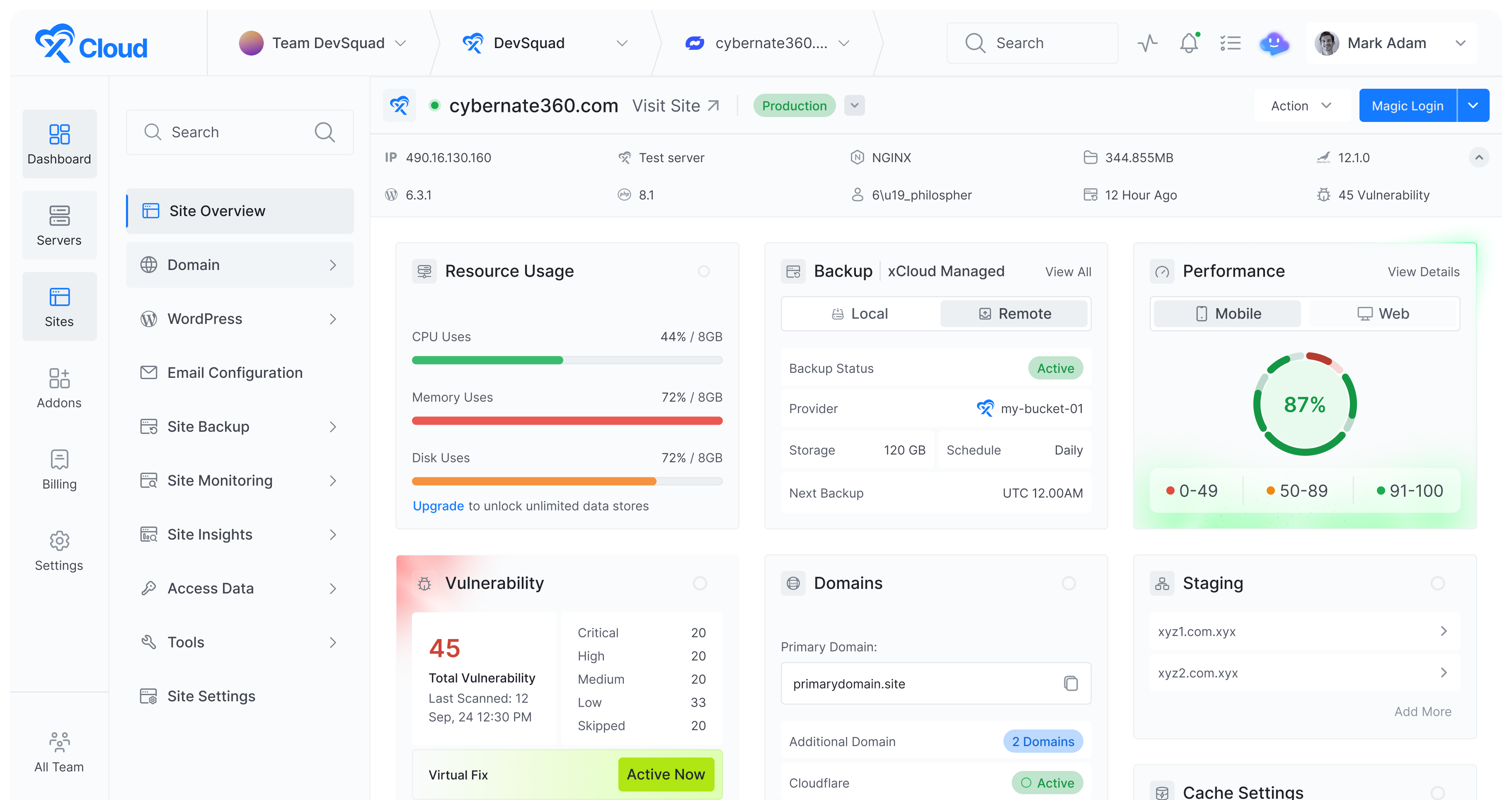
If you are looking to move beyond local development and actually host your Docker applications in the cloud, xCloud makes that process straightforward. xCloud is a cloud hosting platform that supports custom Docker deployments, so you can take the same application stack you built with Docker Compose and deploy it to a live server without complex configuration.

xCloud allows you to define your services, manage environment variables and handle container-based deployments through a clean interface. You can learn more about deploying custom Docker setups through the xCloud Docker deployment, which walks you through the full process step by step.
From Learning to Launch: What’s Next for You?
Docker Compose is one of the most useful tools in a developer’s toolkit, especially when building modern applications that rely on multiple services running together. It removes the headache of managing individual docker run commands and replaces them with a clean, readable docker-compose.yml file that anyone on your team can understand and use.
Whether you are just getting started with containers or looking to improve your Docker Compose DevOps workflow, the concepts covered here give you a solid foundation to build on. Once you are ready to take your containerized app live, platforms like xCloud make it easy to deploy Docker-based applications to the cloud with minimal friction.
Now it is your turn to write your own docker-compose.yml, run docker-compose up and see your stack come to life.
If you have found this blog helpful, feel free to subscribe to our blogs for valuable tutorials, guides, knowledge and tips on web hosting and server management. You can also join our Facebook community to share insights and take part in discussions.
Frequently Asked Questions About Docker Compose
Check out some of the most common questions people ask search engines about Docker Compose:
What is Docker Compose used for?
Docker Compose is used to define and run multi container Docker applications. It lets you describe your entire application stack in one YAML file and start or stop everything with a single command. It is especially popular for local development with Docker Compose and testing environments.
How do I install Docker Compose?
If you are using Docker Desktop on Windows or Mac, Docker Compose is already included. On Linux, you can install it as a plugin by following the official installation guide from Docker. You can verify it is working by running the docker compose version in your terminal.
What is the difference between Docker and Docker Compose?
Docker is the tool that creates and runs individual containers. Docker Compose is a tool that sits on top of Docker and lets you manage multiple containers together as a single application. They work together, with Docker handling the low level container operations and Compose handling the orchestration.
Can I use Docker Compose in production?
Docker Compose is primarily designed for Docker Compose for local development and testing. For large-scale production workloads, tools like Kubernetes or Docker Swarm are usually preferred because they offer more advanced features like auto scaling and high availability. That said, Compose can work well for smaller production deployments or self-hosted applications.
What is a docker-compose.yml file?
A docker-compose.yml file is the configuration file used by Docker Compose. It defines all the services, networks, volumes and environment settings your application needs. It uses YAML syntax and serves as the single source of truth for your entire application stack.