











Your site was fine an hour ago. Now every page loads a blank screen or a flat line of text: 500 Internal Server Error. No stack trace, no hint, no obvious next move, just a dead page and a sinking feeling.
If you run a WordPress site, manage servers for clients or just hit this on a page you were trying to read, the frustrating part is the same: the error tells you something broke without telling you what.
This guide walks through what the HTTP 500 Internal Server Error actually is, what causes a 500 Internal Server Error on WordPress and other stacks and exactly how to fix the 500 error step by step. We will also cover how 5xx server errors affect SEO and how to stop them coming back.
TL;DR (Too Long, Didn’t Read?)
Short on time? Here is the whole guide in a few lines:
- A 500 Internal Server Error is a catch-all signal that something failed on the server, not on your device or browser.
- The usual suspects are faulty plugins or themes, a broken .htaccess file, an exhausted PHP memory limit, wrong file permissions and database or server misconfiguration.
- It can hurt SEO: if Google keeps hitting 500s, it slows crawling and a persistent outage over several days can push pages out of the index.
- Fix it by reading your server logs first, then reversing recent changes, resetting .htaccess, raising the PHP memory limit and ruling out plugins one by one.
- Most 500s are fixed in minutes once you read the log, the error message you need is almost always already written down.
What Is HTTP 500 Internal Server Error?
HTTP 500 Internal Server Error is a server-side error response that tells your browser: ‘Something went wrong on my end and I do not know exactly what it is.’
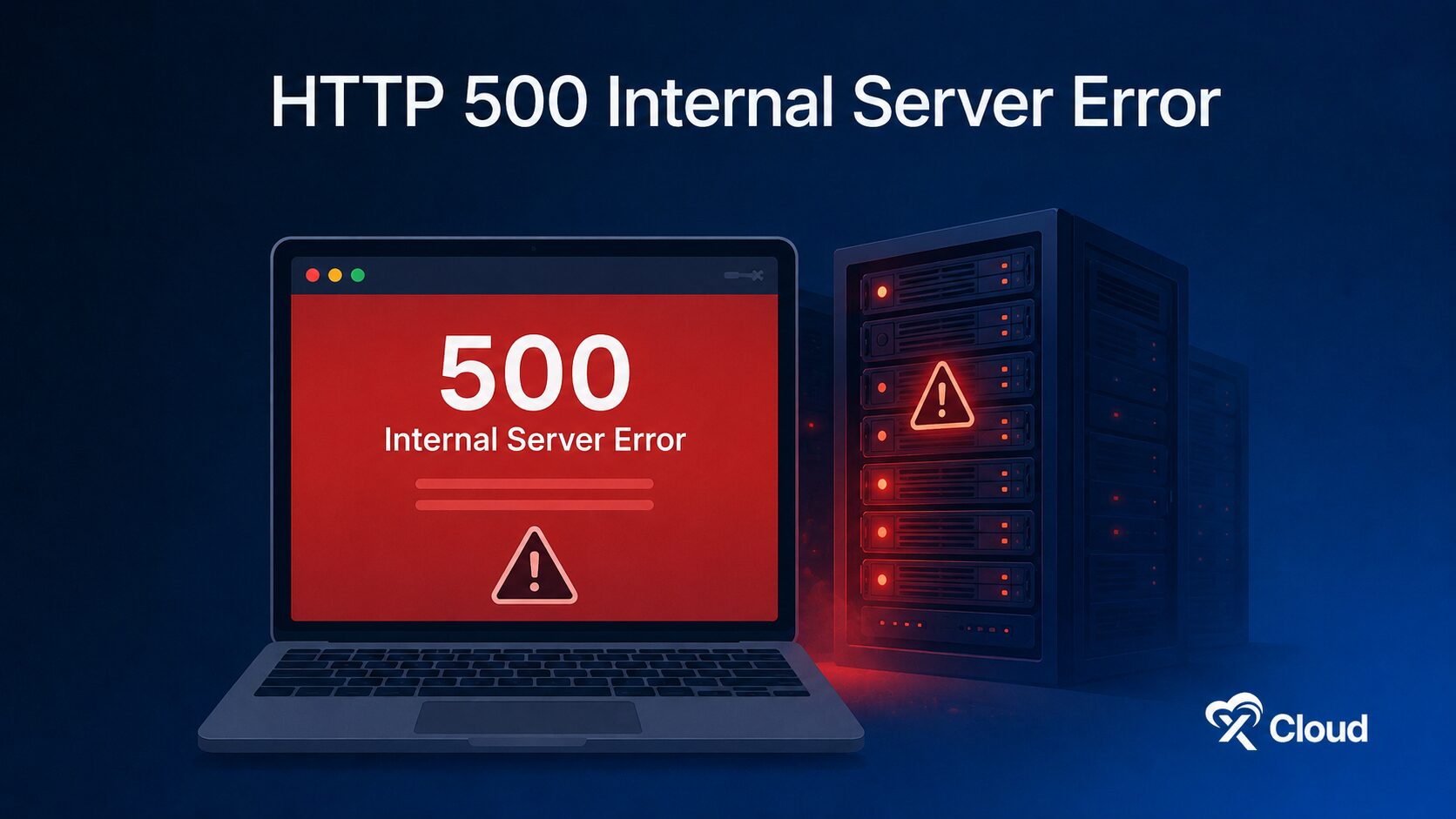
Every time you visit a website, your browser sends a request to a web server. The server processes that request and sends back an HTTP status code along with the page content. Status codes in the 5xx range are all about server failures. The 500 code specifically is what the MDN Web calls a generic ‘catch-all” response meaning the server encountered an unexpected condition that prevented it from fulfilling the request but it cannot pinpoint a more specific reason.
Think of it like calling a restaurant to place an order and the person on the phone says ‘We are having a problem right now, try again later’ without explaining what the problem is. The restaurant (server) knows it has a problem but it cannot give you the full details.
A Few Things Worth Knowing About the 500 Error
- It is a server-side problem, not something wrong with your browser, your connection or the visitor’s device.
- It belongs to the 5xx family of server errors (more on the rest of that family below).
- It is a generic fallback, the server reaches for 500 when no more specific 5xx code fits.
- It is one of the most common server errors on the web, which is exactly why a clear fix process is worth having on hand.
How the 500 Fits Into the Wider 5xx Family
The 500 is the broadest of the server errors, but it has relatives. Google’s Gary Illyes has noted on the Search Off the Record podcast that 5xx errors carry heavier SEO consequences than 4xx errors, such as 404s, so it helps to recognise the whole group:
| Status Code | Name | What It Means |
|---|---|---|
| 500 | Internal Server Error | Generic server-side failure |
| 501 | Not Implemented | Server cannot support the request type |
| 502 | Bad Gateway | Server got an invalid response from an upstream server |
| 503 | Service Unavailable | Server is temporarily down or overloaded |
| 504 | Gateway Timeout | Upstream server did not respond in time |
| 505 | HTTP Version Not Supported | Server does not support the HTTP version used |
How Does the HTTP 500 Error Look in Real Life?
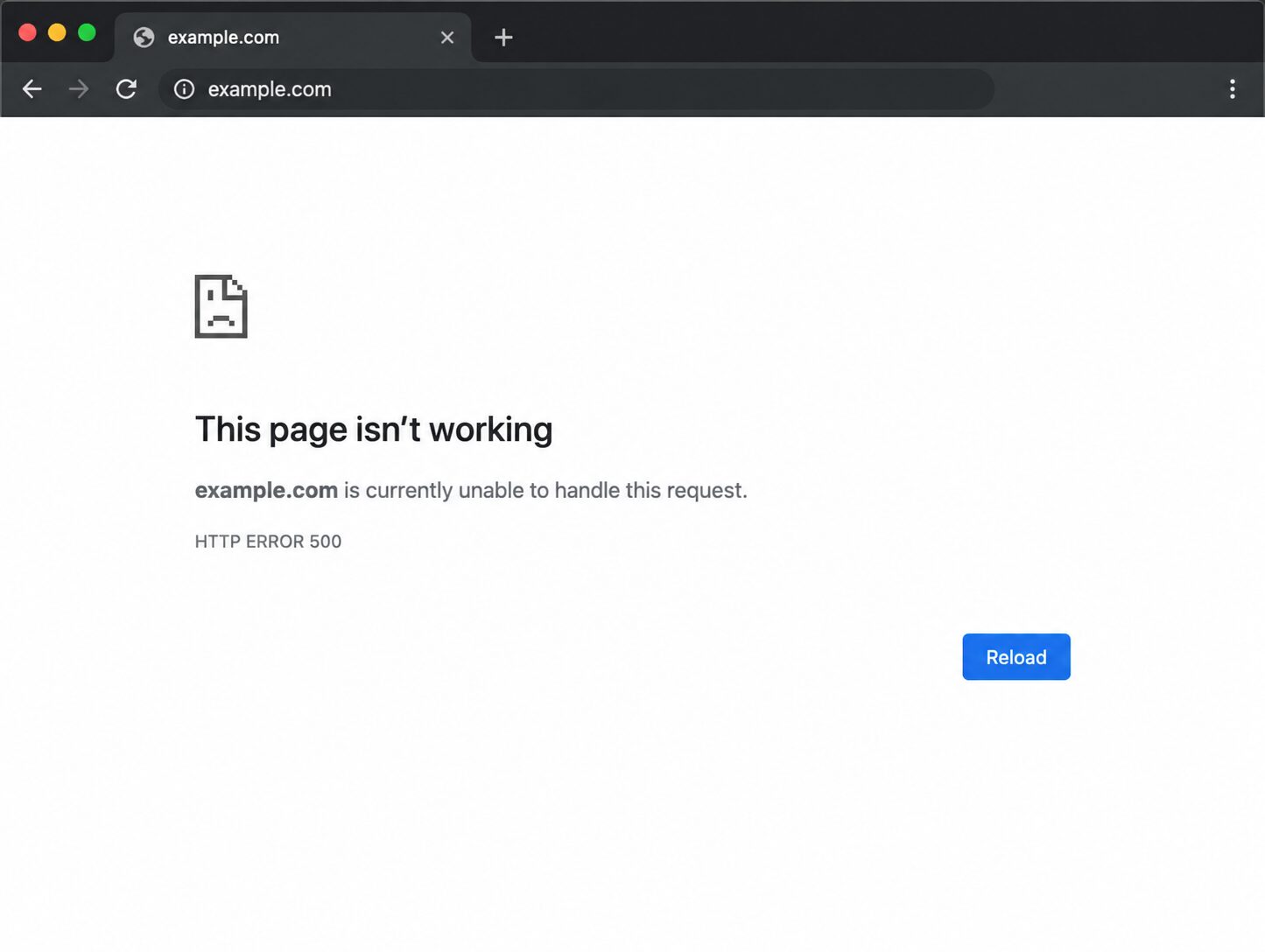
This error does not always look the same on every website or browser.
All of these messages point to the exact same underlying problem, the server failed to complete your request. Here are the most common variations you might encounter:
- 500 Internal Server Error
- HTTP Error 500
- Internal Server Error
- Error 500 — Internal Server Error
- ‘The website cannot display the page’ (older Internet Explorer)
- A completely blank white page, common on WordPress and often the same underlying PHP crash
What Causes an HTTP 500 Internal Server Error?
The first step toward fixing this error is understanding the root cause. The 500 error is intentionally vague because it can be triggered by many different server-side issues.
Here are the most common culprits broken down clearly:
1. Broken or Corrupted .htaccess File
The .htaccess file is a configuration file used on Apache servers. It controls things like URL redirects, access permissions and rewrite rules. If this file has a syntax error or gets corrupted, the server immediately throws a 500 error.
A plugin update, a manual edit gone wrong or a bad copy-paste in the file can break it instantly.
2. PHP Memory Limit Exhausted
Every PHP-powered website (like WordPress) has a memory limit: the maximum amount of server memory a PHP script is allowed to use. When a script demands more memory than what is allowed, the server responds with a 500 error.
How this happens: Installing a resource-heavy plugin, running a large import or running multiple complex scripts at once can easily push you past the default limit (often 64MB or 128MB).
3. Faulty WordPress Plugins or Themes
Plugin or theme conflicts are the most commonly reported cause of 500 errors in WordPress support threads. A plugin may ship with a PHP fatal error after an update or two plugins may conflict with each other in ways that crash the server response entirely.
After a plugin update, WordPress swallows the error message and returns a blank 500 screen because PHP has fatally crashed.
4. Incorrect File or Folder Permissions
Every file on a web server has permissions that control who can read, write or execute it. When these permissions are set incorrectly for example, a PHP file that has been made executable by other users, the server refuses to process it and throws a 500 error.
Correct permissions reference:
- Files: 644
- Folders: 755
5. Database Connection Errors
If your website’s database (like MySQL) is unavailable, full or has corrupted tables, the server-side scripts that need to query that database will fail. This often surfaces as a 500 error instead of a more specific database error message.
6. Timeout of CGI Or Third-Party Scripts
CGI scripts that take too long to execute whether due to slow code, overloaded servers or external API calls timing out can trigger a 500 error once they exceed the server’s timeout limit.
7. Server Resource Overload
When a server is under heavy traffic or running too many processes simultaneously, it can run out of memory, CPU capacity or available connections. This makes the server unable to fulfill new requests and it responds with a 500 error to all incoming requests.
8. Misconfigured Server Settings
Errors in php.ini, the web server’s main configuration file (httpd.conf for Apache, nginx.conf for Nginx) or other server-level settings can instantly trigger 500 errors site-wide.
How HTTP 500 Error Hurts Your SEO Rankings
500 server errors do more than frustrate visitors; they can also damage your search performance. When search engines encounter repeated errors, crawling slows down, indexing is disrupted and rankings may drop. Understanding the SEO impact of 500 errors helps developers and site owners take faster action to protect visibility.
This is where things get serious for website owners. A 500 error is not just a user experience problem, it is an active SEO threat:
Googlebot Reduces Your Crawl Rate
When Googlebot encounters a 500 error, it does not give up immediately. But it does slow down. The more 500 errors Google encounters on your site, the more it reduces your crawl rate. This means fewer pages get crawled and indexed per day hurting your visibility in search results.
Google’s Search Central confirms that 5xx and 429 errors prompt crawlers to temporarily slow down. As Google’s John Mueller has put it, a run of 5xx errors makes Google crawl less, and it ramps back up once the server is healthy again. The catch: fewer crawls mean fewer of your pages get refreshed in the index.
Pages Get Dropped from Google’s Index
URLs that have been previously indexed will remain in the index for a while but if they keep returning 500 errors over an extended period (typically multiple days to weeks), Google will start dropping them from the index altogether.
A one-time or short outage (a few hours) is generally not a long-term ranking problem. But a persistent 500 error can cause previously ranked pages to lose their search positions entirely, destroying all the SEO work you have done.
Your Crawl Budget Gets Wasted
Search engines allocate a specific ‘crawl budget’, a set number of pages they will crawl on your site during each visit. When Googlebot repeatedly hits 500 errors, it wastes your crawl budget on failed requests instead of discovering and indexing your best content.
User Trust Signals Take a Hit
High bounce rates from users hitting 500 errors send negative user experience signals to search engines. Google interprets these as signs that your site may not be reliable or user-friendly which can feed into ranking decisions over time.
Step-by-Step Guide: How to Fix HTTP 500 Internal Server Error
A 500 Internal Server Error means something went wrong on your server, but the browser cannot display the exact cause. Fortunately, the real error is usually recorded in your server logs. The fastest way to fix a 500 error is to identify the error message and resolve the issue it reports.
Step 1: Check Your Site Logs First
Before you change anything, open your logs. On xCloud, go to Server → your site → Logs and pick the log that matches your stack:
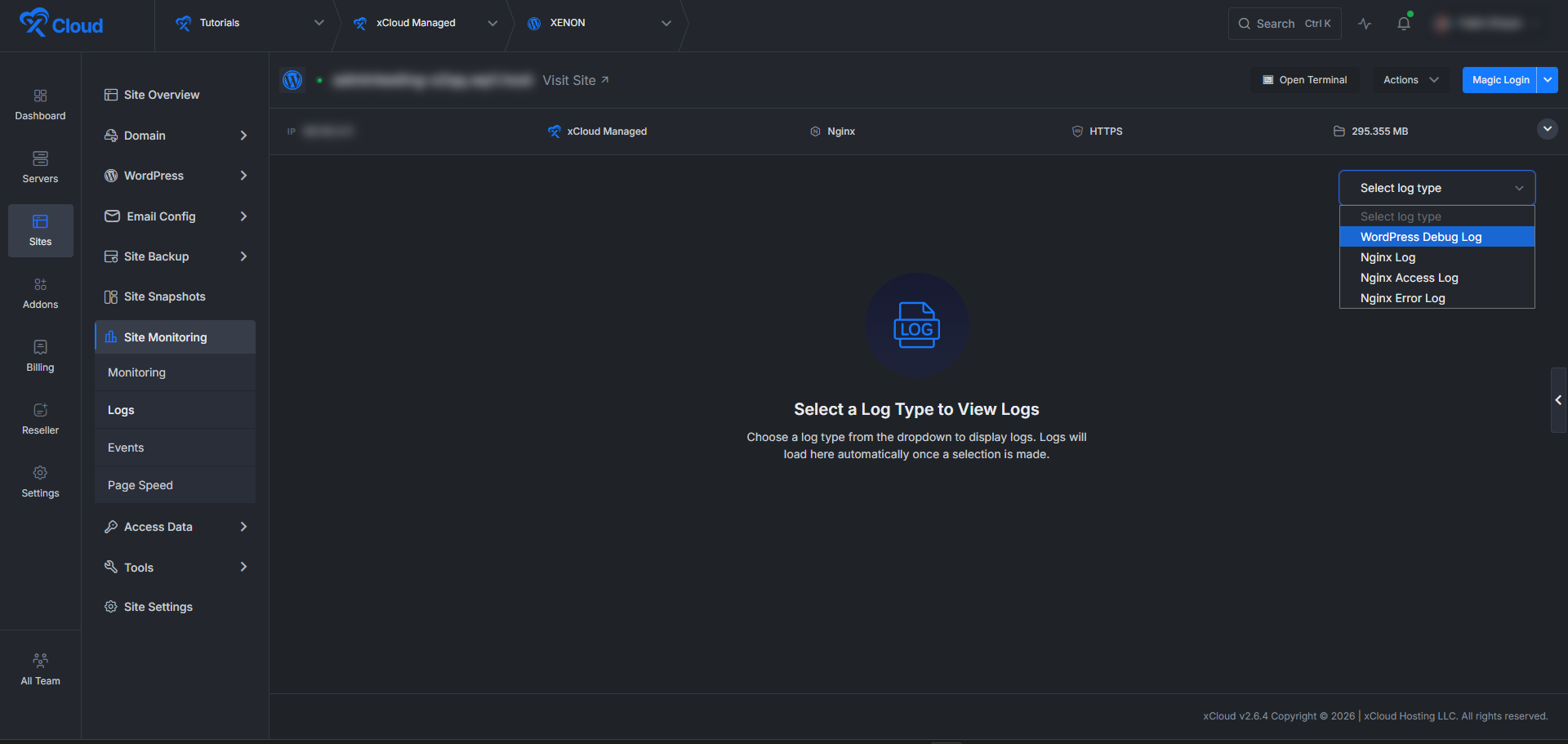
From the Logs tab, select the most relevant log file:
| Log Type | Best Used For |
| Nginx Error Log | General server and application errors |
| Nginx Access Log | Request tracking and traffic analysis |
| WordPress Debug Log | WordPress PHP errors |
| Laravel Log | Laravel application errors |
| PM2 Log | Node.js application crashes and output |
| 7G/8G Firewall Log | Security rule blocks |
Scroll to the latest entries and look for messages such as:
- Fatal error
- Exception
- Permission denied
- Connection refused
- No such file or directory
These messages usually identify the root cause of the error.
If you prefer using the terminal, run:
tail -n 50 /var/log/nginx/yoursite.com-error.log
To watch errors appear in real time while refreshing your website:
tail -f /var/log/nginx/yoursite.com-error.log
Step 2: Try the Quick Fixes
A surprising number of 500s clear with one of these:
- Reload the page. A blip right after a deploy or restart often disappears on a refresh.
- Reverse your last change. If the error showed up after a plugin install, a theme update, a code deploy, a PHP version switch or a config edit, undo that change and test again.
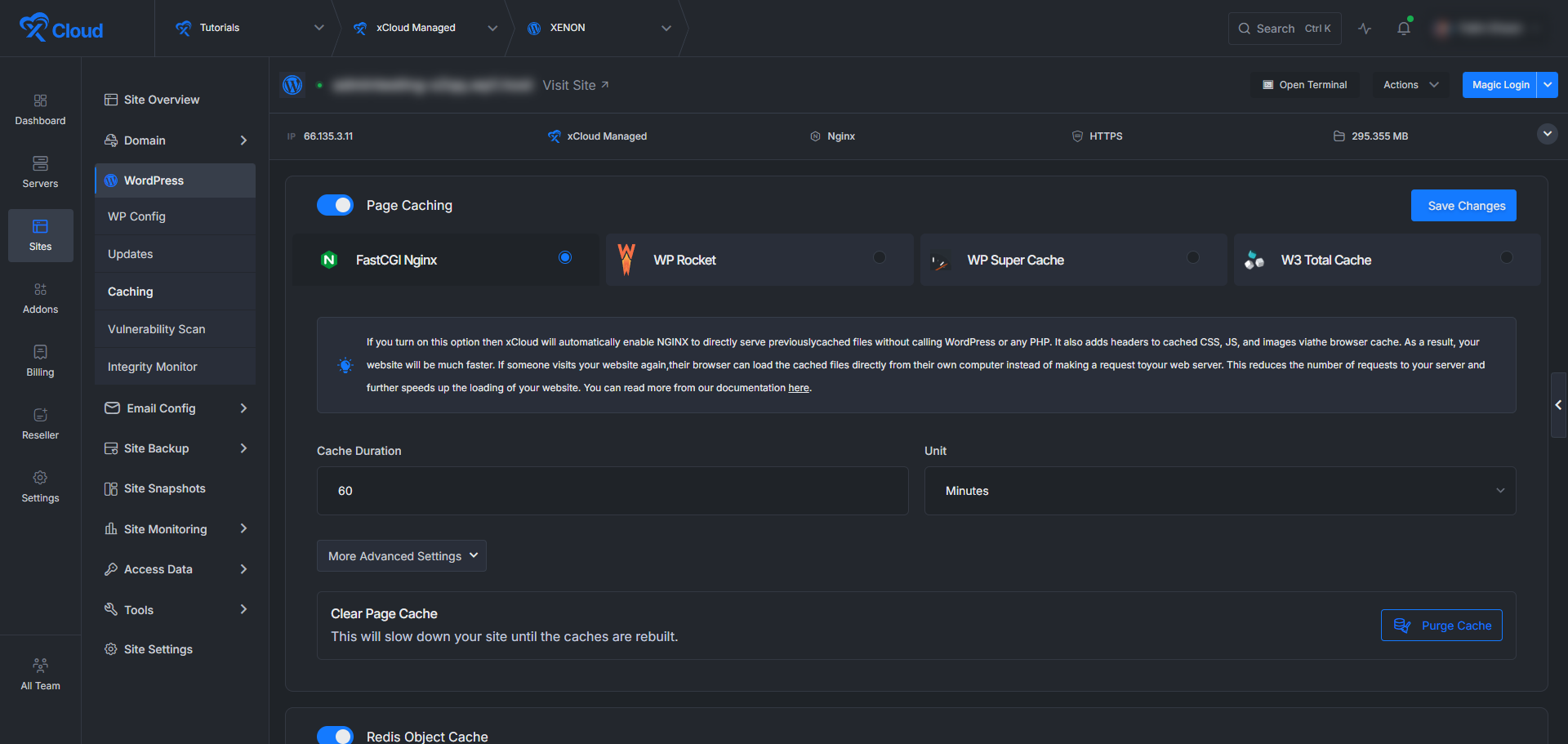
- Purge the cache. On xCloud, open Site Dashboard → Caching and clear all caches to drop stale responses.
- Restart services. Restart Nginx and PHP-FPM from the server dashboard, a stuck process can take a whole site down with 500s.
Step 3: Troubleshoot by Application Type
WordPress: Turn on WordPress Debug mode from your xCloud dashboard, reproduce the error and read the Debug Log. Then deactivate all plugins and switch them back on one by one to find the conflict, switch to a default theme to rule out the theme, and raise the memory limit if you see exhaustion errors by adding this to wp-config.php:
define( 'WP_MEMORY_LIMIT', '256M' );
If permalinks look suspect, go to Settings → Permalinks and click Save Changes without editing anything to flush the rules.
Laravel: Open the Laravel log and check recent exceptions, then work through:
php artisan key:generate(confirm an app key exists)php artisan config:clearphp artisan optimize:clearphp artisan migrate --force(run pending migrations)
Custom PHP: Read the Nginx error log for fatal PHP errors, syntax mistakes, missing functions or classes, an unsupported PHP version or a missing extension.
To surface errors while debugging only:
ini_set('display_errors', 1); error_reporting(E_ALL);
Remove those two lines as soon as you are done, never leave them on in production.
Node.js: Open the PM2 log for crash reports, then:
npm install(install missing dependencies)- pm2 restart all
- pm2 list (the status should read online, not errored)
Step 4: Check for Server-Wide Problems
If no single app is at fault, look at the server itself. Start with disk usage:
df -h
Then confirm available disk space, PHP memory limits, request timeouts, SSL certificate validity, database and Redis availability and PHP-FPM status. If legitimate requests might be getting blocked, review the 7G/8G firewall log.
Step 5: Contact Support If It Persists
Still stuck? Before opening a ticket, gather the exact log error, when it started, which pages are affected and any recent changes. Handing your host that context up front is the difference between a quick fix and a long back-and-forth.
After the Fix: Protecting Your SEO
Clearing the error is step one. To make sure it does not cost you rankings, close the loop in Google Search Console:
- Verify the fix. Open the Server error (5xx) report and use Validate Fix only once your logs confirm things are stable, validating too early can reset the cycle.
- Check crawl stats. Under Settings → Crawl Stats, confirm the server-error rate has dropped below 1% of requests.
- Request re-indexing. For high-value pages that were down for days, use the URL Inspection Tool to request re-crawling.
- Monitor rankings. Watch the Performance report (or Ahrefs / Semrush) for the next one to four weeks to catch any lingering impact.
500 Error vs Other Common HTTP Errors
Not all errors are equal in Google’s eyes. Gary Illyes has confirmed that 500-range errors do more SEO damage than 400-range ones: a 404 simply says a page is missing, while a 500 says your server is unwell.
| Error | Type | Who Is Responsible | SEO Impact |
|---|---|---|---|
| 400 Bad Request | Client error | Browser/user sent a bad request | Minimal |
| 401 Unauthorized | Client error | User not logged in / authenticated | Low |
| 403 Forbidden | Client error | Access blocked by the server | Medium |
| 404 Not Found | Client error | Page does not exist | Medium |
| 500 Internal Server Error | Server error | Server-side failure | High |
| 503 Service Unavailable | Server error | Server temporarily down | High (use with Retry-After) |
Real-World Example: The Cloudflare November 2025 Outage
On 18 November 2025, a Cloudflare incident knocked a large slice of the web offline at once. Major platforms, including X, ChatGPT and even Downdetector. Served visitors a blunt ‘500 Internal Server Error’ with Cloudflare branding. Cloudflare confirmed it was investigating widespread 500s, with its own dashboard and API also failing, and later described it as its worst outage since 2019.
From an SEO angle, the short, sharp nature of the outage made it mainly a crawl concern rather than a ranking disaster. Googlebot recorded the 5xx responses during the window, which showed up as a spike in the Search Console Server error report a day or two later. Sites that came back quickly saw crawling return to normal.
It is a clean illustration of both the risk a 500 poses and the value of fast recovery and a reminder that sometimes the failure is upstream, not in your own code.
Pro Tips to Keep HTTP 500 Errors from Coming Back
Fixing a 500 once is good. Building habits so it does not return is better. Here are the practices we lean on, from everyday hygiene to a few developer-level moves:
Tip 1: Back Up Before Every Update
Before touching a plugin, theme or WordPress core, take a full backup. If an update breaks the site, you are one restore away from normal instead of debugging under pressure.
Tip 2: Test Changes on Staging First
Never make significant changes straight on production. Push them to a staging environment first, most modern hosts, xCloud included, make spinning one up trivial and only promote what passes.
Tip 3: Keep Everything Updated
Outdated plugins and themes are a top source of conflicts. Stay current to cut the risk, but run updates through staging before they reach live.
Tip 4: Set Up Uptime Monitoring
Use a tool like UptimeRobot or Better Uptime so you hear about downtime in minutes, not hours. Pair it with a simple /health endpoint that returns 200 when everything is running, so failures are caught the instant they happen.
Tip 5: Watch Google Search Console
Check the Pages → Server error (5xx) report in Google Search Console regularly so you catch the 500s Googlebot sees before they touch your rankings.
Tip 6: Use 503 (Not 500) for Planned Maintenance
Taking the site down on purpose? Return a 503 with a Retry-After header, not a 500. A 500 says ‘something broke’; a 503 says ‘I’ll be back’ and Google treats the planned downtime gently.
Tip 7: Fail Gracefully in Code
Wrap database calls and external API requests in try/catch blocks so a single failure returns a clean error response instead of crashing the whole page. And keep verbose error reporting (WP_DEBUG and friends) to local or staging only on production; it can leak sensitive server paths.
Tip 8: Right-Size Your Hosting
If traffic is climbing, make sure the plan keeps up. When resource usage regularly bumps the ceiling, move from shared hosting to a VPS or managed setup before overload starts returning 500s. A well-designed custom 500 page also keeps users oriented during any outage instead of staring at a blank screen.
Quick 500 Error Checklist
Hit a 500? Run this list top to bottom:
- Refresh the page, is it still there?
- Check whether other sites are affected (a hosting or CDN outage?)
- Read the server error log for the exact message
- Check and reset the .htaccess file
- Increase the PHP memory limit
- Deactivate all plugins, then re-enable one by one to find the conflict
- Switch to a default theme
- Fix file and folder permissions (644 / 755)
- Repair the database
- Re-upload fresh WordPress core files
- Contact your host if all else fails
- Validate the fix and request re-indexing in Search Console
Tools To Monitor 500 Errors
To stay ahead of HTTP 500 errors, you do not need a large collection of monitoring tools. A few reliable solutions can help you detect, track, and troubleshoot server issues before they affect your visitors and search rankings.
- Google Search Console helps identify 5xx errors encountered by Googlebot, making it easier to spot crawling and indexing problems.
- UptimeRobot sends instant alerts whenever your website becomes unavailable, allowing you to respond quickly to downtime.
- Screaming Frog can crawl your entire website and detect pages returning 5xx server errors during routine site audits.
- Ahrefs Site Audit scans your website for technical SEO issues, including 5xx errors, and highlights affected pages for further investigation.
Fix Your 500 Error Today & Protect Your Rankings
An HTTP 500 Internal Server Error looks like a single blunt message but underneath it is a short list of usual suspects: a broken .htaccess file, a memory-hungry plugin, the wrong permissions each fixable without being a server expert.
Start where the answer already lives: read the log, reset .htaccess, then rule out plugins one at a time. That trio resolves the large majority of 500s. Once the site is healthy, keep it that way with backups, a staging workflow, uptime monitoring and a weekly look at Search Console.
If you have found this blog helpful, feel free to subscribe to our blogs for valuable tutorials, guides, knowledge and tips on web hosting and server management. You can also join our Facebook community to share insights and take part in discussions.
Frequently Asked Questions
1. “I keep getting a 500 error on my WordPress site after updating a plugin. What should I do?”
This is almost certainly a plugin conflict or PHP fatal error from the updated plugin. Go to your FTP client, navigate to /wp-content/plugins/ and rename the folder of the updated plugin. This deactivates it. If your site loads again, that plugin is the problem. Report the bug to the plugin developer and look for an alternative or revert to the older version.
2. Does a 500 error affect my Google rankings?
Yes, it can but the impact depends on duration. A brief 500 error lasting a few hours typically has minimal long-term SEO impact, as Google is forgiving of short outages. However, if the error persists for multiple days, Google will reduce your crawl rate and may eventually drop the affected pages from its index. Fix it as quickly as possible and use Google Search Console to validate the fix once resolved.
3. What is the difference between a 500 error and a 503 error?
A 500 error means something unexpected crashed on the server, it is unplanned. A 503 error means the server is temporarily unavailable, often due to overload or planned maintenance. The 503 is actually “better” for SEO because you can pair it with a Retry-After HTTP header to tell Google when to come back. A 500 is always unintended and signals server instability.
4. My website shows a white screen of death. Is that the same as a 500 error?
Yes, almost always. In WordPress, the White Screen of Death (WSOD) is typically caused by a PHP fatal error that results in a 500 response code, but the page displays as blank instead of showing an explicit error message. Check your PHP error logs or enable WP_DEBUG to find the exact cause.
5. Can a 500 error be caused by too many visitors at once?
Absolutely. When a server receives more simultaneous requests than it can handle, it runs out of available workers or memory and starts returning 500 errors to excess requests. This is a resource overload issue. Short-term fixes include using a CDN (like Cloudflare) to cache and absorb traffic. Long-term, upgrading your hosting plan or switching to a more scalable infrastructure is the right solution.
6. How long does it take Google to re-index pages after fixing a 500 error?
Once a 500 error is fixed and the server is serving stable 200 responses, Google typically resumes crawling within a few days. Full ranking recovery for pages that were briefly dropped can take one to four weeks depending on your site’s authority and crawl budget. Using Google Search Console’s URL Inspection Tool to manually request re-crawling for priority pages can speed up the process.