


June was a massive month for us here at xCloud. We are bringing you everything from a native desktop experience to complete programmatic control. We are pushing the boundaries to make your hosting management easier and hassle-free. Whether you manage a single WordPress site or scale a complex infrastructure, these updates will make your daily workflow faster and more secure.
Grab a cup of coffee, settle in, and let us explore everything we shipped in the June 2026 release.
📸 Highlights of xCloud June 2026 Release
Here is a quick look at the biggest updates before we dig into the details:
⚙️ xCloud Public API gives you a modern RESTful API to provision servers, deploy sites, and manage access programmatically.
🔀 Git for Existing Sites adds version control to any existing WordPress or PHP site in one flow, with no redeploy required.
🔄 Laravel Site Cloning lets you copy any Laravel site for staging or testing, with Git settings carried over and a fresh deploy key.
🖥️ xCloud Pulse puts a live view of your sites and servers in your Mac menu bar, built on the xCloud Public API.
🔐 Interactive Browser SSH Terminal opens a server, sudo user, or site user terminal right from the dashboard, with no local SSH client needed.
🧱 PHP Extensions Management lets you install and remove PHP extensions for every PHP version from the dashboard, no SSH needed.
🤖 Hermes Workspace Setup adds a guided flow to connect or self-host a Hermes Workspace, with token, Docker, and SSL support.
Scroll down to explore each feature in detail.
⚙️ xCloud Public API: Build, Integrate, and Automate Programmatically
Repetitive infrastructure work adds up. You provision the same kind of server again and again, deploy sites with the same settings, and add or remove access one request at a time. None of it is hard, but all of it takes your attention.
The new xCloud Public API gives you full control of your servers and sites through a modern RESTful API. You create a token in your dashboard settings, set the exact permissions you need, and start building in about a minute. From there, the tasks you used to click through can run on their own.
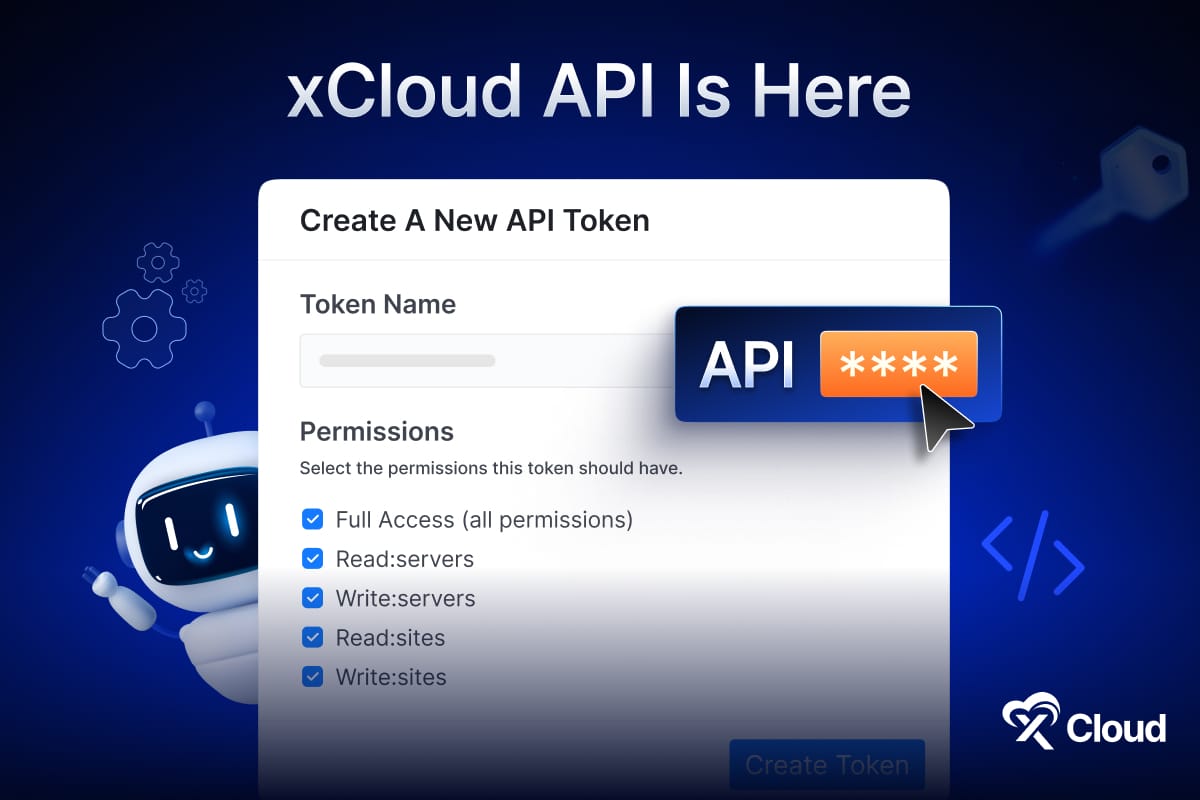
Here is what makes the API so useful in day-to-day work:
- Auto-provision servers. Spin up new servers straight through the API, with no dashboard visit required.
- Deploy sites in a single call. Launch a fully configured site with one API request instead of a manual setup.
- Manage access programmatically. Add or remove SSH and sudo users on demand, right from your own scripts.
- Build on top of xCloud. Create CI/CD pipelines, client portals, SaaS tools, and internal dashboards that talk to xCloud directly.
- Pull live data anywhere. Feed real-time server and site data into any system you already use.
- Keep it secure by default. Every request uses token-based, permission-scoped access, so each key only does what you allow.
For developers, agencies, and SaaS builders who live in their own tooling, the API turns xCloud into a platform you can build on instead of a dashboard you have to visit. You can read the full xCloud API documentation to see the available endpoints, and we will keep expanding them on a regular basis.
🔀 Git for Existing WordPress and PHP Sites: Add Version Control Without a Redeploy
Putting an existing site under Git used to mean starting over. You had to create a repository, push your files, set up a deploy key, and redeploy the whole project from scratch just to get version control on a site that was already live. For a site already in production, that is a lot of risk for a workflow upgrade.
The new Git Integration for existing WordPress and Custom PHP sites removes all of that friction. You add Git to a site directly from the site’s Git tab, in a single flow, and xCloud handles the wiring for you. You pick a connected GitHub provider, confirm the prefilled repository name, and review the generated .gitignore. xCloud then creates a private repository, pushes your current files as the first commit, and sets up the deploy key and webhook automatically.
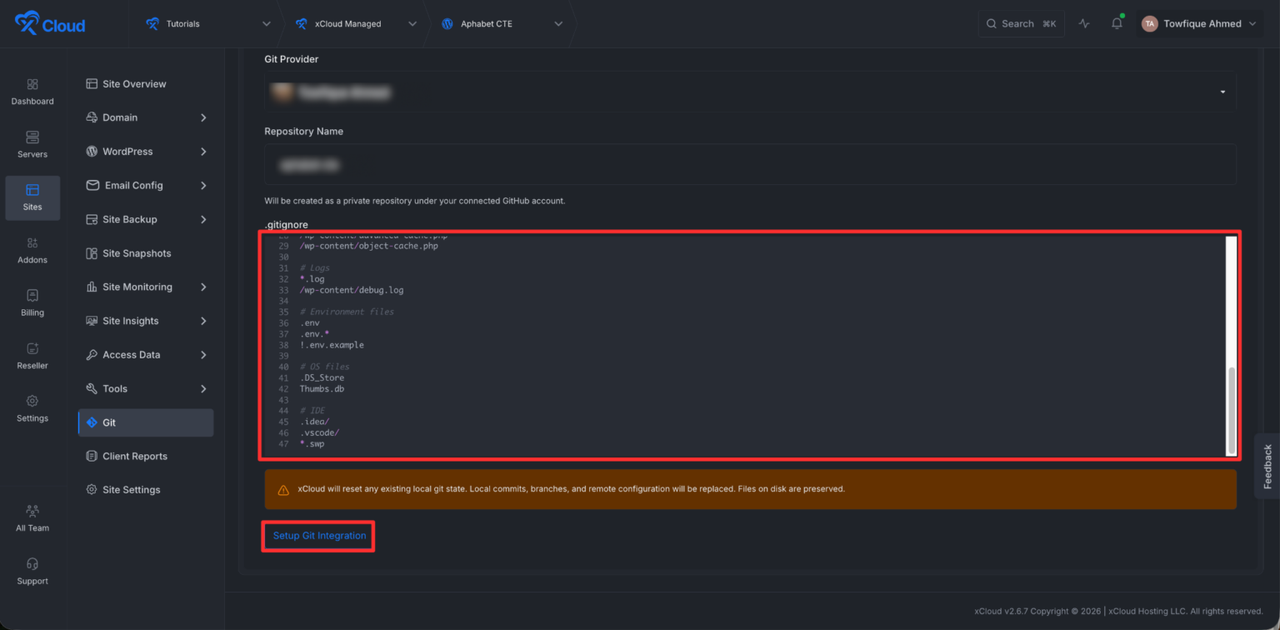
Here is what you get with the new flow:
- Add Git without redeploying. Bring an existing WordPress or Custom PHP site under Git while it stays live, with no rebuild.
- Skip the manual wiring. No hand-setup of repositories, deploy keys, or webhooks. xCloud configures all of it.
- Start from a clean codebase. The generated .gitignore keeps sensitive and unnecessary files out of your repository for you.
- Capture your site from commit one. You get a private repository with your current site files saved as the first commit.
- Deploy the moment setup finishes. Push-to-deploy is live as soon as the flow completes, with no manual SSH or Git work.
For developers and agencies who inherited sites that were never under version control, this turns a risky, multi-step migration into a few clicks.
🔄 Laravel Site Cloning: Copy Any Laravel Site in a Few Clicks
Cloning used to be a WordPress-only convenience. If you ran Laravel and needed a staging copy, a test environment, or a fresh place to try something, you rebuilt it by hand. That meant repeating the setup you had already done once.
The new Laravel Site Cloning feature changes that. You can now spin up a copy of any Laravel site for staging, testing, or a new environment, without rebuilding it from scratch. The clone brings your setup along so the new copy is ready to work with right away.
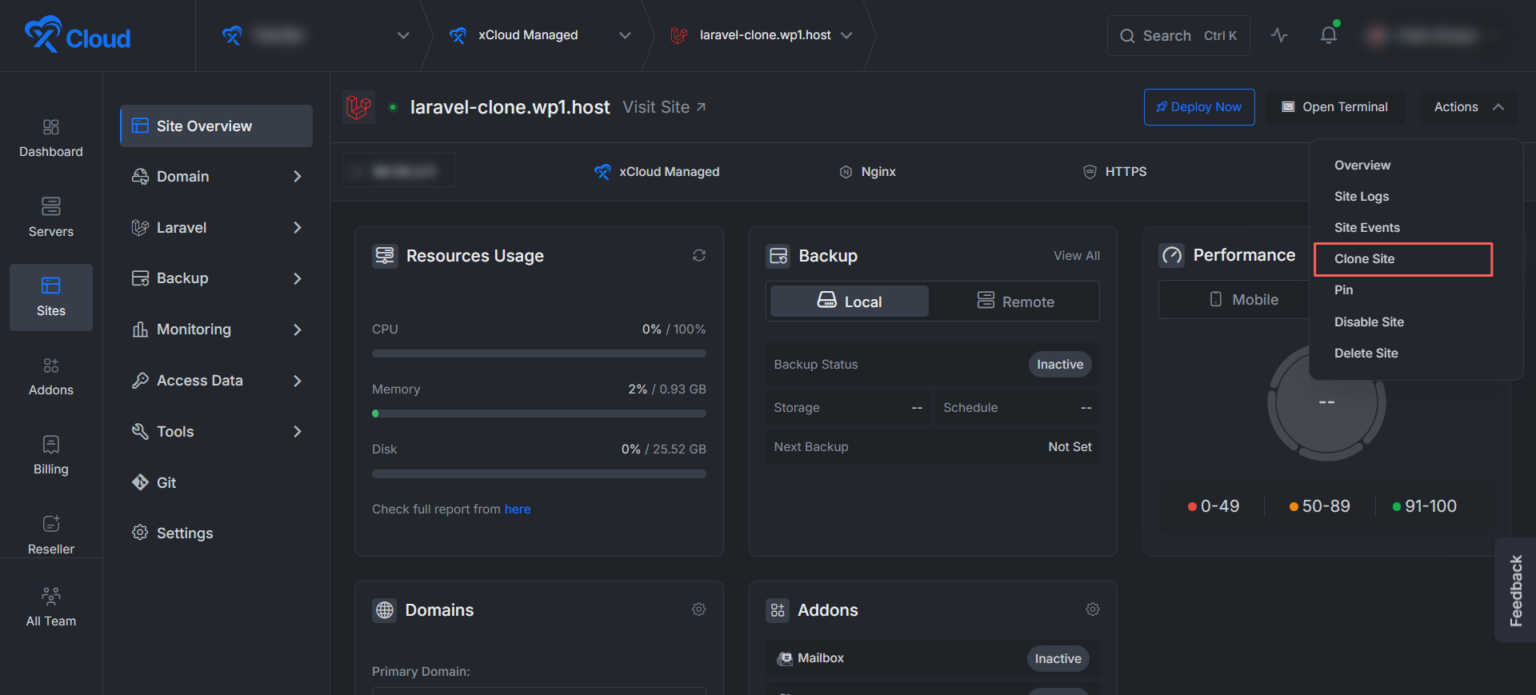
Here is what makes cloning worth reaching for:
- Clone for staging or testing. Create a working copy of a Laravel site to try changes safely before they reach production.
- Keep your Git settings. If you deployed the Laravel site using Git from xCloud, the clone carries those settings over, so push-to-deploy is ready on the new copy.
- Get a separate deploy key. Each clone gets its own deploy key instead of sharing the original one, which keeps your setup clean and secure.
For developers who ship Laravel apps and want a safe place to test before going live, this removes the rebuild step entirely.
🖥️ xCloud Pulse: Your xCloud Dashboard in the Mac Menu Bar
Checking a quick detail should not mean opening a browser tab, logging in, and clicking through the dashboard. When you just want to confirm a site is up or trigger a backup, that round trip is friction you feel several times a day.
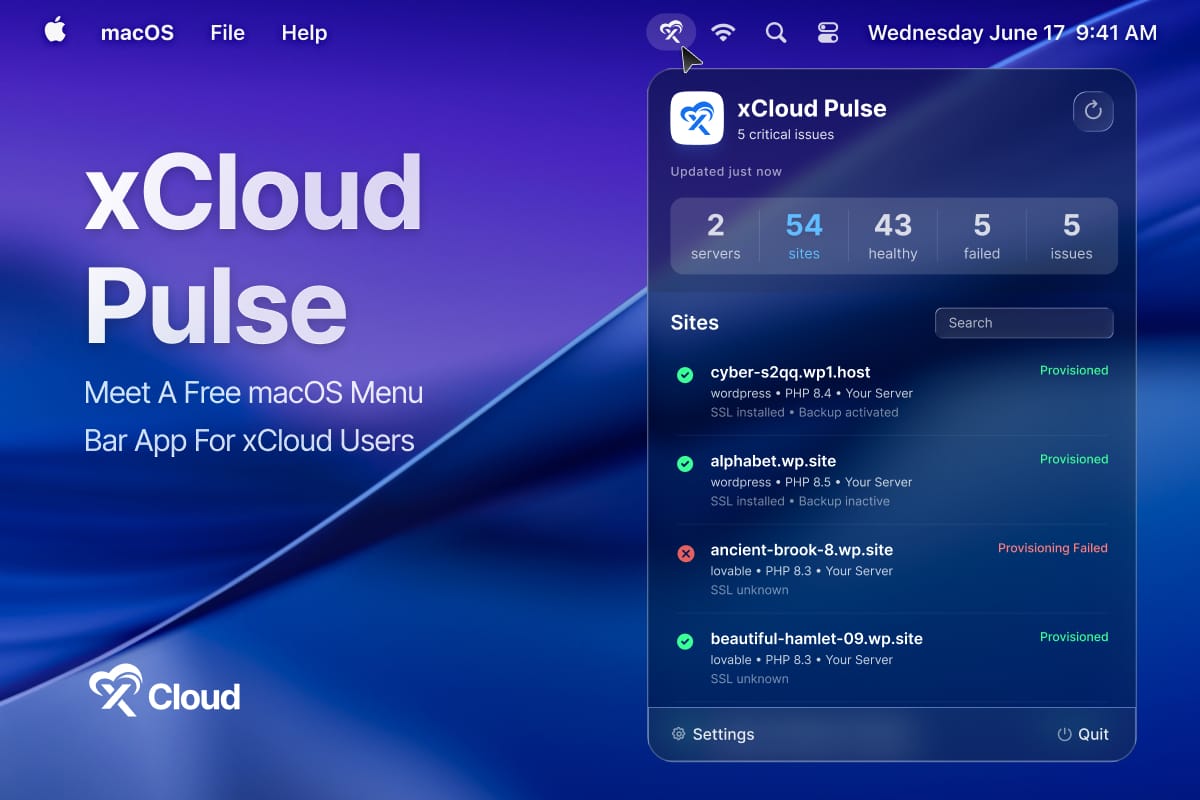
The new xCloud Pulse is a native macOS menu bar companion app for xCloud, built on the xCloud Public API. It lives in your Mac menu bar and works like a quick-access dashboard, so you can check important site and server information without opening the browser every time.
Here is what you can do from the menu bar:
- See everything at a glance. View every site and server with live status the moment the app opens.
- Check the details that matter. See site status, PHP version, SSL, and backup state for any site in one place.
- Catch issues as they happen. Surface critical issues, recent activity, warnings, and system logs without digging.
- Run quick actions in one click. Purge cache, trigger a backup, copy a server IP, or open the dashboard, each in a single click.
- Search like Spotlight. Find any site, server, or action through a fast command palette that works the way Spotlight does on your Mac.
For developers and agencies who work on a Mac all day, xCloud Pulse keeps your most common checks and actions one click away. The app is still being fine-tuned, with UI improvements and polishing in progress.
🔐 Interactive Browser SSH Terminal: Open a Terminal From the Dashboard
Getting a terminal on your server usually means leaving xCloud. You open a local SSH client, find the right key, type the connection details, and only then run the one command you needed. For a quick check, that is a lot of setup, and it means your credentials live on whatever machine you happen to be using.
The new Interactive Browser SSH Terminal lets you open server, sudo user, or site user terminal sessions directly from the xCloud dashboard, with no local SSH client required. Access is permission-controlled and built on secure, single-use session tickets, so your server credentials are never exposed to the browser.
Here is what makes the browser terminal worth using:
- Open a terminal anywhere. Start a session from any machine with a browser, without installing or configuring an SSH client.
- Pick the right level of access. Open a terminal as the server, a sudo user, or a site user, depending on what you need to do.
- Stay permission-controlled. Terminal access follows your permissions, so only the right people can open a session.
- Keep credentials off the browser. Each session uses a secure, single-use session ticket, so server credentials are never exposed.
For developers and agencies who need shell access on the move, this puts a secure terminal one click away without touching a local setup.
🧱 PHP Extensions Management: Add Extensions With Clicks, Not Code
Installing a PHP extension used to send you to SSH. You connected to the server, ran the right commands for the right PHP version, and hoped you did not touch anything you should not have. For a routine task, that is more command-line work than it should take.
The new PHP Extensions Management feature lets you view, install, and remove PHP extensions for every PHP version directly from the dashboard. No SSH access, no command line.
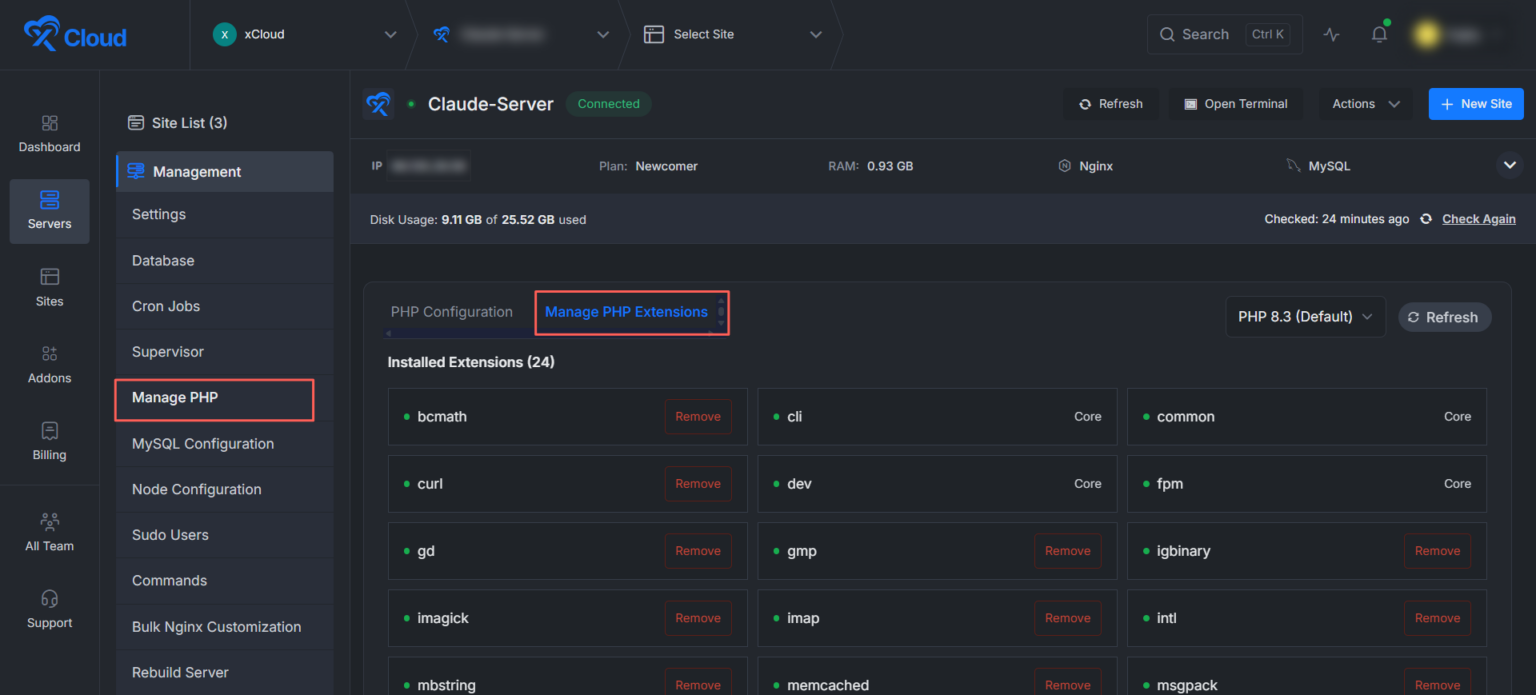
Here is what the new interface gives you:
- Install with one click. Add supported extensions like APCu, Xdebug, LDAP, YAML, and more without touching a terminal.
- Remove just as fast. Take out extensions you no longer need in a single click.
- See everything clearly. Dedicated Installed Extensions and Available Extensions sections show counts and real-time status for every extension.
- Stay protected from mistakes. Built-in protection for core PHP extensions and confirmation prompts before removal keep changes safe.
- Manage it all in one place. A unified PHP Configuration and Extensions interface keeps tuning and extensions together.
For developers and agencies who switch PHP setups often and agencies managing many sites, this turns a terminal chore into a dashboard task anyone on the team can handle.
🤖 Hermes Workspace Setup: Connect or Self-Host in a Guided Flow
Setting up a new workspace can involve a lot of moving parts: connecting or self-hosting it, generating a token, wiring up Docker, and sorting out a domain and certificate. Handled one at a time, that is a slow start.
The new Hermes Workspace setup support brings those steps into one guided flow. You get a workspace connection and self-hosting flow, token generation, Docker UI support, and optional domain and SSL setup where available, all in one place.
Here is what the setup flow covers:
- Connect or self-host. Choose how you want to run your Hermes Workspace and follow a single flow to get there.
- Generate a token. Create the token you need for the workspace without leaving the setup process.
- Set up Docker from the UI. Handle Docker configuration through the interface instead of by hand.
- Add a domain and SSL. Attach an optional domain and certificate where available, right in the flow.
For teams adopting Hermes Workspace, this turns a multi-part setup into a guided path from start to finish.
❇️ Additional New Features
Beyond the headline features, June also delivers several notable additions:
⏺️ Redesigned Server Creation Flow – The server creation experience has a cleaner layout across all supported providers, with improved plan selection, better stack options, and recommended plan support. New servers now use Ubuntu 24.04 by default, so launching a server is easier, clearer, and more consistent.
⏺️ New Hermes Management Panels – Hermes sites now include dashboard panels for Status, Reset, Environment, and Updates. You can view service status, manage selected settings, reset configuration, and check for updates without leaving xCloud.
⏺️ Global Search (Cmd+K / Ctrl+K) – Find anything in xCloud instantly. Press Cmd+K to search across all your servers, sites, and feature pages from anywhere in the dashboard, and the search automatically scopes to a server’s sites when you are on a server page. You also get smart hints for features available on your stack, recent searches, and provider and site-type logos to spot results faster. See the simplified navigation for servers and sites docs for details.
⏺️ Dedicated Server Plans on xCloud Managed Server – New General Purpose optimized plans are now available when provisioning dedicated servers, giving you more sizing options for the workloads you run. You can review the dedicated server plan types in the docs.
🔒 Security Releases: CVE-2026-46331
Security work is most valuable before you ever have to think about it. This month included a patch for a server-side vulnerability, applied so you did not have to lift a finger.
xCloud patched CVE-2026-46331 across affected servers for stronger server protection. No action, downtime, or reboot is required on your side, because the fix was applied for you as part of this month’s releases.
⭐ 40+ Improvements & Fixes Across the Platform
Beyond the major feature releases, June included more than 40 improvements, optimizations, and bug fixes across xCloud. While many of these happened behind the scenes, they collectively make the platform faster, safer, and more reliable.
⚡ Infrastructure & Server Management
- Codex integration now sets up the agent harness automatically on connection, so there is less to configure yourself.
- Deployment reliability improved by ignoring stale tasks that interfered with the deploy guard.
- Full server migration support added alongside Laravel site cloning.
- Risky server actions now show a confirmation modal before high-impact steps like restarting the server, NGINX, LiteSpeed, or MySQL and MariaDB, which helps prevent accidental downtime.
- Custom Docker Compose setup now detects missing environment variables and helps prepare the .env file automatically, reducing setup errors.
- New server creation now uses Ubuntu 24.04 by default.
- Server setup reliability improved for new servers.
- Server plan categorization and recommendation support improved.
- Dashboard design consistency improved across server creation pages.
- Global search improved with recent servers and sites for faster access.
- Server Logs selection workflow improved for a smoother review experience.
- Pending server setup now has a cleaner, more helpful UI, making it easier for new users to complete server creation.
- Git branch search in the Deploy via Git flow now finds more branches more reliably.
- Guided SSH key setup added, with a step-by-step UI that walks you through the sudo and SSH flow.
- Service and permission handling improved across server pages.
- Fixed OpenLiteSpeed PHP worker updates.
- Fixed several NGINX package issues.
- Fixed CPU monitoring process detection.
- Fixed sudo username validation.
🤖 AI, Agents & Integrations
- Hermes Workspace setup support added, including connection, self-hosting, token generation, Docker UI, and optional domain and SSL.
- A dedicated AI Website Builder card for Site.pro sites now appears in Site Overview.
- Hermes live chat with Hermes Agents added.
- Hermes provider and channel setup instructions improved.
- Fixed Hermes Codex OAuth token saving and refresh issues.
- Fixed Hermes dashboard events feed disconnecting, and reduced unnecessary task and poll requests on the Status page.
- Fixed an issue with the Hermes events feed and Status page.
- Fixed an issue with the Hostinger integration.
- Fixed Supabase install and reinstall port conflict issues.
- Fixed Supabase dashboard password configuration issues.
🔒 Security & Reliability
- Security Analytics improved to reduce false attack detections and clarify insights.
- Fixed WordPress scan crashes caused by overly long plugin or theme titles.
- Fixed WordPress Git-clone site creation failure.
- Fixed same-server cloning issues that could affect original site database safety.
- Fixed site deletion and web terminal output issue.
- Fixed site deletion handling when no database engine exists.
- Fixed Laravel NGINX 404 handling for PHP-served assets.
- Fixed robots.txt handling for proxied Node.js SSR apps.
- Improved MySQL auto-healing so it no longer runs when the server is not in the correct state.
- Fixed MySQL repeatedly trying to repair itself during problems.
- Fixed an issue where reading databases with users could fail on servers that had no databases.
- Fixed empty MySQL backup size checks.
- Fixed local backup auto-delete so it now self-heals correctly when needed.
- Fixed Wordfence manual scan timestamp saving.
💳 Billing & Reporting
- Save cards and pay invoices directly inside xCloud with embedded Stripe payments, including 3D Secure support for future renewals.
- Client report generation was improved to reduce pending report delays.
- Fixed several billing issues related to self-managed servers.
- Fixed an activity log issue where site deletion was not showing.
⚙️ Platform & Workflow
- Reseller Panel now lets resellers create products specifically with stacks (NGINX or OLS) or with AI Agents (OpenClaw, Hermes).
- Additional domain limit increased per team with Cloudflare.
- Global search result prioritization and navigation improved.
- Monitoring data source filtering added across monitoring views.
- Mailbox validation improved for reserved prefixes.
- White-label stack selection and product management enhanced.
- Fixed Cloudflare redirect SSL issues on multi-domain redirect sites.
- Fixed a domain update issue.
- Fixed Mailbox admin prefix and API error handling.
- Fixed Site Events per-page dropdown and pagination issues.
⛳ Wrapping Up June and Looking Ahead
June 2026 marks a massive step forward for xCloud. We are giving you the tools to automate tasks and manage servers directly from your desktop. We deliver something for every type of user on the platform.
Go ahead and explore these new features today. As always, your feedback plays a key role in shaping what comes next. Stay with us for more insights, and feel free to subscribe to our blog for valuable tutorials, guides, and tips on web hosting and server management.
Join the Facebook Community, share your ideas, and help us build the next wave of updates. July is right around the corner, and we have even more exciting things in the pipeline.
Last updated July 7, 2026
← All articles