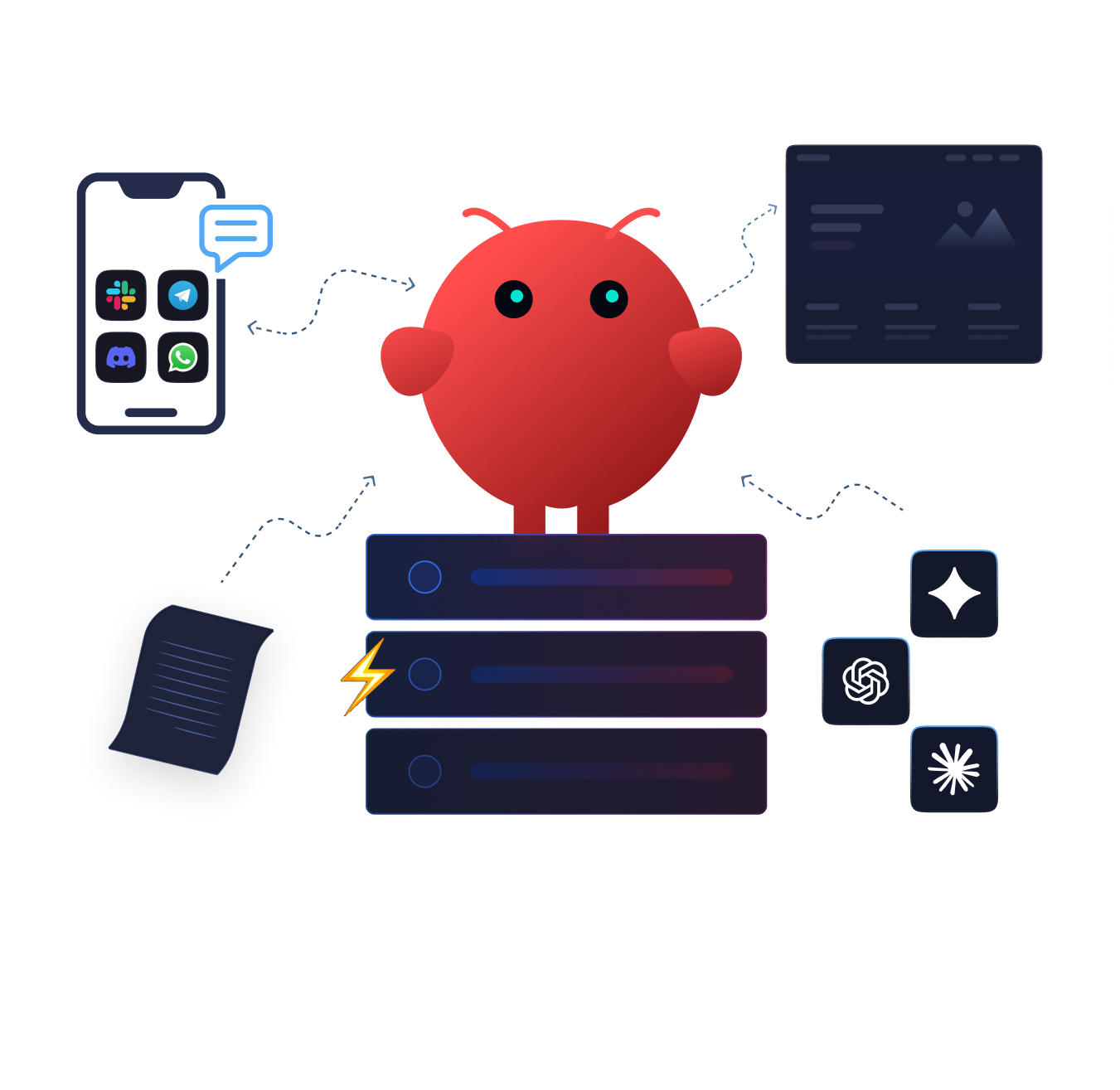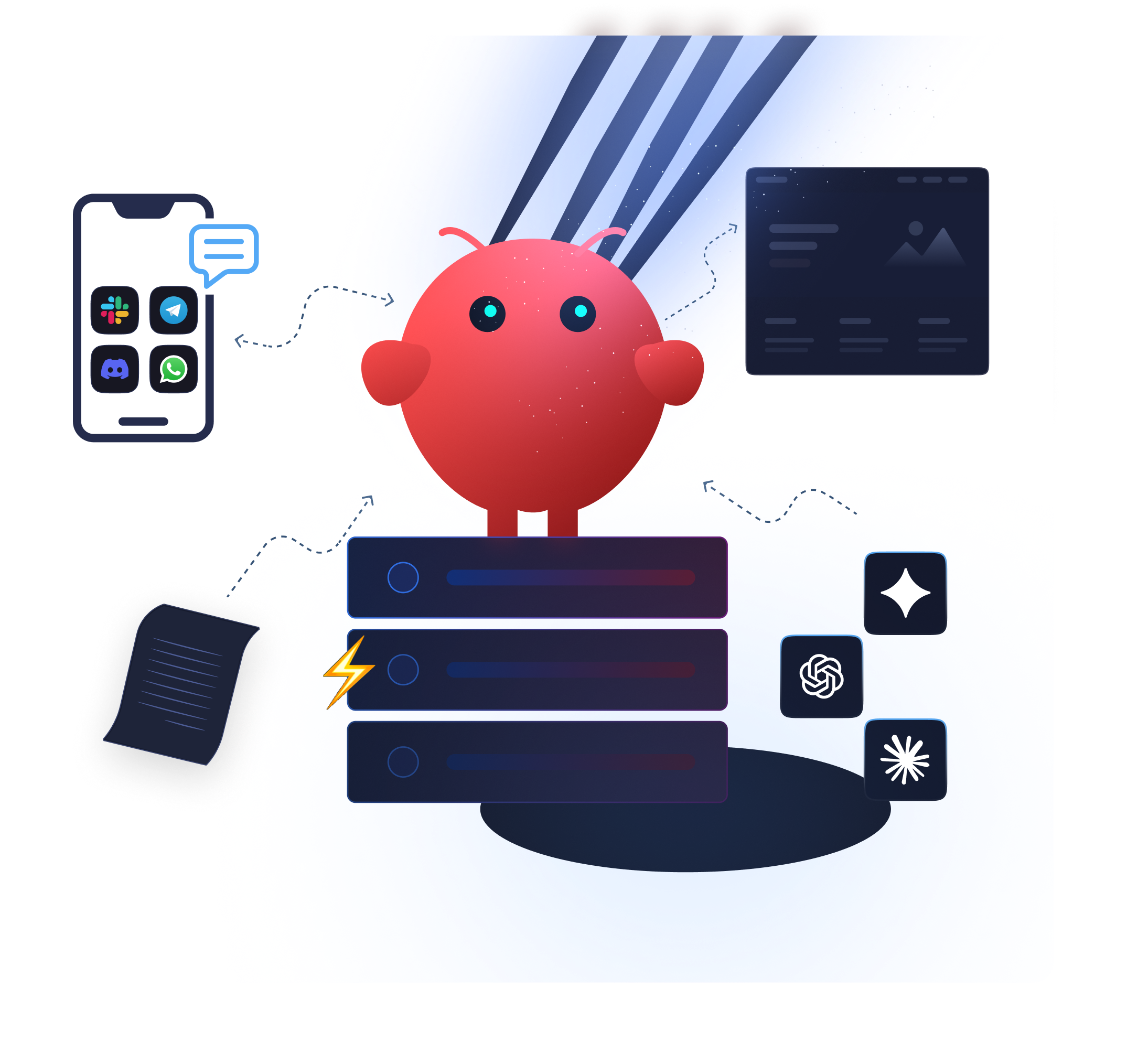


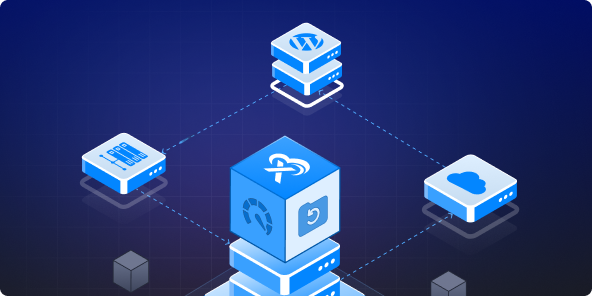







Odysseus AI is PewDiePie’s open-source, self-hosted AI workspace for chat, agents, local models, tools, memory, documents, email, calendar, and research workflows. If you want to run PewDiePie’s Odysseus on your own VPS instead of only using a hosted AI app, xCloud can help you deploy it with Docker, map it to a domain, and serve it over HTTPS.
This guide shows how to host PewDiePie’s Odysseus AI on a VPS with xCloud using the Docker + NGINX server type, Custom Docker, and the official public GitHub repository.
This is an xCloud deployment guide for Odysseus. Odysseus itself is maintained by the PewDiePie Archdaemon project, so check the official repository for the latest app-specific setup notes and environment variables.
What is PewDiePie’s Odysseus AI? #
Odysseus is a self-hosted AI workspace designed to feel closer to a ChatGPT or Claude-style interface, but with more control over where the app runs, where data is stored, and which models or API providers you connect. The official project describes it as a local-first and privacy-first workspace for talking to language models and running agent workflows.
- Chat and agents: run multi-turn conversations and agent workflows with tools.
- Model connections: connect local or remote model runtimes such as Ollama, vLLM, llama.cpp, OpenAI, OpenRouter, or other supported endpoints.
- Research and tools: use web, files, memory, MCP tools, and deep research-style workflows where supported by the app.
- Persistent workspace: keep app data, logs, model cache, and configuration on your own server instead of depending only on a third-party hosted UI.
If you are new to Odysseus, start by understanding the app first, then move into the hosting steps. This guide focuses on the practical deployment path: how to get Odysseus AI running on a VPS with Docker and a secure URL.
Why host Odysseus AI on a VPS? #
Odysseus is built for people who want more control over their AI workspace. Instead of relying only on a hosted SaaS interface, you can run the app on your own VPS, keep persistent data on your server, connect your preferred AI providers, and expose the dashboard through your own domain with HTTPS.
- You can use API providers such as OpenAI, OpenRouter, or other compatible services where supported by Odysseus.
- You can connect local or remote model runtimes such as Ollama, vLLM, or llama.cpp when your server resources are suitable.
- You can keep Odysseus data, logs, SSH keys, and model cache mounted as persistent Docker volumes.
- You can manage the public domain and SSL through xCloud while the app runs inside Docker containers.
What this guide covers #
If you want to try PewDiePie’s Odysseus AI platform on your own VPS, this guide walks you through the full xCloud deployment flow: creating a Docker + NGINX server, deploying the public GitHub repository with Custom Docker, mapping the Odysseus port, connecting a domain, and serving the app through a secure HTTPS URL.
Prerequisites #
- An xCloud account with access to create or connect a server.
- A VPS that can run Docker workloads. For local model serving, choose a plan with enough CPU, RAM, disk, and GPU/VRAM if needed. Smaller servers can still run the web UI and connect to external API providers.
- A domain or subdomain you can point to xCloud.
- The public Odysseus Git repository URL.
- Basic knowledge of environment variables for API keys and model endpoints.
Step 1: Create a Docker+ NGINX Server #
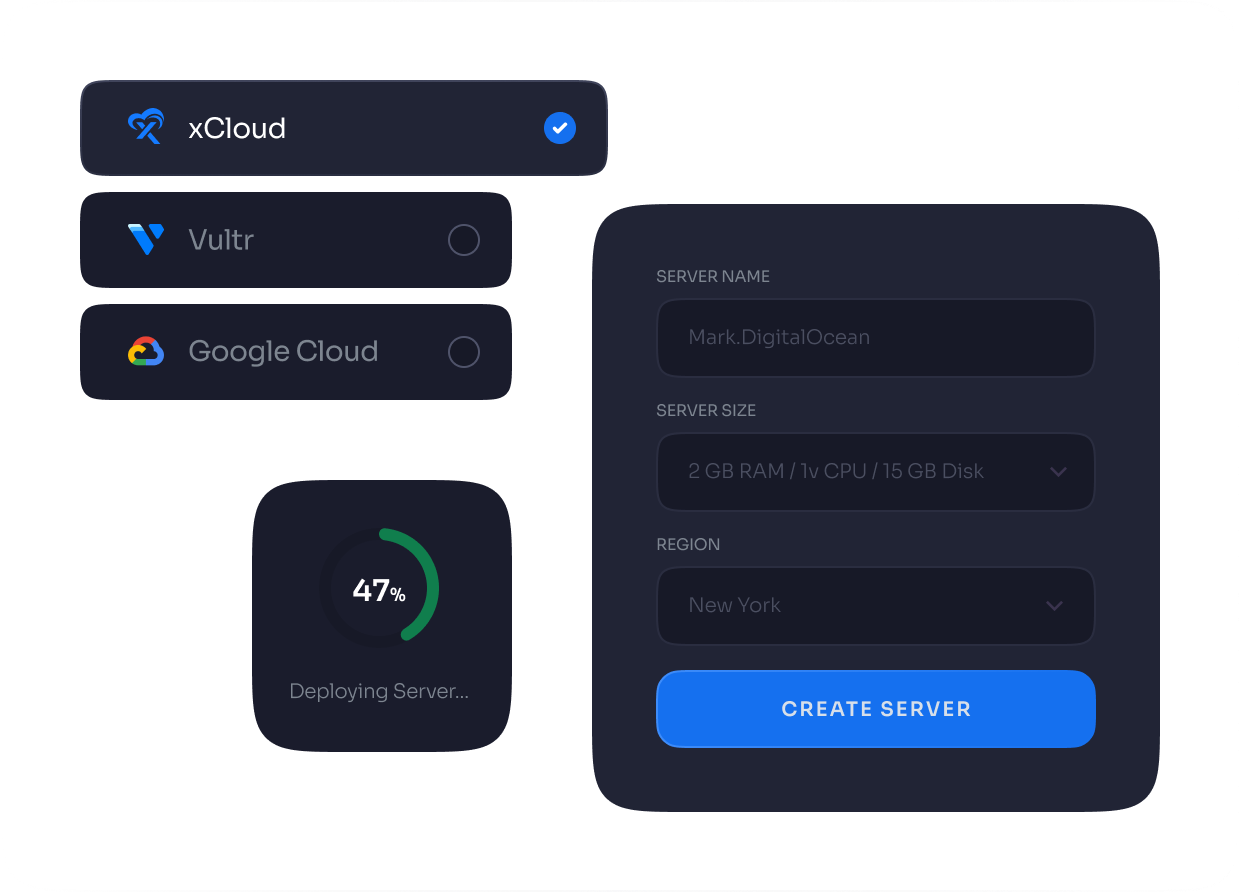
Before you can deploy Odysseus, you need a server to host it. First, you need to create a Docker server to deploy Custom Docker. Click the ‘Add New Server’ button on the dashboard and enter all the necessary credentials to connect your server. You can deploy Custom Docker either on your own server or on an xCloud server.

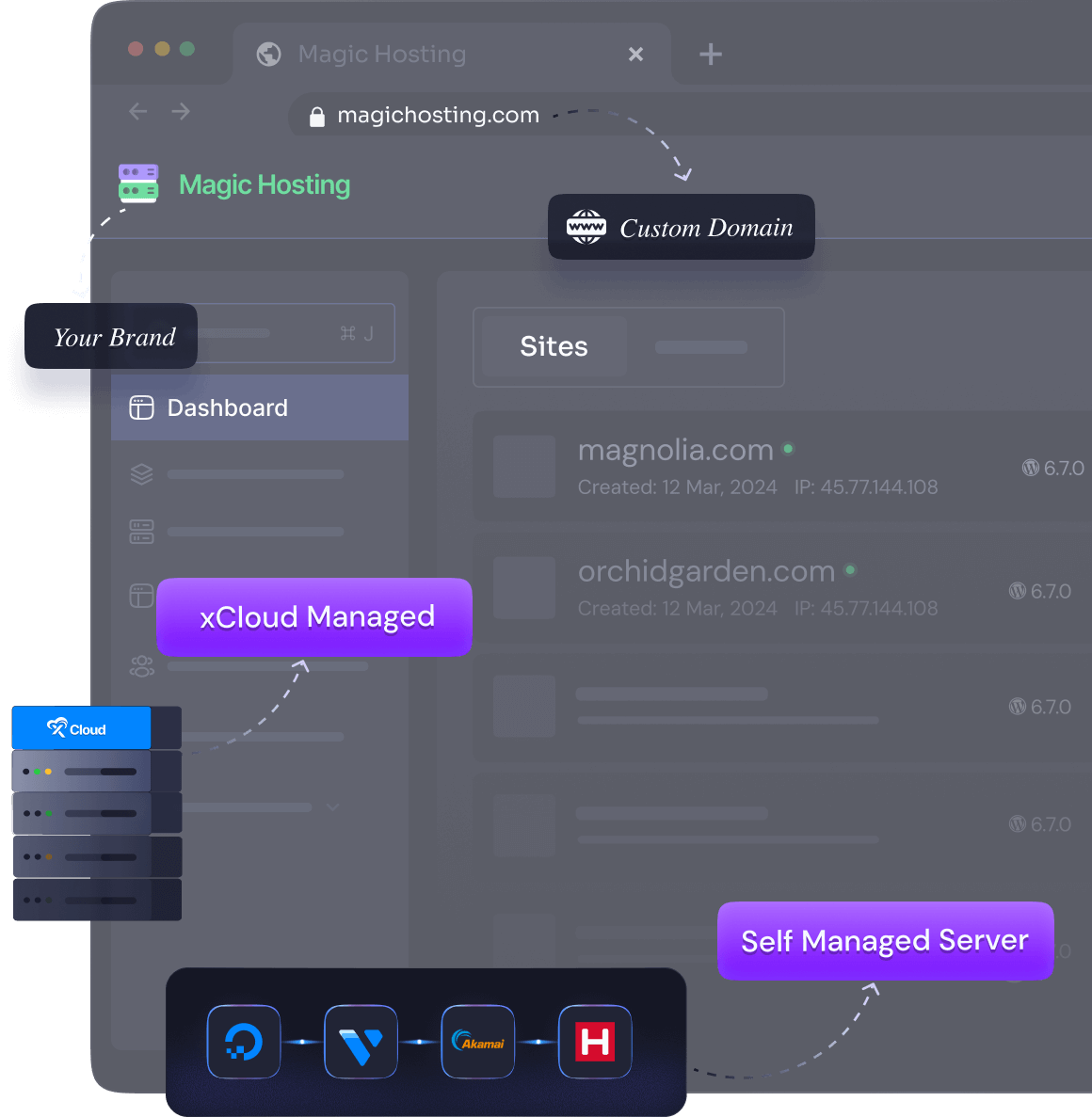
Next, choose your server provider to deploy Custom Docker with xCloud. You can either use an xCloud Managed Server or select your preferred provider. In this guide, we’ll use the xCloud Managed Server.

Afterward, enter the ‘Server Name’, set the ‘App Type’ to Custom Docker(it is optional to select), and add any relevant ‘Tags’ to help identify your server later.

Then choose the ‘Docker + NGINX” server stack from the web server stack.
📌 For more details about the supported stack, see Web Servers Compatibility For Different Applications.

Next, choose between the ‘General’ and ‘Premium’ options based on your requirements. Then, select a plan that best fits your needs. Next, choose the ‘Region’ and ‘Ubuntu Version’ for your server. You can also enable or disable the Backup option as needed.

Next, you can see the ‘Docker + NGINX’ stack is already selected, which is mandatory for deploying the Custom Docker application. Then click on the ‘Create’ button to proceed.

Once the server is created, you will be able to deploy your Custom Docker Application on this server.
After creating a server, it may take a while to become fully operational. Wait a few minutes before deploying your applications to ensure everything starts correctly.
Step 2: Start a Custom Docker site #
Begin by logging into your xCloud account. Once logged in, navigate to your dashboard and click on the ‘New Site’ button.

Step 3: Choose Your Server #
Then choose your server from the dropdown menu. Next, click on the ‘Next’ button to proceed to start creating Custom Docker applications.

Step 4: Go to The Custom Docker Tab #
From here, go to the ‘Custom Docker’ tab and click on the ‘Docker Compose’ to deploy your Custom Docker applications.

Step 5: Set Up the Docker Compose Application #
In the site setup screen, you will be prompted to enter basic site information. Provide a ‘Site Title’ and add relevant ‘Tags’ to help organize your deployment

Step 6: Set Up Domains #
From the ‘Domains’ tab, you will get two options: either you can create a ‘Demo Site’ with a test domain and refine it until it is ready for launch, or, you can migrate into a new domain to get your site up and running in a new domain.
Or you can create your site with your live domain. Just proceed with the ‘Go Live’ option.

For the ‘Demo Site’, you will get a free demo domain for xCloud. Under the ‘Domain Setup’ section, choose your preferred domain. Then you will get a ‘Site User’ of xCloud and click on the ‘Next’ button to proceed.

Step 7: Use the HTTPS GitHub repository URL #
Next, choose the ‘Public Repository (HTTPS)’ option from the dropdown and enter the Git repository URL. Then select the default branch, usually ‘main’. Next, set the Docker Compose file name to docker-compose.yml unless the repository changes its file structure later. Afterwards, continue to the next step.
The repository already includes a Dockerfile and Docker Compose configuration. Odysseus exposes the web app on container port 7000.

Step 8: Detect and map the Odysseus port #
After xCloud reads the Docker Compose file, use port detection to map the app to NGINX. Odysseus uses port 7000 inside the container.
- Go to Port Detection.
- Click Auto-Detect Ports.
- Choose
7000as the primary service port if xCloud detects multiple services. - Map the selected port to your Odysseus domain or subdomain.
- Continue the deployment.
The Odysseus Compose file also includes supporting services such as ChromaDB and SearXNG. Those services should normally remain internal unless you intentionally map them for a specific reason.

Step 9: Add environment variables #
Odysseus can start with defaults, but a VPS deployment should define the important deployment-level settings clearly. In xCloud, enable the Environment File option when you need to add environment variables for the Docker Compose services.
Useful variables may include:
APP_BIND=0.0.0.0
APP_PORT=7000
AUTH_ENABLED=true
ODYSSEUS_ADMIN_USER=admin
ODYSSEUS_ADMIN_PASSWORD=use-a-strong-password
ALLOWED_ORIGINS=https://odysseus.example.com
SECURE_COOKIES=true
OPENAI_API_KEY=your-openai-api-key
OPENROUTER_API_KEY=your-openrouter-api-key
OLLAMA_BASE_URL=http://host.docker.internal:11434
Replace https://odysseus.example.com with your real HTTPS URL. Keep API keys private and do not paste production secrets into screenshots, public issues, or shared chat messages.

Step 10: Deploy Odysseus #
- Review the repository URL, branch, Compose file name, domain, port, and environment variables.
- Click the deployment button in xCloud.
- Wait for xCloud to clone the repository, build the Docker image, start the containers, and configure NGINX routing.
- Open the site from the xCloud dashboard when deployment finishes.
On first setup, Odysseus creates an admin account and prints a temporary password in the container logs if you did not pre-seed an admin password. For Docker installs, check the Odysseus container logs from the xCloud site logs or server terminal if needed.

Step 11: Log in and complete Odysseus setup #
Open your HTTPS Odysseus URL in a browser and log in with the admin username and password. If a temporary password was generated, change it from the Odysseus settings, then add your AI provider keys or local model endpoints there as well. Before enabling heavier agent or research workflows, test a simple chat request to confirm everything is connected.
Recommended VPS size #
The Odysseus web app itself is lightweight, but model serving can be heavy. If you plan to connect only to external API providers, a smaller Docker VPS may be enough. If you want to run local models, choose resources based on the model size, runtime, and GPU/VRAM requirements.
- API-only use: start with a moderate CPU/RAM plan and scale after testing.
- Local small models: use more RAM and disk for model cache and embeddings.
- GPU model serving: choose a GPU-capable environment and confirm the runtime requirements before production use.
- Deep research or agent workflows: allow extra CPU, memory, and disk because background tasks can run longer.
Mobile access for Odysseus AI #
Many people want to use Odysseus from a phone or another device. Hosting Odysseus on a VPS with a domain makes that easier: once the app is deployed and SSL is active, you can open the same HTTPS URL from desktop or mobile.
- Use HTTPS before logging in from mobile browsers.
- Set allowed origins and cookie settings to match your real domain.
- Avoid exposing internal service ports directly to the public internet.
- Use a strong admin password and rotate credentials if you shared temporary setup details anywhere.
Troubleshooting Odysseus AI deployment #
The site does not load after deployment #
- Confirm the Docker containers are running.
- Confirm the primary service port is
7000. - Check whether DNS points to the correct xCloud server.
- Enable or retry SSL after DNS verification passes.
- Review container logs for Python, dependency, or startup errors.
Login does not work or cookies fail #
- Use the HTTPS version of the site URL.
- Set
ALLOWED_ORIGINSto your real HTTPS URL. - Set
SECURE_COOKIES=truefor production HTTPS usage. - Clear old browser cookies after changing domain or cookie settings.
AI providers or local models do not respond #
- Check that the API key is correct and active.
- Confirm the model provider endpoint is reachable from the container.
- For host-based Ollama, use
host.docker.internalif supported by your Docker network setup. - Check Odysseus logs for provider-specific errors.
FAQ about hosting Odysseus AI on xCloud #
Is Odysseus AI made by PewDiePie? #
Odysseus is published under the PewDiePie Archdaemon GitHub organization. This xCloud guide explains how to deploy that public project on a VPS with xCloud; it is not the official Odysseus documentation.
Can I access Odysseus AI from my phone? #
Yes. After you deploy Odysseus on a VPS, connect a domain, and enable SSL, you can open the same secure URL from a mobile browser. Keep authentication enabled and do not expose internal Docker services publicly.
Can I host Odysseus AI with Custom Docker on xCloud? #
Yes. Odysseus includes Docker and Docker Compose files, so you can deploy it through xCloud’s Docker + NGINX server type and Custom Docker workflow.
Should I use the HTTPS Git URL or SSH Git URL? #
For the public Odysseus repository, use the HTTPS Git URL. SSH is mainly useful for private repositories.
Does Odysseus need a GPU? #
Not always. You can run the Odysseus web workspace on a normal VPS and connect to API providers. A GPU is only needed when you plan to serve local models that require GPU acceleration.
Can I use my own domain with SSL? #
Yes. Use the domain step in xCloud, point the required DNS record, verify the domain, and enable SSL so Odysseus runs on a secure HTTPS URL.
Still stuck? Contact our support team for any of your queries.