

The wait is finally over. WordPress 7.0 officially launched on May 20, 2026, and it is, without a doubt, one of the biggest leaps WordPress has taken in years. If you have been waiting to see where WordPress is heading next, this release gives you a clear answer.
WordPress 7.0 brings a refined admin interface, native AI infrastructure, brand-new blocks, and a much cleaner path for developers to extend the platform. The release theme is “Workflows”, and it officially opens Phase 3 of the Gutenberg roadmap.
In this blog, we are going to walk you through everything new in WordPress 7.0, what it means for your sites, and how you can start taking advantage of it today. So, grab a cup of coffee and get comfortable, because there is a lot of exciting stuff to cover. Without further ado, let us get started.
Integration with AI
WordPress 7.0 marks a major evolutionary step for the platform. The days of WordPress being “just a blogging tool” are long gone. Today, WordPress is a collaborative platform that is natively ready for artificial intelligence.
The goal behind this AI project was simple: give WordPress users and plugin developers a reliable, secure way to work with Large Language Models (LLMs) in a standardized way. It also paves the way for what the community is calling agentic WordPress, a future where WordPress can natively talk to external AI agents through machine-friendly interfaces.
Before we dive into the features, let us go over a few key concepts so everything makes sense.
WordPress AI Architecture: The Basics
To understand how AI works in WordPress 7.0, you only need to know four core pieces.
- AI Client: A provider-agnostic AI infrastructure that gives WordPress PHP and JavaScript code a standardized way to talk to AI models. Because it is provider-agnostic, your site is not locked into any single AI service.
- AI Provider: The companies that build and manage the Large Language Models (LLMs), such as Anthropic, Google, and OpenAI.
- Connector: The bridge that lets WordPress communicate with AI providers. WordPress 7.0 ships with three default connectors (Anthropic, Google, and OpenAI), all accessible from Settings → Connectors.
- Abilities API: A handy interface that lets plugins, themes, and WordPress core expose their features in both human- and machine-readable formats. This is exactly what makes WordPress 7.0 natively agentic.
Connectors
In the past, you needed a separate plugin for every AI provider you wanted to use on your WordPress site. That was messy, and honestly, a bit of a hassle. WordPress 7.0 fixes this with a unified interface for managing AI Connectors under Settings → Connectors.
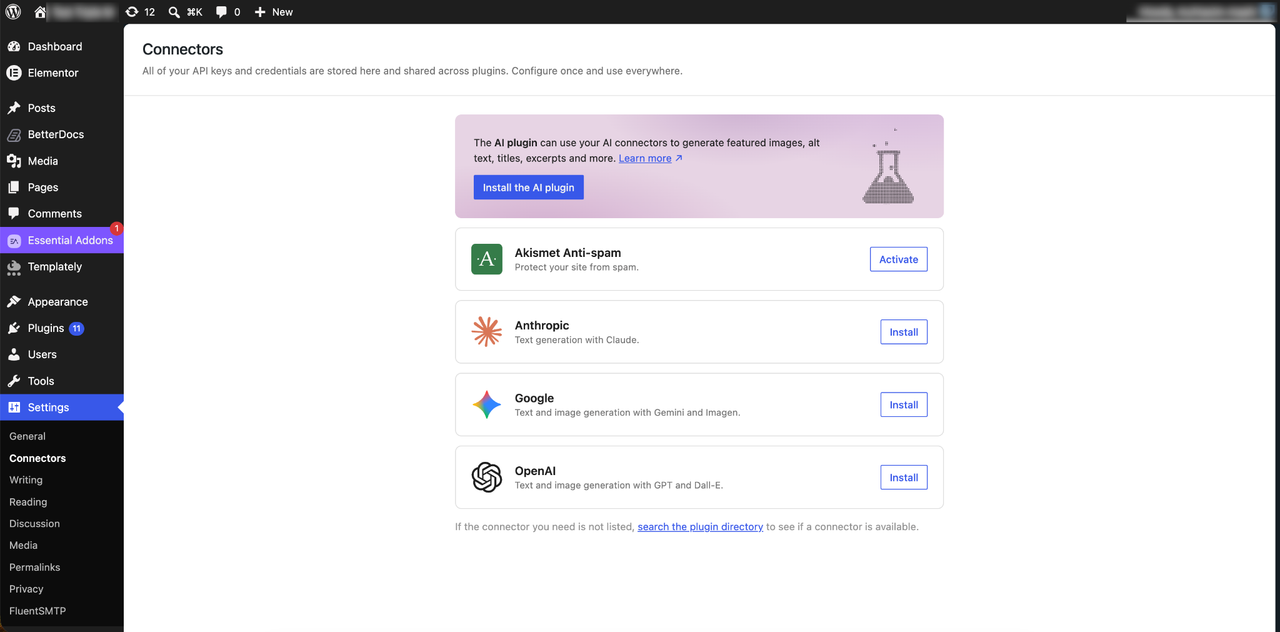
You no longer need to paste your API keys in multiple places. Just enter your keys once on the Connectors screen, and all compatible plugins can use that connection through the AI Client. The best part? You can switch between AI providers from a single place without breaking anything on your site.
WordPress does not send your prompts or data to any AI service by default without your explicit consent. The new core function wp_supports_ai() acts as the central gatekeeper for all AI functionality. If it returns false, all AI calls are skipped entirely.
To get started, simply click the Install button for your preferred AI provider, enter your API key, and save your settings. That is it. You are ready to interact with the AI provider on your WordPress site.
The new AI integration is not just a user interface upgrade. It also lets developers register new AI providers using the Connectors API. Once registered, each connector shows up as a card on the Connectors screen. The action hook wp_connectors_init lets you override metadata for registered connectors or add new ones from your own plugin.
Building with the AI Client
If the Connectors screen is the friendly face, the AI Client is the engine running under the hood. It is a unified abstraction layer that standardizes how WordPress talks to AI services. Whether you are using OpenAI, Anthropic, or Google Gemini, your code stays the same. WordPress takes care of the translation, so you can focus on building.
At the heart of this is the new wp_ai_client_prompt() function. It returns a WP_AI_Client_Prompt_Builder instance that catches exceptions from the underlying SDK and turns them into clean WP_Error objects.
Here is a simple example in PHP:
$ai_response = wp_ai_client_prompt( "Create a professional post about WordPress 7.0" )

    ->generate_text();

if ( is_wp_error( $ai_response ) ) {

    wp_die( $ai_response->get_error_message() );

}

echo wp_kses_post( $ai_response );
Want structured data instead of plain text? You can define a response schema so the output is ready to use right away. Take a look at this example:
$taxonomy_schema = array(

    'type'       => 'object',

    'properties' => array(

        'category' => array( 'type' => 'string' ),

        'tags'     => array(

            'type'  => 'array',

            'items' => array( 'type' => 'string' )

        ),

    ),

    'required'   => array( 'category', 'tags' ),

);
$post_body = “WordPress 7.0 ships with native AI infrastructure, opening Phase 3 of Gutenberg.”;
$json = wp_ai_client_prompt( “Based on this text, suggest the most appropriate category and 3-5 relevant tags: $post_body” )
$taxonomy_schema = array(

    'type'       => 'object',

    'properties' => array(

        'category' => array( 'type' => 'string' ),

        'tags'     => array(

            'type'  => 'array',

            'items' => array( 'type' => 'string' )

        ),

    ),

    'required'   => array( 'category', 'tags' ),

);
Here is what is happening in this code:
- as_json_response() makes sure the output is pure JSON that follows your schema ($taxonomy_schema).
- using_temperature() controls how creative or precise the AI response is. A low temperature (0.1) means more predictable results, while a higher temperature gives you more creative answers.
- The $suggested_taxonomies array then gives you the categories and tags you can automatically assign to your post.
This kind of structured output gives you predictable results, which is perfect for use with the Abilities API. You could literally use this exact code to automatically generate a post, complete with categories and tags.
The AI Client is not limited to text either. It also supports images, speech, and video generation:
- generate_text() for text generation
- generate_image() for image generation
- generate_text_result() returns a GenerativeAiResult object with token usage, provider, and model metadata
- convert_text_to_speech_result() for text-to-speech conversion
- generate_speech_result() for speech generation
- generate_video_result() for video generation
You can even request multiple results in one call. For example, calling generate_image( 3 ) gives you three variations of the same image.
A few other handy methods include:
- using_max_tokens() limits the length of the response (e.g., ->using_max_tokens( 500 ))
- using_model_preference() selects a specific model (e.g., ->using_model_preference( ‘gemini-2.5-flash’ ))
If you want to dive deeper, head over to the WP AI Client GitHub project page and the official AI Client dev note.
The MCP Adapter
For developers building cross-tool AI workflows, WordPress 7.0 also ships an MCP Adapter, a handy package that bridges the Abilities API to the Model Context Protocol. Once registered, your WordPress abilities become discoverable and callable as MCP tools from AI clients like Claude Desktop, Cursor, and VS Code.
If you want to see how this works in real-world projects, our earlier guide on WordPress MCP integration walks you through the complete setup.
New Blocks and Design Tools
WordPress 7.0 introduces some fantastic new blocks and design tools that really level up the editing experience. Let us take a look at what is new and how your creative workflow gets a boost.
New Breadcrumbs Block
WordPress 7.0 introduces a brand-new Breadcrumbs block that automatically reflects your page’s displayed hierarchy. No more juggling third-party plugins just to add a simple breadcrumb trail.
The block uses a dynamic component that queries your WordPress data structure to figure out where your visitors are on your site, based on page hierarchy (parent/child) or post taxonomy terms.
The new Breadcrumbs block also works seamlessly with the Query Loop. When you drop it inside a Query Loop block, each post displays its own breadcrumb path automatically.
You will find some handy configuration options to:
- Show or hide the link to the home page as the starting point.
- Show or hide the current breadcrumb.
- Change the breadcrumb separator.
- Show breadcrumbs on the home page.
- Choose between post hierarchy (default) or the taxonomy term hierarchy.
If you are a developer, the block also introduces two filters that give you programmatic control over breadcrumbs.
The new block_core_breadcrumbs_post_type_settings filter lets you specify which taxonomy and term should be used in breadcrumbs when a post has multiple taxonomies. Here is a quick example that swaps categories for tags:
$taxonomy_schema = array(

    'type'       => 'object',

    'properties' => array(

        'category' => array( 'type' => 'string' ),

        'tags'     => array(

            'type'  => 'array',

            'items' => array( 'type' => 'string' )

        ),

    ),

    'required'   => array( 'category', 'tags' ),

);
The block_core_breadcrumbs_items filter lets you modify, add, or remove items from the final breadcrumb trail before it gets rendered. Some great use cases include:
- Replacing the Home icon with an image (like your company logo) for better branding.
- Shortening long post titles so the breadcrumb does not get clunky.
- Adding custom categories or terms to the breadcrumb trail.
Here is a simple example that truncates breadcrumb labels longer than 20 characters:
add_filter( 'block_core_breadcrumbs_items', function( $items ) {

    foreach ( $items as $key => $item ) {

        if ( mb_strlen( $item['label'] ) > 20 ) {

            $items[ $key ]['label'] = mb_strimwidth( $item['label'], 0, 17, '...' );

        }

    }

    return $items;

}, 10, 1 );
New Icon Block
The new Icon block makes it super easy to add SVG icons directly into your content. No more installing third-party plugins just to add a few icons to your site. Everything is built right in, with proper accessibility and consistent markup.
For now, the Icon block comes with a default set you can choose from. But there are plans to let users register third-party icon sets down the line, which is going to open up even more creative possibilities.
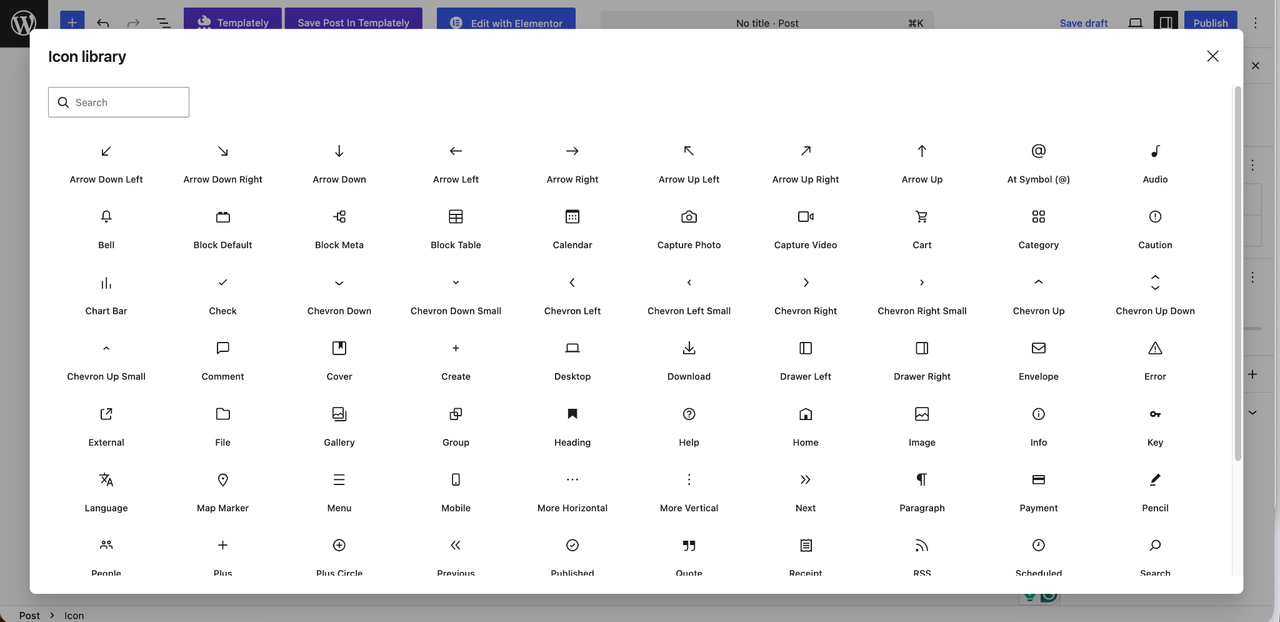
Behind the scenes, the block is powered by a new server-side SVG Icon Registration API. This makes sure icon updates flow smoothly to all your users without breaking anything. The new block is also paired with a fresh /wp/v2/icons REST API endpoint.
Embedded Background Videos for the Cover Block
Here is a feature you are going to love. With WordPress 7.0, you can now use embedded videos from YouTube or Vimeo as background videos for the Cover block. In the past, you could only use videos that were uploaded to your media library.
This is especially useful if you want to save bandwidth by hosting your videos on external platforms instead of cluttering up your server with large files.
To use it, just click Add Media in the Cover block toolbar, then select Embed Video from URL. Paste your video link, and your embedded video will show up as the background, both in the editor and on the frontend.
Responsive Grid Block
The Grid block just got a fantastic upgrade. In previous WordPress versions, you had two choices: Auto mode (with a minimum column width) or Manual mode (with a fixed number of columns).
Starting with WordPress 7.0, the Grid block is natively responsive. The number of columns now acts as the maximum, and you can fine-tune both the minimum column size and the maximum number of columns while keeping everything responsive. No more compromises.
Native Gallery Lightbox
The Gallery block now ships with a built-in lightbox feature. Your visitors can click through your gallery images right inside a clean overlay, and you do not need a single third-party plugin to make it happen. The lightbox supports keyboard navigation and is fully accessible right out of the box.
Block-Level Notes (Collaborative Comments)
WordPress 7.0 expands the commenting system inside the block editor with a powerful new feature. You can now leave notes on specific blocks or even text fragments, assign them to your team members, and resolve threads inline. Think of it as track changes for the block editor. It’s perfect for moving your editorial workflows out of email and Slack.
To use this feature, open any post or page in the block editor, click on a block to select it, and click Add note. Just choose the user, add your note, and save. Other editors will see it right away.
Note on real-time collaboration: Real-time co-editing was originally planned as a flagship feature of WordPress 7.0 but was officially removed from the release on May 8, 2026, due to architectural issues around race conditions and memory efficiency. Block-level Notes is what shipped in its place. Real-time collaboration is expected to come back in a future release, with the earliest realistic target being WordPress 7.3 in 2027.
Client-Side Media Processing
This one is going to make a real difference for content-heavy sites. WordPress 7.0 introduces client-side media processing, which means image compression and resizing now happen right in the browser before upload. This reduces server load and makes the Media Library feel much snappier, especially on slower connections.
If you run a site that uploads large batches of images (think photographers, real estate listings, or e-commerce product catalogs), this is a tangible performance win you will feel right away.
Enhanced Admin Experience
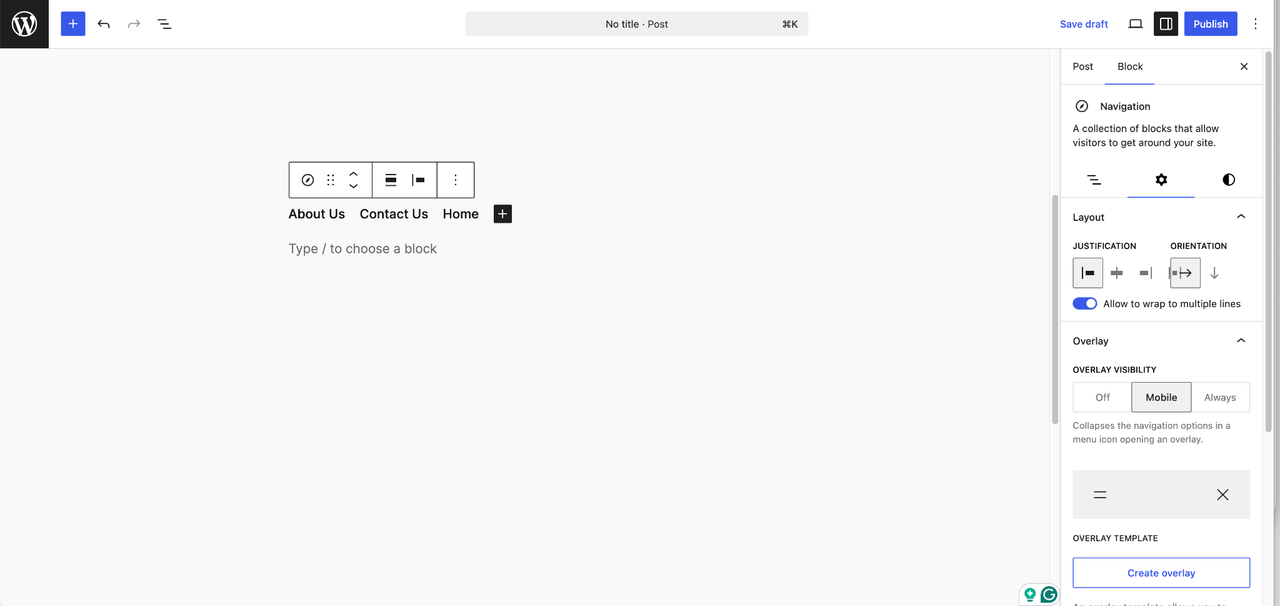
With WordPress 7.0, the WordPress admin area has been redesigned and modernized from top to bottom. It is a serious upgrade that makes your site navigation smoother, more consistent, and just nicer to look at.
Visual Improvements
The moment you open the WordPress 7.0 admin panel, you will notice how fresh everything feels. These changes were long overdue: modernizing the dashboard and getting rid of the inconsistencies between the old admin screens and the block editor.
The visual redesign focused on the core components that show up everywhere in the admin area. The goal is simple: make the admin look modern, reduce inconsistencies between old screens and newer block editor screens, and better align everything with the WordPress design system.
DataViews Come to Posts, Pages, and Media
If you have managed a WordPress site for a few years, you already know the Posts, Pages, and Media screens have looked essentially the same since 2013. WordPress 7.0 finally changes that. DataViews, a React-based system originally introduced for the Site Editor in 6.5 and 6.6, now replaces the old admin list tables across the dashboard.
Here is what that means for you in practice:
- Inline filtering without page reloads. Filter your posts and pages instantly, without waiting for the page to reload.
- Flexible layouts. Switch between table, grid, and list views depending on what you are working on.
- Configurable columns per user. Each team member can set up the view that works best for them.
- Modern bulk actions. Managing multiple items at once now feels closer to a modern web app than a wp-admin from a decade ago.
For agencies managing dozens or hundreds of sites, the productivity boost is going to be huge. For plugin developers, though, this is also the highest-risk change in the release. Any plugin that injected columns, filters, or row actions into the old WP_List_Table will need to be updated to use the new DataViews extensibility API.
Visual Revisions
Revisions are now shown as previews in an editor-like interface that highlights visual differences. You no longer have to read through the entire post to figure out what changed. Differences between content versions are highlighted right at the block level. The system also catches style changes, so you can easily spot adjustments to color palette, typography, dimensions, and so on.
Different colors make it easy to see what changed:
- Yellow highlights a block or text that has been modified.
- Red highlights a block or text that has been deleted.
- Green identifies a block or text that has been added.
Changes for Developers
WordPress 7.0 is not just a visual update. It also brings deep structural changes that make your development workflow much smoother. The highlights include the iframed post editor, PHP-only block registration, the Client-side Abilities API, and React 19 in core.
If you are a developer, here are the most important technical changes coming with WordPress 7.0 that you should know about.
Iframed Post Editor
Starting with WordPress 7.0, the post editor loads inside an iframe if your content uses only blocks built with Block API version 3 or higher. Before 7.0, the editor was iframed only when all registered blocks (even ones not used in the content) used Block API v3+.
So what is the big deal? Loading the editor in an iframe isolates the editor’s UI styles from your theme’s content styles. Without an iframe, both stylesheets share the same document, which often led to weird compatibility issues and made it tough to get visual consistency between the backend and frontend.
Here are the main wins of the iframed post editor:
Style Isolation
- No CSS bleeding: The iframe stops WordPress admin styles from leaking into the editor canvas (and vice versa), so your block appearances stay clean.
- No need for CSS reset: You no longer have to manually reset WordPress admin CSS rules just to match the frontend appearance.
- No prefixing: Theme developers can stop adding prefixes or high-specificity selectors to avoid breaking the admin interface.
Layout Consistency
- Viewport-relative units: Without iframes, units like vw and vh refer to the whole admin page (including the sidebar). With the iframe, they work correctly within the editor canvas.
- Native media queries: Media queries now work natively inside the iframe, reflecting the editor canvas size instead of the full browser window.
Developer Experience
- Simplified workflow: Theme and plugin authors can carry frontend styles over to the editor with minimal or no changes.
- Persistent selections: The iframe keeps your editor selections (like selected text) visible even when you interact with sidebar controls.
- Predictability: It also solves the problem of the editor randomly switching modes based on installed plugins.
Backward Compatibility
If your post contains a block that uses an older API version, the iframe is automatically removed to keep everything working. To take advantage of the upgrades, block developers should update their blocks to Block API version 3+.
PHP-Only Block Registration
This is a big one. WordPress 7.0 finally lets you register blocks entirely with PHP, with automatically generated inspector controls. This is a real game-changer for developers working with hybrid themes or legacy PHP functions and shortcodes who want to move into the block editor world.
Here is a simple example of a block registered using only PHP:
/**

 * Render callback (frontend and editor)

 */

function my_php_only_block_render( $attributes ) {

    return '<div>

        <h3>🚀 PHP-only Block</h3>

        <p>This block was created with only PHP!</p>

    </div>';

}

/**

 * Register the block on the 'init' hook.

 */

add_action( 'init', function() {

    register_block_type( 'my-plugin/php-only-test-block', array(

        'title'           => 'My PHP-only Block',

        'icon'            => 'welcome-learn-more',

        'category'        => 'text',

        'render_callback' => 'my_php_only_block_render',

        'supports'        => array(

            // Automatically registers the block in the Editor JS

            'auto_register' => true,

        ),

    ) );

});
At the moment, PHP-only blocks are not dynamic and only support certain configuration controls. But there are still plenty of use cases, especially for the long tail of simple custom blocks that agencies build for client sites every day.
Client-Side Abilities API
WordPress 6.9 originally introduced the Abilities API, which gave us a standardized way for plugins, themes, and WordPress core to expose their capabilities in human- and machine-readable formats.
WordPress 7.0 takes things further with a new JavaScript API that lets you implement client-side features (like navigating or adding blocks to your content) directly from JavaScript, in a secure and standardized way.
The new Client-side Abilities API is split into two packages:
- @wordpress/core-abilities: If your plugin needs to access abilities registered on the server, you will want to hook into this package. It pulls all the registered abilities and categories from the REST API and stores them in the @wordpress/abilities store.
- @wordpress/abilities: This package gives you access to the abilities store without loading server-registered abilities. If your plugin only needs to register client-side capabilities, this is the one to enqueue.
For a deeper dive and code examples, check out the Client-side Abilities API dev note.
Block Bindings Pattern Overrides
Starting with WordPress 7.0, block attributes that support Block Bindings also support Pattern Overrides. That means you can now use pattern overrides with any block, including custom ones. Before 7.0, this was limited to Heading, Paragraph, Button, and Image blocks. This is a big upgrade for agencies that build custom blocks for client work all the time.
React 19 in Core
WordPress 7.0 ships with React 19 baked into core. This React upgrade is the second-biggest compatibility risk after the DataViews migration. Any block or admin extension that depends on React internals or older Hook patterns should be tested on staging before you push to production.
PHP Requirements
WordPress 7.0 drops support for PHP 7.2 and 7.3. The minimum required version is now PHP 7.4, but PHP 8.3+ is strongly recommended for performance and security, as listed in the PHP Group’s official supported versions. The WordPress core team has long maintained strong guidance on PHP versions, and falling behind on PHP is one of the most common causes of preventable WordPress outages.
Other Changes Worth Knowing
Here are a few more changes to keep on your radar:
- No new default theme. For the first time, WordPress is breaking with tradition. There is no “Twenty Twenty-Six” theme. The focus shifts to improving existing block themes like Twenty Twenty-Five through the Site Editor and Phase 3 tools.
- Hosting requirements for AI Connectors. HTTPS is essentially required for AI Connectors, since most AI providers reject plaintext requests.
- WebSocket support for Notes sync. The block-level Notes feature ships with HTTP polling as the default sync provider so it works on any host. But the core team added a sync.providers filter so hosting providers can swap in WebSocket-based transports for better performance under heavy load.
- MySQL 5.7+ or MariaDB 10.4+ is required for the database layer.
For broader infrastructure context, the WordPress Hosting Team’s official requirements page is the canonical source.
Looking Ahead: 7.0 Marks a New Era for WordPress
WordPress 7.0 is not just an update. It is a watershed moment for both users and developers. With AI integration and the Abilities API, AI can now navigate the dashboard, create new content, and edit existing posts in a structured, standardized way. We are standing at a historic turning point, and there is so much to explore in these new AI-powered tools.
But WordPress 7.0 is much more than AI. The editing experience has been completely reimagined, with a new block-level revision architecture, new core blocks (Breadcrumbs, Icon), customizable design tools, and a modernized admin area.
For developers, WordPress 7.0 unlocks possibilities that were not on the table before. From the iframed editor and PHP-only block registration to the Client-side Abilities API and React 19, this release gives you the right tools to build more powerful sites and applications.
Looking ahead, the core team has already published a tentative roadmap for the rest of 2026. WordPress 7.1 is targeted for August 19, 2026, with deeper collaboration workflows, a Tabs block, Core Abilities for post management, and further DataViews extensibility. WordPress 7.2 is expected around December 8-10, 2026, bringing expanded collaboration features and the first steps toward native multilingual support, a capability the community has wanted for over a decade.
Enjoy a Seamless WordPress 7.0 Experience With xCloud
WordPress 7.0 is a release worth taking your time with. The new AI infrastructure, the DataViews migration, the React 19 upgrade, and the iframed editor all introduce meaningful changes to the surface area of WordPress — meaning the same care you would take with any major release applies here, just more so.
For our WordPress users on xCloud, here is what we would suggest as a practical sequence over the next few weeks.
Start by spinning up a staging environment from your xCloud dashboard. Every WordPress install on xCloud comes with its own one-click staging environment that mirrors your production setup exactly. Push your live site to staging, run the 7.0 upgrade there first, and walk through your most important workflows — checkout, custom post types, page builders, anything in the admin that your team uses daily.
Once you are ready to roll the update out to live sites, the Updates Manager is the place to do it from. Instead of logging into each WordPress site individually, you can manage WordPress Core, plugin, and theme updates across all the sites on your server from one dashboard. For users running 7.0 across a portfolio — agencies, freelancers, anyone managing client sites — bulk updating with full visibility into what is changing is significantly safer than site-by-site upgrades, and the Update History tab gives you a record of exactly what was changed and when.
It is also worth running xCloud’s Vulnerability Checker against your sites before and after the upgrade. The scanner connects to the Wordfence threat database and flags any known issues in your WordPress Core, themes, or plugins. With a release this large, having a baseline check both before upgrading and again after gives you a clear picture of where your portfolio stands.
A few other practical reminders as you plan your upgrade window:
- Confirm your sites are running PHP 8.3 or higher. If any of your sites are still on PHP 8.1 or earlier, upgrade PHP first.
- Take a full backup before the upgrade — not just a database export, but a complete site backup that you can restore from if anything goes wrong.
- Hold off on enabling automatic updates for major versions. Minor security updates are safe to automate, but major releases like 7.0 should be tested manually on staging first.
- Audit your most-used plugins for explicit 7.0 compatibility, especially anything that customizes the Posts, Pages, or Media list screens or registers custom blocks.
WordPress 7.0 is genuinely one of the most consequential releases the platform has shipped in years, and most of the new infrastructure — particularly the AI Client, the Abilities API, and the Connectors framework — will keep paying off as the plugin ecosystem builds on top of it over the coming months. Take the time to upgrade carefully, test thoroughly, and you will be well-positioned to take advantage of what is coming next.
If you run into any issues during your upgrade, our documentation and support team are here to help.
Last updated May 21, 2026
← All articles