A misconfigured PHP hosting environment causes slow page loads, random 500 errors, and security holes that only show up after the damage is done. The frustrating part? Most of these problems are completely preventable.
PHP powers roughly 77% of all websites with a known server-side language. That includes every WordPress, Laravel, and Drupal installation out there. But the hosting landscape in 2026 has changed – PHP 8.5 is the latest stable release, PHP 8.1 has reached end-of-life, NVMe storage is the new baseline, and server-level caching has gone from a bonus to a requirement.
This PHP hosting setup checklist walks you through every decision you need to make before deploying a PHP application in 2026.
Whether you’re launching a WordPress site, migrating a Laravel app, or managing client projects across multiple servers, each item here exists because skipping it leads to real, measurable problems.
1. Choose the Right PHP Version for Your Project
The PHP version running on your server is the single most impactful decision in your hosting setup. In 2026, running anything below PHP 8.3 is a liability.
Here’s the current PHP version support schedule:
| PHP Version | Active Support Until | Security Support Until | Status in 2026 |
| PHP 8.5 | December 2027 | December 2029 | Latest stable |
| PHP 8.4 | December 2026 | December 2028 | Recommended |
| PHP 8.3 | December 2025 (ended) | December 2027 | Security-only |
| PHP 8.2 | December 2024 (ended) | December 2026 | Expiring soon |
| PHP 8.1 | Ended | Ended Dec 2025 | EOL – do not use |
| PHP 7.x | Ended | Ended | Unsupported |
How to choose:
- New projects. Go with PHP 8.4. It has the longest practical support runway — active bug fixes through late 2026 and security patches through 2028. You also get useful features like property hooks, asymmetric visibility in classes, and lazy objects.
- WordPress sites. PHP 8.4 works well with WordPress 6.9 and most major plugins. PHP 8.5 is technically supported but plugin compatibility is still catching up, so hold off on 8.5 for production WordPress until mid-2026 at the earliest.
- Legacy applications. If you’re on PHP 8.2, security support expires in December 2026. Start planning your migration to 8.4 now.
What to look for in your host: You should be able to switch PHP versions per site from your dashboard, not just per server. This is especially important if you manage a mix of newer builds and legacy client sites. Platforms like xCloud let you manage PHP versions individually for each site, install new versions with one click, and set any version as the default across your server.
2. Pick the Right Server Stack
Your server stack is the combination of software sitting between your PHP code and the visitor’s browser. Getting this right sets your performance baseline before you write any application code.
In 2026, the two dominant stacks for PHP hosting are LEMP (Linux, NGINX, MySQL/MariaDB, PHP-FPM) and OpenLiteSpeed. Here’s how they compare:
| Factor | LEMP (NGINX + PHP-FPM) | OpenLiteSpeed |
| Performance | Excellent with FastCGI caching | Excellent with built-in LiteSpeed Cache |
| Configuration | More manual, highly customizable | Simpler setup. |
| WordPress optimization | Works with WP Super Cache, W3 Total Cache, WP Rocket via Rocket-NGINX | Native LiteSpeed Cache plugin |
| Resource efficiency | Lower memory footprint | Very efficient with .htaccess support |
| Best for | Custom PHP apps, Laravel, high-traffic sites | WordPress-heavy environments |
How to choose:
- If you’re running mostly WordPress sites, OpenLiteSpeed‘s native caching integration is hard to beat.
- If you’re building custom PHP applications or working with Laravel, NGINX with PHP-FPM gives you finer control over process management and request handling.
xCloud automatically installs a fully optimized LEMP or OpenLiteSpeed stack depending on your preference, so you don’t have to configure these from scratch.
3. Tune Your PHP-FPM Settings
PHP-FPM (FastCGI Process Manager) is what actually runs your PHP code. Its configuration controls how many simultaneous requests your server can handle and how much memory each one uses.
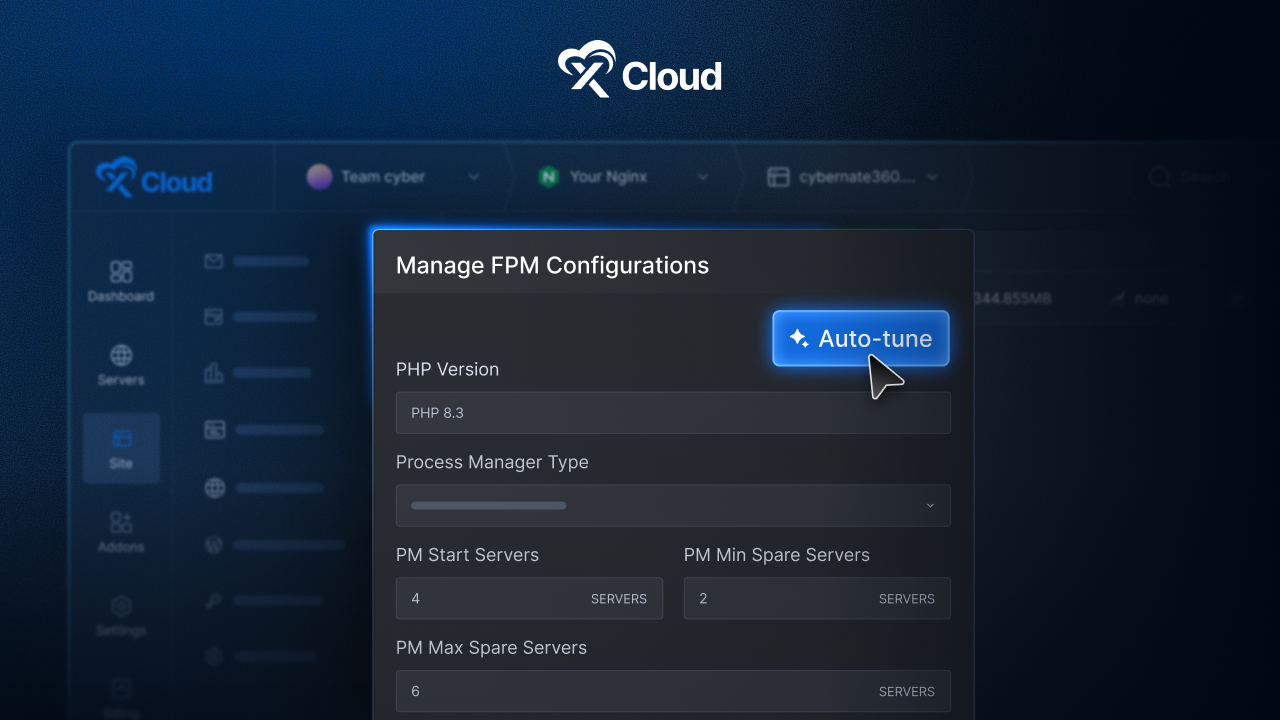
Key settings to configure:
- pm.max_children — The maximum number of PHP worker processes. Set this based on your available RAM. Too low and requests queue up. Too high and you run out of memory.
- pm.start_servers — How many worker processes to create on startup.
- pm.min_spare_servers / pm.max_spare_servers — Controls how the pool scales up and down with traffic.
- pm.max_requests — Recycles workers after a set number of requests to prevent memory leaks from accumulating.
Getting these wrong is one of the most common reasons for “502 Bad Gateway” errors under load.
Example: On a 2 GB RAM server running a single WordPress site, a reasonable starting point is pm.max_children = 10, pm.start_servers = 3, and pm.min_spare_servers = 2. From there, monitor your resource usage and adjust.
Your hosting platform should let you tune these per site, not just per server. xCloud introduced site-level PHP-FPM configuration in its February 2026 update, letting you control workers, resource limits, and process behavior for each site from the dashboard.
4. Configure Your Database
Your database is only as fast as its configuration. Every PHP application — WordPress, Laravel, custom CMS — depends on database queries, and a poorly tuned database will bottleneck everything else.
MySQL vs. MariaDB: Both work well. MariaDB offers some advantages for read-heavy workloads, but the practical differences for most PHP applications are small. What matters more is how you set up whichever one you choose.
How to configure it:
- Use InnoDB as your storage engine. It supports row-level locking and transactions, which prevents one slow query from blocking everything else.
- Set innodb_buffer_pool_size to 70–80% of available RAM on a dedicated database server, or 25–40% on a shared server. This is the single most impactful MySQL performance setting.
- Enable slow query logging. Set long_query_time = 1 to catch any query taking longer than one second. These are the queries killing your page load times.
- Use persistent connections carefully. They reduce connection overhead but can exhaust your connection pool if not managed properly.
Database access: Your host should provide phpMyAdmin or an equivalent GUI, plus SSH access for command-line work. You should also be able to create databases directly from your hosting dashboard. xCloud provides both options during site creation and lets you connect existing databases hosted on separate servers.
5. Set up Full-Page And Object Caching
Without caching, every page request forces PHP to execute code and query the database from scratch. With proper caching, most visitors get a pre-built static page that skips PHP processing entirely.
Full-page caching
This is the biggest performance win available to you. Full-page caching stores the complete HTML output and serves it directly without invoking PHP.
Your options:
- NGINX FastCGI Cache — Works with LEMP stacks. Sits at the web server level, which makes it very fast. One-click activation available on platforms like xCloud.
- LiteSpeed Cache — Native to OpenLiteSpeed stacks. Pairs with the LiteSpeed Cache WordPress plugin for automatic management.
- Varnish Cache — A reverse proxy cache. Powerful but adds complexity. Best for high-traffic sites with dedicated infrastructure.
Object caching with Redis
Object caching stores the results of expensive database queries in memory so they don’t need to run again on every request. Redis is the standard in 2026.
For WordPress, Redis object caching reduces database load on sites with complex queries, WooCommerce catalogs, or membership plugins. For Laravel, Redis handles session storage, queue management, and caching seamlessly.
Your hosting setup should include Redis with your server deployment. You should be able to activate and manage it from the dashboard without manual configuration.
OPcache
OPcache stores precompiled PHP bytecode in shared memory, removing the need to parse and compile PHP files on every request. It should be enabled on every production server.
Settings to verify:
opcache.enable = 1
opcache.memory_consumption = 128
opcache.max_accelerated_files = 10000
opcache.validate_timestamps = 0
Set validate_timestamps = 0 in production for maximum performance. Just remember to clear OPcache manually after deployments.
6. Secure Your PHP Environment
Security isn’t something you add after launch. It’s a series of decisions you make during setup.
SSL/TLS certificates
Every site needs HTTPS. Your host should offer free SSL certificates (typically via Let’s Encrypt) with automatic renewal.
Make sure your setup includes:
- Automatic HTTP to HTTPS redirection
- TLS 1.3 support
- The option to upload custom SSL certificates if needed
xCloud provides free SSL certificates with automatic configuration and renewal, and also supports custom uploads.
Server-level protection
- Fail2Ban — Monitors logs for suspicious activity and automatically bans offending IPs. Should be enabled by default, especially on the SSH port.
- Web Application Firewall (WAF) — Filters and monitors HTTP traffic between your application and the internet.
- Disable directory browsing — Prevents your server from displaying file listings when a directory has no index file.
- SFTP and SSH only — Disable unencrypted FTP entirely. All file transfers should go over encrypted connections.
PHP security settings
Add these directives to your php.ini:
expose_php = Off
display_errors = Off
log_errors = On
allow_url_fopen = Off
disable_functions = exec,passthru,shell_exec,system
session.cookie_httponly = 1
session.cookie_secure = 1
Site isolation
If you’re running multiple sites on one server, each site should run under its own system user. This prevents a breach on one site from compromising others. This is non-negotiable for agencies managing client sites. xCloud creates separate sudo users for each site automatically.
7. Set up Automated Backups
The time to configure backups is during setup, not after your database gets corrupted or a plugin update breaks your site.
What your backup strategy should include:
- Daily automated backups of both files and databases, on a schedule.
- Incremental backups that only save what’s changed since the last run. This saves storage and speeds up the backup process.
- Off-server storage. Keeping backups on the same server as your site defeats the purpose if the server fails. Use remote storage like Google Drive, Amazon S3, or another cloud provider.
- One-click restore. When something breaks at 2 AM, you need to restore in minutes, not hours.
- Pre-update snapshots. Before upgrading PHP, updating plugins, or modifying your database, take a manual snapshot so you have a known-good state to roll back to.
xCloud supports incremental and full backups with one-click restore, Google Drive integration for remote storage, and manual backup creation before critical changes.
8. Create a Staging Environment
Never test changes on a live site. A staging environment is a copy of your production site where you can safely test PHP upgrades, plugin updates, theme changes, and code deployments without affecting live visitors.
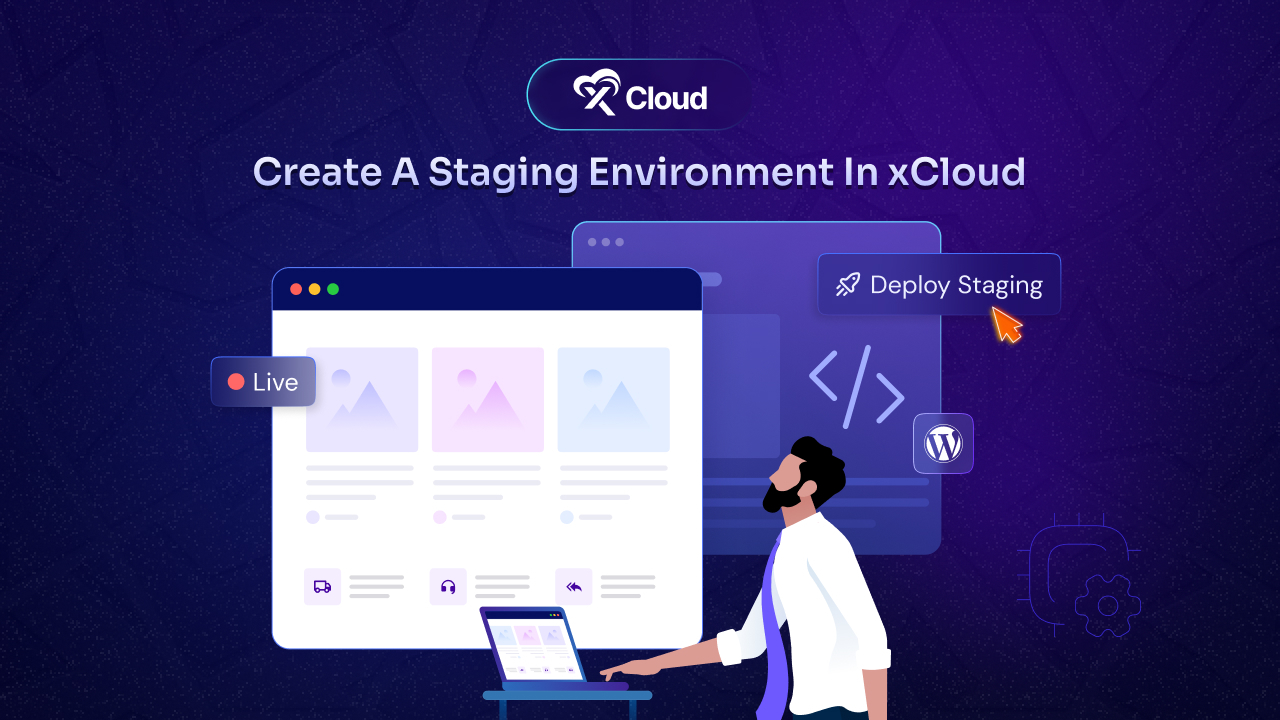
What a proper staging setup looks like:
- Server-level cloning. The staging site should be a true isolated copy at the server level, not a plugin-based approximation.
- One-click push to production. Once staging tests pass, deploying to production should be a single action.
- Separate database. The staging site needs its own database to prevent accidental data contamination.
- Demo domain support. Temporary staging domains let you share work with clients or team members before going live.
Example workflow for PHP upgrades: Clone your production site to staging → upgrade the PHP version on staging → test all critical paths (checkout, forms, login, admin) → monitor error logs for 48 hours → upgrade production.
xCloud provides staging environments with one-click creation and supports demo domains for pre-launch review.
9. Enable Monitoring, Logging, And Debugging
A well-configured PHP hosting environment doesn’t just run your application. It tells you what’s happening inside it so you catch problems before your visitors do.
Error logging
- Set log_errors = On in php.ini.
- Set error_reporting = E_ALL in staging and development to catch every warning and deprecation notice.
- In production, keep display_errors = Off but leave logging on.
- Review logs regularly, or set up automated alerts for critical errors.
Server monitoring
Your hosting platform should give you visibility into:
- CPU and memory usage — to spot resource bottlenecks before they cause downtime.
- Disk space — especially for log files and backups that grow over time.
- Uptime — with immediate alerts when your site goes down.
- PHP-FPM process status — active workers, idle workers, and request queues.
WordPress debugging
For WordPress, the WP Debug Log is extremely useful. A structured log viewer with search, filtering, and one-click copy saves time compared to SSHing into a server and reading raw log files. xCloud’s WP Debug Log viewer provides structured fields, instant search, and filtering from the hosting dashboard.
10. Set up Deployment Workflows, DNS, CDN, And Email
The final layer of your setup is everything surrounding the server: how you deploy code, how visitors find your site, how static assets are delivered, and how transactional emails reach inboxes.
Git integration
Manual FTP uploads are not a deployment strategy. Your hosting setup should support:
- Git repository cloning — deploy by cloning from GitHub, GitLab, or Bitbucket.
- Automatic deployments — push to a branch and have your server pull the changes.
- Post-deployment scripts — run composer install, cache clearing, and database migrations automatically.
- Rollback — if a deployment breaks something, revert to the previous version instantly.
For Laravel and custom PHP apps, xCloud supports Git repository cloning with optional post-deployment scripts. For simpler setups, ZIP uploads with one-click deployment are also available.
DNS configuration
- Point your domain’s A records to your server’s IP address.
- Use a DNS provider with low TTL values so changes propagate quickly.
- Set up CNAME records for subdomains (staging, API, etc.).
CDN
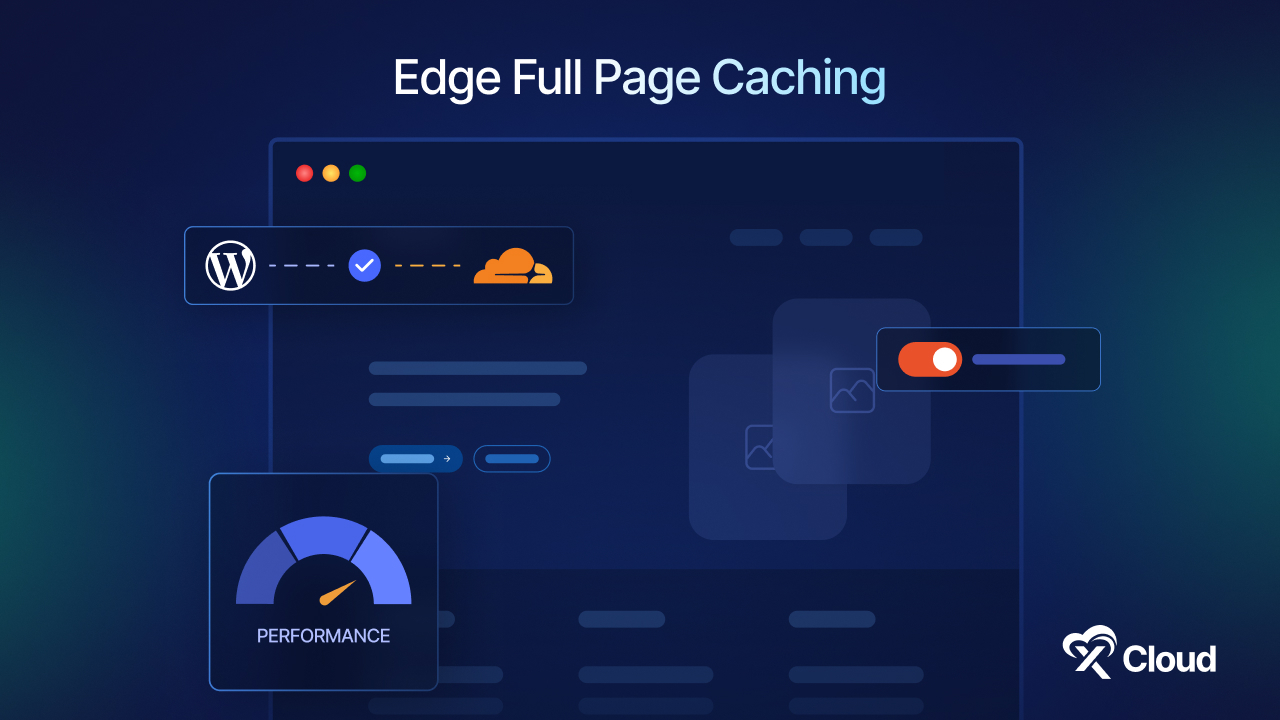
A CDN distributes your static assets across servers worldwide so visitors load them from the nearest location. Cloudflare remains the go-to in 2026, offering DDoS protection, edge caching, and performance optimization. Look for hosting platforms with built-in Cloudflare integration.
Email deliverability
PHP applications frequently send transactional emails — password resets, order confirmations, notifications. Make sure you configure:
- SPF, DKIM, and DMARC records in DNS to keep emails out of spam folders.
- SMTP relay if your server’s native mail function has deliverability issues.
- Third-party email services (SendGrid, Mailgun, Amazon SES) for high-volume sending.
Quick Reference Checklist
Before you launch any PHP site in 2026, run through this:
| # | Checklist Item | ☐ |
| 1 | PHP 8.4 or 8.5 installed and set as default | ☐ |
| 2 | Server stack configured (LEMP or OpenLiteSpeed) | ☐ |
| 3 | PHP-FPM pool settings tuned for your workload | ☐ |
| 4 | OPcache enabled and configured | ☐ |
| 5 | MySQL/MariaDB optimized (InnoDB, buffer pool sized) | ☐ |
| 6 | Full-page caching active (FastCGI or LiteSpeed Cache) | ☐ |
| 7 | Redis object caching enabled | ☐ |
| 8 | SSL/TLS certificate installed with auto-renewal | ☐ |
| 9 | Fail2Ban enabled on SSH and login endpoints | ☐ |
| 10 | PHP security directives hardened in php.ini | ☐ |
| 11 | Site isolation configured (separate system users) | ☐ |
| 12 | Daily automated backups with off-server storage | ☐ |
| 13 | Staging environment created and tested | ☐ |
| 14 | Error logging enabled, display_errors disabled | ☐ |
| 15 | Server monitoring and uptime alerts active | ☐ |
| 16 | Git deployment or file upload workflow set up | ☐ |
| 17 | DNS records configured with CDN (Cloudflare) | ☐ |
| 18 | Email deliverability records (SPF, DKIM, DMARC) set | ☐ |
| 19 | Bonus Tips: Use Bot Blocker | ☐ |
| 20 | Bonus Tips: NGINX Customization | ☐ |
FAQ
What’s the best PHP version for hosting in 2026?
PHP 8.4 is the best choice for most production sites in 2026. It receives bug fixes through December 2026 and security patches through December 2028, giving you the longest support window. PHP 8.5 is the newest stable release, but third-party compatibility is still catching up.
Do I need a VPS, or will shared hosting work?
For small, low-traffic sites, shared hosting can work. But if you’re running WooCommerce, Laravel, or handling more than a few hundred daily visitors, a VPS or managed cloud server gives you the resource isolation and configuration options that shared hosting can’t. xCloud lets you connect your own VPS from providers like Vultr, DigitalOcean, AWS, or Google Cloud and manage everything through one dashboard.
How often should I update my PHP version?
Check at least twice a year. When a new minor version comes out (e.g., 8.4 to 8.5), test it on staging within the first few months. When your current version approaches end-of-life, treat the upgrade as mandatory. An unsupported PHP version means unpatched security vulnerabilities that will never be fixed.
What is site isolation and why does it matter?
Site isolation means each website on your server runs under its own system user with its own file permissions. If one site gets compromised, the attacker can’t access files or databases belonging to other sites on the same server. This matters most for agencies and anyone hosting multiple sites on a single server.
Can I host Laravel and WordPress on the same server?
Yes, as long as your hosting platform supports per-site PHP version management and separate databases. Each application can run its own PHP version and operate independently. xCloud supports WordPress, Laravel, and custom PHP applications on the same server with individual configurations.
Build it right once – your PHP hosting setup should prevent problems, not create them.
A proper PHP hosting setup isn’t something you do once and forget about. It covers PHP version selection, server stack configuration, security hardening, caching, backup automation, and deployment workflows.
Every item on this checklist exists because skipping it causes real problems — slower pages, security breaches, data loss, or hours of debugging that didn’t need to happen. The difference between a site that “works” and one that performs reliably comes down to these foundational decisions
If you have found this blog helpful, feel free to subscribe to our blogs for valuable tutorials, guides, knowledge, and tips on web hosting and server management. You can also join our Facebook community to share insights and engage in discussions.