


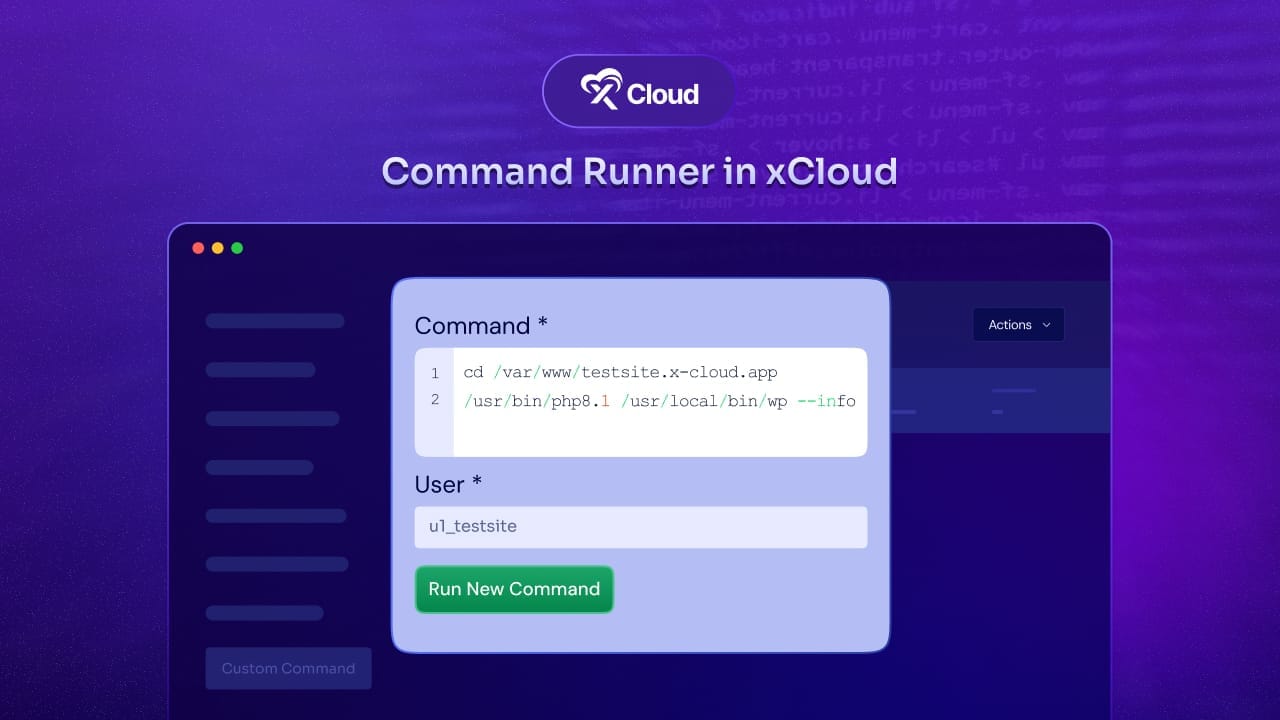
You can run commands on your website and server from the xCloud dashboard with the Command Runner, so WP-CLI and bash tasks no longer need an SSH session. Discover how this powerful tool saves you time, boosts efficiency, and simplifies your workflow. Ready to streamline your site management? Keep reading to learn how to run commands easily with just a few clicks.
What is Command Runner in xCloud?
xCloud introduced a powerful feature Command Runner within the xCloud dashboard that allows users to execute various commands on both their websites and servers directly from a centralized interface. This tool eliminates the need for manual access to the command line, making it easier for users to manage their sites and servers efficiently.
Using Command Runner you can quickly run commands without having to log into your server or website’s backend individually. Whether you are updating plugins, running maintenance tasks, or performing system checks, the Command Runner streamlines the entire process, saving you valuable time and effort.
At xCloud, the Command Runner tool is designed to support a wide range of commands, making site and server management effortless including:
WP CLI Commands: Ideal for WordPress users, xCloud enables you to execute WP CLI commands directly from the dashboard. Whether you are activating maintenance mode, updating themes and plugins, or creating backups, you can do it from the dashboard without opening a terminal.
Bash Scripts: For advanced users, xCloud allows you to run bash scripts to handle server-level tasks. Automate updates, manage services, or perform backups with ease, all from our intuitive interface.
Using xCloud Command Runner, users can centralize their website and server management tasks, automate repetitive actions and ensure that their systems are running smoothly, all from a user-friendly dashboard. This tool is ideal for both beginners who want to simplify their workflow and advanced users who need more control over their operations.
Benefits of Using Command Runner with xCloud
The xCloud Command Runner is packed with benefits that simplify and enhance your website and server management experience. Here are some key advantages of using this powerful tool:
- No Manual Command Line Access Required: One of the standout features of the Command Runner in xCloud is that it eliminates the need for users to log into the command line interface. You can run commands directly from the user-friendly dashboard, making it accessible for those who may not be familiar with command-line operations.
- Centralized Management: xCloud lets you execute commands across multiple sites or servers from a single dashboard. This centralized approach streamlines your workflow and allows for easy management of all your resources in one place.
- Efficiency And Time-Saving: The Command Runner accelerates site and server management processes by allowing you to execute commands quickly and easily. This time-saving capability means you can focus on more strategic tasks rather than getting bogged down in manual processes.
- Team Collaboration: xCloud also supports effective team collaboration through its role permissions feature. This allows you to control which team members can run commands, ensuring that sensitive operations are managed securely while empowering your team to work efficiently.
This feature not only simplifies command execution but also enhances collaboration and efficiency, so you can manage your website and server from one place.
How to Run Commands on Your Website via xCloud Dashboard
Running commands on your website with the xCloud dashboard is easy. Here is a step-by-step guide to help you get started.
Step 1: Select Your Website
First, log into your xCloud dashboard. Once you are logged in, look for the website you want to manage. To do this, go to the navigation menu and click on ‘Tools’, then select ‘Commands.’ This will bring you to the command section for your website.
Step 2: Run Command on Your Website
Next, find the button that says ‘Run Custom Command.’ Click on this button, and it will open a box where you can type your command.
Step 3: Easily Enter Your WP CLI Commands or Other
In the command input box, you can type in the command you want to run. For example, if you want to activate your WordPress site maintenance mode, you can use the command:
wp maintenance-mode activateIt is as simple as typing in your command and hitting the ‘Run Command’ button to run it.
Step 4: Final Outcome
After you run a command, the system will execute it right away. You can check the ‘Most Recent Commands’ box to see the last 10 commands you ran. This box shows important details like who ran the command when it was executed, and the status of the command.
If you want to see more information about a specific command, you can click the ‘Details’ button to view detailed logs.
Who can run commands: by default, only the team owner has access to the Command Runner. To let other members use it, change their role permissions in team management.
How to Run Commands on Your Server
The Command Runner also works at server level. Open the server, go to Management → Commands in the sidebar, click Run Custom Command, enter the command and click Run Command. The full steps for sites and servers are in how to run commands in your site and server.
Other Ways to Run Commands in xCloud
- Web Terminal: for an interactive session, open a root, sudo or site-level terminal in your browser. See how to access the Web Terminal in xCloud.
- Public API: to run a one-off site command from a script and read its status, exit code and output, use a token with the
commands:runpermission. See run site commands with the xCloud Public API.
This is how you can run commands on your website and server with xCloud easily from your user-friendly dashboard interface.
Bonus Section: Pro Tips for Running Commands Efficiently with xCloud
Here are some easy-to-follow tips to help you get the most out of the xCloud Command Runner:
- Test Commands in a Safe Environment First: Before you run a new command on your live website or server, try it out on a staging site. This way, you can catch any issues without affecting your live site.
- Create a List of Frequently Used Commands: Keep a list of the commands you use often. This will save you time when doing regular tasks like updates or maintenance. You can quickly copy and paste them into the xCloud command runner.
- Monitor Command Execution Logs Regularly: After running a command, always check the ‘Most Recent Commands’ log. This will help you spot any problems early so you can fix them right away.
- Use WP-CLI Aliases for Faster Workflow: If you use WP-CLI commands a lot, create shortcuts (aliases) for them. This makes your workflow faster and more efficient.
- Ensure Team Members Have Appropriate Permissions: Make sure only the right team members can run commands. Use xCloud’s team management settings to control who can execute commands, keeping your sites and servers secure.
Following these tips, you can run commands more smoothly and efficiently while keeping everything secure and under control.
Frequently asked questions
Do I need SSH to run WP-CLI commands on xCloud?
No. Open your site, go to Tools → Commands, click Run Custom Command, type the WP-CLI command and click Run Command.
Can I run commands on the whole server?
Yes. Open the server and go to Management → Commands, then click Run Custom Command.
Who can use the Command Runner?
By default, only the team owner. Give other members access by changing their role permissions in team management.
Where can I see the commands that were run?
The Most Recent Commands box lists the last 10 commands with who ran them, when and their status. Click Details to see the full log.
Manage Your Site and Server with the xCloud Command Runner
The xCloud Command Runner is a powerful tool that can significantly simplify your website and server management tasks. You can run commands without using the command line, which saves time and makes your tasks simpler.
Using this feature in xCloud you can save time, reduce errors, and improve overall efficiency. Also, from updating plugins to running maintenance tasks, xCloud lets you handle everything from one user-friendly dashboard. It is perfect for beginners and experts who want more control and efficiency.
Make your site and server management simpler today. If you find this blog helpful then subscribe to our blog, and join our Facebook Community to get our daily updates.
Last updated November 5, 2026
← All articles