


Your website data is one of your most important digital assets. No matter if you run a blog, an online store, or a business website, unexpected events like server failures or cyberattacks can cause sudden data loss. That is why it pays to automatically backup your website to storage you control, on a schedule, with copies kept for as long as you need them.
Many website owners still do backups manually or rely only on their hosting provider. With xCloud, you can automatically backup your website to the cloud with pCloud cloud storage, which is a popular and secure cloud storage solution.
In this blog, we will show you how to integrate pCloud with xCloud Hosting, automate the backup process, and keep your website protected with minimal effort.
Why Automatically Backup Your Website?
Automating your website backups is crucial for protecting your online presence. Relying on manual backups might seem sufficient, but they take up valuable time and can easily be forgotten or performed inconsistently.
By automating the process, you ensure that reliable, up-to-date copies of your website’s data are always readily available, all without the hassle of daily upkeep. Take this simple step to safeguard your website and gain peace of mind.
Save Time And Avoid Human Error
Manually backing up files and databases introduces the possibility of mistakes, such as forgetting to perform backups, saving them in the wrong format, or omitting critical files. By automating website backups, you eliminate these risks entirely. Scheduled backups run silently in the background, ensuring that you never miss a crucial recovery point.
Minimise Downtime And Data Loss
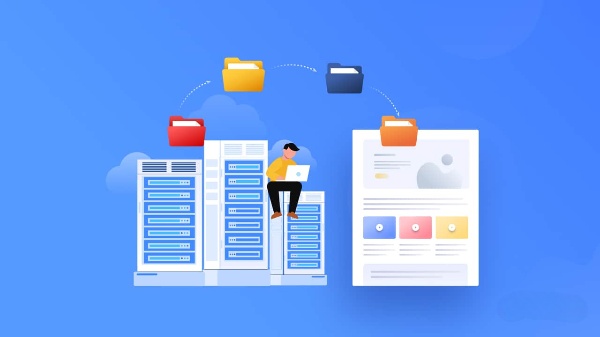
If your website suffers a security breach, hosting failure, or user error, it is vital to restore it quickly. With xCloud Hosting backup automation in place and your data securely stored in pCloud cloud storage, you can bring your site back online in minutes, rather than hours or days. This rapid recovery is only achievable through automation.
Enhanced Redundancy And Remote Storage
By integrating pCloud with your web hosting, you benefit from offsite, encrypted cloud storage. Even if your local or host server fails, your data remains safe in the cloud. Automating backups with pCloud ensures redundancy and protects against single points of failure.
Peace of Mind And Scalability
Once you implement automatic website backups, you can eliminate the stress of potentially losing data. Additionally, as your website grows in size and complexity, automation scales with you, reducing your workload while improving data integrity.
What Is pCloud & Why Should You Choose pCloud Integration?
pCloud is a secure and user-friendly cloud storage platform based in Switzerland, trusted by millions of users worldwide. It is especially favoured by professionals and website owners for its privacy controls and versatile feature set. Unlike traditional cloud storage providers, pCloud offers a unique blend of encryption, easy file access and integration capabilities that make it a perfect choice for automated site backups.
Let us take a look at some key advantages of pCloud cloud storage integration:
Client Side Encryption (pCloud Crypto)
pCloud offers an optional add-on called pCloud Crypto, which provides zero-knowledge, client-side encryption. This ensures only you can access the encrypted files — not even pCloud can view their contents.
Large File Handling & Folder Syncing
pCloud can manage large files without speed throttling. You can also sync entire folders across devices or servers, making it easy to manage website backups without manual intervention.
File Versioning & Recovery
Need to roll back changes or recover deleted data? pCloud keeps version history for up to 30 days (or up to 365 days with Extended File History), so you can restore previous versions of files and recover from accidental deletions.
Cross-Platform Accessibility
pCloud is available via web, desktop, and mobile apps, so you can access or manage your backups anytime, anywhere.
How to integrate pCloud Storage & Automatically Backup Your Website
Automating your website backups with pCloud and xCloud is a hassle free way to secure your data with minimal effort. The process involves linking your pCloud storage provider with xCloud. Once configured, your website files are automatically compressed and securely pushed to a dedicated storage bucket in your pCloud account.
Now that your environment is set up, it is time to automate website backups by syncing your site from xCloud Hosting to pCloud. This integration gives you flexibility to integrate multiple storage providers and backup your site more easily.
For a full walkthrough, follow the detailed guide to implement a reliable and secure website backup process using xCloud and pCloud.
Alternatives Storage Providers Tools for Site Backups with xCloud
While integrating pCloud site backup with xCloud Hosting is a powerful and reliable method to automate website backups, it’s not the only solution available. Depending on your technical comfort level, budget, or security requirements, you might want to explore additional tools or alternative cloud services to strengthen your overall backup strategy.
Let us explore some alternative options that work well alongside automated backups with pCloud setups. If pCloud does not fit your needs or you’re looking for redundancy, here are a few alternative platforms:
- Google Drive
- Amazon S3
- Backblaze B2
- Cloudflare R2
- Wasabi
- Hetzner Storage
- Google Cloud Storage
- Your own SFTP server
Schedules, Retention and Team Defaults in xCloud
Once a storage provider is connected, xCloud gives you a few settings that decide how automatic your backups really are:
- Several schedules: under Site Backup → Backup Settings, one destination can take full backups at more than one frequency, such as daily and weekly. Incremental destinations keep one backup chain, so they run one schedule.
- Backup Retention: old backups are deleted after the period you choose under Delete backups older than. The newest backup of each destination is always kept.
- Skip Delete: mark a backup Skip Delete in Site Backup → Previous Backups to keep it out of the automatic cleanup. See keep a backup and run multiple backup schedules.
- Team defaults: a team administrator can set one local and up to two remote destinations once and apply them to many sites from the global backup page. See global backup settings.
Backup settings can’t be saved on the free plan. If a scheduled backup fails or never starts, work through how to solve automatic site backup failures. xCloud also sends a weekly email about servers with no backup, so an unprotected server does not go unnoticed.
Best Practices for Your Website Backup
Even with automated backups to pCloud or other cloud platforms, relying on a single backup method is risky. A strong backup strategy should incorporate multiple layers to protect against all types of failures.
1. Local Backups
Store a copy of your backups on a local drive or NAS (Network-Attached Storage). Provides fast access and restore capability, especially useful for large websites or time-sensitive recoveries.
2. Hybrid Backup Strategy
Combine backup types and destinations. For example, keep daily and weekly full backups in one remote bucket, and a local copy on the server for fast restores. This lets you match backup frequency to how often your data changes.
3. Use Monitoring And Alerts
Set up email or system notifications for failed backup jobs or sync errors. Early warning systems help you respond to issues before they turn into a potential data loss.
Frequently asked questions
Which storage providers can I use for xCloud site backups?
pCloud, Google Drive, Amazon S3, Backblaze B2, Cloudflare R2, Wasabi, Hetzner Storage, Google Cloud Storage and your own SFTP server, each with its own setup guide.
Can I run daily and weekly backups at the same time?
Yes, for full backups. Under Site Backup → Backup Settings, one destination can run several schedules. All schedules of a destination share its Backup Retention setting.
Are automatic backups available on the free plan?
No. Backup settings can’t be saved on the free plan.
Automate Site Backups with pCloud Storage & Get Peace of Mind
Today, you can not rely only on manual backups or your hosting provider’s snapshots. To protect your website, you need a backup strategy that is automatic, secure, offsite, and can grow with your needs. You can achieve this by integrating pCloud and automatically backup your website with xCloud.
If you have one or many sites, setting up pCloud integration with xCloud can provide peace of mind and strong data protection. Ready to protect your website? Start integrating pCloud with xCloud today and enjoy automated, stress-free backups.
If you have found this blog helpful, feel free to subscribe to our blogs for valuable tutorials, guides, knowledge, and tips on web hosting and server management. You can also join our Facebook community to share insights and engage in discussions.
Last updated November 5, 2026
← All articles