


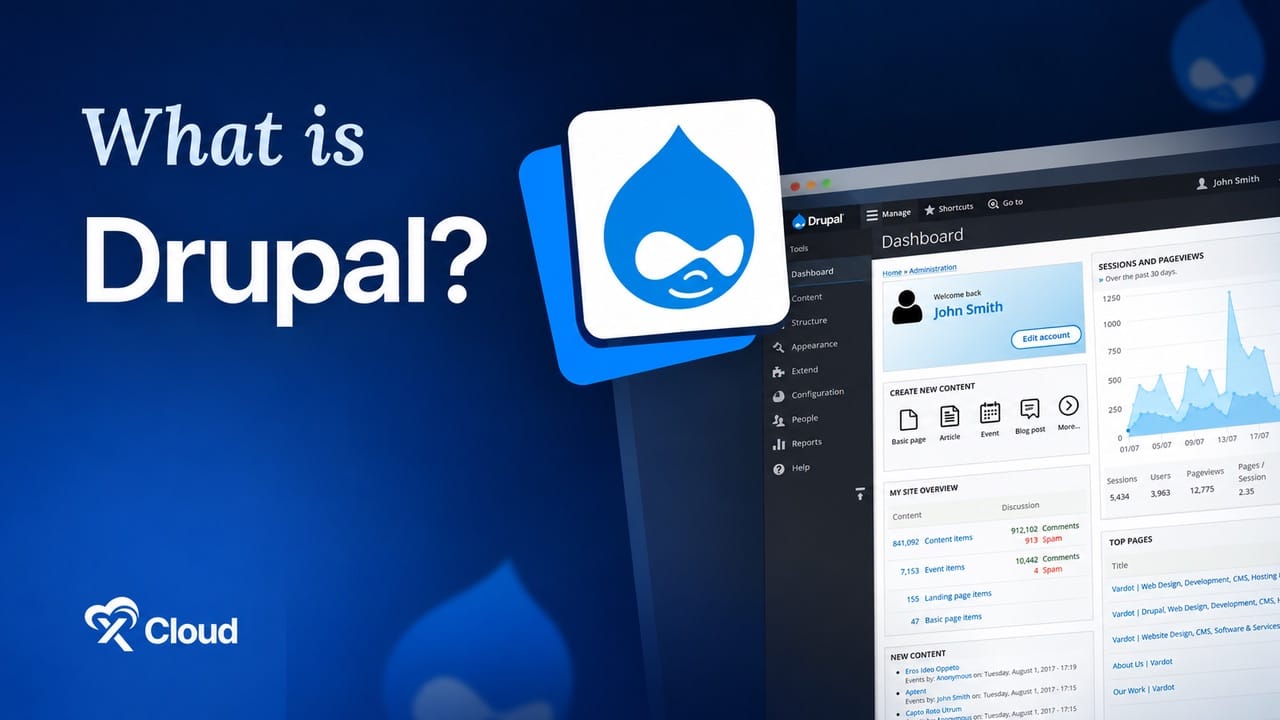
You searched for a CMS that handles complex content without turning into a plugin graveyard. Drupal came up. Then you hit the confusing part: Drupal and Drupal CMS are two different downloads, and nobody explains the difference in the first paragraph.
Here it is. Drupal core is the raw framework. Drupal CMS is the ready-to-run distribution the Drupal project ships on top of it, with editorial tools, a visual page builder, and site templates already installed and configured.
That distinction changes everything about who should use it. Developers who want a blank canvas still grab core. Marketing teams, agencies, and site owners who want a working website on day one want Drupal CMS. If you are weighing your options the way you would when choosing between managed and self-managed hosting, the same logic applies: how much assembly do you actually want to do?
This guide covers what Drupal CMS is, what ships inside it, how Canvas works, who it fits, where it beats WordPress, where it does not, and how to get a live site running.
TL;DR (Too Long, Didn’t Read?)
Short on time? Here is the whole guide in a few lines:
- Drupal CMS is a distribution, not a fork. It runs on standard Drupal core 11, so every core module, security release, and API works normally.
- It ships configured. Canvas visual page builder, media handling, editorial workflow, the Gin admin theme, and SEO defaults come preinstalled instead of arriving as a shopping list.
- Version 2.0 landed on January 28, 2026 and added Canvas, site templates, and optional AI tools including page generation from prompts and automatic alt text.
- Recipes replace the old install-profile model. You apply a recipe to add a feature set, then keep editing it like any other configuration.
- Best for: content-heavy sites, universities, government, nonprofits, multilingual publishers, and any team where editors and developers share one system.
- Not best for: a two-page brochure site or a store that needs a plugin ecosystem the size of WooCommerce.
- Hosting matters more than with WordPress. Drupal wants PHP 8.3 or newer, Composer, a real cron process, and a database that is not sitting on shared hosting. Deploy it in one click on xCloud and you skip that assembly entirely.
What Is Drupal CMS?
Drupal CMS is the official, preconfigured distribution of Drupal, built and maintained by the Drupal project itself, aimed at people who want a working content site rather than a framework to build one with.
Think of it like buying a kitchen. Drupal core hands you the cabinets, the plumbing spec, and a very good instruction manual. Drupal CMS hands you the kitchen installed, with the appliances plugged in and the drawers already organized. Both are the same kitchen underneath. One of them lets you cook tonight.
The project launched this distribution to answer a complaint the Drupal community had heard for a decade: Drupal is powerful and Drupal is slow to start. A developer could assemble a great editorial experience from core plus twenty contributed modules, but a marketing team evaluating options on a Tuesday afternoon never got that far. They installed core, saw a bare admin screen, and left.
A Few Things Worth Knowing
- It is not a separate product line. Drupal CMS 2.x runs on Drupal core 11.x. You get the same security team, the same release cycle, the same module ecosystem.
- You are not locked into the distribution. Once installed, it is a normal Drupal site. Add modules, remove recipes, write custom code, switch themes.
- The codebase is a Composer project. Your site lives in a
composer.jsonwith a lockfile, which is how updates and module installs work. - It is free. Drupal CMS is open source under GPL-2.0-or-later. You pay for hosting and your own time, nothing else.
- The current stable line is 2.1.x, which added first-class support for free and premium site templates on top of what 2.0 introduced.
Drupal CMS vs Drupal Core: The Practical Difference
| Aspect | Drupal Core | Drupal CMS |
|---|---|---|
| What you download | The framework | The framework plus a configured site |
| Admin theme | Claro | Gin, preinstalled |
| Page building | Layout Builder, needs setup | Canvas, drag and drop, ready |
| Media handling | Core media, unconfigured | Media library configured with defaults |
| SEO basics | Add Metatag, Pathauto, Simple XML Sitemap yourself | Included and configured |
| Time to a usable editor experience | Hours to days | Minutes |
| Who it suits | Developers building something custom | Teams who need a site now |
| Underlying code | Identical | Identical |
The last row is the one people miss. Choosing Drupal CMS does not cost you any of core’s power. It costs you nothing at all, in fact, because you can strip out anything you do not want.
What Ships Inside Drupal CMS?
The distribution bundles a specific set of capabilities. Here is what you actually get on first boot.
1. Canvas, the Visual Page Builder
Canvas is the headline feature of the 2.x line, and it is the piece that changes who can use Drupal day to day.
Canvas gives editors true drag and drop with live preview. You pick components, drop them onto the page, edit text in place, and see the result as visitors will see it. No template files, no separate preview tab, no developer ticket for a landing page.
The Mercury component library ships alongside it with prebuilt elements: cards, testimonials, accordions, hero sections, and the rest of the pieces a marketing page needs.
This matters because Drupal’s historical weakness was never capability. It was that a content editor could not move a button two inches without asking someone. Canvas closes that gap.
2. Site Templates
Drupal CMS 2.0 introduced site templates, and 2.1.0 rebuilt the installer around them. You now pick a template during installation from a screen that shows screenshots, descriptions, and links.
The shipped templates include Starter, Byte (aimed at SaaS marketing sites), Blank, Mercury, and Haven. The installer also supports premium templates with license key validation, which opens a commercial template market the way WordPress theme marketplaces work.
Picking a template is not a permanent decision. It applies a set of configuration, content types, and styling that you then edit freely.
3. Recipes
Recipes are Drupal’s answer to “install this feature set without inheriting a distribution.”
A recipe is a bundle of modules, configuration, and sometimes default content that you apply to an existing site. Apply the SEO recipe and you get Metatag, Pathauto, and a sitemap configured sensibly. Apply the events recipe and you get an event content type with the fields and views already built.
Here is the part that trips people up: once a recipe is applied, it is gone. It does not sit there as a layer you have to respect. The configuration it created is now just your site’s configuration, editable like anything else. That is the design difference between recipes and the old install-profile approach, where your choices at install time followed you forever.
4. Optional AI Tools
Drupal CMS 2.0 shipped an optional AI layer. It covers three things in practice:
- Page generation from a text prompt, which drafts a Canvas layout you then refine
- An admin chatbot that performs configuration tasks by request
- Automatic alt text for uploaded images, which quietly fixes one of the most common accessibility failures on content sites
The AI features are opt-in and require you to connect a provider. Version 2.1.0 added encryption of AI provider access keys at rest, which is the kind of detail that tells you the feature is being maintained rather than demoed.
5. Editorial and Admin Experience
The Gin admin theme replaces Claro as the default, and the difference is not cosmetic. Gin reorganizes the admin navigation into something a non-developer can navigate without a training session.
You also get content moderation workflows, a configured media library, and role setup that assumes a real team rather than a single superuser.
What Is Drupal CMS Actually For?
Drupal earns its place on a specific kind of project. Here are the use cases where it consistently wins.
Universities and Higher Education
Drupal is used by roughly 70 percent of the world’s top 100 universities, and the reason is structural rather than sentimental. A university site is hundreds of departments, thousands of editors, dozens of content types, and a permissions model that has to keep the biology department out of the admissions pages.
Drupal’s taxonomy system, per-role permissions, and content workflow handle this natively. WordPress handles it with plugins and prayer.
Government and Public Sector
Accessibility compliance, multilingual requirements, long support horizons, and strict security review are the baseline for public sector work. Drupal’s core accessibility standards and its dedicated security team map onto those requirements directly.
Multilingual is the standout here. Drupal handles translation of content, configuration, and interface in core. On most other platforms, that is an add-on with its own quirks.
Content-Heavy Publishers
If your site has more than a handful of content types that relate to each other, Drupal’s entity system starts paying rent. Articles that reference authors that reference organizations that reference events, each with their own fields and display modes, is a Tuesday for Drupal and a custom development project elsewhere.
Agencies Building Client Sites
Recipes and site templates change agency economics. You build a recipe once for the functionality you deploy on every client site, then apply it in seconds on the next project.
Pair that with staging environments and you have a repeatable client delivery pipeline rather than a bespoke build each time.
Nonprofits and Membership Organizations
Event calendars, member directories, donation flows, and volunteer sign-ups all map cleanly onto Drupal’s content model. The zero license cost helps too when the budget is genuinely tight.
Drupal CMS vs WordPress: An Honest Comparison
The truth is less dramatic than either community will tell you. Neither one is universally better, and the honest answer depends on what your site has to do.
| Factor | Drupal CMS | WordPress |
|---|---|---|
| Market share | Roughly 0.7% of all websites | Roughly 41% of all websites |
| Learning curve | Steeper, but much flatter than old Drupal | Gentle |
| Structured content | Excellent, native entity and field system | Needs custom fields plugins |
| Multilingual | In core | Plugin (WPML, Polylang) |
| Permissions | Granular per-role, native | Basic roles, plugins for more |
| Plugin ecosystem | Smaller, higher average quality | Enormous, wildly variable quality |
| Ecommerce | Drupal Commerce, capable but niche | WooCommerce, dominant |
| Hiring developers | Harder and more expensive | Easy |
| Security track record | Strong, dedicated security team | Strong core, plugins are the risk |
| Hosting requirements | PHP 8.3+, Composer, real cron | Runs almost anywhere |
Rule of thumb: if your content is mostly posts and pages and you need a large plugin market, WordPress wins on cost and speed. If your content has structure, relationships, multiple languages, or a team with different permission levels, Drupal CMS wins and keeps winning as the site grows.
The catch nobody talks about: Drupal’s smaller developer pool is a real business risk on a long project. Budget for it or pick a partner who specializes.
If you land on WordPress instead, our managed WordPress hosting covers that side of the fence just as well.
What Drupal CMS Needs to Run Properly
This is where Drupal differs from the one-click CMS crowd, and where most bad first impressions come from.
| Requirement | What Drupal CMS needs |
|---|---|
| PHP | 8.3 minimum, 8.4 or 8.5 recommended |
| Database | MariaDB, MySQL, PostgreSQL, or SQLite |
| Web server | Nginx or Apache |
| Composer | Required, this is how you install and update |
| Cron | A real system cron, not page-triggered |
| Memory | 2 GB RAM is the floor for the app plus database, more in practice |
| OS | Linux, always, for production |
Two of these deserve a closer look.
Composer is not optional. Drupal CMS is a Composer project. You add modules with composer require, you update with composer update, and your composer.lock file is the source of truth for what is installed. Shared hosting control panels that promise a Drupal install without Composer access will leave you stuck the first time you need a module.
Page-triggered cron is a trap. Drupal’s default cron runs when a visitor loads a page. On a low-traffic site, that means scheduled tasks, search indexing, and cleanup jobs run erratically or not at all. A dedicated cron process solves it. If you have not set one up before, our guide to scheduling tasks with cron jobs covers the mechanics.
How to Deploy Drupal CMS: Three Paths
Path 1: Local Development with DDEV
DDEV is the Drupal community’s recommended local environment, and Drupal CMS ships with a default DDEV configuration. Install DDEV, run the project, and you have a local site in minutes.
Use this for development and evaluation. It is not a production answer.
Path 2: Manual Server Setup
Provision a VPS, install PHP and the extensions Drupal needs, install and secure MariaDB, configure Nginx, set up Composer, generate a hash salt, configure cron, issue an SSL certificate, and then run the installer.
Plan for a few hours if you have done it before, and a weekend if you have not. You own every piece of it afterward, which is either the appeal or the problem depending on your temperament.
If you prefer containers, Drupal publishes official images and the pattern works well. Our explainer on Docker and its components is a good starting point if that is new territory.
Path 3: One-Click Deployment
Pick Drupal CMS from a one-click app catalog, choose a domain and a server, and let the platform assemble the stack. This is the path most teams should take unless server configuration is itself the goal.
Our documentation walks through it screen by screen: How to deploy Drupal CMS with xCloud, including which server type to pick and when to use Demo domain mode instead of going live before DNS is ready.
Deploy Drupal CMS on xCloud in Under 5 Minutes
Here is where the assembly work disappears. xCloud Drupal CMS hosting deploys the official Drupal CMS image on infrastructure you control, with the pieces that usually eat an afternoon already handled.
What xCloud configures for you:
- The pinned Drupal CMS image behind an Nginx gateway
- A private MariaDB database with generated credentials, kept off the public internet
- A stable 64-character hash salt, generated correctly
- An administrator account with a generated 32-character password
- A dedicated cron process running every five minutes, independent of visitor traffic
- Persistent volumes for your Composer project, uploaded files, and database
- A free SSL certificate and the HTTPS route on your domain
How it works in three steps:
- Sign up and pick Drupal CMS from the OneClick catalog. Choose a Docker and Nginx server, enter your site details, pick Demo or Go Live domain mode, and confirm the administrator email. Every secret generates automatically.
- We deploy it. The image comes up alongside the private database and cron process, volumes mount, the Starter site template installs, and the site publishes over HTTPS.
- Sign in and build. Open the login URL, sign in with the generated password from your Credentials panel, change it, configure outbound mail, then start building with Canvas.
Follow the full walkthrough in How to deploy Drupal CMS with xCloud, then set up SSL certificates and backups from the knowledge base.
The honest trade-off: a dedicated Cloud VPS sized for Drupal starts at $24.99 per month, which costs more than a $5 shared hosting plan. What you buy is a server that actually meets Drupal’s requirements, a database that is not exposed, and cron that runs whether or not anyone visits. If you already have a VPS with DigitalOcean, Vultr, Hetzner, or anyone else, bring your own server for $5 per server per month instead.
One thing to be clear about: xCloud pins the application image but does not auto-upgrade your Drupal site. Upgrades stay a deliberate, backed-up operation where you update the Composer project, run drush updatedb, and verify. That is the correct behavior for a CMS where a surprise update can break a custom module at 3 a.m.
Already running Drupal somewhere else? Free migration moves it across.
Pro Tips for Running Drupal CMS Well
Tip 1: Back up all three volumes together. Your database, your Composer project, and your uploaded files are three separate things. A backup that captures them at different moments restores to a site that does not match itself.
Tip 2: Configure outbound mail before you need it. Password reset emails do not work until you set up mail delivery. Discovering this while locked out is a bad afternoon.
Tip 3: Leave the hash salt alone. It secures password hashes and security tokens. Rotating it casually invalidates active sessions and tokens across the site.
Tip 4: Keep registration closed unless you need it. Drupal CMS ships with public registration disabled and administrator-only account creation. Turn it on only when your site genuinely requires visitor accounts.
Tip 5: Commit your composer.lock file. It is the record of exactly which versions your site runs. Without it, two deployments of the same site can install different code.
Tip 6: Test updates on staging first. Drupal’s update path is reliable, but contributed modules vary. A staging copy costs you minutes and saves you incidents.
Tip 7: Plan for Drupal 10’s end of life. Drupal 10 reaches end of life on December 9, 2026, when Drupal 12 arrives. Starting a new project on Drupal CMS 2.x puts you on core 11 already, which is exactly where you want to be.
Quick Checklist Before You Launch
- PHP 8.3 or newer confirmed
- Composer available and
composer.lockcommitted - Dedicated cron running on a timer, page-triggered cron disabled
- Outbound mail configured and a test password reset sent
- SSL certificate issued and HTTPS enforced
- Backups covering database, code, and files from the same point in time
- Administrator password changed from the generated one
- Public registration set correctly for your use case
- Staging environment in place before the first update
Start Building With Drupal CMS This Week
Drupal CMS solves the problem that kept good teams away from Drupal for a decade. The power was always there. The first hour was the obstacle, and Canvas, recipes, and site templates remove it.
Pick your path this week. If you want to evaluate it, spin up DDEV locally and click through Canvas for an hour. If you already know Drupal fits, skip the server assembly and get a live site with a private database, real cron, and HTTPS handled.
Whichever direction you go, the thing worth doing first is building one real page in Canvas. That is the moment the distribution stops being a spec sheet and starts being a website.
Deploy Drupal CMS on xCloud and skip straight to that part.
If you have found this blog helpful, feel free to subscribe to our blogs for valuable tutorials, guides, knowledge, and tips on web hosting and server management.
Frequently asked questions
Is Drupal CMS free?
Yes. Drupal CMS is open source under the GPL-2.0-or-later license, and the project charges nothing for it. You pay only for hosting and whatever development time your project needs. Premium site templates from third-party vendors are the one paid element, and they are optional.
What is the difference between Drupal and Drupal CMS?
Drupal is the underlying framework, sometimes called Drupal core. Drupal CMS is the official distribution that installs on top of core with editorial tools, Canvas, media handling, and SEO defaults already configured. The code underneath is identical, so anything you can do with core, you can do with Drupal CMS.
Can I self-host Drupal CMS?
Yes, and most people should. Drupal CMS is a standard Composer project that runs on any Linux server with PHP 8.3 or newer, a supported database, and a web server. xCloud deploys it in one click on either a managed Cloud VPS or a server you already own.
Do I need to know how to code to use Drupal CMS?
No, not for everyday use. Canvas handles page building visually, and site templates give you a configured starting point. You will need developer help for custom modules, custom themes, and complex integrations, which is true of every CMS at that level.
Is Drupal CMS better than WordPress?
For structured content, multilingual sites, granular permissions, and large editorial teams, yes. For simple sites, ecommerce, and projects where you need a huge plugin market and easy hiring, WordPress is the more practical choice. Neither is better in the abstract, and the right answer follows from what your content looks like.
I installed Drupal CMS but my scheduled tasks never run. What is wrong?
Almost certainly cron. Drupal’s default cron fires when a visitor loads a page, so a low-traffic site runs scheduled tasks erratically. Set up a dedicated system cron that calls drush cron on a timer, which is what xCloud configures automatically every five minutes.
Which version of Drupal CMS should I install?
The latest 2.1.x release. It runs on Drupal core 11, includes Canvas and the refactored site template installer, and sits on the supported branch. Drupal 10 reaches end of life on December 9, 2026, so any new project should start on core 11.
Does Drupal CMS include AI features?
Yes, optionally. Drupal CMS 2.0 added page generation from text prompts, an admin chatbot for configuration tasks, and automatic alt text for images. The features are opt-in and require connecting an AI provider, and version 2.1.0 added encryption of those provider keys at rest.