

How to Deploy Drupal CMS with xCloud
Updated October 27, 2026 · 6 min read
You can deploy Drupal CMS from xCloud’s One-Click Apps catalog without preparing a custom Docker Compose file or installing Drupal manually. This tutorial shows how to select Drupal CMS, choose a compatible NGINX server, configure a demo or live domain, and start provisioning. The xCloud template includes Drupal CMS, a private MariaDB database, scheduled cron processing, persistent storage, and HTTPS proxy configuration.
Prerequisites
- An active xCloud account with permission to create sites.
- Either:
- a compatible NGINX server in xCloud (xCloud installs Docker on it automatically; OpenLiteSpeed servers cannot run Docker), or
- permission to provision a new server during site creation.
- For an existing server, xCloud recommends at least 4 GB RAM, 2 vCPU, and 10 GB disk in the current Drupal CMS wizard.
- A domain with DNS access if you plan to choose Go Live.
- An email address for the Drupal administrator account.
Step 1: Select Drupal CMS from One-Click Apps
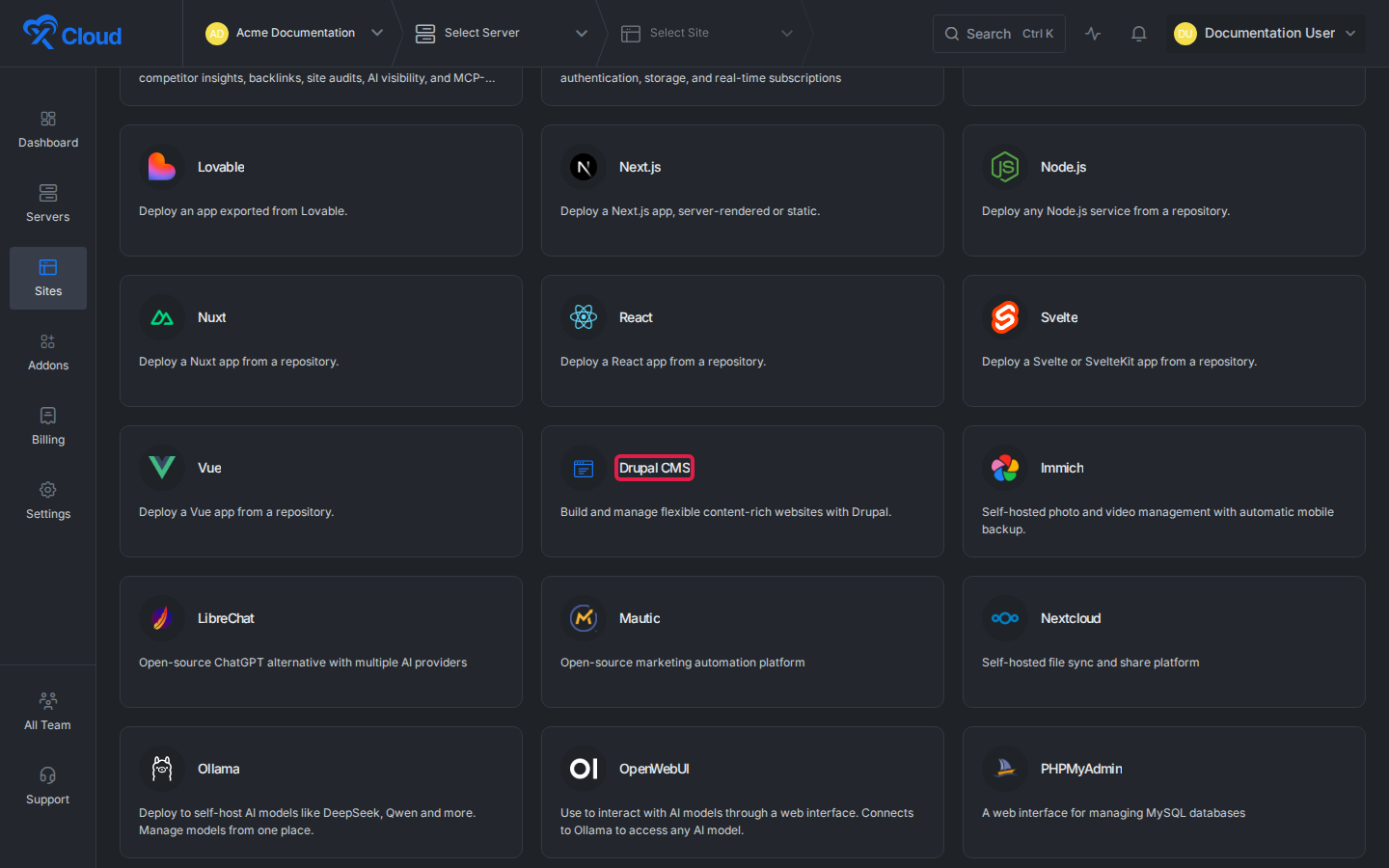
From the xCloud dashboard, select New Site. Open One-Click Apps, then find and select Drupal CMS.
Step 2: Choose where Drupal CMS will run
Choose one of the available deployment paths:
- Deploy on a new server: Use this when you want dedicated resources. xCloud provisions and configures the server.
- Select an existing server: Choose a compatible server that uses the NGINX stack and has enough available resources.
Select the server card, then select Continue.
Step 3: Enter the site details and choose a domain mode
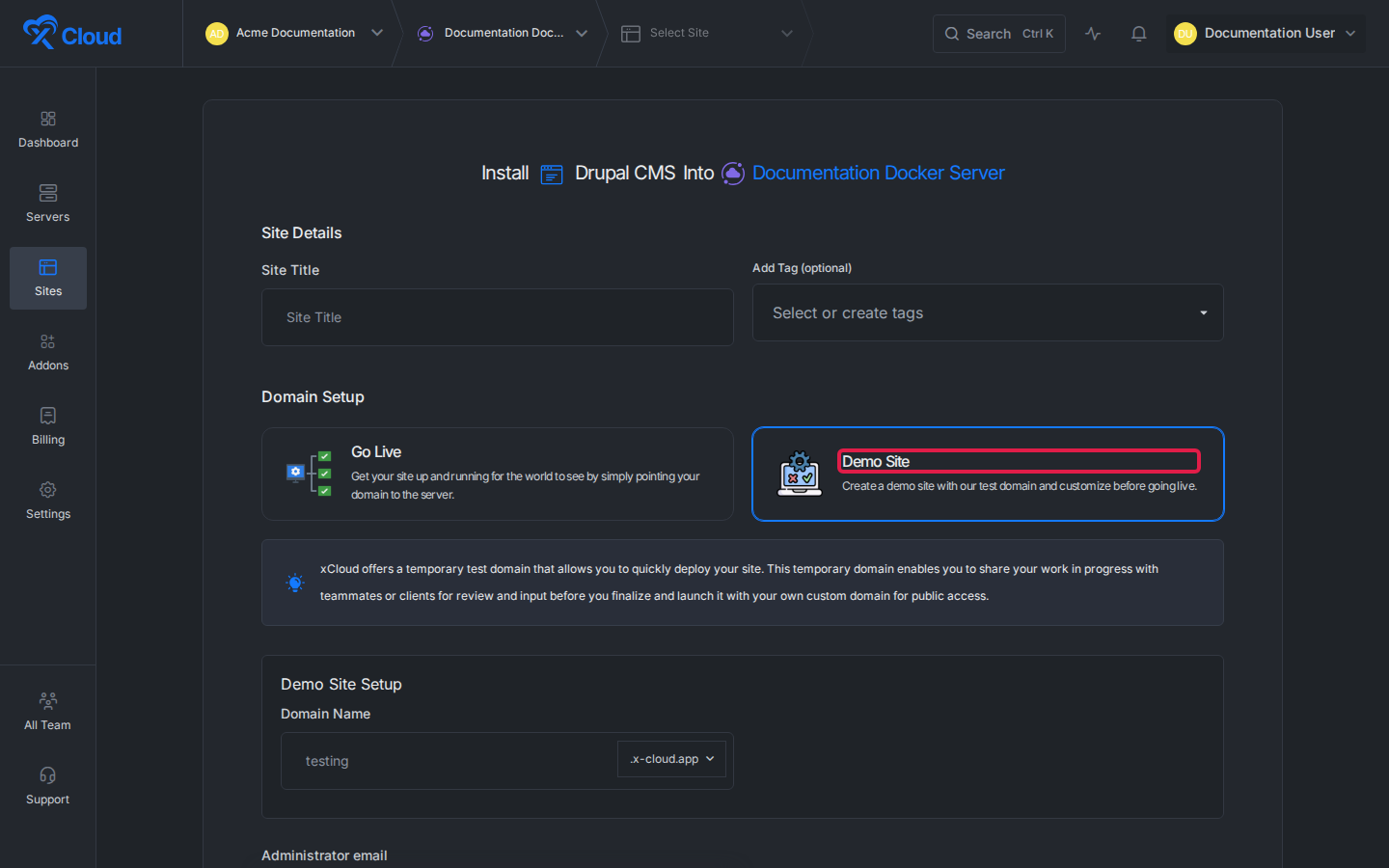
Enter a descriptive Site Title. Tags are optional and can help you organize sites in the dashboard.
Choose one of these domain modes:
| Domain mode | Use it when | What you provide |
|---|---|---|
| Demo Site | You want to build or review Drupal before connecting a public domain. | A temporary subdomain under x-cloud.app. |
| Go Live | Your production domain is ready and you can update its DNS. | Your public domain and the required DNS configuration. |
For a first deployment, select Demo Site so you can verify Drupal before changing public DNS.
Step 4: Complete the Drupal settings and start provisioning
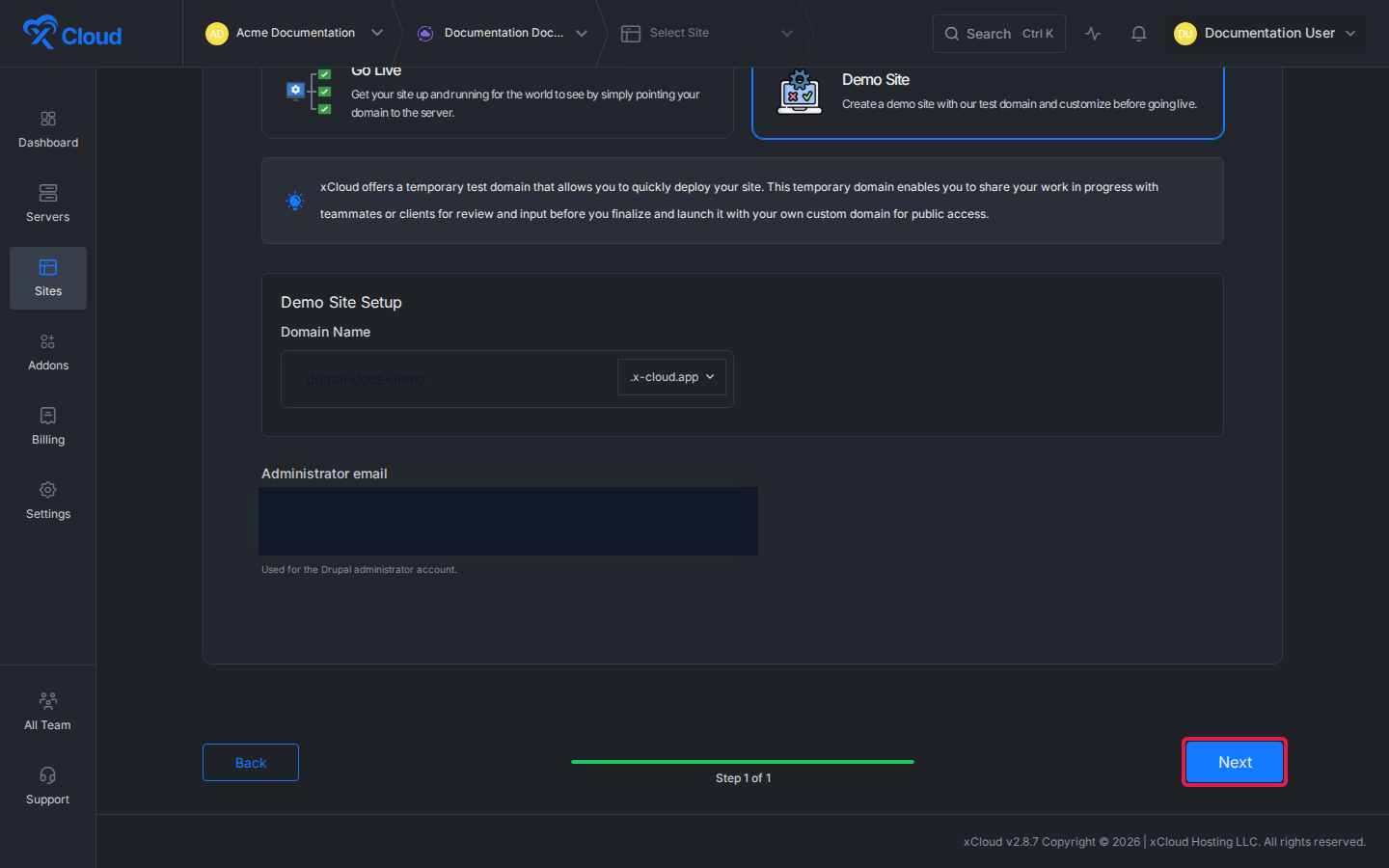
For a Demo Site, enter a unique subdomain. Then enter the Administrator email that Drupal should associate with its administrator account.
Review the values, then select Next to submit the deployment.
Step 5: Wait for Drupal CMS to become available
Open the new site from Sites and monitor its provisioning status. Do not change the domain or delete the site while the initial deployment is running.
When provisioning finishes, open the configured Demo Site or live domain. xCloud’s Drupal CMS template configures the application, a private MariaDB database, persistent storage, scheduled cron processing, and the HTTPS reverse proxy.
Step 6: Sign in to Drupal
Use the Drupal administrator account generated during provisioning. Sign in to the Drupal administration area and confirm that the dashboard loads.
After signing in, update the administrator profile, confirm the notification email, and store any generated credential in your password manager.
Common mistakes
- Choosing Custom PHP or Docker Compose instead of the maintained Drupal CMS One-Click App.
- Selecting an incompatible server because it has free disk space but does not use the NGINX stack.
- Choosing Go Live before you can update the domain’s DNS records.
- Using an inaccessible administrator email address.
- Refreshing or resubmitting the form repeatedly while the first provisioning task is still running.
Frequently asked questions
Do I need a custom Docker Compose file to deploy Drupal CMS on xCloud?
No. The xCloud One-Click Apps template already includes Drupal CMS, a private MariaDB database, scheduled cron processing, persistent storage and HTTPS proxy configuration. Select Drupal CMS from the catalog and xCloud provisions it for you.
What server does Drupal CMS need?
A compatible NGINX server. xCloud recommends at least 4 GB RAM, 2 vCPU and 10 GB disk in the current Drupal CMS wizard.
Should I choose Demo Site or Go Live?
Choose Demo Site for a temporary subdomain under x-cloud.app so you can review Drupal before connecting a public domain. Choose Go Live only once your production domain is ready and you can update its DNS.
How do I sign in to Drupal after deployment?
Use the Drupal administrator account xCloud generates during provisioning. Sign in to the Drupal administration area, confirm the dashboard loads, then update the administrator profile and store the credential in a password manager.
Related xCloud docs
- Drupal CMS hosting on xCloud, the plans and what is included
- How to use One-Click App Templates for App Actions, the Environment editor and events
- Back up and restore Docker apps for the xCloud side of the backup story
If Drupal CMS does not come up after deployment, feel free to reach out to our support team with the site’s failed event output.