


A Portainer install takes two Docker commands: create a portainer_data volume, then run the portainer/portainer-ce:lts container with the Docker socket mounted and port 9443 published. Open https://SERVER_IP:9443, paste the setup token from the container logs, and create the admin user within 5 minutes.
That last sentence is where most tutorials are now wrong. From Portainer 2.43 and 2.39.4, new instances ask for a setup token, and none of the written guides ranking for this query mention it. Several still pin image versions from 2022.
This guide uses the commands from Portainer’s own docs as of October 2026, adds a Compose version, and covers the parts people trip on: the timeout, the open ports, upgrades and uninstalling. If Docker itself is new to you, start with what Docker is and how its parts fit together.
TL;DR
Short on time? Here is the whole guide in a few lines:
- Install Docker first, from Docker’s own packages. Portainer’s docs advise against the snap version on Ubuntu.
- Run two commands:
docker volume create portainer_data, then thedocker runline in Step 2 with the:ltstag. - Get the setup token with
docker logs portainerand create the admin user within 5 minutes, or Portainer stops itself. - Port 9443 is the HTTPS web UI. Port 8000 is only for Edge Agents, so drop it if you don’t use them.
- Upgrade by removing the container and running it again with the new image. Your data lives in the volume, so it survives.
- Portainer controls every container on the server. Treat its login like a root password and avoid leaving 9443 open to the whole internet.
What Other Portainer Install Guides Miss in 2026
We read the four written guides in the US top five for “portainer install” on 29 October 2026 (the fifth result is a video) and compared each with Portainer’s current docs. The gaps are the same everywhere.
| What changed | Official docs (Oct 2026) | Ranking guides |
|---|---|---|
| Image tag | portainer/portainer-ce:lts (Community 2.45.3 LTS, released 22 Oct 2026) |
Pinned 2.6.3, 2.9.3 or 2.31.3, or :latest |
| First login | Setup token from the container logs, required from 2.43 / 2.39.4 | Not mentioned by any of them |
| Setup window | Admin user must be created within 5 minutes, or the service stops (as of October 2026) | Not mentioned |
| Docker Compose | Official Compose file and command | Not covered |
| Port 8000 | Optional TCP tunnel for Edge Agents | Published without explanation, once called an SSH tunnel |
| Upgrade | Stop, remove, pull :lts, run again |
One guide, written for 2.9.3 |
If you only remember one line: copy commands from a guide that uses :lts and mentions the setup token, or you will be stuck at the first login screen.
What Is Portainer?
Portainer is a web dashboard for Docker. It shows your containers, images, volumes and networks, and lets you start, stop, update and deploy them from a browser instead of the terminal.
It runs as a container itself. It talks to Docker through /var/run/docker.sock, which is exactly what makes it useful, and also why its login must be protected.
The free Community Edition (CE) is what this guide installs. Portainer also sells a Business Edition with extra team and access controls, which installs the same way with a different image.
What You Need Before You Start
| Requirement | Detail |
|---|---|
| A Linux server | Ubuntu or Debian on x86_64 or ARM64. A small VPS is enough for one host |
| Docker Engine | A current version, installed from Docker’s packages, not snap |
| sudo access | Docker runs as root in Portainer’s supported setup |
| SELinux | Disabled, or add --privileged to the run command |
| An open port | 9443 for the web UI, at least from your own IP |
Portainer’s requirements page lists Docker Engine 28.5.1 and 29.8.1 for the current LTS release, and recommends fast SSD storage because Git-based deployments are cloned into its data volume.
Check Docker is working before you go further:
docker version
sudo docker run hello-world
Step-by-Step: Install Portainer CE With Docker Run
Step 1: Create the Data Volume
Portainer keeps its users, settings and stack definitions in a named volume. Create it once:
docker volume create portainer_dataStep 2: Run the Portainer Container
This is the command from Portainer’s official Linux install page:
docker run -d -p 8000:8000 -p 9443:9443 --name portainer --restart=always \
  -v /var/run/docker.sock:/var/run/docker.sock \
  -v portainer_data:/data \
  portainer/portainer-ce:lts
What each part does: -d runs it in the background, --restart=always brings it back after a reboot, the first -v gives Portainer access to Docker, and the second keeps its data in the volume.
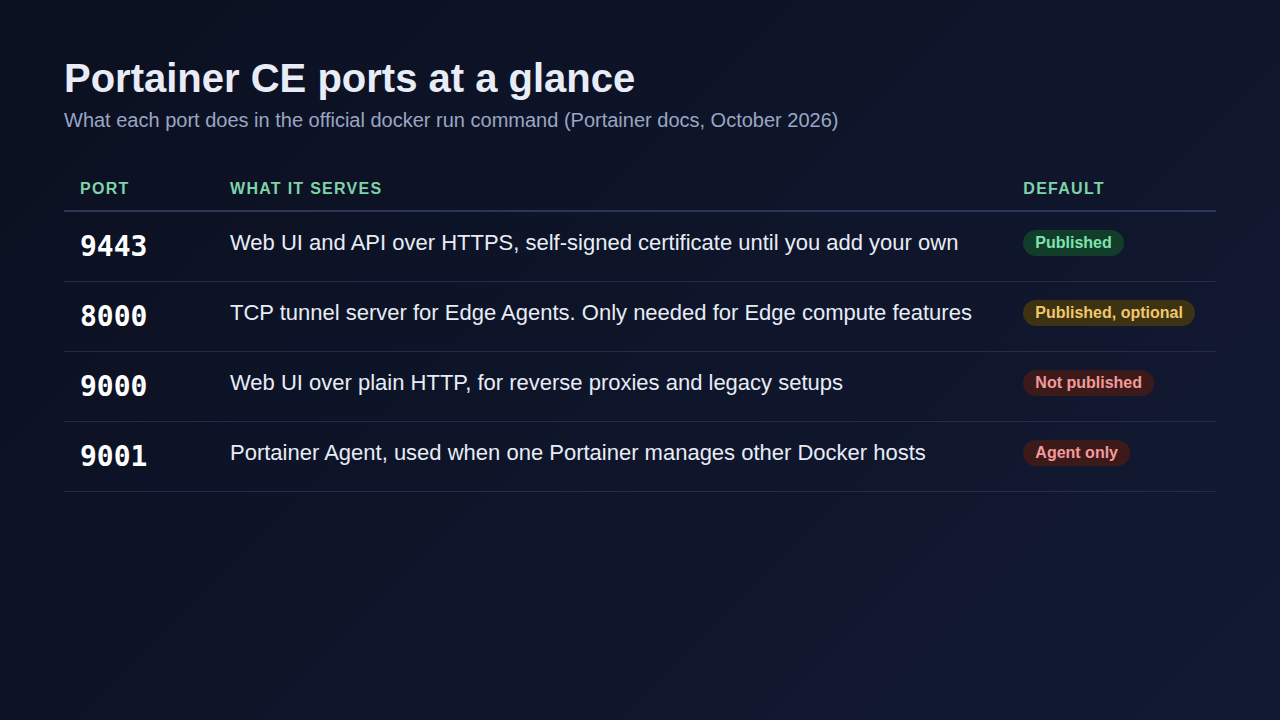
Don’t use Edge Agents? Remove -p 8000:8000. You only need it for Portainer’s Edge compute features.
Step 3: Confirm It Is Running
docker ps --filter name=portainerYou should see the portainer container with status Up and ports 8000 and 9443 listed.
Step 4: Get the Setup Token
New Portainer instances ask for a setup token before they let anyone create the admin account. It is printed in the logs:
docker logs portainer 2>&1 | grep setup_tokenCopy the value after setup_token=. Portainer’s setup token FAQ also lists flags to set the admin password at install time instead (--admin-password-file), which is handy for scripted installs.
Step 5: Create the Admin User Within 5 Minutes
Open https://SERVER_IP:9443 in your browser. Your browser will warn about the certificate: Portainer creates a self-signed certificate for port 9443 by default, so accept it for now.
Paste the setup token, keep the username admin or choose another, and set a strong password. Then click Get Started to manage the local Docker environment.
Here’s the part that trips people up: if you don’t finish this within 5 minutes, Portainer stops its service and shows “your Portainer instance has timed out for security purposes”. The fix is:
docker stop portainer
docker start portainer
If that does not help, remove the container with docker rm portainer and run Step 2 again. Your volume is untouched.
Install Portainer With Docker Compose Instead
Prefer one file you can keep in Git? This Compose file matches the official settings. If Docker Compose is new to you, the short version is that it turns long docker run lines into a YAML file.
services:
  portainer:
    image: portainer/portainer-ce:lts
    container_name: portainer
    restart: always
    ports:
      - "9443:9443"
      - "8000:8000"   # remove if you do not use Edge Agents
    volumes:
      - /var/run/docker.sock:/var/run/docker.sock
      - portainer_data:/data

volumes:
  portainer_data:
Save it as portainer-compose.yaml and start it:
docker compose -f portainer-compose.yaml up -dPortainer also publishes its own copy, which you can download with curl -L https://downloads.portainer.io/ce-sts/portainer-compose.yaml -o portainer-compose.yaml. Check the image tag in the downloaded file and change it to portainer/portainer-ce:lts if it says :sts.
The setup token and the 5-minute window work exactly as in Steps 4 and 5.
Lock Down the Ports
Portainer can create, change and delete every container on the server. A web UI with that power should not be open to everyone.
Two habits cover most of the risk:
- Limit who can reach 9443. On a VPS with UFW, allow only your own address:
sudo ufw allow from YOUR_IP to any port 9443 proto tcp. Be aware that Docker writes its own firewall rules for published ports, and those can bypass UFW (see Docker’s Packet filtering and firewalls page), so test from another network that the port is really closed to others. - Or put Portainer behind your domain. Change the port line to
127.0.0.1:9000:9000and let a web server such as NGINX serve it over HTTPS. Portainer is then reachable only through your domain, not by server IP and port.
For the wider server checklist (SSH keys, updates, Fail2Ban), see how to secure your VPS.
How to Upgrade Portainer
Portainer’s upgrade guide says to back up first, then replace the container. Your settings live in portainer_data, so they carry over:
docker stop portainer
docker rm portainer
docker pull portainer/portainer-ce:lts
docker run -d -p 8000:8000 -p 9443:9443 --name=portainer --restart=always \
  -v /var/run/docker.sock:/var/run/docker.sock \
  -v portainer_data:/data \
  portainer/portainer-ce:lts
With Compose, the same thing is docker compose -f portainer-compose.yaml pull followed by docker compose -f portainer-compose.yaml up -d.
Two notes from the official page. If you run Portainer Agents on other hosts, upgrade them to the same version as the server. And if you are still on 1.x, go to 2.0.0 first.
How to Uninstall Portainer
Removing Portainer does not touch your other containers:
docker stop portainer
docker rm portainer
Your settings stay in the volume. Delete it only when you are sure you won’t need them again: docker volume rm portainer_data.
Common Portainer Install Problems
| Symptom | Likely cause | Fix |
|---|---|---|
| “Timed out for security purposes” | Admin user not created within 5 minutes | docker stop portainer && docker start portainer, then finish setup |
| Login page asks for a token you don’t have | Portainer 2.43 / 2.39.4 or later | docker logs portainer, copy the setup_token= value |
| Browser shows a certificate warning | Default self-signed certificate on 9443 | Accept it, add your own certificate, or use a reverse proxy |
| Page won’t load at all | Port 9443 blocked, or wrong port | Check docker ps, your firewall and your provider’s firewall |
| Portainer can’t see containers | Socket not mounted, or SELinux on | Check the docker.sock volume line; add --privileged with SELinux |
| Docker commands fail on Ubuntu | Docker installed with snap | Remove the snap package and install Docker from Docker’s packages |
Running Portainer on an xCloud Server
If you host Docker apps with xCloud, you can deploy a Docker Compose file like the one above as a Custom Docker site on an NGINX server, with your domain and free SSL in front. To see how Custom Docker works, read How to Deploy Custom Docker with xCloud 👉.
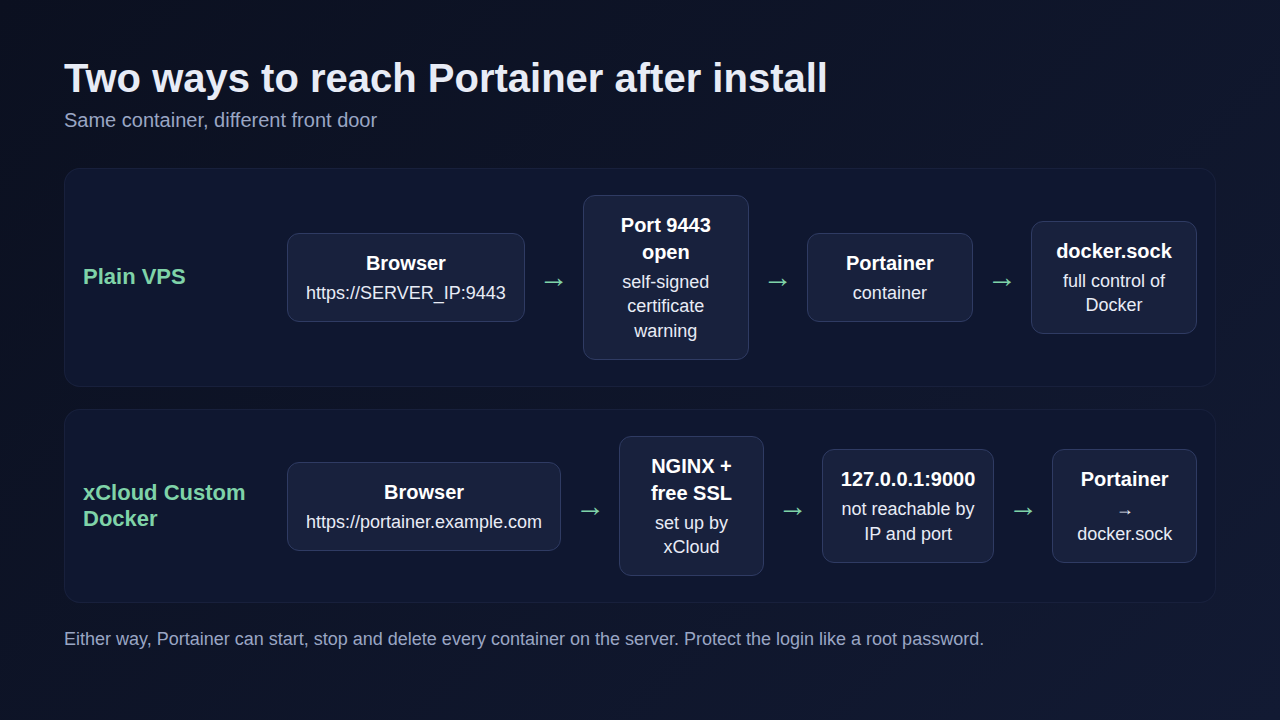
Before you try it, know this: anyone who logs in to Portainer can change or delete every site and Docker app on this server, including the ones xCloud deployed. Use a strong password, don’t share the login, and finish setup straight away. Until you finish, anyone can open the setup screen on your domain, but they need the token from the logs to create the admin user.
What xCloud Does Not Do Here
There is no Portainer One Click App.
A lesson from our support queue matters more than the install. The xCloud dashboard tracks what it deployed: you can edit a Docker site’s environment variables there, but changes to ports, volumes or mounts made outside the dashboard are not picked up. Containers you change or recreate from Portainer may not be picked up either.
So use Portainer to look and restart, and keep deploying sites from the dashboard. To undo the whole thing, delete the Portainer site; the other sites on the server keep running.
Also note what you may not need Portainer for. xCloud already covers the deploy itself, environment editing, and Docker app backups, which capture Portainer’s data volume on a schedule you choose. Compose names that volume after the project, so data from an earlier docker run install on the same server does not carry over.
Where to Run Portainer and Your Containers
Portainer is a dashboard, not a host. You still need a server that stays up, gets patched and has backups you’ve actually restored, which is the line item people forget.
Two honest paths:
- A plain VPS. Cheapest on paper and full control. You own Docker updates, the firewall, certificates and backups, plus the occasional 3 a.m. restart. Our Docker hosting comparison ranks seven options on exactly these points.
- A managed server. xCloud Docker Hosting runs your Compose apps behind NGINX with free SSL and scheduled backups, on an xCloud server or your own server. It costs more than a bare VPS, and you give up some low-level control in exchange for less upkeep.
Want your containers on a domain with SSL in minutes? Start with xCloud Docker Hosting.
Get Portainer Running Today, and Keep It Locked Down
The install itself is quick: one volume, one container, one admin user. What has changed in 2026 is the first login, so use the :lts tag, grab the setup token from the logs, and finish within 5 minutes.
Then spend five more minutes on the part that matters most: close port 9443 to everyone but you, or put Portainer behind your domain. Write down the upgrade commands while you’re at it, because the next LTS release will come.
For another self-hosted app on Docker, see how to self-host Vaultwarden on a VPS.
If you have found this blog helpful, feel free to subscribe to our blogs for valuable tutorials, guides, knowledge, and tips on web hosting and server management. You can also join our Facebook community to share insights and engage in discussions.
Frequently Asked Questions
Which Portainer image tag should I use?
Use portainer/portainer-ce:lts unless you want the newest features. The LTS line gets fixes for longer, and the official install and upgrade commands both use it. Pinned tags such as 2.9.3 or 2.31.3 in older tutorials are well behind the current release.
Where do I find the Portainer setup token?
In the container logs. Run docker logs portainer and look for the line with setup_token=. New instances from Portainer 2.43 and 2.39.4 onward ask for it before you can create the admin user.
Why does Portainer say my instance has timed out for security purposes?
You did not create the admin user within 5 minutes of starting the container, so Portainer stopped its service. Run docker stop portainer and then docker start portainer, and finish the setup straight away.
Do I need port 8000 for Portainer?
Only if you use Edge Agents. Port 8000 is a TCP tunnel server for Edge compute features, so a single server managed from its own Portainer can leave it out.
Can I install Portainer on an xCloud server?
You can deploy it as a Custom Docker Compose site on an NGINX server, with your domain and free SSL in front. There is no Portainer One Click App, and changes you make to containers from Portainer may not be picked up by the xCloud dashboard.
How do I uninstall Portainer?
Stop and remove the container with docker stop portainer and docker rm portainer. Your other containers keep running. Delete the portainer_data volume only if you no longer need Portainer’s users and settings.
Last updated October 31, 2026
← All articles