

How to Backup And Restore Docker Apps in xCloud
Updated October 13, 2026 · 5 min read
Backup and restore docker apps in xCloud protects the app’s persistent data and deployment recipe. xCloud captures named volumes, eligible bind mounts, docker-compose.yml and the app’s .env file in an encrypted, deduplicated restic snapshot.
This guide is for site owners and team members who manage Docker + NGINX sites and need on-demand backups, scheduled backups, remote copies, retention controls or an in-place restore.
Learn how to manage Docker app backups and restores in xCloud.
How to Backup and Restore Docker Apps in xCloud?
With a dedicated backup and restore experience, xCloud makes protecting Docker applications simpler and more reliable. Whether applications are created with OneClick, Docker Compose, Git or Dockerfiles, users can schedule backups, control retention, choose flexible storage options and preview backups before restoring them.
Open the Docker Backups Page
In the xCloud dashboard, open Sites and select your Docker site. Then from the site menu select Backup, then Previous Backups. Review the backup summary and existing backup rows.
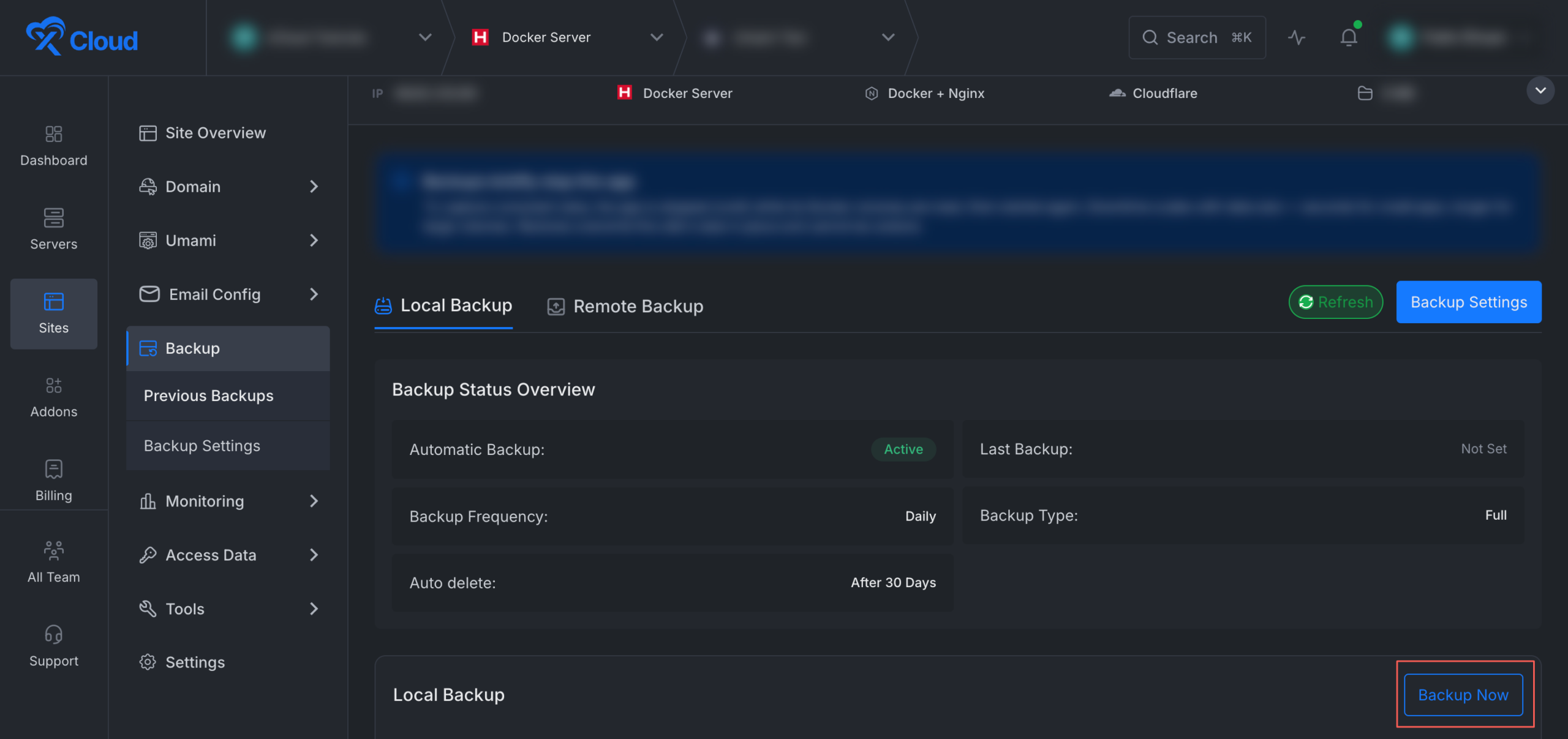
The summary shows whether automatic backups are active, the configured frequency, the retention period and the latest backup. Each backup row shows its time, type, snapshot identifier and status.
Create an On-demand Backup
On Backup > Previous Backups, select Backup Now. Wait while xCloud creates the backup asynchronously. Refresh or revisit the list to confirm the row changes from Running to Completed.
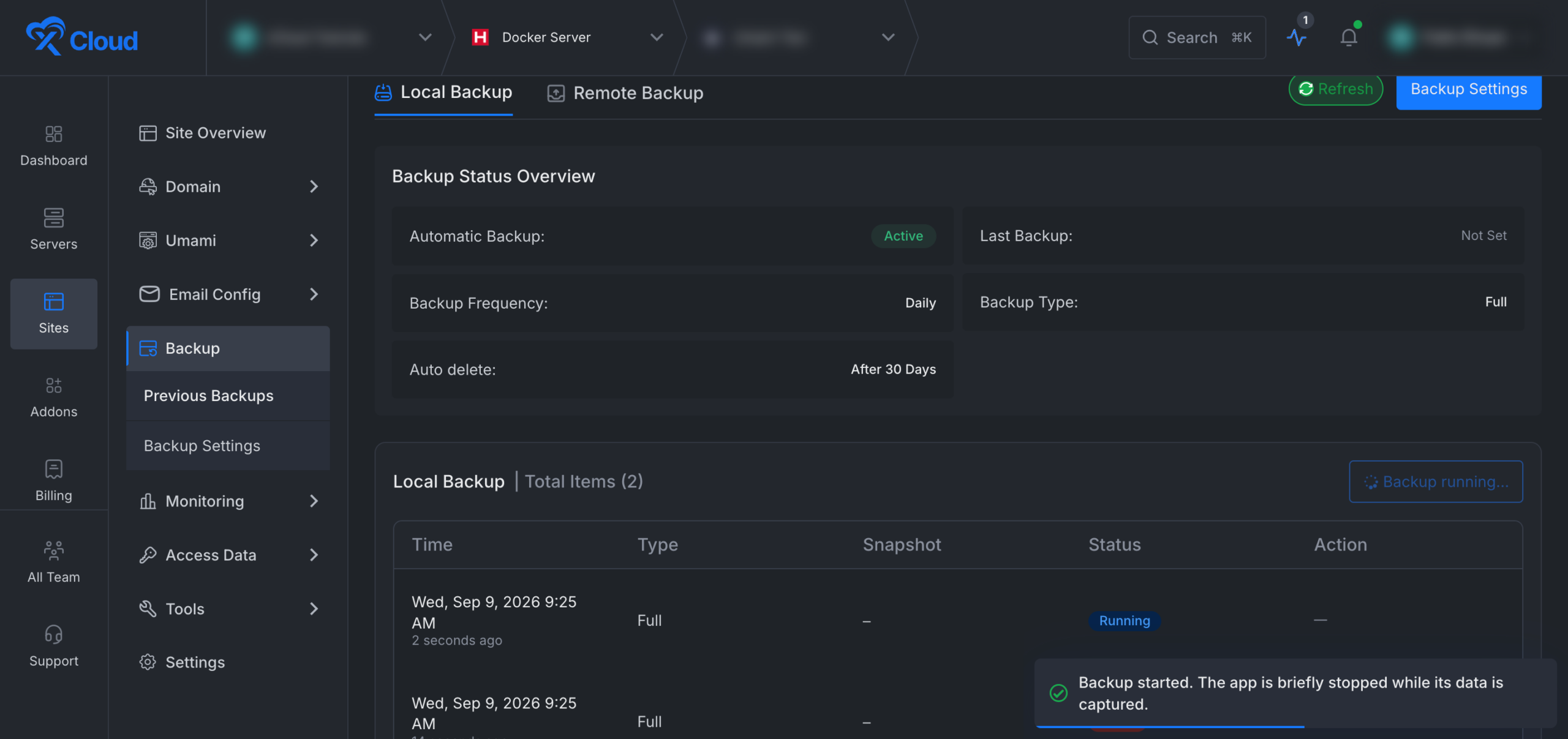
During capture, xCloud stops the app, records its eligible named volumes and bind mounts, saves the Compose recipe and environment file and restarts the app. A remote destination receives a replicated copy after the local capture finishes.
Configure Scheduled Local Backups
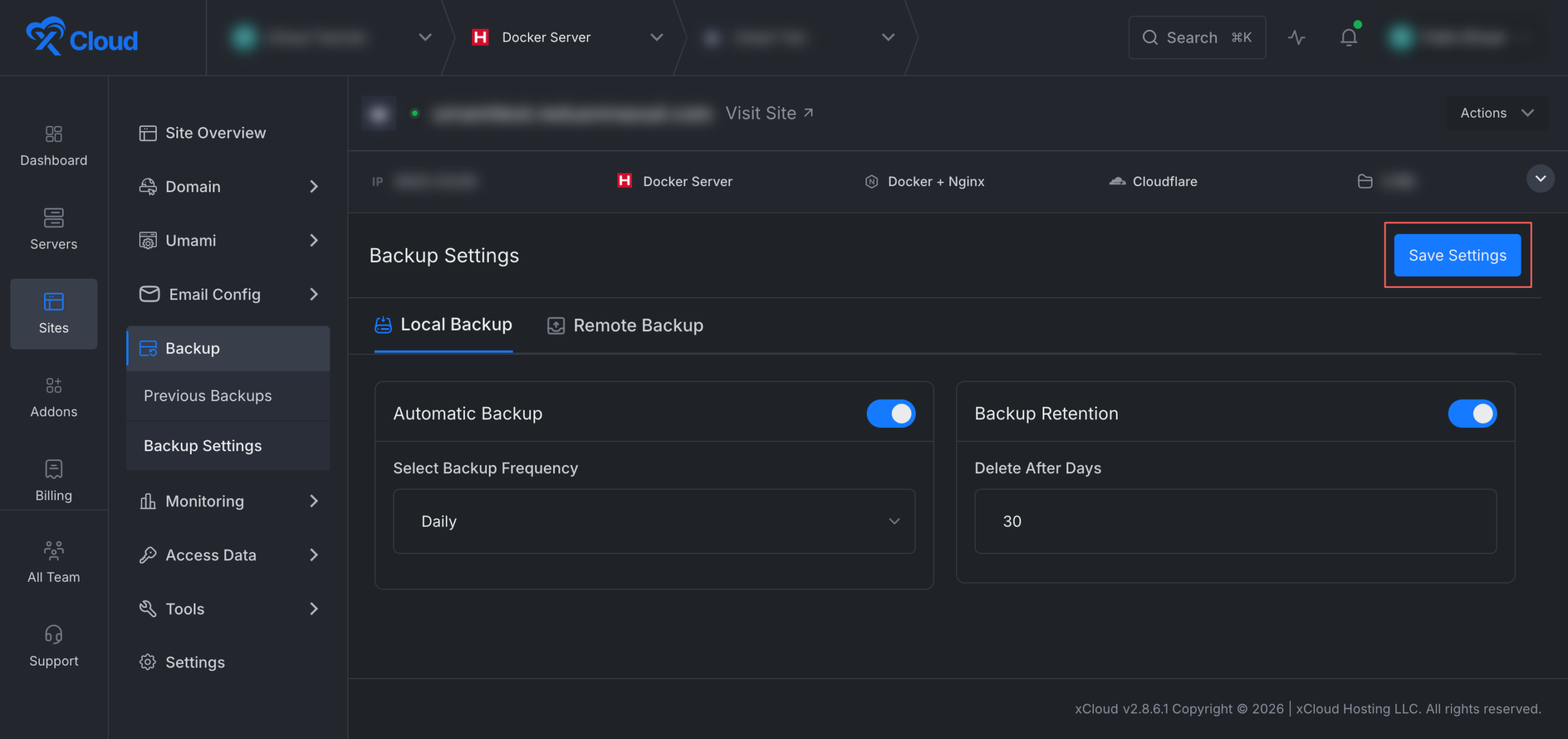
Open Backup > Backup Settings. Select the Local Backup tab. Turn on Automatic Backup. Under Select Backup Frequency, choose how often to back up. To remove older snapshots automatically, turn on Backup Retention and pick a period (see Choose a retention period). Select Save Settings.
Choose a retention period
Docker backups can run Every 12 Hours, Daily, Weekly or Monthly, on the local destination and on each remote destination separately.
Under Backup Retention, pick how long to keep snapshots in Delete backups older than: 3 days, 1 week, 2 weeks, 30 days, 2 months, 3 months, 6 months or 1 year. Select Custom to enter any number of days up to 3650.
Retention always keeps the newest snapshot, even when it is older than the selected period, so the last good backup survives if scheduled backups stop.
Configure Remote Backups
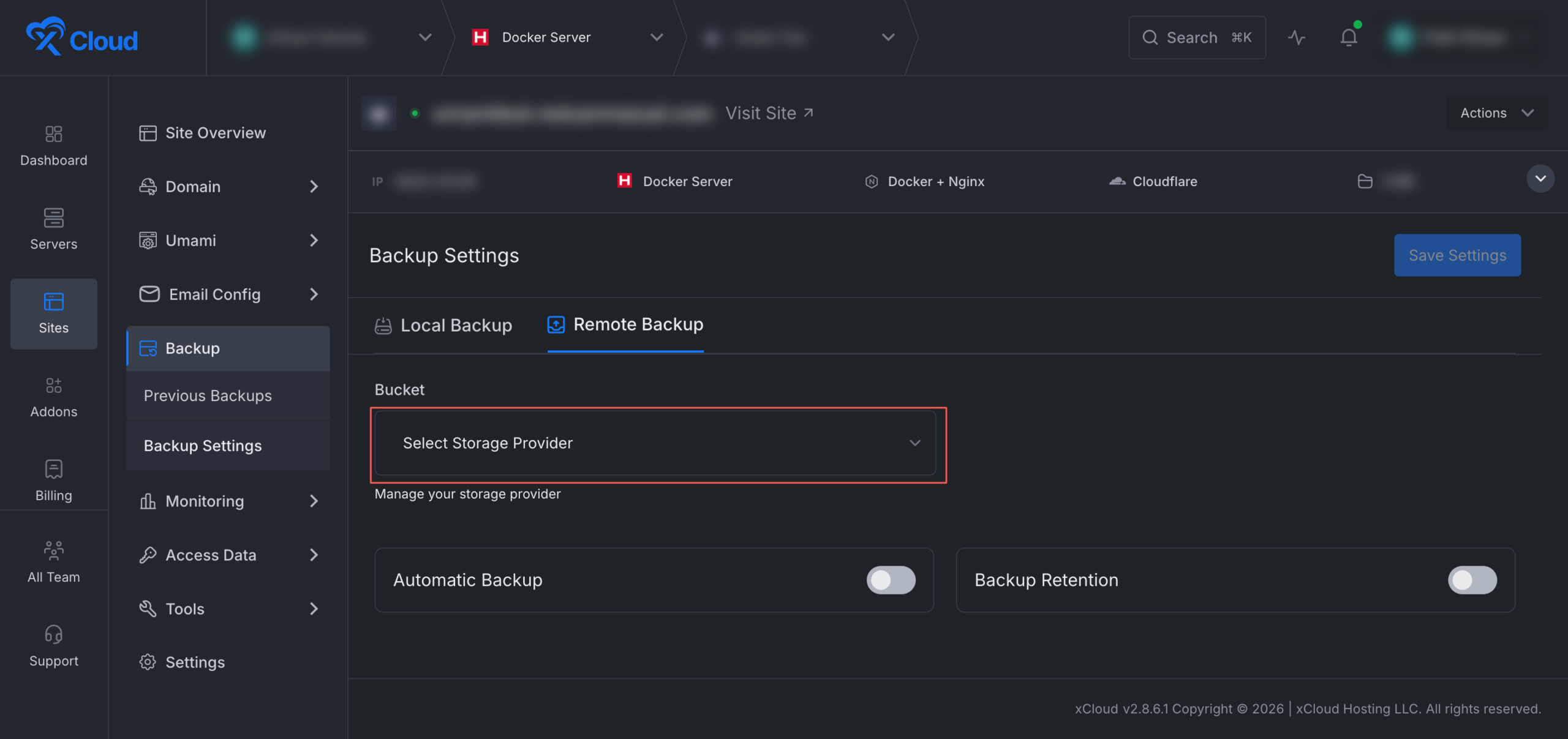
Remote backups keep a copy outside the site’s server. The Docker backup workflow supports S3-compatible and SFTP destinations.
Configure an S3-compatible or SFTP provider for your team if one is not already available. Open the Docker site and go to Backup > Backup Settings. Select the Remote Backup tab. Under Bucket, choose Select Storage Provider and select the destination. Configure Automatic Backup, Backup Frequency and Backup Retention as needed. Select Save Settings.
Add a second remote destination
A Docker site can replicate to up to two remote destinations, each with its own frequency and retention. Each saved destination appears as a pill on the Remote Backup tab, with a counter of how many of the two you use. To add the second one, select Add another destination, choose a different storage provider and select Save Settings.
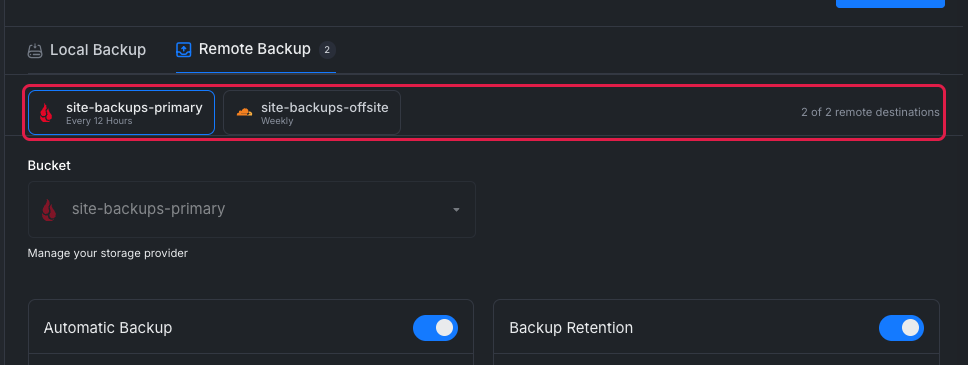
The storage provider of a saved destination cannot be changed. To move backups to another provider, add it as a new destination. Two destinations cannot use the same bucket.
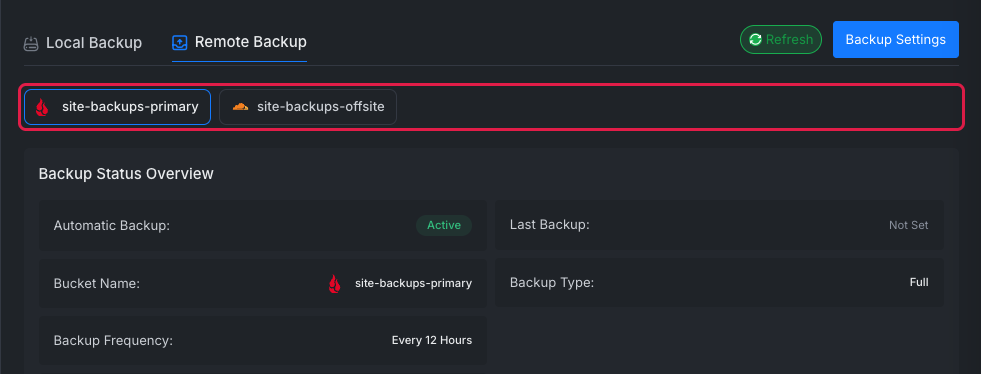
On Backup > Previous Backups, the Remote Backup tab shows one pill per destination. The status overview, the backup list and Backup Now all follow the selected destination, so a manual backup is replicated to that destination only.
Restore a Docker App Backup
A restore replaces the current app data in place. Confirm that you selected the correct site and snapshot before applying it.
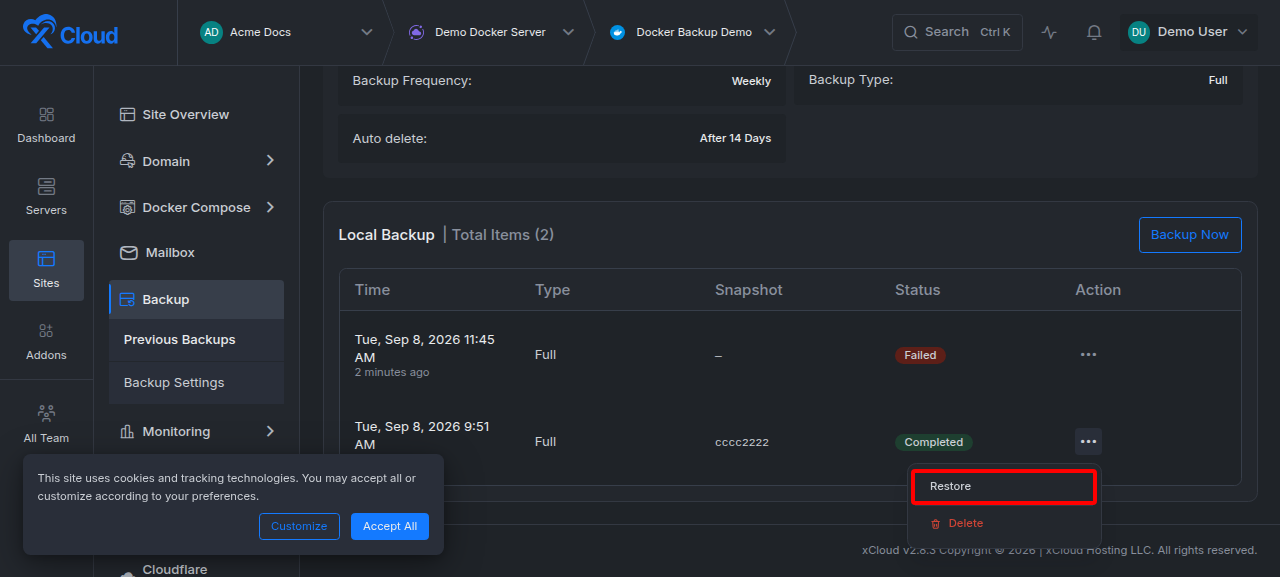
Open Backup > Previous Backups. Find a backup with Completed status. Open the row’s three-dot Action menu and select Restore.
Review the prepared restore details. xCloud checks that the snapshot is reachable and previews its size and paths without changing the app. Enter the site name when prompted to confirm the destructive operation. Apply the restore and wait for the operation to finish.
Delete A Backup
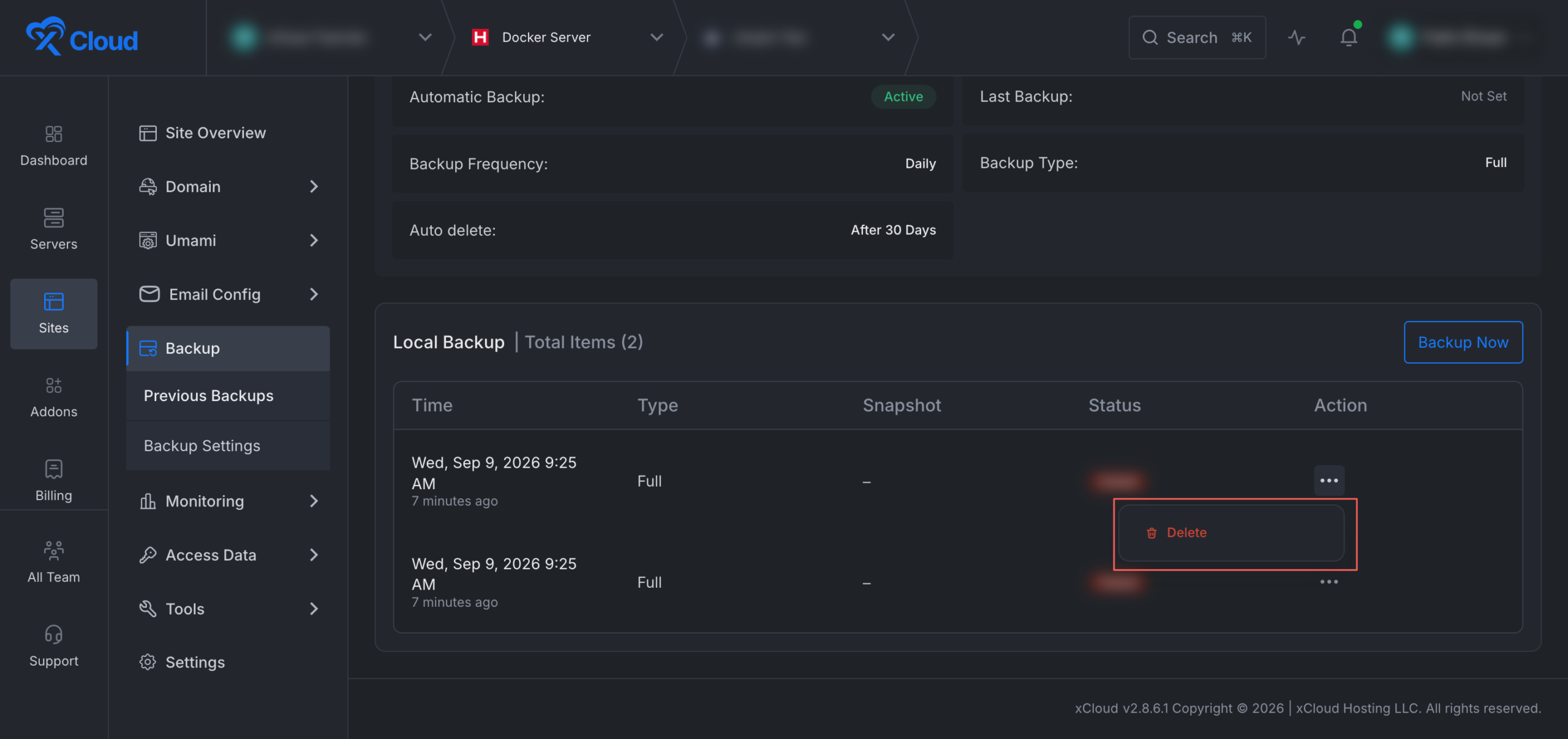
Open the three-dot Action menu for a backup that is not running. Select Delete and confirm the action.
Frequently Asked Questions
How many remote backup destinations can a Docker app have?
Up to two, each with its own frequency and retention. Local backups on the server are set up separately on the Local Backup tab.
Can I change the storage provider of a saved remote destination?
No. To move backups to another provider, add it as a new destination. Two destinations cannot use the same bucket.
Does Backup Retention delete my only Docker backup?
No. Retention always keeps the newest snapshot, even when it is older than the selected period, so the last good backup survives if scheduled backups stop.
This is how you can easily back up and restore your Docker applications in xCloud.
Still stuck? Feel free to reach out to our support team.