


To self-host Ollama, you run the official ollama/ollama Docker image on a Linux server with enough RAM for the model you want, keep port 11434 off the public internet, and pull models into a volume that survives restarts. You can set it up by hand with a few commands, or deploy it from xCloud One Click Apps.
Both paths give you the same thing: your own model server with a REST API and an OpenAI-compatible API, on hardware you rent and control. No prompt leaves your server unless you send it somewhere.
The difference is who handles the parts around it: the proxy, the certificate, the GPU setup, the firewall and the backups. This guide walks through both, step by step. If containers are new to you, read what Docker Compose is first.
TL;DR
- Requirements: a 64-bit Linux server, RAM 20 to 30 percent above your model’s size (xCloud’s rule), and at least 15 GB of free disk.
- Manual way: run
ollama/ollamawith Docker Compose, keep the port on127.0.0.1, add NGINX and Let’s Encrypt, thendocker execto pull a model. - The trap: Ollama’s API has no login. The quick-start
-p 11434:11434publishes it to the whole internet, and UFW does not stop Docker ports. - One-click way: on xCloud, pick Ollama as the server’s App Type, then add it from One Click Apps. HTTPS, GPU detection and a private API are set for you.
- Manage models on the site’s Management page instead of the command line.
- Limit: one Ollama per server on xCloud, and no speed promises for any plan.
The Default That Makes Self-Hosted Ollama Risky
If you only remember one line: Ollama does not ask callers for a password. Whoever reaches its port can chat with your models, fill your disk with new models, or delete the ones you have.
The official Docker guide starts the container with -p 11434:11434. That publishes the port on every network interface, the public one included.
A firewall rule does not save you here. Docker’s own documentation says traffic to a published port “gets diverted before it goes through the ufw firewall settings,” so your UFW rules are ignored.
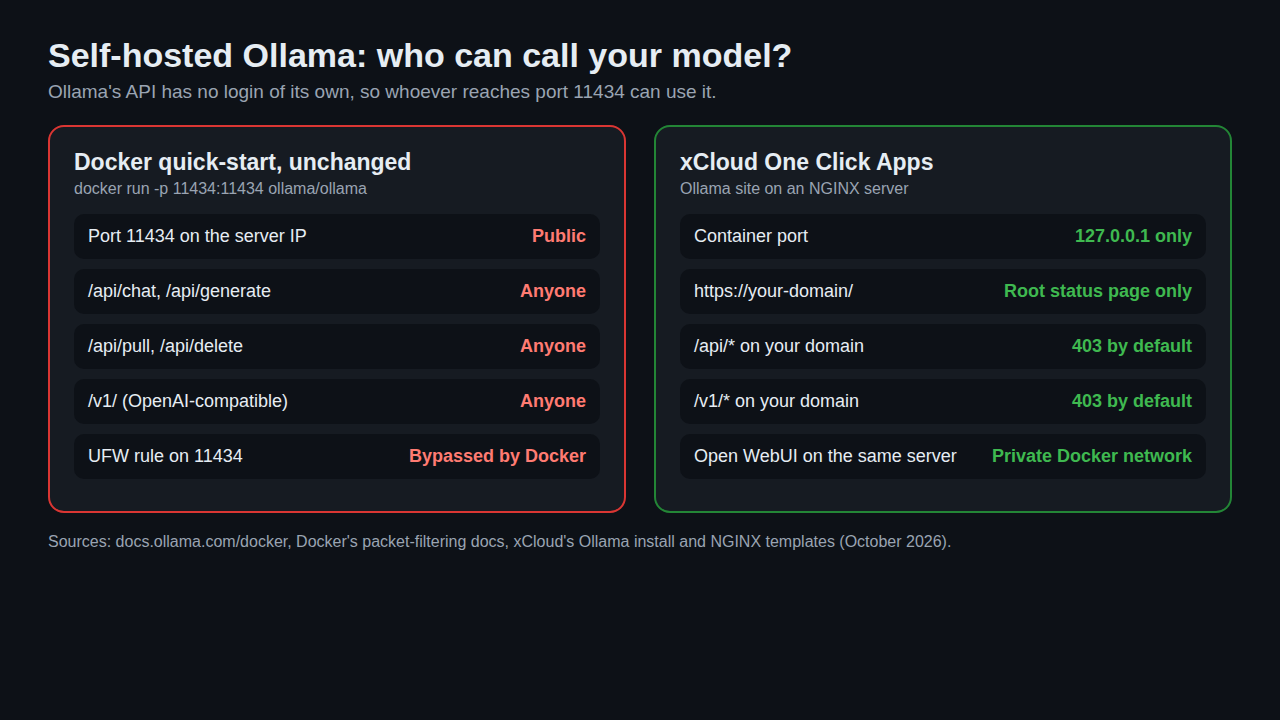
xCloud’s one-click install handles this in two layers. On xCloud, Ollama can’t be reached by your server’s IP and port, only through your domain. Then the NGINX config on your domain answers the root status page and returns 403 for everything else, including /api/ and /v1/.
That means a new Ollama site created on xCloud today blocks /api/ and /v1/ on your domain, even though the domain is live with HTTPS. Open WebUI or LibreChat on the same server still reach Ollama, because they talk to it over a private Docker network, not over your domain.
If you set Ollama up by hand, make the same choice yourself. Step 2 below shows the one-line change.
What Ollama Is and When Self-Hosting It Makes Sense
Ollama is an open-source runtime for large language models. It downloads a model from its model library, keeps it in memory, and answers over a REST API on port 11434. It also serves an OpenAI-compatible API under /v1/, so many apps built for OpenAI can switch to it by changing a base URL.
Self-hosting it makes sense when:
- Your prompts must stay private. Contracts, customer data or code never leave your server.
- You want a flat bill. You pay for the server, not per token.
- You are building on top of it. A chat UI, an agent such as OpenClaw, or your own app needs a model endpoint you control.
It makes less sense when you need the largest frontier models or fast answers on a small budget. Big models need big RAM, and CPU-only servers answer slowly. Treat this as a trade-off, not a rule.
Server Requirements for Self-Hosted Ollama
Ollama itself is light. The model decides how big the server must be.
| What | What you need | Where the number comes from |
|---|---|---|
| Operating system | 64-bit Ubuntu LTS | xCloud server setup |
| RAM | 20 to 30 percent more than the model’s size | xCloud’s self-hosting guide |
| Free disk | At least 15 GB before install, plus room for every model you pull | xCloud’s installer check |
| GPU | Optional. NVIDIA or AMD speeds up answers | Ollama Docker docs, xCloud’s guide |
| Web server (xCloud) | NGINX stack (OpenLiteSpeed servers cannot run Docker) | xCloud docs |
| Ports | 80 and 443 for your domain; keep 11434 private | Ollama FAQ, this guide |
Check a model’s size on its library page before you pick a server. A model listed at 5 GB needs roughly 6 to 6.5 GB of free RAM by xCloud’s rule, on top of what the operating system uses.
We do not publish speed numbers for any server size, because we have not benchmarked them. Expect CPU-only answers to be noticeably slower than on a GPU.
Option 1: Self-Host Ollama Manually With Docker Compose
This path works on any Ubuntu server from any provider. You need SSH access as a sudo user; if you have not set up keys yet, see how to add SSH keys.
Step 1: Install Docker
Install Docker Engine and the Compose plugin from Docker’s official repository, then confirm both work:
docker --version
docker compose version
If you plan to use an NVIDIA GPU, also install the NVIDIA Container Toolkit. Ollama’s Docker guide then has you run sudo nvidia-ctk runtime configure --runtime=docker and sudo systemctl restart docker.
Step 2: Write the Compose file (and keep the port private)
Create a folder, for example /opt/ollama, and add a docker-compose.yml:
services:
  ollama:
    image: ollama/ollama
    container_name: ollama
    restart: always
    ports:
      - "127.0.0.1:11434:11434"
    volumes:
      - ./data:/root/.ollama
The 127.0.0.1: prefix is the one-line change that matters. It keeps the API reachable from the server only, not from the internet.
The ./data folder holds every model you pull, so it survives container updates. For an AMD GPU, use the ollama/ollama:rocm image and pass /dev/kfd and /dev/dri as devices, as the Docker guide shows.
Step 3: Start Ollama and pull a model
docker compose up -d
docker exec -it ollama ollama pull llama3.2
docker exec -it ollama ollama list
Test the API from the server itself:
curl http://127.0.0.1:11434/api/chat -d '{
  "model": "llama3.2",
  "messages": [{ "role": "user", "content": "Why is the sky blue?" }],
  "stream": false
}'
Step 4: Add a domain, NGINX and HTTPS
Point a DNS record at your server, install NGINX and Certbot, and proxy your domain to 127.0.0.1:11434. Ollama’s FAQ shows a minimal NGINX block that passes requests through with proxy_set_header Host localhost:11434.
Before you open /api/ to the internet, add authentication in NGINX (basic auth or a header check). Without it, your HTTPS domain is just an open API with a certificate.
Step 5: Tune the settings you will care about
Ollama reads its settings from environment variables. These are the ones most people touch:
| Variable | Default (Ollama FAQ) | What it controls |
|---|---|---|
OLLAMA_HOST |
127.0.0.1:11434 |
The address Ollama listens on |
OLLAMA_KEEP_ALIVE |
5 minutes | How long a model stays loaded after the last request |
OLLAMA_MAX_LOADED_MODELS |
3 on CPU | How many models can sit in memory at once |
OLLAMA_MAX_QUEUE |
512 | How many requests can wait before new ones are refused |
OLLAMA_ORIGINS |
127.0.0.1 and 0.0.0.0 |
Which browser origins may call the API |
These are Ollama’s own defaults. xCloud’s installer writes its own values, so the Environment editor on an xCloud site shows OLLAMA_ORIGINS set to http:// plus your server’s IP, OLLAMA_KEEP_ALIVE=5m, OLLAMA_MAX_LOADED_MODELS=3 and OLLAMA_MAX_QUEUE=512.
Inside a container, Ollama must listen on 0.0.0.0 so Docker can forward to it. The 127.0.0.1: prefix in your Compose file is what keeps it private on the host.
Option 2: One-Click Ollama on xCloud (Step by Step)
This is the same result without the Docker, NGINX and certificate work. The full walkthrough with screenshots lives in 👉 How to Self Host LLMs with xCloud.
Step 1: Create an NGINX server with Ollama as the App Type
Click New Server, enter a Server Name, and choose Ollama under App Type. Pick a Server Size and Region that fit your model, then an Ubuntu Version.
Keep NGINX selected under Choose Web Server. Docker apps need it, and xCloud installs Docker the first time you deploy a container app (details here).
Step 2: Add the Ollama site
Click New Site, choose the server, then open One Click Apps and pick Ollama. Enter a Site Title, add Tags if you use them, and choose Go Live with your domain or Demo Site for a temporary subdomain.
Step 3: Let the installer run
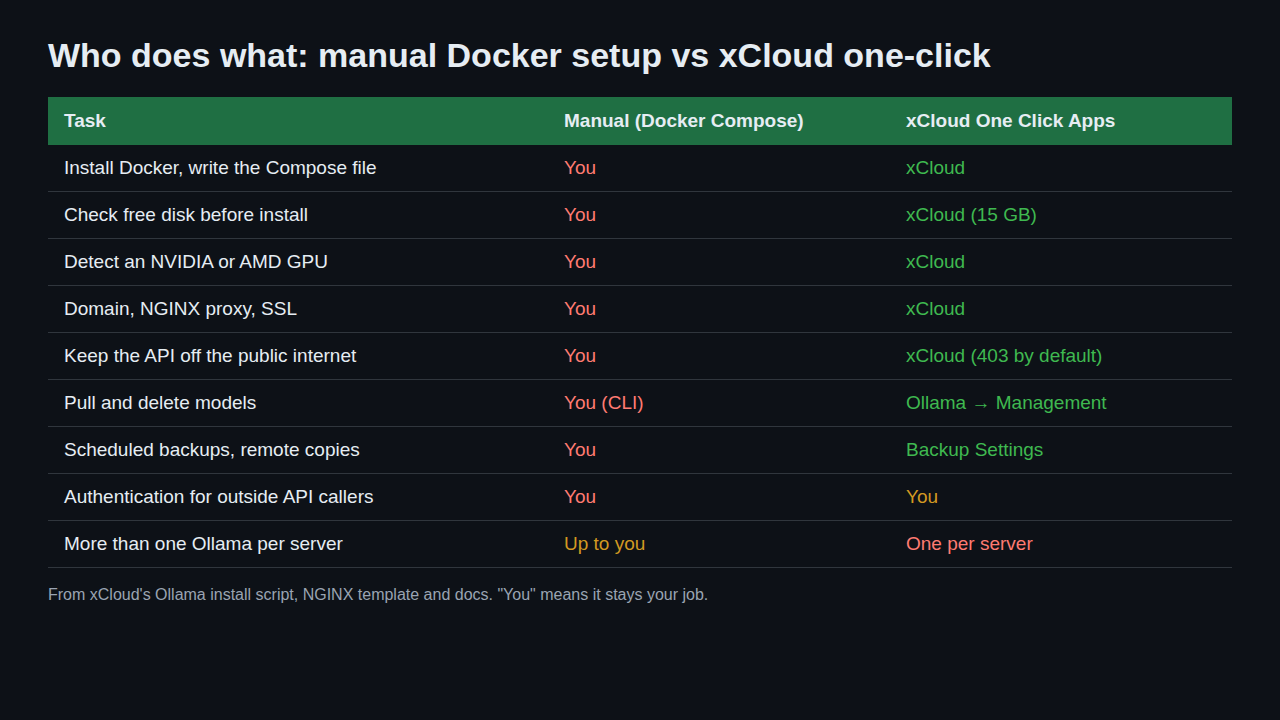
Behind that click, xCloud’s install script does the work from Option 1:
- checks that the server has 15 GB of free disk and stops if it does not
- detects an NVIDIA GPU (and installs GPU support for Docker), an AMD GPU (and uses the ROCm image), or runs CPU-only
- starts Ollama, restarts it if it stops, checks that it is healthy, and keeps it off your server’s public IP
- pulls a small starter model (
deepseek-r1:1.5bat the time of writing) so you can test right away - sets up HTTPS on your domain, with the API blocked from outside as shown above
Step 4: Manage models from the dashboard
Open the site and go to Management, then click Add New Model to pull another model. Click the Remove model icon next to a model, then Yes, Remove!, to delete it and free disk space.
Settings such as OLLAMA_KEEP_ALIVE are in the site’s Environment editor. Change a value and click Save & Redeploy. Ollama restarts briefly when you save.
Step 5: Add a chat window or connect an agent
For people rather than programs, add Open WebUI from One Click Apps on the same server. It connects to Ollama over the private Docker network, with its own login.
To use the model from another server, such as an OpenClaw agent, you must open the API on purpose. The Gemma 4 with OpenClaw guide shows the NGINX change. Add authentication when you do it.
After Install: Backups, Updates and Security
Models are large files you can download again, but your settings and any custom models you built are not. Plan for both.
- Backups: Ollama on xCloud is a Docker app, so you can take on-demand or scheduled snapshots and copy them to remote storage. See Backup and restore Docker apps. Backups run only on the schedule you set.
- Updates: both setups use the
ollama/ollamaimage without a fixed version. Nothing updates on its own; you pull a newer image when you decide to, and models stay in the data folder. - Disk: every model you pull stays on disk until you delete it. Check free space before pulling a large one.
- Security: keep the API private, and if you open it, put a credential in front. On a manual setup, never rely on UFW alone for Docker ports.
Self-Hosted Ollama vs a Hosted Model API
| Self-hosted Ollama | Hosted model API | |
|---|---|---|
| Who sees your prompts | Only your server | The API provider |
| Billing | Fixed server cost | Per token |
| Model choice | Open models from Ollama’s library | The provider’s models |
| Speed | Depends on your RAM and GPU | Provider’s hardware |
| Upkeep | You (or xCloud) run the server | None |
The catch worth knowing: a cheap CPU server will run small models, but it will not feel like a hosted frontier model. Pick the model first, then size the server around it.
Honest Limits: What xCloud Does Not Do for Ollama
- No speed promises. xCloud has not benchmarked Ollama on its server sizes and does not certify any model for any plan.
- One Ollama per server. One install can hold many models, but a second Ollama site on the same server is refused.
- No built-in API key. The API is closed by default; opening it and adding authentication is your job.
- Undoing it: deleting the site removes the Ollama app; take a backup first if you want your settings or custom models later.
Get Your Own Ollama Server Running Today
If you like knowing every moving part, the Docker Compose path is a short list of commands. Bind the port to 127.0.0.1, add NGINX with authentication, and you have a private model server.
If you would rather skip the proxy, the certificate and the GPU setup, deploy Ollama on xCloud and spend that time picking a model instead. Browse the other One Click Apps to add a chat UI, or read how to self-host DeepSeek R1 for a model-specific walkthrough.
Either way, size the server for the model, keep the API private, and set a backup schedule this week.
If you have found this blog helpful, feel free to subscribe to our blogs for valuable tutorials, guides, knowledge, and tips on web hosting and server management. You can also join our Facebook community to share insights and engage in discussions.
Frequently Asked Questions
Is it free to self-host Ollama?
Yes. Ollama is open source under the MIT license, so the software costs nothing and there is no per-token fee. You pay for the server it runs on and for your own time to run it.
How much RAM do I need to self-host Ollama?
The model decides, not Ollama. xCloud’s guide says to keep at least 20 to 30 percent more RAM than the size of the model you pull, so check the model’s size on ollama.com/library first. xCloud’s installer also checks for 15 GB of free disk before it starts.
Does self-hosted Ollama need a GPU?
No. Ollama runs on CPU, but answers come back slower than on a GPU, and bigger models are slower still. On xCloud, the installer detects an NVIDIA or AMD GPU on the server and sets Ollama up for it.
Does Ollama have a login or API key?
Not for its local API. Anyone who can reach the port can chat with your models, pull new ones and delete them. On xCloud the API is blocked on your domain by default; if you open it, put a credential in front of it first.
Can I use Ollama with code written for the OpenAI API?
Usually, yes. Ollama serves an OpenAI-compatible API under /v1/, so many OpenAI clients work after you change the base URL. Ollama’s docs say the API key is required by the client but ignored by Ollama.
Can I run two Ollama installs on one xCloud server?
No. xCloud allows one Ollama install per server. One install can hold many models, and Open WebUI or LibreChat on the same server can share it.