

A contact form that silently stops sending is one of the most expensive WordPress bugs, because nobody tells you. In xCloud v2.9.7.2 you can test WordPress email from the site’s Mail Delivery page: FluentSMTP sends a real message from your saved sender, and xCloud shows the provider’s actual answer. The same release adds toSend as a preset Mail Delivery provider.
Until now, proving that mail worked meant logging in to wp-admin, finding the FluentSMTP screen and reading its log. If you manage twenty client sites, that is twenty logins. If you want the bigger picture first, our roundup of transactional email services explains why WordPress needs an external sender at all.
This post covers what changed, how to set up toSend, what the test and status checks tell you, and what they do not do yet.
TL;DR
- New in v2.9.7.2: a Send Test Email button and a Check FluentSMTP button on every WordPress site’s Email Config → Mail Delivery page.
- The test goes through FluentSMTP itself, from the From address you saved, so a failure shows the provider’s real reason instead of a generic success.
- Check FluentSMTP shows each connection’s state, how many emails were sent or failed, and the plugin version.
- toSend is now a preset provider: paste a sending key (
tsend_…) and xCloud fills insmtp.tosend.com, port 587 and TLS. Admin keys are refused. - FluentSMTP older than 2.3.0 cannot run the checks; saving the provider updates it.
- Also in the release: support staff need your SSH consent before opening site credentials or the phpMyAdmin and Adminer auto-login.
The Finding: The Old Test Could Say “Success” Without Sending Anything
This release exists because of a pattern support kept seeing. Our internal support knowledge base records the symptom plainly: the SMTP integration’s built-in test reported success, but no email was delivered and nothing showed in the logs. The advice support gave was to stop trusting that test and check the site’s mail plugin instead.
Mail problems are not rare either. FluentSMTP came up in 21 support conversations in the last 90 days. Most of those threads end in the same place: someone has to open wp-admin and look.
The v2.9.7.2 test closes that gap. It runs FluentSMTP’s own test on the server, so the result is what your provider actually said, not what the dashboard assumed.
| Question | Before v2.9.7.2 | From v2.9.7.2 |
|---|---|---|
| Where do I test site mail? | wp-admin → FluentSMTP | xCloud → Email Config → Mail Delivery |
| Which sender does the test use? | Whatever you typed in the plugin | The From Email you saved in xCloud |
| What does a failure show? | A generic message, or a false success | The provider’s reason, such as “Data not accepted” |
| Can I see sent and failed counts? | Only in FluentSMTP’s log | Sent and Failed next to the check |
| Is toSend a preset provider? | No, manual SMTP only | Yes, host, port and TLS filled in |
Set Up toSend as Your Mail Delivery Provider
toSend is a transactional email service in the same category as Postmark, Mailgun and SendGrid. Its SMTP guide asks for three things: the host smtp.tosend.com, an encrypted port, and a sending API key as the password.
xCloud fills in everything except the key. You need two things from toSend before you start:
- A verified sending domain. Add it in toSend and publish the DKIM, SPF and MX records it shows you.
- A sending API key that starts with
tsend_. toSend refuses admin keys (tsend_admin_…) over SMTP, and xCloud rejects them with a clear message so the wrong key never reaches a site.
Then follow three short steps:
- Open Settings → Integrations → Email Provider, click ‘Add New Provider’, choose toSend, paste the key and add a label.
- Open your site, go to Email Config → Mail Delivery, pick the toSend provider, enter a From Name and a From Email on your verified domain, and click ‘Save Changes’.
- xCloud installs and activates FluentSMTP if needed and writes the connection into it. The key is stored in the site’s
wp-config.php, not in the WordPress database.
👉 The full walkthrough with screenshots is in Configure toSend for site emails.
Send a Test Email and Check FluentSMTP From xCloud
Both checks live in the FluentSMTP section at the bottom of the Mail Delivery page. They work for any provider you saved there, not only toSend, so a site on Mailgun or the xCloud Mail Delivery addon gets them too.
Check FluentSMTP
Click ‘Check FluentSMTP’ and xCloud reads FluentSMTP’s own report from the site. You see each connection with its From address and either Settings OK or Needs attention, plus Sent and Failed counts and the installed plugin version.
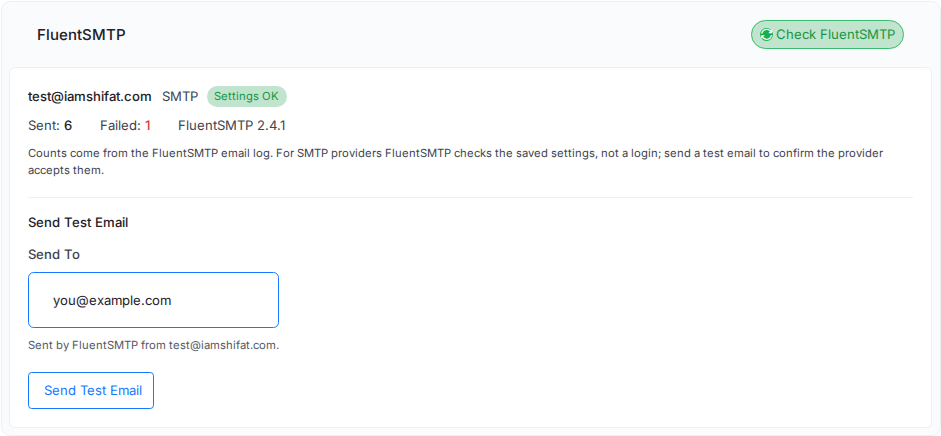
Here’s the part that trips people up: for SMTP providers, Settings OK means the settings are complete, not that they work. FluentSMTP does not log in to the provider during this check. Only a test email proves the key and sender domain are accepted.
Send Test Email
Under Send Test Email, enter a recipient and click ‘Send Test Email’. FluentSMTP sends the message through your provider from the saved From Email, and xCloud shows the result.
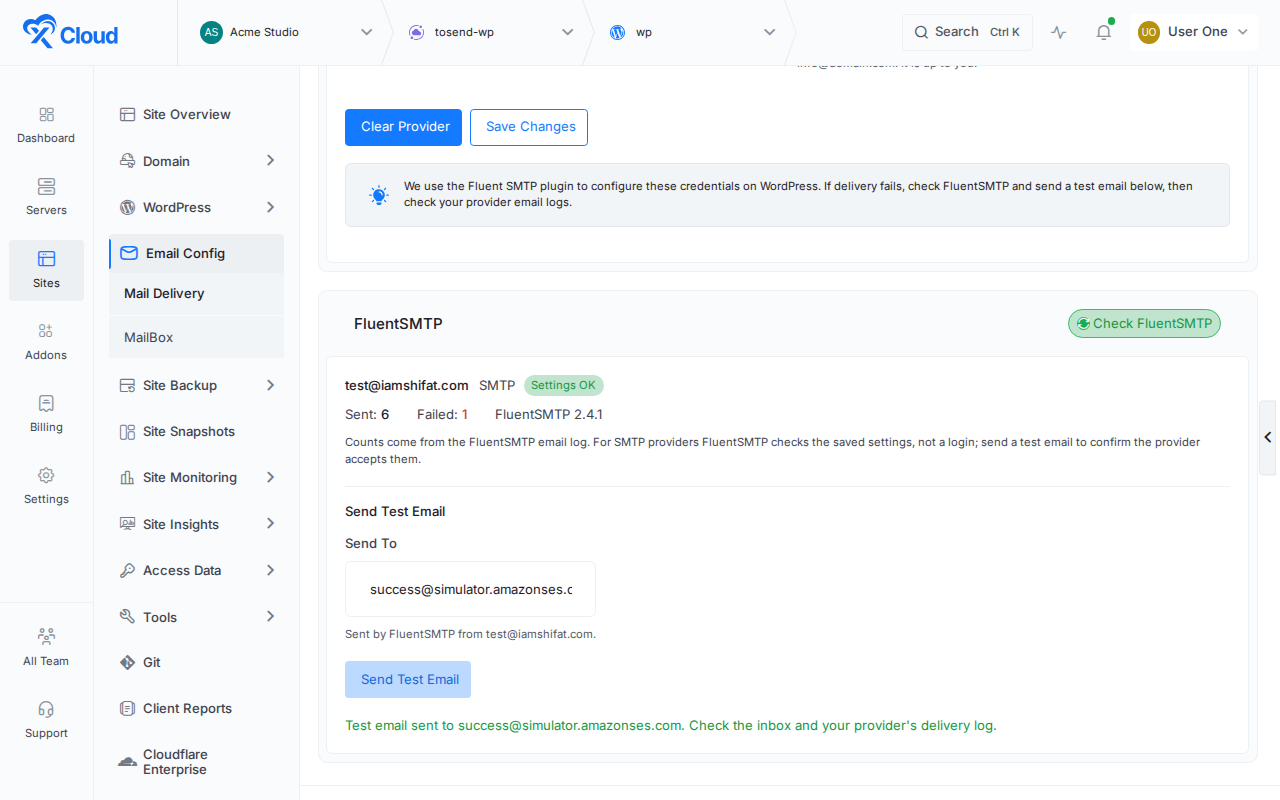
A green message means the provider accepted the email. Check the inbox, then follow delivery in your provider’s own log. The Sent count refreshes after each test.
What a Failure Tells You
The most common failure with toSend is “Data not accepted”. The connection and key were fine, but toSend refused the message, almost always because the From Email uses a domain that is not verified in your toSend account. xCloud adds that hint to the error and names the domain to check.
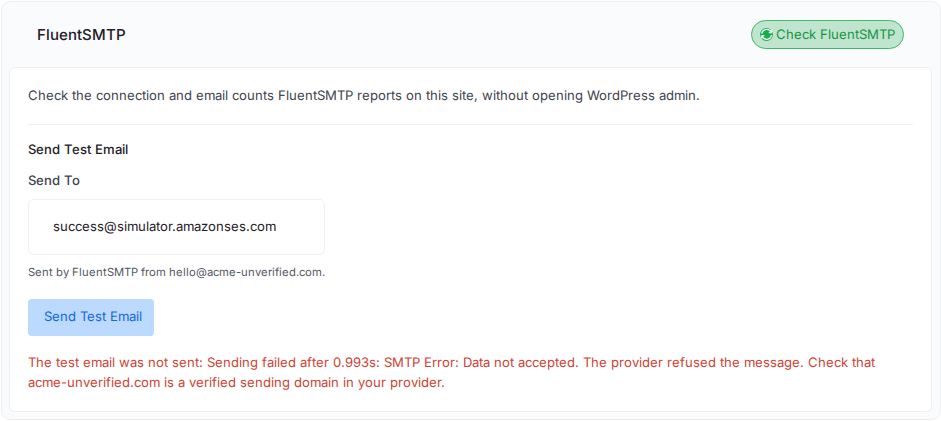
| Result in xCloud | What it means | What to do |
|---|---|---|
| Test email sent | The provider accepted the message | Check the inbox and the provider’s log |
| “Data not accepted” | The provider refused it, usually an unverified sender domain | Verify the domain or change the From Email, save, test again |
| Needs attention | FluentSMTP is missing part of its settings | Check the provider settings, then click ‘Save Changes’ to write them to FluentSMTP again |
| Older than 2.3.0 | The plugin cannot run the checks | Click ‘Save Changes’; xCloud updates FluentSMTP |
| FluentSMTP not active | The plugin was deactivated or removed | Click ‘Save Changes’; xCloud reinstalls it |
Older FluentSMTP Versions
The checks use FluentSMTP’s command-line tools. The FluentSMTP changelog lists version 2.3.0 as the release that “added WP-CLI commands for test email, connection health, stats and log pruning”.
If a site runs an older version, the panel says so. Click ‘Save Changes’ in the Email Provider section and xCloud updates the plugin while keeping your settings. If you prefer the terminal, the same commands run over SSH from the site’s folder once FluentSMTP is on 2.3.0 or later:
wp fluent-smtp health
wp fluent-smtp stats
wp fluent-smtp test --to=you@example.com --from=you@yourdomain.com
Also in v2.9.7.2: Tighter Support Access
The same release tightens what support staff can open on your sites. Support now needs your SSH consent before it can open a site’s Credentials page, the secrets on the site’s other pages, or the phpMyAdmin and Adminer auto-login. That is the same rule that already protected the web terminal and env files.
Two smaller fixes travel with it. Connecting a Google Drive or pCloud backup account now only completes for the user who started the connection. And the migration source URL guard pins the addresses it approved, so a fetch cannot be redirected to a different host after validation. See granting and revoking support access and the full v2.9.7.2 changelog for the rest.
What These Checks Do Not Do (Yet)
Be clear about the limits before you lean on the new buttons:
- WordPress only. The checks need a WordPress site with a Mail Delivery provider saved in xCloud. Other site types get no FluentSMTP section.
- No inbox guarantee. A sent test means the provider accepted the message. Spam placement, bounces and blocklists still need your provider’s delivery log.
- Dashboard only. There is no Public API or MCP call for the test or the status check yet.
- No pricing or deliverability promises. xCloud does not set toSend’s prices or limits; check them in your toSend account.
Nothing here is hard to undo. To stop using toSend on a site, choose another provider or clear Mail Delivery on the site page and save. If you would rather skip SMTP entirely, the trade-offs of default wp_mail() on an xCloud server are documented too.
Run Your First Email Test on xCloud
If your sites already use a Mail Delivery provider, there is nothing to install. Open a WordPress site, go to Email Config → Mail Delivery, click ‘Check FluentSMTP’, then send one test email to an inbox you control.
New to managed sending? The xCloud Mail Delivery addon is xCloud’s own sending service, so you do not need a separate provider account, and Setting up site emails for WordPress on xCloud covers every other SMTP provider. Run one test on each client site this week, and you’ll know which contact forms are actually reaching someone.
Find Silent Mail Failures Before Your Customers Do
The quiet failure is the dangerous one. A password reset that never arrives looks like a broken site to your user, and a contact form that drops leads looks like a slow month to you.
v2.9.7.2 gives you a two-click answer from the dashboard: is FluentSMTP set up, and does the provider accept the message? Pair it with the security incident checklist and the recent move to BetterShield login protection, and your routine site checks cover mail as well as security.
If you have found this blog helpful, feel free to subscribe to our blogs for valuable tutorials, guides, knowledge, and tips on web hosting and server management. You can also join our Facebook community to share insights and engage in discussions.
Frequently Asked Questions
Can I test WordPress email without logging in to wp-admin?
Yes. Open the site’s Email Config → Mail Delivery page in xCloud, enter a recipient under Send Test Email and click Send Test Email. FluentSMTP sends the email on the site and xCloud shows the provider’s answer.
Does the test email only work with toSend?
No. The test email and the Check FluentSMTP button work on any WordPress site that has a Mail Delivery provider saved in xCloud. toSend is the new preset provider in the same release.
Why does my test email fail with “Data not accepted”?
The provider refused the message after accepting the connection. With toSend this usually means the From Email uses a domain that is not verified in your toSend account. Verify the domain, or change the From Email, save and test again.
Which toSend key does xCloud need?
A toSend sending API key, not an admin key. Admin keys cannot send email over SMTP, and xCloud refuses them when you add the provider, so create a sending key in toSend’s API Keys page.
Does Settings OK mean my emails are delivered?
No. For SMTP providers such as toSend, Settings OK means FluentSMTP found complete settings. It does not log in to the provider, so send a test email to prove the key and sender domain work.
Can I run these email checks from the xCloud API or MCP?
Not today. The FluentSMTP test and status checks are in the dashboard only. On the server you can run FluentSMTP’s own WP-CLI commands, available from FluentSMTP 2.3.0.