

Configure toSend For Site Emails
Updated October 21, 2026 · 5 min read
toSend is a transactional email service for receipts, password resets and other site notifications. You can connect toSend to xCloud as an email provider in a few clicks. xCloud then sets it up in the FluentSMTP plugin on your WordPress site, and you can check FluentSMTP and send a test email from the xCloud panel, without opening WordPress admin.
This guide covers WordPress sites. For how site emails work on xCloud in general, see Setting Up Site Emails For WordPress On xCloud.
Before You Start
You need two things from your toSend account:
- A verified sending domain. Add the domain you will send from, such as
yourdomain.com, in toSend. Then add the DNS records toSend shows you at your DNS provider: a DKIMTXTrecord, plusMXand SPFTXTrecords on asendsubdomain. toSend verifies the domain on its own once it finds the records. Every From Email you use on a site must belong to a verified domain. - A sending API key. In toSend, open API Keys and create a key for your site. A sending key starts with
tsend_. Admin keys (tsend_admin_…) cannot send email, and xCloud does not accept them. Copy the key when toSend shows it.
Step 1: Add toSend As An Email Provider
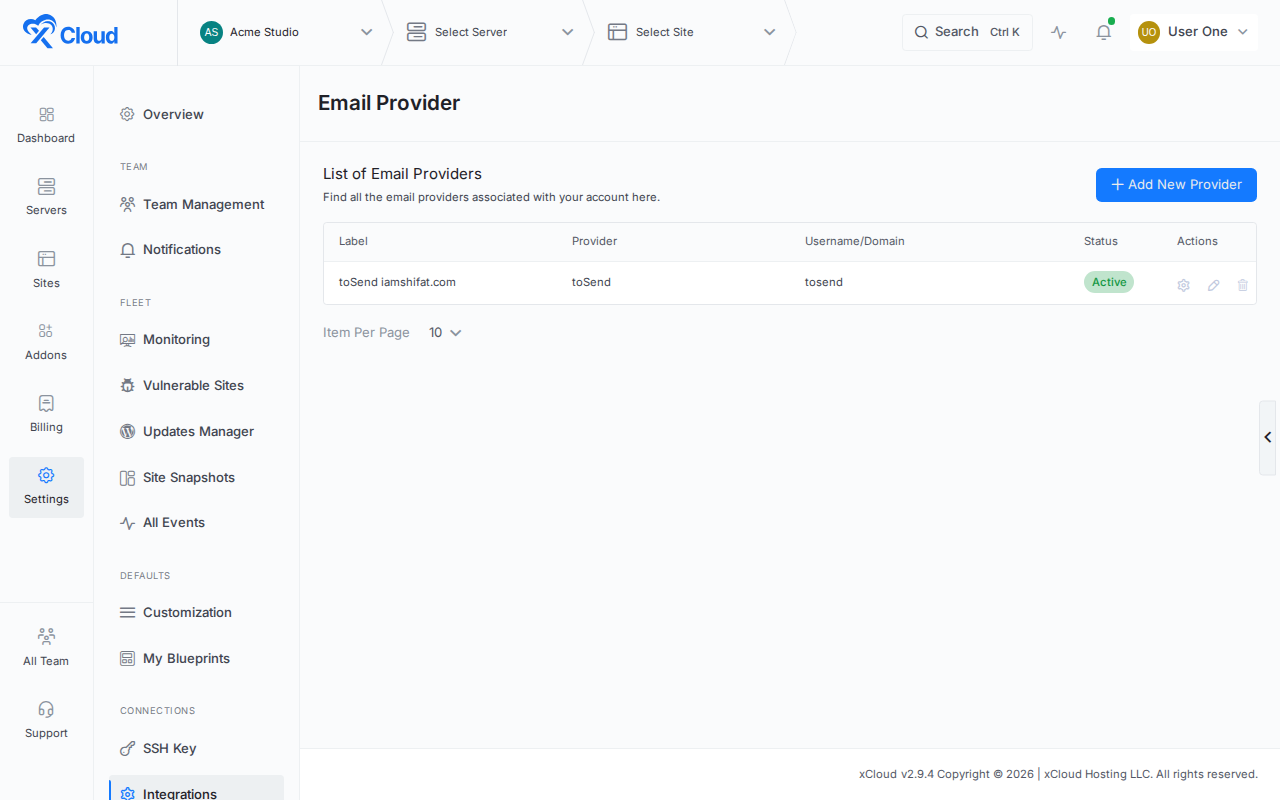
From your xCloud dashboard, open Settings → Integrations → Email Provider and click the ‘Add New Provider’ button.
Select toSend. Paste your sending key into toSend Sending API Key, give the provider a Label, and click ‘Add Provider’.
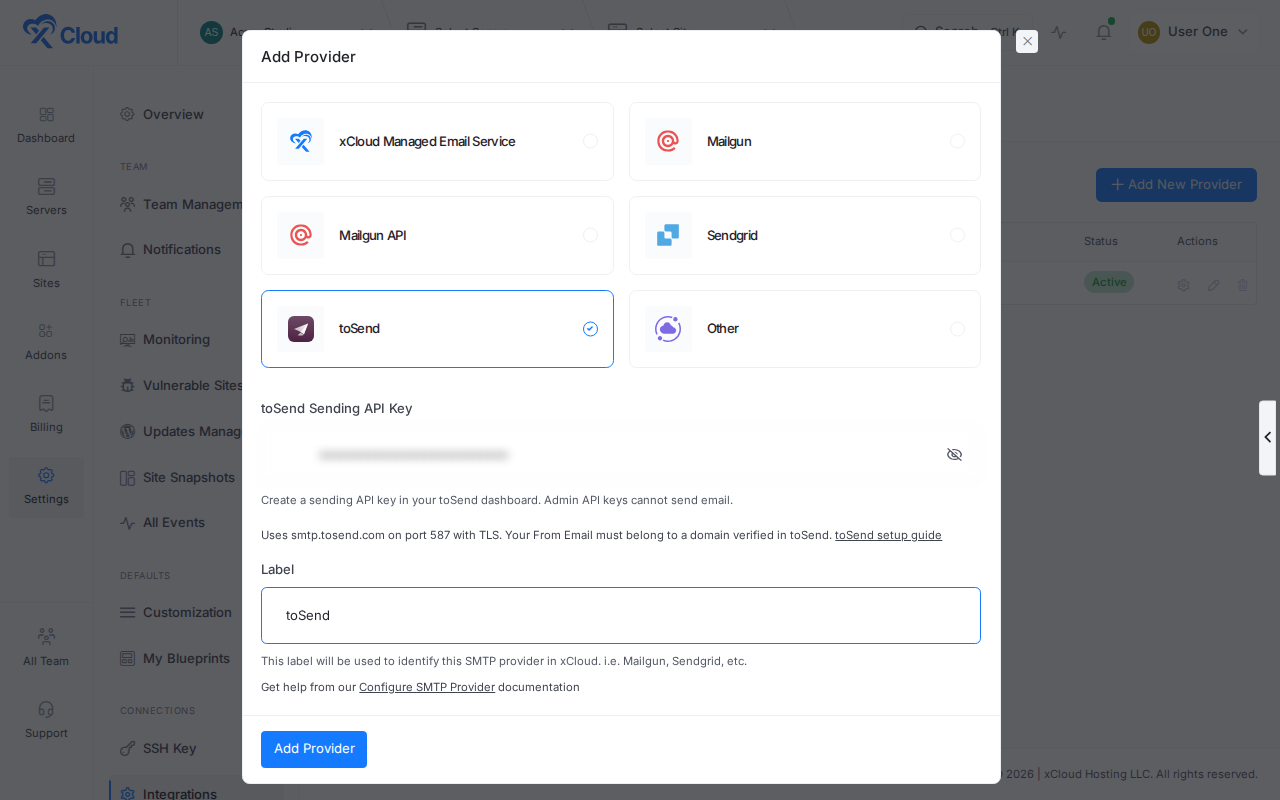
You do not need to enter a host, port or username. xCloud connects to smtp.tosend.com on port 587 with TLS, which is what toSend requires. To replace the key later, edit the provider and paste a new sending key. Leave the field blank to keep the saved key.
Step 2: Add toSend To Your Site
Open your site and go to Email Config → Mail Delivery. Select your toSend provider under Existing Team Provider. Enter a From Name and a From Email on your verified domain, then click ‘Save Changes’.
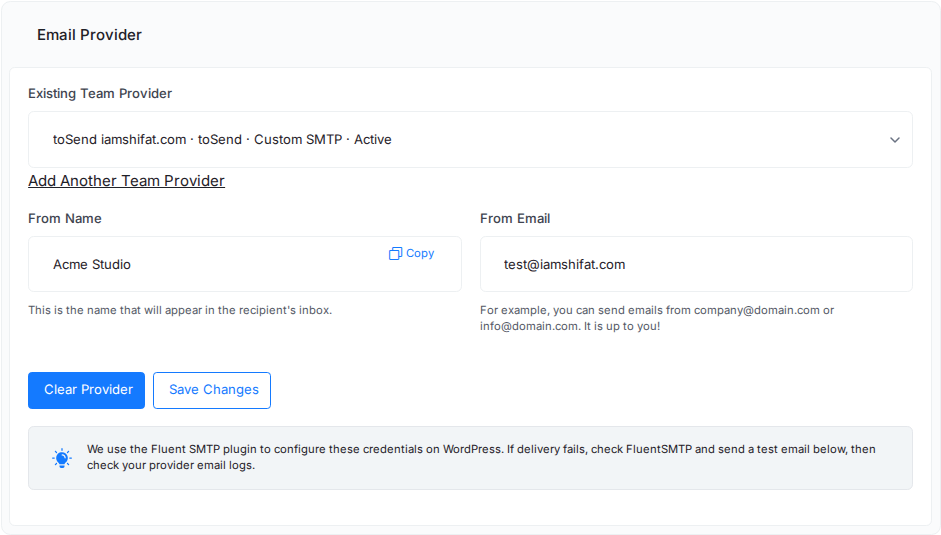
xCloud installs and activates the FluentSMTP plugin if needed, and saves the toSend connection in it. Your sending key is stored in the site’s wp-config.php file, not in the WordPress database.
Step 3: Check FluentSMTP From xCloud
Scroll down to the FluentSMTP section on the same page and click ‘Check FluentSMTP’.
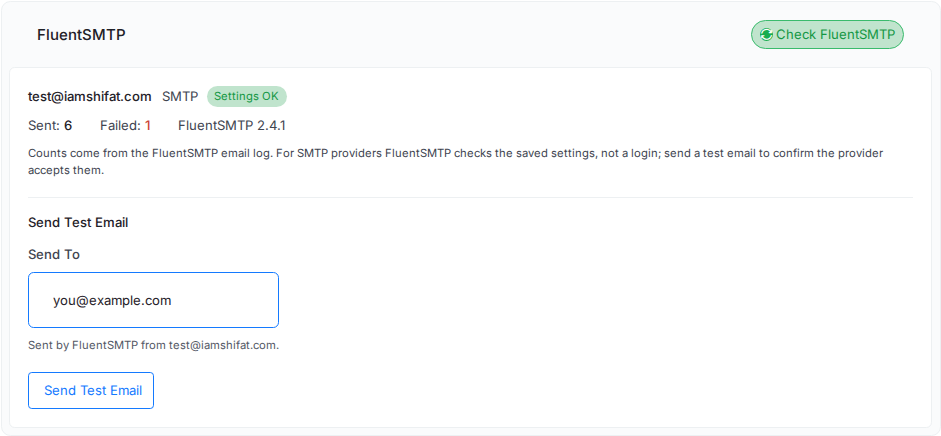
xCloud reads FluentSMTP’s own report from your site and shows:
- Each connection with its From address and either Settings OK or Needs attention. If FluentSMTP finds a problem, its reason appears below the connection.
- Sent and Failed: how many emails FluentSMTP has logged on this site.
- The FluentSMTP version installed on the site.
For SMTP providers such as toSend, this check confirms that the saved settings are complete. It does not log in to toSend. Send a test email to confirm that toSend accepts them.
Step 4: Send A Test Email
Under Send Test Email, enter the address that should receive it and click ‘Send Test Email’. FluentSMTP sends the email through toSend from your saved From Email, and xCloud shows the result.
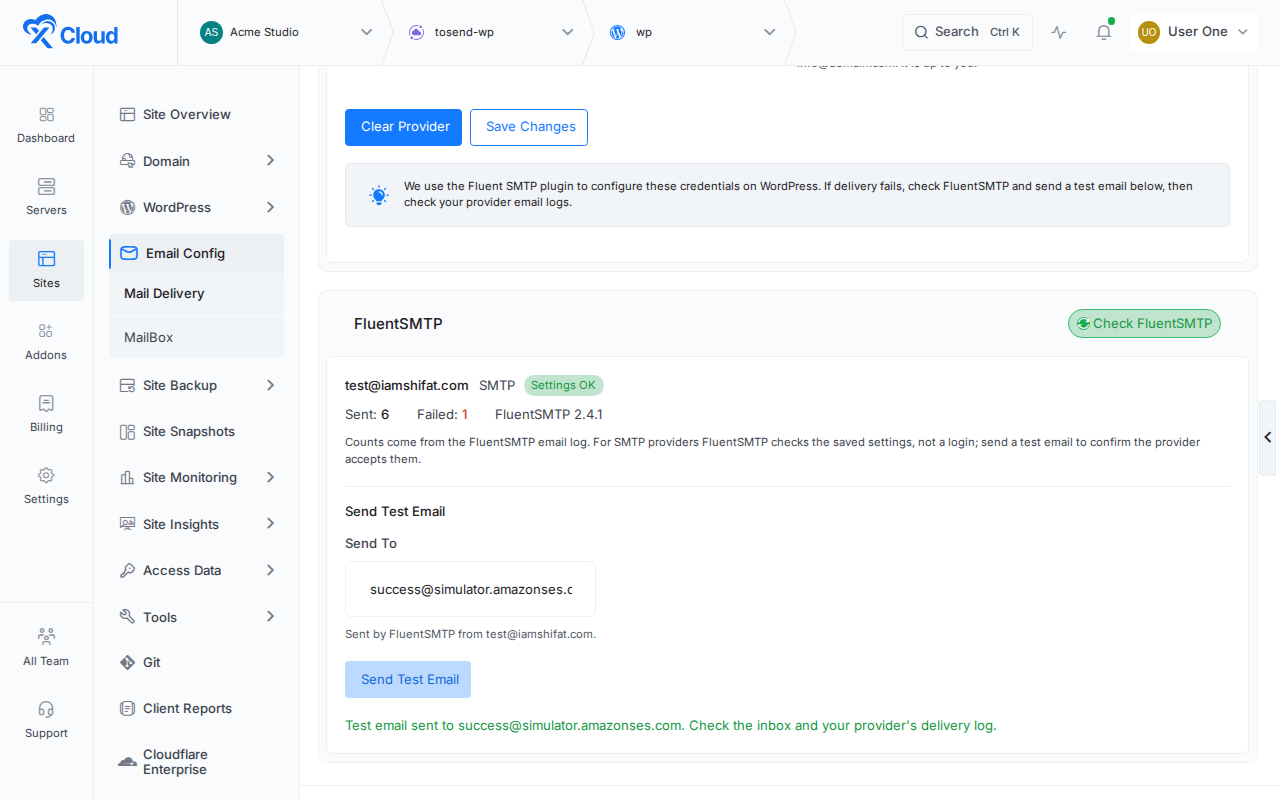
A green message means toSend accepted the email. Check the inbox, and look in Logs in your toSend dashboard to follow its delivery. The Sent count refreshes after each test.
Troubleshooting
The test email fails with “Data not accepted”
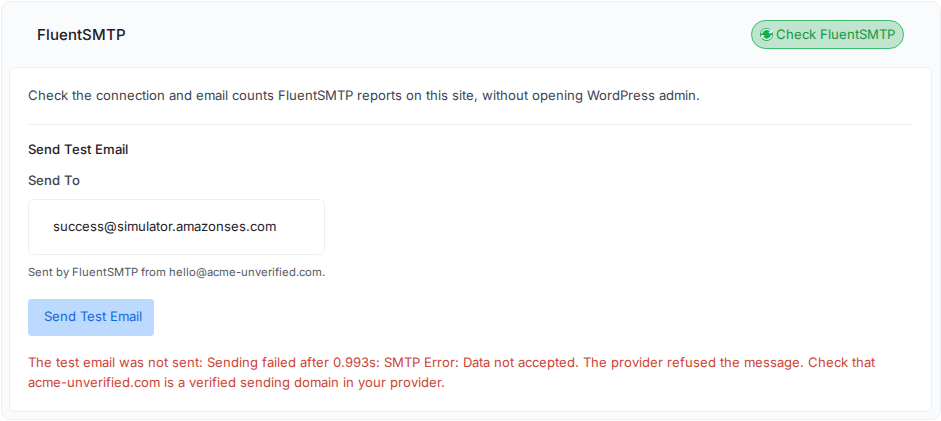
toSend refused the message. This usually means the From Email does not use a domain verified in toSend. Verify the domain in toSend, or change the From Email to an address on a verified domain. Click ‘Save Changes’, then send the test email again.
A connection shows Needs attention
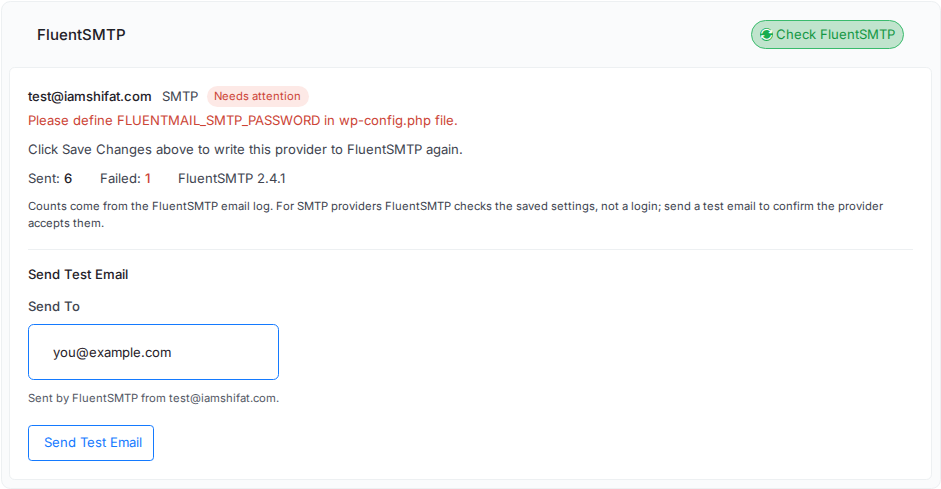
FluentSMTP is missing part of its settings, often because the site’s wp-config.php was edited or replaced. Click ‘Save Changes’ in the Email Provider section to write the toSend settings to FluentSMTP again, then click ‘Check FluentSMTP’.
FluentSMTP is older than 2.3.0
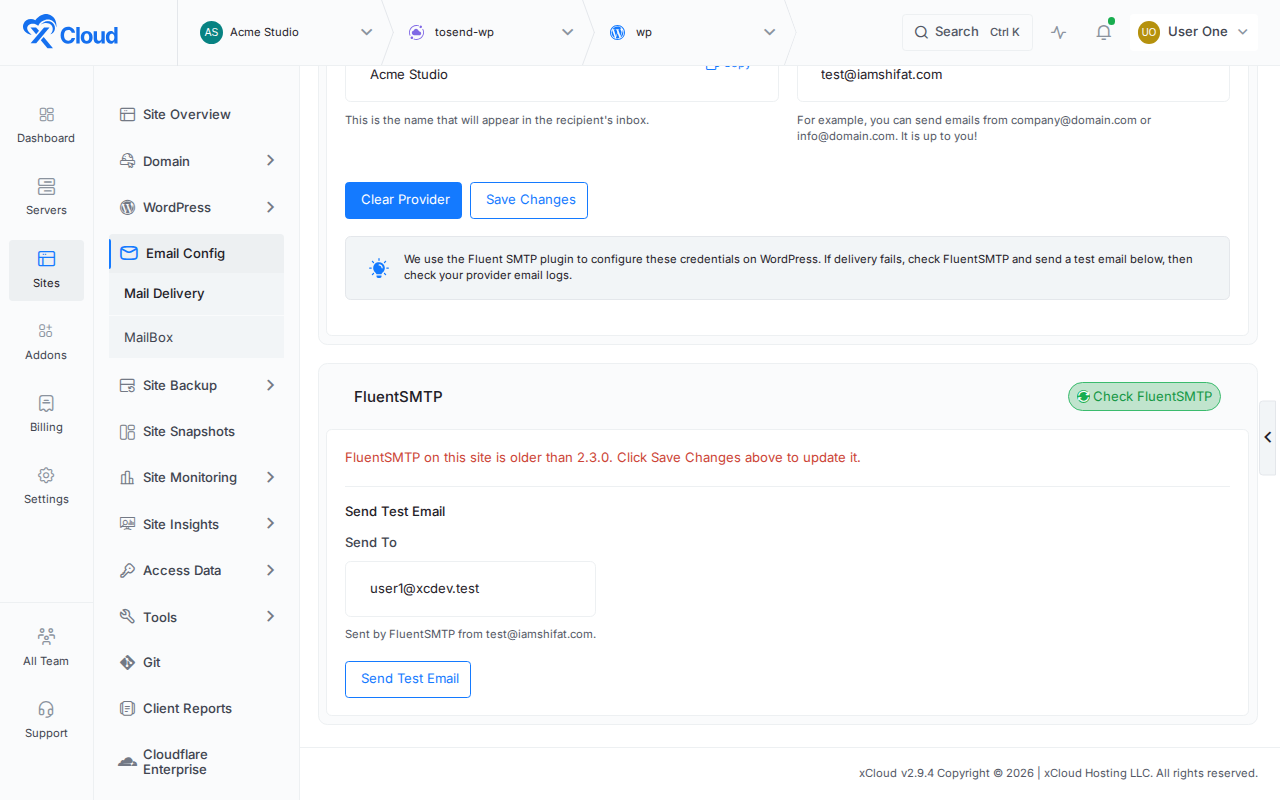
The checks and test emails use FluentSMTP’s command-line tools, which arrived in FluentSMTP 2.3.0. Click ‘Save Changes’ in the Email Provider section. xCloud updates FluentSMTP and keeps your settings. Then click ‘Check FluentSMTP’ again.
FluentSMTP is not active on this site
Click ‘Save Changes’ in the Email Provider section. xCloud installs and activates FluentSMTP again.
Frequently asked questions
Which toSend key do I use in xCloud?
Use a sending API key, which starts with tsend_. toSend refuses admin API keys (tsend_admin_…) for sending email, and xCloud does not accept them.
Why does the test email fail with “Data not accepted”?
toSend refused the message, most often because the From Email does not use a domain verified in toSend. Verify the domain in toSend, or change the From Email to an address on a verified domain, then click Save Changes and send the test email again.
Do I still need to open WordPress admin to test mail?
No. The FluentSMTP section on the site’s Mail Delivery page shows FluentSMTP’s connection check and email counts, and sends a test email through FluentSMTP for you.
What does Settings OK mean for toSend?
FluentSMTP found complete settings for the connection. For SMTP providers such as toSend, FluentSMTP does not log in during this check, so send a test email to confirm toSend accepts the key and the sender domain.
If you run into any issues while setting up toSend, feel free to reach out to our support team.