

How to Grant and Revoke xCloud Support Access
Updated October 19, 2026 · 6 min read
xCloud Support can only reach your team’s servers and sites after entering your Support Access Code, and only while that code is valid. Use this guide to grant access when you open a ticket, change it later, and revoke it at any time.
How support access works
- Each team has one Support Access Code. Entering it lets a support agent reach that team’s servers and sites, and nothing else.
- The code is valid for a window of up to 30 days. When the window ends, access is refused automatically.
- SSH access and Magic Login are separate permissions. You turn them on per ticket, and the access code alone does not grant them.
- The code is shared with support agents privately. It never appears in the ticket messages you can read.
Prerequisites
- You are a team admin of the team that owns the servers and sites. Other members can see the code but cannot regenerate it or edit access.
- You can open Support in the xCloud dashboard.
Grant access when you create a ticket
1. Open Create Ticket
Select Support in the left bar, then Create Ticket. Fill in the title and description as usual.
2. Choose what Support may do
Under Additional Information (Optional), select the affected Sites or Servers. Two switches appear once you select one:
- Allow Magic Login for Support lets support sign in to your server panel with Magic Login when needed.
- Allow SSH Access for Support gives support temporary SSH access for the same validity window.
Both switches are off by default.
3. Set the validity
In the Support access validity field, enter how many days (0 to 30) support may access your servers and sites. The default is 30. Enter 0 if you do not want to grant access for this ticket.
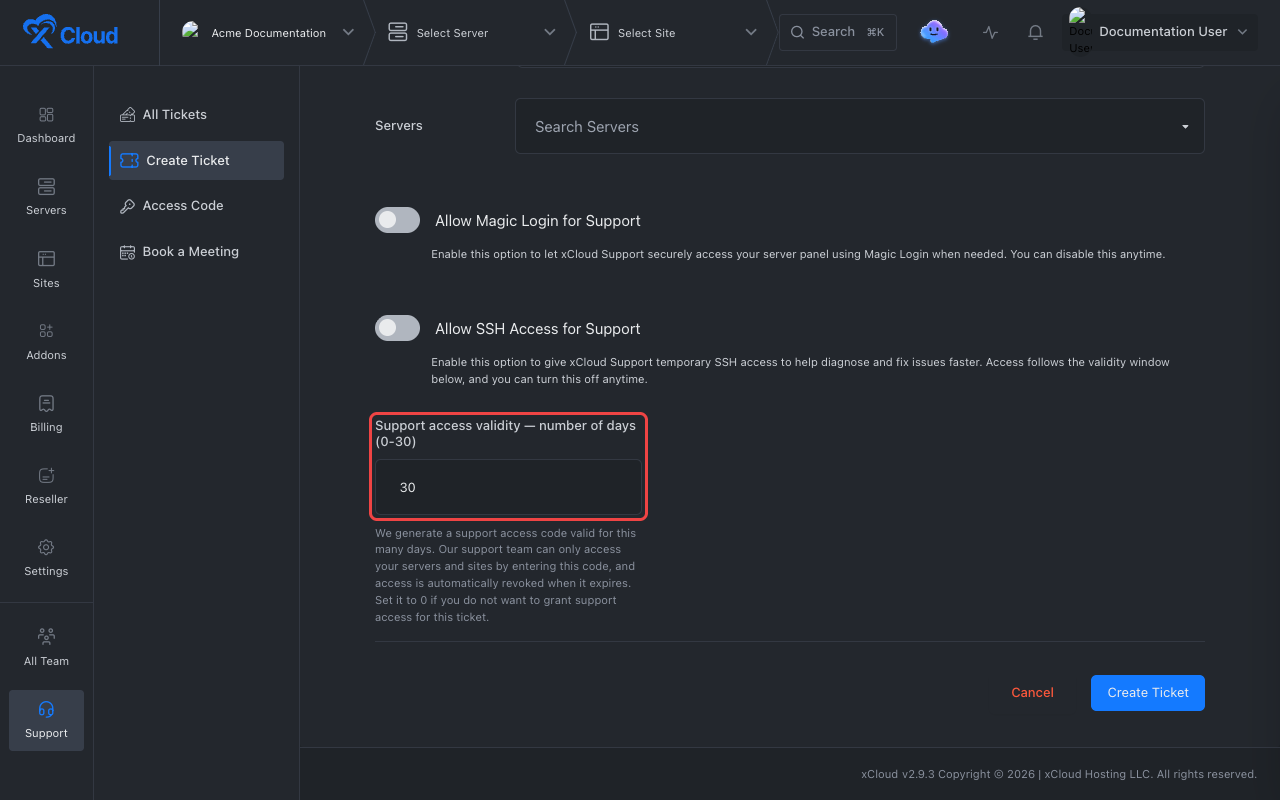
Select Create Ticket.
Expected result: The ticket is created, and the team’s access code is valid for the number of days you entered.
Change access on an existing ticket
1. Open Edit Support Access
Go to Support → All Tickets and select Edit next to the ticket. You can also use Edit in the Access section of the ticket page.
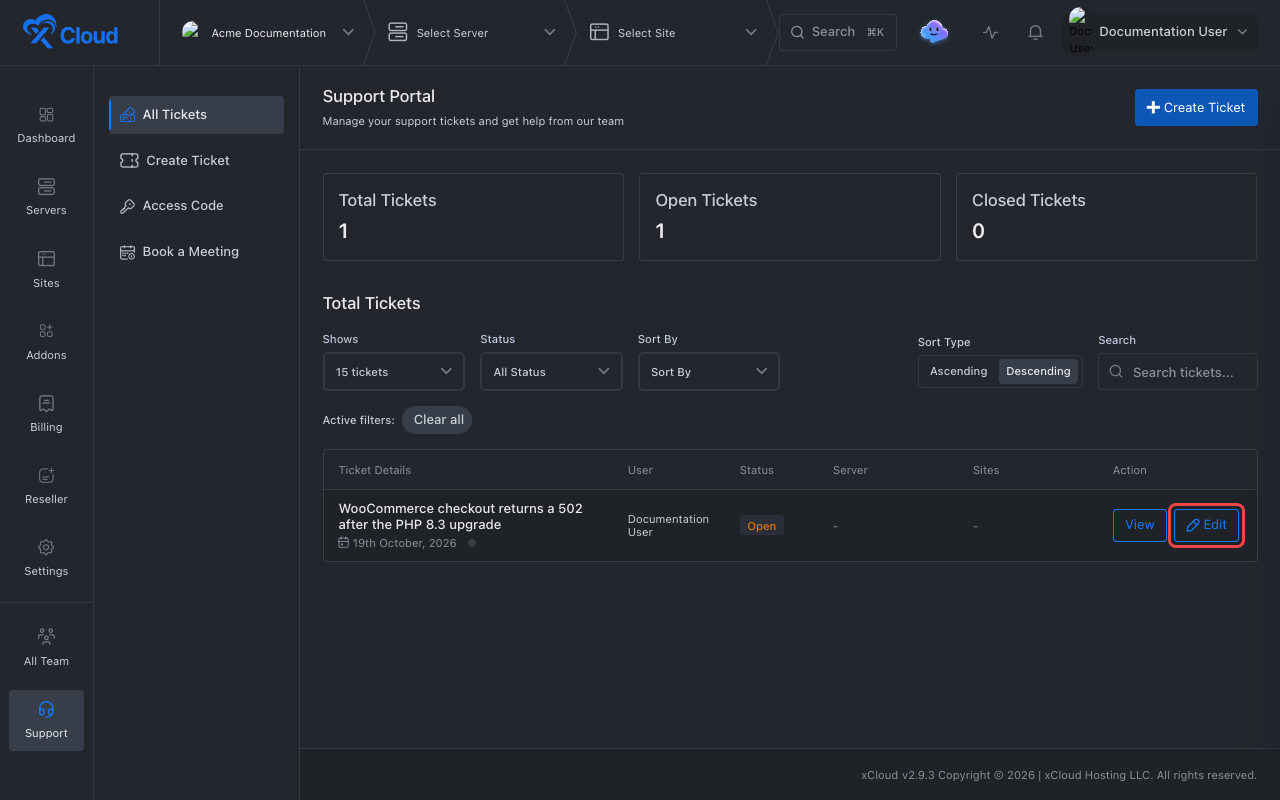
2. Update the permissions and save
Turn Allow Magic Login for Support and Allow SSH Access for Support on or off. To change how long access lasts, enter a new number of days. The new window is counted from today and replaces the current one, so you can also shorten it. Enter 0 to leave the current window unchanged.
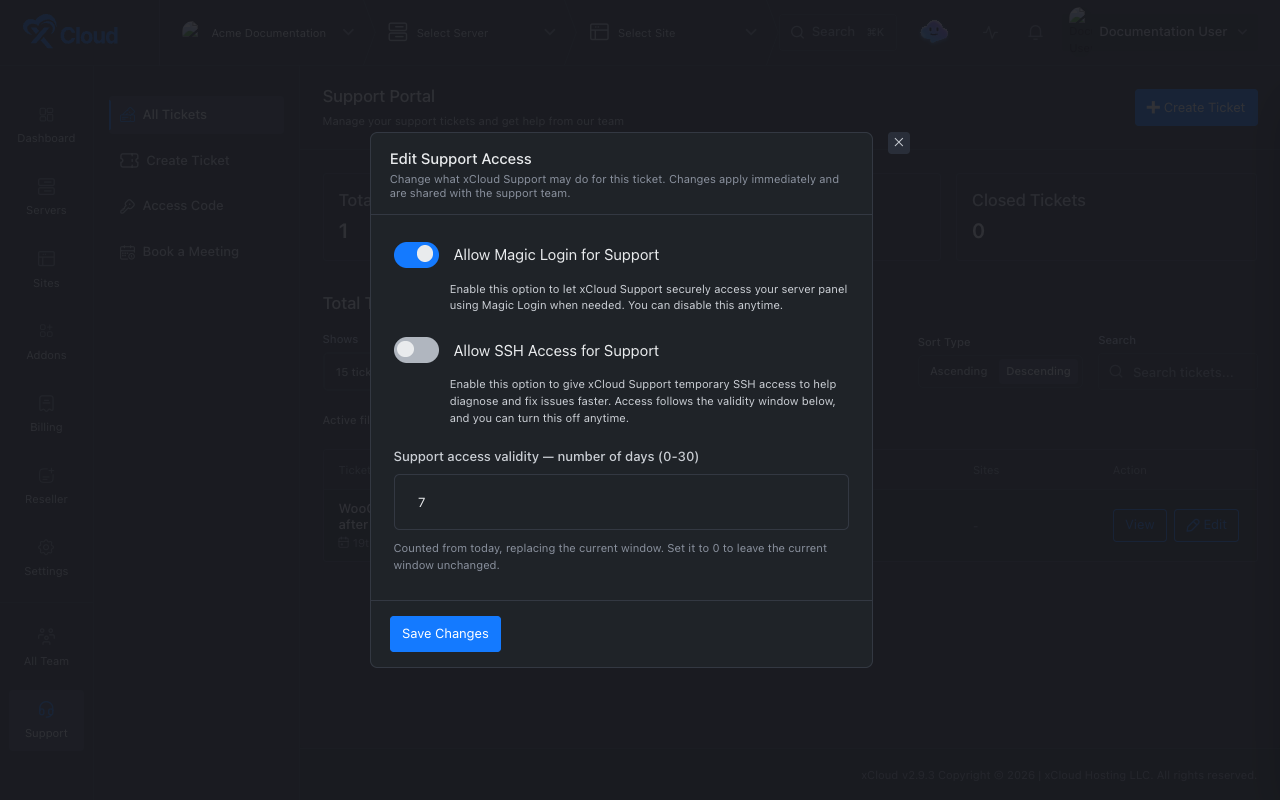
Select Save Changes.
Expected result: xCloud shows “Support access updated successfully” and shares the change with the support team immediately.
SSH and Magic Login permissions apply to the whole team. If you turn one off here but another open ticket still grants it, support keeps that permission until you turn it off on that ticket too.
View or revoke the access code
1. Open the Access Code page
Select Support → Access Code. The Support Access Code card shows the code masked, a Copy button, and its status.
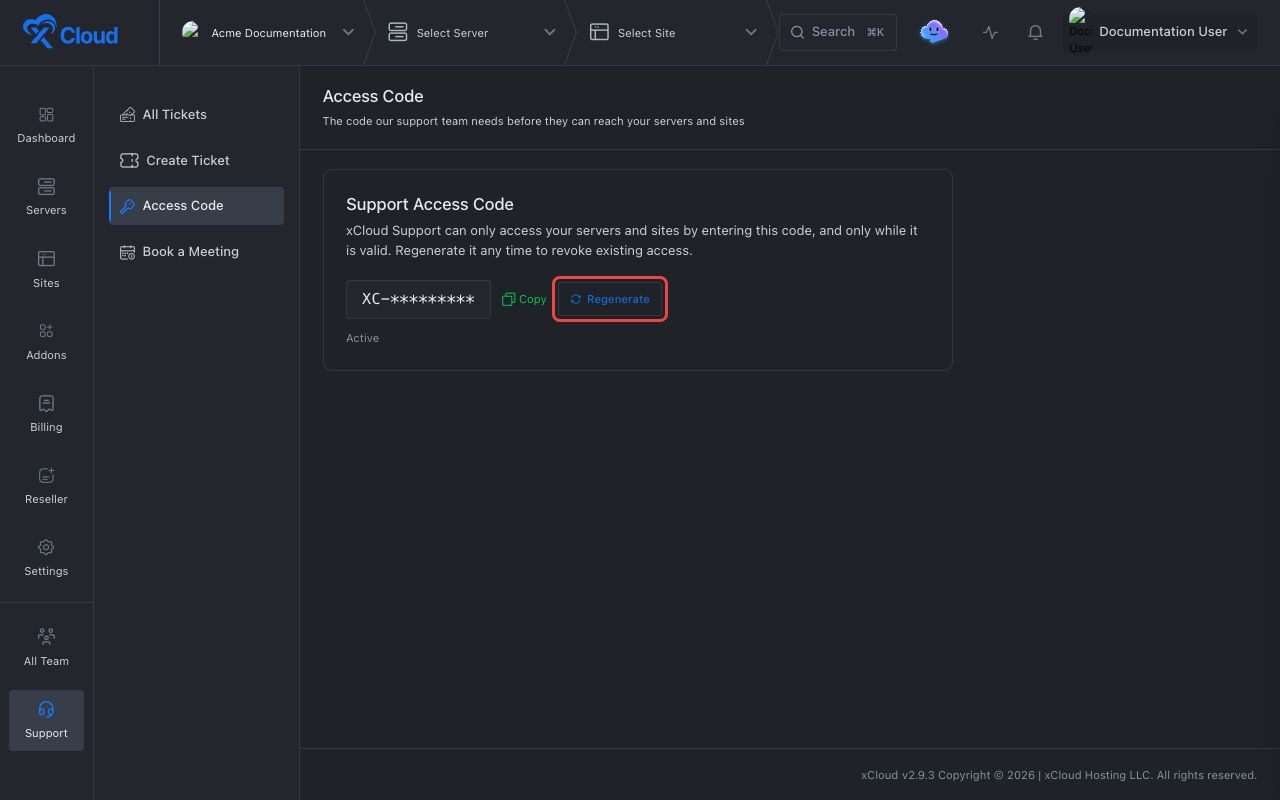
| Status | Meaning |
|---|---|
| Active | Support can use the code until its window ends. |
| Inactive | The code exists but its window has ended, or no access was granted. Set a validity above 0 on a ticket to activate it. |
| No code yet | xCloud creates the code with your first support ticket, or when you select Generate. |
The same card is also available under Settings → Customization.
2. Revoke access by regenerating the code
Select Regenerate, then confirm with Regenerate.
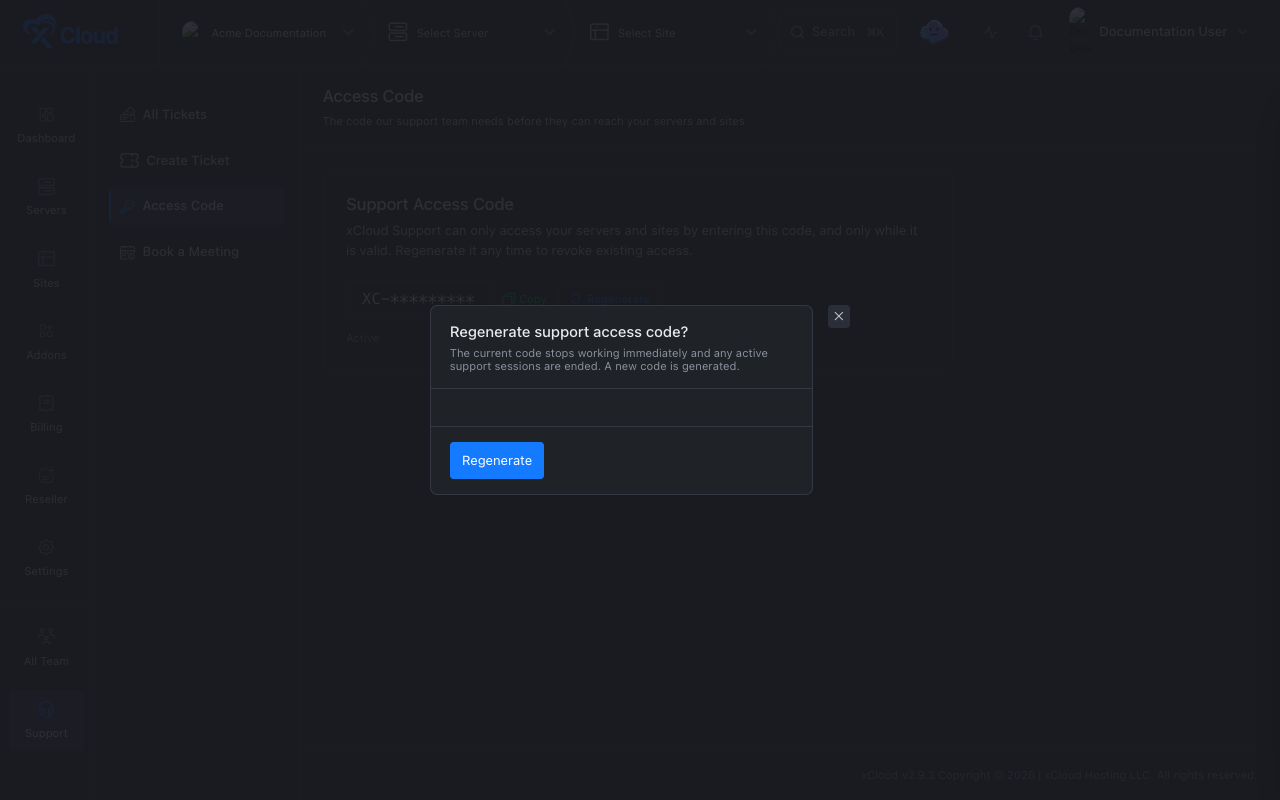
Expected result: xCloud shows “Support access code regenerated.” The old code stops working immediately and any active support sessions end. Support receives the new code through your open tickets.
There is no separate revoke button. Regenerating is how you revoke access. To stop support from using SSH or Magic Login without ending access entirely, turn those permissions off with Edit Support Access instead.
Limits
- One access code per team. It covers all of that team’s servers and sites.
- A single access window lasts from 1 to 30 days.
- Only a team admin can regenerate the code or edit a ticket’s access.
- Support staff cannot grant access to themselves.
FAQ
Can xCloud Support access my servers without my permission?
No. Support staff must enter your team’s Support Access Code, and the code only works while it is valid.
How long does support access last?
Up to 30 days. You set the number of days when you create a ticket, and you can change it later with Edit Support Access.
How do I revoke support access immediately?
Open Support, then Access Code, and select Regenerate. The old code stops working and any active support sessions end.
Does the access code give Support SSH or Magic Login?
No. SSH access and Magic Login are separate permissions that you turn on per ticket.