


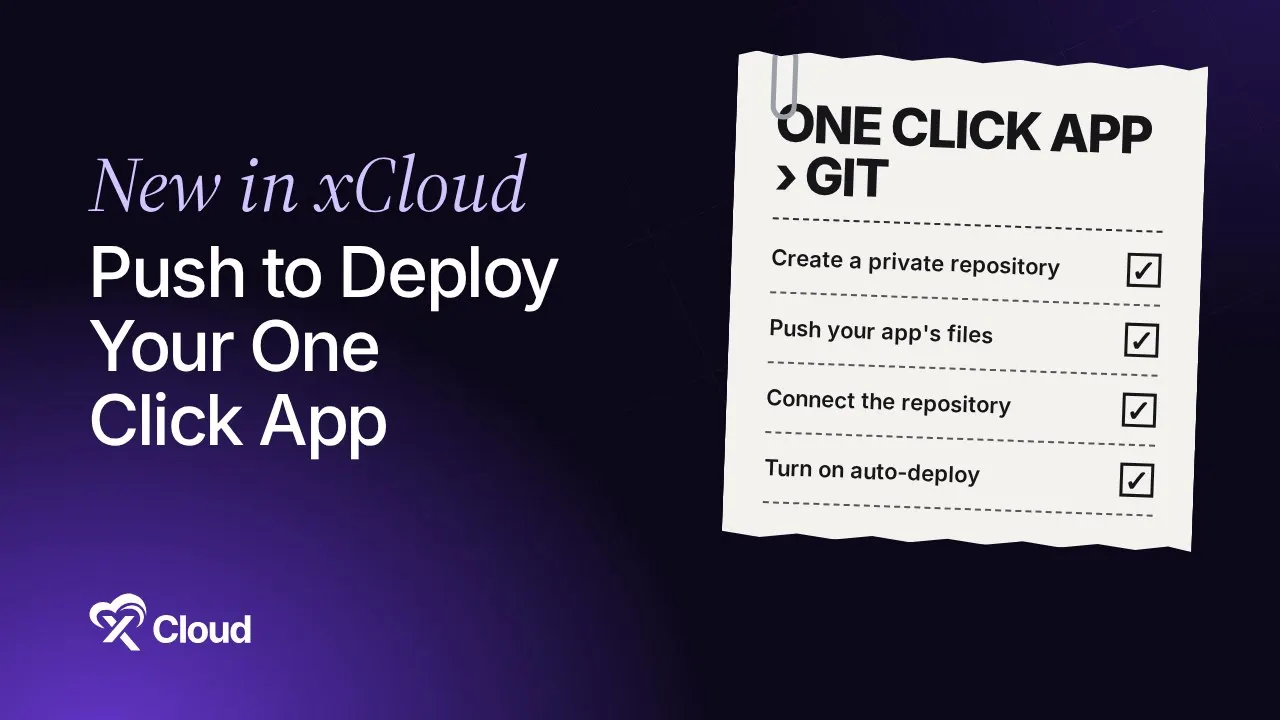
Installed a Node.js app with one click and now want to change its code from GitHub? Open the app’s Git page in xCloud and connect a repository. xCloud pushes the installed files, without the .env file, to a new private repository xCloud creates for you, or to an empty one you pick. After that, every push deploys.
A one-click install gets an app running in minutes. The trouble starts the day you want to change its code. This post covers the new Git page for One Click apps: what it pushes, what stays on the server and what you give up. If you are deploying a fresh repository instead, see One Click Git Deploy.
TL;DR
- Where: Sites → your One Click app → Git, then Setup Git Integration.
- What it does: pushes the app’s files to your GitHub repository as the first commit, adds a read-only deploy key and a webhook, and turns on push-to-deploy.
- What stays on the server: the
.envfile. For Node.js apps the default.gitignorealso leaves outnode_modules/,dist/andbuild/; for PHP apps it leaves outvendor/andnode_modules/. - Which apps: One Click apps that run directly on the server: Node.js apps (run by PM2) and PHP apps. Not Docker Compose apps.
- Which Git host: GitHub only. The repository must be new or empty.
- The catch: the app stops receiving template updates, and that cannot be undone.
The Finding: Your Installed App Becomes Your Repository’s First Commit
Most guides to deploying a Node app from GitHub assume the code starts in GitHub. A one-click install works the other way round: the code starts on your server, and GitHub has nothing. Until now, getting those files into a repo meant copying them by hand and setting up deploys yourself.
The Git page does that copy for you. Here is the list xCloud shows under What happens when you set this up, in short:
| Step | What xCloud does |
|---|---|
| Create a new private repository (or Link the empty repository you picked) | A new private repository is created under your connected GitHub account, or xCloud uses an empty repository that you gave the xCloud GitHub App access to. |
| Push your app’s files | Your app’s files are pushed to the repository as a first commit. The .env file is not included, so your passwords and keys stay on the server. |
| Connect the repository to this server | Adds a read-only deploy key so the server can fetch code, and a webhook that tells xCloud whenever you push. |
| Turn on auto-deploy | Every time you push code to GitHub, xCloud updates the app. |
| Deploy from your repository from now on | Deploys come from your repository and the app stops receiving template updates. This cannot be undone. |
If you want the background on the two GitHub pieces, GitHub explains deploy keys and webhooks in its own docs. Our GitHub deploy key guide covers the same idea for servers you run by hand.
Why a One-Click Install Is Hard to Customise
A one-click template is a finished recipe. It installs the app, writes its settings and keeps it updated. That is exactly what you want until you need to change one file.
Edit the code on the server and you have no history, no review and no easy way for a teammate to help. Keep the change in a private fork and you now have two copies to keep in step.
Connecting the app to GitHub turns it into a normal Git project: one repository, one branch, and every change shipped with a push.
Connect the App to Your GitHub Repository
You need three things first: the app is installed and running, a GitHub account is connected to your team (see connect a Git provider), and you have access to manage this site.
Step 1: Open the Git page
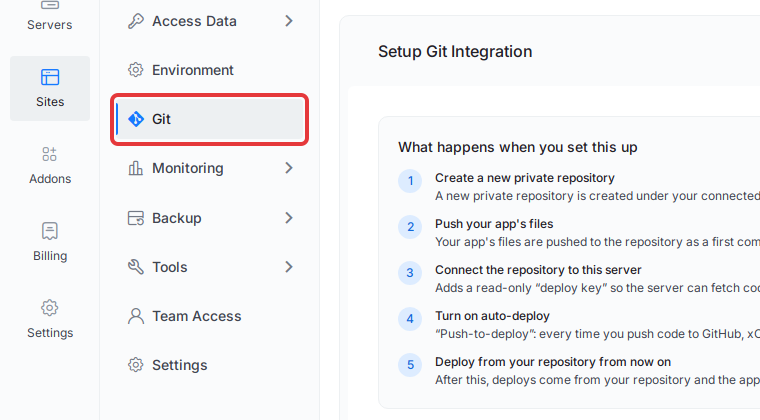
Go to Sites, open your One Click app, and click Git in the site menu. The Setup Git Integration page opens.
Step 2: Pick the account and the repository
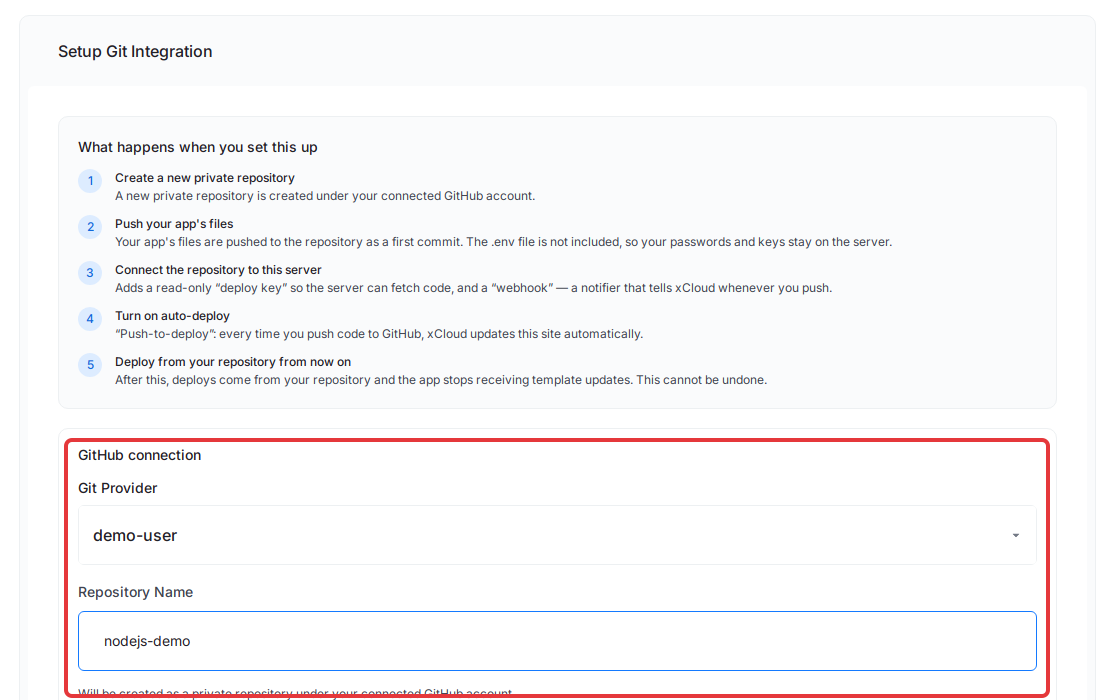
Under GitHub connection, choose an account in Git Provider. With a GitHub account connection you type a Repository Name and xCloud creates it as a private repository on the main branch. With the GitHub App, you pick an empty repository that you gave the xCloud GitHub App access to.
Step 3: Check the .gitignore and confirm
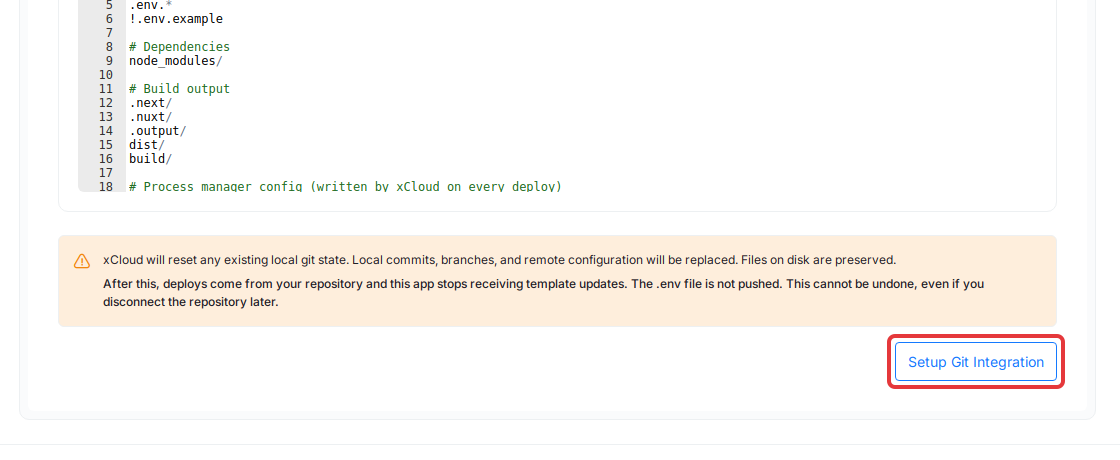
Open Customize .gitignore if you want to review what stays out. Read the warning above the button, click Setup Git Integration, check the summary in Confirm Git setup, then click Confirm & Set Up.
The page shows Setup in progress and the current step, and updates by itself. 👉 The full walkthrough, with every error message and its fix, is in How to Connect a One Click App to a Git Repository.
What Gets Pushed (and What Stays on the Server)
Here is the part that trips people up: a Git repository is not a backup of your server. It holds code, not secrets or generated files.
| Goes to GitHub | Stays on the server |
|---|---|
| The app’s source files | The .env file with passwords and keys |
| Your later commits | node_modules/ |
The .gitignore you reviewed |
Build folders such as dist/ and build/ (Node.js apps only) |
vendor/ (PHP apps) |
Your environment values stay on the app’s Environment page. See environment variables and Git deployments for how the two work together. If you remove a default .gitignore entry, the page warns you before you continue.
Push to Deploy: How Each Deploy Builds
After setup, the app’s deploy script is prefilled with the install and build steps from its template. So a push installs and builds the app the same way the one-click install did, and you can review that script on the app’s Git page.
You can follow every deploy on the Git deployments page. If a push does not start a deploy, or a deploy fails, start with troubleshooting Git deployments and why your Git deploy failed.
What It Does Not Do (Honest Limits)
The trade-off is real, so read this before you click.
- No more template updates, for good. The app leaves its One Click template. Disconnecting the repository later does not bring updates back. You update the app by pushing code.
- Docker Compose apps are not covered. They have no Git page; you change them from their Compose page.
- GitHub only. GitLab and Bitbucket are not offered for this setup.
- Empty repositories only. A repository that already has commits is refused, so you can’t merge into existing code this way.
- The app must be live. If it is still installing, xCloud asks you to connect it once it’s running.
If you only remember one line: connect when you are ready to own the code, not before.
Who Should Connect Their App, and Who Should Wait
| If you are… | Do this | Why |
|---|---|---|
| A developer who wants to change the app’s code | Connect it | You get history, review and push-to-deploy. |
| A team shipping changes together | Connect it | Teammates work through GitHub, not the server. |
| Happy with the app as installed | Wait | Template updates keep it current with no work. |
| Running a Docker Compose app | Use the Compose page | The Git page is not available for those apps. |
For a WordPress or Custom PHP site you built yourself, the same idea has its own guide: set up Git integration for an existing site. For Python, Ruby, Go, Java or Bun projects that start in Git, read deploy apps from Git on xCloud.
Own Your App’s Code This Week
Pick one One Click app you keep wishing you could change. Check that it is running and that GitHub is connected to your team, then open its Git page and read the list of steps. If you are fine with leaving template updates behind, connect it and ship your first change with a push.
New to running Node.js apps on your own server? Start with Node.js hosting on xCloud or browse the One Click apps you can install and then make your own.
If you have found this blog helpful, feel free to subscribe to our blogs for valuable tutorials, guides, knowledge, and tips on web hosting and server management. You can also join our Facebook community to share insights and engage in discussions.
Frequently Asked Questions
Can I deploy a Node app from GitHub if I installed it as a One Click app?
Yes. Open the app’s Git page in xCloud and connect a GitHub repository. xCloud pushes the installed files as the first commit, and from then on every push to the branch deploys the app.
Is my .env file pushed to GitHub?
No. xCloud leaves the .env file out of the first commit, so your passwords and keys stay on the server. For Node.js apps the default .gitignore also leaves out node_modules/, dist/ and build/; for PHP apps it leaves out vendor/ and node_modules/.
Does this work for Docker Compose One Click apps?
No. Only One Click apps that run directly on the server have a Git page: Node.js apps (run by PM2) and PHP apps. Not Docker Compose apps. You change a Docker Compose app from its Compose page instead.
Can I go back to template updates later?
No. Once the app is connected, it stops receiving template updates for good, even if you disconnect the repository later. You update it by pushing code.
Can I use a repository that already has code in it?
No. The repository must be empty. Pick an empty repository, or let xCloud create a new private one under your GitHub account.
Does it work with GitLab or Bitbucket?
Not for One Click apps. This setup works with GitHub only, either through a connected GitHub account or the GitHub App.