

How to Update a One Click App and Edit Its Docker Compose File in xCloud
Updated October 27, 2026 · 6 min read
xCloud One Click Apps built from templates have two maintenance tools: Update, which pulls the latest container images for the app and recreates its containers, and the Compose page, which lets you edit the app’s docker-compose.yml directly from the dashboard. Update is safe for routine use. Compose editing is an advanced, permission-gated tool: once you change the file, keeping the app working is up to you.
This guide applies to apps installed from the One Click Apps template catalog. For the full install flow, see how to use One-Click App Templates.
Update a One Click App
Update is in the App Actions menu, next to Start, Stop and Restart. You find App Actions at the top of the app’s site page and in the site list.
- Open the app’s site, or find it in your site list.
- Click App Actions → Update.
- Read the confirmation: “This pulls the latest images defined in your app’s compose file and recreates the containers. Your data volumes are preserved. The app will restart during the update.”
- Click Update to confirm.
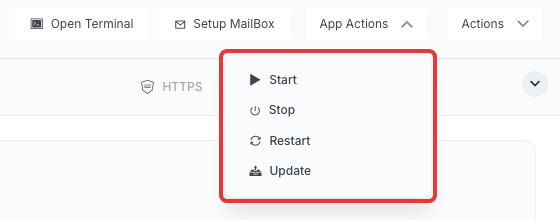
Expected result: xCloud shows “Update started — pulling the latest images and recreating the containers.” The app is offline for a short time while its containers restart. Follow progress in the site’s Recent Events.
Keep in mind:
- Update follows the compose file. It pulls the images that the app’s current
docker-compose.ymlnames. If an image is pinned to a fixed version tag, Update pulls that same version again. If you edited the compose file, Update uses your edited version. - Wait for each action to finish. While one App Actions action runs, the other items are disabled.
- Back up first for important data. Template apps on NGINX servers have Backup → Previous Backups and Backup Settings in the site sidebar. Take a backup before an update you cannot afford to lose. See how to back up and restore Docker apps.
- Updates are only available once the app is installed. While an install is still running or after it failed, App Actions are unavailable.
Edit the app’s Docker Compose file
The Compose page opens the app’s docker-compose.yml in an editor. The file lives at /var/www/<site>/docker-compose.yml on the server.
Who can edit Compose
Compose editing has its own team permission, described as letting members “view and edit the docker-compose.yml of a OneClick template site, which defines the containers, mounts and privileges the server runs.” It is never granted automatically, even to members whose role picks up new permissions on its own, because a compose edit can run privileged containers on the server. The team owner always has it. Any other member needs a team admin to grant it on purpose. See team roles and permissions in xCloud.
Members without the permission do not see Compose in the site sidebar. The editor is also read-only while the site is disabled.
Edit and redeploy
- Open the app’s site and select Compose in the sidebar.
- Read the warning at the top. xCloud does not reconcile an edited file against the catalog template.
- Copy the current file to a safe place before you change anything. xCloud does not keep earlier versions.
- Edit the file in Docker Compose (docker-compose.yml).
- Click Save & Redeploy, then confirm Save & redeploy this app?
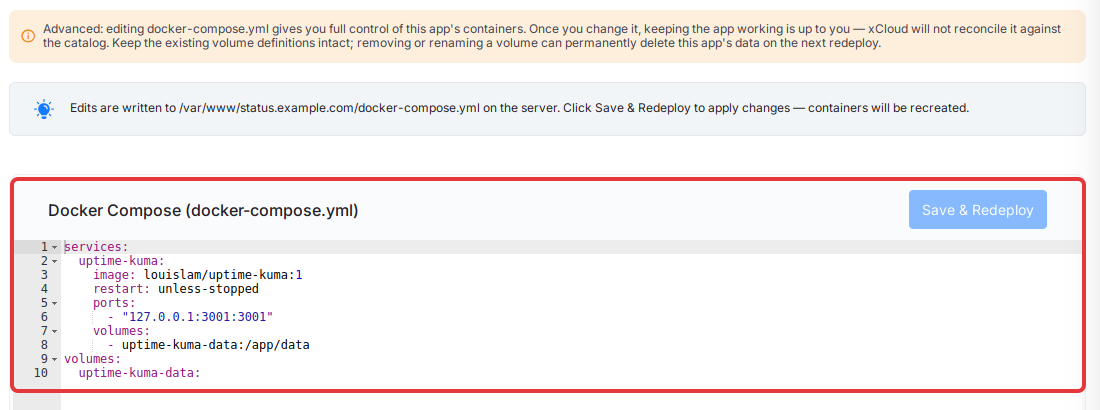
Expected result: xCloud shows “Saved — redeploy in progress” and recreates the containers from your edited file.
There is no save-only option. Saving always redeploys, because a saved file that is not applied would look like it worked when nothing changed.
What xCloud checks, and what it does not
Before saving, xCloud checks only that the file is valid YAML with a non-empty services section and that no service is empty. It does not check that your images exist, that ports and volumes are right, or that the app still works.
If two people have the editor open, the second save is refused with a message that the file changed on the server. Reload the editor and reapply your changes.
If the file saves but the redeploy fails, xCloud keeps your edited file and reports “Saved docker-compose.yml, but redeploy failed.” Fix the file and save again, or restore your copy.
Do not remove or rename volumes
Volumes hold the app’s data. If you remove or rename a volume in the compose file, the data in it can be permanently deleted on the next redeploy. Keep the existing volume definitions as they are.
Recover from a bad compose edit
xCloud has no undo for compose edits. To roll back:
- Open Compose again.
- Replace the editor content with the copy you saved before editing.
- Click Save & Redeploy and confirm.
If you did not keep a copy and the app no longer starts, restore the app from a backup or contact support. An edited file also stays in place for every later Update, so a broken file breaks updates too.
Environment, Compose or Domain: which to change
| You want to change | Use | Effect |
|---|---|---|
| App settings the app reads from variables (mail settings, feature flags, keys) | Environment (.env) |
Save & Redeploy restarts the containers briefly. |
| The containers themselves: images, services, resource limits, mounts | Compose (docker-compose.yml) |
Save & Redeploy recreates the containers. You own the file from then on. |
| The domains the app answers on | Domain | xCloud updates the app’s configuration for you. Do not hard-code domains in Compose. |
| The app version, to the latest published images | App Actions → Update | Pulls images and recreates containers. Data volumes are preserved. |
Frequently asked questions
Does Update delete my app’s data?
No. Update pulls the latest images defined in the app’s compose file and recreates the containers. Data volumes are preserved. The app restarts during the update.
Why can’t I see the Compose page?
Compose editing needs its own team permission, which is never granted automatically. The team owner has it. Other members need a team admin to grant it on purpose.
Can xCloud undo a bad compose edit?
No. xCloud does not keep earlier versions of the file. Keep a copy before you edit, and paste it back with Save & Redeploy if the app breaks.
Should I edit the compose file or the environment file?
Change settings in Environment when the app reads them from variables. Edit Compose only when you need to change the containers themselves, and set domains on the Domain page.
If you run into any issues updating or editing a One Click App, feel free to reach out to our support team.