

How to Connect a One Click App to a Git Repository in xCloud
Updated November 16, 2026 · 5 min read
You can move a One Click app’s code into your own GitHub repository from the app’s Git page in xCloud. xCloud pushes the app’s files as the first commit, connects the repository to your server and turns on push-to-deploy. From then on, every push to the repository updates the app.
This works for One Click apps that run directly on the server: Node.js apps managed by PM2 and PHP apps. Apps that run with Docker Compose don’t have a Git page; you change those from their Compose page.
Use it when you want to change the app’s code yourself, keep it under version control, or have teammates ship changes through GitHub.
Before you start
- The app is installed and running. If it’s still installing or not live yet, xCloud says so and asks you to connect it once it’s running.
- A GitHub account is connected to your team. If none is connected, the Git page shows Connect a GitHub account first with a link to Manage Git Providers. See how to connect a Git provider.
- Your team role can manage the site’s Git page and its deploy scripts. Setup writes the app’s deploy script, so a team member needs both permissions. A team owner can grant them.
- You accept that this is one-way. After setup, the app stops receiving template updates, and this can’t be undone, even if you disconnect the repository later.
Step 1: Open the app’s Git page
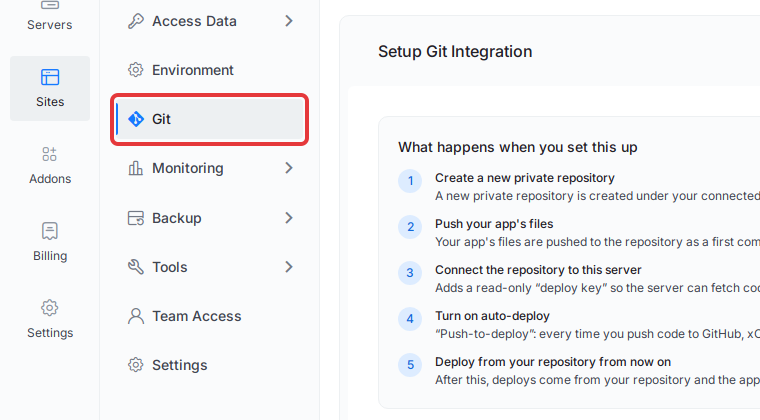
Go to Sites, open your One Click app, and click Git in the site menu on the left.
The Setup Git Integration page opens. Its What happens when you set this up list shows each step xCloud will take for this app.
Step 2: Choose your GitHub account and repository
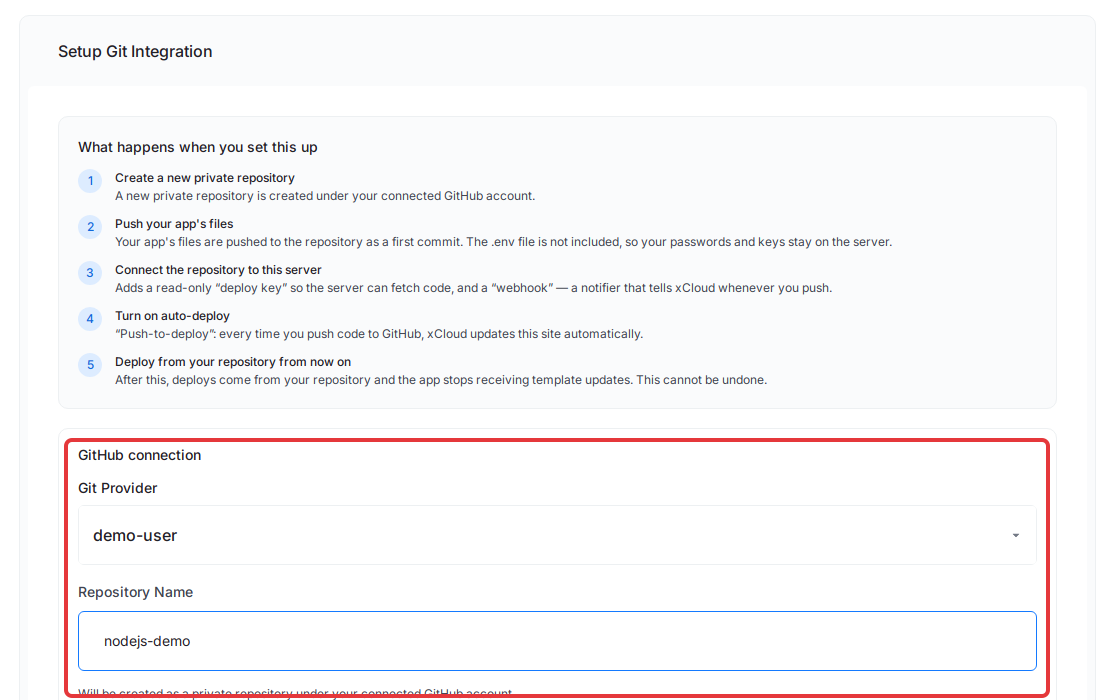
Under GitHub connection, pick a connected account in Git Provider. What you fill in next depends on how that account is connected:
| Connection | What you fill in | What happens |
|---|---|---|
| GitHub account (OAuth) | Repository Name, for example nodejs-demo |
xCloud creates a new private repository under your GitHub account, on the main branch. |
| GitHub App | Repository: pick an empty repository the app installation can access | xCloud uses that repository and its default branch. Use Create a repository or Manage installation repositories if the one you want isn’t listed. |
Step 3: Review the .gitignore
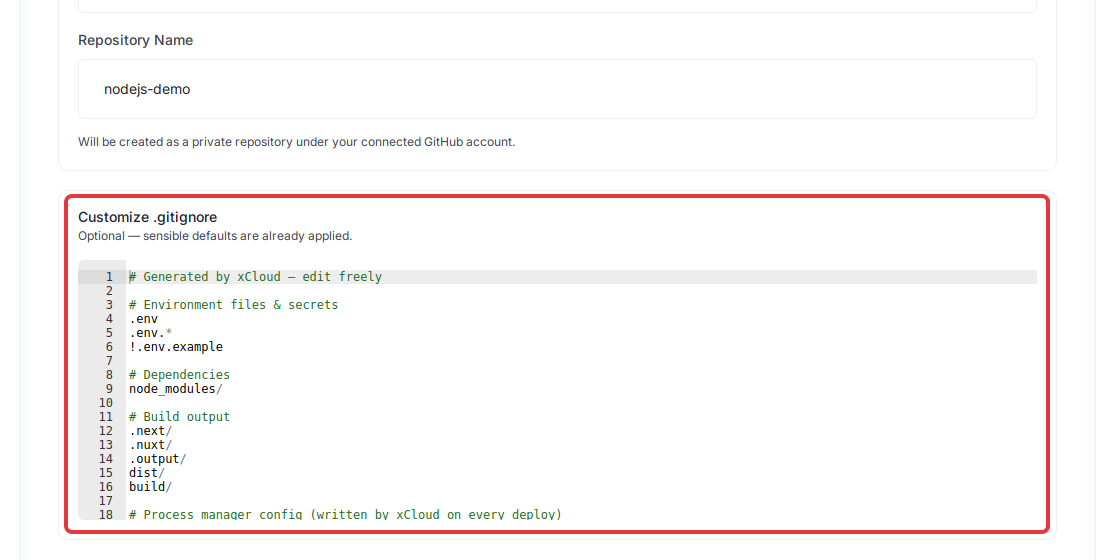
Open Customize .gitignore if you want to check which files stay out of the repository. The defaults already leave out .env files, node_modules/ and build folders such as dist/ and build/.
Change the list only if you need to. If you remove a default entry, the page warns you before you continue.
Step 4: Start the setup
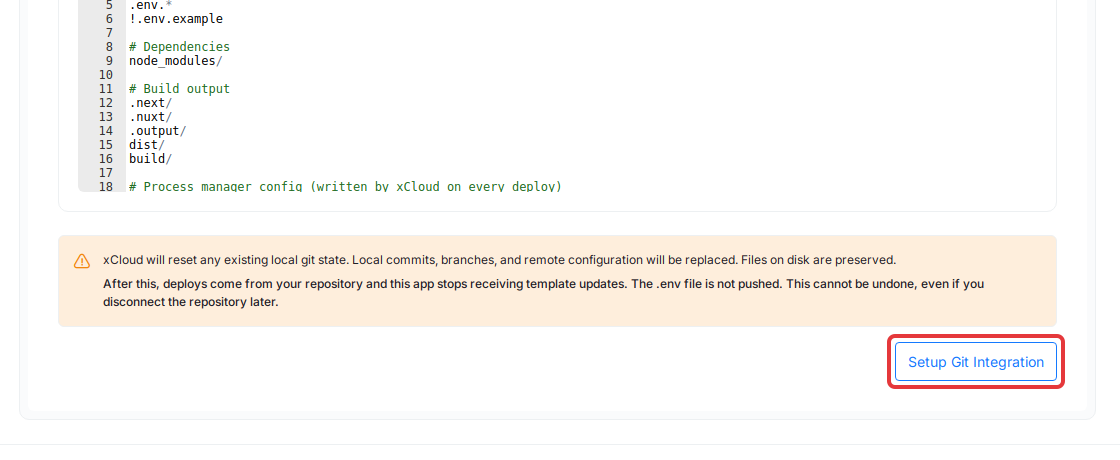
Read the warning above the button. For a One Click app it says:
After this, deploys come from your repository and this app stops receiving template updates. The .env file is not pushed. This cannot be undone, even if you disconnect the repository later.
Then click Setup Git Integration.
Step 5: Confirm
The Confirm Git setup window shows the provider, the repository xCloud will create or connect, and the branch. Check them, then click Confirm & Set Up.
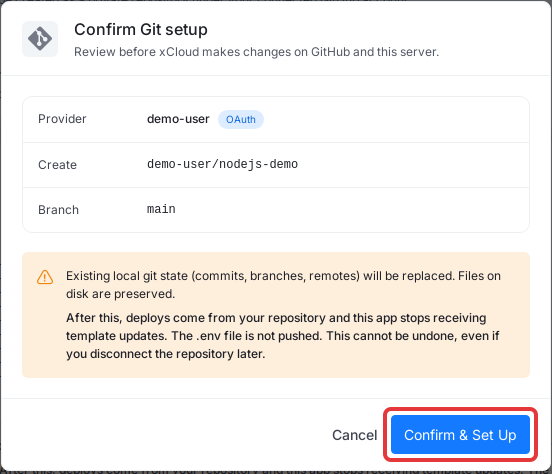
The page switches to Setup in progress and shows the current step. It updates by itself, so you don’t need to refresh.
What changes after setup
- Your code is on GitHub. The app’s files are in the repository as the first commit, without the
.envfile. - Pushes deploy the app. xCloud adds a read-only deploy key and a webhook, so every push to the branch updates the app.
- The deploy script is ready. It’s prefilled with the app’s install and build steps from its template, so a push installs and builds the app the same way the template did. You can review it on the app’s Git page.
- No more template updates. The app no longer follows its One Click template. You update it by pushing code.
- The app shows as running after a successful deploy. You can follow each deploy on the Git deployments page.
Your environment values stay in the app’s Environment page on the server. See environment variables and Git deployments for how the two work together.
If the setup fails
When a step fails, the page shows Setup failed during and the step’s name, the reason, and a Retry button. Fix the cause, then click Retry. The Events page has the details of each step.
| Message | What to do |
|---|---|
| The repository already has commits xCloud does not have. | Pick an empty repository, or empty this one, then retry. |
| xCloud cannot write to this repository. | Check the GitHub App’s repository access and its Contents permission, then retry. |
| GitHub rejected the connection’s credentials. | Reconnect the Git provider, then retry. |
| Your server could not reach GitHub. | Check the server’s network connection, then retry. |
| This server can’t look up … (DNS). | The server can’t resolve the Git host’s name. Fix the server’s DNS settings, then retry. |
| This app is not live yet. / This app has not finished installing. | Wait until the app is installed and running, then start the setup again. |
For deploys that fail or don’t start after setup, see troubleshooting Git deployments.
Frequently asked questions
Which One Click apps can I connect to a Git repository?
One Click apps that run directly on the server, such as Node.js apps managed by PM2 and PHP apps. Apps that run with Docker Compose don’t have a Git page; you change those from their Compose page instead.
Is my .env file pushed to GitHub?
No. xCloud leaves the .env file out of the first commit, so your passwords and keys stay on the server.
Can I go back to template updates after I disconnect the repository?
No. Once the app is connected, it stops receiving template updates for good, even if you disconnect the repository later. Deploys keep coming from your own code.
Can I connect an app to a repository that already has commits?
No. The repository must be empty. Pick an empty repository, or let xCloud create a new private one for you.
Related documentation
- How to use One Click app templates in xCloud
- Set up Git integration for an existing WordPress or Custom PHP site
- Connect a Git provider to xCloud
- View Git deployments in xCloud
If you run into any issues connecting your app to Git, feel free to reach out to our support team.