

Environment Variables (.env) and Git Deployments in xCloud
Updated November 1, 2026 · 6 min read
Your app’s settings and secrets live in a .env file, and xCloud lets you edit it from the dashboard. Each Git deployment resets the site’s code folder to match your repository, so a .env file that Git doesn’t ignore is removed on the next deploy. To keep it, copy your values, add .env to your .gitignore, deploy once and save the values again. After that, deploys leave the file alone.
This guide shows where to edit environment variables for Node.js, Laravel and Docker Compose sites, what a Git deployment does to the file, and two ways to keep it safe.
Before you start
- A Node.js, Laravel or Docker Compose site deployed from Git. See How to Deploy a Node.js Application or Deploy Laravel Applications.
- Access to the repository, so you can change its
.gitignore.
Step 1: Open the Environment page
The Environment page shows your site’s .env file in an editor. Change a value, then click Update Environment to save it on the server.
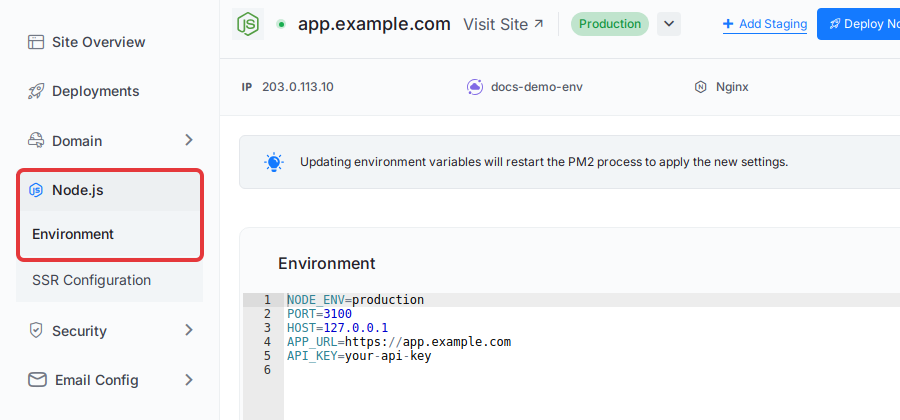
For a Node.js site, open ‘Node.js’ → ‘Environment’ in the site menu. If your app runs as a Node.js process, saving restarts its PM2 process, so the new values apply right away. A static site has no process to restart, so it picks up new values on its next deploy.
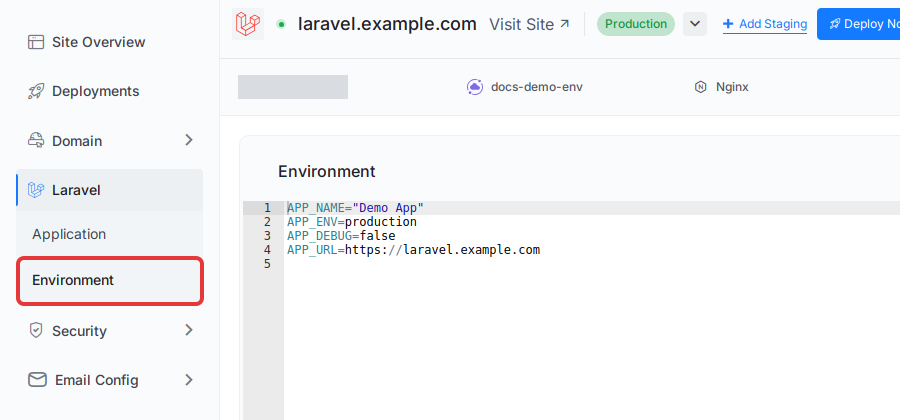
For a Laravel site, open ‘Laravel’ → ‘Environment’. A Laravel site does not restart, so a saved change may not apply straight away. The deploy script xCloud fills in for you runs config:cache, which keeps using the old values until you refresh them. To refresh them, do one of these: turn on Run this script after every site deployment and click Deploy Now (paid plans), or connect over SSH as the site user and run php artisan config:cache in /var/www/your-site. If the site’s PHP version, shown under Settings, differs from the server default, use that version’s command, such as php8.2 artisan config:cache.
For a Docker Compose site, open ‘Docker Compose’ → ‘Environment’. Saving restarts the app’s containers with the new values.
Step 2: Check where the .env file lives
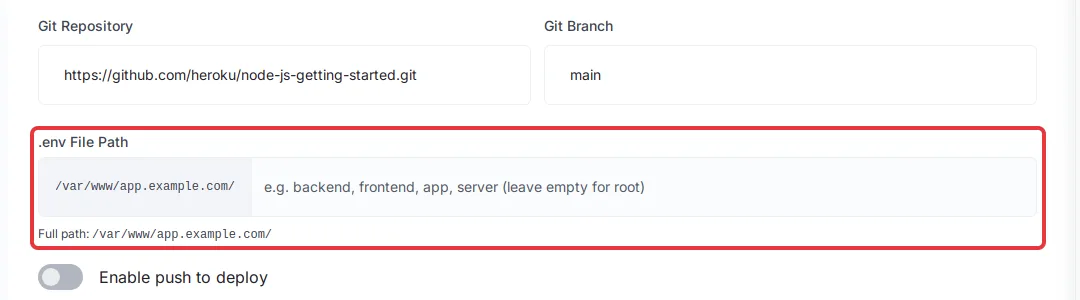
Open Git in the site menu and look at .env File Path. Full path shows the folder that holds the .env file. With the field empty, that is the site’s root folder, /var/www/your-site/.
If a Node.js app keeps its .env in a subfolder, such as backend in a monorepo, type the folder name in the field and click Save Changes. A Laravel site always uses the .env in its root folder, whatever the field says. Docker sites don’t show this field.
What a Git deployment does to .env
Every deploy does the same thing, whether you click Deploy Now or push to your repository with Enable push to deploy turned on. Unless you set your own Git Pull Script, xCloud resets the code folder to your branch and removes files Git does not track. Deploy Now is at the top of the site page on paid plans; the free plan does not show it.
The result depends on your repository:
| Your repository | What happens to .env on each deploy |
|---|---|
.env is listed in .gitignore |
Kept. Git leaves ignored files alone. |
.env is not in .gitignore and not committed |
Deleted. Your app starts without its variables. |
.env is committed to the repository |
Replaced with the committed version. Changes you saved on the Environment page are lost. |
Docker Compose sites work differently. xCloud keeps a Docker Compose site’s .env when Git would delete it. If .env is committed to your repository, the committed version replaces it, so remove it from Git first. Sites deployed from a Dockerfile keep the file outside the code folder, so a deploy never touches it. xCloud also puts the file back for Node.js and Laravel sites connected to a PostgreSQL database in xCloud.
Step 3: Keep .env out of Git
This is the fix for Node.js and Laravel sites, and for a Docker Compose site with .env committed to its repository. On a Node.js or Laravel site, the first deploy after this change removes the .env on the server, even though .gitignore now lists it. Save your values first.
- Open the Environment page and copy your values somewhere safe before you deploy. With Enable push to deploy turned on, the
git pushin the next step starts a deploy, so do this first. - Run these commands in your local copy of the repository:
printf '\n.env\n' >> .gitignore git add .gitignore git rm --cached .env # only if .env was committed; the local file stays git commit -m "Stop tracking .env" git push - Click Deploy Now at the top of the site page (paid plans), or let the push deploy the site if Enable push to deploy is turned on. Your app may run without its variables until you finish the next step.
- Open the Environment page, paste the values you copied and click Update Environment. A Laravel site does not restart, so a saved change may not apply straight away. The deploy script xCloud fills in for you runs
config:cache, which keeps using the old values until you refresh them. To refresh them, do one of these: turn on Run this script after every site deployment and click Deploy Now (paid plans), or connect over SSH as the site user and runphp artisan config:cachein/var/www/your-site. Use the site’s PHP version if it differs from the server default, as in Step 1.
From now on, deploys leave the file alone.
Keeping .env out of Git keeps new passwords and API keys out of your repository. If .env was committed before, its old values stay in your Git history, so change those passwords and keys.
Step 4 (optional): Restore .env from a saved copy
For Node.js and Laravel sites. Use this when you can’t change the repository’s .gitignore. You keep a copy of the file outside the code folder, and the deploy script copies it back after every pull. These steps don’t work on a Docker Compose site, because its deploy script runs as root and ~ no longer points to the site user’s home folder. Use Step 3 for those sites.
On a Node.js site, if Full path in Step 2 shows a subfolder, use that folder in both commands below. A Laravel site always uses its root folder. For a Node.js app with its .env in backend, use /var/www/your-site/backend/.env in the first command and "$PROJECT_DIR/backend/.env" in the second.
- Connect to the server as the site user over SSH, then save a copy in the site user’s home folder:
cp /var/www/your-site/.env ~/app.env - Open Git in the site menu and add this line to the top of the Deploy Script box. Keep any commands already there, such as a Laravel site’s default script:
cp ~/app.env "$PROJECT_DIR/.env" - Turn on Run this script after every site deployment, then click Save Changes.
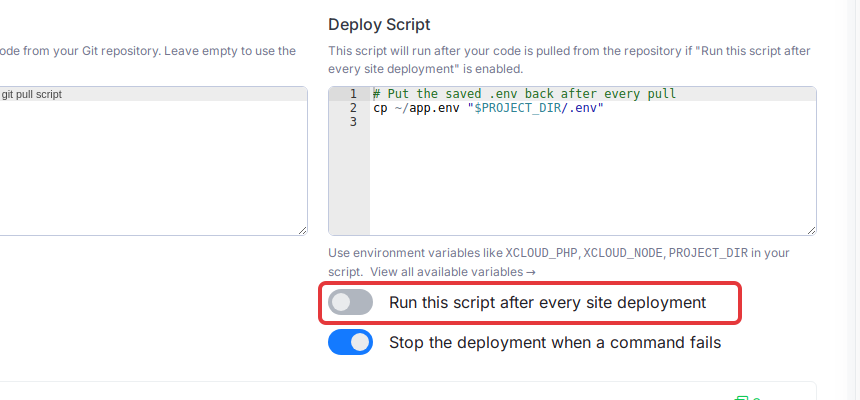
The deploy script runs after the pull and, on Node.js sites, before the build and restart, so your app starts with the restored file.
Keep the copy up to date. The script restores ~/app.env on every deploy, so a change you make only on the Environment page is overwritten by the next deploy. Update ~/app.env too, or prefer Step 3.
Check that it worked
- Click Deploy Now at the top of the site page (paid plans), or push to your repository with Enable push to deploy turned on.
- Open the Environment page again. Your variables should still be there.
- Load the site and confirm it connects to its database and services.
If you see Failed to load file and an empty editor, the file was removed. Check your .gitignore, then paste your variables into the editor. Update Environment appears only after you type or paste content. If a deploy fails, its log is on the Deployments page; see Troubleshooting Git Deployments.
Frequently asked questions
Why did my .env file disappear after a Git deployment?
Each Git deployment resets the site’s code folder to match your repository and removes files Git does not know about. A .env file that is not listed in your .gitignore is one of those files, so it is removed. Add .env to .gitignore, push, deploy once, and save your variables again on the Environment page.
Why do my changes on the Environment page come back after a deploy?
Your repository contains a .env file. Each deployment replaces the file with the committed version. Remove it from Git with git rm --cached .env, add .env to .gitignore, push, deploy once, and save your variables again.
Does saving the Environment page restart my app?
It depends on the site. A Node.js app that runs as a process restarts, so it reads the new values. A static Node.js site has nothing to restart and picks up new values on its next deploy. A Docker Compose site restarts its containers. A Laravel site does not restart, so a saved change may not apply straight away. The deploy script xCloud fills in for you runs config:cache, which keeps using the old values until you refresh them. To refresh them, do one of these: turn on Run this script after every site deployment and click Deploy Now (paid plans), or connect over SSH as the site user and run php artisan config:cache in /var/www/your-site. If the site’s PHP version differs from the server default, use that version’s command, such as php8.2 artisan config:cache.
Do Docker Compose sites lose their .env on a Git deployment?
xCloud keeps a Docker Compose site’s .env when Git would delete it. If .env is committed to your repository, the committed version replaces it, so remove it from Git first. Sites deployed from a Dockerfile keep the file outside the code folder.
Related docs
- How to Deploy a Node.js Application
- Deploy Laravel Applications
- How to Deploy a Custom Docker Application from a Git Repository
- View Git Deployments in xCloud
If you run into any issues, feel free to reach out to our support team.