

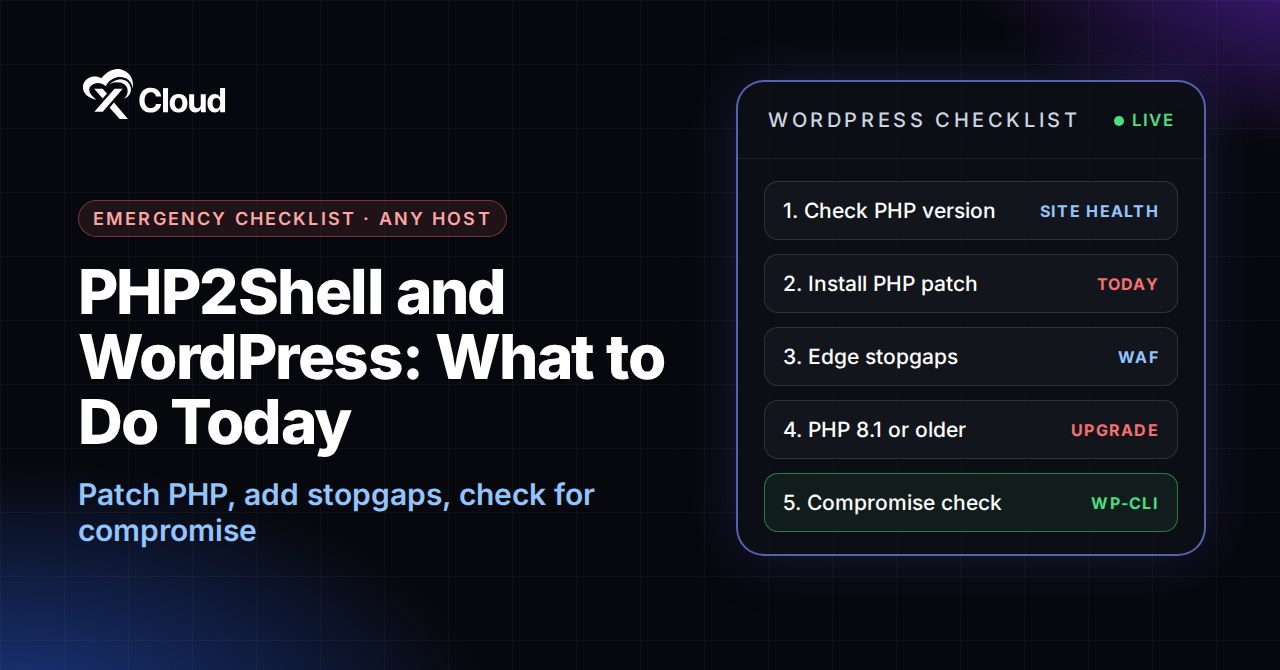
The PHP2Shell WordPress threat is the most serious one site owners have faced in years, and no plugin can fix it. It is a pair of critical bugs in PHP itself, the language every WordPress site runs on. If your host runs PHP, and every WordPress host does, your site is in scope.
The official fix lands on 21 October 2026 at 14:00 UTC. Exploit code is already public, and Cloudflare reported early attacks on PHP sites the same morning. So the next few hours decide whether your site stays clean.
We covered the vulnerabilities and what we did for our own customers in PHP2Shell (CVE-2026-109618 & CVE-2026-109619): How xCloud Moved Before the Official PHP Patch. This guide is for every WordPress site owner, on any host: shared hosting, managed WordPress, your own VPS or Docker. You will learn how to check your PHP version, patch it, protect the site while you wait, and check that nobody got in.
TL;DR
- PHP2Shell (CVE-2026-109618 and CVE-2026-109619) lets an attacker run code on your server without logging in. Both bugs are rated CVSS v4.0 9.2.
- It is a PHP bug, not a WordPress bug. Updating WordPress, plugins or themes does not help, and security plugins cannot block it.
- Patch PHP as soon as the official release is out (21 October 2026, 14:00 UTC). This is the only complete fix.
- Until then, add stopgaps: Cloudflare’s emergency WAF rules, a temporary block on multipart uploads, and the upload-progress setting. None of them is a complete fix.
- On PHP 8.1 or older? No fix is coming. Move to PHP 8.3 or newer after testing on staging.
- After patching, check for compromise: unknown admins, PHP files in uploads, and failed checksums.
PHP2Shell at a Glance
| CVEs | CVE-2026-109618 and CVE-2026-109619 |
| What it is | Unauthenticated remote code execution in PHP core |
| Severity | CVSS v4.0 9.2 (both), rated by the PHP security team |
| Affected | Treat every PHP version as affected. Early reports say PHP 5.4 and later, including the current 8.5.11, 8.4.26, 8.3.35 and 8.2.34 builds |
| Official fix | 21 October 2026, 14:00 UTC, for PHP 8.2 and newer only |
| Exploit status | Proof-of-concept code is public. Cloudflare reported early attacks on 21 October |
| WordPress impact | Any WordPress site running on PHP, on any host |
The PHP project announced the release in its advance notice on php.net after details leaked early. Sansec’s research timeline tracks the leak, Cloudflare’s response and the first attacks hour by hour.
Why WordPress Plugins Can’t Stop PHP2Shell
Most WordPress threats live in a plugin or theme, so the fix is a plugin update or a firewall rule inside WordPress. PHP2Shell is different. The bug sits in the part of PHP that reads an incoming request, before WordPress loads a single file.
That means Wordfence, Shield, Solid Security or any other plugin firewall never gets a chance to inspect the attack. Shield’s own founder says the same thing: no WordPress plugin can stop it, and only your host can supply the fix.
Maintenance-mode plugins don’t help either. PHP still reads every request before WordPress checks whether the site is in maintenance mode.
The protection has to come from outside WordPress: the PHP build on your server, the web server in front of it, or a firewall at the edge.
Step 1: Check Which PHP Version Your Site Runs
You need to know your PHP version before you can tell whether a patch is coming. There are three quick ways.
From the WordPress dashboard: go to Tools → Site Health → Info and open the Server section. The PHP version is listed there.
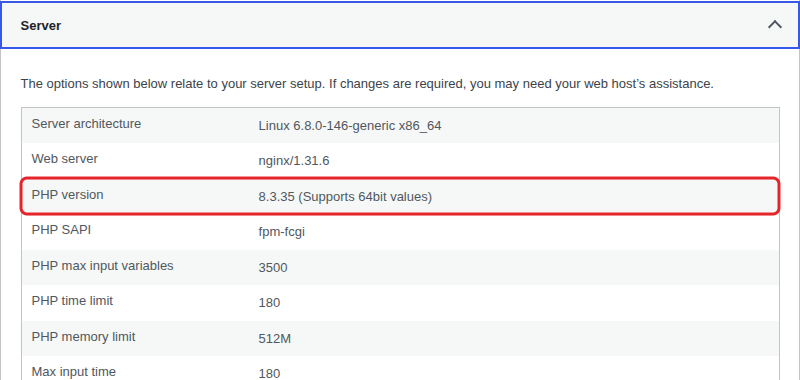
From WP-CLI or SSH: run php -v or wp --info. On xCloud you can run either from Site → Tools → Commands without opening a terminal.
From your hosting panel: cPanel shows it under MultiPHP Manager. On xCloud it is under Site → Site Settings → PHP Configurations.
Then match your version to this table:
| Your PHP version | Official PHP2Shell fix? | What to do |
|---|---|---|
| 8.5, 8.4, 8.3 | ✅ Yes | Install the patched build as soon as it is released |
| 8.2 | ✅ Yes | Install the patch, then plan a move to 8.3+ (8.2 security support ends 31 December 2026) |
| 8.1, 8.0, 7.4 or older | ❌ No | Add stopgaps now and move to PHP 8.3+ as soon as you can |
PHP’s supported versions page lists every branch and its end-of-life date. On xCloud, the PHP versions compatibility table shows which PHP versions your server’s Ubuntu version and stack can install. If PHP 8.2 or newer isn’t offered, the server is on Ubuntu 20.04 and needs to move to a new server.
Step 2: Install the Official PHP Patch, Whatever Your Host
Patching is the only complete fix. How you get it depends on who controls PHP on your server.
| Hosting type | Who installs the patch | What you do |
|---|---|---|
| Shared hosting / cPanel | Your host | Ask when the patched build goes live, and add the stopgaps below meanwhile |
| Managed WordPress hosting | Your host | Confirm the patch date in writing, then check the version once it lands |
| Your own VPS (Ubuntu, Debian) | You | Update the PHP packages and restart PHP-FPM |
| Docker containers | You | Pull the rebuilt PHP image and redeploy every container |
| xCloud | You, in one click (or automatically) | Manage PHP → Scan Patch → Update to |
On Shared or Managed Hosting: Ask Your Host Now
Don’t assume your host patches automatically. Many do, but they decide when. Send a short ticket today:
Hi, PHP is releasing a critical security update for CVE-2026-109618 and CVE-2026-109619 (PHP2Shell) on 21 October 2026 at 14:00 UTC. When will the patched PHP build be live for my account? Until then, can you set session.upload_progress.enabled = Off for my sites? My sites run PHP [version].
If you get no clear answer within a day, take that as your answer about the host. Our WordPress migration guide shows how to move a site without downtime.
On Your Own VPS: Update PHP Packages
Most Ubuntu and Debian servers that run modern PHP use Ondřej Surý’s PHP repository. Once the patched packages are published, update and restart PHP-FPM for each version you run:
sudo apt update
sudo apt install --only-upgrade 'php8.3*'
sudo systemctl restart php8.3-fpm
php -v
Repeat for every installed version (php8.2*, php8.4* and so on). If you use the Remi repository on RHEL-based servers, note that the PHP Foundation warned Remi would not publish updates on release day, so check its status before relying on it.
On Docker: Rebuild, Don’t Just Restart
PHP inside a container only changes when the image changes. Once the official php images are rebuilt, pull the new tag and redeploy:
docker compose pull
docker compose up -d
docker compose exec wordpress php -v
If you pin an exact PHP version in your Dockerfile, bump it to the fixed release and rebuild. Restarting an old container does nothing.
On xCloud: Scan Patch and Update
On xCloud, open the server and go to Management → Manage PHP, click Scan Patch, and choose Update to on any version with a patch. One update covers every site on that server using that PHP version.
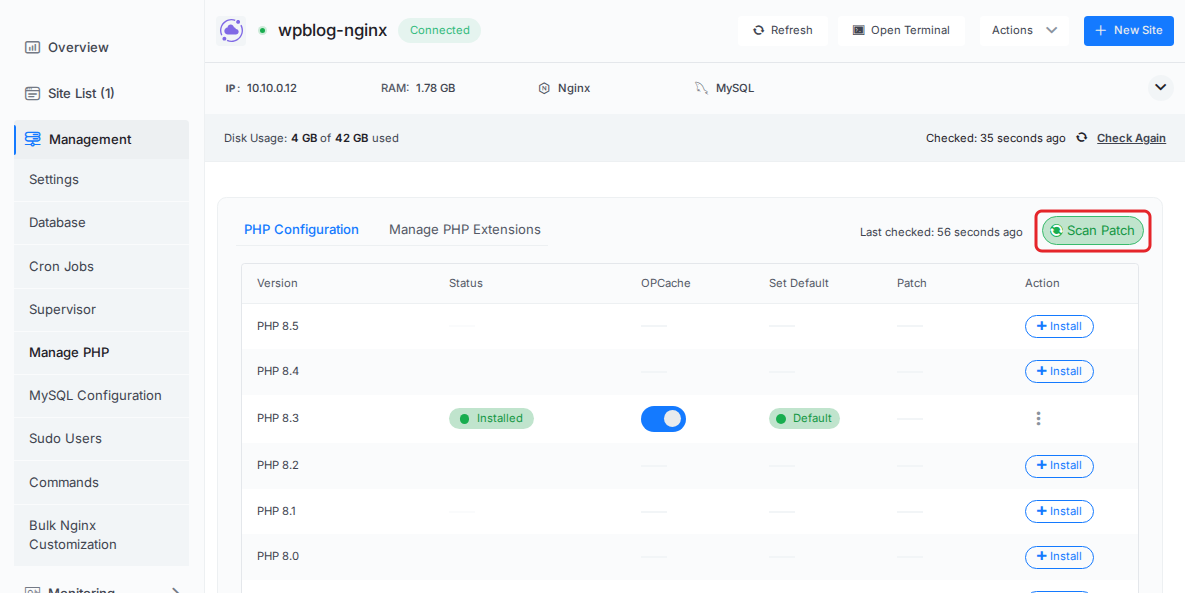
👉 Step-by-step guide: How to install PHP security patches in xCloud
Step 3: Protect Your Site Until the Patch Is Live
Every hour between the release and your update is risky, because attackers can compare the patched code to the old one. These stopgaps buy time. None of them is a complete fix, so stack the ones you can use and remove the disruptive ones once you have patched.
| Stopgap | How much it helps | Side effects |
|---|---|---|
| Cloudflare emergency WAF rules | Helps, if all traffic goes through Cloudflare | None, but attackers who hit your server IP skip it |
| Block multipart/form-data requests | Strong temporary block | Breaks every file upload and many forms |
| Turn off session upload progress | Partial at best | None on a normal WordPress site |
| Take the site offline or serve a static copy | The safest option | Your site is down |
1. Turn On Cloudflare’s Emergency Rules
Cloudflare shipped an emergency WAF release on 21 October 2026 that adds new “Anomalous Execution” block rules, including rules in the Free ruleset. On the Free plan they are on by default once your site is proxied through Cloudflare (the orange cloud). On paid plans, check that the Cloudflare Managed Ruleset is enabled for the zone, or the new rules won’t run.
There is one catch. As Sansec puts it, the rules only protect a site whose origin server refuses connections that do not come from Cloudflare. If your server’s IP is public, lock it down so it only accepts Cloudflare’s IP ranges.
On xCloud, you can manage Cloudflare protection from the dashboard: see how to enable Cloudflare WAF rules in xCloud and how to turn on Cloudflare Under Attack mode.
2. Block Multipart Uploads Temporarily
The leaked reports tie the attack to file-upload requests. Blocking multipart/form-data requests at the web server or edge shuts that door, but it also breaks every file upload: Media Library uploads, plugin and theme installs, contact forms with attachments and WooCommerce imports. Use it for hours, not days.
Nginx (inside the site’s server {} block, then reload Nginx):
if ($http_content_type ~* "multipart/form-data") {
    return 403;
}
Apache (in the virtual host or .htaccess):
<If "%{HTTP:Content-Type} =~ m#multipart/form-data#i">
    Require all denied
</If>
Cloudflare custom rule (Security → WAF → Custom rules, action Block). Replace the IP with your own so you can still upload while you work:
(http.request.method eq "POST" and any(lower(http.request.headers["content-type"][*])[*] contains "multipart/form-data") and not ip.src in {203.0.113.10})Test it from your own computer: a normal page should load, and an upload should return 403.
3. Turn Off Session Upload Progress
This is the setting most hosts and security vendors are pointing to. It does not break a normal WordPress site, so add it, but don’t treat it as protection on its own. Researchers describe it as partial at best, and a PHP core developer has said that patching is the only real mitigation.
On your own server, add this to php.ini or the PHP-FPM pool and restart PHP:
session.upload_progress.enabled = OffOn shared hosting, put the same line in a .user.ini file in the folder that holds wp-config.php. It can take up to five minutes to apply. To confirm, load a temporary phpinfo() page, check that the Local Value shows Off, then delete the file straight away.
4. Take High-Risk Sites Offline
For a store, a membership site or anything holding customer data, the most cautious choice is to take it offline until the patch is installed, or serve a static cached copy from your CDN. A few hours of downtime is cheaper than a breach.
Step 4: Move Off PHP 8.1 and Older
PHP 8.1, 8.0 and 7.4 are end-of-life and will not get the PHP2Shell fix. The stopgaps above are all they have, and they are not enough to keep a site on them. Upgrade safely:
- Back up the site, files and database.
- Clone it to staging (on xCloud, Deploy Staging in the site header) and switch the staging copy to PHP 8.3 or newer.
- Update WordPress core, plugins and themes first. Old plugins are the most common reason a PHP upgrade breaks a site.
- Test the important paths: home page, login, forms, checkout and the admin area.
- Switch the live site and check it again.
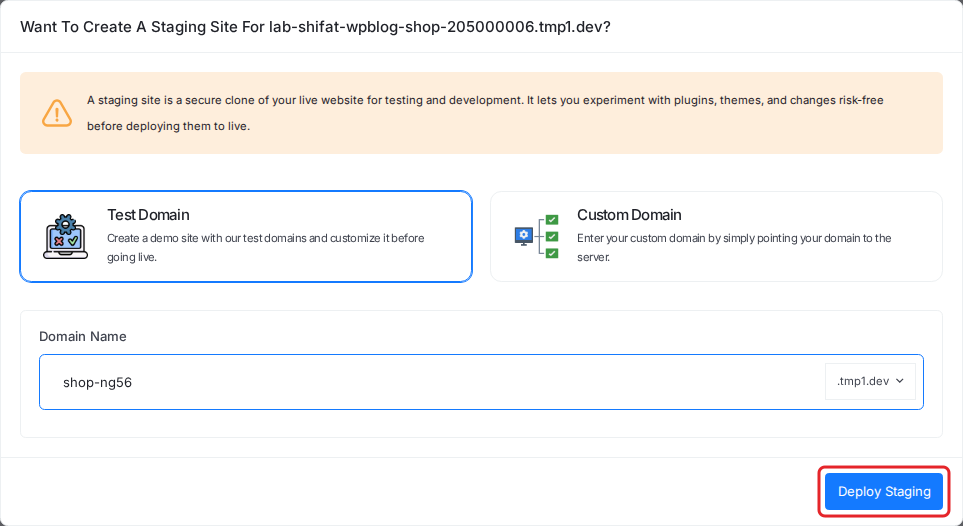
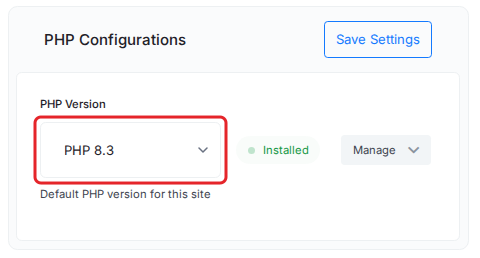
On xCloud, both halves take minutes: create a staging environment, then change the PHP Version under Site → Site Settings → PHP Configurations and click Save Settings. Our PHP version upgrade guide walks through it.
Step 5: After Patching, Check Your Site for Compromise
Exploit code was public before the patch, so assume someone may have tried. Once PHP is updated, spend ten minutes on these checks. WP-CLI makes them fast:
wp user list --role=administrator --fields=ID,user_login,user_email,user_registered
wp core verify-checksums
wp plugin verify-checksums --all
find wp-content/uploads -name "*.php"- Unknown administrators: any admin you didn’t create is a red flag.
- Checksum failures: core or plugin files that don’t match the official copies may have been modified.
- PHP files in uploads: the uploads folder should hold images and documents, not PHP. A PHP file there is often a web shell.
- Also check new cron jobs, unexpected outbound connections and recently changed files in the theme folder.
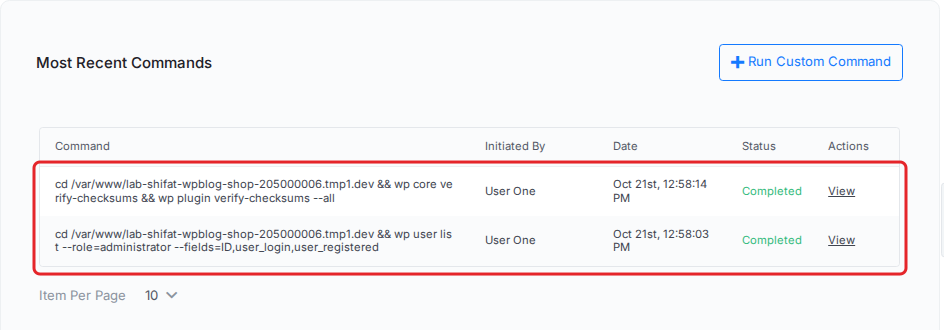
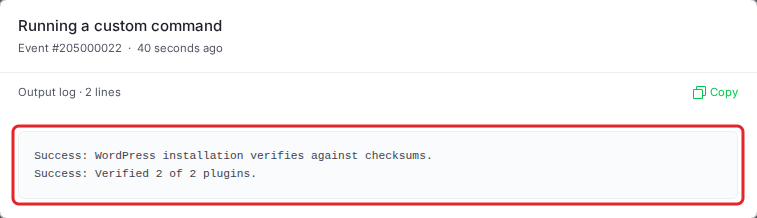
On xCloud you can run all of these from Site → Tools → Commands → Run Custom Command, so you don’t need SSH. Keep the cd /var/www/your-domain line the editor adds at the top, so WP-CLI runs inside your site’s folder. See how to run commands on your site and server.
Before you change anything, take a fresh backup. On xCloud that is Site Backup → Previous Backups → Backup Now.

If anything looks wrong, restore a clean backup from before the incident, update PHP again, and change every password and API key. Our guide on recreating websites from backups covers the restore.
Your PHP2Shell Checklist for WordPress
- Check the PHP version on every site
- Ask your host when the patch goes live, or plan your own update
- Turn on Cloudflare proxying and lock the origin to Cloudflare IPs
- Add the upload-progress setting
- Block multipart uploads if you can live without uploads for a few hours
- Install the official PHP patch the moment it is available
- Remove the temporary multipart block after patching
- Move every site on PHP 8.1 or older to PHP 8.3+
- Remove PHP versions no site uses, so there are fewer to patch (on xCloud: Manage PHP → Uninstall)
- Run the compromise checks and keep a fresh backup
How xCloud Handles PHP2Shell for You
Everything above is work you shouldn’t have to do at 14:00 UTC on a Wednesday. On xCloud, most of it is already done.
- We moved before the patch. We applied a temporary mitigation to PHP on connected customer servers, on both Managed and Self-Managed plans, before the official PHP fix was released, and emailed each team the list of covered servers. The full story is in our PHP2Shell post.
- One-click patching. Scan Patch finds the official fix as soon as it reaches the package repository, and one update covers every site on that PHP version.
- Automatic security updates. Turn on Include PHP, database and Redis updates and future patches install on schedule. See how automated security updates work.
- Off old servers in one move. Still on Ubuntu 20.04? Spin up a new Ubuntu 24.04 or 26.04 server and copy every site across with full server clone.
- Safe PHP upgrades. One-click staging sites and a per-site PHP version switch make moving off PHP 8.1 low-risk.
- Backups you can restore. Scheduled and on-demand backups to the storage you choose.
- Edge protection from the dashboard. Cloudflare WAF rules, Under Attack mode and the vulnerability checker, without leaving xCloud.
We care about security, and our goal is to keep your sites and servers secure at all times. With xCloud, the next PHP emergency is something we handle with you, not a checklist you work through alone.
👉 Ready to stop firefighting? Explore managed WordPress hosting on xCloud or migrate your site for free.
Patch PHP Today and Keep Your WordPress Sites Clean
PHP2Shell is not something a plugin update can fix. Your site is only safe once the PHP build underneath it is patched, so make that the one job you finish today. Check your version, get the patch from your host or install it yourself, and add stopgaps for the hours in between.
Then use the scare well. Move every site off PHP 8.1, check for anything left behind, and make sure your host patches PHP quickly, or switch to one that does.
If you have found this blog helpful, feel free to subscribe to our blogs for valuable tutorials, guides, knowledge, and tips on web hosting and server management. You can also join our Facebook community to share insights and engage in discussions.
Frequently Asked Questions
Is PHP2Shell a WordPress vulnerability?
No. PHP2Shell is a pair of vulnerabilities in PHP itself, the language WordPress runs on. Every WordPress site is exposed through PHP, but updating WordPress, plugins or themes does not fix it. Only a patched PHP build does.
Can a WordPress security plugin protect my site from PHP2Shell?
No. The attack hits PHP while it reads the request, before WordPress or any plugin loads. A plugin firewall never gets a chance to inspect it, so the fix has to come from the server or your host.
How do I check which PHP version my WordPress site uses?
In your WordPress dashboard, go to Tools, then Site Health, then the Info tab, and open the Server section. The PHP version is listed there. If you have SSH or WP-CLI, run the php -v command.
Does the Cloudflare free plan protect against PHP2Shell?
Partly. Cloudflare added emergency WAF rules on 21 October 2026, including rules in its Free ruleset, but they only help if all traffic goes through Cloudflare. Attackers who reach your server’s IP directly skip them, so you still need the PHP update.
Will setting session.upload_progress.enabled to Off fix PHP2Shell?
No. It is a stopgap that researchers describe as partial at best, and a PHP core developer has said that patching is the only real mitigation. It does not break a normal WordPress site, so it is still worth adding while you wait for the patch.
My site is on PHP 8.1 or older. Will it get a fix?
Almost certainly not. PHP only patches supported branches, which are 8.2 and newer. Move the site to PHP 8.3 or newer after testing it on a staging copy.
How do I know if my WordPress site was already hacked?
After patching, look for administrator accounts you do not recognise, PHP files inside wp-content/uploads, and core or plugin files that fail a checksum check. WP-CLI can run all three checks in a minute. If anything looks wrong, restore a clean backup and change every password.
What does xCloud do about PHP2Shell?
xCloud applied a temporary mitigation on connected customer servers before the official patch, and emailed each team the list of covered servers. Customers then install the official fix with Scan Patch in the dashboard, or let automatic security updates do it.