


PostgreSQL backup hosting means your host backs up the database with your app and puts it back when you ask. Since xCloud v2.9.16.1, every site backup of a managed PostgreSQL site holds a full copy of its database next to the files, and the restore dialog restores the database in place.
You can still run pg_dump yourself if you prefer. This post is about the other route: letting the hosting panel do it on the schedule you already use for your files.
TL;DR
Short on time? Here is the whole release in a few lines:
- Site backups need a paid plan. The site Backup menu is locked on the Free plan; see the pricing page.
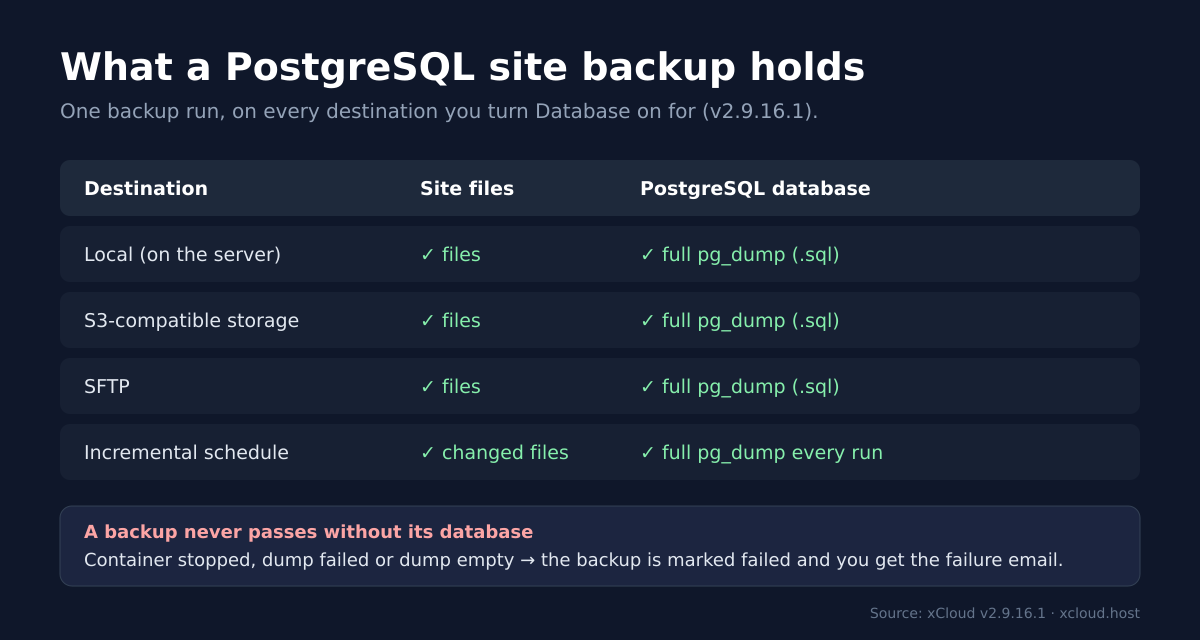
- Every backup destination, including local, S3-compatible and SFTP storage and incremental schedules, stores a full PostgreSQL dump beside the site files when Database is on.
- It is on by default for PostgreSQL sites. The Backups page shows “Backups include this site’s PostgreSQL database.” when you are covered.
- A backup never passes without its database. If the PostgreSQL container is stopped or the dump is empty, the backup fails and you get the failure email.
- Restore in place from Backup → Previous Backups: choose Both File and Database or Only Database. xCloud saves a copy of your current database first and keeps it if the restore fails.
- Also in v2.9.16.1: new one-click databases that stay private unless you turn on Allow public access.
The Finding: One Backup Run Covers Files and PostgreSQL
Your PostgreSQL database rides in the same backup job as your files. xCloud runs it through the same backup engine it uses for MySQL sites, so there is no second schedule, bucket or retention rule to keep in step.
| Question | Answer in v2.9.16.1 |
|---|---|
| Which sites? | Sites that use managed PostgreSQL on the server |
| Which destinations? | Every backup destination, including local, S3-compatible and SFTP storage and incremental schedules |
| What is stored? | Your site files plus a full copy (dump) of the site’s database |
| Who runs the dump? | Your site’s own database login, so no admin password is used |
| Default setting | Database is on for PostgreSQL sites, new and existing |
| Restore | In place, into the same site, from Backup → Previous Backups |
| Restore into another or a new site | Not supported for PostgreSQL sites |
| Point-in-time recovery | Not included: you restore to the moment of a backup |
The part most hosts leave to you is the check after the dump. xCloud tests the result before it calls the backup a success: a stopped container, a missing install, a failed pg_dump or an empty or unfinished dump makes the backup fail, and the partial file is deleted. A backup marked completed has the database in it.
Why Your PostgreSQL Database Belongs in Your Site Backups
The files are easy to rebuild. The data is not. Your Laravel or Node.js code lives in Git, so a lost server costs you a redeploy. The orders, users and posts in PostgreSQL exist nowhere else.
Keeping the dump inside the site backup also fixes the quiet problems of a separate routine:
- One schedule. The database is backed up at the same moment as the files, so a restore puts back a matching pair.
- Your own storage. The dump goes to the bucket or SFTP server you already set up, not to a disk on the same server.
- One place to look. The backup list shows the database next to each backup (“database: full dump”), so you can tell at a glance what you would get back.
PostgreSQL’s own documentation notes that pg_dump “makes consistent backups even if the database is being used concurrently” and “does not block other users accessing the database (readers or writers)” (pg_dump reference). That is why a scheduled dump can run while your app keeps serving visitors.
What a PostgreSQL Site Backup Contains
A backup of a PostgreSQL site holds two things: your site files, and a .sql file made by pg_dump for the site’s database. The dump is a full one every time, including on incremental schedules, where only the files are incremental.
To check a site, open it and go to Backup → Backup Settings. For each destination, Database decides whether the dump is included. A banner at the top tells you where you stand:
- “Backups include this site’s PostgreSQL database.” means at least one destination backs it up.
- “This site’s PostgreSQL database is not in any backup yet. Turn on Database in a backup destination to include it.” means you should switch it on.
Not set up a destination yet? Start with Site Backups in xCloud, then add storage such as an S3 bucket or an SFTP server. Incremental backups work too, with the full dump each time.
Restore the Database in Place
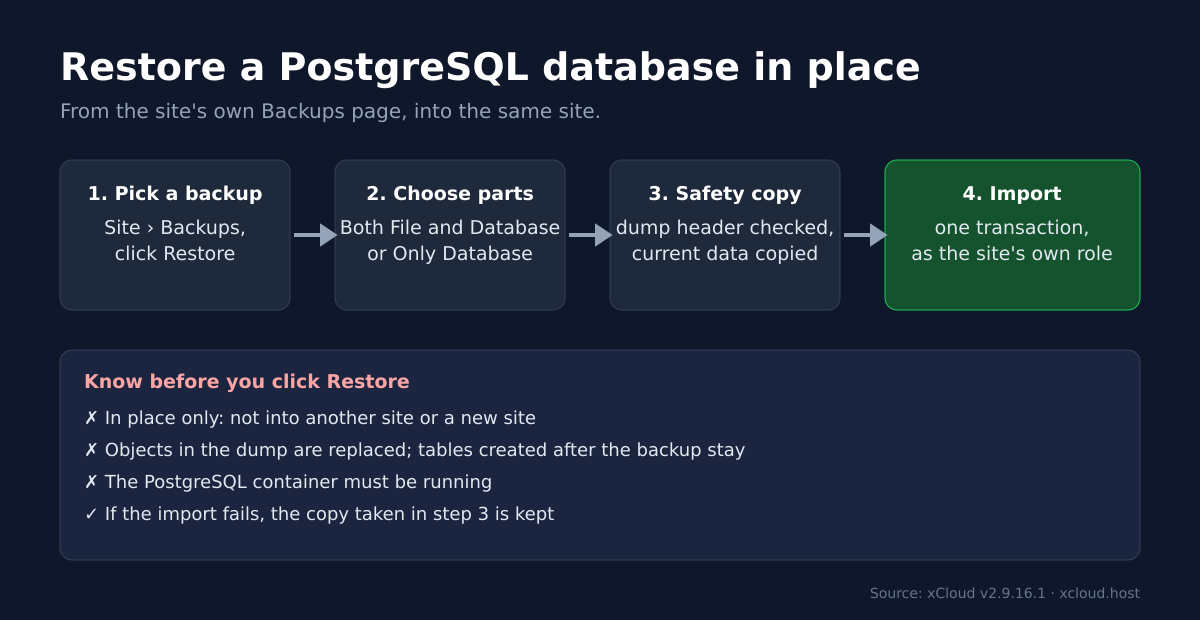
The restore uses the same dialog as every other site:
- Open the site and go to Backup → Previous Backups, on the Local Backup or Remote Backup tab.
- Click Restore next to the backup you want.
- Under Select the components to restore, choose Both File and Database or Only Database.
- Read the warning and confirm.
Before it changes anything, xCloud checks the file is a real PostgreSQL backup and saves a copy of your current database. Then it loads the backup in one go. If the import fails, your database may be partly changed, so xCloud keeps the saved copy and the error message tells you where it is. After a successful restore the copy is removed, so the way back is another backup. After the import, xCloud resets the site’s database password so your app’s connection keeps working.
The catch worth knowing: a restore replaces what is in the dump. Tables that exist in the backup get their old contents back. Tables your app created after that backup are not in the dump, so they stay as they are. If your next migration expects a clean schema, check them after the restore.
What It Does Not Do (Read This Before You Rely on It)
Here is the honest list:
- In place only. A PostgreSQL backup restores into its own site. Restoring it into another site or a new site is refused with “A PostgreSQL site can only be restored in place, from its own backups.” To move data, export it with
pg_dumpor pgAdmin. - No point-in-time recovery. Site backups save a full copy of your database each time they run, so you can go back to any backup, but not to a moment between two backups.
- Managed PostgreSQL only. A database on another host, or the separate PostgreSQL one-click app, is not part of site backups. The one-click app uses Docker app backups instead.
- The container must be running. If PostgreSQL is stopped, backups fail and a restore asks you to start it first.
- Only backups made by a recent PostgreSQL. A restore only accepts a complete, unedited backup file that xCloud made, or one made by an up-to-date pg_dump (PostgreSQL 17.6 or a minor release from August 2025 or later). Anything else is refused with “This backup is not a valid PostgreSQL dump, so the site was not changed.” The PostgreSQL 17.6 release notes explain the change.
Undoing a restore works the same way as doing one: restore an earlier or later backup of the same site.
Also in v2.9.16.1: Private-by-Default One-Click Databases
New one-click database installs, such as MySQL, MariaDB, PostgreSQL or Redis, are reachable only from the server itself. The install form explains it: “Off by default: connect from this server or through an SSH tunnel. Enabling public access exposes the service to the internet. Docker ports can bypass the server firewall.”
If you need outside access, tick Allow public access when you install, and the app card shows the real public address. Apps that must be reachable, such as game, voice and remote-desktop servers, keep their ports open as before. Existing installs are not changed, and managed PostgreSQL and pgAdmin always stay private.
To reach a private database from your laptop, use an SSH tunnel. For domains and public endpoints, see Manage One-Click App Domains and Public Endpoints.
Turn On PostgreSQL Backups for Your Site Today
If your app already runs on managed PostgreSQL, open the site’s Backup Settings, make sure the banner says your database is included, and run Backup Now once to see the dump in the list. Then restore that backup on a quiet afternoon, so the first restore you ever do is not during an outage.
Starting fresh? See PostgreSQL hosting on xCloud. Still choosing a database? Read PostgreSQL vs MySQL. Plans are on the pricing page.
If you have found this blog helpful, feel free to subscribe to our blogs for valuable tutorials, guides, knowledge, and tips on web hosting and server management. You can also join our Facebook community to share insights and engage in discussions.
Frequently Asked Questions
Do xCloud site backups include my PostgreSQL database?
Yes, since v2.9.16.1. A site that uses managed PostgreSQL gets a full copy (dump) of its database in every backup destination where Database is turned on, including local, S3-compatible and SFTP storage and incremental schedules. The site’s Backups page says “Backups include this site’s PostgreSQL database.” when it is covered.
Can I restore a PostgreSQL backup into another site or a new site?
No. A PostgreSQL site restores in place only, from its own backups. Restoring it into another site or a new site is refused with “A PostgreSQL site can only be restored in place, from its own backups.” To copy the data elsewhere, export a full copy (dump) of your database yourself, for example with pgAdmin.
Do incremental backups take an incremental PostgreSQL dump?
No. Incremental applies to your files only. Every incremental run still takes a full PostgreSQL dump, so each backup can restore the whole database on its own.
What happens to tables I created after the backup?
They stay. A restore replaces the objects that are in the dump, such as the tables and their data at backup time. Tables created after the backup are not in the dump, so the restore does not touch them.
Can I get point-in-time recovery for PostgreSQL on xCloud?
Not today. Site backups save a full copy of your database each time they run, so you can go back to any backup, but not to a moment between two backups.