

How to Manage One Click App Domains and Public TCP/UDP Endpoints in xCloud
Updated October 27, 2026 · 5 min read
One Click Apps installed from xCloud templates manage their domains on a dedicated Domain page. An app with one web interface has one domain. An app with several web interfaces (for example a main app and a separate admin console) gets one domain per interface, and they all move from demo to live domains together. Some apps also expose a non-web service, such as a game server or a sync service, on a public TCP or UDP port; xCloud lists those addresses on the app’s Credentials card.
To install a new app, start with how to use One-Click App Templates. This guide covers what you do after the install.
Open the Domain page
- Open the One Click App’s site.
- In the sidebar, open Domain → Domain.
Apps without a web interface (data services such as a database) have no Domain page.
| Site state | Card title | Button |
|---|---|---|
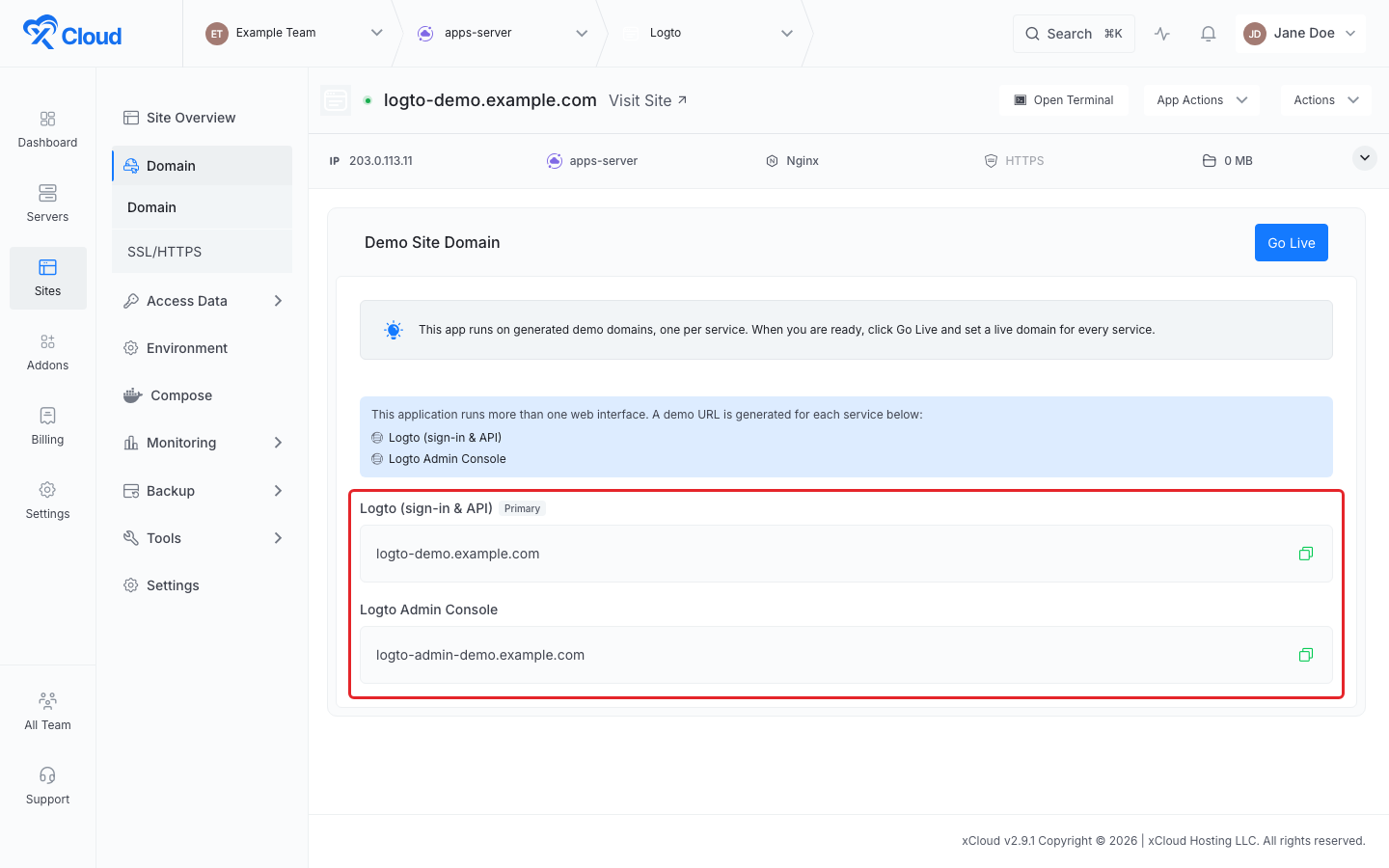
| Demo site | Demo Site Domain | Go Live |
| Live site | Domain | Save |
For an app with several web interfaces, the page lists every interface by name. The one marked Primary is the app’s main interface.
Move a demo app to live domains
A demo install runs on generated demo domains, one per web interface.
- On the Demo Site Domain card, click Go Live. The page switches to empty fields, one per interface.
- Enter a domain for every interface. Each needs its own hostname; you cannot reuse one hostname for two interfaces.
- Point an A record for each domain to your server. The page lists each record under Point an A record to your server, with the server’s IP address and a copy button.
- Click Verify My DNS. If verification fails right after you add the records, wait a few minutes for DNS to propagate and try again. See how to set up a DNS record for an xCloud server.
- Click Go Live.
If you change your mind before saving, click Keep the demo domains for now.
Expected result: xCloud shows “Domain update request is sent for processing.” and moves every interface to its live domain. For a multi-domain app, all interfaces go live together; you cannot move just one.
Use Cloudflare for DNS and SSL
If your team has a Cloudflare integration, the Domain page shows Manage DNS & SSL with Cloudflare. Turn it on and xCloud checks each domain: domains found in your Cloudflare account show on Cloudflare, others show not found — use manual DNS. For domains not on Cloudflare, add the A records yourself as above. See using xCloud with Cloudflare for DNS management.
Set every domain at install time through the API
If you install a multi-domain One Click App through the xCloud Public API on a live domain, send the extra domains with the install request in additional_domains. Add one entry for each extra interface, with the domain in value and the interface in port. When you install on a live domain, the API requires a domain for every extra interface. On a demo (staging) install, you cannot send additional_domains: xCloud generates the demo domains, and you move to live domains later from the Domain page.
Change a live domain
- Open Domain → Domain on the live app.
- Edit the domain for the interface you want to change.
- Point the new domain’s A record at the server and click Verify My DNS.
- Click Save.
xCloud updates the app’s configuration with the new domains and keeps each interface mapped to the right container. Some apps store their main domain in settings outside xCloud (for example sign-in redirect URLs that other apps use). Update those settings yourself after a change.
HTTPS for the app is managed under Domain → SSL/HTTPS. See how to enable HTTPS in xCloud.
Find the app’s domains on the Credentials card
The app’s Credentials card (on the site overview, and under Access Data → Credentials) lists the main domain and every additional interface’s domain under the interface’s name. Use it to check which URL opens which part of the app.
Public TCP and UDP endpoints
Some apps serve a protocol that is not HTTP, for example a service clients connect to on a raw TCP or UDP port. When an app’s template declares a public TCP or UDP endpoint, xCloud:
- assigns a host port for it on the server when the app is installed;
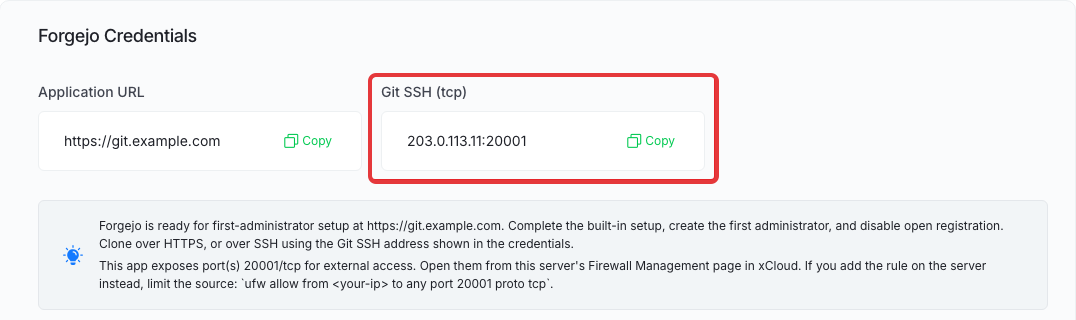
- lists it on the Credentials card as Label (tcp) or Label (udp), with the address in the form
SERVER_IP:PORT, for example203.0.113.10:20001; - adds a note naming each port and protocol you need to open, for example “This app exposes port(s) 20001/tcp for external access.”
These ports do not go through NGINX, so they have no domain and no HTTPS. Clients connect to the server’s IP address and the listed port.
Open the port in the firewall
The note on the Credentials card points you to the server’s Firewall Management page:
- Open the server and go to Security → Firewall Management.
- Add a rule for each port and protocol listed on the Credentials card.
- If only some clients should connect, limit the rule to their IP addresses instead of opening the port to everyone.
See how to configure Firewall Management in xCloud. If you add the rule on the server instead, xCloud suggests limiting the source, for example:
sudo ufw allow from YOUR_CLIENT_IP to any port 20001 proto tcpReplace YOUR_CLIENT_IP and the port with your own values. Your cloud provider may also have its own firewall in front of the server; open the same port there if it does.
Do not rely on the server firewall alone to keep an endpoint private. Docker manages its own packet-filtering rules for published container ports, and those rules can take effect before UFW’s (see Docker’s packet filtering and firewalls documentation). After you set up the rule, test the port from a machine that should not have access. If it still connects, protect the service with the app’s own authentication or with your cloud provider’s firewall.
Connect a client
Use the address from the Credentials card in your client, including the port. If the client cannot connect:
- check that the app’s containers are running on the site overview;
- check the firewall rule for the exact port and protocol (a TCP rule does not open UDP);
- check your provider’s firewall.
Frequently asked questions
Why does my One Click App ask for more than one domain?
The app runs more than one web interface, such as a main app and an admin console. Each interface needs its own domain or subdomain, and all of them go live together.
Where do I find an app’s TCP or UDP address?
On the app’s Credentials card. Each public endpoint is listed by name and protocol with the server address and port, for example 203.0.113.10:20001.
Does xCloud open the firewall for a public endpoint?
No. The Credentials card tells you which ports and protocols to open and points you to the server’s Firewall Management page. Open each port there, then test from outside that only the clients you expect can connect.
If you run into any issues with your One Click App’s domains or endpoints, feel free to reach out to our support team.