


Nextcloud self hosted means running the open-source Nextcloud server on a machine you control, so your files, calendars and contacts never sit on someone else’s drive. The fastest route is Docker: one container for Nextcloud, one for the database, a reverse proxy for HTTPS. On xCloud, the one-click app sets up all three for you.
Most guides stop at “the container is running.” The real work starts after that: the certificate, the trusted domain, backups you have restored at least once, and upgrades that never skip a major version.
This guide covers both paths. You will see the full Docker Compose setup on any Ubuntu server, then the one-click way on xCloud, with what each one leaves on your plate. If containers are new to you, start with what Docker Compose is.
TL;DR
- Nextcloud is free, open-source file sync and sharing (AGPL), with Calendar, Contacts, Mail and Talk as add-on apps.
- Requirements: a 64-bit Linux server, at least 128 MB RAM per PHP process (512 MB recommended), and a database such as MariaDB, MySQL or PostgreSQL.
- Manual path: Docker Compose with Nextcloud and MariaDB, NGINX in front, and a Let’s Encrypt certificate. It takes the longest and needs Linux comfort.
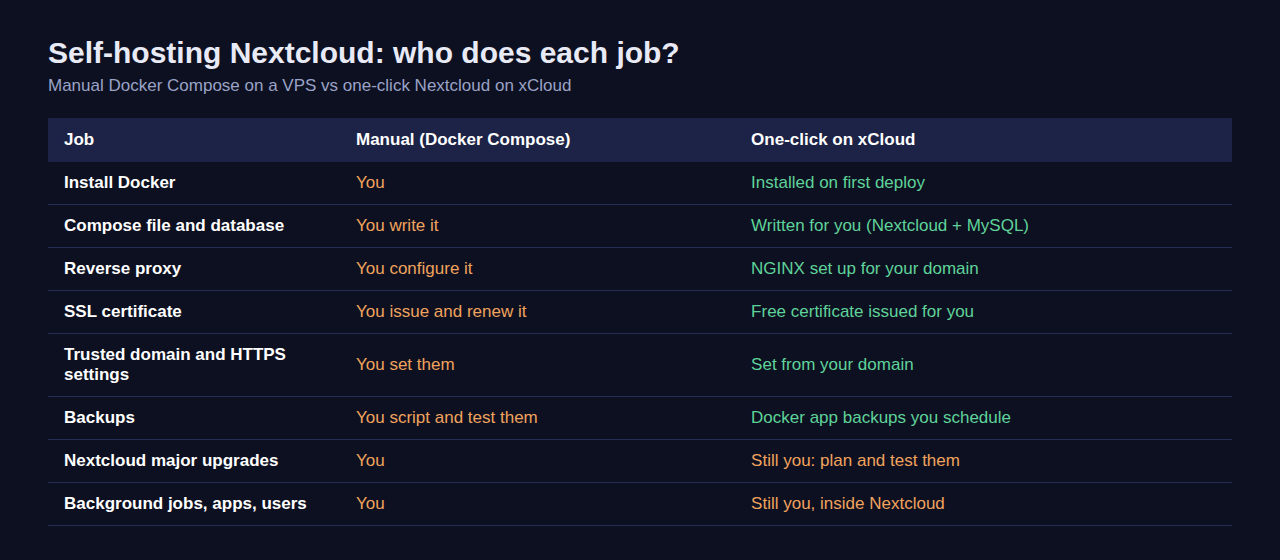
- One-click path: pick Nextcloud in xCloud’s One Click Apps, enter your domain and admin details, and xCloud sets up the containers, NGINX and SSL.
- Either way, you still own major upgrades (one version at a time), background jobs and user management.
- Back up before every upgrade. Nextcloud does not support downgrades.
What the One-Click Install Actually Runs
Most Nextcloud hosting pages never show you what they install. We read xCloud’s own install script for Nextcloud, so here is the exact stack you get (as of October 2026):
| Part | What xCloud sets up |
|---|---|
| Nextcloud | The official nextcloud:latest image, limited to 1 CPU and 1 GB of RAM |
| Database | A mysql:8.0 container, limited to 0.5 CPU and 512 MB of RAM, with a health check so Nextcloud waits for it. MySQL 8.0 is not on the supported list in Nextcloud’s current requirements (MySQL 8.4 or 9.7) |
| Network | Nextcloud is only reachable through your domain, not by server IP and port |
| Web server | NGINX in front, with HTTPS and a free SSL certificate |
| Upload size | NGINX accepts uploads up to 10 GB per request (the default for other Docker apps is 100 MB) |
| Your files | data/, config/ and apps/ folders under /var/www/<your-domain>/ on the server disk |
| Safety check | The install stops if the server has less than 5 GB of free disk space |
| Settings | HTTPS, host name and trusted domain are filled in from your domain, so links and the desktop client work first time |
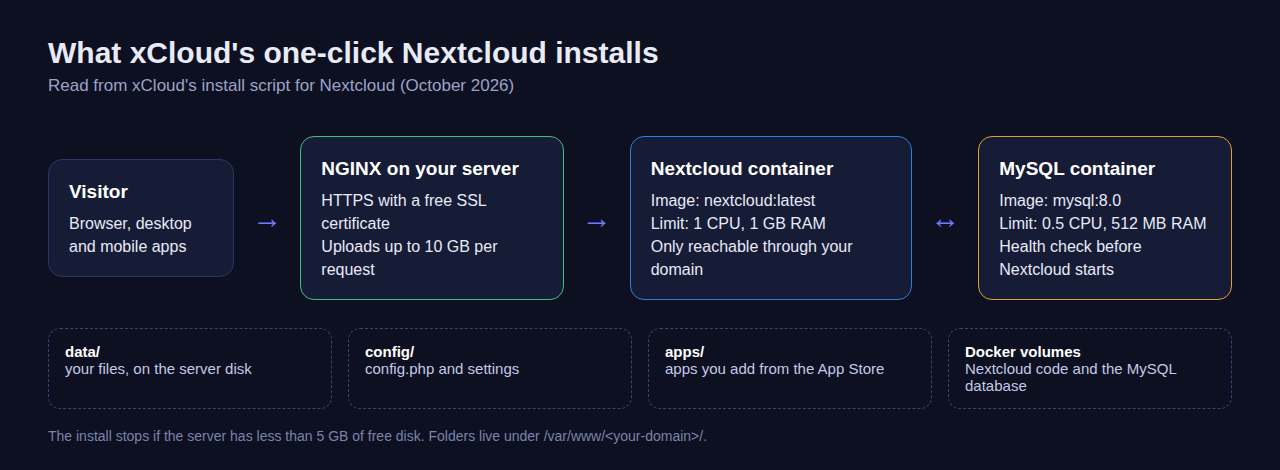
Two of those lines matter later. The 10 GB limit means NGINX will not block large uploads such as videos. The latest image tag is why upgrades need care, which we cover in the after-install section.
What Nextcloud Is and When Self-Hosting It Makes Sense
Nextcloud is a private cloud server. You get a web interface for files, plus desktop clients for Windows, macOS and Linux and mobile apps for Android and iOS. From its App Store you can add Calendar, Contacts, Mail, Talk and office editing.
Self-hosting it makes sense when you want the data on a server you choose. Small teams use it to replace a shared Google Drive. Agencies use it to share project files with clients and remove access when the project ends.
The honest catch: you become the administrator. If nobody on your team will look after backups and upgrades, a hosted provider is the better fit.
Server Requirements (CPU, RAM, Disk) for Nextcloud
Nextcloud’s system requirements page is the source for the table below. We checked it and Docker Hub on 30 October 2026. That page is the manual for Nextcloud 36, which its version menu marks as the upcoming release; Nextcloud 35 is the latest release. The official Docker image publishes a 35-apache tag and we found no 36-apache tag, so the Compose file below pins 35. Check the Nextcloud 35 manual for the version you actually install.
| Item | Nextcloud 36 (upcoming) requirement or advice |
|---|---|
| CPU and OS | 64-bit strongly recommended; Ubuntu 26.04 LTS (recommended) and 24.04 LTS are both listed |
| RAM | At least 128 MB per PHP process, 512 MB per process recommended |
| PHP | 8.3, 8.4 or 8.5 (8.5 recommended); the Docker image ships its own |
| Database | MySQL 8.4 or 9.7, MariaDB 10.11, 11.4, 11.8 or 12.3, or PostgreSQL 14 to 18 |
| MySQL / MariaDB settings | InnoDB, READ COMMITTED isolation, binary log off or in ROW format |
| Web server | Apache 2.4 with mod_php or php-fpm, or NGINX with php-fpm |
| Disk | Your files plus room for versions and trash; SSD storage helps |
Rule of thumb: a 2 GB server runs Nextcloud for a few people. Give it 4 GB or more once you add office editing, Talk or many users. Disk is usually the first thing you outgrow, not CPU.
Option 1: Self-Host Nextcloud Manually (Docker Compose, Domain, SSL)
This path uses the community nextcloud Docker image on a fresh Ubuntu server. The image’s own README calls it “designed for expert use”, so expect to read logs when something goes wrong.
Step 1: Prepare the server and domain
Point an A record for your domain (for example cloud.example.com) at SERVER_IP. Then install Docker using the official instructions for Ubuntu, and open only ports 22, 80 and 443 in your firewall. Our VPS security guide covers SSH keys and firewall basics.
Step 2: Write the Compose file
Create a folder such as /opt/nextcloud with a docker-compose.yml. Pin a major version (35-apache) instead of latest, so a restart never jumps you to a new major release.
services:
  db:
    image: mariadb:11.8
    restart: always
    command: --transaction-isolation=READ-COMMITTED --binlog-format=ROW
    environment:
      MYSQL_ROOT_PASSWORD: change-me-root
      MYSQL_DATABASE: nextcloud
      MYSQL_USER: nextcloud
      MYSQL_PASSWORD: change-me
    volumes:
      - db:/var/lib/mysql

  app:
    image: nextcloud:35-apache
    restart: always
    depends_on:
      - db
    ports:
      - "127.0.0.1:8080:80"
    environment:
      MYSQL_HOST: db
      MYSQL_DATABASE: nextcloud
      MYSQL_USER: nextcloud
      MYSQL_PASSWORD: change-me
      NEXTCLOUD_ADMIN_USER: your-admin-name
      NEXTCLOUD_ADMIN_PASSWORD: change-me-admin
      NEXTCLOUD_TRUSTED_DOMAINS: cloud.example.com
      OVERWRITEPROTOCOL: https
    volumes:
      - nextcloud:/var/www/html

volumes:
  db:
  nextcloud:
The 127.0.0.1:8080 line keeps Nextcloud off the public internet until NGINX sits in front of it. Start the stack with docker compose up -d and watch docker compose logs -f app until the install finishes.
Step 3: Put NGINX and SSL in front
Install NGINX and Certbot, then create a server block that passes traffic to port 8080. Set client_max_body_size high enough for your largest file (for example 10G), or big uploads will fail with a 413 error.
server {
    listen 80;
    server_name cloud.example.com;
    client_max_body_size 10G;
    proxy_read_timeout 3600s;
    proxy_request_buffering off;

    location / {
        proxy_pass http://127.0.0.1:8080;
        proxy_set_header Host $host;
        proxy_set_header X-Forwarded-For $proxy_add_x_forwarded_for;
        proxy_set_header X-Forwarded-Proto https;
    }
}
Run sudo certbot --nginx -d cloud.example.com to issue the certificate and switch the block to HTTPS. Certbot also sets up automatic renewal.
The proxy_read_timeout and proxy_request_buffering off lines help large uploads through the proxy; very large files may still need a longer timeout. If Administration settings → Overview warns about the reverse proxy header, add TRUSTED_PROXIES to the app environment with the address NGINX connects from (the Docker network’s gateway), as the nextcloud/docker README describes.
Step 4: Finish the setup
Sign in at https://cloud.example.com with the admin account from the Compose file. Open Administration settings → Overview and work through the warnings it lists, such as the background jobs mode.
For background jobs, switch the mode to Cron, then run sudo crontab -e on the server and add this line, which runs Nextcloud’s background jobs every 5 minutes:
*/5 * * * * cd /opt/nextcloud && docker compose exec -T -u www-data app php -f /var/www/html/cron.phpThe -T flag matters, because cron has no terminal attached. Without this entry, maintenance tasks only run when someone loads a page.
These manual steps follow the nextcloud/docker README and the Nextcloud admin manual. We have not run this exact file on a test server, so check each step against those pages for your version.
Option 2: One-Click Nextcloud on xCloud (Step by Step)
The one-click path gives you the stack from the table above without writing any of it. The full walkthrough with screenshots is in 👉 How to Set Up Nextcloud with One Click.
Step 1: Create an NGINX server
Click New Server and choose an xCloud managed server or connect your own provider. Under Choose Web Server, keep NGINX selected: Docker apps run on NGINX servers, and OpenLiteSpeed servers cannot run Docker. xCloud installs Docker on the first container app you deploy, as described in enabling Docker on an NGINX server.
Step 2: Choose Nextcloud in One Click Apps
Click New Site, pick your server, then select Nextcloud under One Click Apps. Enter a Site Title and choose Go Live for your own domain or Demo Site to test on a temporary subdomain first.
Step 3: Enter the domain, admin and database details
Set your domain, then the Admin Username, Admin Password and Admin Email Address. Add the Database Name, Database Username and Database Password, and click Next. xCloud writes the Compose file, starts both containers and issues the SSL certificate.
Step 4: Visit the site and sign in
When the install finishes, click Visit Site and sign in with the admin account you set. Later changes to settings go through the Environment page in the site menu.
After Install: Backups, Updates, Security
This is the part that decides whether self-hosting Nextcloud works long term. The same three jobs apply on either path.
Backups
On a manual install, back up the database (a mysqldump of the db container), the Nextcloud volume and your data folder together, ideally with maintenance mode on. Then restore a copy on a spare server at least once. Our list of website backup mistakes covers the usual traps.
On xCloud, open the site and go to Backup → Previous Backups to take a backup with Backup Now, or schedule them in Backup → Backup Settings (every 12 hours, daily, weekly or monthly), with up to two remote destinations. 👉 See how to back up and restore Docker apps.
One detail from xCloud’s backup script matters for Nextcloud: each backup records the exact image the app ran. A restore puts that image back, so restoring an old backup does not boot your data on a newer Nextcloud major version.
Updates
Nextcloud’s upgrade guide is strict: you cannot skip major releases, and downgrading is not supported. Go to the latest point release of your current version, then up one major version at a time, with a fresh backup before each step.
On a manual install, change the tag to the next major tag, such as 36-apache once Nextcloud 36 is released, then run docker compose pull and docker compose up -d. The container upgrades itself on start. On xCloud, Nextcloud upgrades are your call too; xCloud does not upgrade Nextcloud on a schedule.
Security
Turn on two-factor login for every admin account in Nextcloud’s security settings, and keep the admin username something other than admin. If only your team needs access, keep the login page private: xCloud has a guide for restricting Nextcloud to a WireGuard VPN behind Cloudflare.
What the One-Click Install Does Not Do
Here is the honest list, read from the same install script and docs:
- No automatic Nextcloud upgrades. You decide when to move to a new major version.
- The bundled database is MySQL 8.0, which is not on the supported list in Nextcloud’s current requirements (MySQL 8.4 or 9.7). Check Administration settings → Overview for warnings after you install.
- The Nextcloud container is capped at 1 GB of RAM. That suits a small team; heavy office editing or many users may need more.
- It needs an NGINX server. OpenLiteSpeed servers cannot run Docker apps.
- No office suite or Talk server is preinstalled. Add those from the Nextcloud App Store yourself.
To undo the install, delete the site from xCloud. Take a backup first if you want to keep any files.
Self-Hosted Nextcloud vs the Cloud Version (Cost and Trade-Offs)
Nextcloud itself is free. What you pay for is where it runs and who looks after it.
| Manual on a VPS | One-click on xCloud | Hosted by a Nextcloud provider | |
|---|---|---|---|
| Software cost | Free (AGPL) | Free (AGPL) | Included in the plan |
| Server | You rent it | xCloud server or your own | Provider’s |
| Setup time | Longest: server, Docker, proxy, SSL | A few minutes of forms | Sign-up |
| SSL and proxy | You | Done for you | Done for you |
| Backups | You script them | Scheduled Docker app backups | Provider’s |
| Upgrades | You | You | Usually the provider |
| Control over data and apps | Full | Full | Depends on the provider |
The trade-off is the usual one: your time is the hidden cost. A manual install is cheapest on paper, but every certificate problem and upgrade at 3 a.m. is yours. Our guide to self-managed vs managed hosting goes deeper on that choice.
Get Your Private Cloud Running This Week
If you like owning every layer, the Docker Compose setup above is a solid start: pin the version, put NGINX and SSL in front, set up cron and test a restore before you invite your team.
If you would rather skip the plumbing, deploy Nextcloud from xCloud Nextcloud hosting and spend that hour on backups and two-factor login instead. You can compare server sizes on the pricing page, or browse other self-hosted apps on Docker hosting. For another app set up the same way, see our guide to self-hosting Vaultwarden.
If you have found this blog helpful, feel free to subscribe to our blogs for valuable tutorials, guides, knowledge, and tips on web hosting and server management. You can also join our Facebook community to share insights and engage in discussions.
Frequently Asked Questions
How much RAM does a self-hosted Nextcloud need?
Nextcloud’s own requirements page asks for at least 128 MB per PHP process and recommends 512 MB per process. A small team is comfortable on a server with 2 GB or more, because the database and the operating system need memory too. Add RAM as users, files and apps grow.
Is Docker the best way to self-host Nextcloud?
It is the most common way. Nextcloud recommends its All-in-One container for a quick setup, while the community Docker image gives you more control and asks more of you. A one-click install on xCloud uses Docker too, with the proxy and certificate handled for you.
Can I skip Nextcloud versions when I upgrade?
No. Nextcloud’s upgrade guide says you cannot skip major releases. Move to the latest point release of your current version first, then up one major version at a time, with a fresh backup before each step.
Does xCloud update Nextcloud for me?
No. xCloud installs Nextcloud and sets up the domain and SSL certificate, but it does not upgrade Nextcloud on a schedule. Plan major upgrades yourself and take a Docker app backup before each one.
Should a self-hosted Nextcloud be open to the internet?
It can be, as long as it runs over HTTPS with strong passwords and two-factor login. If only your team needs it, you can keep the login page private. xCloud has a guide for limiting Nextcloud to a WireGuard VPN behind Cloudflare.
Last updated November 1, 2026
← All articles