

To update Node.js on Ubuntu safely, install the patched release with NodeSource (apt) or nvm, then reload every running app, because a Node.js process keeps the old binary until it restarts. For the 21 October 2026 security release, the fixed versions are 22.23.4, 24.22.1 and 26.12.1.
That second step is the one most guides skip. They answer “how do I install a newer Node.js”, show node -v printing the new number, and stop. Your API, your n8n instance or your SSR frontend is still running the vulnerable build in memory, and node -v in your shell will never tell you.
This guide covers the production version of the job: what the October release fixed, how to check what your running apps really use, the NodeSource and nvm paths, the PM2 reload step, and what changes when you jump a major version. If you are new to the runtime itself, start with what Node.js is.
TL;DR
Short on time? Here is the whole guide in a few lines:
- Patch now: Node.js shipped fixes for 10 vulnerabilities (4 rated High) on 21 October 2026. Fixed versions are 22.23.4, 24.22.1 and 26.12.1.
- Node.js 21 and older get no fix. Updating “within the line” on Node.js 20 or 18 leaves you vulnerable. Move to 22 or 24.
- Installing is half the job. A running process keeps the old binary. Reload each PM2 app (
pm2 reload <app>), then confirm withpm2 show <app>. - NodeSource suits servers, nvm suits users. apt updates a system package every service sees; nvm installs per user and per shell.
- If
pm2 showstill reports the old version, the PM2 daemon is on the old binary.pm2 save,pm2 kill,pm2 resurrectfixes it. - On xCloud, Update Node.js installs the patch and reloads every running PM2 app for you, including n8n, Uptime Kuma and Lovable sites.
What Changed on 21 October 2026
The Node.js October 2026 security release fixes 10 vulnerabilities: 4 High, 3 Medium and 3 Low. The most serious, CVE-2026-111497, is an out-of-bounds write in the Brotli decoder that can lead to a crash, memory disclosure or remote code execution when an app decompresses malformed Brotli input.
The other High issues sit in places a typical web app touches every day: DNS lookups that silently truncate hostnames containing NUL bytes, and TLS hostname checks that can accept a certificate for the wrong IP address when the IP is written in an unusual form.
| Your server runs | Fixed version | What to do |
|---|---|---|
| Node.js 26 | 26.12.1 | Update within the line, then reload apps |
| Node.js 24 | 24.22.1 | Update within the line, then reload apps |
| Node.js 22 | 22.23.4 | Update within the line, then reload apps |
| Node.js 21, 20, 18 or older | None (end of life) | Move to 22 or 24, test first |
The advisory is blunt about the last row: end-of-life versions are always affected when a security release ships. There is no 20.x patch coming.
We saw this play out in support. In the 90 days to 27 October 2026, 8 xCloud support tickets asked about updating Node.js on a server, 5 of them in the three days after the release. The recurring questions were the ones this guide answers: “I updated, is my app actually patched?” and “my dashboard says up to date, why is my scanner still flagging it?”
Check Which Node.js Version Your Server and Your Apps Really Use
There are two different answers to “which Node.js am I on”, and you need both.
Step 1: Check the installed binary
SSH in to the server and run:
node -v
which node
apt-cache policy nodejs
which node tells you where it came from. /usr/bin/node usually means a system package (NodeSource or Ubuntu’s own nodejs), while a path under ~/.nvm/versions/ means nvm. apt-cache policy nodejs shows the installed and candidate package versions and which repository they come from.
Step 2: Check what each running app uses
As the user that owns the apps, run:
pm2 list
pm2 show <app-name> | grep "node.js version"
The node.js version line is the one that matters for security, because it describes the process actually serving traffic. If it differs from node -v, the app is still on the old build.
| What you check | Command | What it tells you |
|---|---|---|
| Installed binary | node -v |
What a new process would start with |
| Install source | which node, apt-cache policy nodejs |
NodeSource, Ubuntu repo or nvm |
| Running app | pm2 show <app> | grep "node.js version" |
What is serving traffic right now |
| All PM2 apps | pm2 list |
Names, status, restarts, mode (fork or cluster) |
Method 1: Update Node.js With NodeSource (apt)
If Node.js came from the NodeSource repository, the patch is a normal package upgrade. NodeSource publishes a setup script per major line; the NodeSource distributions repository lists them and the supported Ubuntu releases (20.04, 22.04 and 24.04).
To pull the latest Node.js 22 release:
curl -fsSL https://deb.nodesource.com/setup_22.x -o nodesource_setup.sh
sudo -E bash nodesource_setup.sh
sudo apt install -y nodejs
node -v
If the NodeSource repository is already configured, sudo apt update && sudo apt install --only-upgrade nodejs does the same job. For another major line, use that line’s setup script from the NodeSource repository instead of guessing the URL.
Here’s the part that trips people up: Ubuntu’s own nodejs package is usually much older than NodeSource’s, and the two can fight. If apt-cache policy nodejs shows Ubuntu’s archive as the source, you are not getting the October fixes from apt at all.
Method 2: Update Node.js With nvm
nvm installs Node.js versions into your home directory, one folder per version. It is “designed to be installed per-user, and invoked per-shell”, which is great on a laptop and a little sharp-edged on a server.
To move to the patched 22 release and carry your global packages over:
nvm install 22 --reinstall-packages-from=current
nvm alias default 22
nvm use 22
node -v
nvm alias default decides what new shells get. It does not touch processes that are already running, and it does not change what other users or a systemd service see.
The catch worth knowing: keep the old version installed until every app is confirmed on the new one. Uninstalling it first can break a PM2 daemon that still points at the old folder.
The Step Everyone Forgets: Reload PM2 So Apps Pick Up the New Binary
A Linux process loads its executable once, when it starts. Upgrading the package on disk does not change the copy already in memory, so every app keeps running the old Node.js until it restarts.
Reload each app
pm2 reload <app-name>      # or: pm2 reload all
pm2 show <app-name> | grep "node.js version"
The PM2 docs describe the difference: as opposed to restart, which kills and restarts the process, reload aims for a zero-second-downtime reload. If a reload fails, PM2 falls back to a classic restart after a timeout, so plan for a brief blip either way.
If the version still shows the old number
This is common in cluster mode and after an nvm switch, because the PM2 daemon itself is still running on the old binary. Restart the daemon from a shell where node -v shows the new version:
pm2 save
pm2 kill
pm2 resurrect
pm2 list
This stops every app for a few seconds, so do it in a quiet window. Then check pm2 show again.
Update the startup script
PM2’s startup guide says to update the startup script after you upgrade Node.js, “so it runs the latest Node.js binary you have installed”. Otherwise the next reboot can bring your apps back on the old path.
pm2 unstartup     # prints a command to run with sudo
pm2 startup       # prints a new command to run with sudo
pm2 save
Method 3: Update Node.js in xCloud
If your server is connected to xCloud, the whole sequence above is one button. xCloud installs one Node.js version per server from NodeSource, and every Node.js site on it, including n8n, Uptime Kuma and Lovable sites, runs on it under PM2.
- Open your server and go to Management → Node Configuration.
- In the Node.js Runtime Updates card, click Check for updates. It shows the installed version and the latest release of the same major version.
- Click Update Node.js, check the versions, and confirm with Yes, Update!
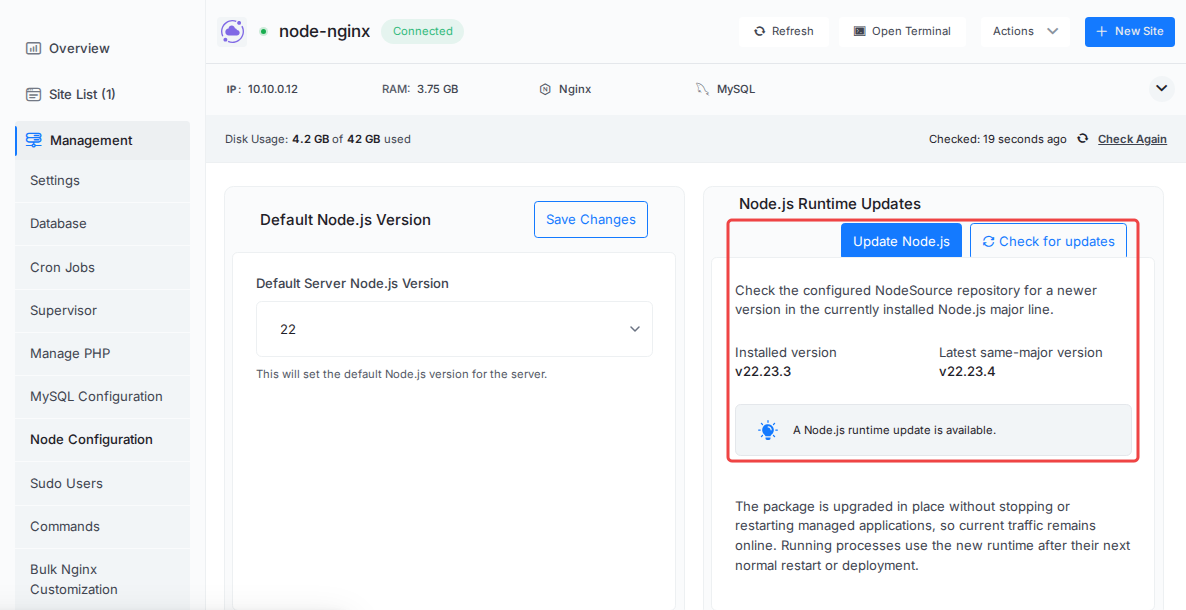
Since v2.9.5 (22 October 2026), xCloud then gracefully reloads every running PM2 app on the server, one at a time, so the patch takes effect right away. Apps you stopped stay stopped. If an app does not come back on the new version, the dashboard names the site, and you restart it from Settings → Rescue Site → Restart PM2 Process or deploy it again.
👉 Full walkthrough with screenshots: How to update Node.js on your xCloud server.
What xCloud does not do, honestly stated:
- It does not jump major versions for you. The update card stays within your current major line, so a server on Node.js 20 can show “up to date” and still be vulnerable. Change it under Default Node.js Version (how to change the Node.js version).
- One Node.js version per server. Every Node.js site on a server shares it. A site that needs a different major goes on a different server.
- Docker apps are separate. Custom Docker sites and Docker-based One Click Apps ship their own runtime in the image, so you update the image, not the server.
- It only manages Node.js it installed. A Node.js you installed yourself, or Node.js 14 from a nodejs.org download, can’t be updated from the card.
Moving to a New Major (22 → 24): What to Test First
A patch release inside a line is low risk. A major jump is a different job, and it is the one Node.js 20 and 18 servers now face.
- Read your dependencies first. Native modules and anything pinned with an
enginesfield inpackage.jsonbreak most often. Rebuild them after the switch (npm rebuild), and see our npm beginner guide if lockfiles are new to you. - Test on a second server. Deploy a copy of the app on a server with the new version before you touch production. On xCloud, a fresh server with a different Default Node.js Version is the cleanest way to do this.
- Back up and pick a window. Take a backup, then switch during your quietest hour. Restart or redeploy every app afterwards, because changing the version does not restart them.
- Check app-specific minimums. n8n is a good example: an incompatible Node.js version can keep it offline after a reboot, and the fix is to set the server to Node.js 22 or newer.
Troubleshooting
The app didn’t come back after the reload
Run pm2 logs <app-name> --lines 50. The usual causes are a native module built for the old version (run npm rebuild in the app folder, then reload) or a missing environment variable that only shows up on a fresh start. On xCloud, the Node.js deployment guide shows where the start command and environment live.
node -v and npm -v don’t match what you expect
You probably have two installs on PATH, for example NodeSource in /usr/bin and nvm in your home folder. Run which -a node to list them, and remove the one you don’t use so services and shells agree.
Global packages disappeared
With nvm, global packages live inside each version’s folder, so a new version starts empty. Use --reinstall-packages-from as shown above, or reinstall them (npm install -g pm2) and run pm2 update if PM2 itself moved.
The same app runs twice and logs port conflicts
If you started an app with PM2 under two different users, both processes fight for the same port after a restart. Keep one owner, stop and delete the duplicate (pm2 delete <app> as the other user), and run pm2 save.
Patch Node.js This Week and Prove Every App Is on It
The October 2026 release is not exotic: DNS, TLS and Brotli code paths are in almost every web app. Install 22.23.4 or 24.22.1 (or 26.12.1), and move anything on 21 or older to a supported line.
Then do the step that actually closes the hole: reload every PM2 app and check pm2 show for each one. “I updated Node.js” and “my app runs the fixed Node.js” are two different statements, and only the second one matters. If you’d rather not repeat this every few months, xCloud Node.js hosting does the install and the reload in one click, and our VPS security guide covers the rest of the server.
If you have found this blog helpful, feel free to subscribe to our blogs for valuable tutorials, guides, knowledge, and tips on web hosting and server management. You can also join our Facebook community to share insights and engage in discussions.
Frequently Asked Questions
Do I need to restart my app after updating Node.js?
Yes. A running Node.js process keeps the binary it started with, so installing a new version changes nothing until the process restarts. Run pm2 reload (or pm2 restart) and check the version with pm2 show.
Which Node.js versions fix the October 2026 security release?
Node.js 22.23.4, 24.22.1 and 26.12.1, released on 21 October 2026. Node.js 21 and older are end of life, are affected, and get no fix, so move them to 22 or 24.
Should I use NodeSource or nvm on a production server?
For a server that runs apps under PM2 or systemd, NodeSource is usually simpler, because Node.js is a system package that every user and service sees and apt can update. nvm is per user and per shell, which suits a developer laptop or a single-user box better.
Why does pm2 show still report the old Node.js version after pm2 reload?
Usually because the PM2 daemon itself still runs on the old binary, which is common in cluster mode or after an nvm switch. Run pm2 save, pm2 kill and pm2 resurrect from a shell where node -v shows the new version, then check again.
Does xCloud update Node.js and reload my apps for me?
Yes. Under Server → Management → Node Configuration, Update Node.js installs the newest release of your current major version and then gracefully reloads every running PM2 app on the server, including n8n, Uptime Kuma and Lovable sites. Apps you stopped stay stopped, and any app that does not come back is named in the dashboard.