

How to Update Node.js on Your xCloud Server
Updated October 22, 2026 · 5 min read
xCloud installs one Node.js version per server from the NodeSource package repository. Every Node.js site on the server, including n8n and Uptime Kuma sites, runs on it under PM2.
Updating Node.js takes two steps: install the update on the server, then restart each Node.js site so it runs the new version. The update does not restart your sites for you, so a site keeps running the old version until you restart or deploy it again.
Node.js October 2026 Security Release
On 21 October 2026, Node.js released fixes for 10 vulnerabilities, 4 of them rated High. The most serious, CVE-2026-111497, is an out-of-bounds write in the Brotli decoder that can lead to remote code execution in an app that decompresses Brotli data it receives. The other High issues affect DNS lookups and TLS certificate hostname checks. See the Node.js security release notes for the full list.
| Your server’s Node.js | Fixed version | What to do |
|---|---|---|
| Node.js 24 | 24.22.1 | Update Node.js, then restart your sites |
| Node.js 22 | 22.23.4 | Update Node.js, then restart your sites |
| Node.js 21, 20, 18, 16 or 14 | None, end of life | Change the server to Node.js 22 or 24 |
Node.js 26 also has a fix, 26.12.1, but xCloud offers Node.js 14, 16, 18, 20, 21, 22 and 24.
Which Sites Need the Update
Update Node.js on a server if it runs any of these:
- Node.js sites that run a server process, such as an API, an SSR app (server-side rendering) or a webhook receiver. How to deploy a Node.js application.
- n8n sites. Deploy n8n with xCloud.
- Uptime Kuma sites. Deploy Uptime Kuma with xCloud.
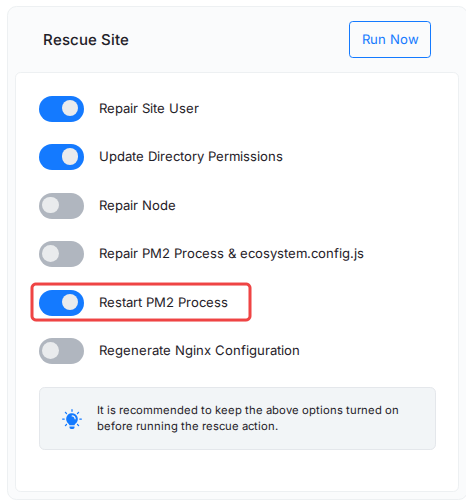
A quick test: if a site’s Rescue Site card shows Restart PM2 Process, the site runs on the server’s Node.js.
A static Node.js site only uses Node.js to build its files, and NGINX serves the result, so the Node.js vulnerabilities do not reach it while it runs. Update the server anyway, so your next build uses a supported version.
Docker apps, such as Custom Docker sites and Docker-based One Click Apps, ship their own runtime inside the image. Updating the server’s Node.js does not change them. Update the app’s image instead.
Step 1: Check for a Node.js Update
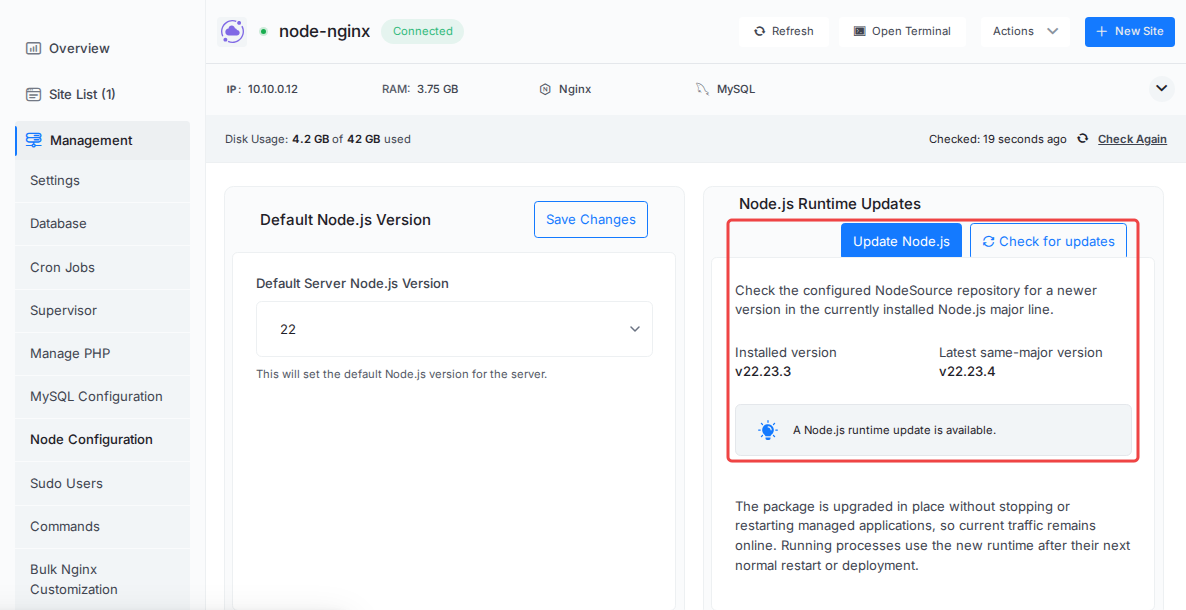
Open your server and go to Management → Node Configuration. In the Node.js Runtime Updates card, click Check for updates.
xCloud checks NodeSource for the newest release of your installed major version and shows the Installed version and the Latest same-major version. If they differ, you see A Node.js runtime update is available.
Step 2: Install the Update
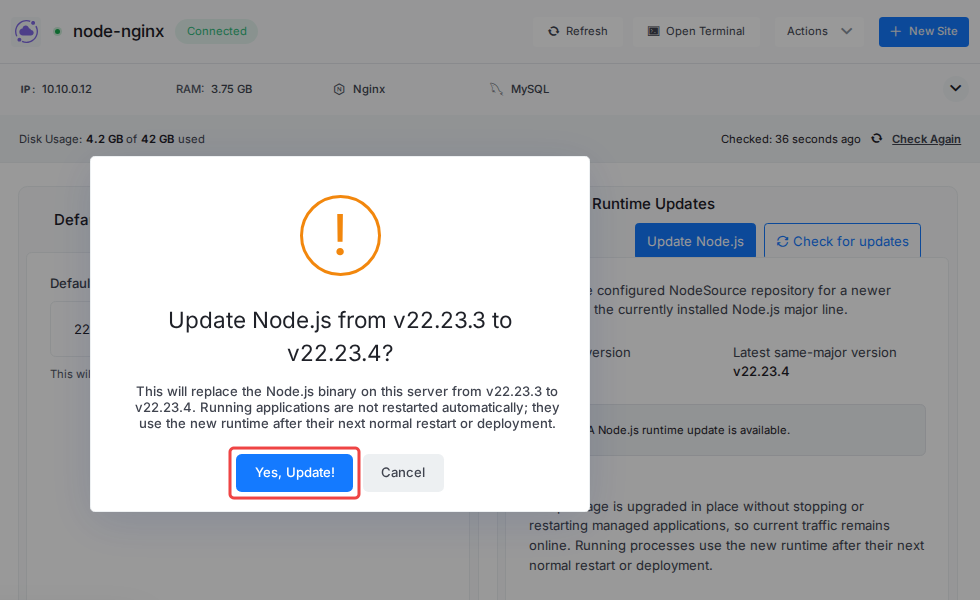
Click Update Node.js. Check the versions in the confirmation, then click Yes, Update!
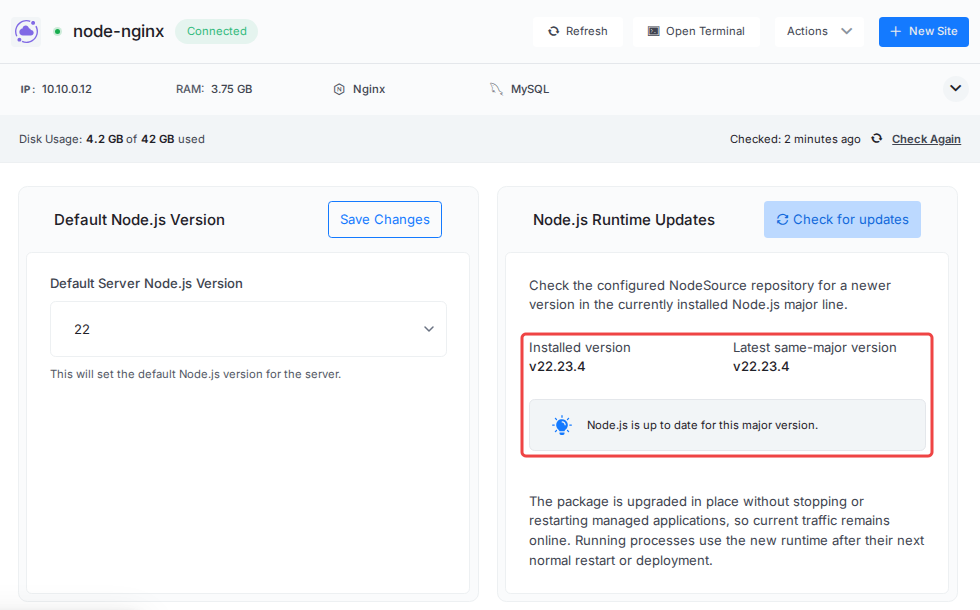
The update usually takes under a minute and does not take your sites offline. When it finishes, the card shows the new installed version and Node.js is up to date for this major version.
Step 3: Restart Each Node.js Site
Your sites still run the old Node.js version until they restart. Restart every Node.js, n8n and Uptime Kuma site on the server:
- Open the site and go to Settings.
- In the Rescue Site card, turn on Restart PM2 Process. You can leave the other switches as they are.
- Click Run Now, then Yes, Run Now.
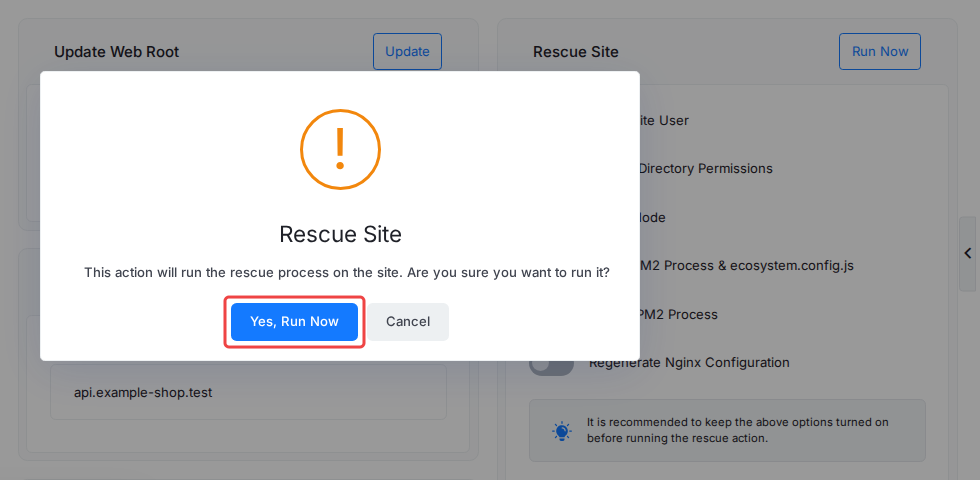
The site restarts in a few seconds, so expect a brief interruption. If you deploy the site from Git, a new deployment restarts it too.
Step 4: Confirm the Site Runs the New Version
SSH in to the server as the site user, then run:
pm2 list
pm2 show <app-name> | grep "node.js version"
Replace <app-name> with the name pm2 list shows. The node.js version line should show the fixed version, such as 22.23.4 or 24.22.1. If it still shows the old version, restart the site again.
If Your Server Runs Node.js 21 or Older
Node.js 14, 16, 18, 20 and 21 are end of life and do not get the October 2026 fixes. For those servers, Check for updates can only move you to the newest release of the same old version, and can still say up to date.
Move the server to Node.js 24, or 22 if your app needs it. Choose the version under Default Node.js Version and click Save Changes. How to change the Node.js version.
A major version change can break an app, for example when a dependency stops supporting the new version. Test your app on a separate server with the new version first, back up your site, and plan a short maintenance window. After the change, restart or deploy each Node.js site again, as in Step 3.
If the Update Is Not Available
The Node.js Runtime Updates card tells you why it can’t update:
| Message | What it means |
|---|---|
| Node.js is not installed on this server. | There is nothing to update. Node.js is installed with the first Node.js site, or from Default Node.js Version. |
| xCloud can only update Node.js runtimes installed from the matching NodeSource repository. | Node.js came from a different package repository, for example one you added yourself. Change the server to Node.js 22 or 24 instead. |
| This Node.js runtime is not managed by the system package manager. | Node.js was not installed as a system package, for example Node.js 14, which xCloud installs from a nodejs.org download. Change the server to Node.js 22 or 24 instead. |
| The last check failed after this result was loaded. | Click Check for updates again before you update. |
Still stuck? Contact our support team for any of your queries.