


You publish a post, wait a week, and it still isn’t on Google. Or the opposite happens: your staging site, your internal search results, and a pile of ?utm= URLs start showing up in Search Console. In both cases, a 1 KB text file at the root of your site is often involved.
That file is robots.txt. It is one of the smallest files on your WordPress site and one of the easiest to get wrong. In 2026 it has a second job too: deciding which AI crawlers (GPTBot, ClaudeBot, Google-Extended, and friends) may read your content. If you want the bigger picture of who is crawling your site, start with our web crawler list and bot management guide.
This guide covers what robots.txt actually does, where WordPress keeps it, a safe default you can copy, what to block (and what you should never block), how to handle AI bots, and how to test it all before Google does.
TL;DR: The Whole Guide in a Few Lines
- robots.txt controls crawling, not indexing. A blocked URL can still appear in Google if other sites link to it. Use
noindexto keep pages out of results. - WordPress creates a virtual robots.txt by default. A physical file in your site root overrides it.
- Keep it short. Block
/wp-admin/(but allowadmin-ajax.php), internal search, and junk parameters. Add your sitemap. - Never block CSS, JS, or
/wp-content/uploads/. Google needs them to render your pages. - AI crawlers have their own user agents. You can block training bots (GPTBot, ClaudeBot, Google-Extended) while still allowing search.
- robots.txt is a request, not a lock. Bad bots ignore it, so pair it with a firewall or bot blocker.
- Test every change in Search Console before you walk away.
What Is robots.txt?
robots.txt is a plain text file at the root of your domain that tells crawlers which URLs they may request. It lives at https://yourdomain.com/robots.txt and follows the Robots Exclusion Protocol, which Google documents in Search Central.
Think of it as a sign at the entrance of a building. Polite visitors read it and stay out of the staff-only rooms. Someone who wants to break in walks right past it. That’s why robots.txt is an SEO tool, not a security tool.
A Few Things Worth Knowing
- Rules are grouped by
User-agent. A crawler follows the most specific group that matches its name. Disallowblocks a path.Allowmakes an exception inside a blocked path.*matches any sequence of characters, and$marks the end of a URL.- Each host needs its own file.
blog.yourdomain.comdoesn’t inherit the rules fromyourdomain.com. - Google ignores the
Crawl-delaydirective. Some other bots respect it.
robots.txt vs noindex vs “Discourage Search Engines”
This is the part that trips people up.
| Tool | What it does | Use it when |
|---|---|---|
robots.txt Disallow |
Stops compliant bots from crawling a URL | You want to save crawl budget on low-value URLs |
noindex meta tag |
Tells search engines not to show a page in results (the page must be crawlable) | You want a page out of Google |
| WordPress “Discourage search engines” setting | Adds a noindex signal across the whole site |
Staging and development sites |
| Password / HTTP auth | Actually blocks access | Private content |
If you block a page in robots.txt and add noindex, Google can’t crawl the page to see the noindex. The URL may stay indexed. We cover the site-wide switch in detail in what “Discourage search engines from indexing this site” really does.
Where Is the robots.txt File in WordPress?
WordPress doesn’t ship a physical robots.txt file. When a crawler requests /robots.txt, WordPress generates one on the fly. The default looks like this:
User-agent: *
Disallow: /wp-admin/
Allow: /wp-admin/admin-ajax.php

Sitemap: https://yourdomain.com/wp-sitemap.xml
That default is a decent starting point. The catch: if a physical robots.txt file exists in your site root, the server serves that file instead and WordPress’s virtual version (plus anything your SEO plugin adds to it) never runs.
To see what crawlers actually get, open https://yourdomain.com/robots.txt in a browser. Whatever you see there is the live file.
How to Create or Edit robots.txt in WordPress
You have three options. Pick one and stick with it, because mixing them is how sites end up with two conflicting versions.
Option 1: Use Your SEO Plugin
Yoast SEO, Rank Math, and most SEO plugins include a robots.txt editor. In Yoast it’s under Yoast SEO → Tools → File editor. In Rank Math it’s under Rank Math → General Settings → Edit robots.txt.
This is the easiest path for most site owners. The plugin edits the virtual file, so there’s nothing to upload.
Option 2: Upload a Physical File via SFTP
Create a plain text file named robots.txt, add your rules, and upload it to the site root (the same folder as wp-config.php). This gives you full control and works with any plugin setup.
👉 On xCloud, follow How to configure SFTP access for your site to connect with FileZilla or Cyberduck.
Option 3: Filter It with Code
Developers can append rules to the virtual file with the robots_txt filter in a small plugin or a theme’s functions.php:
add_filter( 'robots_txt', function ( $output ) {
    $output .= "Disallow: /?s=\n";
    return $output;
}, 10, 1 );
This keeps the rules in version control, which is handy on agency builds.
A Safe Default robots.txt for WordPress
Here’s a starting point that works for most blogs, business sites, and WooCommerce stores. Treat it as a starting point rather than a strict rule.
User-agent: *
Disallow: /wp-admin/
Allow: /wp-admin/admin-ajax.php
Disallow: /?s=
Disallow: /search/
Disallow: /*?replytocom=
Disallow: /cart/
Disallow: /checkout/
Disallow: /my-account/

Sitemap: https://yourdomain.com/sitemap_index.xml
What each line does:
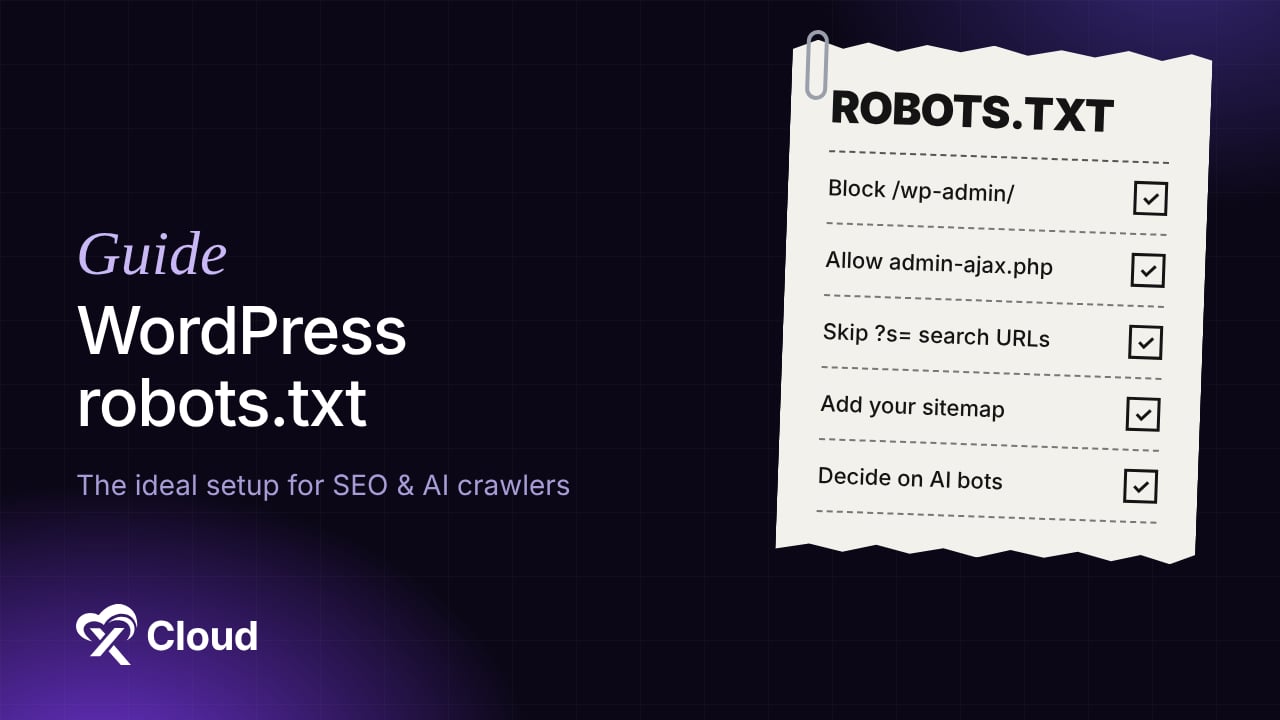
/wp-admin/: there’s nothing for search engines in the dashboard.admin-ajax.php: some themes and plugins load front-end content through it, so it stays crawlable./?s=and/search/: internal search results can create endless low-value URLs.replytocom: an old comment-reply parameter that duplicates post URLs./cart/,/checkout/,/my-account/: WooCommerce pages that are unique to each visitor. Remove these lines if you don’t run a store.Sitemap: point to whatever sitemap your SEO plugin generates (sitemap_index.xmlfor Yoast and Rank Math,wp-sitemap.xmlfor core).
What You Should Never Block
Old tutorials still recommend blocking /wp-includes/ and /wp-content/plugins/. Don’t. Google renders pages like a browser, and it needs your CSS and JavaScript to understand layout and mobile-friendliness.
❌ Never block:
/wp-content/uploads/: your images won’t appear in Google Images./wp-includes/or/wp-content/themes/: blocks CSS and JS files Google needs for rendering.- Your whole site with
Disallow: /on a live domain. This is the single most common robots.txt disaster, usually copied from a staging site during a migration. - Pages you want removed from Google. Use
noindexinstead, as explained above.
How to Handle AI Crawlers in robots.txt
This is where robots.txt got interesting again. Most AI companies now publish separate user agents for model training and for search or live retrieval, so you can make different choices for each.
| Company | Training crawler | Search / user-fetch agents | Docs |
|---|---|---|---|
| OpenAI | GPTBot |
OAI-SearchBot, ChatGPT-User |
OpenAI bots |
| Anthropic | ClaudeBot |
Claude-SearchBot, Claude-User |
Anthropic support center |
Google-Extended (a control token, not a separate crawler) |
Googlebot powers Search and AI Overviews |
Google crawlers | |
| Apple | Applebot-Extended |
Applebot |
Apple support |
| Common Crawl | CCBot |
n/a | Common Crawl |
Blocking Googlebot to stop AI Overviews will also remove you from Google Search. Google-Extended only controls whether your content is used for Gemini training and grounding.
Option A: Allow Everything (Maximum AI Visibility)
If you want to be cited in ChatGPT, Claude, and Perplexity answers, don’t add any AI rules. No rule means allowed.
Option B: Block Training, Allow Search
This is the middle ground most publishers pick in 2026. Add these groups below your main User-agent: * group:
User-agent: GPTBot
Disallow: /

User-agent: ClaudeBot
Disallow: /

User-agent: Google-Extended
Disallow: /

User-agent: Applebot-Extended
Disallow: /

User-agent: CCBot
Disallow: /
Search and user-initiated agents like OAI-SearchBot and Claude-SearchBot stay allowed, so your pages can still be found and cited.
The Catch Worth Knowing
robots.txt only works on bots that choose to follow it. Some providers say their user-initiated fetchers may not apply robots.txt rules, and unidentified scrapers ignore it completely. If an AI bot is hammering your server, you need a firewall rule, not a text file.
That’s what xCloud’s AI Bot Blocker handles at the server level. Here’s how to enable the AI Bot Blocker in xCloud. Want to see what your current setup allows? Run your domain through the free AI Crawler Checker.
How to Test Your robots.txt
Never push a robots.txt change and walk away.
Step 1: Check the Live File
Open https://yourdomain.com/robots.txt. Confirm it’s the version you expect, not an old physical file or a plugin’s copy.
Step 2: Use Search Console’s robots.txt Report
In Google Search Console, go to Settings → robots.txt. Google shows the version it last fetched, when it fetched it, and any parsing errors. You can request a recrawl after you make changes.
Step 3: Test Important URLs
Use the URL Inspection tool on your homepage, a key post, and a product page. If any show “Blocked by robots.txt”, find the rule that matches and fix it.
Step 4: Recheck After Migrations
Most robots.txt accidents happen during a launch or a host move. A staging Disallow: / gets copied over to production. Add “check robots.txt” to your go-live checklist. Our staging site guide explains how to keep staging out of Google without that risk.
Common robots.txt Mistakes on WordPress Sites
- Blocking the whole site after launch. Check for
Disallow: /underUser-agent: *on every go-live. - Two sources of truth. A physical file plus an SEO plugin editor means your plugin edits do nothing.
- Using robots.txt to hide private pages. The file is public, so you’re handing anyone a list of the paths you want hidden.
- Blocking pages you want de-indexed. Google can’t see
noindexon a page it isn’t allowed to crawl. - Forgetting the sitemap line. It’s a free hint for every crawler that reads the file.
- Copying a 2015 template. Blocking
/wp-includes/was common advice then and hurts rendering now.
Keep Crawlers in Check on xCloud
On a raw VPS, robots.txt is the only control many site owners have. Everything else (rate limits, bot rules, firewall config) means SSH and Nginx config files.
With xCloud’s WordPress hosting, the server layer is handled for you:
- ✅ AI Bot Blocker stops known AI scrapers at the server, even ones that ignore robots.txt.
- ✅ SFTP and file manager access to edit robots.txt directly.
- ✅ One-click staging sites that stay out of search results.
- ✅ Full-page and edge caching, so crawler traffic doesn’t slow down real visitors. See our WordPress speed tips.
- ✅ Security headers and a 7G/8G firewall. More in our WordPress security headers guide.
Start hosting your WordPress site on xCloud and manage crawlers from one dashboard.
Fix Your robots.txt Today and Protect Your Crawl Budget
robots.txt is a small file with a big blast radius. One wrong line can hide your whole site, and a sensible ten-line file keeps crawlers focused on the pages that matter.
This week, open your live robots.txt, compare it with the default above, and decide on purpose what to do about AI crawlers. Then check the robots.txt report in Search Console to confirm Google sees the same file you do.
If you have found this blog helpful, feel free to subscribe to our blogs for valuable tutorials, guides, knowledge, and tips on web hosting and server management. You can also join our Facebook community to share insights and engage in discussions.
Frequently asked questions
Does WordPress have a robots.txt file by default?
Yes, but it’s virtual. WordPress generates it when a crawler requests /robots.txt. If you upload a physical file to your site root, that file replaces the virtual one.
Where do I put robots.txt in WordPress?
In the site root, the same folder that holds wp-config.php. It must be reachable at yourdomain.com/robots.txt. A file in a subfolder is ignored.
Can robots.txt remove a page from Google?
No. It stops crawling, not indexing. To remove a page, add a noindex meta tag and make sure the page isn’t blocked in robots.txt, so Google can see the tag.
Should I block GPTBot and other AI crawlers?
It depends on your goals. Blocking training crawlers like GPTBot and ClaudeBot keeps your content out of model training. Leaving search agents allowed keeps you eligible for citations in AI answers. Many publishers block training and allow search.
Will blocking Google-Extended hurt my SEO?
No. Google-Extended only controls use for Gemini training and grounding. Google Search crawling and ranking run through Googlebot, which is separate.
I changed my robots.txt but Google still shows the old one. What should I do?
Google caches robots.txt, usually for up to a day. Open Settings → robots.txt in Search Console and request a recrawl. Also check that a caching plugin or CDN isn’t serving an old copy. Our guide on how to clear website cache walks through each layer.
Do bad bots respect robots.txt?
No. Scrapers and malicious bots usually ignore it. Use a firewall, rate limiting, or a server-level bot blocker like xCloud’s AI Bot Blocker to actually stop them.