


WordPress two-factor authentication (2FA) asks for a second proof, a code from an authenticator app or a passkey, after the password. It matters because many takeovers are not clever hacks: someone signs in with a leaked password. With two-factor required for admins and editors, that password alone opens nothing.
Your plugins are updated. Your firewall is on. Then one morning the blog serves spam, and there is an administrator you have never heard of.
No vulnerability was used. Someone simply logged in. To your firewall and to WordPress, that login looked exactly like you. If you have read our web hosting security best practices, this post goes one level deeper: how passwords leak, what attackers do after login, why firewalls miss it, and how to set up two-factor today.
TL;DR: Too Long, Didn’t Read?
Short on time? Here is the whole guide in a few lines:
- A valid password beats almost every other defense. Firewalls, scanners and hidden login URLs stop attacks, not normal-looking logins.
- Passwords leak quietly: info-stealing malware, reused passwords from old breaches, and logins shared in docs or chats.
- Two-factor is the control that stops this attack. Require it for every administrator and editor, and shorten the grace period.
- Use an authenticator app or a passkey, print your backup codes, and plan for a lost phone before it happens.
- On xCloud, BetterShield adds two-factor and passkeys for free. You turn it on per site under Security → Overview & Firewall.
- Once inside, attackers build ways back in, so if it already happened, follow an incident checklist instead of deleting files.
A Firewall Cannot Tell a Stolen Password From Yours
A password is a key, and most of your security stack checks for broken locks, not stolen keys. That is the finding this whole post rests on.
Think of a building with good guards. They stop anyone climbing through windows. But someone with a real keycard walks straight in, because that is what keycards are for.
WordPress works the same way. Once a login succeeds, the session is trusted. An administrator can install plugins, edit files and create users, so an attacker with an admin password can do all of that too.
| Defense | Stops password guessing? | Stops a plugin exploit? | Stops a valid stolen password? |
|---|---|---|---|
| Strong password | ✅ | ❌ | ❌ it’s already known |
| Hidden login URL | ✅ mostly | ❌ | ❌ if the URL leaked with it |
| Web application firewall | ✅ | ✅ often | ❌ the request is normal |
| Failed-login limits | ✅ | ❌ | ❌ the first try succeeds |
| Two-factor authentication | ✅ | ❌ | ✅ this is the one |
OWASP describes credential stuffing as “the automated injection of stolen username and password pairs” into login forms, and names multi-factor authentication as a primary counter-measure.
A Few Things Worth Knowing
- Hidden login URLs reduce noise, not risk. Stolen-login lists often include the exact URL where the password was saved.
- Dormant admin accounts are prime targets. Nobody notices activity on an account nobody uses.
- One leaked password is rarely one site. If the same login covers several sites, the attacker tries all of them.
How Do Passwords Leak in the First Place?
Most site owners imagine a hacker guessing their password. In practice, passwords are more often collected than guessed.
1. Info-Stealing Malware
Info-stealers are small programs that copy saved passwords, cookies and autofill data from a browser and send them to the attacker. They usually arrive with cracked software, fake updates or bad browser extensions.
The output is a neat list: website, username, password. That is why a stolen login can include a hidden login URL and work on the first try.
2. Password Reuse
A password used on a forum that was breached years ago is still on lists today. If it also protects a WordPress admin, the attacker doesn’t need to hack anything.
3. Shared and Stored Logins
Logins pasted into a spreadsheet, a project doc or a team chat are readable by everyone in that place, and by anyone who breaks into one of those accounts.
4. Credential Checkers
Leaked lists are tested automatically. Leaked-password checks can show up as a quick burst of login attempts, often with a different browser string each time and from hosting or VPN addresses.
The catch worth knowing: checkers test lower-privilege accounts too. An Editor can’t install plugins, but the same password may work on every other site that person uses.
What Do Attackers Do After Logging In?
Attackers know a leaked password will be changed soon, so their first job is to make sure they can get back in without it.
| Way back in | Where it lives | Survives a password reset? |
|---|---|---|
| File manager plugin | wp-content/plugins/ |
✅ until removed |
| Web shells (small PHP files with boring names) | Plugin, theme or core folders | ✅ |
| Rogue administrator | Users table | ✅ |
| Hidden must-use plugin that re-creates the admin | wp-content/mu-plugins/ |
✅ and brings the admin back |
| Code snippets that inject spam or redirects | Database (snippet plugin) | ✅ |
| Application passwords | Each user’s profile | ✅ they skip the login form |
| Backdoor running as the site’s Linux user | User crontab, .profile, .bashrc |
✅ and runs outside WordPress |
Many attackers also set their files’ “modified” date to months in the past, so the files look old. You can see through it with stat, which also shows the change time that the system sets:
stat -c 'modified=%y changed=%z %n' suspicious-file.phpA file “modified” in September but “changed” yesterday arrived yesterday.
How to Set Up Two-Factor Authentication in WordPress
WordPress.org’s own two step authentication guide points you to plugins rather than a core setting. Here is the setup on any host, then the xCloud way.
Step 1: Choose the Second Factor
| Method | How it works | Our take |
|---|---|---|
| Authenticator app | A six-digit code from an app on your phone, new every 30 seconds | ✅ The default for most teams |
| Passkey | Sign in with a fingerprint, face or device PIN | ✅ Fastest and resists phishing |
| Email code | A code sent to the account’s email | ❌ Weak if the email password leaked too |
| SMS code | A code sent by text message | ❌ WordPress.org calls SMS “not a secure communication channel” |
| Backup codes | Single-use codes you print or store | ✅ Your way back in, never your daily method |
Step 2: Set It Up for Your Own Account First
Install a two-factor plugin, open your WordPress profile and scan the QR code with your authenticator app, or register a passkey. Then save the backup codes in a password manager or print them.
Doing your own account first means you find any problem before you require it from others.
Step 3: Require It for Admins and Editors
Require two-factor for the Administrator and Editor roles, and for Shop Manager on a WooCommerce store. Those roles can change what visitors see.
Step 4: Shorten the Grace Period
Most plugins give users time to set up two-factor. Until they do, a password alone still works, which is exactly the gap a stolen password walks through. Ask the team to set it up today, then shorten or end the grace period.
Step 5: Plan for a Lost Phone
Write down what happens when someone loses their device: they sign in with a backup code and enroll the new phone. If they have no codes left, another administrator helps them, and the old secret is removed.
How xCloud Adds Two-Factor to WordPress for Free
On xCloud, the free BetterShield plugin by WPDeveloper adds two-factor sign-in and passkeys, and xCloud installs it and connects it to the server firewall for you. This is the flow from our BetterShield setup doc.
- Open the site, then go to Security → Overview & Firewall.
- Turn on the switch on the WP Fail2Ban & Login Protection card and click Turn On.
- Wait about a minute until the card shows Your logins are protected with an Active badge.
- Click Open BetterShield in WordPress. It signs you in with Magic Login and opens the BetterShield page.
- Set up two-factor or a passkey for your own account, then require it by role.
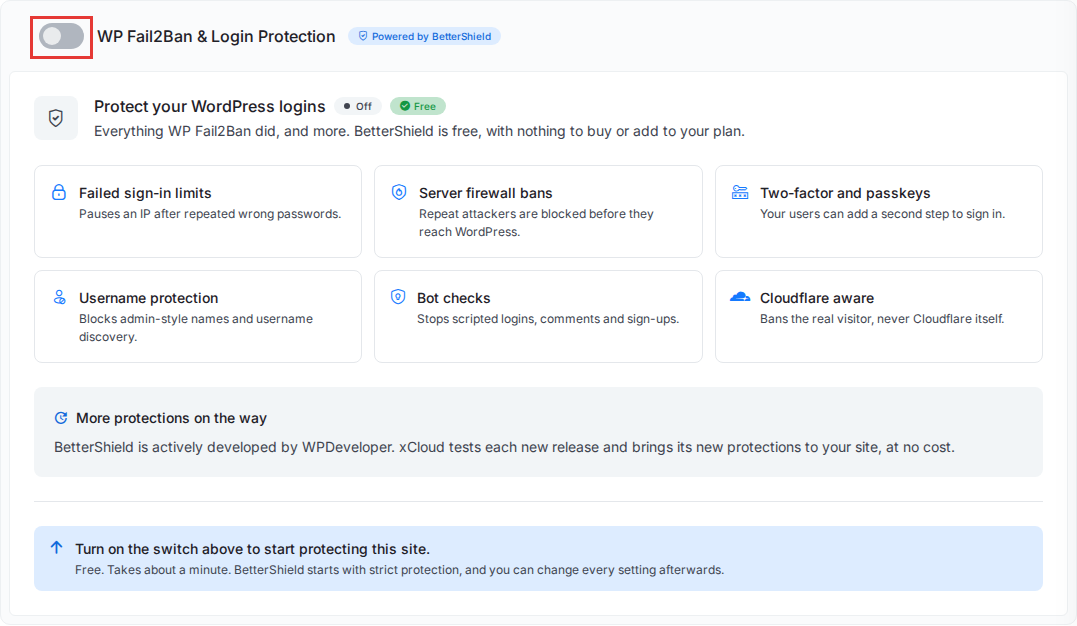
BetterShield’s plugin page lists “two-factor with any authenticator app and ten single-use backup codes”, passkeys, and “require two-factor by role, with a 14-day grace period by default”. Shorten that grace period once your team has enrolled.

The same switch also turns on failed-login limits (5 failures within 15 minutes pause sign-in for 15 minutes), a bot check, a proof-of-work check, common-username blocking and server firewall bans. Read why we made the switch in BetterShield replaces WP Fail2Ban, or see the login protection feature page.
Protect the Panel Too
Your xCloud account can open every site’s WP Admin through Magic Login, so protect it first. Turn on two-factor for your xCloud account and keep the eight recovery codes safe. Team owners can tick Require two-factor authentication for all members in team settings.
What This Setup Does Not Do
- Two-factor is set up inside WordPress, not on the xCloud card. xCloud installs and connects BetterShield; you enroll users and set the roles.
- It does not clean a site that is already hacked. Rotating passwords won’t remove a backdoor.
- It needs WordPress 6.7 or newer and PHP 8.0 or newer. Otherwise the switch stays greyed out.
- Turning BetterShield off removes its two-factor and passkeys, so users go back to passwords only.
If you run Site Security Pro, it has its own Two-factor authentication control and a Block application passwords switch. Use one two-factor tool, not both.
Pro Tips to Keep Stolen Passwords Useless
Tip 1: Remove Dormant Admin Accounts
If someone hasn’t logged in for months, they don’t need administrator access. Remove the account or lower its role.
Tip 2: Use the Least Privilege That Works
Writers need Editor or Author, not Administrator. In a credential attack, a lower role is the difference between “they logged in” and “they took over”.
Tip 3: Block Plugin Installs in Production
define( 'DISALLOW_FILE_MODS', true ); in wp-config.php stops plugin installs and file edits from WP Admin. It also hides updates there, so decide how you will update first.
Tip 4: Check Application Passwords
Application passwords let apps sign in without the login form, so they skip two-factor. Remove the ones nobody uses.
Tip 5: Keep an Activity Log On
A firewall can’t block a valid login, but an activity log shows exactly what that session did. BetterShield keeps one with 30 days of history.
Tip 6: Never Share Logins in Docs or Chat
Give each person their own account. Shared logins can’t be revoked one by one or traced.
If Someone Already Got In
Urgent, not panicked. Work in this order: preserve, contain, investigate, rotate, rebuild. Cleaning first destroys the trail that tells you what to clean.
- Copy the evidence: site files, the database and the web server logs.
- Take the site offline with Disable Site, then check the site user’s cron jobs and running processes.
- Find the first login you can’t explain in the activity log, and follow what it did.
- Rotate everything the site could read:
| What | Why |
|---|---|
| Every user’s password, everywhere it’s reused | The original leak |
| Two-factor secrets of affected accounts | Attackers sometimes enroll their own app |
| Database password and WordPress salts | Readable from wp-config.php; salts end every login session |
| API keys for email, CDN, payments and AI services | Stored in plugin settings |
| Application passwords | They skip the login form and two-factor |
| SFTP and SSH access for the site user | Especially after a server-level backdoor |
- Rebuild from clean copies instead of cleaning file by file.
The full steps are in our site or hosting security incident checklist and WordPress site hacked: what to do.
Quick Checklist
- Two-factor set up for your own WordPress account and your xCloud account
- Two-factor required for Administrator, Editor and Shop Manager
- Grace period shortened or ended
- Backup codes stored in a password manager
- No dormant administrator accounts
- Unused application passwords removed
- Activity log on for every site
Turn On Two-Factor This Week & Close the Easiest Way In
If you only remember one line: a leaked password plus no two-factor is a complete attack. No exploit needed. Firewalls and scanners stay essential, but they can’t tell a stolen password from yours.
This week, require two-factor for every administrator and editor, and remove accounts that don’t need access. On xCloud WordPress hosting, that starts with one switch per site; our WordPress security checklist walks you through the rest.
If you have found this blog helpful, feel free to subscribe to our blogs for valuable tutorials, guides, knowledge, and tips on web hosting and server management. You can also join our Facebook community to share insights and engage in discussions.
Frequently Asked Questions
Does WordPress have built-in two-factor authentication?
Not as a setting you can switch on in a fresh install. WordPress.org’s own security guide points you to two-step authentication plugins instead. On xCloud, the free BetterShield plugin adds two-factor sign-in and passkeys, and xCloud installs it for you.
Which 2FA method is best for WordPress?
An authenticator app or a passkey. Both stay with a device you hold, so a leaked password alone is not enough. Avoid SMS codes where you can: WordPress.org’s guide calls SMS a channel that is not secure.
Can a WordPress site be hacked with just a password?
Yes. If the account is an administrator and has no second factor, a valid password gives full control through the normal admin screens. That is why two-factor matters more than password strength once a password has leaked.
What happens if I lose the phone with my authenticator app?
Sign in with one of your backup codes, then set up two-factor again on the new device. BetterShield gives each user ten single-use backup codes, and it emails the site’s admin address a recovery link when it is turned on. Store both somewhere safe before you need them.
Why didn’t my firewall block someone who logged in with my password?
Because a correct password on the real login form is not an attack pattern. Firewalls block exploits and password guessing; two-factor stops stolen passwords. You need both, and an activity log to see what happened.
Should I turn on two-factor in both BetterShield and Site Security Pro?
No. Pick one. Two two-factor tools on one site ask users to sign in twice, which confuses them.