


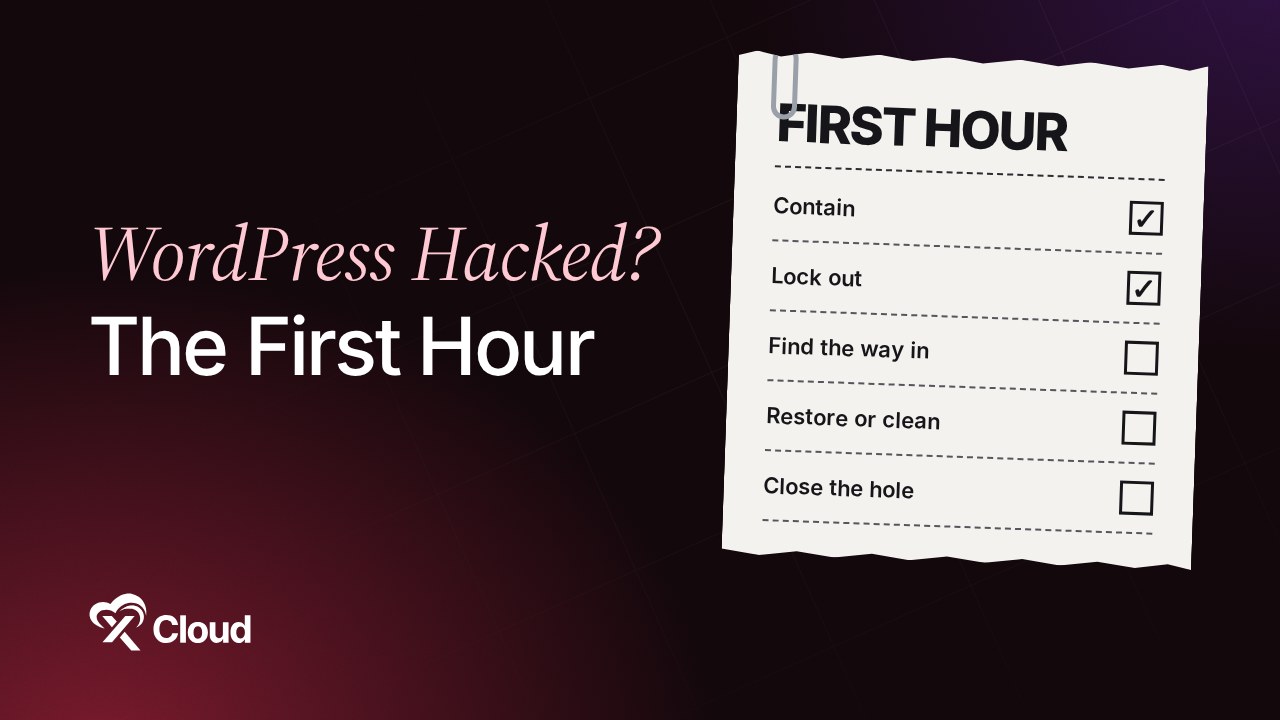
WordPress hacked? Spend the first hour in this order: contain the site and copy the evidence, lock the attacker out by changing every password and key, find how they got in, then restore a clean backup or clean the files. Closing the way in matters more than deleting the malware, because attackers come straight back through it.
You open your site and see pages selling things you have never heard of. Or a customer emails to say your checkout redirects somewhere strange. Your stomach drops, and the urge is to start deleting files.
Slow down for ten minutes. This guide gives you a calm, timed plan for the first hour on any host, then shows the same steps in the xCloud dashboard. If your hosting provider (not your site) reported the breach, read our security incident checklist for the first 24 hours instead.
TL;DR: The First Hour in Six Lines
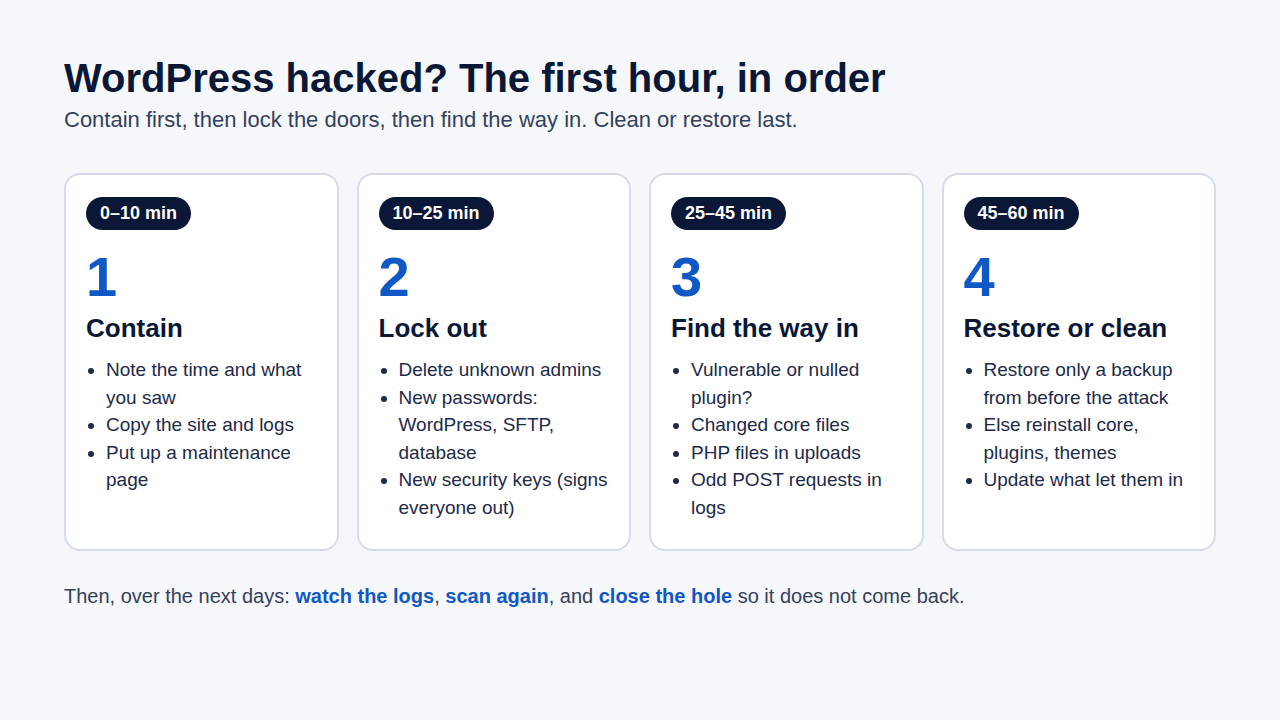
Short on time? Here is the whole guide in a few lines:
- Minutes 0–10, contain: note the time, copy the site and its logs, and hide the site behind a maintenance page if it is hurting visitors.
- Minutes 10–25, lock out: delete admin users you did not create, change the WordPress, SFTP and database passwords, and replace the security keys.
- Minutes 25–45, find the way in: look for a vulnerable or nulled plugin, changed core files, PHP files in
uploadsand odd requests in the logs. - Minutes 45–60, restore or clean: restore only a backup from before the attack, or reinstall core, plugins and themes from official sources.
- Then close the way in: update or remove what let them in, and turn on login protection.
- On xCloud: the dashboard gives you the logs, an Integrity Monitor scan, a Vulnerability Scan and backups in one place. Backups are on paid plans; on the Free plan, copy the site over SFTP.
The Mistake That Brings Hackers Back: Cleaning Before You Know the Way In
A cleaned site often gets hacked again when the way in is left open. Our own guide for xCloud customers puts it the same way: keep the evidence, find what changed, remove the attacker’s way back in, then restore or clean. See my WordPress site was hacked: what to do on xCloud.
Many WordPress hacks start inside WordPress, not on the server: a nulled (pirated) plugin or theme, a plugin that contains malware, an outdated plugin with a known vulnerability, or a stolen admin password.
That is why this plan puts “lock out” and “find the way in” before “clean”. Restoring a backup that still has the old vulnerable plugin brings back the same vulnerability.
| Sign you see | Most likely way in | Check first |
|---|---|---|
| Spam pages or links in search results | Vulnerable plugin, or a backdoor in a theme | Plugin versions against known vulnerabilities |
| Redirects to another site, often only on mobile | Injected code in .htaccess, wp-config.php or a theme file |
.htaccess, wp-config.php, recently changed files |
| New admin users you did not create | Stolen password or a plugin flaw that creates users | User list, login logs |
PHP files in wp-content/uploads |
Upload flaw in a plugin or form | Files in uploads, form submissions or uploads (POST requests) in the access log |
| Host or Cloudflare abuse report | Any of the above, already sending spam or attacks | The report’s timestamp against your logs |
Minutes 0–10: Contain the Damage and Keep the Evidence
Do not delete anything yet. The changed files and the log lines are how you will find the way in.
- Write down the time you noticed the problem and what you saw. Note every change you make from now on.
- Download the access and error logs. Logs rotate, so older lines disappear over time.
- Copy the whole site, files and database, and store the copy away from your clean backups. Label it “infected” and never restore it.
- Protect your visitors. If the site redirects people or shows harmful content, put a maintenance page in front of it until it is clean.
The official WordPress “FAQ My site was hacked” gives the same advice on backups: “It’s important you keep regular backups of your database and files.”
Minutes 10–25: Lock the Attacker Out
Change the doors before you clean the rooms. Otherwise the attacker can watch you clean and come back the same way.
- Remove unknown administrators. In WordPress, go to Users and delete every admin account you did not create.
- Change every password the site uses: WordPress admins, SFTP or SSH users, the database user, and email (SMTP) and payment API keys stored in plugins.
- Replace the security keys in
wp-config.php. The WordPress FAQ says to reset access by “updating the secret keys in wp-config” and “forcing a global password reset for all users, especially administrators”. New keys sign everyone out, including an attacker with a stolen session. - Turn on two-factor sign-in for your admin accounts and your hosting account.
Change the passwords once more after the site is clean, as the WordPress FAQ also advises.
Minutes 25–45: Find How They Got In
This is the step that stops the hack from coming back.
- Check plugins and themes against known vulnerabilities. A common way in is a plugin with a known vulnerability that was never updated. Remove anything nulled or from an unknown source.
- Compare core files with the official copies. WordPress core files should match the release exactly. A changed or extra file in
wp-adminorwp-includesis a strong sign. See how to verify WordPress checksums. - Look for PHP files in
uploads. That folder should only hold images and documents. On xCloud servers that run Nginx, the site settings block PHP files inuploadsfrom running, but still delete any you find. - Read the access log for form submissions or uploads (POST requests) to files you do not recognise, around the time the problem started.
If you use WP-CLI over SSH on a hacked site, add --skip-plugins --skip-themes. Without those flags, WP-CLI loads the site’s plugins and can run the attacker’s code:
wp user list --role=administrator --skip-plugins --skip-themes
wp core verify-checksums --skip-plugins --skip-themes
find wp-content/uploads -name "*.php"
Minutes 45–60: Restore a Clean Backup or Clean the Site
Restore when you have a backup you trust. Clean the site when you don’t.
A backup is not safe just because it is older than the first symptom you saw. Attackers often wait days or weeks before anything shows. Compare the backup date with the oldest suspicious file or log line, as we explain in the real cost of not having website backups.
If every backup may be infected, clean the current site instead:
- Replace WordPress core with a fresh copy of the same version. The FAQ notes you “can replace the following directories safely”, namely /wp-admin and /wp-includes, keeping
wp-contentandwp-config.php. - Reinstall each plugin and theme from its official source, and delete the ones you do not use.
- Remove PHP files from
uploadsand code you do not recognise inwp-config.phpand.htaccess. - Search the database for injected scripts, spam posts and unknown cron jobs.
Either way, update the plugin or theme that let them in straight away. A restored site still has the old vulnerable version.
After the First Hour: Close the Way In So It Doesn’t Come Back
The official Hardening WordPress guide boils prevention down to a few habits. Keep WordPress up to date, keep plugins updated, and “if you are not using a specific plugin, delete it from the system.”
- Keep core, plugins and themes updated, and remove the ones you do not use.
- Install plugins only from WordPress.org or the developer’s own site. Nulled plugins are the cheapest way to get hacked.
- Limit failed logins and use two-factor sign-in for every admin.
- Keep regular backups that you can restore, stored off the server.
- Watch the logs for a few days for the same requests you saw during the attack.
For a broader list, see our web hosting security best practices.
The Same First Hour in the xCloud Dashboard
If your site is on xCloud, the dashboard has a place for each step above: logs, backups, SFTP access, an Integrity Monitor scan and a Vulnerability Scan. Backups are on paid plans; on the Free plan, copy the site over SFTP. The click paths, with screenshots, are in my WordPress site was hacked: what to do on xCloud.
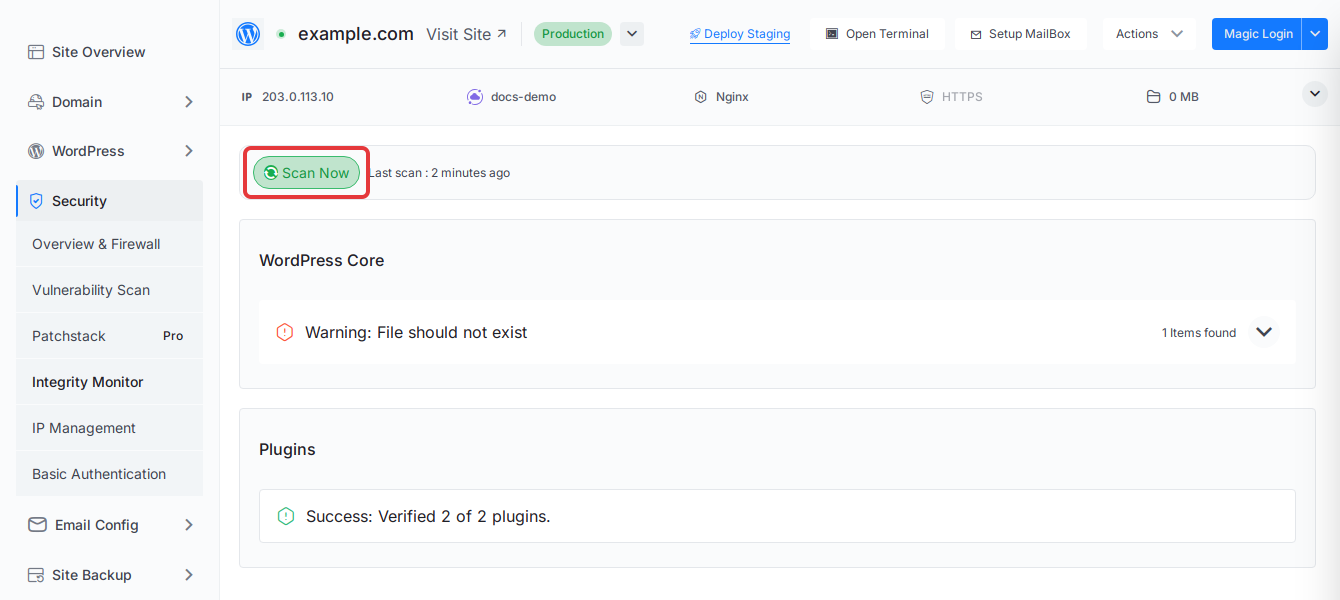
Integrity Monitor runs the core and plugin checksum check for you. You still need to check admin users and the uploads folder yourself. Click Scan Now under Security → Integrity Monitor to run it at any time.
What Integrity Monitor Checks, From xCloud’s Own Code
We read the scan script inside xCloud to show you exactly what it does and what it leaves out. We did not run a test with a planted file for this post; this is what the code does.
- It runs two WP-CLI checks as your site’s user:
wp core verify-checksumsandwp plugin verify-checksums --all, both with--skip-plugins --skip-themes --skip-packages. So it never loads a plugin or theme that might hold the attacker’s code. - It runs by itself every three days as part of site monitoring, and whenever you click Scan Now.
- When files don’t match, it tells you. The To-Do Center shows “Modified WordPress files found on 1 site” with a Review files button that opens the Integrity Monitor list.
- It does not cover everything. It checks WordPress core and plugins from WordPress.org. It does not check themes, premium plugins, the
uploadsfolder, must-use plugins, admin users or the database. A “passed” result is not a malware scan.
That is why the commands earlier in this guide still matter: wp user list and the find command in uploads cover what the scan does not.
To close the way in afterwards, turn on free login protection for failed-login limits and two-factor sign-in. The built-in firewall filters common attacks before they reach WordPress (see how to turn on the firewall: OpenLiteSpeed / Nginx). Our post on how the website vulnerability checker protects your sites explains how scans and updates work together.
For plugins with a vulnerability that has no update yet, Site Security Pro blocks attacks on known vulnerabilities in your plugins and themes, even before the plugin’s author releases an update. As of November 2026, while the current offer runs, you can try it free for 30 days, then pay $2 per site a month. In the dashboard, it is the Patchstack item under Security, with a Pro badge until you turn it on. Setup is in how to set up Site Security Pro.
If you want help reading the logs and listing available WordPress updates while you work, you can also ask xCloud AI Assistant from the dashboard header. It does not remove malware. See how to use xCloud AI Assistant.
What This Plan and xCloud Do Not Do
Be clear about the limits before you rely on any tool:
- No tool here removes malware. Integrity Monitor and the Vulnerability Scan find problems; xCloud AI Assistant reads logs and lists available WordPress updates. None of them clean infected files.
- A clean scan is not proof of a clean site. Integrity Monitor cannot see themes, premium plugins,
uploadsor the database. - Site Security Pro blocks known attacks. It does not remove malware that is already on the site.
- Malware removal is not part of standard xCloud Support. Support helps with logs, backups and restore guidance. For the cleanup, use a WordPress security specialist or a malware-removal service.
- Keep your infected copy as a record. Keep the copy from minute 10 until you are sure the site is clean, but never restore it.
Get Through the Hour, Then Fix the Habit
A hacked WordPress site feels like an emergency, and the first hour is when calm order matters most. Contain, lock out, find the way in, then restore or clean, in that order.
This week, after the site is back, spend twenty minutes on the habit that would have stopped it: remove unused plugins, update the rest, turn on login protection and check that your backups restore. If you want a host that gives you those tools in one dashboard, look at WordPress hosting on xCloud.
If you have found this blog helpful, feel free to subscribe to our blogs for valuable tutorials, guides, knowledge, and tips on web hosting and server management. You can also join our Facebook community to share insights and engage in discussions.
Frequently Asked Questions
How do I know if my WordPress site is hacked?
The common signs are spam pages or links you did not write, redirects to other sites, admin users you do not know, a “This site may be hacked” label in Google, and PHP files inside wp-content/uploads. One sign is enough to start the first-hour steps.
Should I delete the infected files straight away?
No. Copy the site and its logs first. The changed files and the log lines are how you find the way in, and without them the same way in stays open after you clean up.
Is it safe to restore yesterday’s backup?
Only if you know the attack started after it. Attackers often wait days before anything shows, so a recent backup can hold the same backdoor. Compare the backup date with the oldest suspicious file or log line before you restore.
Will changing my WordPress password stop the hacker?
Not on its own. Also delete unknown admin users, change the SFTP and database passwords, and replace the security keys in wp-config.php so every logged-in session ends. Then find and fix the plugin or password that let them in.
Can xCloud AI Assistant clean a hacked site for me?
No. It can read your site and server logs and list available WordPress updates. It does not remove malware, and any change waits for you to click Approve.
Does xCloud remove malware from hacked sites?
No. Malware removal is not part of standard xCloud Support. Support helps with logs, backups and restore guidance, and a WordPress security specialist or malware-removal service handles the cleanup itself.
Last updated November 24, 2026
← All articles