

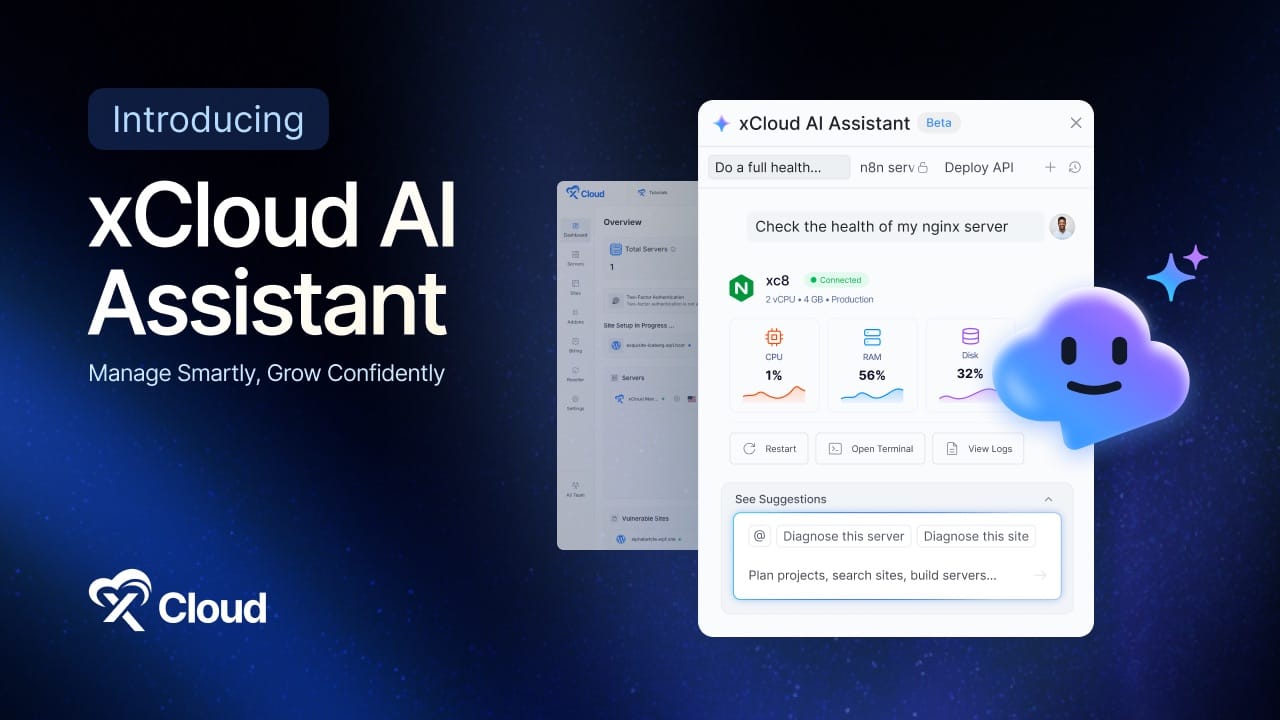
Every server owner knows the small tasks that eat an afternoon. Check why a site feels slow. Find which plugin needs an update. Remember where a setting lives. Open three pages to answer one question. That is the gap xCloud AI Assistant is built to close.
None of it is hard. It is just spread across many screens, and the cost adds up when you manage more than a couple of sites.
Say hello to xCloud AI Assistant (Beta), a built-in helper that sits beside your dashboard. You ask a question in plain words, point at the server or site you mean, and get an answer without leaving the page you are on. When something needs fixing, it can make the change for you, but only after you approve it.
In this post you will learn what the assistant does, how to use it step by step, how it keeps you in control of every change and how to write prompts that get useful answers.
What Is xCloud AI Assistant and Why Is It in Your Dashboard?
Think of a colleague who has the dashboard open all day and knows where everything is. You tell them what you need, point at the server or site, and they check it and tell you what they found.
That is the idea behind xCloud AI Assistant. It opens as a panel on the right side of your dashboard, so you can keep working while it stays open. The header shows the assistant name and its Beta label, which is our way of saying the interface and supported actions will keep changing as we learn from you.
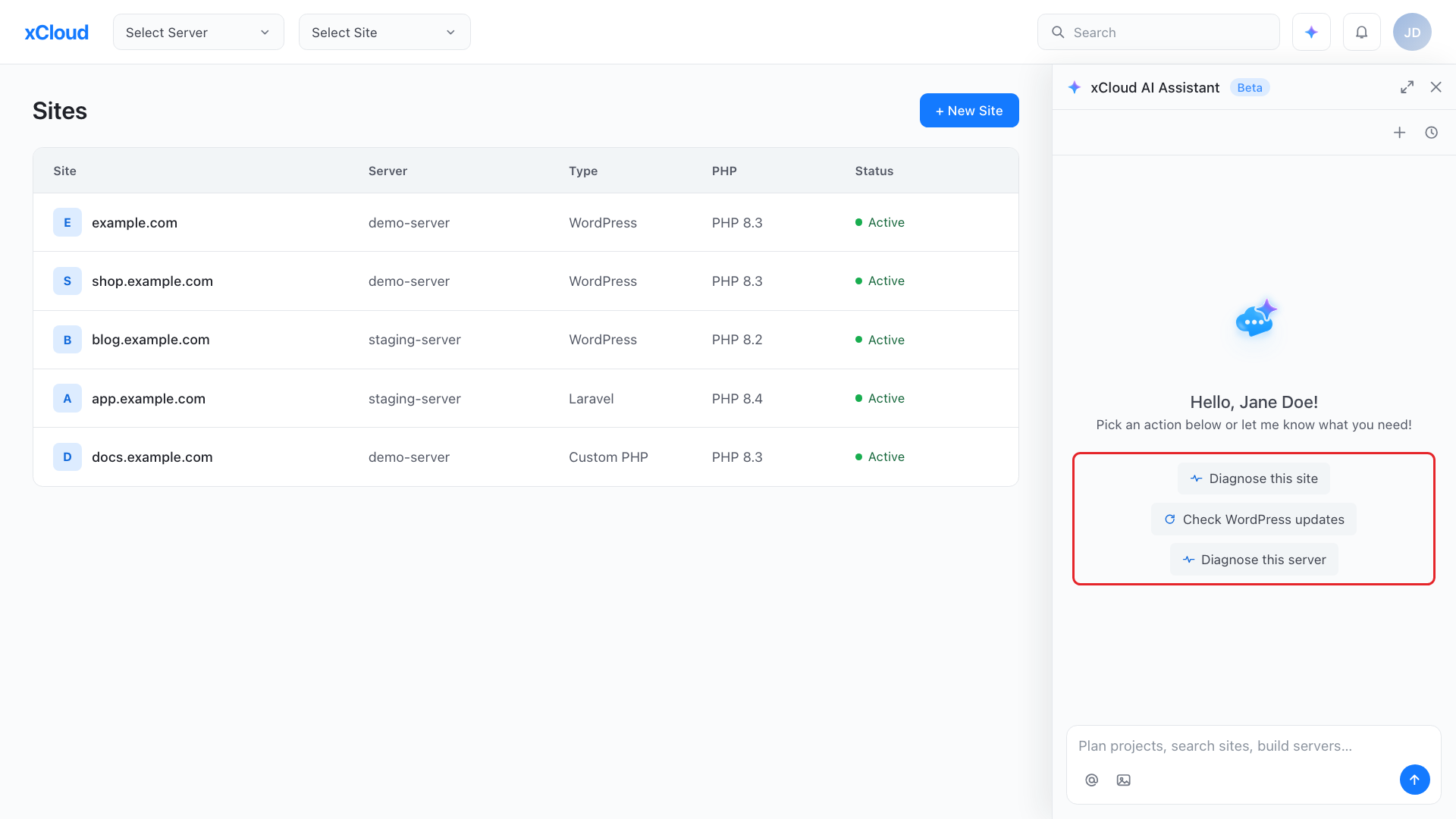
The AI Assistant panel opens on the right and the dashboard stays usable.
It is built for the people who run sites and apps on xCloud: WordPress owners, agencies juggling client sites, freelancers and developers who deploy projects.
Why Put an Assistant Inside a Hosting Dashboard?
Dashboards grow because servers need many settings. That is a good thing, but it means a small task often costs more time finding the right screen than doing the work.
Three situations come up again and again:
- You know what you want, not where it lives. “Is my site healthy?” is a clear question. Finding the status, logs and resource graphs that answer it is the slow part.
- You manage many resources. Jumping between servers and sites to answer one question gets old quickly.
- You are not sure what to try first. A site feels slow, but the cause could be the server, a stopped service, a plugin or the cache.
The honest reframe: an assistant does not replace knowing your stack. If you enjoy working through every setting by hand, you may not need it. If you are the person who gets pinged when something looks off, a faster route to the next step is worth having. Your time is the hidden cost in server management, which we cover in self-managed vs managed hosting.
Who Gets the Most Out of It?
- Site owners who want a plain-language way to ask what is wrong and what to do next.
- Agencies who move between many client servers and sites during the day.
- Freelancers who handle hosting for clients and want to save clicks.
- Developers who want a quick answer without leaving the dashboard.
Key Features of xCloud AI Assistant
Checks Your Servers and Sites for You
The assistant reads broadly. Ask it in plain words and it can:
| Ask about | What the assistant does |
|---|---|
| Servers and sites | Lists them and shows their status |
| Resources | Shows CPU, memory and disk usage, and usage history |
| Logs | Reads server and site logs and points out what looks wrong |
| SSL | Checks certificate status |
| Performance | Shows PageSpeed results for a site |
| WordPress | Lists available WordPress updates |
| Billing | Answers questions such as your unpaid invoices or last month’s charges |
Makes Changes Only When You Approve Them
With Read & Write access, the assistant can act for you: restart a service, purge a cache or update WordPress. Before anything runs, it shows an Action required card with the details of the change, and nothing happens until you click Confirm. Changes that cannot be undone show a clear warning first.
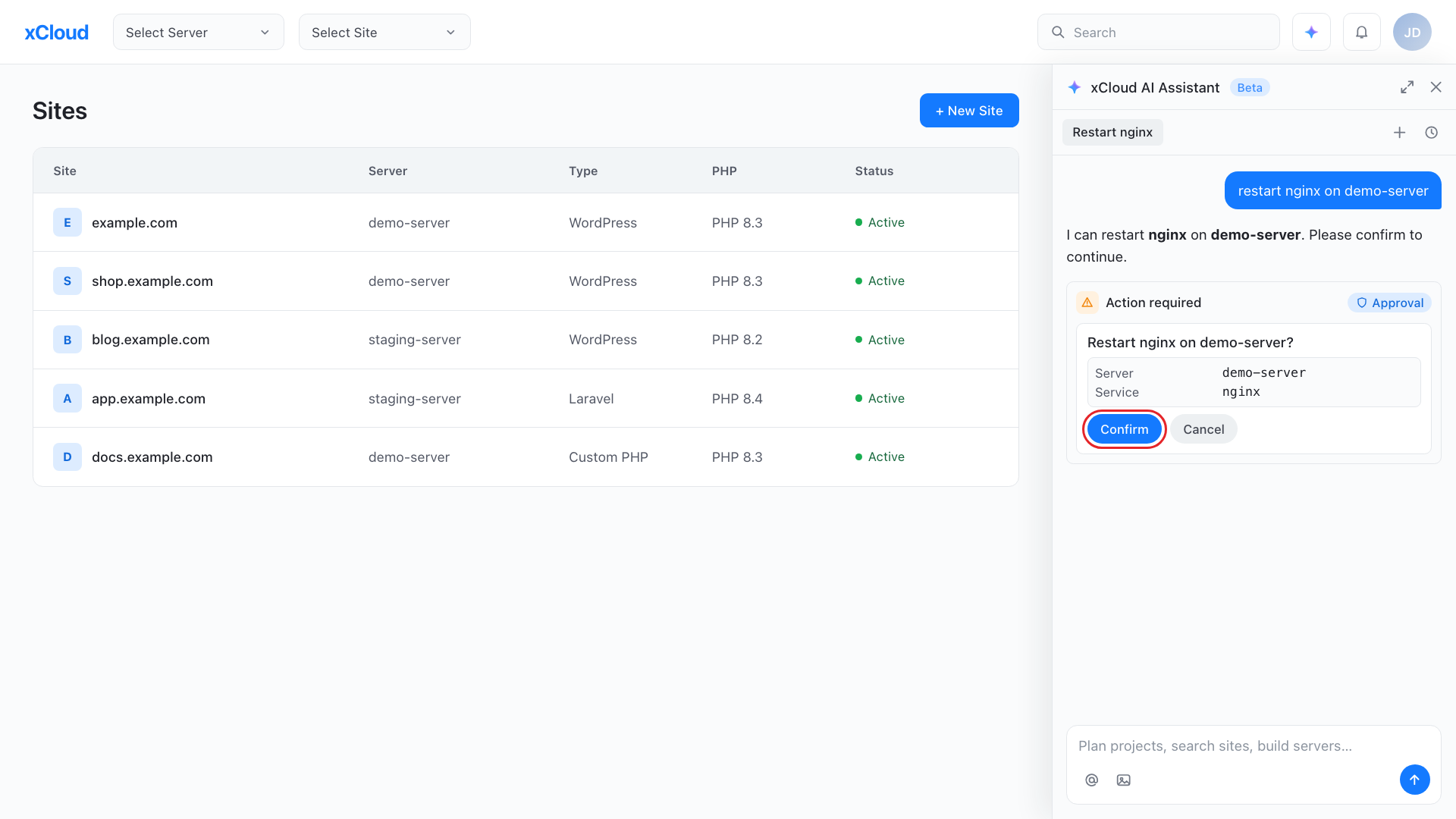
Every change waits on a confirmation card until you say go.
Suggested Prompts for the Page You Are On
The welcome screen shows up to four suggested prompts based on where you are. On a site page you will see checks such as Diagnose this site, Check WordPress updates and Diagnose this server. These guided checks start with read-only steps: status, services, resource usage and logs.
Point at a Server or Site With @
Type @ in the message box and pick a server or site from the list. The assistant then knows exactly what you mean instead of guessing. If you skip it, the assistant asks you to choose when your request needs a specific resource.
Works Within Your Team Role
The assistant uses your own permissions in the team. It can never do anything your role does not allow, and it never asks for a permission you do not have. Your conversations stay private to you, even when you share a team. See team roles and permissions in xCloud for what each role can do.
Keeps Conversations Organized
Start a New chat for each task, find older ones in Chat history with its search field, and Rename chat to keep them easy to spot. Click Expand to work in full screen with your conversation list beside the chat.
Two Ways to Let AI Help With Your Servers
xCloud now gives you two paths, and they fit different people.
Inside the dashboard. The AI Assistant is for anyone who wants help without setting anything up. Open the panel and ask.
With your own agent. If you already work in an AI coding tool or agent, xCloud MCP and the Public API let that tool work with your account. Our guide to automating server management with the xCloud API is a good place to start.
Neither replaces the other. Pick the one that matches how you already work.
How to Use xCloud AI Assistant: Step-by-Step Guide
This walkthrough covers opening the assistant, sending your first request, allowing its access key and approving a change. For every detail, see our full guide on how to use xCloud AI Assistant.
Before You Begin
xCloud AI Assistant is available to every team. It is still labelled Beta while we keep improving it. If you do not see the AI Assistant icon in your dashboard header, reload the dashboard. If it is still missing, contact xCloud support.
Step 1: Open the AI Assistant Panel
Sign in to your xCloud dashboard and click the AI Assistant icon in the top header, next to the search bar. The panel opens on the right side of the screen. Click the same icon again, or the Close icon at the top of the panel, to hide it.
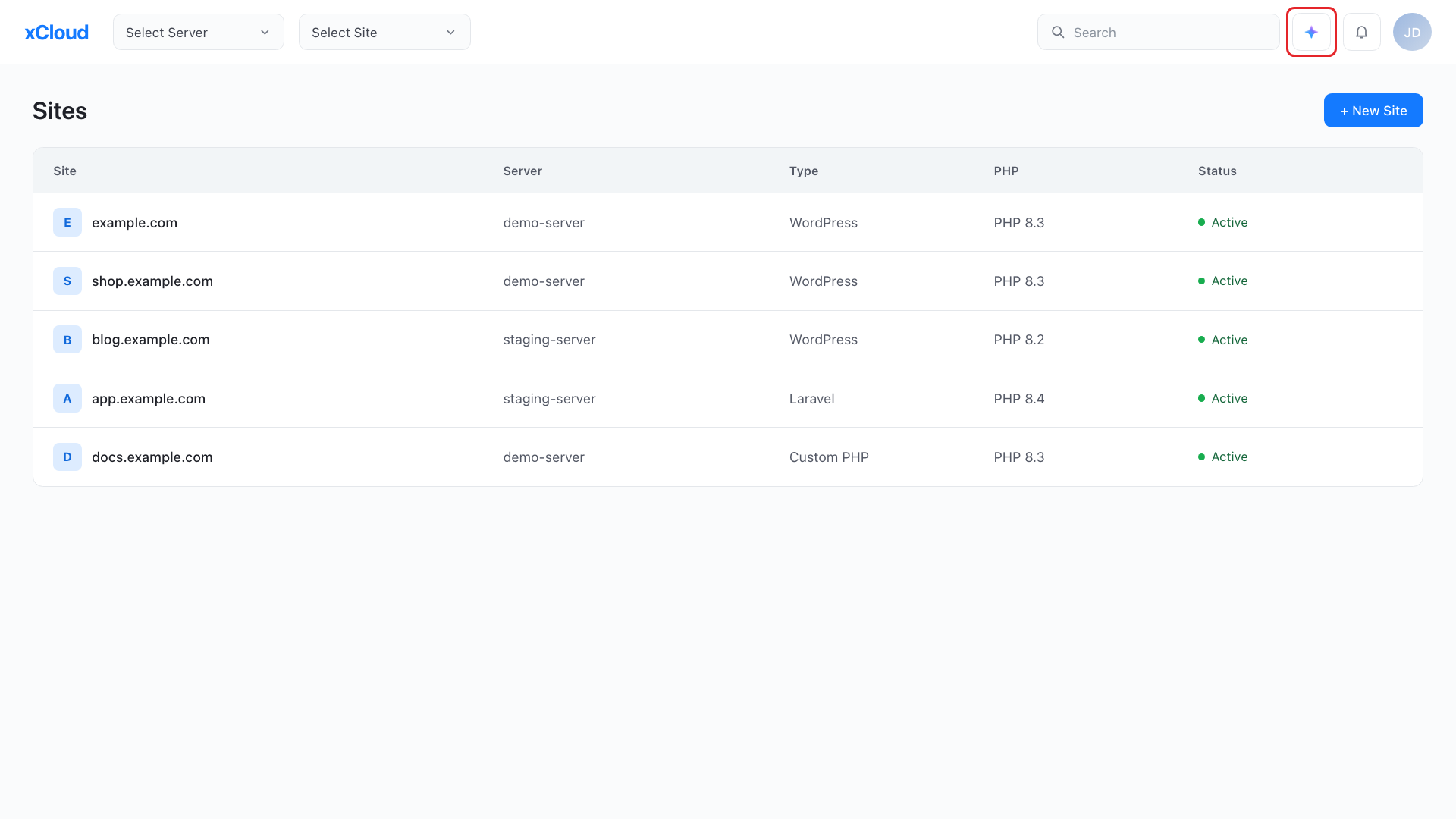
The assistant icon sits in the top header, next to the search bar.
Step 2: Pick a Suggested Prompt or Type Your Request
Click a suggested prompt, or type your own request in the message box at the bottom of the panel, such as “Show me my servers” or “How much did my team pay last month?”. Add the server or site with @ when it matters, then click Send.
Step 3: Allow the Assistant Access Key
The first time the assistant needs to look up data or act for you, it asks to create its own access key under your account. The key can only do what you can already do, and it expires after 7 days by default and renews automatically. Click Create key to allow it, or Not now to do the task yourself.
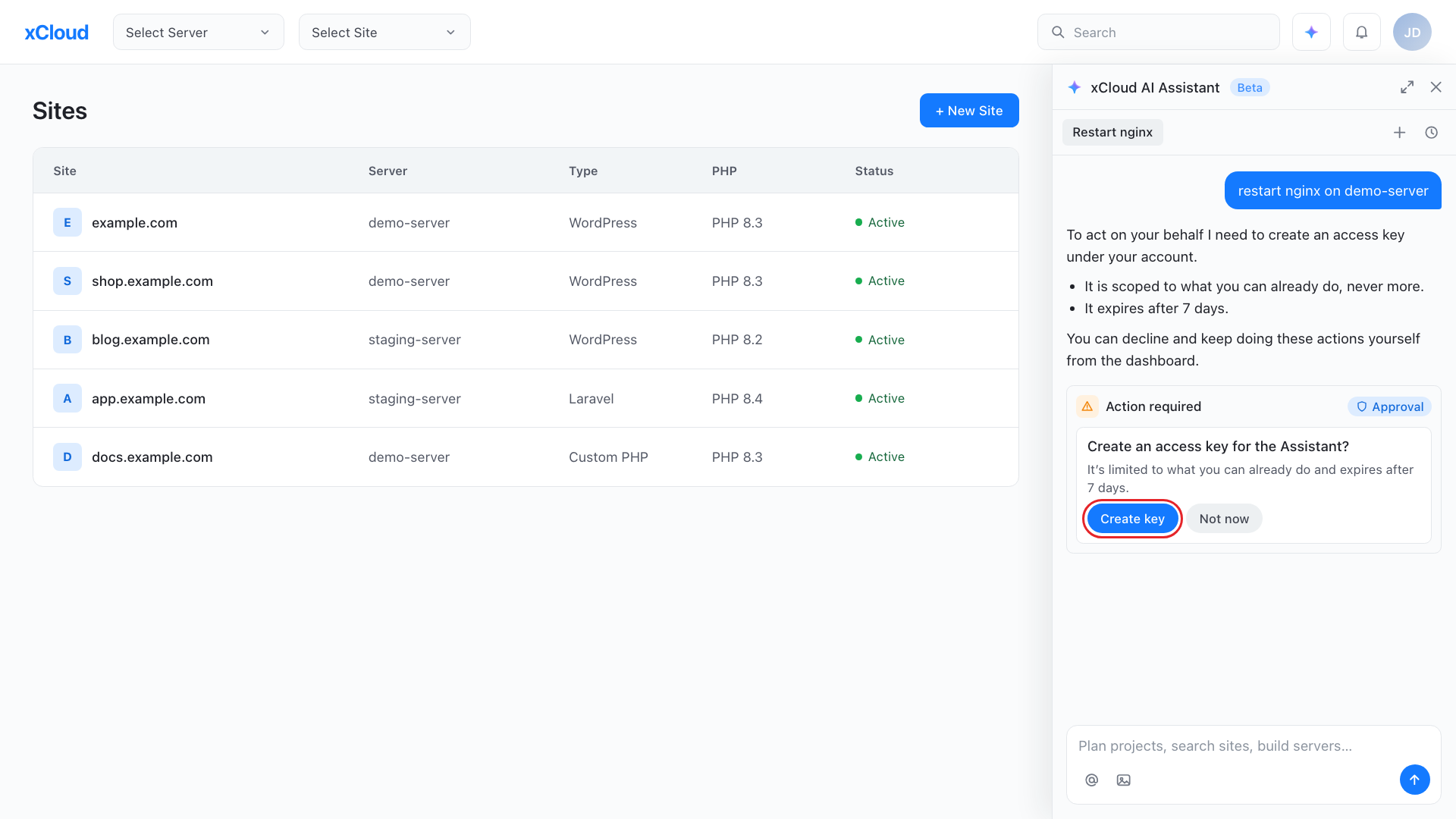
The access key is created once and renews on its own.
Step 4: Switch to Read & Write When You Want It to Make Changes
A new key starts at Read level, so the assistant can look things up without changing anything. To let it make changes, open My Profile, go to Developers → API Tokens and click Read & Write on the Assistant Access card. Confirm with Allow Read & Write.
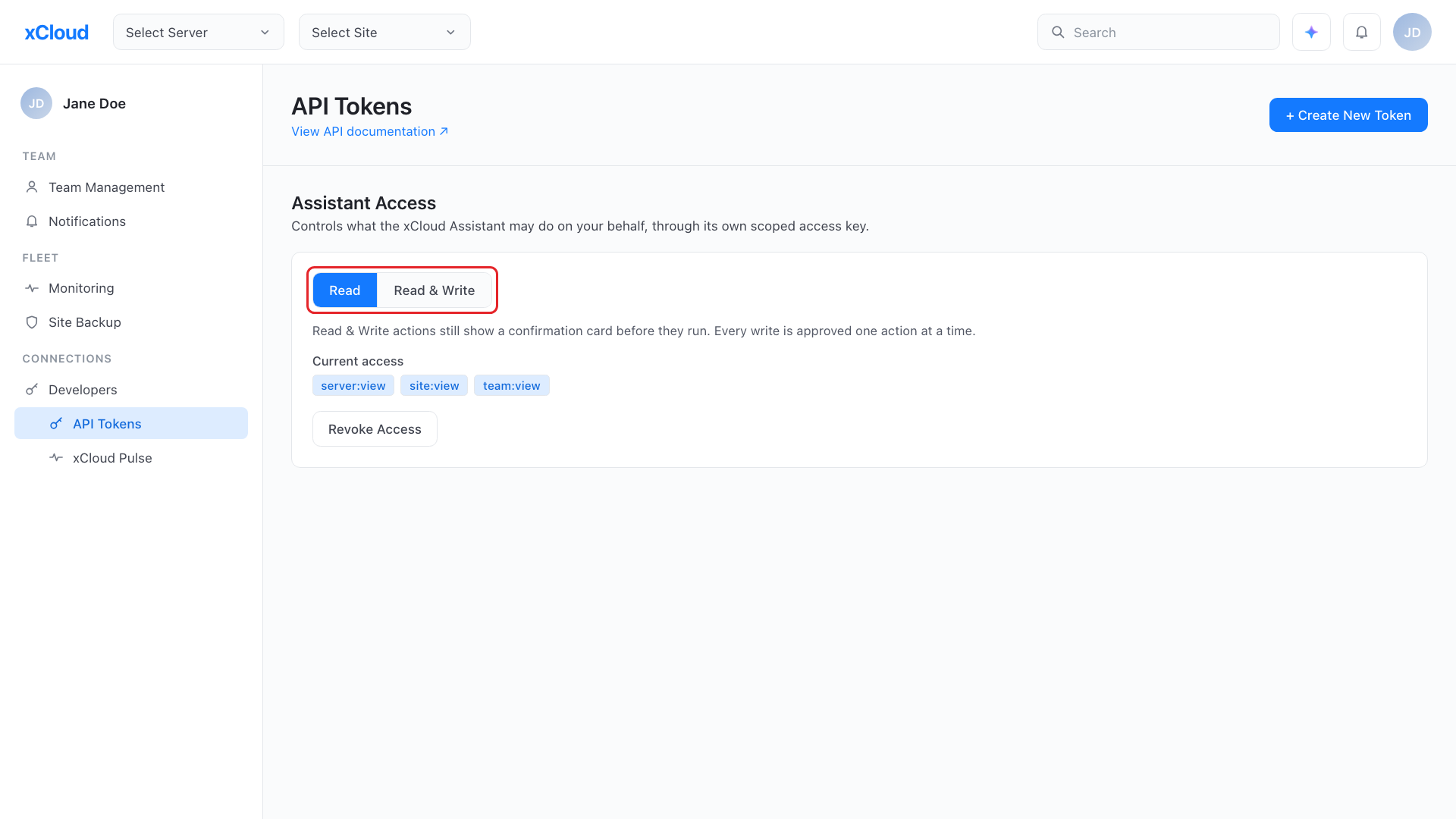
Read is for looking things up. Read & Write lets it make changes you approve.
Step 5: Approve the Change
Ask for a change, for example “Restart nginx on demo-server”. Review the server, service or site on the Action required card, then click Confirm to run it or Cancel to stop.
Step 6: Manage Your Conversations
Click New chat to start a fresh topic and Chat history to search, reopen or delete earlier conversations.
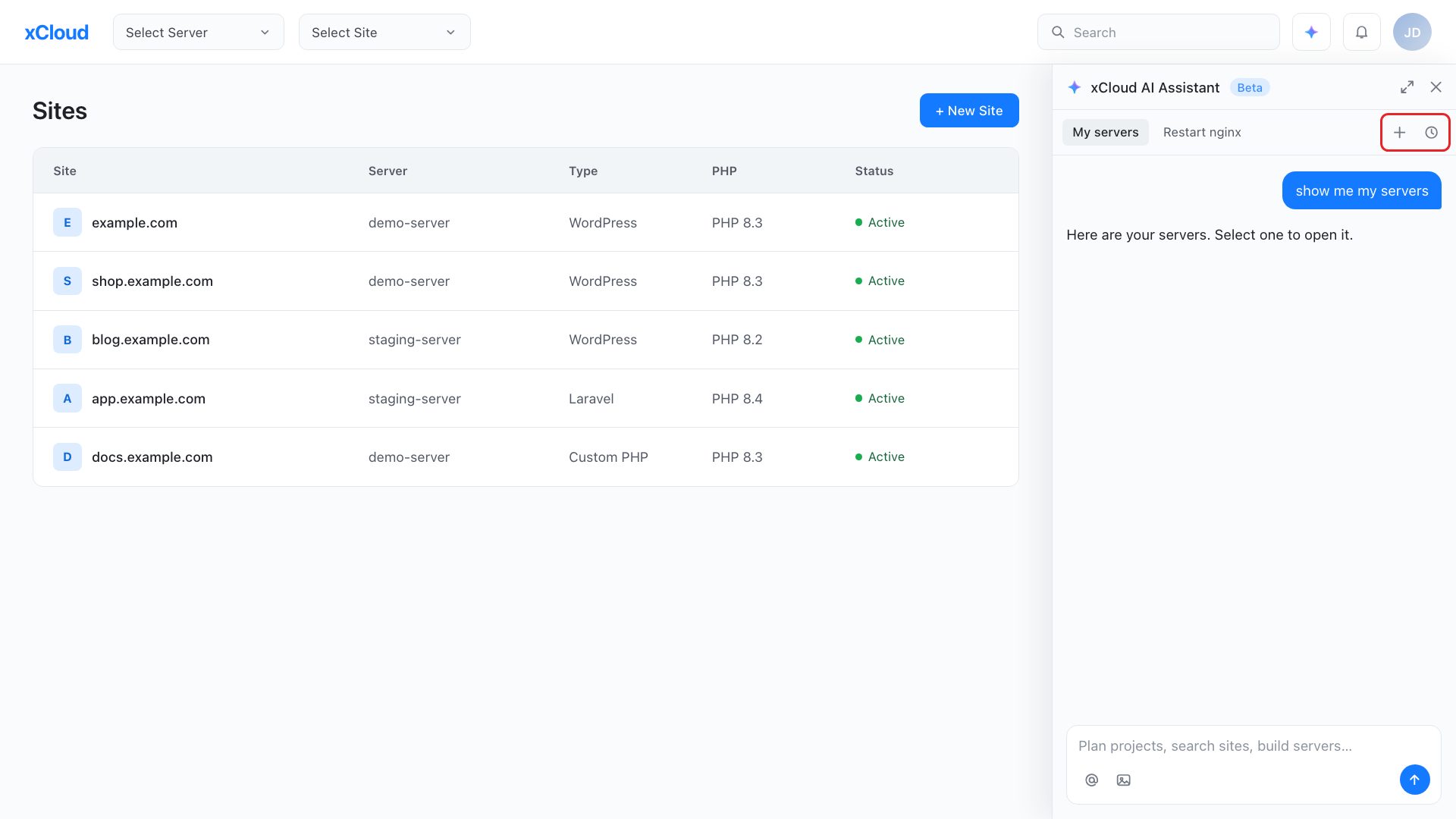
Keep each task in its own conversation so it is easy to find later.
How to Write a Prompt That Gets a Useful Answer
The assistant works best when your request is specific. A vague prompt gets a vague answer. Treat these as a starting point rather than a strict formula.
| Instead of this | Try this |
|---|---|
| “Fix my site.” | “@example.com loads slowly on mobile. What should I check first?” |
| “Check my server.” | “Diagnose @demo-server. Is anything using too much memory?” |
| “Update everything.” | “Which WordPress updates are available on @example.com?” |
A few habits help:
- Send one request at a time. Each message can be up to 1,000 characters, and two questions in one message blur the answer.
- Name the resource with @. It is faster than describing it and removes guesswork.
- Say what you already tried. Context saves a round of back and forth.
- Start a new chat for a new task. The assistant works from roughly the last 20 messages of a conversation.
Example: Asking About Site Performance
Here is how a typical session can go.
- Open the assistant from the top header while you are on the site’s page.
- Click Diagnose this site, or type “How can I improve my site performance?” and add the site with @.
- Read the findings: status, resource usage, logs and PageSpeed results.
- Ask a follow-up in the same conversation to dig into one suggestion.
- If you ask it to purge the cache or restart a service, review the Action required card and click Confirm.
For a deeper look at what moves the needle, our guides on optimizing website performance, speeding up WordPress sites and clearing website cache pair well with the assistant.
Safety & Good Habits
An assistant that lives next to your servers deserves careful use. Keep these rules close:
- Never include secrets. No passwords, access tokens, private keys or billing details in any message. When the assistant needs a sensitive value, it shows a hidden input instead.
- Read the card before you confirm. Check the server, service or site on every Action required card.
- Keep it at Read when you only need answers. You can switch back to Read, or click Revoke Access on the Assistant Access card, at any time.
- Keep your backups. Good habits still matter, and our web hosting security best practices are a useful checklist.
Try xCloud AI Assistant on Your Next Server Task
Your servers already run on xCloud, and the assistant is the quickest way to ask about them. If you are new to xCloud, see how managed hosting and WordPress hosting work, or browse all xCloud features.
Open the AI Assistant in your xCloud dashboard and send your first prompt today. The full walkthrough is in how to use xCloud AI Assistant.
Still feeling stuck? Contact our support team for assistance. And because this is a Beta, we would love to hear what worked, what did not and what you wish it could do next. That feedback shapes what we build.
If you have found this blog helpful, feel free to subscribe to our blogs for valuable tutorials, guides, knowledge, and tips on web hosting and server management. You can also join our Facebook community to share insights and engage in discussions.
Frequently asked questions
What is xCloud AI Assistant?
It is a built-in helper in your xCloud dashboard. You ask in plain words, and it checks your servers and sites, reads logs and answers billing questions. With Read & Write access it can also make changes, each one only after you confirm it. It is currently in Beta.
Who can use xCloud AI Assistant?
Every xCloud team. It is still labelled Beta while we keep improving it. If you do not see the AI Assistant icon in your dashboard header, reload the dashboard. If it is still missing, contact xCloud support.
Can the assistant change my servers without asking?
No. Every change shows an Action required card first, and nothing runs until you click Confirm. The assistant also works within your own team role, so it can never do more than you can.
How do I tell the assistant which server or site I mean?
Type @ in the message box and pick the server or site from the list. If you skip it, the assistant shows you a list to choose from when your request needs one.
Can my teammates see my conversations?
No. Your conversations are private to you. Chat history only shows the conversations you started, even when you share a team. Still, never paste passwords or other secrets into a message. When the assistant needs a sensitive value, it shows a hidden input instead.
How do I stop the assistant from making changes?
Go to My Profile, open API Tokens and click Read on the Assistant Access card to block all changes, or click Revoke Access to remove its access key completely.
Last updated October 22, 2026
← All articles