

How to Access Built-in Support Portal in xCloud
Updated October 19, 2026 · 4 min read
xCloud’s new Support Portal makes it easier for you to manage and track your technical issues. Unlike the previous portal, the new system gives you a single dashboard to view tickets, create new ones, and communicate directly with the support team.
This new Support Portal helps you save time, reduce confusion, and manage your support activity in one central place. Let’s learn how to use the new xCloud support portal, follow updates, and keep all your support activity organized in one place.
How to Access Previous Support Tickets
All new support tickets are created in the built-in xCloud Support Portal. Tickets from the old portal (support.xcloud.host) are being brought into the new portal, and old ticket links are being redirected to the same ticket inside xCloud. If an old ticket link cannot be matched, you are taken to All Tickets. If you cannot find an older ticket there, contact support.
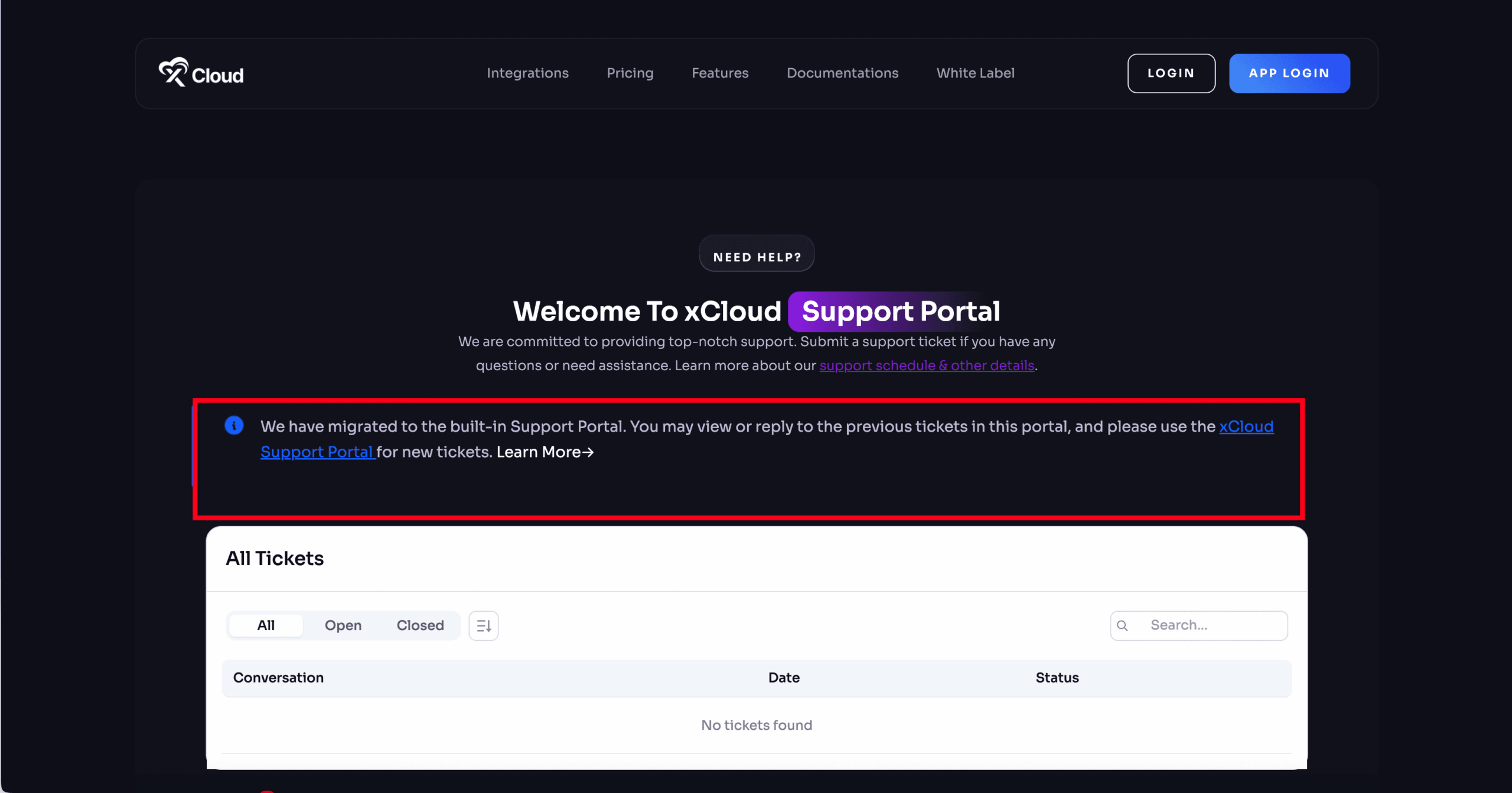
To see your tickets, open the Support Portal. Create every new ticket there.
Step 1: Accessing the Support Portal
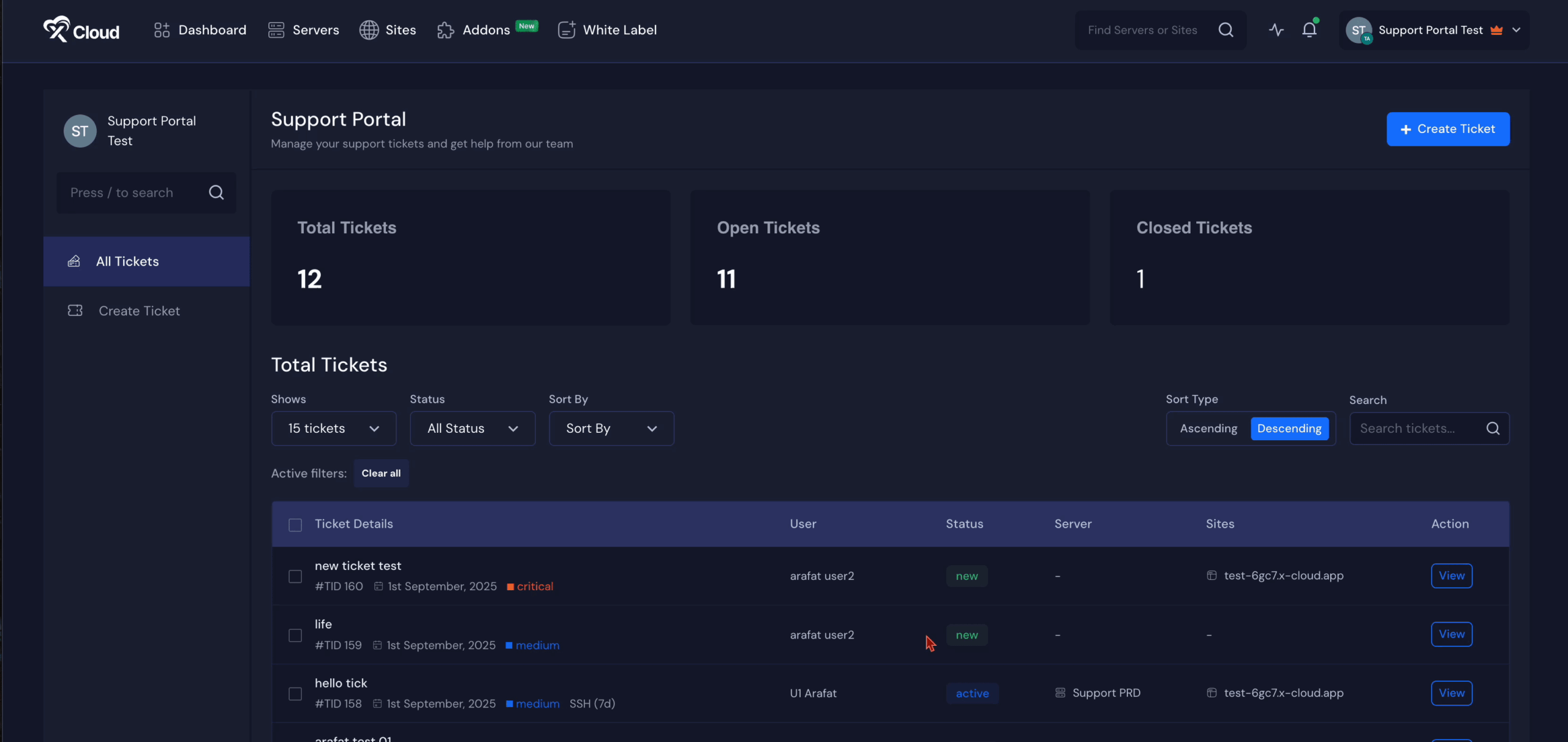
To access the support portal, go to the top menu and select the ‘Support’ option. Once you click it, you will be redirected to the ‘All Tickets’ page.
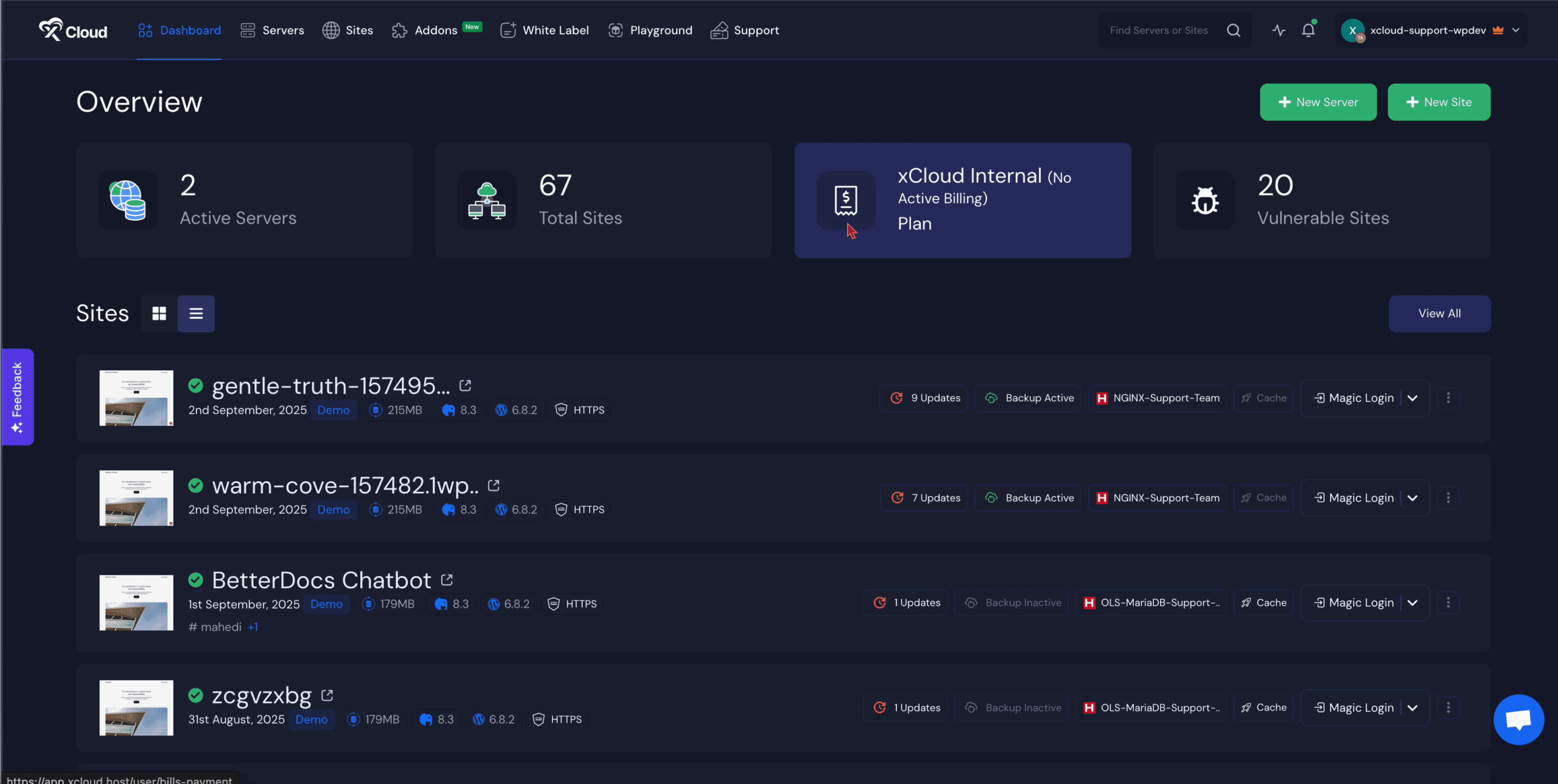
On this page, you will see an overview of your tickets, including ‘Total Tickets’, ‘Open Tickets’, and ‘Closed Tickets’. This section gives you a quick view of your overall ticket activity.
The Support sidebar also has Access Code (your team’s support access code), Book a Meeting (schedule a call with our hosting experts), and Live Chat when chat is available.
If the portal is under maintenance, a notice appears and creating tickets and sending replies are paused. Your existing tickets stay visible.
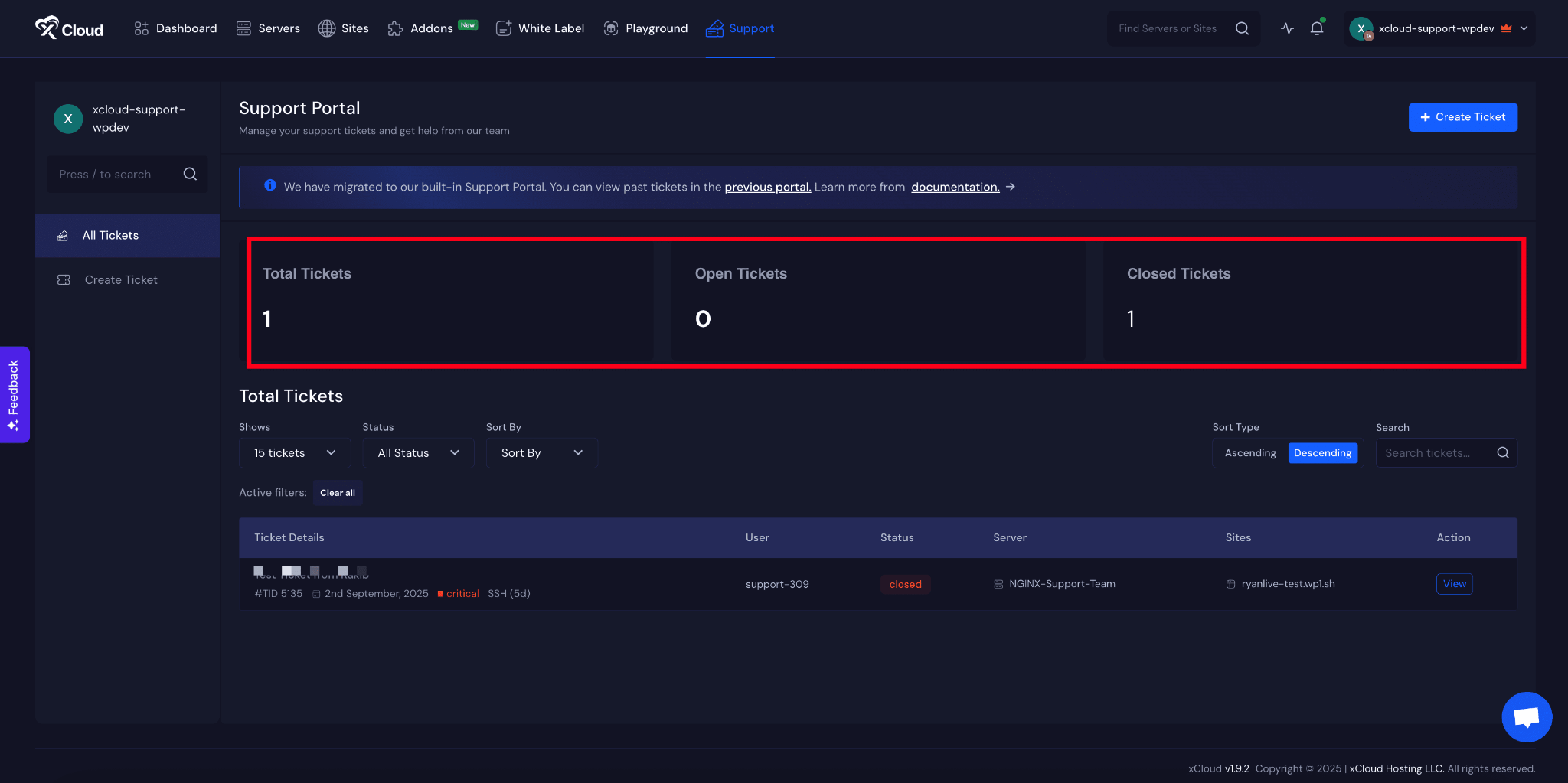
Step 2: Viewing Ticket Details
To make navigation easier, you can filter tickets using different options such as ‘Shows’, ‘Status’, ‘All Status’, ‘Sort By’, and ‘Sort Type’ which allows you to organize tickets in either ascending or descending order. There is also a ‘Search’ field that allows you to quickly find tickets based on your preferences.
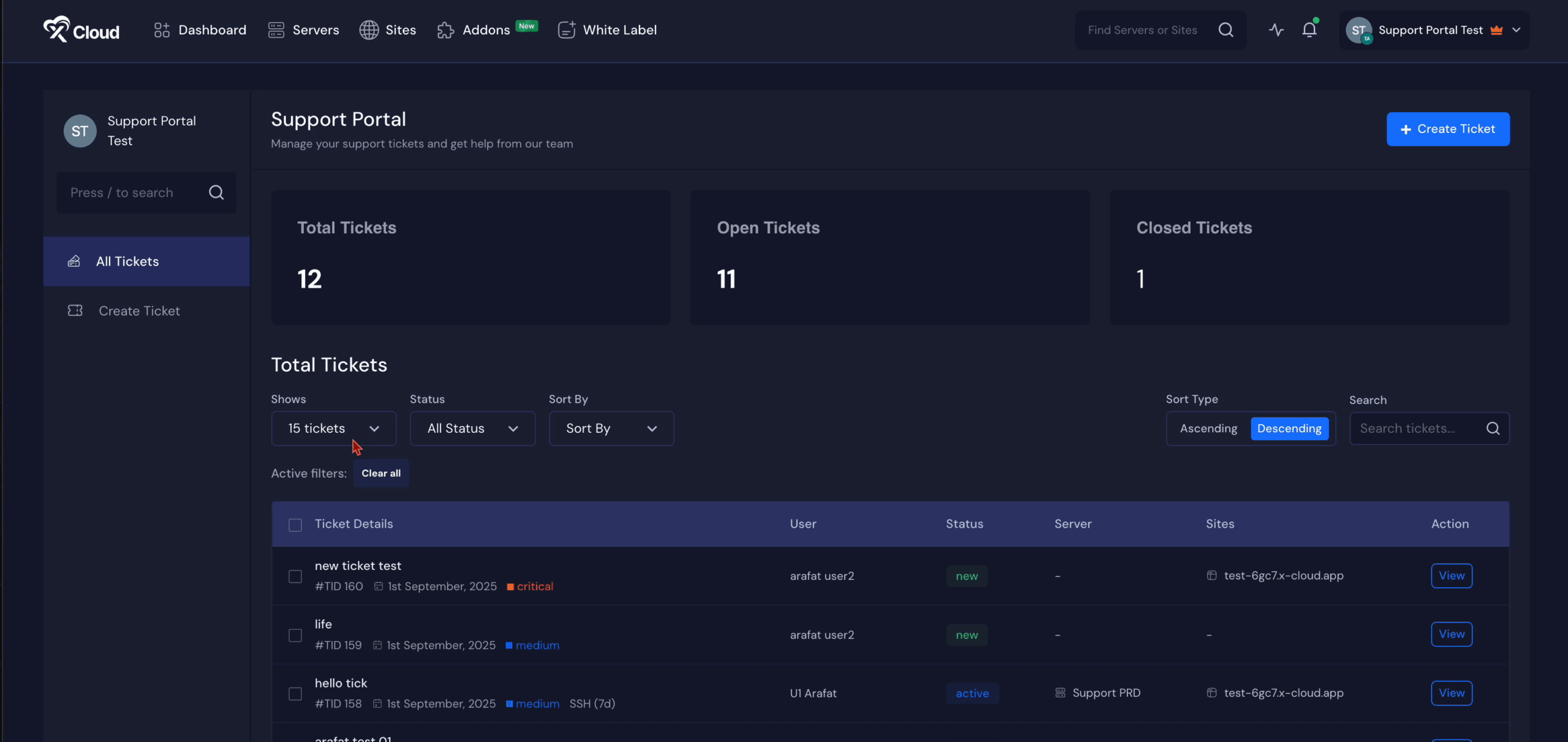
In the ‘Total Tickets’ section, you can view the important information about each ticket. This includes the ‘Ticket Details’, the ‘User’ who created it, the current ‘Status’, the related ‘Server’, the ‘Sites’, and the available ‘Action’ options. From here, you can check any tickets by clicking on the ‘View’ button.
Step 3: Creating a Ticket
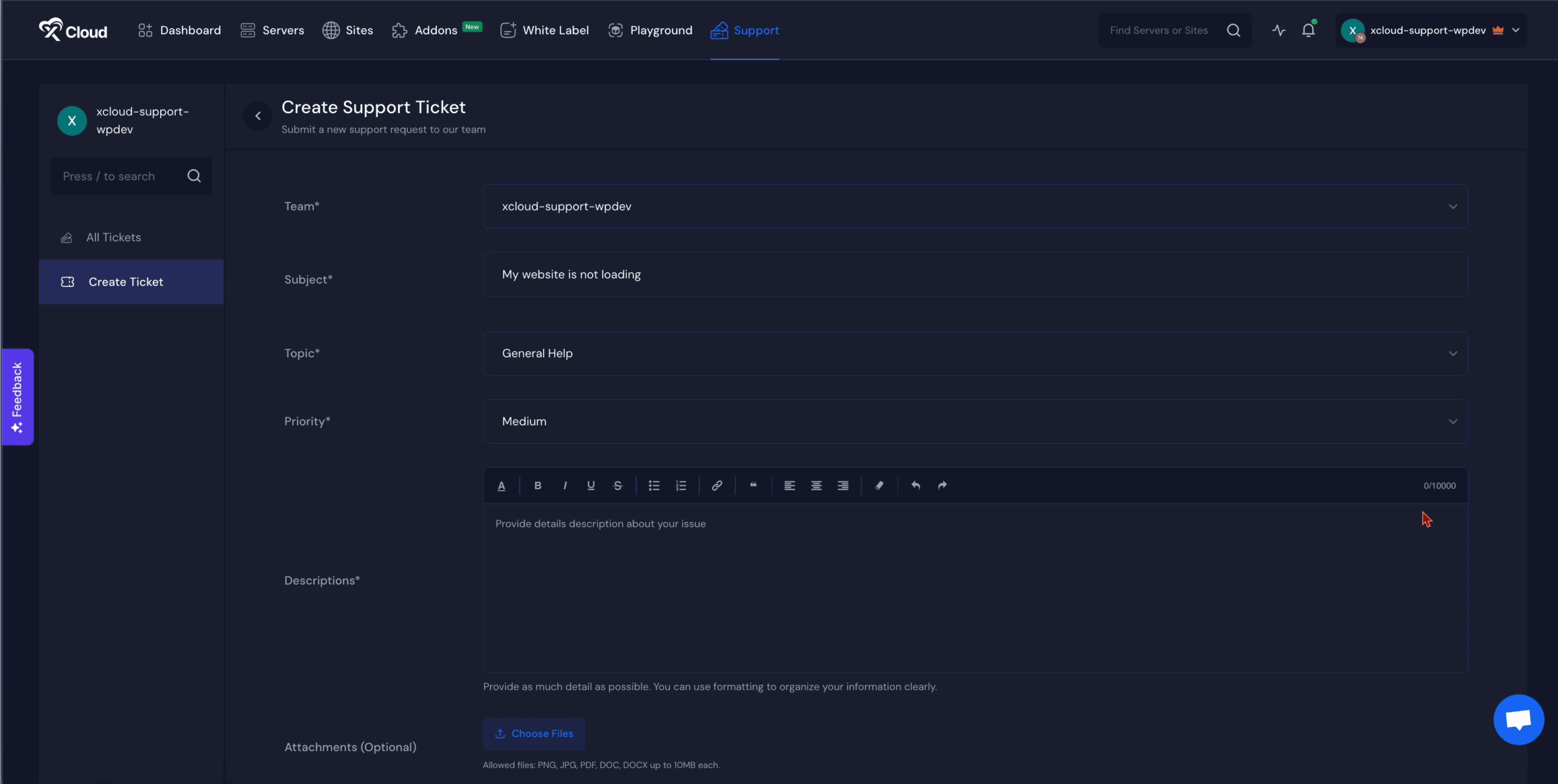
If you want to create a new ticket, you can click on the ‘Create Ticket’ button located at the top of the dashboard or use the same option from the sidebar. Once there, you need to select the ‘Team’ from the dropdown list and provide the ‘Subject’ of your ticket in the designated field.
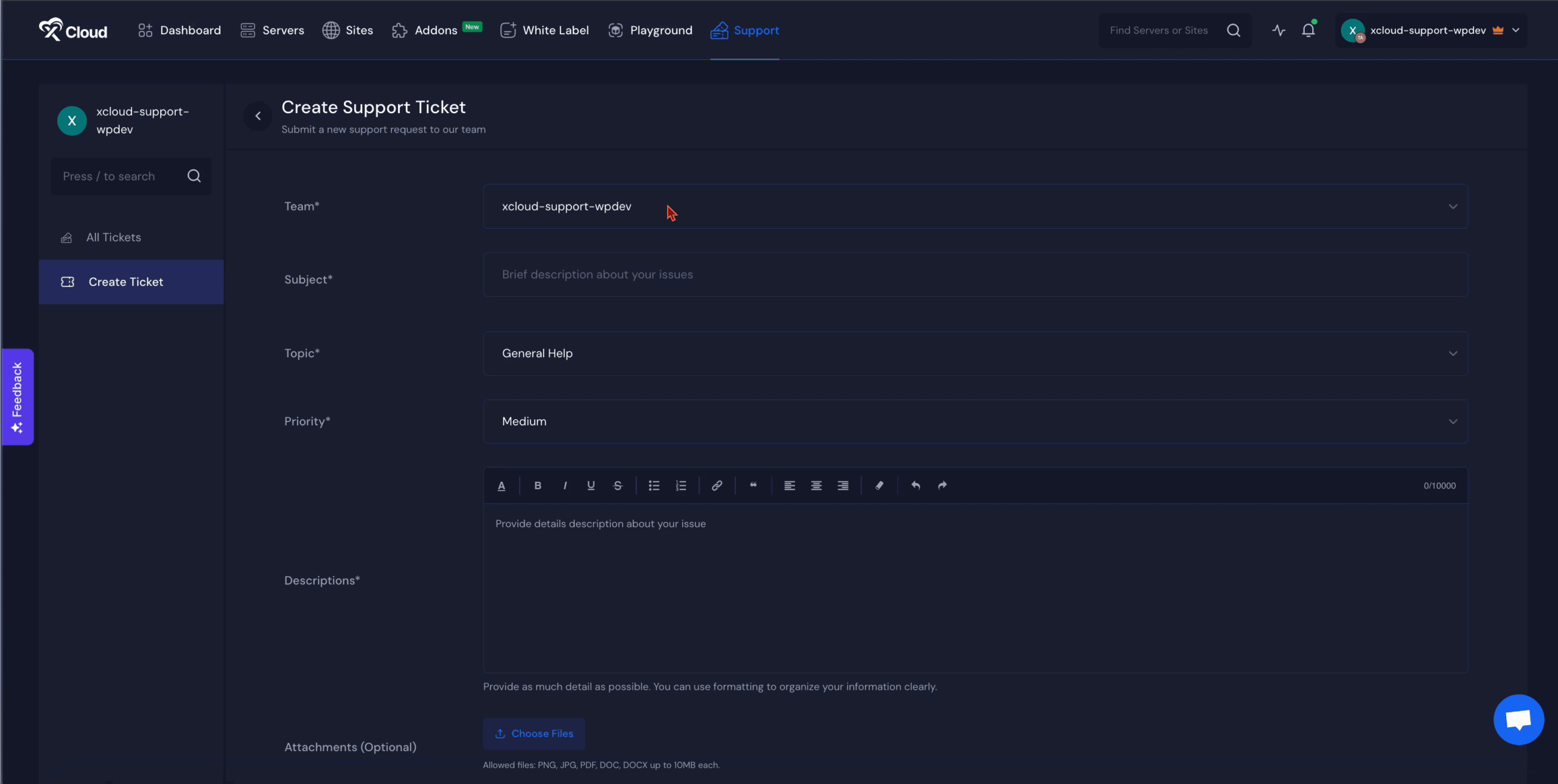
After that, choose the most suitable ‘Topic’ (General Help, Technical Support, Billing, Free Migration, or Sales/Others) and answer ‘How urgent is this?’ (Normal, Medium, or Critical). As you type the subject, xCloud suggests an AI answer and related docs that may solve the issue right away. You should then provide a brief but clear explanation in the ‘Descriptions’ field so the support team understands the problem.
If you choose Free Migration, the form also asks for the number of sites, your hosting type, whether you want to migrate more, and your xCloud server IP.
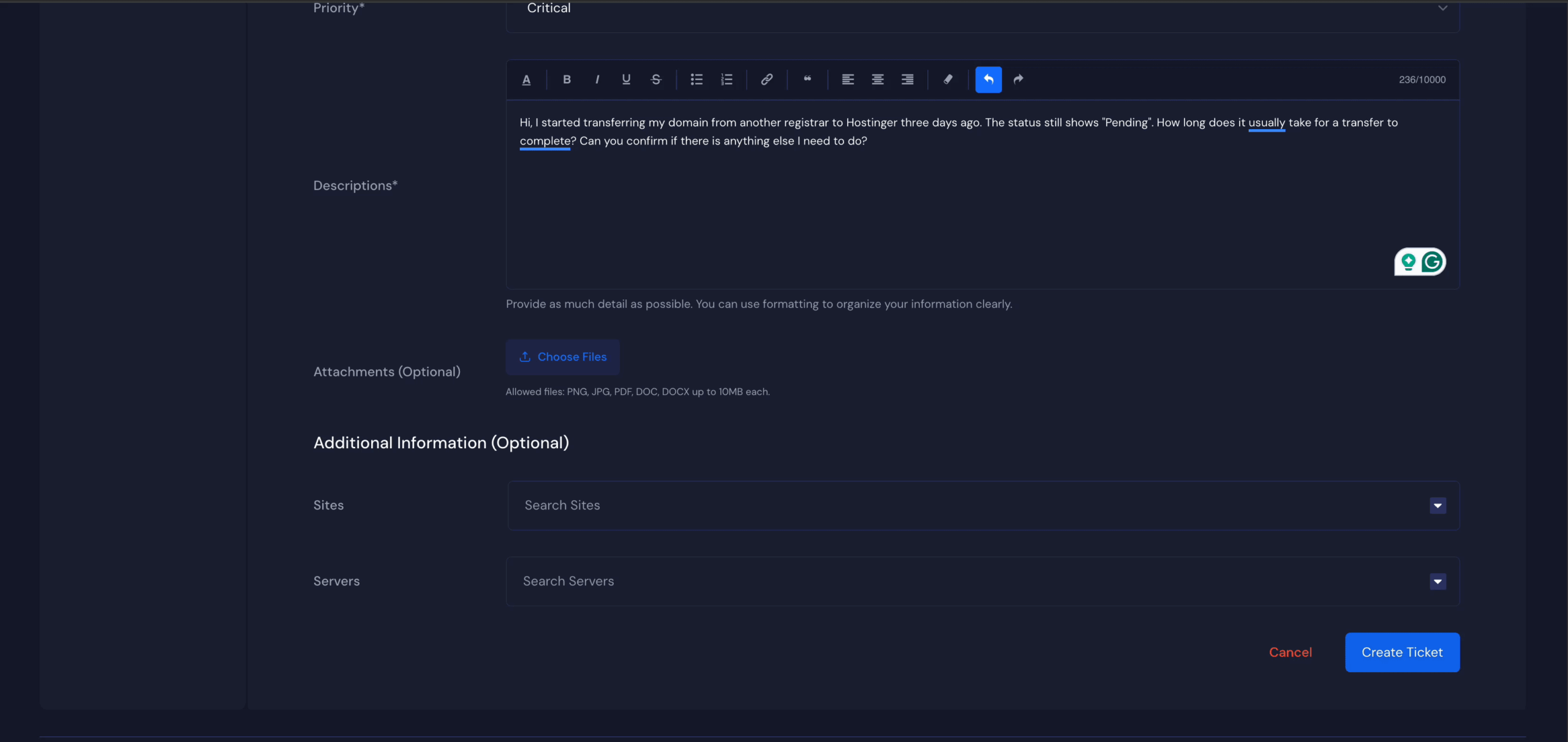
In addition to text, you can upload up to 10 supporting files in the ‘Attachments’ section: PNG, JPG, PDF, DOC, or DOCX, up to 10 MB each. In the ‘Additional Information’ section, you can specify the related ‘Servers’ or ‘Sites’ that are connected to the issue.
After you select a site or server, you can turn on Allow Magic Login for Support and Allow SSH Access for Support. The Support access validity field is always shown. Set it to the number of days (0 to 30, default 30) support may reach your servers and sites. xCloud creates a support access code for that period, and 0 grants no access. See How to Grant and Revoke xCloud Support Access. Once all the required fields are completed, click on the ‘Create Ticket’ button to submit it.
Step 4: After Ticket Creation
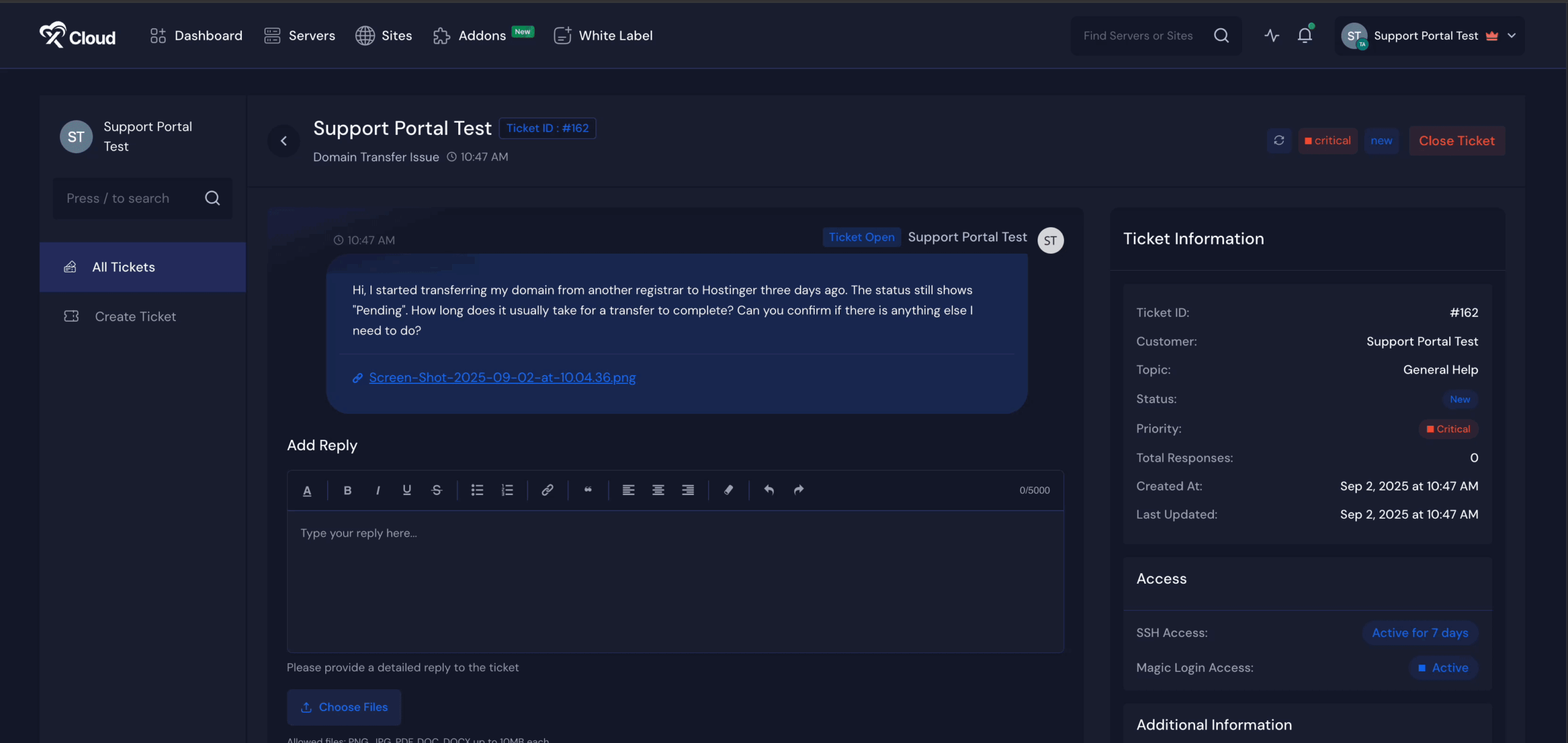
Once your ticket is created, it will appear instantly in the system. You will be able to see replies from the xCloud support team whenever they respond. You can also continue the conversation by replying to the ticket, making it easy to track the progress of your request.
From the ticket page you can close or reopen the ticket. Use Edit (also in the ticket list) to change Magic Login, SSH access, and access validity at any time, or Extend Access to give support more days. Tickets the support team opened for you are marked Opened by Support.
Give Role Permission to Team Member
If you want to give one of your team members access to the xCloud Support portal and allow them to manage tickets, go to the team settings. Change the role, scroll to the end of the role permissions dashboard, and find the Support option. Then, assign the permissions according to your preference. The Support permissions are separate: view (tickets and the access code), create, reply, close, reopen, and manage. Anyone who can create a ticket grants support access through its validity field. Only a team admin with the manage permission can later Edit or Extend Access on a ticket.
The xCloud Support Portal is designed to make support easier and more efficient for you. By using the options to view, filter, and create tickets, you can clearly present your issues and get timely assistance.
Once your ticket is created, you can follow up and respond just like a conversation, ensuring smooth communication until your issue is resolved.
Frequently Asked Questions
1. How can I view my old tickets? Open All Tickets in the xCloud Support Portal. Old tickets are being brought into the new portal. If one is missing, contact support.
**2. Where can I create new tickets?**You can create new tickets only in the new xCloud Support Portal. Use the ‘Create Ticket’ button on the dashboard or sidebar to submit a new issue.
3. Do I need to migrate old tickets to the new portal? No. You do not need to do anything. If an older ticket you need is not in All Tickets, contact support.
**4. Can I provide access to my team members to see my tickets and manage them?
**Yes, you can provide access to your team members so they can view and manage your tickets.
Still stuck? Contact our support team for any of your queries.