


Coolify vs Dokploy comes down to three things: licensing, backups and updates. Coolify is Apache 2.0 and can update itself automatically. Dokploy runs on Docker Swarm, has build servers and Swarm clusters, and puts some code under a source-available license. Both are free to self-host and both need about 2 GB of RAM.
You have a VPS, a handful of apps and a growing dislike of Heroku-style bills. Two self-hosted dashboards keep coming up: Coolify and Dokploy. Both deploy apps from Git to your own server. If you are still new to containers, start with what Docker is and come back.
Neither one is universally better. The differences show up when something breaks, needs an update or has to be restored.
This guide compares both from their own documentation and GitHub pages, checked on 30 October 2026 and rechecked on 2 November 2026. We did not install or run either tool for this post, so nothing here is a test result. It ends with the path for people who would rather not run a PaaS at all.
TL;DR: Coolify vs Dokploy in a Few Lines
- Coolify optimizes for breadth: more Linux distributions, automatic self-updates and a plain Apache 2.0 license.
- Dokploy optimizes for Swarm: Docker Swarm out of the box, separate build servers, and remote servers that only need Traefik.
- It’s a tie on RAM: both ask for 2 GB. Coolify needs less disk (10 GB vs 30 GB).
- Backups differ more than features do: Coolify can’t restore file archives from the dashboard; Dokploy’s volume backups cover named volumes only, not bind mounts.
- Licensing is not the same: Dokploy’s
/proprietaryfolders need a commercial agreement for production use. - Coolify Cloud is cheaper from two servers up: $5/month for two, against $9/month on Dokploy’s hosted Hobby plan (as of October 2026).
- Both leave you as the sysadmin. If you want less of that work, a hosted panel like xCloud is the third option, and which jobs move depends on the plan.
Coolify vs Dokploy at a Glance
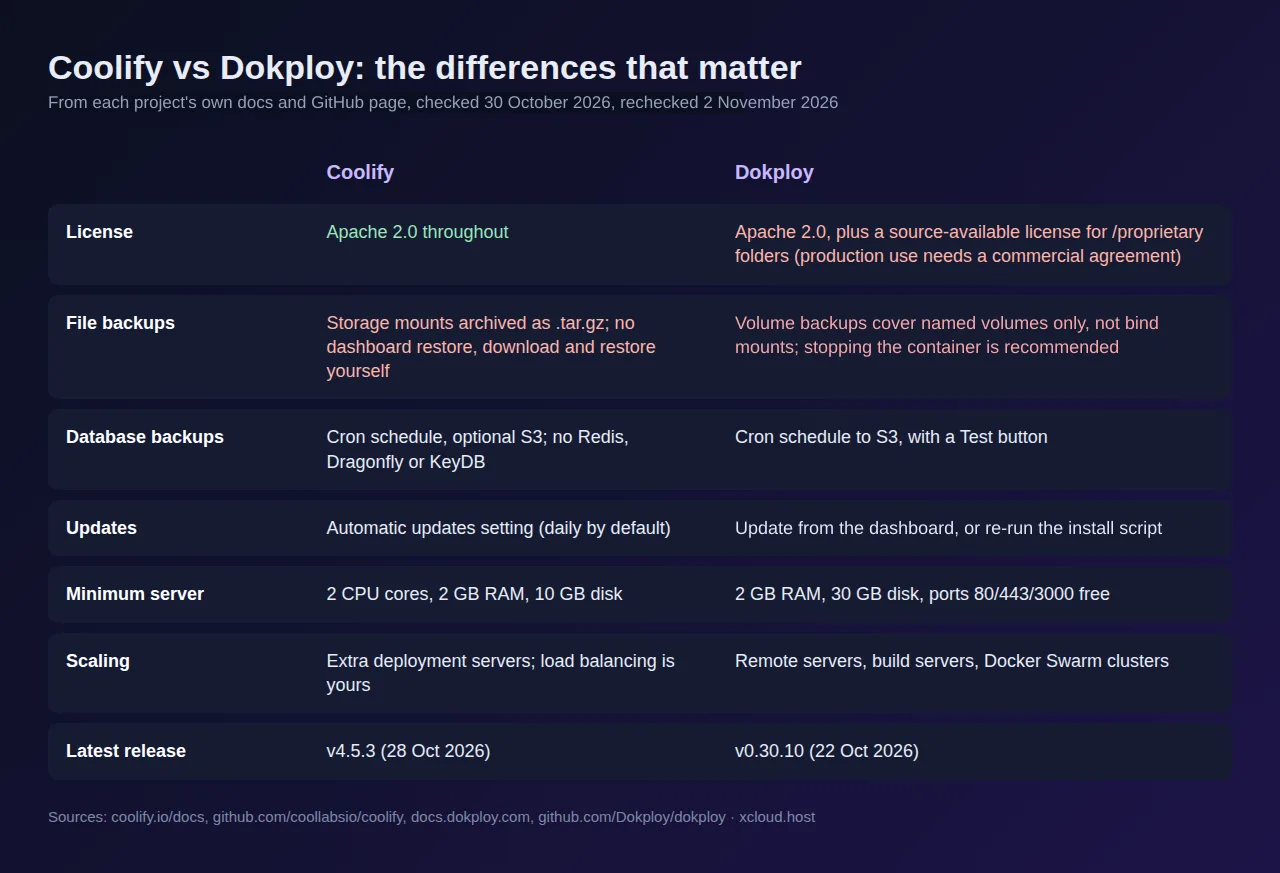
Every row below comes from the vendor’s own docs, site or GitHub page, opened on 30 October 2026 and rechecked on 2 November 2026.
| Factor | Coolify | Dokploy |
|---|---|---|
| License | Apache 2.0 | Apache 2.0, plus a source-available license for /proprietary folders |
| Latest release (as of November 2026) | v4.6.0, 2 November 2026 (GitHub releases) | v0.30.10, 22 October 2026 (GitHub releases) |
| Minimum server | 2 CPU cores, 2 GB RAM, 10 GB disk | 2 GB RAM, 30 GB disk (no CPU minimum stated) |
| Supported OS (as of October 2026) | Debian, Ubuntu, Red Hat-based, SUSE, Arch, Alpine, Raspberry Pi OS 64-bit (install docs) | Tested on Ubuntu 18.04–24.04, Debian 10–12, Fedora 40, CentOS 8–9 (install docs) |
| Dashboard port | 8000 | 3000 (80 and 443 must also be free) |
| Build and deploy options | Build: Nixpacks, Railpack (beta), static, Dockerfile, Docker Compose. Deploy: also a prebuilt image | Build: Nixpacks, Railpack, Heroku and Paketo Buildpacks, Dockerfile, static. Deploy: also Docker Compose stacks |
| Reverse proxy | Traefik by default, Caddy optional | Traefik |
| One-click services | More than 360 (README, as of November 2026) | 500+ (templates site, as of November 2026) |
| Multiple servers | Yes, add deployment servers; load balancing is yours to set up | Yes, remote servers, build servers and Swarm clusters |
| Pull-request previews | Yes | Yes, with GitHub integration (off by default) |
| Self-updates | Automatic updates setting (update frequency defaults to daily, around midnight) | Start it from the dashboard’s Web Server Update dialog, or re-run the install script with update. We found no automatic install setting |
| Hosted dashboard | Coolify Cloud, $5/mo for 2 servers, +$3 per extra server (as of October 2026) | Dokploy’s hosted Hobby plan, $4.50/mo per server (as of October 2026) |
If you only remember one line: Coolify updates itself under one license, Dokploy is built around Swarm, and both make you the person on call.
What Is Coolify?
Coolify describes itself as an open-source, self-hostable alternative to Heroku, Netlify and Vercel. You install it with one script, open the dashboard on port 8000, and deploy apps from GitHub, GitLab, Bitbucket or Gitea.
It is licensed under Apache 2.0 and its README says “Open source & free forever”. Coolify Cloud is a dashboard hosted by the Coolify team, while your apps still run on your own servers.
How Coolify works
One server runs the Coolify dashboard. Apps can run on that server or on extra servers you connect over SSH. Traefik routes traffic to each app and requests SSL certificates; you can switch to Caddy, though Coolify’s proxy docs call Traefik the “Best documented path for most Coolify installations” and Caddy “Currently less documented than Traefik in Coolify”.
The common misconception is that adding a second server spreads traffic. It does not. Coolify’s multi-server docs say adding deployment servers “does not distribute traffic by itself”; you need your own load balancer.
What Is Dokploy?
Dokploy is a free, self-hostable PaaS with the same goal: deploy apps and Docker Compose stacks from Git without writing deployment scripts. Its installer sets up Docker Swarm on the server, then runs Traefik and the dashboard on port 3000.
As of October 2026, it is still on 0.x version numbers, and its Enterprise plan adds SSO, audit logs and white labeling.
How Dokploy works
Dokploy splits servers into roles. A remote server runs only a Traefik instance plus your apps, and Dokploy’s remote server docs say (as of October 2026) the dashboard uses around 250 MB of RAM when you only deploy to remote servers. A build server compiles images and pushes them to a registry, then runs nothing itself.
The catch worth knowing: its build server docs say build servers work for applications only, not for Docker Compose stacks. The same remote server docs say remote server monitoring is not supported.
Coolify vs Dokploy: The 6 Differences That Actually Matter
1. Licensing
This is the sharpest dividing line. Coolify’s repository is Apache 2.0, full stop.
Dokploy uses a split license. Everything outside /proprietary folders is Apache 2.0; anything inside them falls under the Dokploy Source Available license (DSAL). As of October 2026, its license file says that code “may only be used in production, if you (and any entity that you represent) have agreed to” a valid commercial agreement from Dokploy, and that “you may copy and modify the Software for development and testing purposes, without requiring a subscription.”
Rule of thumb: if you plan to resell hosting or build a product on top, read Dokploy’s proprietary license file before you commit. Check which features you need sit outside the /proprietary folders.
2. Backups and restores
Coolify backs up databases (PostgreSQL, MySQL, MariaDB, MongoDB, ClickHouse, SQLite) on a cron schedule, with optional S3 copies. Redis, Dragonfly and KeyDB are not supported for backups.
Coolify also archives storage mounts as .tar.gz files. Its own storage backup docs say Coolify “does not restore storage archives from this page”: you download the file and restore it yourself.
Dokploy backs up databases to S3 on a cron schedule, with a Test button to try the bucket. Its volume backups cover Docker named volumes only, not bind mounts. Dokploy recommends stopping the container during the backup to avoid corrupted data, but leaves it optional. To restore, you enter a target volume name that does not already exist, and the containers that use it must be stopped first.
When a Docker app has stored data, xCloud stops it before the backup, copies the volumes and eligible bind mounts, then starts it again. Bind mounts on system paths are skipped. For apps deployed from Git, files tracked in your repository stay in Git and are not in the backup. A scheduled backup to a second destination reuses a copy taken in the last two hours, so the app stops only once. If the app can’t be stopped, the backup fails rather than copying data that is still changing. The upload to remote storage happens after the app is back up, so a slow upload does not add downtime. If an xCloud restore fails partway, the app stays stopped rather than starting on half-written data.
Rule of thumb: whichever you pick, run a full restore once before you trust it. Our guide to website backup mistakes covers why.
3. Updates
Coolify has an Automatic updates setting that installs new versions on a schedule. Going by its update docs and source code, the default update frequency is daily, around midnight. The docs do not say whether the setting starts on. As of November 2026, its source code starts it on, unless the AUTOUPDATE environment variable says otherwise. You can also update by hand with Upgrade Now under Settings > Updates. Its docs suggest an instance backup before each update, and the manual upgrade script takes an explicit version number.
Dokploy’s docs give a manual update command: re-run the install script with update. Its dashboard code (v0.30.10) also has a Web Server Update dialog that checks for a new version and lets you start the update, with a switch for Automatically check for new updates. We found no automatic install setting in the docs or that dialog, so as far as we can tell you choose the moment.
Rule of thumb: Coolify ships often (its GitHub releases page shows five releases, v4.5.0 to v4.6.0, between 23 October and 2 November 2026), so check whether Automatic updates is on, and leave it on only if you have backups you have tested.
4. Multi-server and scaling
Both manage more than one server from one dashboard. Coolify lets you run the same app on a primary server and extra standalone servers, but traffic splitting is up to you.
Dokploy goes further on paper with Docker Swarm clusters and separate build servers, so heavy builds stop slowing down the server that serves your visitors. Swarm also adds another layer to debug.
5. Server requirements and footprint
Both ask for 2 GB of RAM. Coolify also asks for 2 CPU cores and 10 GB of free disk and runs on amd64 or arm64. Dokploy asks for 30 GB of disk and fails to install if ports 80, 443 or 3000 are taken.
Other articles quote idle figures without versions or a method, so we left them out. We did not measure either tool. Our VPS providers compared post helps you pick a server to measure on.
6. App catalog and build options
As of November 2026, Coolify’s README lists more than 360 one-click services, its build options include Railpack (beta), and it can also deploy a prebuilt image. Dokploy’s templates site says 500+ open source apps, and Dokploy also offers Heroku and Paketo Buildpacks, which helps if you are moving an old Heroku app. Both figures are each project’s own, and we did not count the entries.
Rule of thumb: check that the two or three apps you actually need exist in each catalog. The size of the list matters less than whether your apps are on it.
What Our Own Docker Backup Reports Taught Us
xCloud runs Docker app backups too, so we see how they go wrong. We did not time a backup or a restore for this post. What we can share is three problems reported against xCloud’s own Docker backups in September and October 2026, with no customer details. All three are fixed in the current release, and each one suggests a check worth running on Coolify or Dokploy.
| What went wrong on xCloud | What changed | Check it on your tool |
|---|---|---|
| Two Docker apps on one server came due at the same moment. Both installed our backup tool at once and left it broken, so every later backup on that server failed. | Installs now take turns, and each backup checks that the tool works and reinstalls it if not. | Give two apps on one server the same backup schedule and confirm both finish. |
| A customer who asked for 30 days of local backups had 3. Each remote backup also trimmed the local copies. The older ones still showed as completed, but restoring them failed. | A remote backup now keeps the local retention period you set. | With local and remote backups on, wait a week, count the copies and restore the oldest one listed. |
| One manual Backup Now quietly became a repeating schedule, while the settings screen showed automatic backups as off. Each run wrote to paid storage and stopped the app. | A manual backup no longer creates a schedule, and the screen shows what is really stored. | After a manual backup, look at your storage the next day for copies you did not ask for. |
We also fixed a fourth problem: a restore could report success while the app kept crashing, and it could bring the data back on a newer image than the one it was backed up from. An xCloud restore now puts back the image the backup recorded when it can (apps built from Git are rebuilt) and waits to see the containers keep running. On any tool, open the app after a restore instead of trusting the message.
Which One Fits Your Project?
| Project | Better fit | Why |
|---|---|---|
| A single VPS with a few side projects | Coolify | Automatic updates, smaller disk minimum |
| Heavy builds that slow down your live server | Dokploy | Separate build servers keep builds off production |
| A Swarm cluster across several machines | Dokploy | Swarm is set up by the installer |
| A strict open-source license requirement | Coolify | Apache 2.0 with no source-available folders |
| Heroku-style buildpack apps | Dokploy | Supports Heroku Buildpacks |
| A team that wants less server work | Neither | Look at a hosted panel or managed hosting (see below) |
Which One Should You Choose?
Choose Coolify if…
- ✅ You want a plain Apache 2.0 license
- ✅ You run one or two servers and like automatic updates
- ✅ Your server runs SUSE, Arch, Alpine or Raspberry Pi OS
Coolify is the simpler start if you want automatic updates and one license.
Choose Dokploy if…
- ✅ You want Docker Swarm without setting it up yourself
- ✅ You want builds to run on a separate machine
- ✅ You prefer to start updates yourself, on your schedule
- ✅ You have checked the license fits your use
Dokploy is the choice once you know you want Swarm.
Can You Run Coolify and Dokploy Together?
Not on the same server. Coolify’s proxy and Dokploy’s Traefik both serve traffic on ports 80 and 443, and Dokploy’s installation docs say the install fails if ports 80, 443 or 3000 are already in use.
The honest way to choose is to try both on two small VPSes, which we did not do for this post. We found no import tool in either project’s docs, so keep your apps in Git and your Compose files in the repository; switching later is then a redeploy plus a data restore.
If You Don’t Want to Run a PaaS at All
Both tools still leave you with the server: OS patches, disk space, Traefik and backups you have to test. A hosted control panel is the third path, and it takes over part of that work, not all of it.
This is where xCloud comes in. It is a hosted dashboard, not something you install, and it runs Docker apps on any xCloud NGINX server, next to WordPress, PHP, Laravel and Node.js sites. Which jobs move depends on the plan:
| xCloud plan | What moves to xCloud | What stays with you |
|---|---|---|
| Free plan: $0 for one server you already rent | Docker installation, domains and SSL from the dashboard | The server in your provider’s account and its bill, plus backups and server monitoring, which this plan does not include |
| Paid plan on a server you rent | The same, plus app backups with a dashboard restore and server monitoring | The server in your provider’s account and its bill |
| xCloud Managed hosting: paid, from $5 a month | xCloud provides and maintains the server, on one invoice | Your apps, and testing your restores |
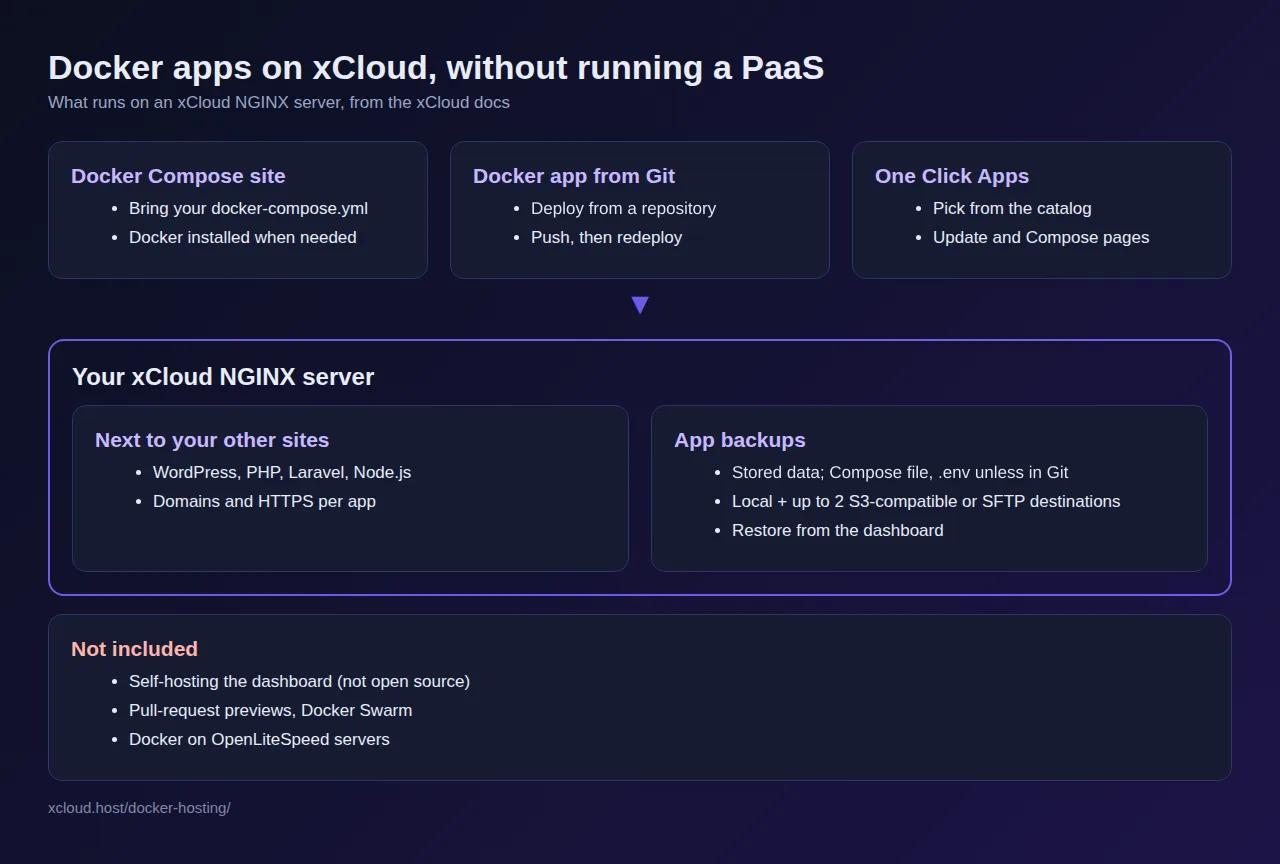
What xCloud does today
- Docker Compose sites: paste or link your
docker-compose.ymland xCloud installs Docker on the server when it needs it. 👉 Deploy custom Docker with xCloud - Docker apps from Git: deploy from a repository and redeploy when you push changes. Git deploys from private repositories need a paid plan. 👉 Deploy a Docker app from a Git repository
- One Click Apps: n8n, Umami, Vaultwarden and more from the One Click Apps catalog, with a Compose page to edit the app’s
docker-compose.yml. 👉 Update a One Click App and edit its Compose file - App backups with a dashboard restore (on paid plans): Your app’s volumes and eligible bind mounts, with its Compose file and
.env, go into an encrypted backup, kept locally and on up to two S3-compatible or SFTP destinations. For apps deployed from Git, files tracked in your repository stay in Git and are not in the backup. Restore is a menu item. 👉 Back up and restore Docker apps - A free plan: a $0 control panel for one server you already rent, with up to 10 sites. Backups need a paid plan. Git deploys from private repositories need a paid plan. 👉 xCloud free plan
What xCloud does not do
- It is not open source and you cannot self-host the dashboard, unlike Coolify and Dokploy.
- No pull-request preview deployments, no Docker Swarm and no multi-server deploy of one app.
- Docker runs on NGINX servers only; OpenLiteSpeed servers cannot run Docker apps.
- xCloud does not keep earlier versions of an edited Compose file, so keep your own copy before you edit.
- Past the free server, xCloud is a paid plan, while self-hosted Coolify and Dokploy cost nothing beyond the server.
For a side-by-side with each tool, see xCloud vs Coolify and xCloud vs Dokploy, and pricing for the plans.
Want Docker apps without running the PaaS yourself? Start on xCloud Docker hosting and connect your first server.
Pick Your PaaS This Week, Then Test a Restore
If you want one free, Apache-licensed dashboard on one or two servers, install Coolify. If you want Swarm and separate build machines, and the license fits, install Dokploy. If you want less of that job, use a hosted panel, or xCloud Managed hosting if you also want the server looked after.
Whichever you choose, do two things this week: put every app’s config in Git, and restore one backup to a fresh volume. That single test tells you more than any feature table, this one included. For the bigger picture, our self-managed vs managed hosting guide and the best Docker hosting providers list are good next reads.
If you have found this blog helpful, feel free to subscribe to our blogs for valuable tutorials, guides, knowledge, and tips on web hosting and server management. You can also join our Facebook community to share insights and engage in discussions.
Sources (opened 30 October 2026, rechecked 2 November 2026)
- Coolify: installation, pricing, storage backups, database backups, proxy, multi-server and update pages on
coolify.io/docs, plus thecoollabsio/coolifyGitHub repository (including the database migration that sets the default for automatic updates) and releases. - Dokploy: installation, database backups, volume backups, remote servers and build server pages on
docs.dokploy.com, thedokploy.com/pricingpage, thetemplates.dokploy.comsite, plus theDokploy/dokployGitHub repository (including the update dialog at v0.30.10), its license files and releases. - xCloud: the backup and restore code in the current release (read on 2 November 2026) and our fixed reports for the behaviour described above. To use the feature, see Back up and restore Docker apps.
Frequently Asked Questions
Is Dokploy open source?
Mostly. As of October 2026, code outside the /proprietary folders is under Apache 2.0. Code inside them is under the Dokploy Source Available license (DSAL), whose license file says that code may only be used in production with a valid commercial agreement from Dokploy. Coolify is Apache 2.0 throughout.
Is Coolify or Dokploy free?
Both are free to self-host on your own server. You still pay for the server, and both sell an optional hosted dashboard. As of October 2026, Coolify Cloud starts at $5 a month for two servers and Dokploy’s hosted Hobby plan costs $4.50 a month per server.
Which one uses fewer resources, Coolify or Dokploy?
Their own minimums are close: both ask for 2 GB of RAM. Coolify also asks for 2 CPU cores and 10 GB of disk, Dokploy for 30 GB of disk. Other articles quote idle figures without versions or a method, so we left them out. We did not measure either tool.
Can Coolify and Dokploy run Docker Compose files?
Yes. Both deploy Docker Compose stacks as well as single apps from Git, a Dockerfile or a buildpack. Dokploy’s separate build servers work for applications only, not for Compose stacks.
Can I move from Coolify to Dokploy later?
Yes, but by hand. We found no import tool in either project’s docs. Redeploy each app from its Git repository or Compose file, then restore your database dumps and volume archives into the new platform.
What if I don’t want to run a PaaS at all?
Use a hosted control panel instead. xCloud runs Docker Compose apps and One Click Apps on an NGINX server and takes care of Docker installation, domains and SSL from its dashboard. App backups need a paid plan. Git deploys from private repositories need a paid plan.
Last updated November 2, 2026
← All articles