


If you run your servers on cPGuard X, you have probably seen the news by now. On 10 November 2026, the cPGuard team announced in the Enhance community that it is discontinuing the cPGuard X project. In the team’s own words: “development of the cPGuard X hosting control panel has come to an end.”
That leaves everyone who chose cPGuard X with the same question: where do my sites go now? A control panel that gets no more development also gets no more security fixes, and that is a risk you do not want on a live server. If you are still weighing your options, our guide to self-managed vs managed hosting is a good place to start.
In this guide, you will learn exactly what was discontinued and what was not, how xCloud covers what you used cPGuard X for, and how to move your WordPress, Laravel and Node.js sites step by step. You can even keep cPGuard’s malware scanner running on your new server.
TL;DR
- cPGuard X is discontinued. The cPGuard team ended development of its hosting control panel on 10 November 2026.
- cPGuard is not. The security product (malware scanner, firewall, WAF) keeps going, and the team says it will focus on it.
- Plan your move now. A panel that gets no more development also gets no more security fixes.
- xCloud covers the same jobs: WordPress, Laravel and Node.js sites on Nginx or OpenLiteSpeed, backups to remote storage, and a built-in firewall.
- You can keep cPGuard. Install the standalone version on your xCloud server with our cPGuard guide.
- Migration is free. Move sites yourself in the dashboard, or ask the xCloud team to do it for you.
What Happened to cPGuard X?
cPGuard X was a hosting control panel from the team behind cPGuard. It put website and server management in one dashboard, with cPGuard’s security tools built in. You installed it on a clean Ubuntu server and used it to run WordPress, Laravel and Node.js sites.
In the announcement, titled “Discontinue the cPGuard X project”, the team explained the decision:
“To concentrate our development and security efforts on cPGuard, we have decided to discontinue the cPGuard X project.”
The team called it an investment loss it is willing to accept, so it can put its people and time into cPGuard itself. When a reply in the thread mixed cPGuard X up with a billing tool, the team made the scope clear: “It was a hosting management panel, not a payment system.”
What is discontinued and what is not
| Product | What it is | Status |
|---|---|---|
| cPGuard X | Hosting control panel with cPGuard built in | Discontinued: development has ended |
| cPGuard | Malware scanner, firewall and WAF for Linux servers and panels | Continues: the team is focusing on it |
The announcement does not give a date when existing cPGuard X panels stop working. Ask the cPGuard team about your licence and support. Either way, the safe choice is to plan your move while everything still runs, not after something breaks.
Why You Should Move Off a Discontinued Panel Soon
Your sites may keep running on cPGuard X for a while. But a control panel is not just a dashboard. It writes your web server configuration, installs PHP versions, renews SSL certificates and runs your backups. When nobody maintains it, problems pile up quietly.
No more security fixes
A control panel runs as root on your server. When a security flaw is found in a panel that is still being developed, a fix follows. In a discontinued panel, the flaw stays.
The stack moves on without it
New PHP versions, new Ubuntu releases and new Nginx versions keep coming. A panel that is no longer developed will not add them, so your sites slowly fall behind.
Moving is easier before something breaks
A planned migration, with backups and a staging site, takes an afternoon. An emergency move after a failed update or a hacked site takes much longer and costs more.
How xCloud Covers What You Used cPGuard X For
xCloud is a server management platform for WordPress, PHP, Laravel, Node.js and Docker sites. You can connect a fresh Ubuntu server from any provider (Self-managed, your server), or let xCloud supply and bill the server for you (xCloud Managed). Either way, you manage every site from one dashboard.
Here is how the jobs you used cPGuard X for map to xCloud:
| What you did in cPGuard X | How you do it in xCloud |
|---|---|
| Run sites on a clean Ubuntu server | Connect a fresh Ubuntu 22.04, 24.04 or 26.04 server from any provider, with Nginx or OpenLiteSpeed |
| Install and manage WordPress | One-click WordPress, staging sites, and full page cache on Nginx or LiteSpeed Cache on OpenLiteSpeed |
| Run Laravel apps | Deploy Laravel from Git, with queues and scheduled commands |
| Run Node.js apps behind a domain | Deploy Node.js from Git, with xCloud handling the domain and SSL |
| Switch PHP versions | Pick the PHP version per site from the dashboard |
| Back up to SFTP, S3 or Google Drive | Local and remote backups, including Amazon S3, S3-compatible storage and Google Drive |
| Firewall, WAF and intrusion defense | xCloud’s firewall management, Fail2Ban and the 8G firewall, plus cPGuard if you want it |
| Run containers | Custom Docker and Docker Compose sites on Nginx servers |
Keep cPGuard on your xCloud server
Many cPGuard X users picked it because they trust cPGuard’s malware scanner. You do not have to give that up. xCloud gives you root access to every server, so you can install the standalone version of cPGuard over SSH.
We tested it on 24 November 2026 on xCloud servers running Nginx and OpenLiteSpeed. The malware scanner and the firewall ran next to xCloud without problems. Our step-by-step guide, How to Install cPGuard on an xCloud Server, covers the exact commands and the two settings that need care (the port filter and the WAF).
👉 Note: xCloud does not support cPGuard natively. You install and manage it yourself, and you need your own cPGuard licence.
How to Move Your Sites From cPGuard X to xCloud
xCloud does not take over a server that another panel already manages. Instead, you set up a new server in xCloud, copy your sites to it, test them, and then switch your domains. Your cPGuard X server stays untouched until you are ready, so you always have a way back.
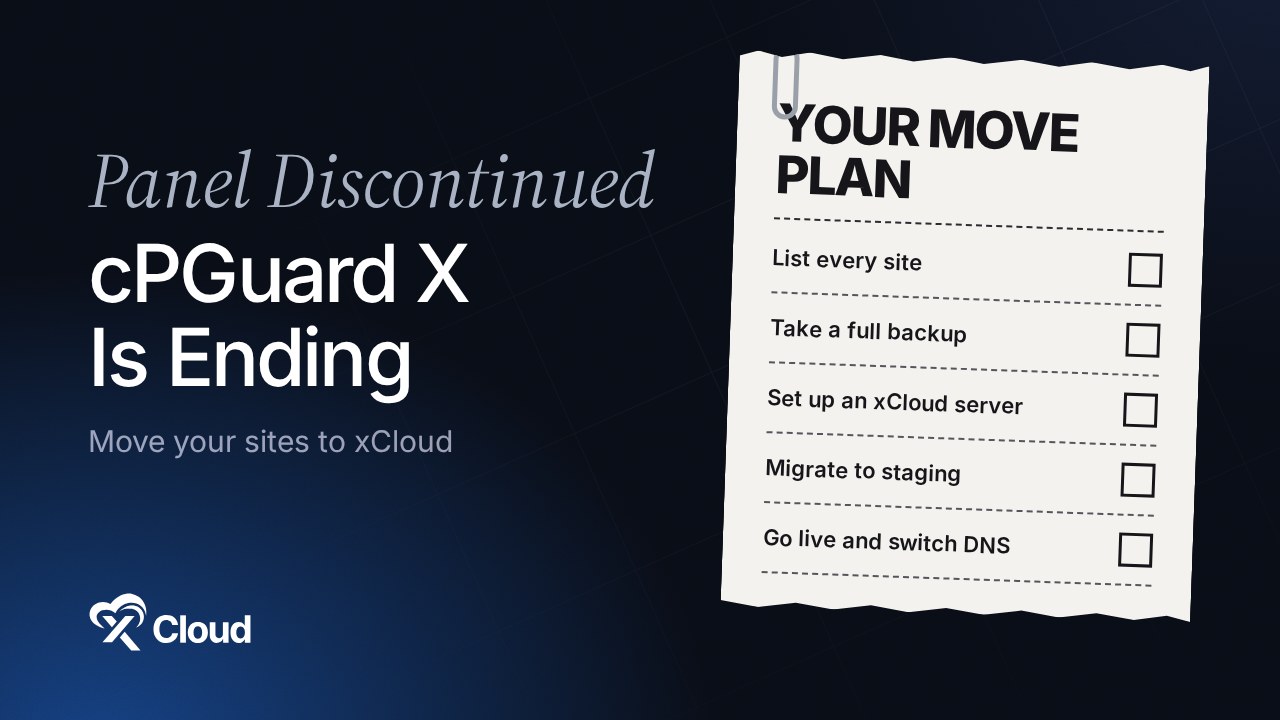
Step 1: List everything on your cPGuard X server
Write down every site, its domain, its type (WordPress, Laravel, Node.js or other) and its PHP version. Note any cron jobs, background processes, email accounts and DNS records. This list is your checklist for the rest of the move.
Step 2: Take a full backup
Before you change anything, take a fresh backup of every site and database from cPGuard X and store it off the server. If anything goes wrong, you can start again from here.
Step 3: Create or connect a server in xCloud
Sign up for xCloud and add a server. You have two options:
- Self-managed: create a fresh Ubuntu server at any provider (Hetzner, DigitalOcean, Vultr and others) and connect it to xCloud. The server must be new, with nothing installed.
- xCloud Managed: let xCloud supply the server, so you get one bill for the server and the panel.
Choose Nginx or OpenLiteSpeed as the web server. If you are not sure, our comparison of Nginx vs OpenLiteSpeed can help.
Step 4: Move your WordPress sites
Your cPGuard X server runs Nginx on Ubuntu, so first try xCloud’s full server migration. You give xCloud root SSH access to the old server, it scans the server for WordPress sites, and you pick the ones to move. It needs root SSH on port 22 and Ubuntu 20.04, 22.04, 24.04 or 26.04.
If the scan does not list a site, move that site on its own with the site-by-site WordPress migration. Migrate each site to a staging domain first, so you can test it before your visitors see it.
Step 5: Move your Laravel and Node.js apps
Push your app’s code to a Git repository if it is not there already. Then, in xCloud, add a new site with Deploy via Git and choose Laravel or Node.js. Copy your .env values over, import your database, and add your queues, workers and scheduled commands again.
Step-by-step guides: Deploy Laravel applications and Deploy a Node.js application.
Step 6: Test everything on the staging domain
Open every site on its staging domain. Log in, submit a form, place a test order if you run a shop, and check that images and uploads load. Fix anything that is missing before you switch.
Step 7: Go live and switch DNS
Lower your DNS TTL a day before the move. Then go live from the staging domain, point your domain to the new server and let xCloud issue the SSL certificate. Keep the cPGuard X server running for a few days, until you are sure everything works. Then cancel it.
Want us to do it for you?
The xCloud team offers free website migration. Tell us what you run on cPGuard X, and we will move your sites to your new xCloud server.
Move to xCloud Before Your Old Panel Holds You Back
You can start on the Free plan: one server and up to 10 sites. When you need more, PRO starts at $5 per server per month for 2 to 5 servers, with unlimited sites and every feature included. See all plans on the pricing page.
If you are moving several servers at once, look at the Black Friday lifetime deals too, up to 77% off until 4 December 2026. You pay once for the panel and connect your own servers.
✅ Fresh Nginx or OpenLiteSpeed servers on Ubuntu 22.04, 24.04 or 26.04
✅ WordPress, Laravel, Node.js and Docker sites from one dashboard
✅ Local and remote backups, staging sites and free SSL
✅ Firewall, Fail2Ban and the 8G firewall built in, with cPGuard as an option
Start free on xCloud and move your first site today.
Plan Your cPGuard X Exit This Week
cPGuard X is discontinued, but your sites do not have to suffer for it. The cPGuard team is focusing on its security product, so the scanner you trusted is still there. What you need now is a control panel that will keep getting updates.
This week, list your sites, take a full backup and set up one server in xCloud. Move one site to a staging domain and test it. Once that works, the rest of the move is the same steps repeated.
If you have found this blog helpful, feel free to subscribe to our blogs for valuable tutorials, guides, knowledge, and tips on web hosting and server management. You can also join our Facebook community to share insights and engage in discussions.
Frequently Asked Questions
Is cPGuard X discontinued?
Yes. On 10 November 2026 the cPGuard team announced in the Enhance community that it has decided to discontinue the cPGuard X project and that development of the cPGuard X hosting control panel has come to an end.
Is cPGuard itself shutting down?
No. Only cPGuard X, the hosting control panel, is discontinued. The team said it is putting its full focus back on cPGuard, the security product, and standalone cPGuard licences are still on sale.
Can I connect my cPGuard X server to xCloud?
Not as it is. xCloud sets up a fresh Ubuntu server with its own web stack, so it does not take over a server that another panel already manages. Create or connect a new server in xCloud, move your sites to it, then retire the old one.
Can I keep using cPGuard on xCloud?
Yes. xCloud gives you root access to your server, so you can install the standalone version of cPGuard yourself. Our guide covers the malware scanner, the firewall and the settings that keep xCloud working next to it.
What is the best cPGuard X alternative?
If you used cPGuard X for WordPress, Laravel or Node.js sites on your own server, xCloud covers the same jobs: Nginx or OpenLiteSpeed servers, Git deploys, backups to remote storage and a built-in firewall. The Free plan gives you one server with up to 10 sites.
Will xCloud migrate my sites for me?
Yes. The xCloud team offers free website migration. You can also move WordPress sites yourself with the full server migration or the site-by-site migration in the dashboard.