


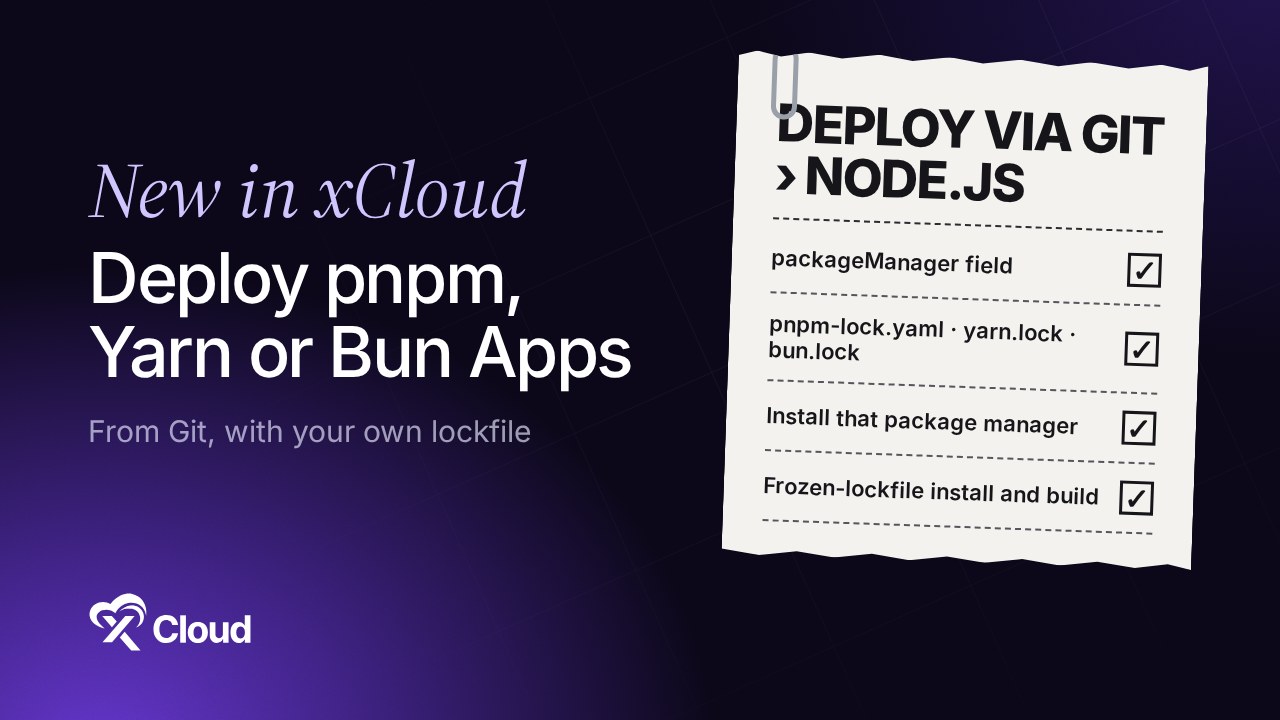
You can now deploy a pnpm, Yarn or Bun app from Git on xCloud without touching the build script. Deploy via Git reads the packageManager field in package.json or your lockfile, shows the package manager it found, installs it on the server, then installs the exact package versions in your lockfile and builds your app.
Many projects, especially monorepos, use pnpm, Yarn or Bun instead of npm. Before this update, a Node.js site deployed with npm unless you rewrote the commands yourself. If you are new to package managers, our npm beginner guide covers the basics.
This post shows exactly how xCloud picks the package manager, which commands each one gets, how to deploy step by step, and where the feature stops.
TL;DR
- What’s new: Deploy via Git picks pnpm, Yarn or Bun from your repository, not just npm.
- How it decides: the
packageManagerfield first, then the lockfile at the repository root, then npm. - What runs: an install of the exact package versions in your lockfile (
pnpm install --frozen-lockfile,yarn install --immutable,bun install --frozen-lockfile), then<manager> run build. - Exact versions:
"packageManager": "[email protected]"installs pnpm 9.15.0 on the server, for that site only. - Where you see it: a Package manager: pnpm 9 (found in the repository) line under Node.js Version.
- Limits: one package manager per repository; two different lockfiles means npm plus a warning.
- No change for npm repositories, repositories without a lockfile, or sites you already run.
The Lockfile Now Decides, From packageManager to the Build Command
The whole rule fits in one table. This is the order xCloud’s Deploy via Git uses, with the commands it writes into your Build & deploy script.
| Your repository has | Package manager xCloud uses | Install command | Build command |
|---|---|---|---|
"packageManager": "pnpm@…" in package.json |
pnpm (that exact version) | pnpm install --frozen-lockfile |
pnpm run build |
"packageManager": "[email protected]" or yarn.lock |
Yarn 1 | yarn install --frozen-lockfile |
yarn run build |
"packageManager": "yarn@2+", or yarn.lock with .yarnrc.yml |
Yarn 2 and later | yarn install --immutable |
yarn run build |
"packageManager": "bun@…", bun.lock or bun.lockb |
Bun | bun install --frozen-lockfile |
bun run build |
pnpm-lock.yaml |
pnpm 9, 8 or 7, read from the lockfileVersion line (9.0, 6.0, 5.x) |
pnpm install --frozen-lockfile |
pnpm run build |
package-lock.json, npm-shrinkwrap.json or no lockfile |
npm | npm install --no-audit --no-fund |
npm run build |
| Lockfiles from two different managers | npm, with a warning | npm install --no-audit --no-fund |
npm run build |
The build command is added only when your package.json has a build script. If you only remember one line: the packageManager field wins, then the lockfile, then npm.
Why the Lockfile Matters for a Node.js Deploy
A lockfile records the exact version of every package your app was tested with. Each package manager writes its own: pnpm-lock.yaml, yarn.lock, bun.lock. npm doesn’t read the others.
So when a pnpm project is installed with npm on the server, npm ignores pnpm-lock.yaml and resolves versions again from package.json. The build can pull newer packages than the ones on your laptop. That is the classic “it works locally but breaks on deploy” bug.
A frozen install closes that gap. The pnpm install reference says that with --frozen-lockfile, pnpm “fails to install if the lockfile is out of sync with the manifest”. The Yarn install docs describe --immutable the same way, and Bun’s install docs describe --frozen-lockfile the same way.
The trade-off is strictness: a lockfile that doesn’t match package.json now stops the deploy instead of quietly installing something else. That is what you want on a production server.
How xCloud Picks the Package Manager
xCloud reads your repository when you paste its URL in Deploy via Git. It checks three things, in order.
1. The packageManager field
If package.json has "packageManager": "[email protected]", xCloud uses pnpm and installs exactly 9.15.0. The same goes for [email protected], or a bun@ version. This is the most precise option, so add the field when you can.
2. The lockfile at the repository root
With no packageManager field, xCloud looks at the lockfile. For pnpm it reads the lockfileVersion line and picks pnpm 9, 8 or 7 (for lockfile versions 9.0, 6.0 and 5.x). pnpm 10 and later also write lockfileVersion: 9.0, so without a field they get pnpm 9. On pnpm 10 or later, add "packageManager": "pnpm@<version>" to package.json so xCloud installs your version. For Yarn, a .yarnrc.yml file means Yarn 2 or later; without it, Yarn 1.
3. npm as the fallback
No field and no lockfile means npm, exactly as before. A repository with package-lock.json also stays on npm.
What Happens on the Server
The package manager is installed for the site’s own Linux user, not for the whole server. Two sites with their own users on one server can run different pnpm or Yarn versions without clashing.
The first deploy installs it. Later deploys find the right version already there and skip the download. If the package manager can’t be installed, the deploy fails instead of carrying on with npm.
pnpm, Yarn or Bun is also installed and ready to use when your app starts. A start script such as "start": "pnpm run serve" or bun src/index.ts works, and so do custom commands in your Build & deploy script. The tools live in the site user’s home folder, under .local/node-tools.
Deploy a pnpm, Yarn or Bun App Step by Step
Here is how to do it from the dashboard. The full walkthrough, with every field, is in How to deploy a Node.js application.
Step 1: Start a Deploy via Git site
Open your server, click Add New Site and choose Deploy via Git. Paste a public repository URL, or pick a private one from your connected Git provider. The Deploy via Git guide covers connecting GitHub, GitLab or Bitbucket.
Step 2: Confirm Node.js and the serving mode
Check that Node.js is selected, pick the branch and domain, and under Build & serving, set Serving mode to SSR (Node process), Static build or Hybrid (static + API). For SSR, set the start command and the port your app listens on.
Step 3: Check the package manager line
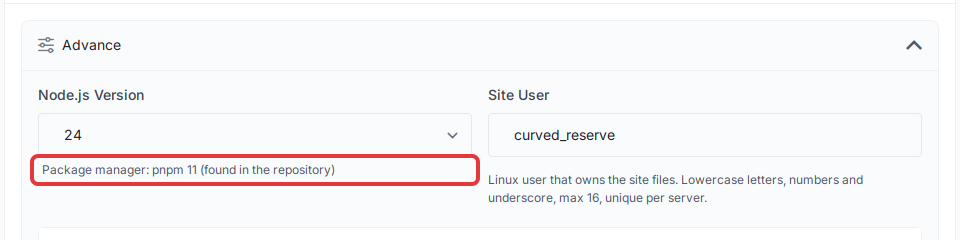
Expand Advance. Under Node.js Version you see the package manager xCloud found, for example Package manager: pnpm 11 (found in the repository). A version such as pnpm 11 shows only when package.json has a packageManager field; from a pnpm-lock.yaml alone you see pnpm 9, 8 or 7. The line appears only for pnpm, Yarn and Bun; npm repositories show nothing.
Pick a Node.js version your app supports while you are here. xCloud offers Node.js 14 to 26; see how to change the Node.js version.
Step 4: Review the Build & deploy script
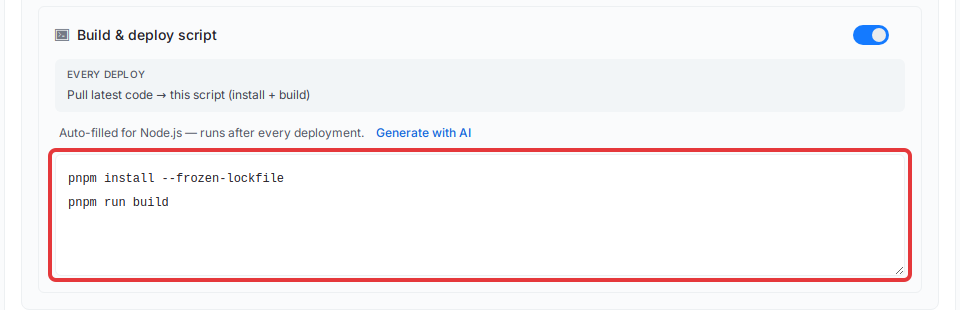
The Build & deploy script is already filled with the right commands, such as pnpm install --frozen-lockfile and pnpm run build. Leave it as it is, or add your own steps.
Step 5: Add environment values and deploy
Add your .env values (see environment variables and Git deployments), then click Deploy. Every later deploy runs the same install and build. If a deploy fails, why your Git deploy failed walks through the usual causes.
When You Have Two Lockfiles or Need a Custom Command
Two lockfiles
A repository with lockfiles from two managers, such as package-lock.json and yarn.lock, is ambiguous. xCloud does not guess: it uses npm and shows Two lockfiles found; npm is used. on the form.
Fix it by deleting the lockfile you don’t use, or by adding a packageManager field to package.json. Fix the repository before you click Deploy (paste the repository URL again so xCloud reads it again). If the site already exists, change the commands in its Build & deploy script instead.
A frozen install that stops
If the log shows the install stopped because the lockfile is out of date, run the install on your machine, commit the updated lockfile and push. That is the frozen install doing its job.
Your own commands
The Build & deploy script is yours to edit. If you write your own install or build commands, xCloud runs them as written, with the detected package manager already available.
What This Feature Does Not Do
Be clear on the limits before you rely on it:
- One package manager per repository. Mixed lockfiles fall back to npm, as above.
- Root of the repository only. Detection reads the lockfile at the top level. There is no app-folder setting, so for a monorepo add a
cdstep to your commands. If a deploy still fails, the Git deployment troubleshooting guide lists the usual causes. - Existing sites are not switched. Sites you created before this update, and npm repositories, keep the npm install and build.
- No speed promise. The goal is that the server installs the versions in your lockfile. We make no claim that builds get faster.
- Undo is simple. Edit the Build & deploy script back to npm commands, or remove the other lockfiles and the
packageManagerfield before you create the site.
If your app is better suited to a container, Bun projects can also deploy as a Docker app, see Deploy Python, Ruby, Go, Java and Bun apps from Git.
For Developers: Public API and MCP
The same detection is available outside the dashboard. git/detect returns package_manager and package_manager_version. git/auto and git accept an optional package_manager (npm, pnpm, yarn or bun) and package_manager_version (digits and dots, such as 4.6.0); any other value is refused. The MCP server picks this up from the same API.
Host Your Node.js App on xCloud
xCloud is the managed path for Node.js: you bring a server (or use ours), and it handles the web server, SSL, the process manager, deploys from Git and now your package manager. You still own the code and the build.
What xCloud doesn’t do here is pick between two lockfiles for you or install from a subfolder automatically. For most single-app repositories, though, the deploy now matches your laptop.
👉 See Node.js hosting on xCloud, or Next.js hosting if that is your framework. For pushes with no downtime, read zero-downtime deploys and one-click rollback.
Your first own server is free on xCloud: see pricing and deploy your pnpm, Yarn or Bun app from Git today.
Ship Your pnpm, Yarn or Bun App With the Lockfile You Tested
The lesson is simple: the server should install what your lockfile says, with the package manager that wrote it. xCloud now does that for pnpm, Yarn and Bun without a hand-edited build script.
This week, add a packageManager field to your package.json, remove any stray second lockfile and create the site with Deploy via Git. Check the Package manager line before you click Deploy.
If you have found this blog helpful, feel free to subscribe to our blogs for valuable tutorials, guides, knowledge, and tips on web hosting and server management. You can also join our Facebook community to share insights and engage in discussions.
Frequently Asked Questions
Can I deploy a pnpm app from Git on xCloud?
Yes. Create the site with Deploy via Git. xCloud finds pnpm from the packageManager field or pnpm-lock.yaml, installs pnpm for the site and runs pnpm install --frozen-lockfile and pnpm run build.
Do I need to install pnpm, Yarn or Bun on the server myself?
No. On the first deploy xCloud installs the package manager for the site’s own user. If the packageManager field names a full version, such as [email protected], xCloud installs exactly that version. Later deploys reuse it.
What happens if my repository has both package-lock.json and yarn.lock?
xCloud uses npm and shows the warning Two lockfiles found; npm is used. on the form. Delete the lockfile you don’t use, or add a packageManager field to package.json. Fix the repository before you click Deploy (paste the repository URL again so xCloud reads it again). If the site already exists, change the commands in its Build & deploy script instead.
Can I still use my own install or build commands?
Yes. The Build & deploy script is filled in for you, but you can edit it. pnpm, Yarn or Bun is already installed and ready to use in your commands.
Does this change my existing Node.js sites?
No. Sites that already run on xCloud and repositories that use npm or have no lockfile keep the same npm install and build. Only Node.js sites you create after the update get their package manager.