


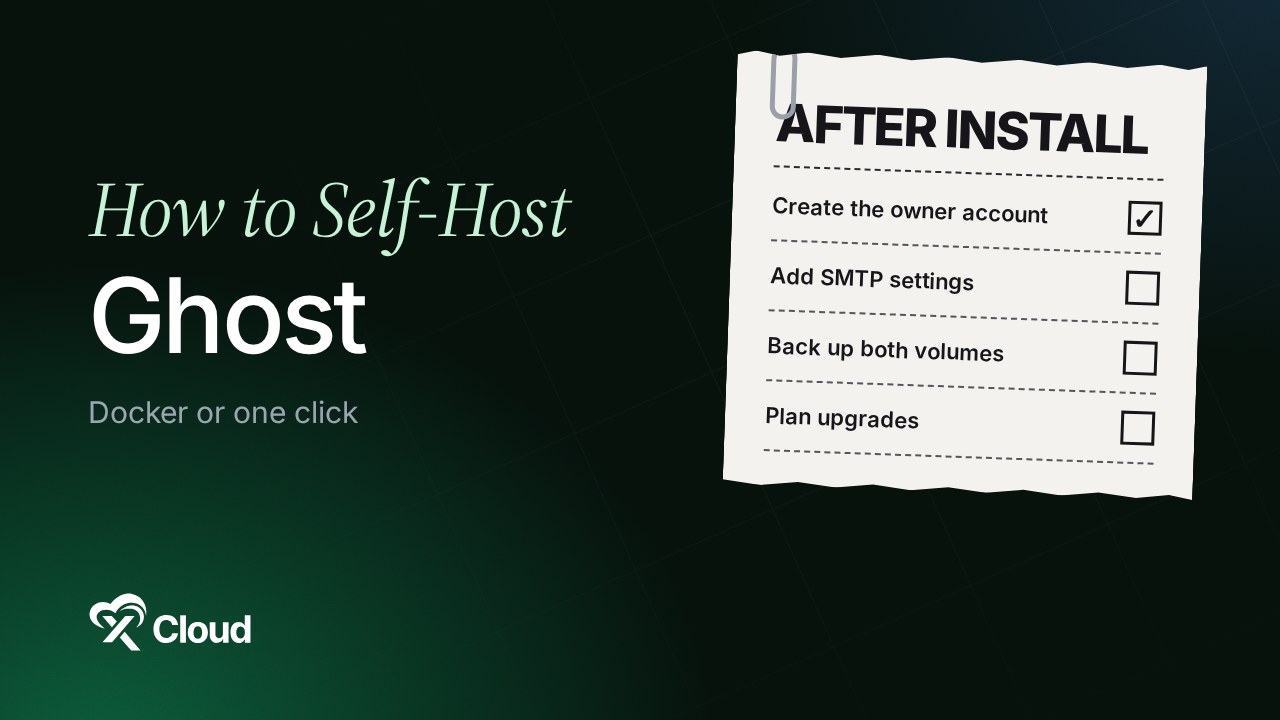
To self-host Ghost, you need a Linux server, Docker, a domain and an SMTP service for email. You can run Ghost’s official Docker Compose setup yourself, or deploy the same app with one click on xCloud, which sets up Docker, MySQL, Nginx and SSL for you. Either way, mail, backups and upgrades stay your job.
Ghost is the open-source publishing platform behind many newsletters, membership sites and blogs. Running it on your own server means your posts and member list sit in a database you control, not on someone else’s platform.
This guide covers both paths step by step: the manual Docker Compose install from Ghost’s own docs, and the one-click way on xCloud. If Docker is new to you, read what Docker Compose is first. Then we cover the part most tutorials skip: what you still have to do after the site is live.
TL;DR
Short on time? Here is the whole guide in a few lines:
- Requirements: a Linux server with at least 1 GB of RAM (Ghost’s Docker guide uses a 2 GB, 1 CPU server as its example), Docker, a domain with an A record pointing at the server, and an SMTP service.
- Manual way: clone Ghost’s official
ghost-dockerrepo, fill in.envand the Caddyfile, then rundocker compose up -d. Ghost marks this method as a preview. - One-click way: create an NGINX server in xCloud, open One Click Apps, pick Ghost, choose a domain, and click Next. Database passwords and SSL are set up for you.
- First login: open
https://your-domain/ghost/and complete Create your account. The first account becomes the site owner. - After install: add SMTP settings, turn on scheduled backups for both volumes, and plan version upgrades yourself. None of these happen on their own.
The One Thing Most Ghost Install Guides Leave Out
Every Ghost tutorial ends at “your site is live”. The real work starts there, because a fresh self-hosted Ghost site cannot send a single email, and nothing upgrades it for you.
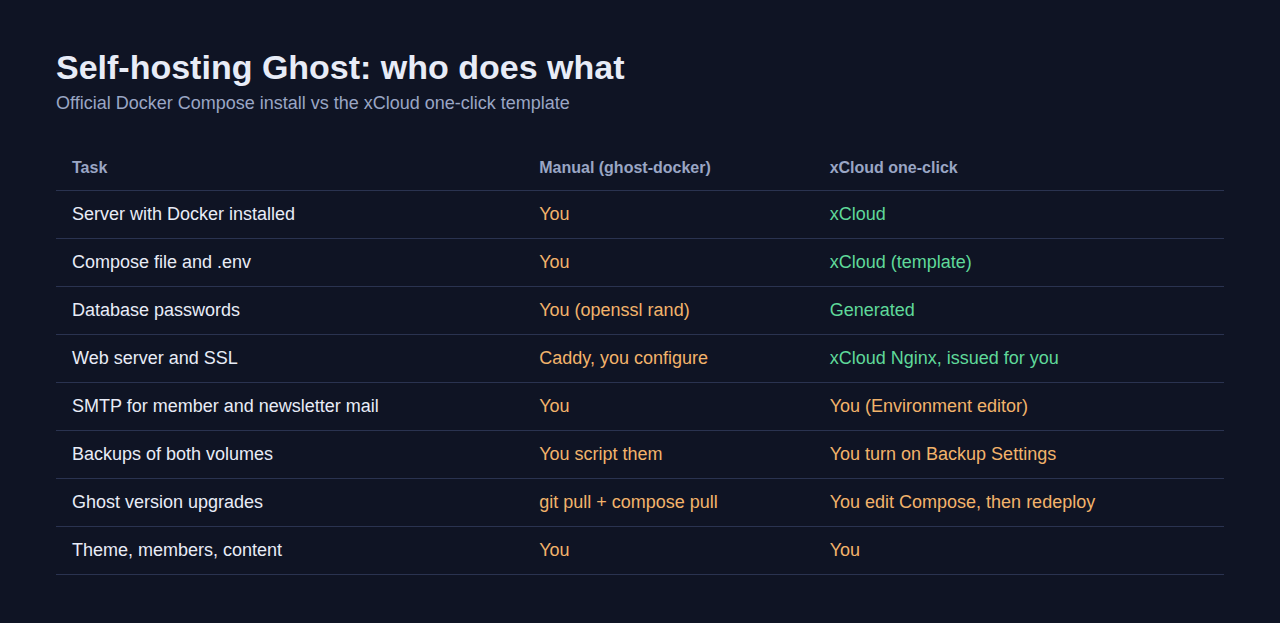
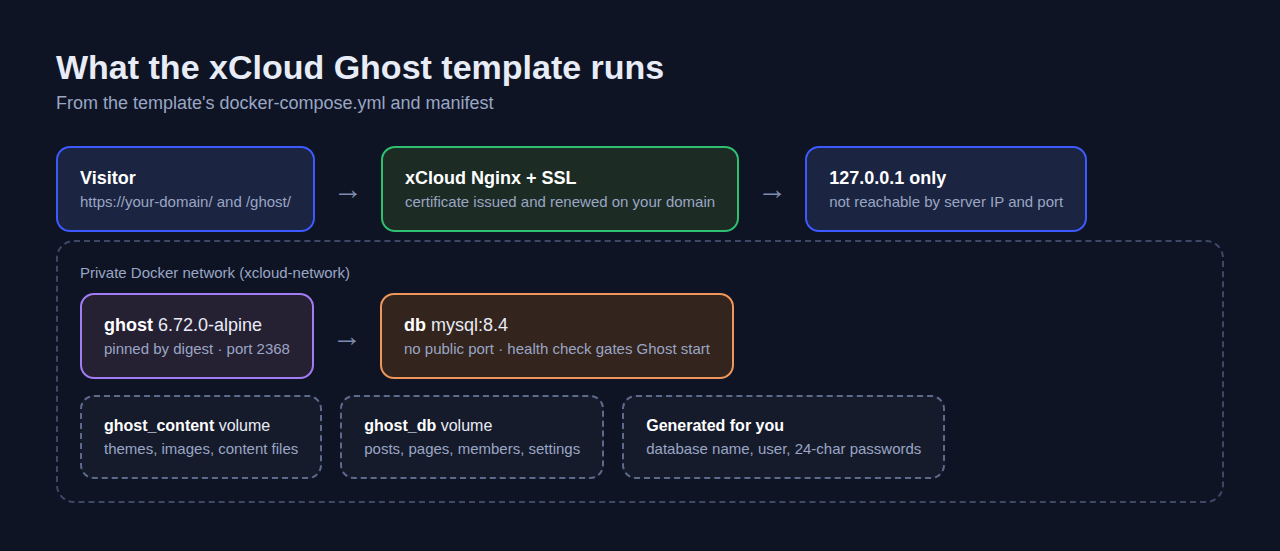
We read the xCloud Ghost template line by line (its docker-compose.yml, .env and manifest) to show exactly what a one-click install gives you and what it leaves to you. Here is the complete map.
| Part of the stack | What the xCloud template sets up | What is still yours |
|---|---|---|
| Ghost app | Ghost 6, locked to the version you installed, so Update never changes it | Choosing when to move to a newer release |
| Database | A private MySQL 8.4 database that only Ghost can reach | Nothing to set up; back it up |
| Passwords | Database name, user and two random passwords, generated | Keep the credentials panel private |
| Web access | Nginx in front of Ghost, so Ghost is only reachable through your domain, not by server IP and port | Pointing your domain’s DNS at the server |
| SSL | A certificate issued for your domain | Nothing, unless you change domains |
| Storage | Two volumes: ghost_content and ghost_db |
Backing up both, together |
| Email (SMTP) | Not configured | Adding mail settings before members or newsletters |
| Owner account | Not created | Creating it at /ghost/ on first visit |
If you only remember one line: the install takes minutes, but mail, backups and upgrades are decisions you make afterwards, on any host.
What Ghost Is and When Self-Hosting It Makes Sense
Ghost is an MIT-licensed publishing platform for blogs, newsletters, paid memberships and creator websites. It is built on Node.js, stores its data in MySQL, and has a Content API, so you can also use it as a headless CMS.
You have two ways to run it. Ghost(Pro) is the managed service run by the Ghost team, and Ghost’s own hosting docs say plainly that it is “probably your best bet” if you are unsure. Self-hosting suits you when you want the data on your own server, already run other apps there, or want to control costs as your member list grows.
The trade-off is your time. Self-hosting is cheap in money and expensive in attention: the occasional 3 a.m. restart, the mail provider setup, the upgrade you keep putting off.
Server Requirements for a Self-Hosted Ghost Site
Ghost’s docs and the xCloud template agree on a modest floor. The memory, operating system and database rows in the middle column come from Ghost’s hosting docs and apply to its officially supported Ghost-CLI install. The Docker guide only asks for “a Linux-based server” and gives a 2 GB, 1 CPU server as the example, so size for that if you follow the manual Docker path.
| Requirement | Ghost hosting docs | xCloud Ghost template |
|---|---|---|
| Memory | At least 1 GB (Docker guide example: 2 GB, 1 CPU) | At least 1024 MB |
| CPU | Not stated for Docker | At least 1 core |
| Disk | Not stated | At least 4 GB |
| Operating system | Ubuntu 22.04, 24.04 or 26.04 LTS recommended | Set up by xCloud |
| Database | MySQL 8.0 or 8.4 | MySQL 8.4 container |
| Other | Docker 20.10.13 or newer, a domain with an A record, an SMTP service | NGINX server stack, a domain or a free demo domain |
Treat these as a starting point rather than a strict rule. Images and themes live on disk, so a publication with years of posts needs more space than the minimum.
Option 1: Self-Host Ghost Manually With Docker Compose
This is the official Docker method from Ghost’s Docker install guide. Ghost labels it a preview that arrived with Ghost 6.0, so expect it to change. The stack runs three services: Ghost, Caddy as the web server, and MySQL.
Step 1: Prepare the server and DNS
Start with a Linux server that has Docker 20.10.13 or newer installed. Point an A record for your domain at the server’s IP address, and wait for it to resolve before you continue.
If this is a fresh server, lock it down first. Our guide to securing a VPS covers SSH keys, firewall rules and updates.
Step 2: Clone the official repository
git clone https://github.com/TryGhost/ghost-docker.git /opt/ghost && cd /opt/ghost
cp .env.example .env
cp caddy/Caddyfile.example caddy/Caddyfile
Step 3: Fill in the environment file
Open .env and set DOMAIN to your domain. Generate the two database passwords with openssl rand -hex 32 and paste them into DATABASE_ROOT_PASSWORD and DATABASE_PASSWORD.
Fill in the SMTP section now, while you are here. Without it, member signups and newsletters will not send.
Step 4: Start Ghost
docker compose pull
docker compose up -d
Caddy requests the certificate for your domain. When the containers are up, open https://your-domain/ghost/ and create the owner account.
Step 5: Know how updates work
Ghost’s guide updates the stack with these commands, run from /opt/ghost:
git pull
docker compose pull
docker compose up -d
Back up the database and content before every update. Optional extras in the same repo, such as web analytics and ActivityPub, are turned on with Compose profiles and need their own setup.
Option 2: One-Click Ghost on xCloud (Step by Step)
The xCloud way replaces the cloning, the .env file and the web server setup with a form. The full walkthrough with every screen is in the docs: 👉 How to install Ghost with xCloud One Click Apps.
Step 1: Create an NGINX server
Click New Server, choose a provider (an xCloud server or your own), and keep NGINX selected under Choose Web Server. Docker apps run on NGINX servers. xCloud installs Docker the first time you deploy a container app, or you can enable Docker ahead of time.
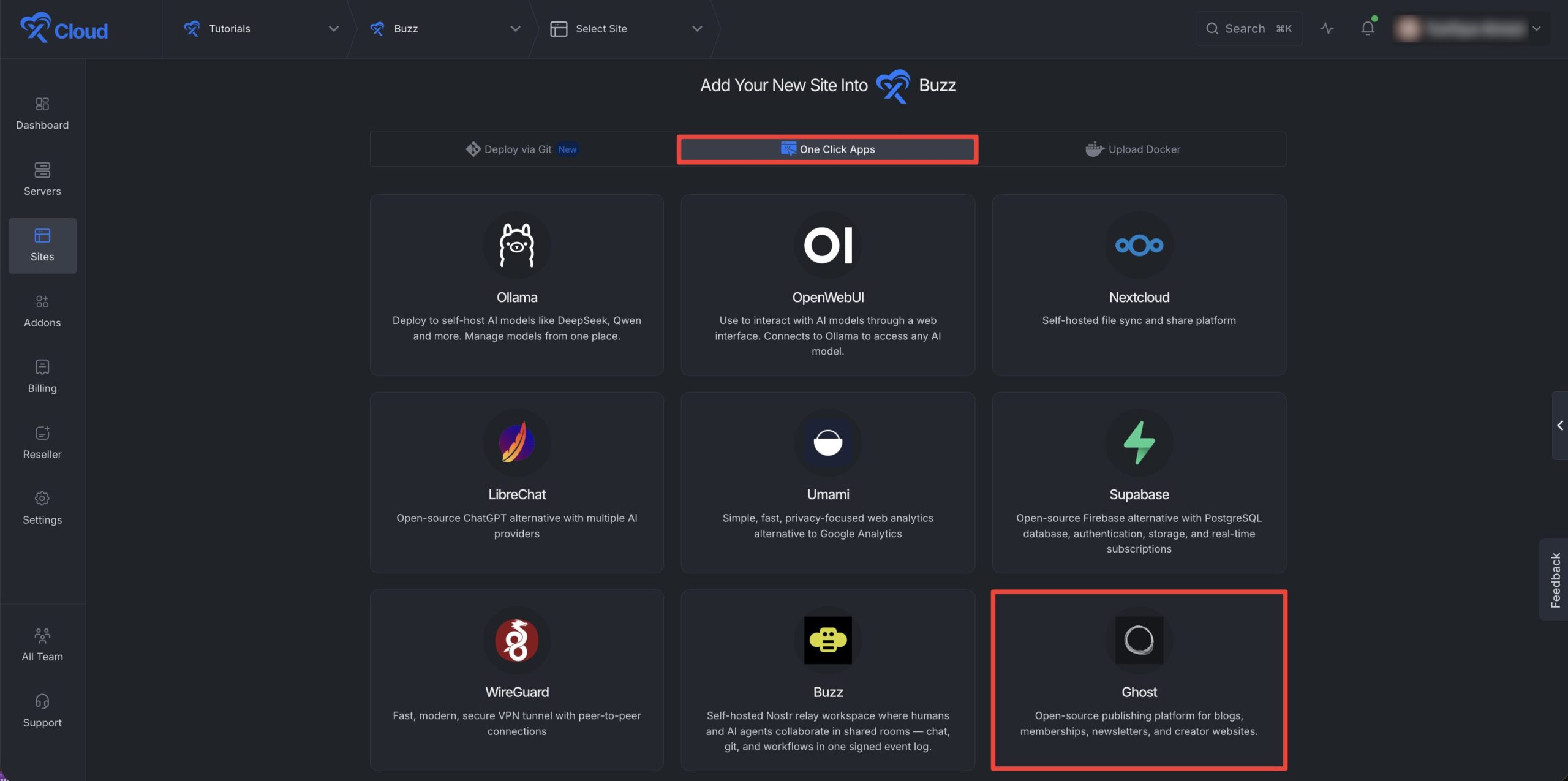
Step 2: Choose Ghost from One Click Apps
On your server, open One Click Apps and pick Ghost. The install form asks for no Ghost settings at all, because the database name, user and passwords are generated for you.
Step 3: Set the site title and domain
Enter a Site Title and any Tags. Choose Go Live with your own domain, or Demo Site to try it on a free demo domain first, then click Next. xCloud deploys Ghost and MySQL and issues the certificate.
Step 4: Create the owner account
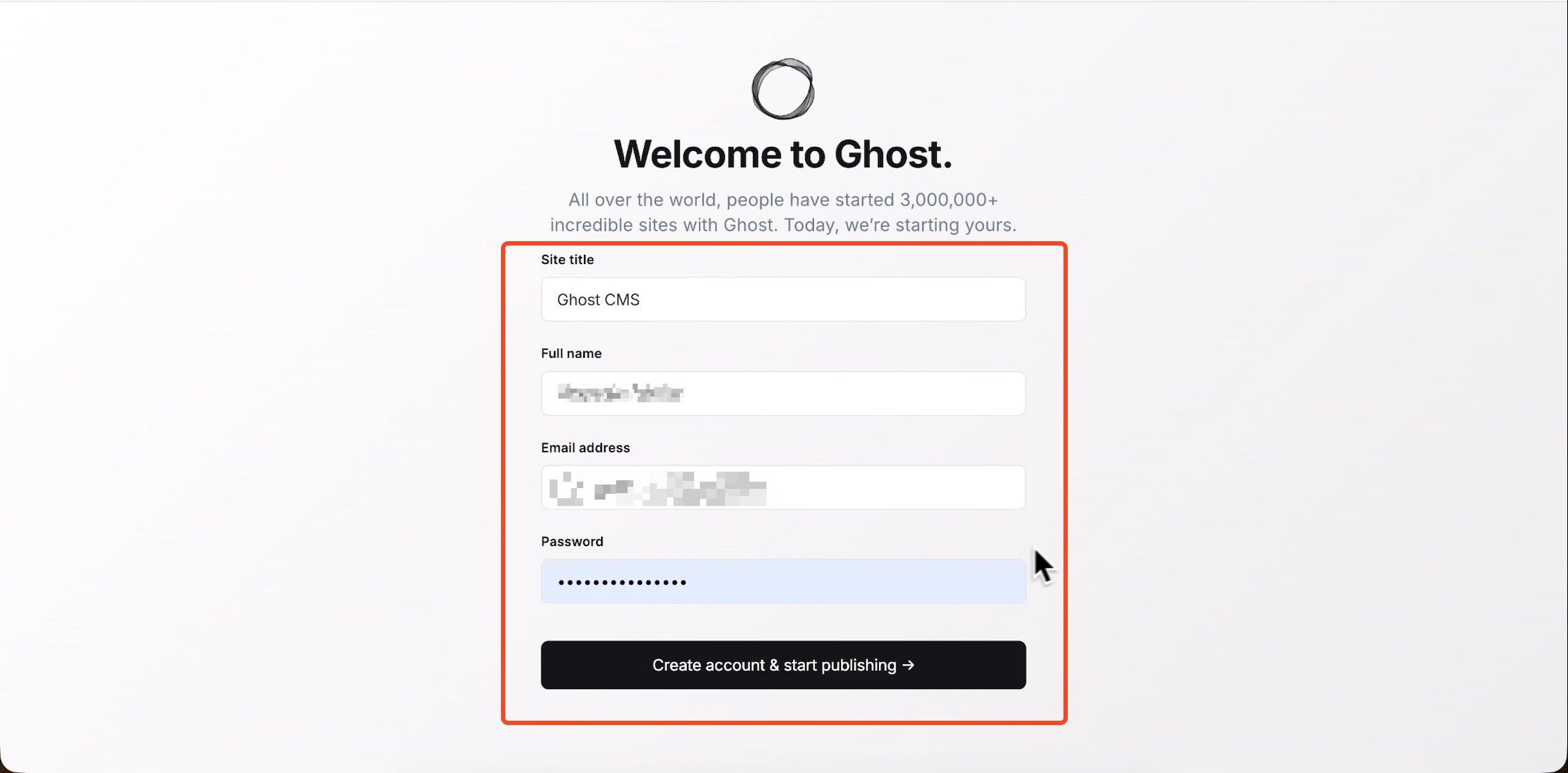
Click Visit Site, then add /ghost to the address. Fill in Site title, Full name, Email address and Password, then click Create account & start publishing.
The credentials panel shows the Site URL, Admin URL and the database name, user and password. It does not show a Ghost login, because there isn’t one until you create it.
After Install: Mail, Backups and Updates
This is the part that decides whether your self-hosted Ghost site stays healthy. The same three jobs apply to the manual install.
1. Add SMTP so Ghost can send email
Ghost needs mail for member login links, signups, staff invites and password resets. Newsletters to members also need a bulk email service. Ghost sends newsletters through Mailgun, which its newsletter docs call “the only supported bulk email provider”; set it up in Ghost Admin under Settings, in the email newsletter settings.
On xCloud, open the site’s Environment page and add Ghost’s mail settings, for example:
mail__transport=SMTP
mail__options__host=smtp.example.com
mail__options__port=587
mail__options__auth__user=YOUR_SMTP_USER
mail__options__auth__pass=YOUR_SMTP_PASSWORD
mail__from=[email protected]
Then click Save & Redeploy. Send yourself a staff invite to confirm mail works.
2. Turn on backups for both volumes
Open the site’s Backup → Backup Settings, turn on Automatic Backup on the Local Backup tab, and add a Remote Backup destination from your storage providers so a copy lives off the server. Each backup captures the app’s volumes, its compose file and its environment file.
The full guide is 👉 How to back up and restore Docker apps. Restore one backup to a test site before you rely on it.
3. Plan Ghost upgrades on purpose
App Actions → Update: Update rebuilds Ghost on the same version it runs now. Your posts and members stay. It never moves you to a newer Ghost.
If you need a newer Ghost release, take a backup of both volumes first and ask xCloud support before you change anything.
Self-Hosted Ghost vs Ghost(Pro): Cost and Trade-Offs
Here is how the three common setups compare. Prices are as of October 2026, from each provider’s page (Ghost pricing, xCloud pricing).
| Ghost(Pro) | Your own server, manual | Ghost one-click on xCloud | |
|---|---|---|---|
| Who runs the server | The Ghost team | You | xCloud sets it up; on an xCloud Cloud VPS we also manage the server |
| Starting price | Starter plan, $18/month billed yearly (Ghost pricing) | Your server bill | Cloud VPS 6 GB at $24.99/month (Ghost hosting), or your own server: the first one is free (up to 10 sites), then $5 per server a month for 2–5 servers (xCloud pricing) |
| Setup work | Sign up | Docker, DNS, .env, Caddy and SMTP by hand |
A short form, then SMTP |
| Email for members | Included | You connect SMTP and Mailgun | You connect SMTP and Mailgun |
| Backups | Handled for you | You script them | You turn them on in Backup Settings |
| Ghost upgrades | Handled for you | git pull and Compose |
Not automatic; back up first and ask support |
| Other apps on the same server | No | Yes | Yes |
The honest take: if you only want one newsletter and never want to think about a server, Ghost(Pro) is the simpler choice. Self-hosting pays off when the server also runs your other apps, or when your member list grows past the price you want to pay per member.
What the xCloud Ghost App Does Not Do
Know these limits before you move a publication over:
- No email out of the box. Signups, member logins and newsletters fail until you add SMTP settings.
- No automatic Ghost upgrades. A newer template only changes new installs, never an existing site.
- No owner account is created for you. Whoever opens
/ghost/first and signs up becomes the owner, so do it right after the install. - No optional extras. The template runs Ghost and MySQL only, not the analytics or ActivityPub services in Ghost’s own Docker repo.
- No OpenLiteSpeed. Docker apps need an NGINX server.
- One server, no clustering. Ghost itself does not support clustering or sharding.
Deleting a Ghost site from the dashboard permanently deletes both volumes, ghost_content and ghost_db, so your posts, members and images are gone. Before you delete it, make sure a recent remote backup exists. A local backup on the same server is not a safe copy.
Run Your Own Ghost Publication With xCloud
If you would rather spend your evenings writing than writing Compose files, the Ghost hosting page has the plans, and the full catalogue of apps you can run next to it is on One Click Apps. You can run Ghost on the same server as other self-hosted tools, like Vaultwarden or a self-hosted analytics tool.
- ✅ Ghost and a private MySQL database, deployed together
- ✅ Database passwords generated, SSL issued on your domain
- ✅ Scheduled local and remote backups for both volumes
- ✅ Your own server or an xCloud one, on the Docker hosting stack
Not sure whether to run the server yourself? Our comparison of self-managed vs managed hosting walks through the trade-off.
Deploy Ghost on xCloud and publish your first post today.
Get Your Self-Hosted Ghost Site Live This Week
Self-hosting Ghost is no longer a weekend project. The official Docker setup is a handful of commands on a prepared server, and the one-click way is a short form.
What separates a healthy site from a fragile one is the work after install. This week, create the owner account, add SMTP and send a test invite, turn on backups with a remote copy, and write down the Ghost version you run.
If you have found this blog helpful, feel free to subscribe to our blogs for valuable tutorials, guides, knowledge, and tips on web hosting and server management. You can also join our Facebook community to share insights and engage in discussions.
Frequently Asked Questions
Is Ghost free to self-host?
Yes. Ghost is open source under the MIT licence, so the software costs nothing. You pay for the server it runs on, and for any mail or payment provider you connect for newsletters and paid memberships.
How much RAM does a self-hosted Ghost site need?
Ghost’s hosting docs recommend at least 1 GB of memory for its standard Ghost-CLI install, and its Docker guide uses a 2 GB, 1 CPU server as the example. The xCloud template asks for at least 1024 MB of RAM, 1 CPU core and 4 GB of disk for Ghost and its MySQL database together. Give it more if you expect a large media library or many members.
Can I run Ghost on an OpenLiteSpeed server in xCloud?
No. Docker apps, including the Ghost one-click app, run on NGINX servers in xCloud. OpenLiteSpeed servers cannot run Docker, so pick the NGINX stack when you create the server.
Why are my Ghost member signup emails not arriving?
Ghost needs SMTP settings to send member login links, signup emails, staff invites and newsletters, and the one-click template does not add them. Add the mail settings on the site’s Environment page, then click Save & Redeploy. Publishing posts works without mail.
Does App Actions → Update upgrade Ghost to a newer version?
No. Update rebuilds Ghost on the same version it runs now. Your posts and members stay. It never moves you to a newer Ghost, because your site is locked to one Ghost version, and Update installs that same version again. If you need a newer Ghost release, back up both volumes first and ask xCloud support before you change anything.
What should I back up for a self-hosted Ghost site?
Both volumes, together. ghost_content holds themes, images and other content files, and ghost_db holds the MySQL database with posts, pages, members and settings. Restoring only one of them does not give you a working site.