


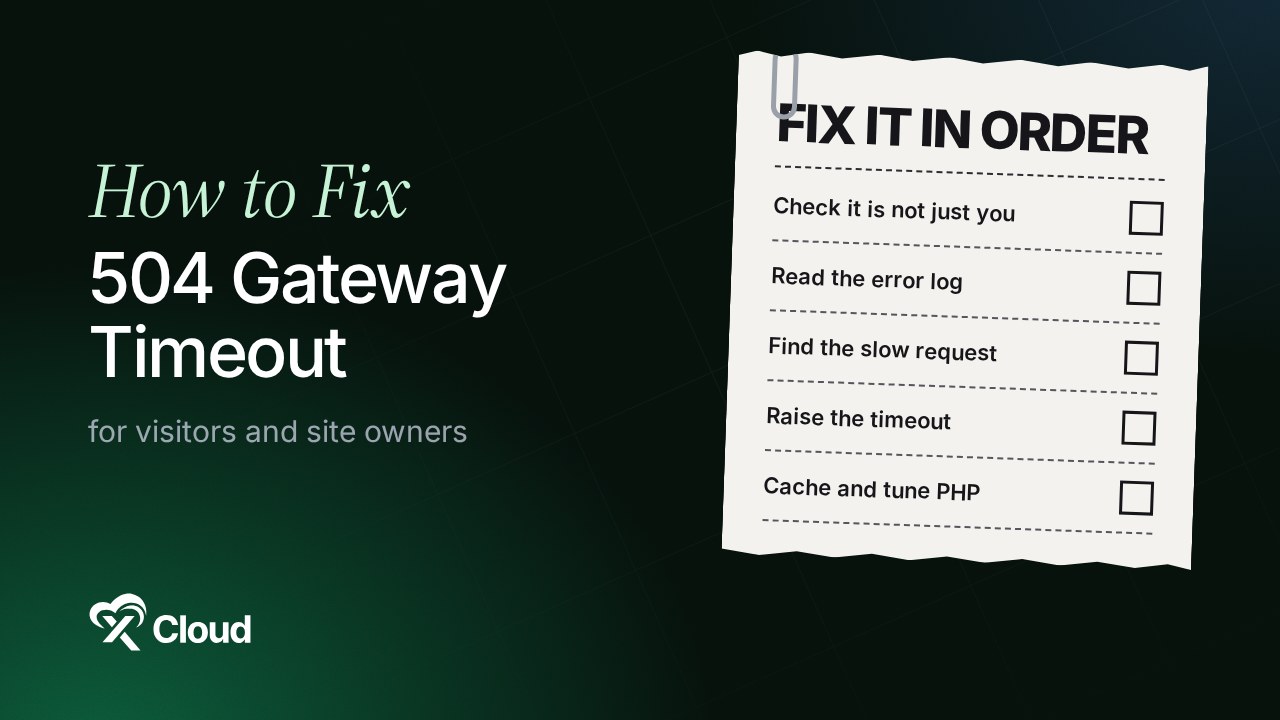
A 504 gateway timeout means a server acting as a gateway or proxy, such as Nginx or Cloudflare, waited for the server behind it and got no answer in time. The proxy gives up and shows an error page instead. Visitors can only retry. Site owners fix it by finding the slow request, then tuning timeouts, PHP and caching.
You click a link, the browser spins for a full minute, and then a plain page says 504 Gateway Time-out. Nothing is “broken” in the usual sense. Something was just too slow, and a server in the middle decided to stop waiting. If you have already met its cousin, the HTTP 500 internal server error, this one feels similar but has a different cause and a different fix.
This guide explains what a 504 means, the seven causes we see most, a step-by-step fix for site owners (and the short version for visitors), and what xCloud changes on your server when you raise a time limit.
TL;DR (Too Long, Didn’t Read?)
Short on time? Here is the whole guide in a few lines:
- 504 = a proxy stopped waiting. Nginx, a load balancer or Cloudflare asked your app for a page and got no answer before its time limit.
- Visitors: reload once after a minute, try another network, check if the site is down for everyone. That is all you can do.
- Site owners: read the Nginx error log first. “upstream timed out” confirms a timeout and names the slow URL.
- The usual causes: slow database queries, slow outside API calls, all PHP workers busy, long imports or backups, and bot traffic.
- On xCloud Nginx servers, a site’s Max Execution Time also sets how long Nginx waits for PHP, so raising it in the dashboard lifts both limits at once.
- Behind Cloudflare, a slow origin usually shows Cloudflare’s own error 524, not 504. Fix the origin; the Cloudflare limit is fixed below Enterprise.
- Most 504s are fixed in minutes once you find the one request that is slow.
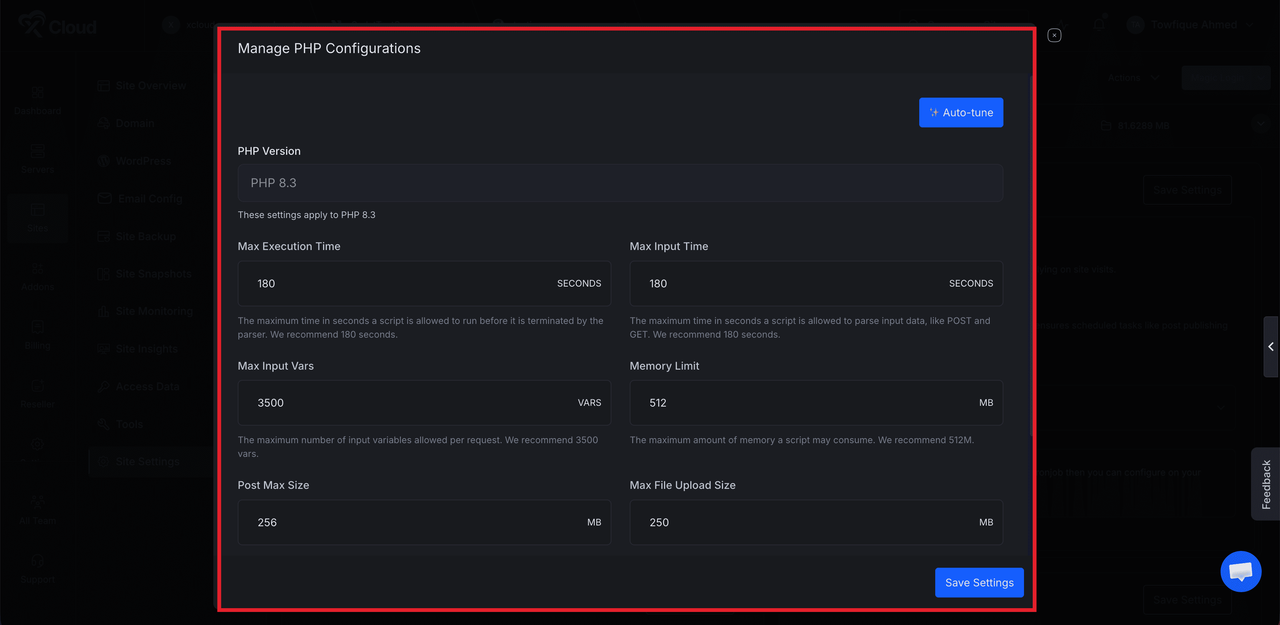
What Changes on an xCloud Server When You Raise the Time Limit
Here is the part most 504 guides skip. A 504 on a PHP site is a race between two clocks: how long PHP lets a script run, and how long Nginx waits for PHP to answer. If Nginx gives up first, you get a 504. If PHP gives up first, you usually get a 502 or a 500 instead.
On a self-built server you tune those two clocks in two different files and hope they agree. On an xCloud server running Nginx, the dashboard keeps them in step. We read the server scripts that run when you save a site’s PHP settings, and this is what they do:
| What you change in the dashboard | What xCloud sets on the server |
|---|---|
| Max Execution Time for one site | That site’s PHP time limit, and the hard stop for that site’s PHP workers |
| Max Execution Time or Max Input Time (any site) | Nginx’s wait time for PHP becomes the largest Max Execution Time or Max Input Time set on the server (any site or PHP version) |
| Every value on the server set to no limit (0 or -1) | Nginx waits 300 seconds. If any site has a number, Nginx uses the largest number, so set a real number (for example 600) instead of no limit. |
So if one site on the server needs 600 seconds for a large import, raising that site’s Max Execution Time to 600 also raises how long Nginx waits. You do not need to edit Nginx by hand or remember to reload it.
The catch worth knowing: this is a server-wide wait time, so it rises for every site on that server. That is fine for most setups, and it is why you should raise it only as far as the slowest real task needs.
What Is a 504 Gateway Timeout?
MDN defines it plainly: the 504 status means the server, “while acting as a gateway or proxy, did not get a response in time from the upstream server.” The “upstream” is whatever does the real work: PHP running WordPress, a Node.js app, a Docker container, or your origin server behind a CDN.
Think of it like a waiter and a kitchen. You (the browser) order from the waiter (Nginx or Cloudflare). The waiter passes the order to the kitchen (PHP or your app) and waits. If the kitchen takes too long, the waiter comes back and says, “Sorry, the kitchen didn’t answer.” The waiter is fine. The kitchen is slow.
A Few Things Worth Knowing
- The time limit is usually 60 seconds by default. Nginx’s
proxy_read_timeoutandfastcgi_read_timeoutboth default to 60 seconds, per the Nginx proxy module docs. - It is a silence timer, not a total timer. Nginx counts the time between two reads. An app that keeps sending data can run longer; an app that goes quiet for the full limit gets cut off.
- The text varies. You may see “504 Gateway Time-out”, “Gateway Timeout Error”, “HTTP Error 504” or a branded page from your host or CDN.
504 Compared With Its Neighbours
| Code | Name | What it usually means | Where to look first |
|---|---|---|---|
| 500 | Internal Server Error | The app crashed on this request | PHP or app error log |
| 502 | Bad Gateway | The app behind the proxy was down, crashed or sent garbage | Is PHP or the app running? |
| 503 | Service Unavailable | The server is overloaded or in maintenance | Resource usage, maintenance mode |
| 504 | Gateway Timeout | The app was reachable but too slow | Nginx error log, slow requests |
| 524 | A Timeout Occurred (Cloudflare) | Cloudflare reached your server but got no answer in time | Your origin, same as a 504 |
| 408 | Request Timeout | The browser was too slow to send the request | Visitor’s connection, upload size |
If you only remember one line: a 502 means something is broken, a 504 means something is slow. For the browser-side timeout, see our guide to the 408 request timeout error.
What Causes a 504 Gateway Timeout?
The proxy is almost never the problem. These are the causes we see most, most common first.
1. Slow Database Queries
One bad query can hold a page for a minute. Common culprits are huge wp_options autoload data, unindexed tables from plugins, and WooCommerce reports run on a big order table. The page waits for the database, PHP waits for the page, and Nginx waits for PHP until it gives up.
2. Slow Calls to Outside Services
A plugin that calls a payment gateway, a license server, a shipping API or an AI service on page load ties your page speed to theirs. If that service hangs, your page hangs. The PHP time limit often does not even count this waiting on Linux, as the PHP manual notes for max_execution_time, so Nginx’s timer fires first.
3. All PHP Workers Are Busy
Each PHP worker handles one request at a time. When every worker is busy, new requests queue. If they wait long enough, Nginx returns 504 for requests that would have been fast on their own. Our guide to PHP workers shows how to tell a full queue from one slow page.
4. Long Tasks Meet a Short Limit
Product imports, large uploads, backup plugins, report exports and site migrations can honestly need more than 60 seconds. Here the fix really is a higher limit (or running the job somewhere else, like the command line).
5. Bot and Scanner Traffic
Floods of requests to search pages, xmlrpc.php, wp-login.php or exploit paths keep every worker busy. Real visitors then queue behind the bots and see 504s. It is a common cause we see in support.
6. Not Enough CPU or RAM
A server swapping to disk or pinned at 100% CPU makes every request slow. Traffic spikes, a cron job running at the wrong time or one heavy site on a shared server can push it over.
7. A Proxy in Front of Another Proxy
Cloudflare in front of Nginx, a load balancer in front of a Docker app, or Nginx in front of a Node.js process: each layer has its own time limit. The shortest one wins, and it is not always the one you changed.
Why a 504 Matters
A one-off 504 during a deploy is a blip. Repeated 504s cost you in three ways:
- Lost sales and sign-ups. A 504 hits after a long wait, so visitors have already given you a minute and get nothing back. Checkout and login pages often hit it first because they cannot be cached.
- Search visibility. Google treats 5xx responses as a sign to crawl less. If Googlebot keeps getting them for days, pages can drop out of results until the site recovers.
- Hidden load. A request that times out at the proxy can keep running in PHP. Retries from users and bots stack on top of it, which makes the next request slower still.
How to Fix a 504 Gateway Timeout (Visitors)
If it is not your site, your options are short:
- Wait a minute and reload once. Many 504s come from a short spike. Do not hammer refresh; that adds load.
- Try another network or device. Switch from Wi-Fi to mobile data. This rules out your own connection or VPN.
- Check if it is down for everyone. Use a site status checker or the site’s status page or social account.
- Tell the site owner. Include the URL, the time and what you were doing. That is exactly what they need to find the slow request.
How to Fix a 504 Gateway Timeout (Site Owners)
Step 1: Read the Error Log First
Do not guess. On an Nginx server, the error log tells you whether it was a timeout and which URL caused it. On an xCloud server, site logs live under /var/log/nginx/, and each site has its own error log at /var/log/nginx/{site-name}-error.log (see default paths for PHP, Nginx and MySQL). Reading these log files needs admin rights, so open the server’s web terminal as root or as a sudo user (open the server and click Open Terminal, or go to Management → Sudo Users and click the terminal icon next to your sudo user), or SSH in as your sudo user, and run:
sudo grep "upstream timed out" /var/log/nginx/*error*.log | tail -n 20To check one site only, replace the wildcard with that site’s file, for example /var/log/nginx/example.com-error.log.
A matching line looks like upstream timed out (110: Connection timed out) while reading response header from upstream followed by the request path. That path is your suspect. If there are no matches, the 504 may come from a layer in front of Nginx, like Cloudflare or a load balancer.
Step 2: Find What Makes That Request Slow
Open the slow URL yourself and watch it. Then narrow it down:
- WordPress: turn on the debug log (
wp-content/debug.log) and a query monitor plugin on staging, and look for slow queries and outside HTTP calls. - Plugins: deactivate the plugin tied to that URL (an importer, a report, a booking form) and test again.
- Resources: check CPU, RAM and disk for the server and the site. In xCloud, see how to monitor server resource usage.
Step 3: Fix the Slow Part
Most 504s end here, without touching a timeout:
- Clean up or index the slow database table, or remove the plugin that creates it.
- Move outside API calls off the page load (to a cron job or a background task) and give them a short timeout of their own.
- Block or rate-limit the bot paths that flood the site. In xCloud, turn on the 8G Firewall under Security → Overview & Firewall → Firewall rules. It works on Nginx and OpenLiteSpeed sites and blocks many common exploit requests before they reach PHP. See how to enable the 8G Firewall in xCloud.
Step 4: Raise the Time Limit (Only for Real Long Tasks)
If the slow request is a task you expect to take long, raise the limit. In xCloud:
- Open your site and go to Site Settings (Settings on non-WordPress sites) in the sidebar.
- Under PHP Configurations, find PHP settings and click Edit.
- Set Max Execution Time (and Max Input Time for large uploads) to what the task needs, for example 300 seconds.
- Click Save Settings.
On Nginx servers, xCloud then sets Nginx’s wait time to match, as shown above. The full walkthrough is in how to configure PHP settings. On a server without a panel, you change max_execution_time in PHP and fastcgi_read_timeout (or proxy_read_timeout for apps behind a proxy) in Nginx, then reload both.
Step 5: Add PHP Workers or Cache More
If the log shows many different URLs timing out at the same moment, the queue is the problem, not one page. Cache every page you can so most visits never reach PHP, and add PHP workers if RAM allows. Our Black Friday performance guide covers caching and worker sizing for traffic spikes.
Step 6: Check Cloudflare and Other Layers
If your site is behind Cloudflare, a slow origin usually shows Cloudflare error 524. As of November 2026, Cloudflare’s 524 page gives a default Proxy Read Timeout of 125 seconds and says only Enterprise plans can raise it. So raising Nginx past that does not help a visitor on Cloudflare: move the long task to the command line, or run it on a hostname that is not proxied.
Fix It With xCloud AI Assistant
You can do every step above by hand. Or you can ask xCloud AI Assistant in plain words from the dashboard. It can read your server and site logs, show resource usage and usage history, and list your sites, without you opening each page.
Open the site with the problem, click the AI Assistant icon in the header (or press ⌘K / Ctrl+K and type your question). The AI Assistant panel opens with a few suggested prompts:
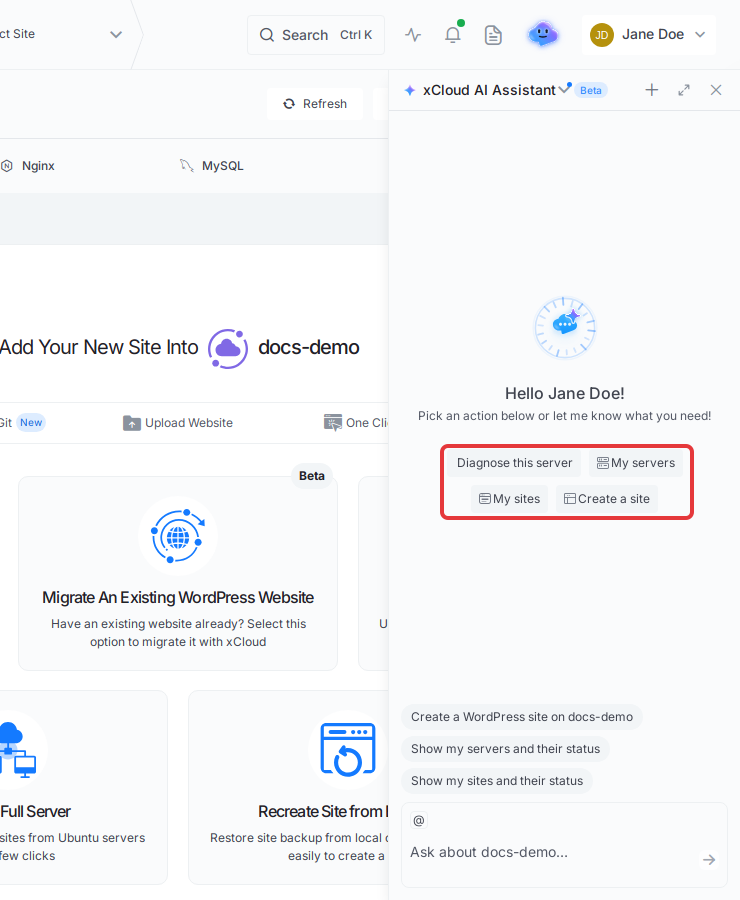
Type your own question in the box, for example:
My site returns 504 Gateway Timeout errors. Check the Nginx error log for “upstream timed out” lines and the server’s CPU and memory usage, and tell me which URL is slow and why.
The assistant starts with read-only checks. If it suggests a change it is allowed to make, such as restarting a service or purging a cache, it shows an Action required card first, and nothing runs until you click Approve. It works within your own team role and never does more than you could do yourself. See how to use xCloud AI Assistant for access levels, and what you can ask xCloud MCP to do if you prefer your own AI tool.
What This Does Not Fix (Honest Limits)
- A higher limit does not make anything faster. It only lets a slow request finish. If normal page views take 60 seconds, visitors leave long before a 300-second limit matters.
- Cloudflare’s own limit stays. On plans below Enterprise, a request that runs past Cloudflare’s limit still fails, whatever you set on the server.
- OpenLiteSpeed works differently. The Nginx wait-time sync above applies to Nginx servers. On OpenLiteSpeed, the dashboard sets PHP limits, but some web server and outbound-connection timeouts are not in the panel; ask our support team if you need them changed.
- The assistant does not fix code. It can find the slow request and run actions you approve, but a slow plugin or query still needs a developer or a different plugin.
- To undo a raised limit, set Max Execution Time back to its earlier value and click Save Settings. xCloud then recalculates Nginx’s wait time from the values left on the server.
Pro Tips to Keep 504s From Coming Back
Tip 1: Keep Normal Pages Well Under 5 Seconds
Treat any page view over a few seconds as a bug, not a timeout setting. The time limit is a safety net for long tasks, not a speed target.
Tip 2: Run Long Jobs Outside the Browser
Imports, exports and migrations belong in WP-CLI, a queue or a cron job. The command line has no proxy waiting on it.
Tip 3: Cache Everything That Is the Same for Everyone
Page cache, object cache and a CDN keep most requests away from PHP. The fewer requests reach PHP, the fewer can time out.
Tip 4: Give Outside Calls Their Own Short Timeout
A payment or license call should fail fast (5 to 10 seconds) and show a clear message, instead of holding a PHP worker for a full minute.
Tip 5: Watch the Error Log After Every Plugin Update
Many 504s start right after an update adds a heavy query or a new outside call. A quick look at the log the same day saves a week of guessing.
Quick Checklist
- Confirmed it is down for everyone, not one network
- Found “upstream timed out” lines and the slow URL in the Nginx error log
- Checked CPU, RAM and disk at the time of the errors
- Fixed the slow query, plugin or outside call
- Raised Max Execution Time only for real long tasks
- Cached what can be cached; checked PHP workers
- Checked Cloudflare or other layers in front of the server
Find the Slow Request and Fix Your 504 Today
A 504 gateway timeout is a messenger, not the problem. Something behind the proxy is slow: a query, an outside call, a full worker queue or a task that needs more time. Read the error log, find that one request, fix it, and raise the limit only when the work truly needs it.
If you run your sites on xCloud, the dashboard keeps PHP’s time limit and Nginx’s wait time in step, and the AI Assistant can read the logs for you. Compare plans on the pricing page or start with managed hosting.
If you have found this blog helpful, feel free to subscribe to our blogs for valuable tutorials, guides, knowledge, and tips on web hosting and server management. You can also join our Facebook community to share insights and engage in discussions.
Frequently Asked Questions
What does 504 Gateway Timeout mean?
It means a server acting as a gateway or proxy, such as Nginx or Cloudflare, waited for the server behind it and got no response in time. The proxy gives up and shows a 504 instead of your page. The fault is almost always on the website’s side, not the visitor’s.
Is a 504 error my fault as a visitor?
Usually not. Reload once after a minute, try another network or check whether the site is down for everyone. If it is down for everyone, only the site owner or their host can fix it.
What is the difference between a 502 and a 504 error?
A 502 Bad Gateway means the proxy got an invalid response, or none, because the app behind it crashed or refused the connection. A 504 means the app was reachable but too slow, so the proxy stopped waiting. A 502 points to something broken; a 504 points to something slow.
Should I just raise the timeout to fix a 504?
Only when the slow request is one you expect, like a large import, a backup or a report. If normal page views hit the limit, a longer timeout only makes visitors wait longer before the same error. Find and fix the slow part first.
Does a 504 error hurt my SEO?
A short outage rarely does. If Googlebot keeps getting 5xx errors over several days, Google slows its crawling and can drop affected pages from results, so fix repeated 504s quickly.
I get a 504 only when I import products or run a backup. What should I do?
That is a long task meeting a short time limit. On an xCloud Nginx server, raise the site’s Max Execution Time under Site Settings (Settings on non-WordPress sites) → PHP Configurations (find PHP settings and click Edit), then run the task again. For very large jobs, run them from the command line or in smaller batches instead.