
Cloudways to xCloud
Migrate from Cloudways to xCloud in One Run
xCloud's Cloudways migration copies the WordPress sites on a Cloudways server to your xCloud server in one run, using the server's Master Credentials instead of root. It is for agencies and site owners leaving Cloudways. The migration has no fee, and the free plan covers one server with up to 10 sites.
- Sign in with Cloudways Master Credentials, no root access needed
- Test every site on a demo domain before DNS changes
- Cloudways keeps serving visitors, so rollback stays open
What moves
What Comes Across, and What Stays on Cloudways
Comes with the migration
- Every WordPress site you tick, from one Cloudways server, in one run
- Site files: WordPress core, themes, plugins and uploads
- Each site's database
- Each site's PHP version, read from the Cloudways server where it can be found
- Site URLs, updated for the demo domain while you test
Stays where it is
- Non-WordPress apps are not moved. Set them up again on xCloud, for example from Git. Guide
- Mailboxes stay with your mail provider, or move to the xCloud MailBox add-on. Guide
- Your domain stays at its registrar; you only point DNS at xCloud. Guide
- Cloudways cache and add-on settings stay behind; xCloud has its own cache. Guide
Can I move my whole Cloudways server?
The one-run migration needs every line in the middle column. If one fails, move the sites one by one instead. Cloudways site-by-site migration.
| Check | Full server migration | Use site by site instead |
|---|---|---|
| Access | Server-level Master Credentials (username and password) | No server-level Master Credentials visible |
| Network | SSH reachable from xCloud on the port you enter (22 by default) | SSH not reachable from xCloud on that port |
| Workload | WordPress sites | Laravel, Node.js or other apps |
| Destination | An xCloud server with 1 GB free beyond the sites' total size | Server already holds copies of these sites: pick another server or remove the copies first |
Eligible? Create a free account and connect your Cloudways server.
Start for freeHow it runs
How Do I Move a Cloudways Server to xCloud?
Six steps, from backup to DNS. The full walkthrough is in the Cloudways migration guide.
Back up on Cloudways
Take a fresh backup in Cloudways and check its time. Clear caches and pause caching and security plugins on the source sites.
Copy Master Credentials
In Cloudways, open the server and copy the Master Credentials username and password, plus the server's public IP.
Pick your xCloud server
Use a server in xCloud with room for every site, plus 1 GB free. Do not use one that already holds copies of the same sites.
Connect and pick sites
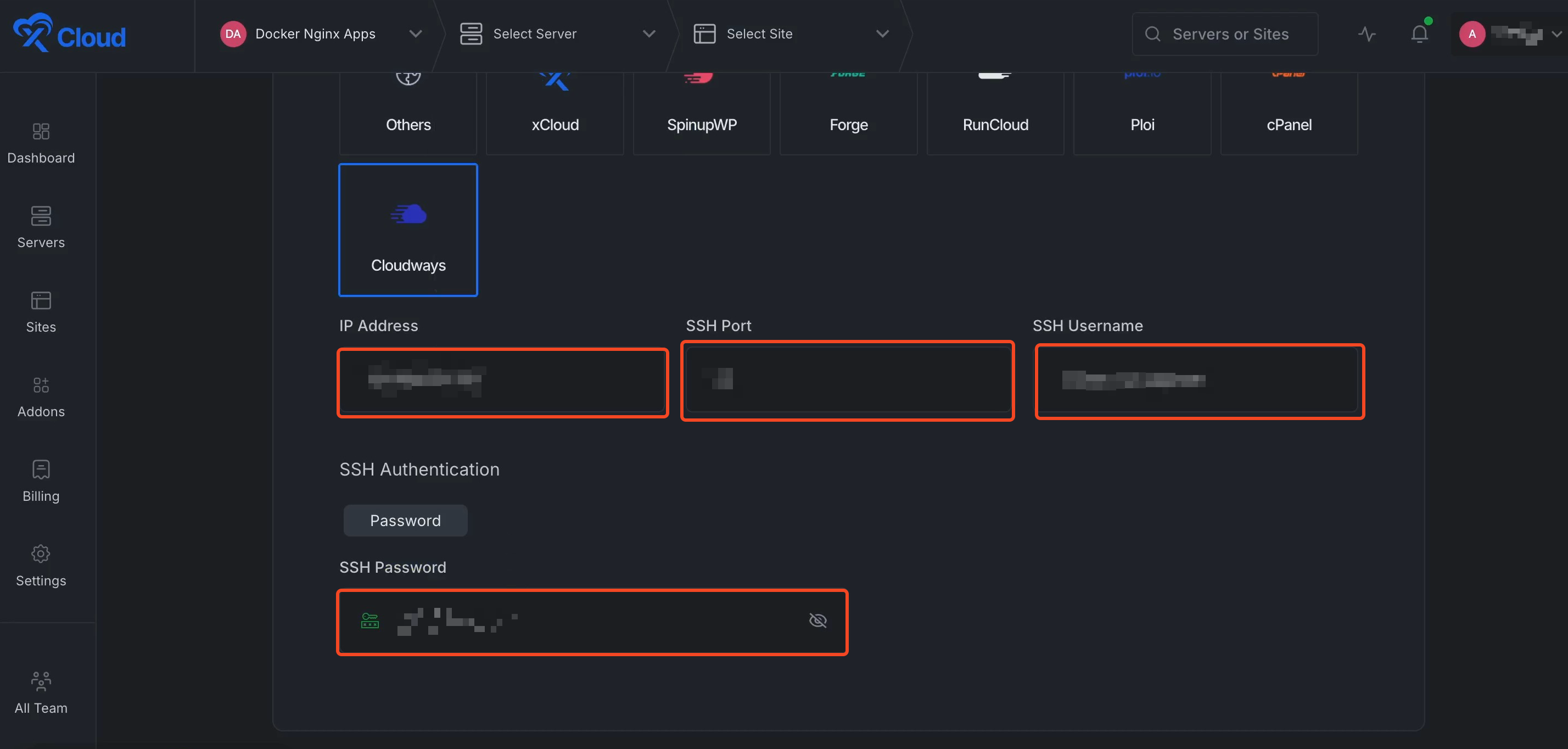
Click Add New Site, choose your xCloud server, then click Migrate Full Server. Choose Cloudways and fill in IP Address, SSH Port, SSH Username and SSH Password. Keep SSH Port at 22 unless your server uses another port. xCloud lists the WordPress sites it finds. Tick the ones to move.
Test on demo sites
Choose Demo Site. Each site lands on an xCloud demo domain. Check pages, admin, forms, orders and email while Cloudways stays live.
Switch DNS
Set each site's real domain in xCloud, point DNS at the xCloud server, and check that SSL is issued.
Downtime, DNS and rollback
Does Migrating from Cloudways Cause Downtime?
Your sites stay up during the copy. The risk sits in the cutover, so plan that part.
Sites stay online during the copy
xCloud copies from Cloudways while it keeps serving visitors. The source sites are not switched off.
Pause new orders and edits before the switch
Orders or posts made after the copy are not merged for you. For shops and membership sites, pause new orders and edits before you switch DNS.
DNS is the switch
Lower your DNS TTL a day ahead. Change the records only after the demo sites pass, then check SSL.
Rollback means pointing back
Keep the Cloudways server and its backups until you are sure. Going back is a DNS change, plus any orders or edits made on xCloud since the switch.
What to know before you start
- The whole-server move needs server-level Master Credentials.
- If you cannot see server-level Master Credentials, move each WordPress site with the site-by-site migration instead.
- Only WordPress sites are found. Other apps on the same server need their own move.
- It is not zero downtime. There is no built-in final sync, so for busy sites, pause new orders and edits for a short time before you switch DNS.
- How long the copy takes depends on file and database size. xCloud shows each site's progress live.
Still comparing? Read xCloud vs Cloudways or thebest Cloudways alternatives. Running a store? SeeWooCommerce hosting and WordPress hosting on xCloud. Moving from somewhere else? See free website migration.
Which migration do I need?
| You are moving | Use |
|---|---|
| Every WordPress site on a Cloudways server, with Master Credentials | Cloudways full server migration |
| One site, or no server-level Master Credentials visible | Cloudways site-by-site migration |
| A RunCloud server | Migrate from RunCloud |
| You would rather the xCloud team does it | Request a team migration |
Before cutover, make sure you know how to restore: site backups in xCloud andissuing SSL after DNS moves.
People who moved from Cloudways
In their own words, unedited.
I had 150 sites on cloudways and am in the process of moving them to xcloud. Much faster and better priced.
 Dan Spinoza
I came from Cloudways and won't go back. Highly impressed with xCloud. Glad I gave them a chance.
 Jared McDowell
I went from Cloudways to xCloud. No intention on switching in the foreseeable future.
 Blaine Moore
Came from cloudways then to runcloud then to xcloud. Looks like I'm staying here.
 Gerson El
Cloudways Migration Questions
What people ask before they move a Cloudways server.
Do I need root access to migrate from Cloudways?
No. The Cloudways option in xCloud's full server migration signs in with the server's Master Credentials username and password, not root.
Where do I find my Cloudways Master Credentials?
In the Cloudways dashboard, open the server and go to Master Credentials. Copy the username, the password and the server's public IP. These are not your Cloudways account login.
Can I move every site on my Cloudways server at once?
Yes. xCloud connects to the Cloudways server, lists the WordPress sites it finds, and copies the ones you tick to your xCloud server in one run.
What if I cannot see Master Credentials in Cloudways?
Then the whole-server move is not available. Move each WordPress site with the site-by-site Cloudways migration instead.
Will my sites go down during the migration?
Not during the copy: Cloudways keeps serving visitors. It is not zero downtime, though. Changes made after the copy are not merged, so for busy sites, pause new orders and edits for a short time before you switch DNS.
How long does a Cloudways migration take?
It depends on the size of your files and databases. xCloud does not promise a time, but it shows how many sites have moved and which are in progress or queued.
Can I roll back to Cloudways?
Yes, if you keep the Cloudways server and its backups until you are sure. Rolling back means pointing DNS at Cloudways again and carrying over any orders or edits made on xCloud since the switch.
Can the xCloud team migrate my Cloudways sites for me?
Yes. You can request a free standard WordPress migration for eligible sites from the xCloud team, or run the migration yourself from the dashboard.
What does migrating from Cloudways cost?
The migration itself has no fee. The free plan covers one server with up to 10 sites; you pay your server provider for the server. Paid plans cover more servers and sites.

Ready to Leave Cloudways?
Create a free account, connect your Cloudways server with its Master Credentials, and test every site on a demo domain before anything goes live.