


xCloud v2.9.9.5 lets you pay for a package in monthly installments right at checkout. On packages that offer it, pick Pay in installments, choose the Number of months, and pay only the first month today. Each later month is charged to your card only after that first payment goes through, and the total stays the same.
Before this release, a package that allowed split payment could still only be bought at the full price on the checkout page.
This post covers how installments work, what happens after month 1, and the two other changes in v2.9.9.5: clear next steps when a server is too small for a One-Click App, and PostgreSQL Git sites for developers using the Public API and MCP. For the full click-by-click guide, see how to pay for an xCloud package in monthly installments.
TL;DR
Short on time? Here is the whole release in a few lines:
- Pay in installments: packages that offer it now show Pay full amount and Pay in installments at checkout.
- You choose the months: from 2 up to the package’s limit, never more than 24. The total equals the full price.
- Month 1 first: you pay month 1 in the same payment popup. Nothing else is charged until it is paid.
- No coupons with installments: to use a coupon, pick Pay full amount.
- Server too small for an app: the app card now links to Resize or upgrade this server or Get a larger server.
- For developers: Git sites created through the API or MCP can now use the server’s PostgreSQL.
- Also fixed: retried invoice payments, white-label logos on invoice PDFs, Supabase installs and a clearer SSL renewal message.
What Changed: Packages Were Full Price Only, Now You Pick the Months
The one thing to remember: installments are a choice on the checkout page itself, not a separate plan or a request to support. If the package offers them, the option is right under your cart.
Here is how the two options compare on the same package:
| Pay full amount | Pay in installments | |
|---|---|---|
| What you pay today | The full package price | Month 1 only, shown as You pay now (1/N) |
| Total you pay | The package price | The same package price, split by month |
| Number of months | n/a | 2 up to the package’s limit (max 24) |
| Coupons | Allowed | Not allowed |
| Later payments | None | Charged to your card each month, after month 1 is paid |
| Where you track it | Your invoice | Billing → Installments, one invoice per month |
The honest part: installments do not lower the price. They spread it. If a coupon saves you more than splitting the cost helps you, pay in full and use the coupon.
Pay for a Package in Installments, Step by Step
Everything happens on the package’s checkout page.
- Open the package checkout. Sign in or create an account if checkout asks you to.
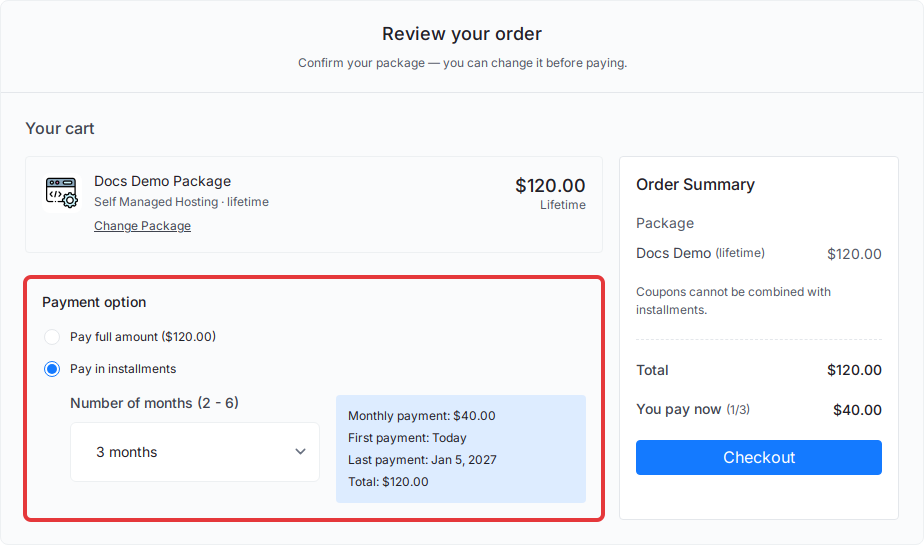
- Under Payment option, select Pay in installments. If you don’t see this section, the package does not offer installments.
- Choose the Number of months. The range in brackets, such as (2 - 6), is what this package allows. A box shows your Monthly payment, the first and last payment dates and the Total.
- Check You pay now in the Order Summary, then select Checkout.
- Pay month 1 in the payment popup. Use a saved card or add a new one. If your bank asks for a 3D Secure check, complete it in the window that opens.
Once month 1 is paid, your package is active. 👉 The full guide with every screen is in the monthly installments doc.
What Happens After Month 1
xCloud charges each remaining month to your card on its due date, one month apart. While the card works, you don’t need to do anything.
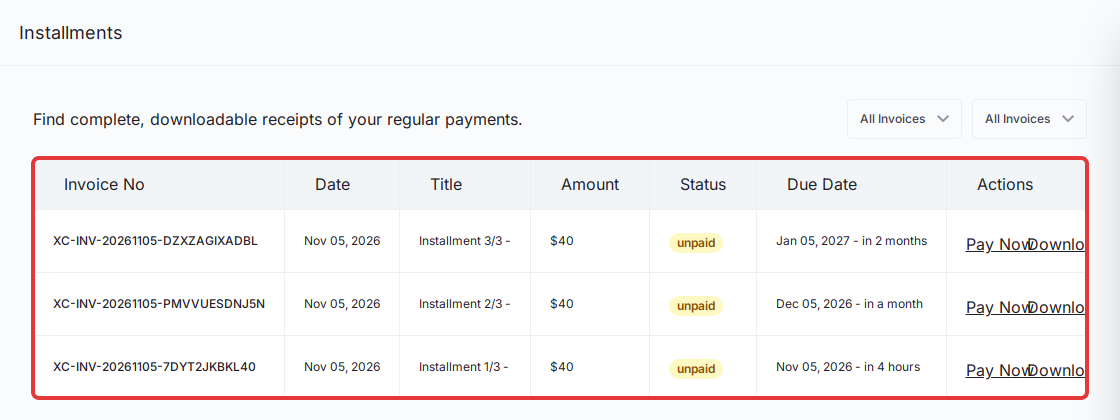
To see the whole plan, open Billing → Installments. Each month has its own invoice with a Due Date and Status, plus Pay Now for an unpaid month and Download for the receipt.
Here’s the part that trips people up: closing the popup before paying month 1 charges nothing at all. A plan only starts when month 1 is paid, so an unfinished checkout never turns into surprise charges later.
If a later monthly charge fails, xCloud tries the card again, and you can settle that month yourself at any time with Pay Now. For cards that need a bank approval on every charge, see pay your invoice manually with 3D Secure. For how invoices and plans fit together in general, read how billing works in xCloud.
When Your Server Is Too Small for a One-Click App
Before v2.9.9.5, a One-Click App that needed more memory, CPU or disk only told you what was missing. There was nothing to click. Now the app card and the install page show a way forward.
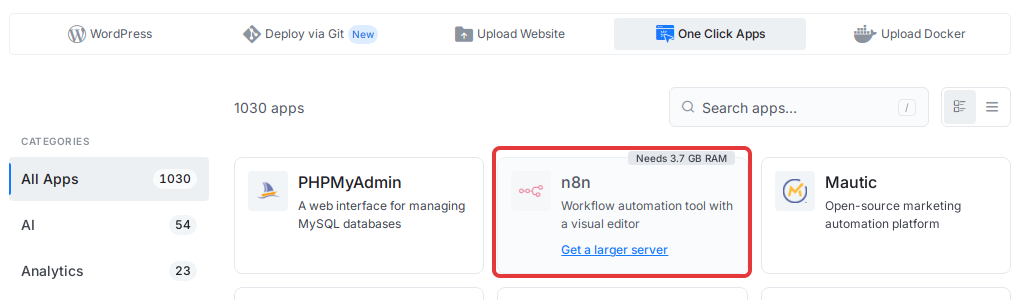
What you see depends on the server and your team role:
| What you see | When it appears |
|---|---|
| Resize or upgrade this server | The server can be resized and you can manage it. Opens its resize options. |
| Ask a team administrator to resize this server. | The server can be resized, but your role does not allow it. |
| Get a larger server | The server cannot be resized. Opens the new server page with the app already picked, and xCloud finishes the install once the server is ready. |
| Install on a larger server. | The server cannot be resized and your role does not allow adding servers. |
A related fix: when you buy a server for a One-Click App, xCloud now only offers plans with at least the memory the app needs. Steps are in how to use One-Click App templates.
For Developers: PostgreSQL Git Sites From the API and MCP
If you deploy Git projects through the xCloud Public API or MCP, you can now create a Git site on the server’s managed PostgreSQL. Before, the database engine you asked for was ignored and the site was created without a database.
- Set
site_database_enginetopostgresqlwhen creating a Git site. - The server needs managed PostgreSQL ready on an Nginx server. If it is not, the error tells you how to check and install it.
- A dry run shows the database as PostgreSQL before anything is created.
The request details are in deploy Git projects with the xCloud Public API and MCP. New to PostgreSQL on xCloud? Start with managed PostgreSQL and pgAdmin on xCloud, or see what you can ask xCloud MCP to do.
When a service cannot start through the API or MCP, the error now also includes a short hint about why.
Other Fixes in v2.9.9.5
- Billing: retrying a failed invoice payment, for example with another card, now works. Before, a retry could fail with a message that your payment could not be processed.
- White label: invoice PDFs now show your logo, or your brand name if no logo is uploaded, instead of the word “Logo”. New to the program? Read introducing the xCloud White Label program.
- One-Click Apps: new Supabase installs no longer fail with one service not running.
- SSL: when automatic renewal has stopped for an expired certificate, the SSL/HTTPS page now says so and shows the DNS and renewal steps. More help in how to fix a failed free SSL.
- Databases: editing a database user with every database unchecked now shows Please select at least one database.
What This Release Does Not Do
- It does not add installments to every package. Only packages that offer them show the option.
- It does not discount anything. The total equals the full price.
- It does not work with coupons. If you applied a coupon and then select Pay in installments, the coupon is removed.
- It does not resize a server for you. The One-Click App links open the resize or new server page; you still choose the size.
Changed your mind on the payment option before paying? Close the popup and start the checkout again. Nothing is charged until month 1 is paid.
Try Installments on Your Next xCloud Package
If a package you want offers installments, you can now start with one month’s payment and keep the total price the same. Compare packages on the xCloud pricing page, then pick Pay in installments at checkout.
Already running out of room on a server? Open the One-Click App you want and follow the link it shows. And if you build with the API or MCP, try a PostgreSQL Git site with a dry run first. You can catch up on last month’s changes in the October 2026 release notes.
If you have found this blog helpful, feel free to subscribe to our blogs for valuable tutorials, guides, knowledge, and tips on web hosting and server management. You can also join our Facebook community to share insights and engage in discussions.
Frequently Asked Questions
Which xCloud packages can I pay for in monthly installments?
Only packages that offer installments. On those, the checkout page shows a Payment option section with Pay full amount and Pay in installments. If you don’t see that section, the package is paid in full.
How many months can I split a package into?
At least 2 months, up to the limit set for that package, and never more than 24 months. The checkout shows the allowed range next to Number of months, for example (2 - 6).
Do I pay more if I choose installments?
No. The total of all months equals the full package price shown at checkout. When the price does not split evenly, the last month absorbs the rounding difference.
Can I use a coupon with monthly installments?
No. Coupons cannot be combined with installments. If you want to use a coupon, choose Pay full amount instead.
What happens if I close the payment popup before paying month 1?
Nothing is charged. A plan only starts when month 1 is paid, so no later month is ever charged for a checkout you did not finish.