

How to Use One-Click App Templates in xCloud
Updated October 27, 2026 · 10 min read
xCloud One-Click App Templates let you deploy and operate supported applications without writing a custom Docker Compose file. This guide is for xCloud users who want to choose an app from the catalog, place it on a compatible server, complete its template-specific setup, and manage it after installation. You will also learn where to update environment variables, protect the app with Basic Authentication, review lifecycle actions, and inspect deployment events.
Prerequisites
- An active xCloud account with permission to create sites
- A domain ready for Go Live, or permission to create a Demo Site
- Either an existing compatible server or permission to create a new server
- Enough CPU, memory, and disk for the selected app’s published requirements
- A secure password manager for any credentials generated during installation
Step 1: Open the One-Click Apps catalog
From the xCloud dashboard, go to Sites → New Site, then select One-Click Apps. Use the search box or a category filter to find the application you want to deploy, then select its card.
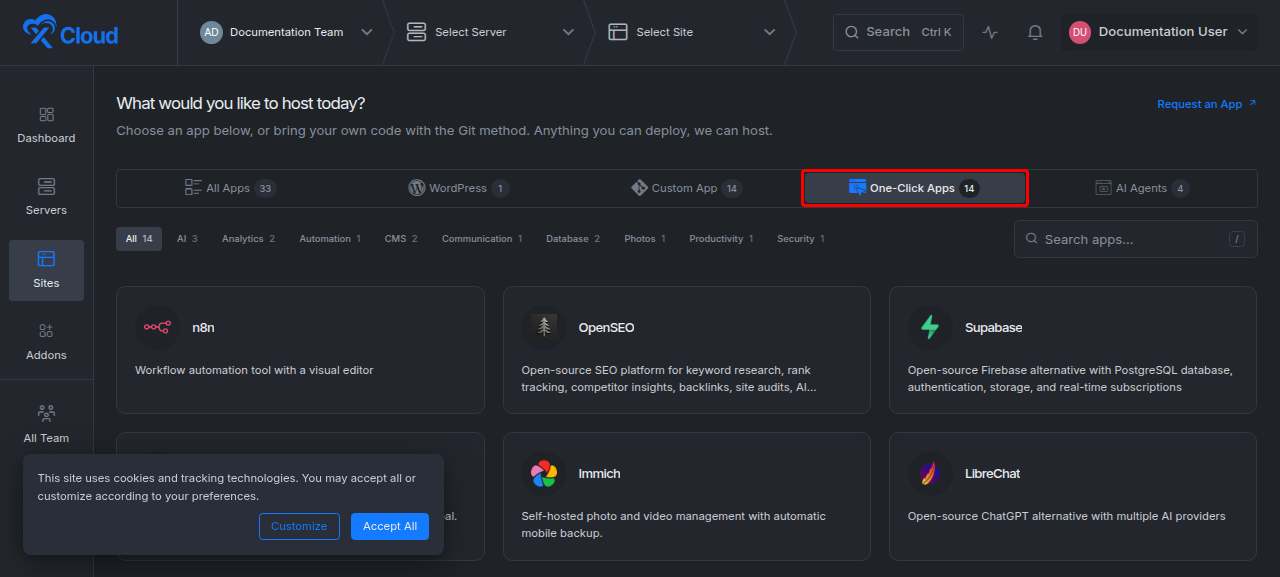
Expected result: xCloud opens the selected app’s setup page with its stack and server requirements.
Step 2: Choose a compatible server
Review the app’s requirements before choosing where it will run. You can create a new server or select an eligible existing server. xCloud compares the template with the server’s stack and current resource information; the exact CPU, memory, and disk minimums vary by app.
Apps that run in containers show Runs on Nginx, Docker. They need an NGINX server, which can be one that already hosts WordPress or PHP sites. If Docker is not installed on the server yet, xCloud installs it during the app install. OpenLiteSpeed servers cannot run Docker. See how to enable Docker on an NGINX server.

Select the server, then click Continue.
Expected result: The app configuration step opens. If no server is eligible, xCloud keeps incompatible servers unavailable and shows the requirement that is not met.
Step 3: Configure and create the app
Complete every field marked as required. The fields come from the selected template, so one app may request only a site title while another may require an administrator email, storage setting, or application-specific option.
Choose one deployment mode:
| Option | Use it when | Result |
|---|---|---|
| Demo Site | You want to evaluate the app before connecting a production domain. | xCloud creates a temporary demo URL. |
| Go Live | Your production domain is ready to point to the server. | xCloud creates the app for the domain you provide. |
Review the values, store any displayed credentials securely, and click Create.
Expected result: xCloud creates the site and begins the template’s deployment tasks. Wait for those tasks to finish before changing environment values or opening the app.
Step 4: Use the One-Click App overview
Open the site after deployment. A One-Click App has a focused overview for its app and container state, domain, SSL, recent events, credentials when the template exposes them, and application lifecycle controls.
Open App Actions to use the actions available for the app:
| Action | What it does | When to use it |
|---|---|---|
| Start | Starts the app’s containers. | The app is stopped and should return to service. |
| Stop | Stops the app’s containers. | You intentionally need the app offline. |
| Restart | Restarts the current deployment. | The app needs a clean restart without rebuilding it. |
| Update | Pulls the latest images defined in the app’s compose file and recreates the containers. Data volumes are preserved. Asks for confirmation first. | You want the latest published images, or need to recreate the running services. |
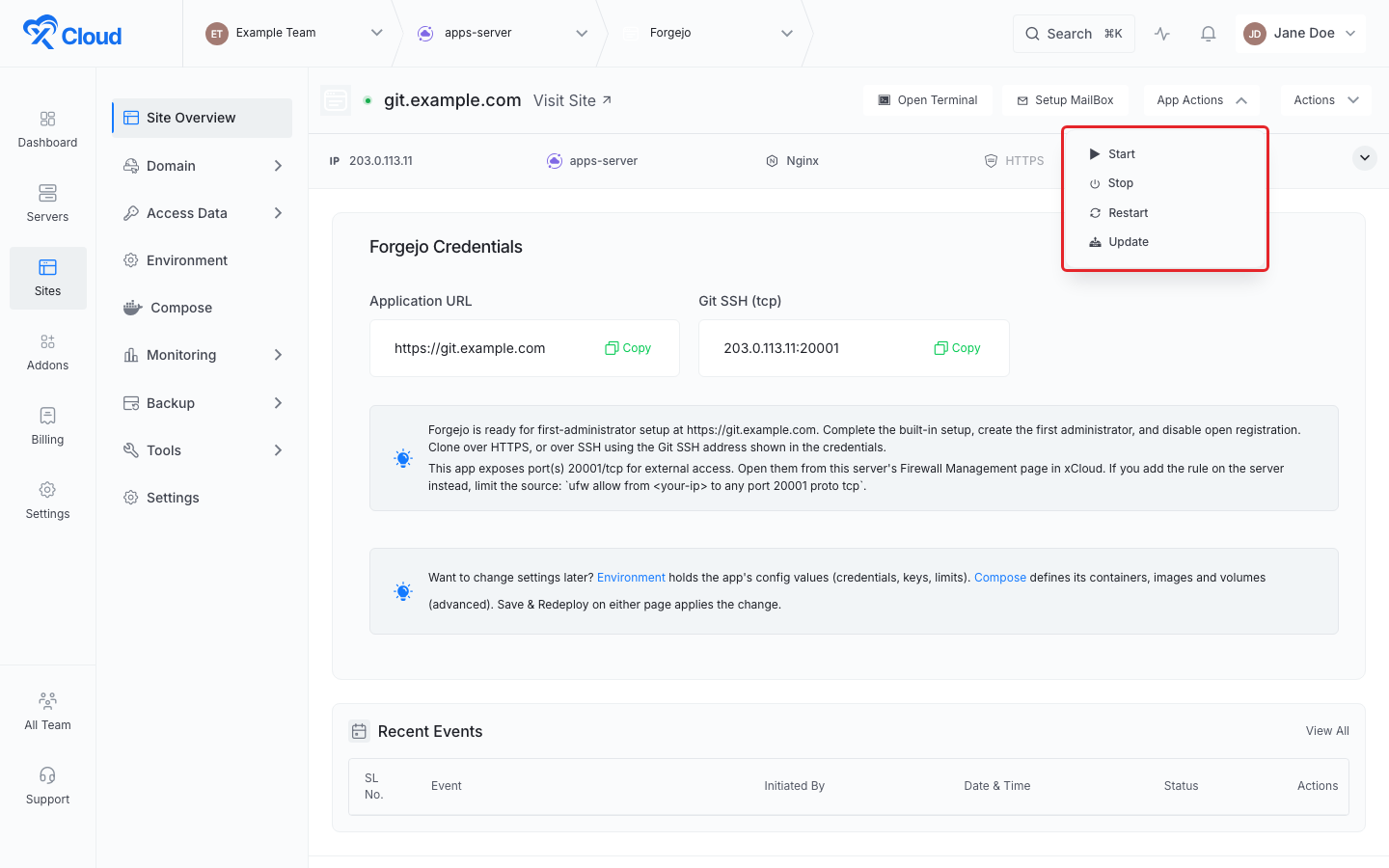
For what Update does in detail, and how to edit the app’s docker-compose.yml from the Compose page, see how to update a One Click App and edit its Docker Compose file.
Expected result: The selected action starts a task. Its progress and result appear in the site’s events.
Before Stop, Restart, or Update: confirm that the app’s persistent data is protected according to that app’s own backup guidance. These actions can interrupt active users.
Step 5: Update environment variables safely
Open the One-Click App site and select Environment. Edit the environment file, then click Save & Redeploy.
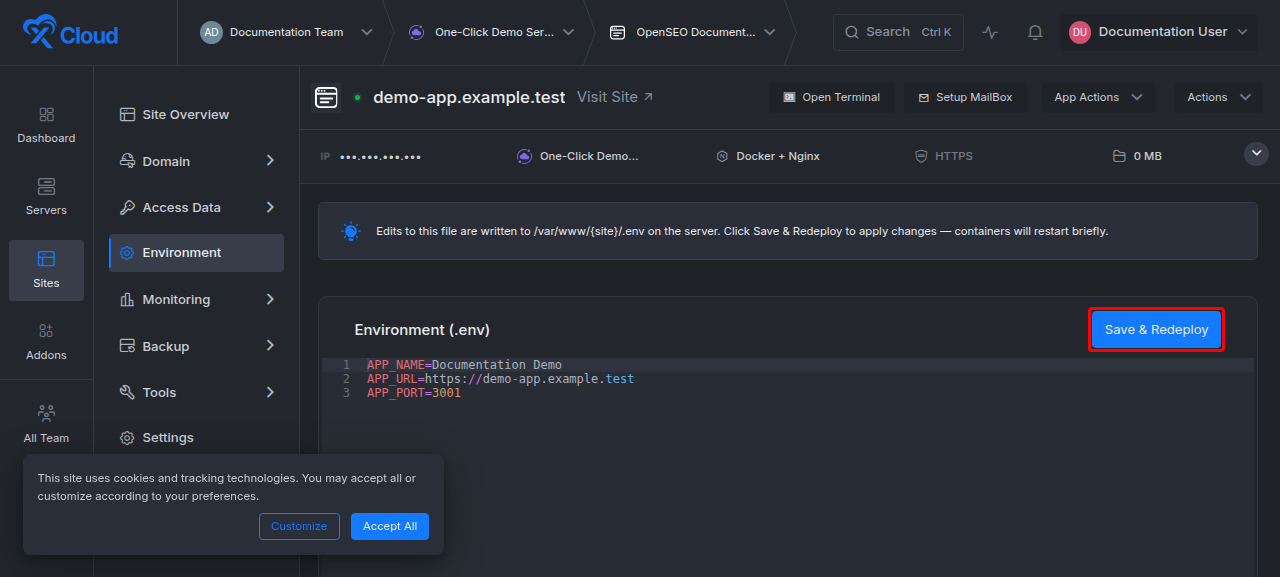
Expected result: xCloud saves the environment configuration and redeploys the app so the new values take effect.
Keep these boundaries in mind:
- The available variables and accepted values are defined by the app template.
- Do not rename or remove a required key unless the app’s own documentation tells you to do so.
- Treat database passwords, API keys, tokens, signing secrets, and connection strings as secrets.
- Save a secure copy before making a large environment change.
- Expect a brief interruption while the app redeploys.
Step 6: Add Basic Authentication when you need a private review gate
In the site’s navigation, open Tools → Basic Authentication. Enable authentication, add a username and strong password, then save the change.
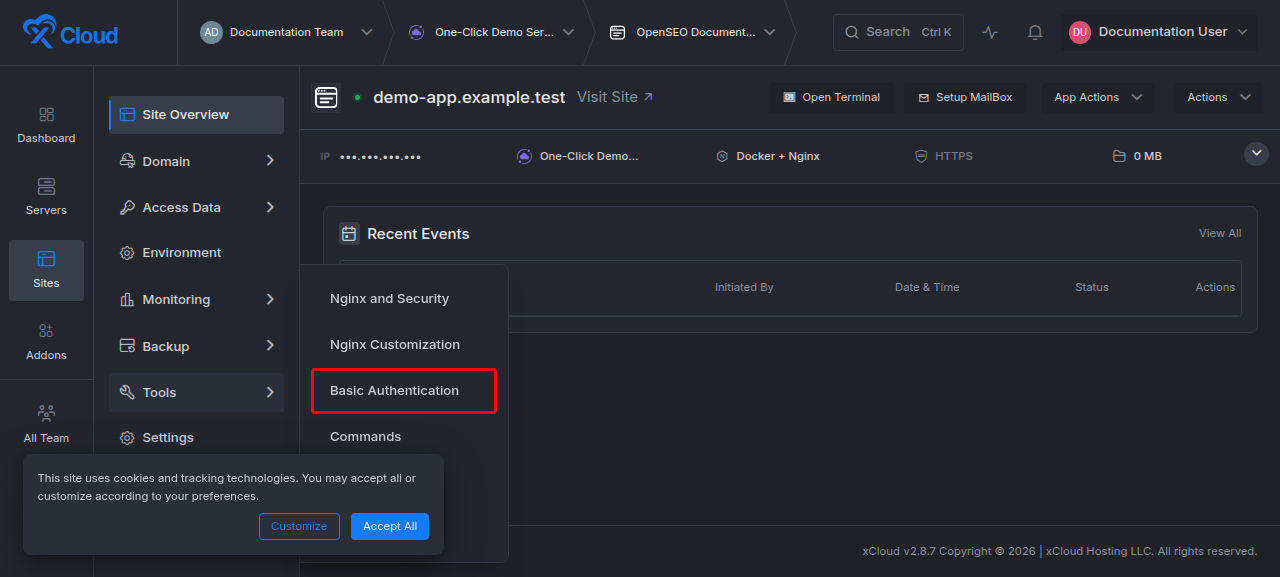
Expected result: Browsers must supply the Basic Authentication credentials before the app loads. This protects access at the web server layer; it does not replace the app’s own user accounts or permissions.
Step 7: Review deployment progress and failures
The site overview shows Recent Events. Select View All to open the complete event history for the site.
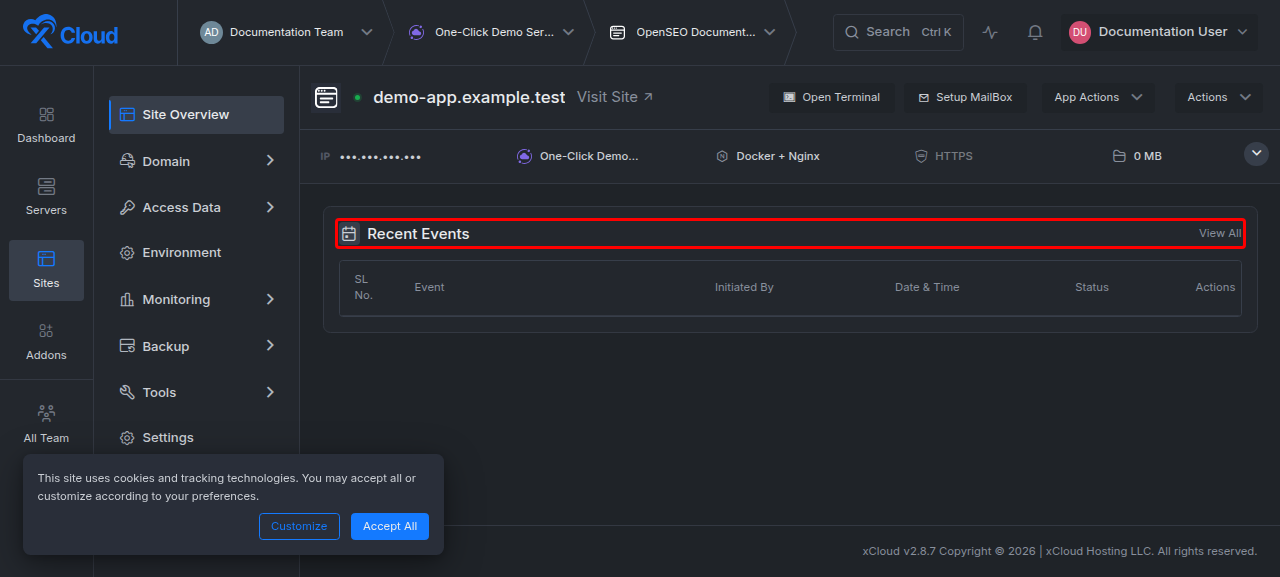
Use events after creating, restarting, or updating the app. Open the relevant event to inspect its current state and available output.
Expected result: The latest task finishes successfully. If it fails, the event identifies the task that needs attention.
How template versions, ports, and generated values work
A One-Click App Template is more than a catalog card. It defines the application version, source revision, server stack, container files, port allocation, persistent volumes, required fields, generated values, and available lifecycle actions.
| Template-controlled item | What to expect |
|---|---|
| Template and app version | xCloud records the template version and app version used for the installation. Template files are fetched from the source revision pinned by xCloud, so you do not choose an arbitrary branch or commit during site creation. |
| Ports | The template declares the app’s internal service port or an allocation rule. xCloud stores the assigned port with the installation and configures web routing for the site. Change a port only when the template exposes an editable port field. |
| Generated values | A template can generate passwords, tokens, and other values. xCloud stores these as protected installation data and shows only the credentials the template marks for display. |
| Configuration fields | Labels, required fields, defaults, and validation rules come from the selected template. Use the field description and the app-specific guide instead of copying values from another app. |
| Persistent storage | The template declares the persistent volumes required by the app. A redeploy should not be treated as a substitute for an app-specific backup. |
Use Demo Site for a temporary xCloud URL, or Go Live for your own domain. After creation, manage domains on the app’s own Domain → Domain page and HTTPS under Domain → SSL/HTTPS. An app with more than one web interface (for example a main app and an admin console) gets one domain per interface, and a demo install gets one generated demo domain per interface. Some apps also expose a public TCP or UDP port, which xCloud lists on the Credentials card. See how to manage One Click App domains and public endpoints.
Credentials and template-specific settings
Some templates generate credentials during installation and show them on the site overview; others expect the app to create its first administrator from the app’s own setup screen. If xCloud displays a credential:
- Copy it directly to a secure password manager.
- Do not paste it into tickets, screenshots, or shared chat.
- Rotate it inside the application when the app supports rotation.
- Keep the corresponding environment variable synchronized if the app requires it.
Never assume two templates expose the same credentials, ports, resource minimums, or environment keys.
Verification
Confirm the complete deployment with this checklist:
- The site’s latest deployment event reports success.
- The app’s containers show the expected running state.
- Visit Site opens the Demo Site or production domain.
- HTTPS loads without a certificate warning when SSL is enabled.
- You can complete the app’s own login or first-user setup.
- A harmless environment change persists after Save & Redeploy.
- Basic Authentication prompts before the app when you enabled it.
Troubleshooting
| Symptom | Likely cause | Fix |
|---|---|---|
| No existing server can be selected | The server stack or available resources do not meet the template’s requirements. | Review the requirement shown on the app setup page. Choose a compatible server or create one with the required stack and capacity. |
| The app configuration does not open | xCloud could not load the selected template configuration. | Refresh once. If the problem continues, return to the catalog and reopen the app; then contact xCloud support with the app name and time of the failure. |
| The app does not load after creation | Deployment is still running, a container stopped, or domain routing is incomplete. | Open Recent Events → View All, inspect the latest task, then check the app state and domain configuration. |
| An environment change has no effect | The value was not saved, the app was not redeployed, or the key is not supported by the template. | Reopen Environment, confirm the key and value, and use Save & Redeploy. Check the resulting event. |
| Basic Authentication does not accept the password | The saved credentials differ from the values being entered or the browser cached an old login. | Save a new strong password, retry in a private browser window, and update the password manager entry. |
| Update or redeploy finishes but app data is missing | The app did not store that data in its expected persistent volume or database, or a volume was removed or renamed in an edited compose file. | Stop making changes, inspect the app’s persistence requirements, and restore from the app-specific backup if one exists. Escalate to support before another redeploy. |
Common mistakes
- Choosing a server by name instead of compatibility. The app page is the source of truth for stack and resource requirements.
- Treating every field as optional. Template fields differ, and missing a required app value blocks creation.
- Publishing a Demo Site URL as the final domain. Use Demo Site for evaluation and configure the production domain before launch.
- Editing secrets in a shared screen. Environment values and generated credentials can grant access to the app or its data.
- Clicking Update repeatedly. Wait for the current event to finish before starting another lifecycle action.
- Assuming Basic Authentication replaces application security. It adds an outer access prompt; the app still needs its own secure users and permissions.
Frequently asked questions
Do all One-Click Apps use the same server size?
No. Each template declares its own stack and resource requirements. Review the selected app’s setup page before choosing a server.
Do I need to write a Docker Compose file?
No. In the One-Click Apps flow, xCloud applies the selected template. Use the custom Docker deployment flow only when you need to supply and maintain your own application definition.
Will saving environment variables restart the app?
The Save & Redeploy action applies the environment configuration by redeploying the app. Plan for a brief interruption.
Where do I find installation credentials?
If the template generates credentials, xCloud shows them on the app overview. Some applications instead create their first administrator inside the application.
Where can I see why an installation failed?
Open the site overview and select Recent Events → View All, then inspect the failed deployment event and its available output.
Related documentation
- Browse the One-Click Apps catalog to see every supported application
- Manage One Click App domains and public endpoints
- Update a One Click App and edit its Docker Compose file
- Enable Docker on an NGINX server
- How to create a site with xCloud for the WordPress path
- Enable Basic Authentication on your site
- Deploy a custom Docker application from a Git repository when you need your own Compose file
- App-specific guides: n8n, Ghost, Mautic, Nextcloud, Vaultwarden, Linkwarden
If you run into any issues with a One-Click App, feel free to reach out to our support team.