

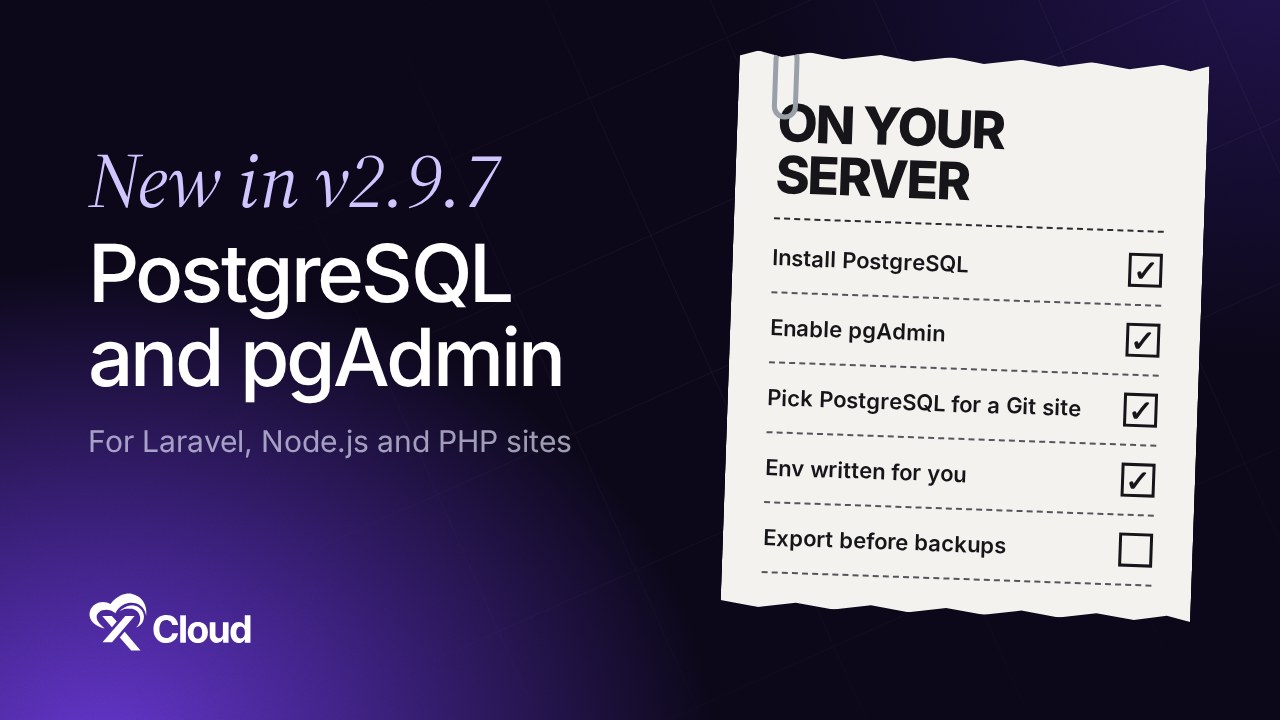
PostgreSQL and pgAdmin now run on your own xCloud server. Since v2.9.7 (27 October 2026), an Nginx server can install one managed PostgreSQL service, open pgAdmin in the browser over HTTPS, and give new Laravel, Node.js and PHP Git sites a PostgreSQL database with the connection already written to the site’s environment.
Until this release, a Laravel or Node.js app that needed PostgreSQL meant a database you installed and patched yourself, with no GUI, next to a panel built around MySQL. If you have read our Node.js vs Laravel comparison, you know both ecosystems treat PostgreSQL as a first-class choice. xCloud now does too.
This post covers why we built it, how to install PostgreSQL and pgAdmin, how to create a PostgreSQL site, what is not supported yet, and the smaller changes that shipped alongside it.
TL;DR
Short on time? Here is the whole release in a few lines:
- One managed PostgreSQL per Nginx server, shared by every PostgreSQL site on it. Install it when you create the server or later from Management › Settings › Install a Service.
- pgAdmin, managed by xCloud. Enable it from the Management › Database page and sign in over HTTPS with its own credentials.
- PostgreSQL sites. Native Git sites (PHP App, Laravel, Node.js) can pick MySQL or PostgreSQL at creation. xCloud creates the database and role and writes
DB_CONNECTION=pgsqlplusDATABASE_URLto the site’s environment. - Private by default. PostgreSQL listens on 127.0.0.1 only; it is not exposed to the internet.
- Not yet supported: PostgreSQL in site backups, and cloning, migrating, staging or snapshotting PostgreSQL sites. Export your data with pgAdmin’s Backup tool.
- Requirements: Nginx stack and Docker Engine 28 or newer. OpenLiteSpeed servers cannot install it.
- Also in v2.9.7: Discord and signed webhook alerts, bulk PHP switching and redirects in the Public API and MCP, and WireGuard updates from the dashboard.
Why We Built It: “Can I Use PostgreSQL?” Kept Getting a No
Before v2.9.7, xCloud had no managed PostgreSQL. You could not add it next to MySQL from the dashboard, open it in a web GUI, or create a site wired to it; the options were the separate one-click app or running it yourself over SSH. Meanwhile more of the apps people deploy, from Laravel projects to tools like n8n and Umami, expect PostgreSQL. The table below is what changed for each of those questions.
| The question customers asked | Before v2.9.7 | Since v2.9.7 |
|---|---|---|
| Can my server run PostgreSQL? | Only as a separate one-click app or a manual install over SSH | One managed service per Nginx server, installed from the dashboard |
| Is there a GUI for it? | No | pgAdmin, enabled and secured by xCloud, opened over HTTPS |
| Can a Laravel or Node.js site use it? | You wired the connection by hand | Pick PostgreSQL at site creation; database, role and env are created for you |
| Is it reachable from the internet? | Depended on your own setup | Bound to 127.0.0.1 only |
| Is it in site backups? | No | Not yet: export with pgAdmin’s Backup tool |
| Can I replace MySQL on the server? | No | Still no. PostgreSQL runs next to MySQL, not instead of it |
That last row matters. Managed PostgreSQL does not swap out your server’s MySQL or MariaDB, so your WordPress sites keep running exactly as before.
Install Managed PostgreSQL and pgAdmin
You can add PostgreSQL to a new server by ticking Install PostgreSQL under the database settings of the server form (Nginx stack only). For an existing server, the steps are short. The full walkthrough with every screen is in How to Install Managed PostgreSQL and pgAdmin in xCloud.
Before you start
- An Nginx server. See Available Server Stacks in xCloud.
- Docker Engine 28 or newer. PostgreSQL and pgAdmin run as private containers. If Docker is older, the install stops with “Private data services require Docker Engine 28 or newer.” Our guide to Docker on an Nginx server covers how Docker runs alongside your sites.
- No PostgreSQL one-click app on the same server. If the server already runs it, the managed install is not offered.
The steps
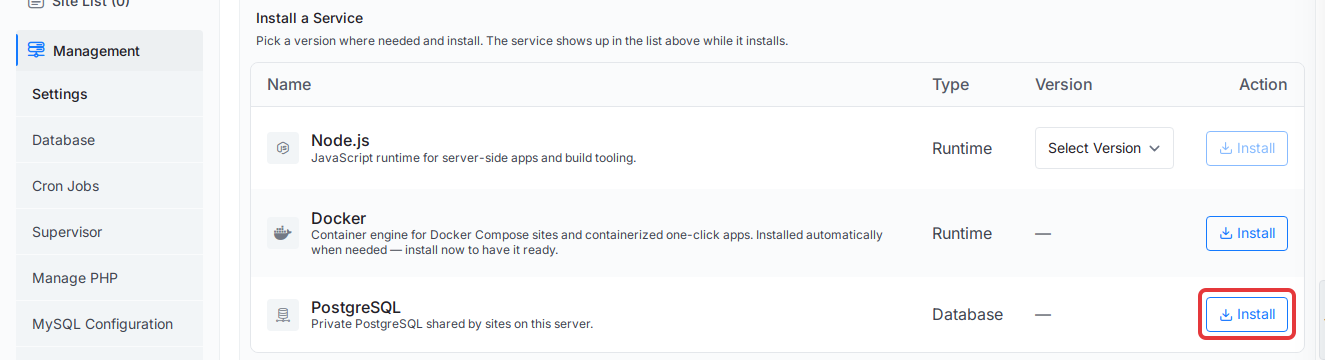
- Open your server and go to Management › Settings. Under Install a Service, click Install on the PostgreSQL row.
- Watch the row move from Queued to Installing… to Ready. If it shows Failed, read the message under the status, fix the cause and click Retry.
- Go to Management › Database and click Enable pgAdmin on the new pgAdmin card.
- When the card is ready, click Show credentials, then Open pgAdmin, and sign in.
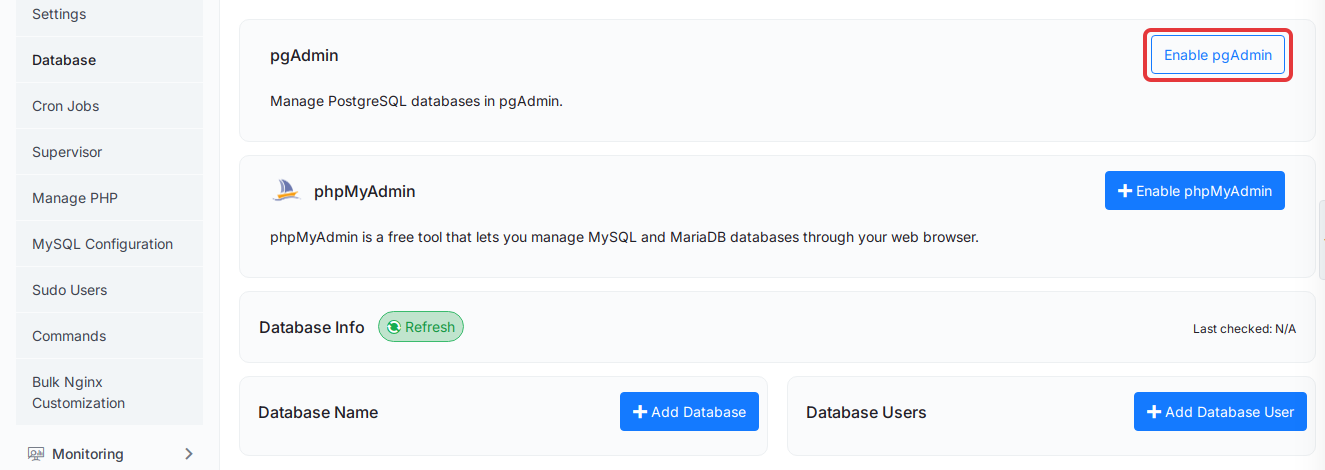
pgAdmin is the open-source graphical management tool for PostgreSQL. Inside it you create databases and roles, run queries and export data, without opening an SSH session. It plays the role that Adminer plays for MySQL sites. Disabling pgAdmin later deletes nothing: databases you created there move to the xcloud_pg_owner role and PostgreSQL keeps running.
Create a Site That Uses PostgreSQL
With PostgreSQL showing Ready, start a new site with Deploy via Git (see Deploy Git Projects in One Click). Choose PHP App, Laravel or Node.js as the App Type, then set Database engine to PostgreSQL.
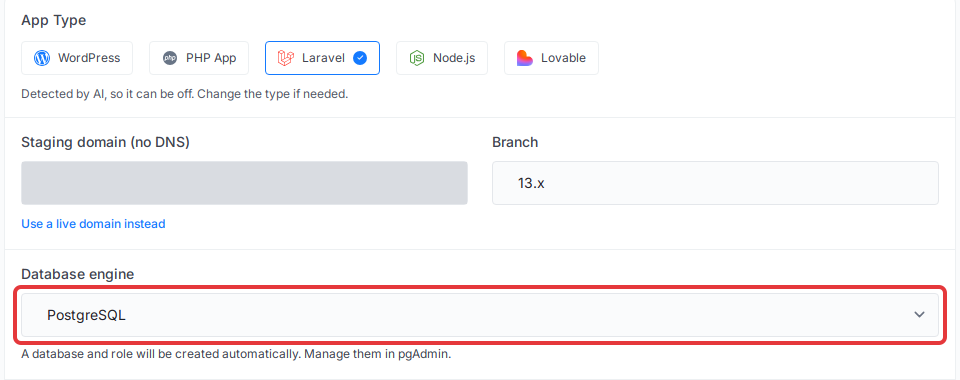
xCloud creates a database and a role for the site and writes the connection to the site’s environment:
DB_CONNECTION=pgsql
DB_HOST=127.0.0.1
DB_PORT=<port>
DB_DATABASE=<site database>
DB_USERNAME=<site role>
DB_PASSWORD=<generated password>
DATABASE_URL=postgresql://<site role>:<generated password>@127.0.0.1:<port>/<site database>
Laravel’s default database config reads the DB_* keys. Node.js tools such as Prisma are usually configured with DATABASE_URL. Either way, your first deploy can run migrations without you pasting a password anywhere. Before that first deploy, make sure the server runs a supported Node.js release; our guide to updating Node.js on Ubuntu covers the October 2026 security release.
If Database engine does not appear on the form, PostgreSQL is not Ready on that server yet, or the app type is not PHP App, Laravel or Node.js. The same choice is also in the white-label site form.
What It Does Not Do Yet (Read This Before You Go Live)
Here is the part that trips people up: PostgreSQL databases are not in xCloud site backups yet. The site’s Backups page shows a reminder, but a backup will not restore your PostgreSQL data. Until that changes, export it yourself from pgAdmin: right-click the database, choose Backup…, pick the Custom format and run it. pgAdmin runs pg_dump, PostgreSQL’s own backup utility, for you; download the finished file from pgAdmin’s Storage Manager and keep a copy off the server.
| Area | What happens with PostgreSQL today |
|---|---|
| Server stack | Nginx only, Docker Engine 28 or newer. Not OpenLiteSpeed |
| Services per server | One managed PostgreSQL, shared by every PostgreSQL site |
| Site types | Native Git sites: PHP App, Laravel, Node.js. Not WordPress |
| Site backups | Not included yet |
| Clone, migrate, staging, snapshots | Not supported yet for PostgreSQL sites |
| Deleting a site | The site’s database and role are kept; remove them in pgAdmin |
| Disabling pgAdmin | Nothing is deleted; PostgreSQL keeps running |
To undo the whole thing for a site, delete the site, then drop its database and role in pgAdmin. There are no performance or price claims in this post because we have not published a benchmark: treat managed PostgreSQL as a convenience and a security default, and size your server for your own workload.
Need a standalone database instead? The separate PostgreSQL one-click app still exists for running PostgreSQL as its own app.
Get Alerts in Discord or Your Own Signed Webhook
v2.9.7 also adds Discord and Webhook next to Slack, Telegram and WhatsApp under Settings › Integrations › Notification. Discord takes a channel webhook URL. The webhook option posts each alert as JSON to any HTTPS endpoint you run, signed with HMAC-SHA256 so your code can verify it came from xCloud.
Both need a paid plan and get their own switches under Settings › Notifications. Setup and signature checks in PHP and Node.js are in Send xCloud notifications to Discord or a webhook.
For API and MCP Users: Bulk PHP Switching and Redirects
The Public API and MCP can now switch PHP for up to 100 sites in one call: preview the change, run it, and poll each site’s result. They also manage site redirects (POST, PUT and DELETE /api/v1/sites/{uuid}/redirections), a site’s vulnerability scan setting, and the list of WordPress versions site creation accepts. Start with How to access the xCloud API.
Also in v2.9.7: WireGuard Updates and Safer Telegram Linking
- WireGuard sites show their current and latest stable version and can queue a tracked update from the dashboard, API or MCP. See Install WireGuard with xCloud.
- Telegram linking now uses a single-use code and links only the chat you confirm.
- New servers install MariaDB 11.8, and database and user names are now validated and quoted in every database action.
The full list of fixes is in the v2.9.7 changelog. This week’s other security change, the move to BetterShield, has its own post.
Give Your Next Laravel or Node.js App a PostgreSQL Database Today
If your next app expects PostgreSQL, you no longer need a second database server or an SSH-only setup. Install PostgreSQL on an Nginx server, enable pgAdmin, and pick PostgreSQL when you create the site. Then export it regularly with pgAdmin’s Backup tool, because site backups do not cover it yet.
Running Laravel? Our Laravel hosting and Node.js hosting pages show what else xCloud manages for those stacks. Try it on your next Git site this week, and tell us in the community what PostgreSQL feature you want next.
If you have found this blog helpful, feel free to subscribe to our blogs for valuable tutorials, guides, knowledge, and tips on web hosting and server management. You can also join our Facebook community to share insights and engage in discussions.
Frequently Asked Questions
Is PostgreSQL included in xCloud site backups?
Not yet. xCloud site backups do not include PostgreSQL databases, and the site’s Backups page reminds you of that. Export the database with pgAdmin’s Backup tool on a schedule you trust.
Can I use PostgreSQL on an OpenLiteSpeed server?
No. Managed PostgreSQL is available only on Nginx servers with Docker Engine 28 or newer. If your sites run on OpenLiteSpeed, use a separate Nginx server for your PostgreSQL apps.
Is the PostgreSQL port open to the internet?
No. xCloud binds the managed PostgreSQL service to 127.0.0.1 on the server, so only sites and tools on that server can reach it. You manage it from the browser through pgAdmin, which opens over HTTPS with its own login.
Can I switch an existing MySQL site to PostgreSQL?
Not from the dashboard. The MySQL or PostgreSQL choice is made when you create a native Git site (PHP App, Laravel or Node.js). To move an existing app, create a new PostgreSQL site and migrate the data with your framework’s tools.
What is the difference between managed PostgreSQL and the PostgreSQL one-click app?
Managed PostgreSQL is one shared service per server that your Git sites connect to, with pgAdmin and automatic database and role creation. The PostgreSQL one-click app is a standalone database app you deploy on its own. A server that already runs the one-click app cannot add the managed service.