

How to Pay for an xCloud Package in Monthly Installments
Updated November 6, 2026 · 4 min read
Some xCloud packages let you split the price into monthly payments instead of paying it all at once. You choose the number of months at checkout, pay the first month right away, and xCloud charges each later month to your card automatically. The total you pay is the same as the full price.
This guide shows how to pick installments at checkout, pay the first month, and track or pay the remaining months from your dashboard.
Before you start
- Only packages that offer installments show the option. If the package you picked does not offer it, the Payment option section is not on the checkout page and you pay the full amount.
- The number of months depends on the package. You can pick from 2 months up to the package’s limit, which is never more than 24 months.
- Coupons cannot be combined with installments. To use a coupon, pay the full amount instead.
- You need a card. xCloud takes card payments through Stripe. You can use a saved card or add one during checkout. See how billing works in xCloud for accepted payment methods.
Step 1: Open the package checkout
Open the package from its xCloud pricing or sales page and continue to checkout. If you are not signed in, sign in or create an xCloud account when checkout asks you to, and the checkout continues for your team.
Expected result: The Review your order page shows your package under Your cart and an Order Summary on the right.
Step 2: Select Pay in installments and choose the months
Under Payment option, select Pay in installments. Then choose how many months to spread the payment over in Number of months. The range in brackets, for example (2 - 6), is what this package allows.
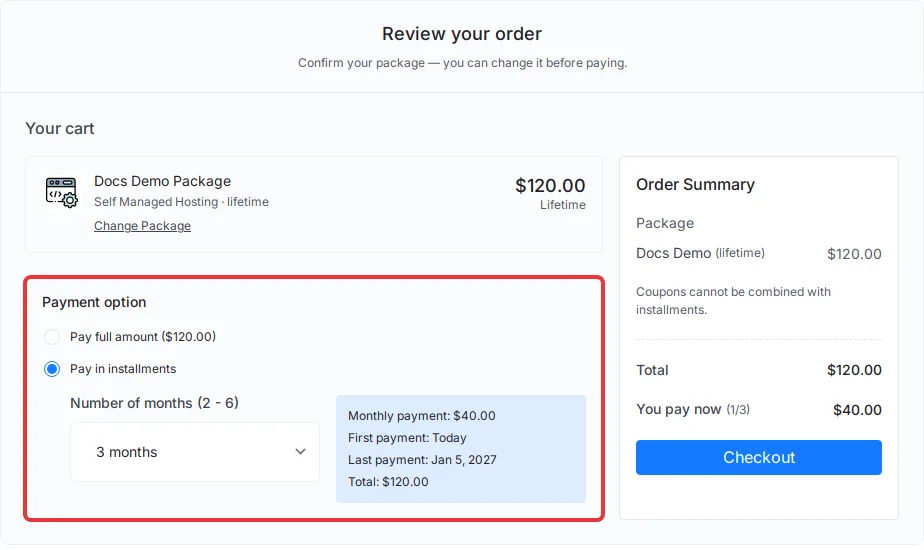
Expected result: A box next to the dropdown shows your Monthly payment, First payment (Today), Last payment date and the Total. The total equals the full package price. When the price does not split evenly, the last month absorbs the rounding difference of a cent or so.
Step 3: Check what you pay today and select Checkout
In the Order Summary, check You pay now. It shows the first of your monthly payments, for example (1/3) for a three-month plan. The coupon field is replaced by the note Coupons cannot be combined with installments. Select Checkout.
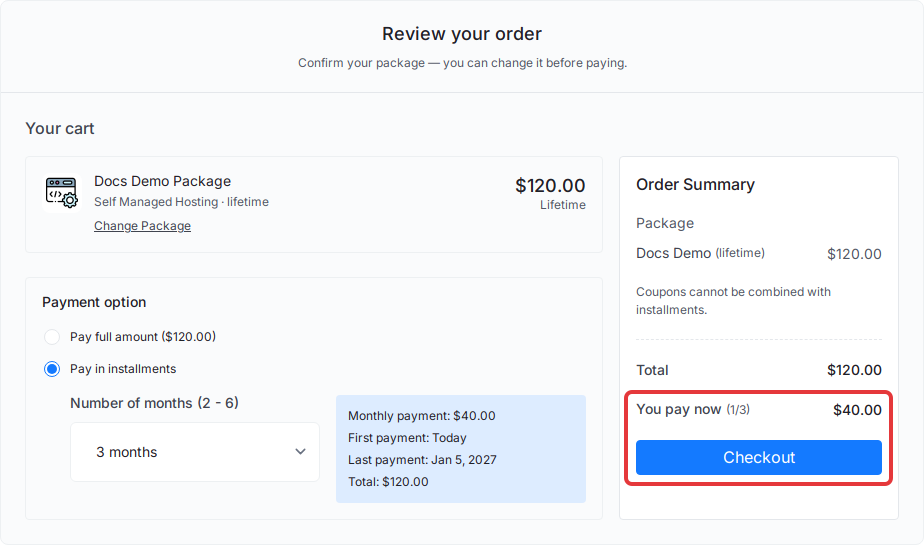
Expected result: The Payment popup opens.
Step 4: Pay the first month
The Payment popup shows the invoice for month 1, labelled Installment 1/N, with the amount due today. Pay it the same way as any xCloud purchase: use your saved card, or add a new card in the popup. If your bank asks for a 3D Secure or OTP check, complete it in the window that opens.
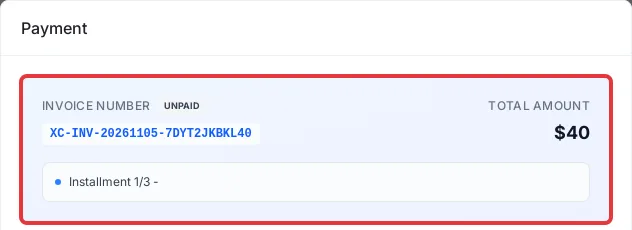
Expected result: Once month 1 is paid, your package is active and appears under My Purchases → xCloud Control Panel.
If you close the popup without paying: nothing is charged. A plan only starts when month 1 is paid, so the later months are never charged for a checkout you did not finish. You can start the checkout again whenever you are ready.
Track and pay the remaining months
xCloud charges each remaining month to your card on file on its due date, one month apart. You don’t need to do anything while the card works.
To see your plan, open Billing → Installments. Each month has its own invoice with its Due Date and Status, plus Pay Now (for an unpaid month) and Download for the receipt. The Installments page appears once your team has an installment plan, for members who can manage billing.
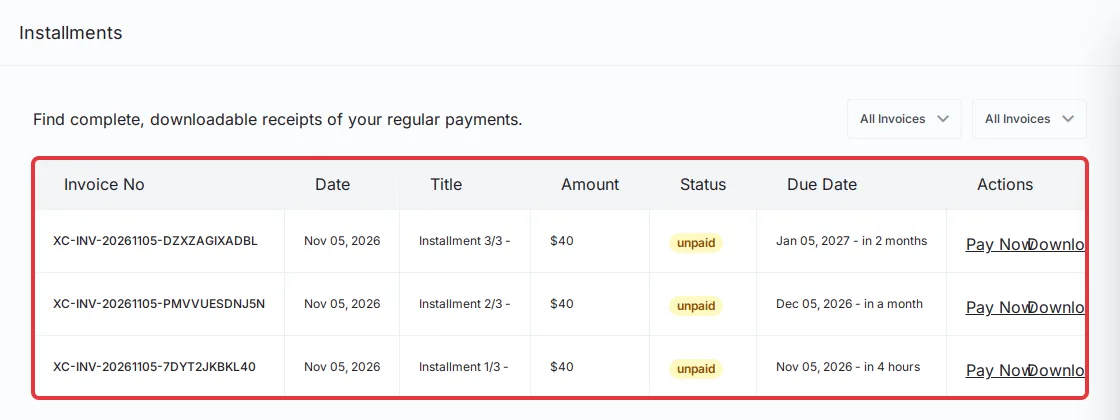
If a monthly charge fails: xCloud tries the card again 3, 7 and 14 days after the due date. To settle it sooner, or after the retries stop, select Pay Now next to that month and pay with a working card. For cards that need a bank approval on every charge, see Card payment failed? Pay your xCloud invoice manually with 3D Secure.
Frequently asked questions
Can I use a coupon with installments?
No. Coupons cannot be combined with installments. If you applied a coupon and then select Pay in installments, xCloud removes the coupon. Choose Pay full amount if you want to use the coupon.
Am I charged anything if I close the payment popup?
No. Nothing in an installment plan is charged until you pay month 1 at checkout. If you close the popup without paying, no later month is charged either.
What happens if a monthly payment fails?
xCloud tries the charge again 3, 7 and 14 days after the due date. You can pay the month yourself at any time from Billing → Installments → Pay Now.
Why don’t I see the Pay in installments option?
Only some packages offer installments. If the package you picked does not, the Payment option section does not appear and you pay the full amount.
Related guides
- How pricing plans and billing work in xCloud
- How to read your xCloud invoice
- Card payment failed? Pay your xCloud invoice manually with 3D Secure
If you run into any issues with an installment payment, feel free to reach out to our support team.