


Per-user WordPress login for teams means every teammate signs in to wp-admin as their own WordPress user, not a shared admin account. In xCloud, Magic Login does this by default: it signs each person in as the WordPress user whose email matches their xCloud account. It is free on every plan.
Agencies and in-house teams usually start with one shared admin. It works until two people edit the same page, a client asks who changed the menu, or a contractor leaves and the password has to change on 40 sites. If you are building a team workflow, our agency guide to website maintenance reports covers the reporting side.
This guide shows why a shared admin breaks team work, how per-user login works in xCloud step by step, and how it compares with WP Umbrella, WP Remote and MainWP as of November 2026.
TL;DR
- xCloud Magic Login signs each teammate in as their own WordPress user when a user with their xCloud email exists on the site. There is no mapping screen to fill in.
- No match? It falls back to the site’s admin user saved in xCloud, then the first administrator.
- Custom login lets a person pick any WordPress email or username, and Remember me makes it their default for that site in that browser.
- You control who can use it. Magic login is never given automatically; you grant the permission to Team Admin, Server Admin or Site Admin members.
- Every link works once and expires after 10 minutes. No password changes hands.
- WP Remote documents the opposite design: one default login user per site, so every teammate’s actions log under one account.
- The catch: xCloud Magic Login only works for WordPress sites on servers connected to xCloud. It is not a plugin for sites on another host.
The Finding: xCloud Matches Teammates by Email, Not by a Mapping Table
Here is the part most comparisons miss. When a teammate clicks Magic Login in xCloud, the site looks for the WordPress user with that teammate’s xCloud email first.
So per-user login is not a setting you switch on. It is what happens once each person has a WordPress user with the same email they use for xCloud.
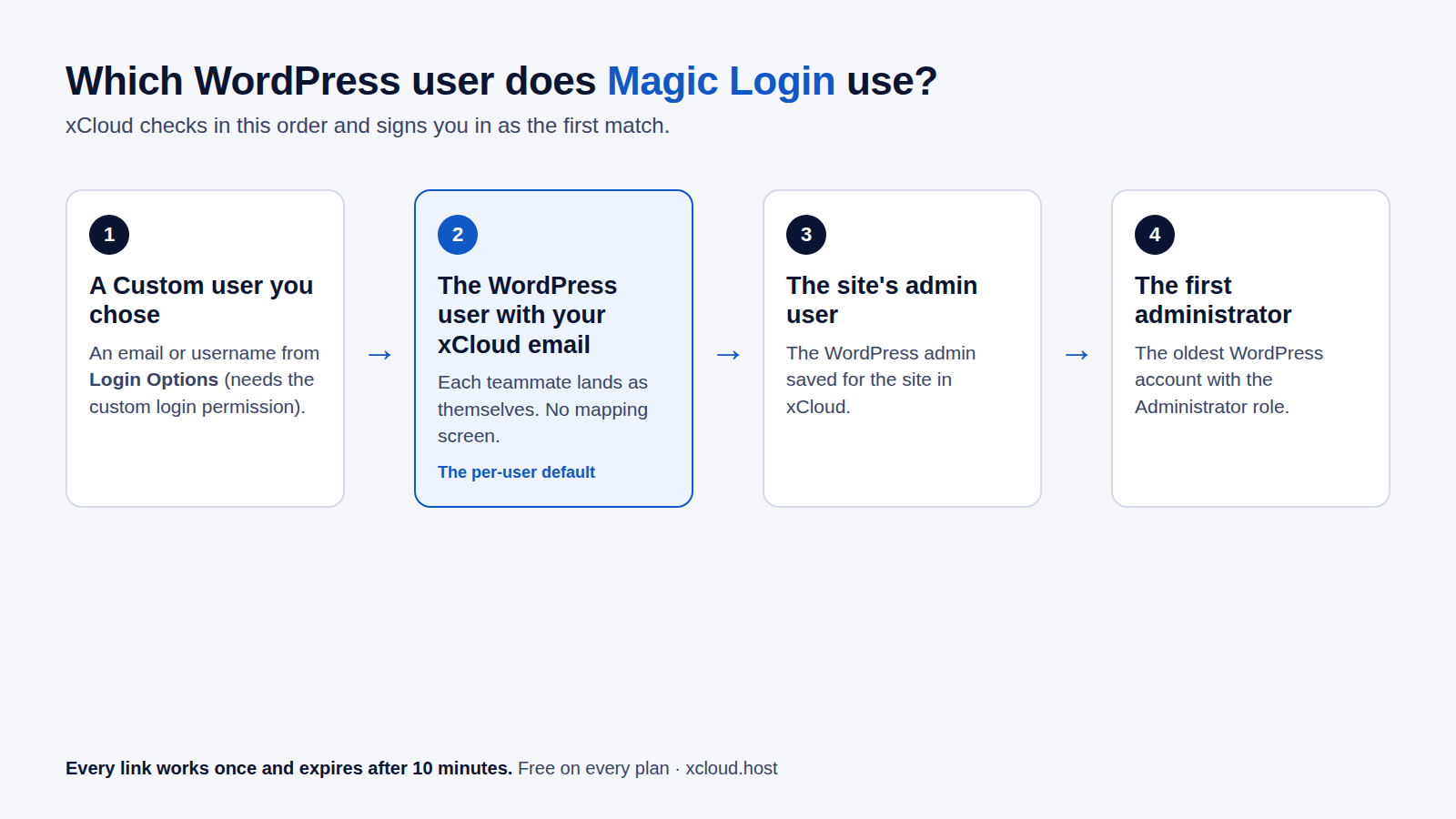
The full order, taken from the sign-in helper xCloud places on each site:
| Order | xCloud signs you in as | When it applies |
|---|---|---|
| 1 | The Custom user you chose | You picked an email or username under Login Options |
| 2 | The WordPress user with your xCloud email | The default for each teammate |
| 3 | The site’s admin user saved in xCloud | No WordPress user has your email |
| 4 | The first administrator | None of the above exist |
If you only remember one line: same email in xCloud and in WordPress means each person lands as themselves.
Why a Shared WordPress Admin Breaks Team Work
A shared admin feels simple. The cost shows up later, in three places.
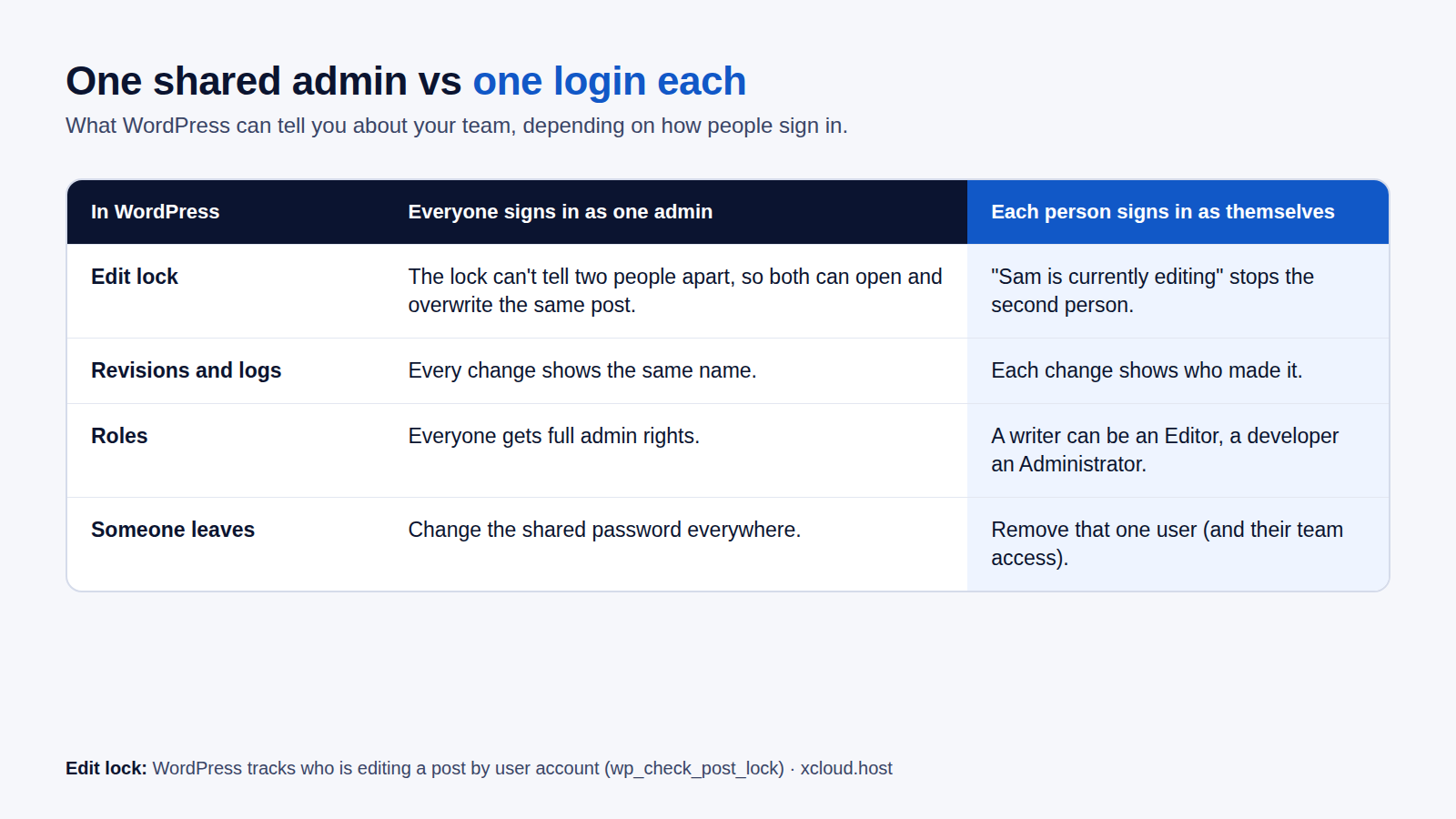
1. The edit lock can’t tell people apart
WordPress warns you when someone else is editing a post (“Sam is currently editing”). WordPress tracks who is editing by user account, and it never warns the person who is already editing.
With one shared admin, two people are the same user. Neither gets the warning, and the last one to click Update wins.
2. Revisions and logs show one name
Post revisions and most activity log plugins record the WordPress user who made a change. When everyone is “admin”, the log tells you what changed, never who. That turns a five-minute client question into an hour of asking around.
3. Offboarding means a password change everywhere
When a contractor leaves, a shared password has to change on every site they touched. With one login each, you delete their WordPress user and remove them from your xCloud team. Nobody else is affected.
Per-user accounts also let you match roles to the job: a writer can be an Editor, a developer an Administrator. Pair that with login protection , and fewer people hold an admin password that could leak.
How Per-User Login Works in xCloud
You need a WordPress site on a server connected to xCloud, and Team Owner or Team Admin access to manage members.
Step 1: Add your teammate to xCloud
Go to All Team, open the team’s menu, select Manage Team, then Add New Member. Enter their email, choose Team Admin, Server Admin or Site Admin, and pick the servers or sites they can reach.
👉 Full steps: How to Manage Teams, Roles, and Permissions in xCloud.
Step 2: Give them the Access magic login permission
Access magic login is one of the permissions xCloud never adds automatically, even when Allow new features automatically is on. Select it by hand for each member who should sign in to WordPress. To change access later on one server or site, use Team Access.
Step 3: Create a WordPress user with the same email
In wp-admin, go to Users → Add New User. Use the exact email of the teammate’s xCloud account and the role their job needs. Repeat on each site they work on.
Step 4: Click Magic Login
Your teammate opens the site in xCloud and clicks Magic Login. A new tab opens, signed in as their own WordPress user. To open several sites, they can select up to 10 in the site list and use the Magic Login action.
Optional: Sign in as someone else with Custom
Click the arrow next to Magic Login to open Login Options. Choose Custom, enter a WordPress email or username, and tick Remember me to make it that person’s default for the site in their browser. This needs the permission to use custom login.
👉 Full steps: How to Customize Magic Login with xCloud and Magic Login in xCloud.
xCloud vs WP Umbrella vs WP Remote vs MainWP
These tools solve different jobs. WP Umbrella, WP Remote and MainWP are site maintenance dashboards that connect to WordPress sites wherever they are hosted. xCloud manages the server and the sites on it, with the login built in.
The table uses each vendor’s own pages as of November 2026. Where a page does not say something, we say so instead of guessing.
| xCloud | WP Umbrella | WP Remote | MainWP | |
|---|---|---|---|---|
| What it is | Server and site management | Maintenance dashboard | Maintenance dashboard | Self-hosted maintenance dashboard |
| One-click wp-admin login | ✅ Magic Login | ✅ “1-Click Admin Access” | ✅ WordPress SSO (1-click login) | ✅ “Access WP Admin” (Team Control) |
| Which WordPress user by default | The user with the teammate’s xCloud email | Not stated on its pricing page | One Default Login User per site, shared by the team | Not stated on the pages we opened |
| How per-user login is set | Same email in xCloud and WordPress, or Custom | Check its current docs | By design, one user per site | Check its current docs |
| Team roles | Team, Server and Site Admin, permission granted by hand | Unlimited team members with role-based access | Team members | Team Control roles (Pro add-on) |
| Price model | Magic Login free on every plan | Per site, from €1.99 / $2.19 a month | Per site: free tier, then $1.99, $4.99 or $14.99 a month | Team Control is a Pro add-on |
| Maintenance plugin on each site | ❌ None (Magic Login adds a small helper file) | WP Umbrella plugin | WP Remote plugin | MainWP Child, required on each site |
| Works on sites hosted elsewhere | ❌ Only on servers connected to xCloud | ✅ | ✅ | ✅ |
WP Remote: one login user per site, on purpose
WP Remote’s guide to setting a default login user explains the design: pick one WordPress user per client site, and every 1-click login uses it. Their example logs the whole team’s actions under one agency account, so the client sees one official name.
That is a fair choice when the client should not see your staff list. It is the opposite of per-user login, so decide which one your clients expect.
WP Umbrella: per-site pricing, unlimited team members
WP Umbrella prices per site (from €1.99 or $2.19 a site a month on wp-umbrella.com/pricing) with unlimited team members and one-click admin access “without sharing credentials”. Its pricing page does not say which WordPress user that login uses, so test it on one site before you roll it out.
MainWP: you host the dashboard, Team Control sets roles
MainWP runs on a WordPress site you host, and the MainWP Child plugin must be installed on each site you manage. The Team Control add-on gives each teammate a role, including an Access WP Admin permission, and notes that user roles on your child sites stay as they are.
Tools in this space change fast. Check each vendor’s latest docs before you decide.
Which One Fits Your Team
| Your situation | Better fit | Why |
|---|---|---|
| Sites on your own servers or xCloud Managed | xCloud | Per-user login, server tools and team roles in one place |
| Clients’ sites stay on many different hosts | WP Umbrella or WP Remote | They connect to sites wherever they are hosted |
| Client must see one agency name in every log | WP Remote | Its default login user is built for that |
| You want to self-host the dashboard itself | MainWP | The dashboard runs on your own WordPress site |
Choose xCloud if…
- ✅ You host (or want to host) your clients’ sites on servers you control
- ✅ You want each teammate in wp-admin as themselves, with no mapping screen
- ✅ You want no maintenance plugin on every site
- ✅ You’d rather not pay per site for the login
xCloud wins when hosting and the team live in one place.
Choose a maintenance dashboard if…
- ✅ Your clients’ sites stay on their own hosts and you can’t move them
- ✅ You need uptime, backups and reports across hosts in one dashboard
- ✅ You’re fine with a connector plugin on each site
A dashboard wins when you manage sites, not servers.
What xCloud Magic Login Does Not Do
Honest limits, so you can plan around them:
- It does not create WordPress users. You add each teammate’s user in wp-admin yourself, on each site.
- It falls back to an admin. A teammate with no matching WordPress user lands as the site’s admin user or the first administrator. Only give the permission to people who have their own user.
- It only covers sites on connected servers. It is part of hosting and server management, not a plugin for sites elsewhere.
- The off switch is per server. Turning off Magic Login Settings under Server → Settings removes it from every site on that server, not just one.
- Remember me lives in the browser. A teammate who switches browsers picks their Custom user again.
To undo it for one person, remove their Access magic login permission in All Team → Manage Team (or Team Access for one server or site), or delete their WordPress user. To undo it for a server, turn off Magic Login Settings.
Set It Up on xCloud Today
If your team already works in xCloud, this takes a few minutes per site. Add the WordPress users with matching emails, grant the permission, and ask everyone to use Magic Login from now on.
- 🔑 Magic Login feature page: what it does and who it is for
- 👥 Team roles and permissions: who can do what
- 🛠️ WordPress management: updates and site tools across servers
- 🏢 xCloud for agencies: hosting built for teams with many client sites
- 💳 xCloud Free vs PRO: which features are free and which are PRO
Moving sites from another panel first? See our best RunCloud alternatives, best Cloudways alternatives and best VPS hosting for agencies guides.
Create your free xCloud account and give your team one login each.
Give Every Teammate Their Own Login This Week
A shared WordPress admin hides who changed what, lets edits collide, and makes offboarding painful. Per-user login fixes all three, and in xCloud it rests on one rule: the same email in xCloud and in WordPress.
This week, pick your busiest site. Create a WordPress user for each teammate with their xCloud email, give them the Access magic login permission, and retire the shared password.
If you have found this blog helpful, feel free to subscribe to our blogs for valuable tutorials, guides, knowledge, and tips on web hosting and server management. You can also join our Facebook community to share insights and engage in discussions.
Frequently Asked Questions
How do I give each team member their own WordPress login in xCloud?
Invite the person to your xCloud team, create a WordPress user on the site with the same email as their xCloud account, and give them the Access magic login permission. When they click Magic Login, xCloud signs them in as that WordPress user.
Is xCloud Magic Login free?
Yes. Magic Login is free on every plan, including the switch that turns it off for a server. Other features, such as Updates Manager, are part of PRO, so check the free vs PRO page for those.
What happens if a team member has no WordPress user with their email?
xCloud falls back to the site’s admin user saved in xCloud, then to the first administrator on the site. To stop that, create a WordPress user for each teammate, or only give the Access magic login permission to people who have one.
Do magic login links expire?
Yes. Each sign-in link works once and expires after 10 minutes, and no password is shared. Click Magic Login again whenever you need a new one.
Can I use xCloud Magic Login on sites hosted somewhere else?
No. Magic Login works for WordPress sites on servers connected to xCloud, either your own server or an xCloud Managed one. If your sites live on another host and you want to keep them there, a maintenance dashboard such as WP Umbrella, WP Remote or MainWP is the better fit.
For Developers
The xCloud public API can create a magic login link for a site, with an optional login_as (WordPress username or email) to choose the user.