

How to Manage Team Access to a Server or Site in xCloud
Updated October 18, 2026 · 4 min read
The Team Access card on a server or site overview in xCloud shows who on your team can open that server or site. You can give a member access, or remove it, right there, without opening each member’s settings in Team Management.
Note: You see Team Access only if you are the team owner, or a team admin who can manage team members. To learn how roles work, see How to Manage Teams, Roles, and Permissions in xCloud.
Step 1: Find the Team Access card
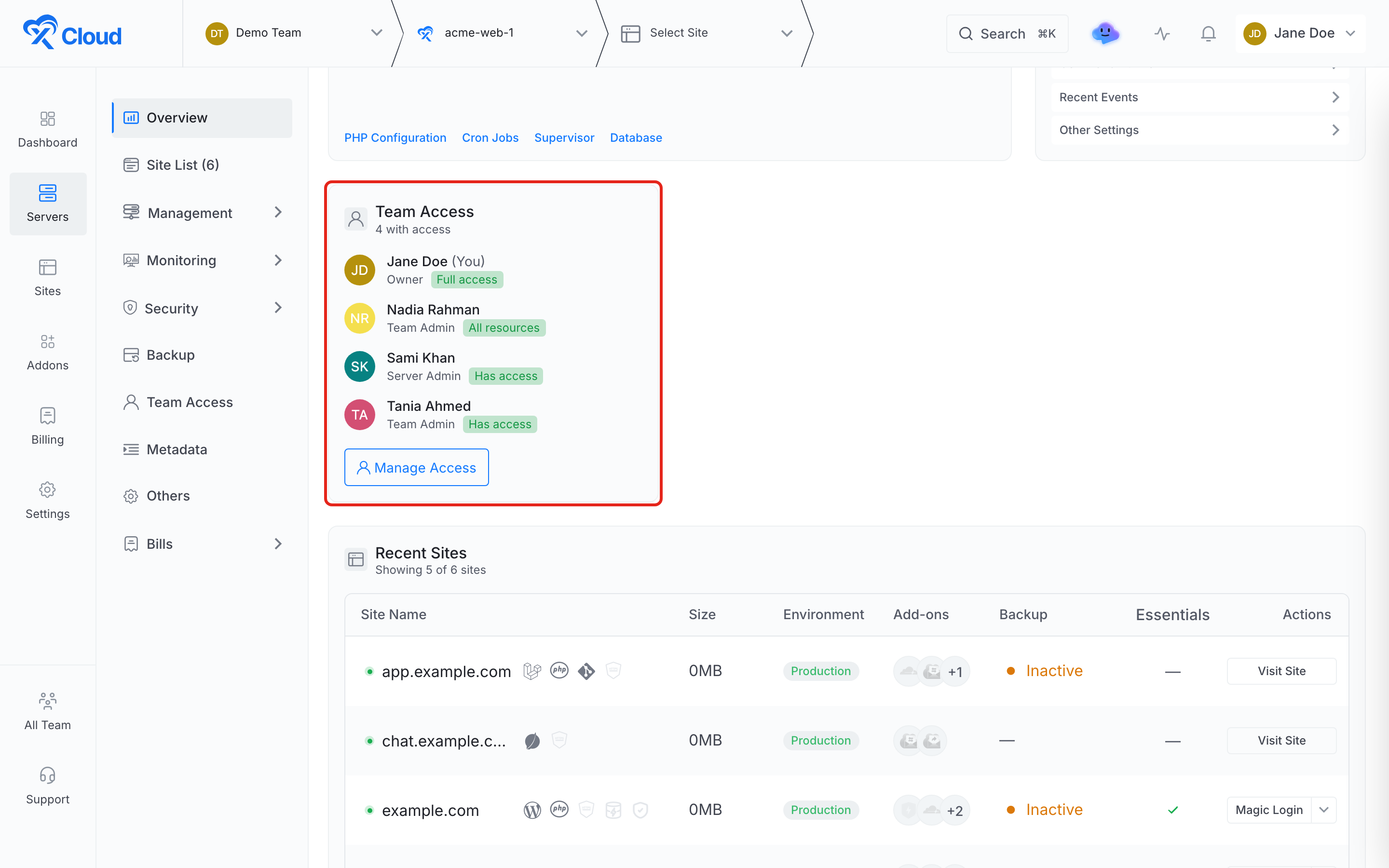
Open a server and stay on its Overview. The Team Access card lists everyone who can open the server, with their role and access:
| Access | What it means |
|---|---|
| Full access | The team owner, who can open everything. |
| All resources | A member set to all servers or all sites in Team Management. |
| Has access | A member who was given access to this server or site. |
| Via server | On a site: the member reaches the site through access to its server. |
Step 2: Give or remove access
Click Manage Access on the card. The list shows every team member who could reach this server, including those who have no access yet.
- Click Give Access to let a member open and manage this server.
- Click Remove to take their access away.
- Click Permissions to open the member’s settings in Team Management, where you can change what their role is allowed to do.
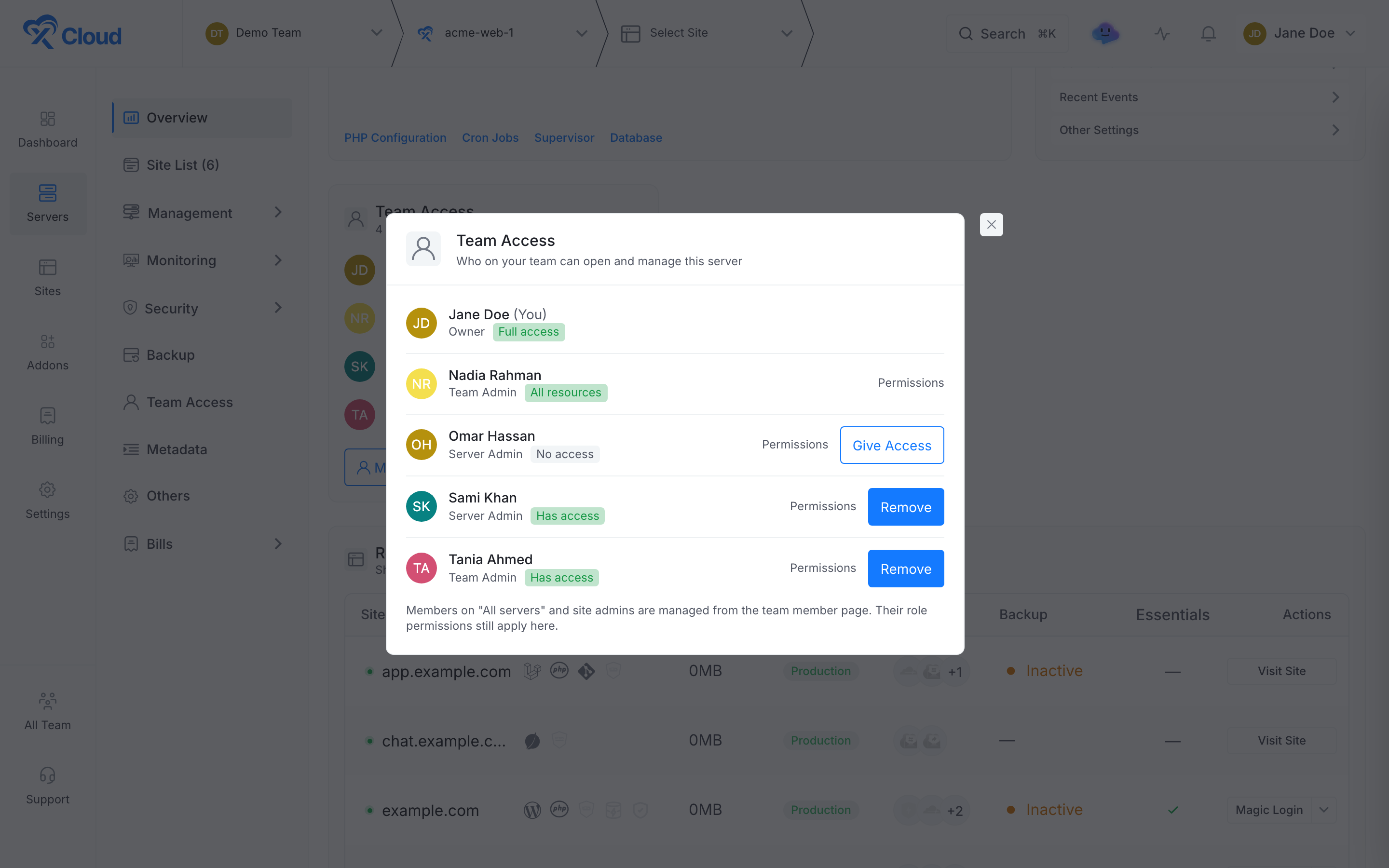
The change applies straight away. Members set to all servers, site admins and the team owner are managed from the team member page, so they show only the Permissions link here.
Step 3: Use the Team Access page
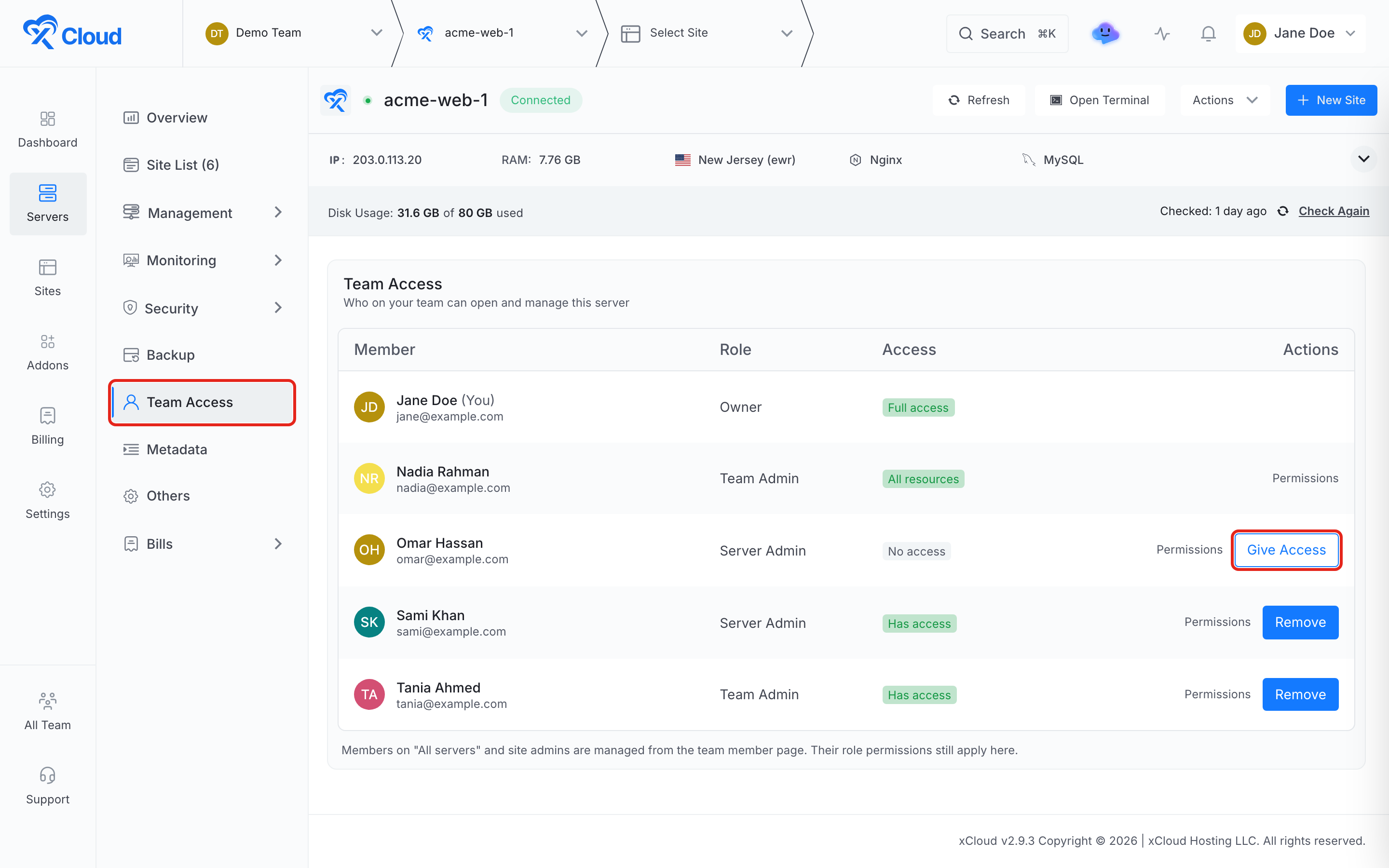
You can also click Team Access in the server menu. The page shows the same list as a full table, with the member’s email, role, access and the same actions.
Manage access to a single site
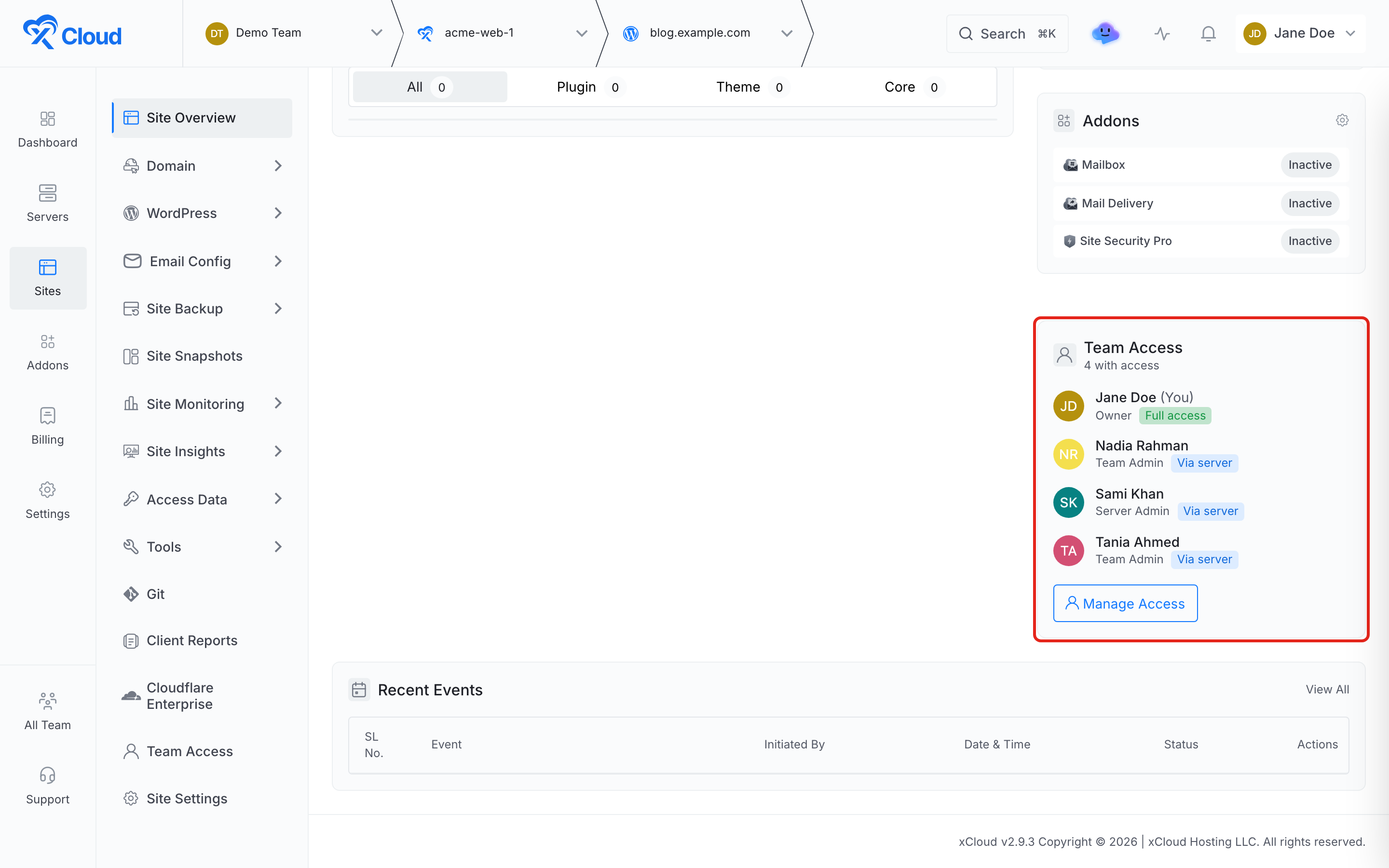
Sites have the same card on their Site Overview and a Team Access entry in the site menu. Use it to give a site admin access to just this site. Team admins and server admins show Via server here, because they reach a site through its server. To change their access, open the server instead.
Frequently asked questions
Who can manage team access from a server or site?
The team owner, and team admins who are allowed to manage team members. A team admin can manage access only on servers and sites they can open themselves.
Is this different from editing a member in Team Management?
No. Both places change the same access, so a change on one shows on the other. Team Access on a server or site is a shortcut for giving or removing access to that one resource.
Why can’t I give access to some members here?
Members set to all servers or all sites already have access, and the team owner always has full access. Site admins get server access from the team member page, and team or server admins reach a site through its server.
That’s it! You can now see and change who on your team can reach each server and site.
Still stuck? Contact our dedicated support team for any of your queries.