


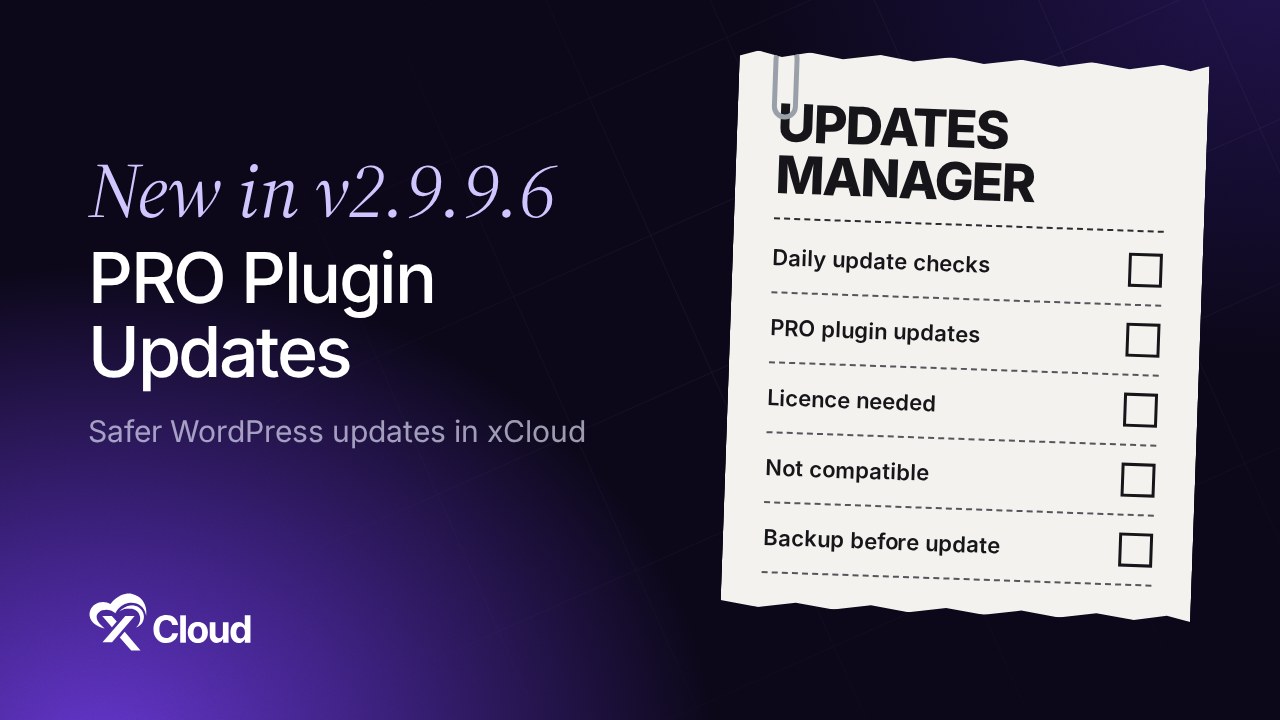
Seeing WordPress premium plugin updates not showing in xCloud while wp-admin lists them? xCloud v2.9.9.6 fixes that. xCloud now checks every WordPress site once a day, shows PRO plugin and theme updates with a PRO badge, and warns you about licence and compatibility problems before you click Update.
Before this release, PRO updates could show in wp-admin but not in xCloud. For example, imagine 30 client sites: the Updates Manager says everything is current, then a client logs in to wp-admin and sees three premium plugin updates waiting. That gap is what this release closes.
This post covers why PRO updates were missing, what changed in the Updates Manager and the site Updates page, and the smaller fixes for Git and Docker sites in the same release. For the click-by-click steps, the Updates Manager guide has every screen.
TL;DR
Short on time? Here is the whole update in a few lines:
- xCloud now checks your enabled WordPress sites for updates once a day, and shows when the last and next check run.
- PRO plugin and theme updates show next to free ones, with a PRO badge, whenever wp-admin shows them.
- Licence needed and Not compatible updates are flagged before you run them, and bulk updates skip them on purpose.
- The update dialog can take a backup first (off by default) and clear caches after updating (on by default), with live progress.
- Update History lists what updated, what was skipped and why, plus a History link for each plugin and theme.
- Also new: Switch to SSH with a deploy key for Git sites whose repository turned private, an editable Branch field for Docker Git deploys, and a clear message for Ubuntu 20.04 PHP patches.
The Update Status You Now See Before You Click Update
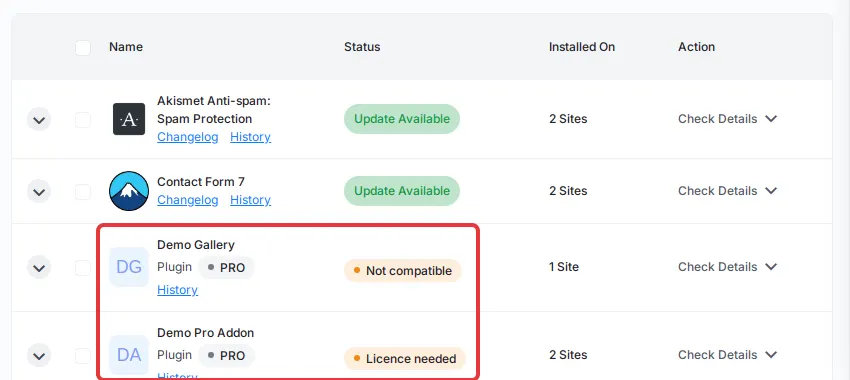
Here is the part most “premium plugin updates not showing” guides skip: an update can be visible and still not runnable. xCloud now sorts every update into one of these states, using the exact labels you see in the dashboard.
| Label in xCloud | What it means | What to do |
|---|---|---|
| Update Available | A new version is ready and can be installed. | Select it and click Update Selected. |
| PRO badge | The plugin or theme does not come from wordpress.org, such as a premium plugin. | Update it like any other item. |
| Licence needed | The vendor offers a new version but sends no download, usually an expired or inactive licence. | Renew or activate the licence, then click Refresh All. |
| Not compatible | The new version needs a newer WordPress or PHP than the site runs. The Update button is locked. | Hover to see why, update WordPress or PHP first, then refresh. |
| Nothing updated (History tab) | Every item in a run was skipped. | Read the skip reasons in the run. |
If you only remember one line: a bulk update no longer fails quietly on a licence or a PHP version. It tells you before the run and records it after.
Why PRO Updates Were Missing in xCloud
Free plugins update from the wordpress.org directory. Premium plugins get their updates from the company that sells them, not from wordpress.org. They check the vendor’s own server, often with your licence key, and hand WordPress the new version from there.
Before v2.9.9.6, xCloud’s update list could miss those vendor updates, so wp-admin and xCloud disagreed. Now xCloud shows the PRO updates WordPress shows in wp-admin, marked with a PRO badge. The PRO badge tells you at a glance which items come from outside wordpress.org.
Daily Update Checks for Your WordPress Sites
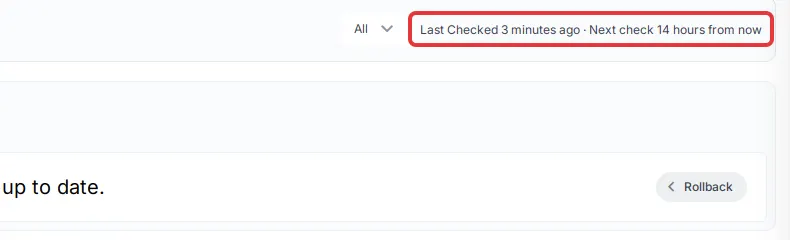
Update lists were only as fresh as the last check, and that check could be days old. Now xCloud checks every enabled WordPress site on a connected server once a day, so the Updates Manager reflects what your sites need today.
Open a site and go to WordPress → Updates to see when xCloud last checked it and when the next check runs. Just changed something in wp-admin? Click Refresh All in the Updates Manager, or Refresh on the site’s page, to check right away.
Licence Needed and Not Compatible, Before You Click Update
These two labels answer the question that follows a bulk run that skipped something: “why did this one not update?”
Licence needed means the vendor knows about a new version but won’t send the file. These updates are left out of the Updates Available count, which shows them apart (for example “2 need a licence”), and they get their own Licence needed tab. Renew or activate the licence, or check the vendor’s own updater, then click Refresh All.
Not compatible means the new version needs a newer WordPress or PHP than your site runs. xCloud locks the Update button, with the reason on hover, such as “Needs PHP 8.5 (site runs 8.3).”
The trade-off is honest: xCloud can tell you a licence is missing, but it can’t renew it for you. That still happens in the vendor’s account.
Back Up First, Clear Caches After, Watch Progress
Select items in the Updates Manager and click Update Selected. The dialog now lists what will update, with the version change and number of sites, and a yellow note for what will be skipped, such as “4 will update · 2 need a licence · 1 not compatible”.
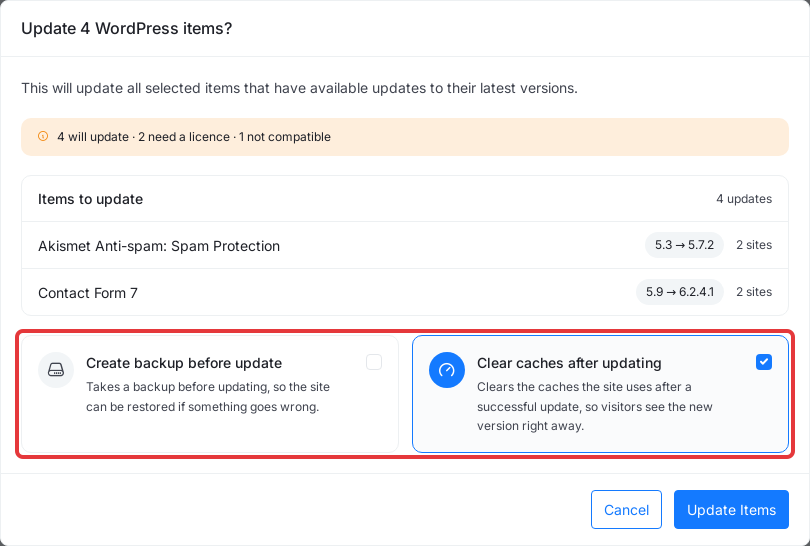
Two options sit at the bottom:
- Create backup before update takes a backup of each site first, so you can restore it if something breaks.
- Clear caches after updating is on by default, so visitors see the new version right away.
On a single site’s Updates page, tick Take a backup first (the update waits for it) when the site has backups set up. The page then shows each stage as it runs: Backing up, Updating, Clearing cache and Finishing up. For a riskier update, test it first on a staging copy of your site.
Update History: What Updated, What Was Skipped and Why
Click Update History in the Updates Manager. Each run shows when it ran, who started it, and how many items were updated. Click See Details to see each site.
The tabs filter runs: All, Success, Failed, In Progress and Nothing updated. Skipped items keep their reason: Licence needed, Not compatible, Already updating or No update available.
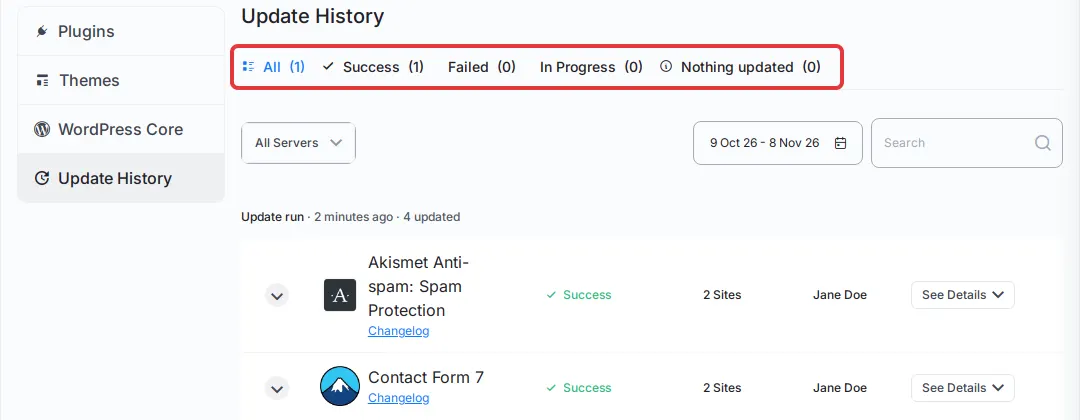
Under each plugin or theme name there is now a History link. It shows every update and rollback of that one item across your sites, with the date, version change, site and who ran it. For agencies, that is the record you need for website maintenance reports.
Other Improvements in v2.9.9.6
Git sites: switch to SSH when a repository turns private
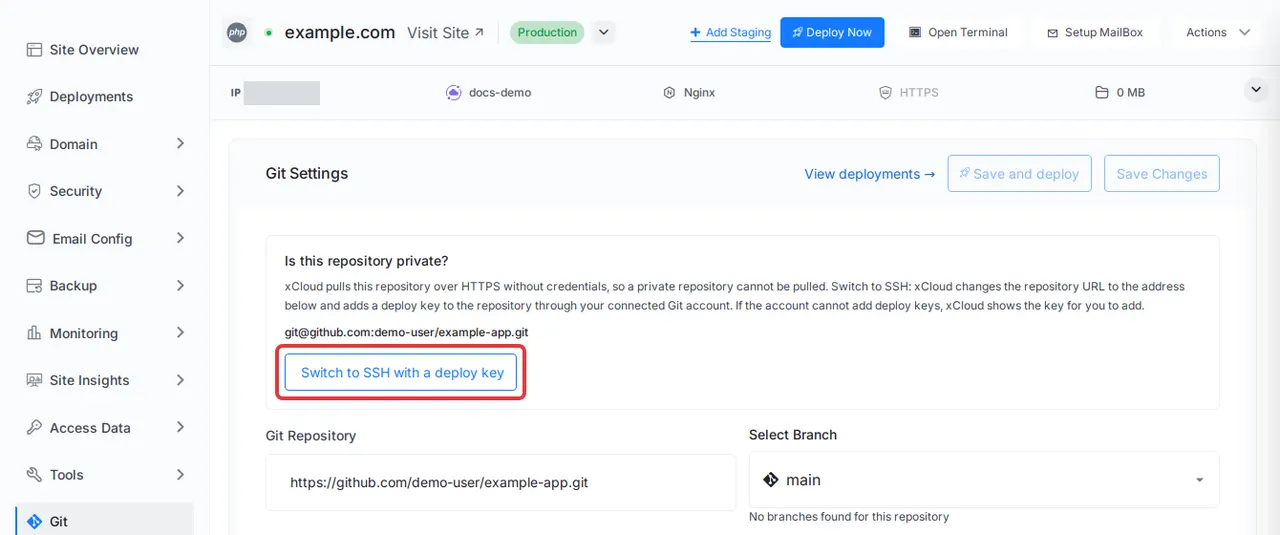
A site that pulls a public repository over HTTPS stops deploying once that repository is made private. Sites connected through a GitHub, GitLab or Bitbucket account can now use Switch to SSH with a deploy key on the site’s Git page.
xCloud switches the repository to its SSH address and adds a deploy key through your connected account, or shows you the key to add yourself. 👉 See troubleshooting Git deployments for the full steps.
Docker Git deploys: an editable Branch field
When you deploy a Docker app from Git, the Branch field is now editable, and Deploy stays locked until you enter a branch. 👉 Deploy a custom Docker app from a Git repository.
Ubuntu 20.04: a clear PHP security patch message
On an Ubuntu 20.04 server, the PHP security patch card in the To-Do Center no longer waits for a fix that will not come. It now says: “Your server runs Ubuntu 20.04, which no longer gets PHP security builds. We cannot patch PHP on it. Move your sites to a server with Ubuntu 22.04 or 24.04.” The server migration guide covers the move.
What This Release Does Not Do
- It does not renew licences. Bulk updates skip a Licence needed update. You can still try its own Update button, but it usually won’t install until you fix the licence with the vendor.
- It does not upgrade PHP or WordPress for you to unlock a Not compatible update. Do that first, then refresh.
- A backup is optional. The backup box starts unticked. If you don’t tick it and an update breaks a site, there is no fresh restore point. Tick it for plugins that touch checkout or login.
- The Updates Manager is on paid plans. On the free plan it is locked in the Settings menu.
- Undo is a rollback or a restore. Use the item’s History to find the version you had, or restore the backup taken before the update.
Update Your Sites With Fewer Surprises This Week
Premium plugins are often the ones a site depends on most: page builders, forms, membership and checkout add-ons. Seeing their updates in the same list as free ones, with the licence and PHP blockers named up front, removes the guesswork from update day.
Open Settings → Updates Manager, click Refresh All, and clear the Licence needed tab first. Then run your updates with Create backup before update ticked. If an update still fails, see how to fix WordPress updates not working, and pair it with automated security updates at the server level. New to xCloud? Compare plans on the pricing page or see WordPress hosting on xCloud.
If you have found this blog helpful, feel free to subscribe to our blogs for valuable tutorials, guides, knowledge, and tips on web hosting and server management. You can also join our Facebook community to share insights and engage in discussions.
Frequently Asked Questions
Why are my WordPress premium plugin updates not showing in xCloud?
Before v2.9.9.6, premium plugins that update from their vendor’s own server could show an update in wp-admin but not in xCloud. Now xCloud shows the PRO updates WordPress shows in wp-admin, marked with a PRO badge. If one is still missing, click Refresh All to check again.
What does Licence needed mean in the Updates Manager?
The vendor offers a new version but does not send the download, usually because the licence on that site has expired or is not activated. Renew or activate the licence, then click Refresh All. These updates are kept out of the update count and have their own tab.
Why can’t I click Update on a Not compatible plugin?
The new version needs a newer WordPress or PHP version than the site runs. Hover over the button or read the line under the badge to see which. Update WordPress or the site’s PHP version first, then refresh.
How often does xCloud check my WordPress sites for updates?
Once a day, for every WordPress site that is enabled and on a connected server. The site’s Updates page shows when it was last checked and when the next check runs. To check right away, click Refresh All in the Updates Manager or Refresh on the site’s Updates page.
Is the Updates Manager on the free plan?
No. The Updates Manager, which updates many sites from one screen, is available on paid plans. On the free plan it is locked in the Settings menu.