

Use the To-Do Center to fix what needs you across your sites and servers in xCloud
Updated November 3, 2026 · 9 min read
The To-Do Center is one list of everything that needs you across your xCloud servers and sites. Each problem is a card with its own buttons, so you can fix it, ask the AI assistant why it happened, or put it off, without opening each server and site to look for notices. It is available to every xCloud team.
Open your To-Do list
Your list is one click away from any page in the dashboard, and the Overview page shows the most urgent items.
Step 1: Open the list
Click the to-do list icon in the top bar. The red number shows how many items are open. On the Overview page, you can also click Review all in the Needs your attention box.
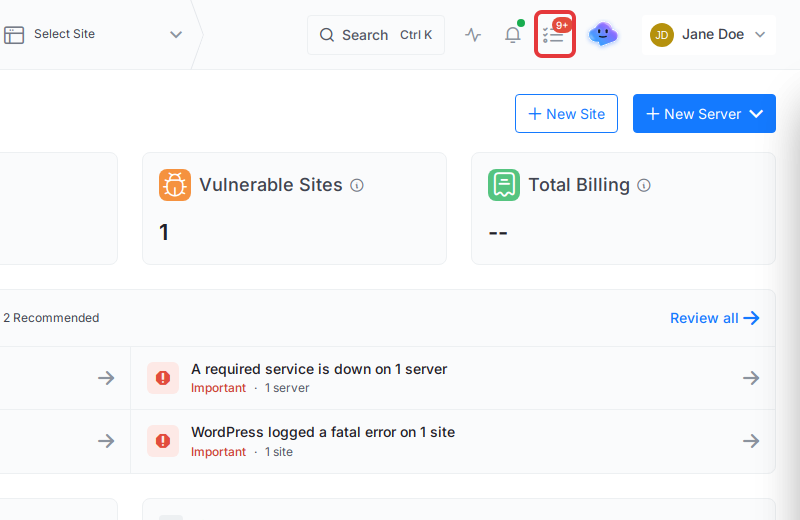
The Your to do panel opens on the right side of the page.
Step 2: Read the tabs and labels
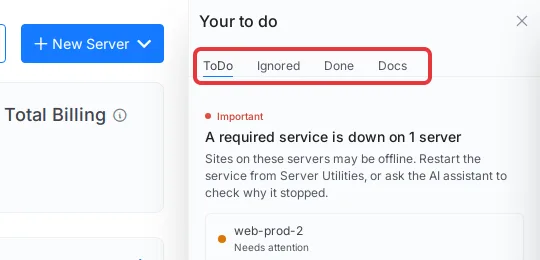
The panel has four tabs:
- ToDo: everything open now, most urgent first.
- Ignored: cards you chose to hide for now.
- Done: what was fixed in the last 30 days, and by whom.
- Docs: guides for the page you are on.
Each card carries one of three labels: Important, Needs attention or Recommended. One card can cover many sites or servers, with a row for each. Click a site or server name to open the page that shows the problem. Your list updates by itself: xCloud checks every 15 minutes, and a card usually closes as soon as xCloud sees the problem is gone.
WordPress plugin, theme and core updates
What you see: “WordPress updates are waiting on 3 sites”, with one row per site.
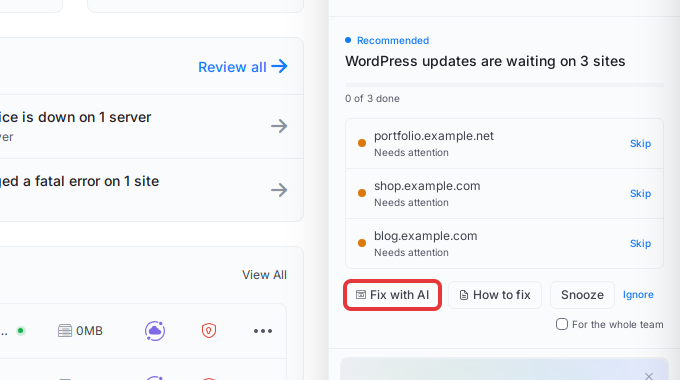
Buttons: Fix with AI, How to fix, Snooze, Ignore, and Skip on each row. This card has no one-click Fix button, because xCloud leaves the choice of what to update with you.
What happens: Click Fix with AI. The assistant lists the waiting updates and checks for a backup from today. It recommends a backup first if there is none, then updates only what you approve. It re-checks the site afterwards.
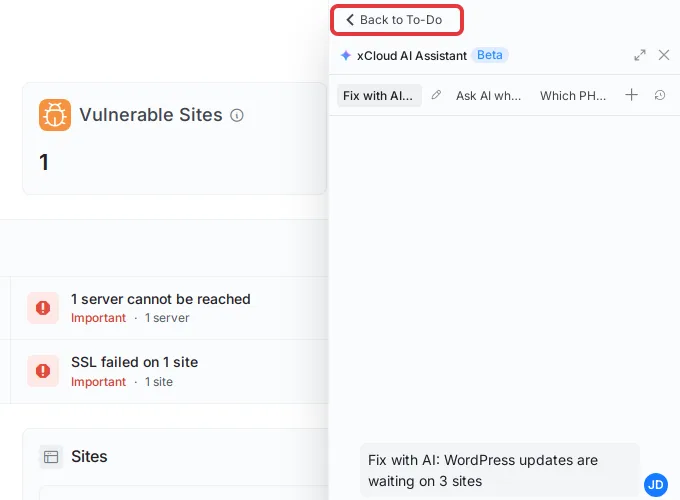
The assistant opens beside your list with the card’s problem already filled in. Back to To-Do returns you to the list.
To update by hand instead, click a site name to open its updates page. Manage and update WordPress core and themes covers that page.
A PHP security patch
What you see: “A PHP security patch is needed on 1 server”, labelled Important. It appears when a critical PHP vulnerability affects a server and a patched release is ready.
Buttons: Fix (or Fix all for several servers), Fix with AI, How to fix and Snooze. There is no Ignore, and Snooze only offers 1 day.
What happens: Click Fix, read the confirmation, then click Fix now. xCloud updates the installed PHP versions on that server. Your sites stay online, and it takes about 2 to 5 minutes per server.
This card is for security patches. A site on an older PHP version does not get a card just for its version.
Plugin and theme vulnerabilities
What you see: “1 site has known vulnerabilities”, with one row per affected site.
Buttons: Fix with AI, How to fix, Snooze, Ignore, and Skip on each row.
What happens: Click Fix with AI. The assistant names each vulnerable plugin or theme and its version, then checks for a recent backup. It asks before each update. If no fixed version exists, it says so and suggests deactivating the plugin or theme from WordPress. It never ignores a vulnerability for you.
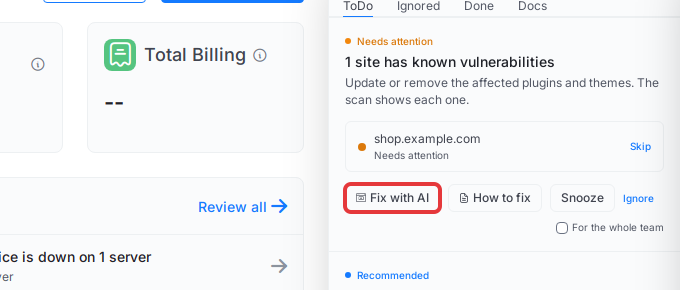
Click the site name to see the scan results yourself. The vulnerability checker guide explains them.
A WordPress fatal error
What you see: “WordPress logged a fatal error on 1 site”, labelled Important. The cause is usually a plugin or theme.
Buttons: Ask AI why, How to fix, Snooze, Ignore, and Skip on each row. This card has Ask AI why rather than Fix with AI, because the cause has to be found first.
What happens: Click Ask AI why. The assistant reads the site’s error log and names the plugin, theme or file behind the error.
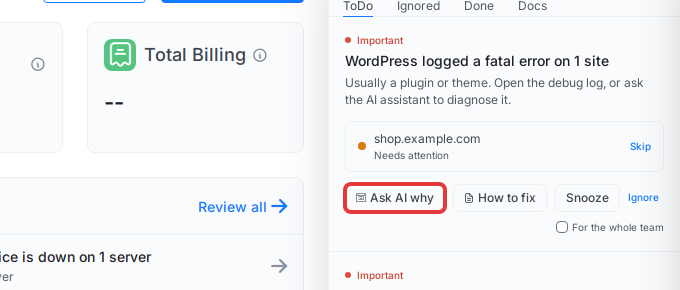
If an update exists, the assistant offers it. If not, it suggests deactivating that plugin from WordPress. It asks before any update, and it reads the log again afterwards to see whether the errors stopped.
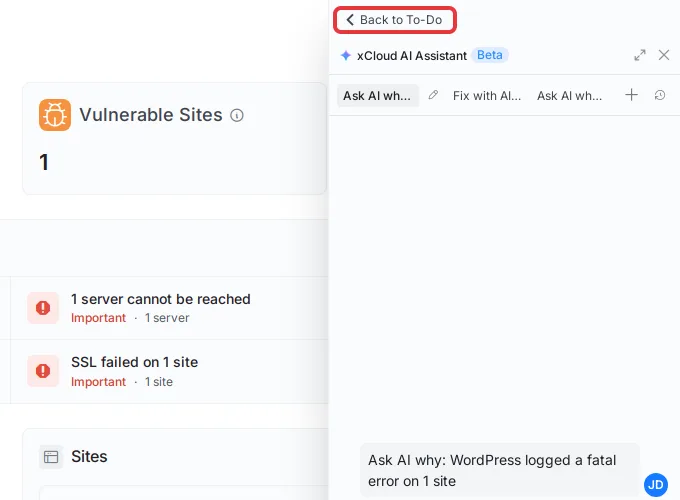
Prefer to look yourself? Click the site name to open its debug log, then follow how to troubleshoot “There has been a critical error”.
Failed backups, SSL, disk, CPU, services and disconnected servers
These cards explain what is wrong and link the guide for it. Most of them need you to find the cause first, so they offer Ask AI why and How to fix.
| Card | When it appears | AI button | Guide |
|---|---|---|---|
| Backups are failing | The latest scheduled backup did not finish | Ask AI why | Backup failures |
| SSL failed or SSL certificate expires soon | A certificate failed, or is close to expiring | Ask AI why | Failed free SSL |
| Disk space is running low | Less than 5 GB is free | Ask AI why | Reclaim disk space |
| CPU has been high for a while | Sites on the server may be slow | Ask AI why | Server at 100% CPU |
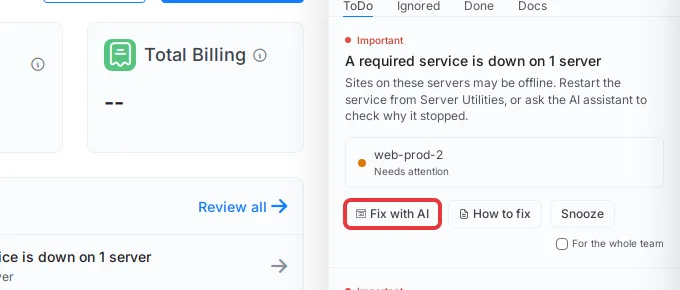
| A required service is down | A service your sites need has stopped | Fix with AI | Manage services |
| Server cannot be reached | xCloud has lost contact with the server | Ask AI why | Server disconnected |
For example, a failed backup means there is no fresh copy to restore. Click Ask AI why to have the assistant look into it.
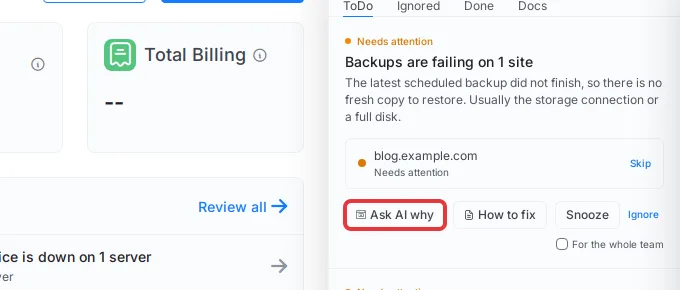
A stopped service is the one card in this group with Fix with AI. The assistant checks why the service stopped and asks before it starts or restarts it. A required service is down and Server cannot be reached can be snoozed but not ignored, because your sites may be offline.
Operating system updates and the NGINX upgrade
These two cards can be fixed directly from the list. Fix works on one row, and Fix all (N) works on every row you can fix.
Every Fix opens a confirmation first, so you can see What changes, Downtime and Time before anything runs. Click Fix now to start, or Cancel to go back.
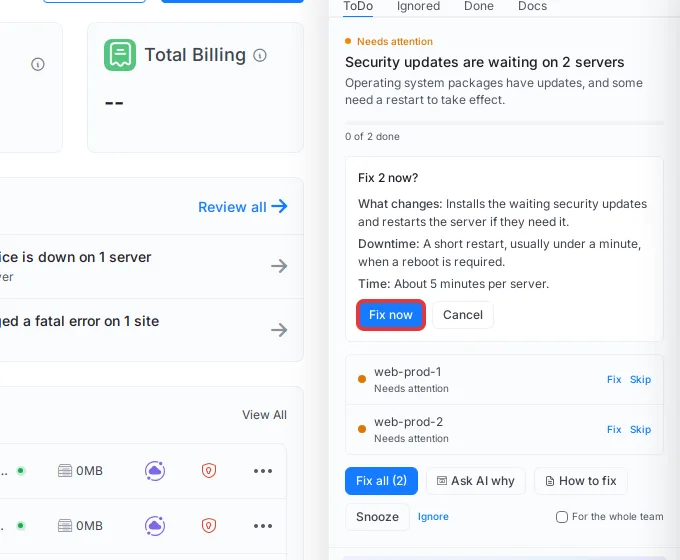
- Security updates are waiting: installs the waiting security updates and restarts the server if they need it. Expect a short restart, usually under a minute, when a reboot is required. It takes about 5 minutes per server. This card also has Ask AI why. See how automated security updates work.
- Nginx can be upgraded to the official build: replaces the system NGINX with the official nginx.org build and keeps your site configuration. Sites stay online, and it takes about 10 to 20 minutes per server. See how to upgrade NGINX.
While a fix runs, its row shows Fixing… and the card counts progress, such as “0 of 2 done, 1 in progress”. When xCloud confirms the fix, the row shows Fixed.
If a fix fails, the row says why, such as We could not reach the server or Some updates are still waiting, and offers Retry.
Fix with AI or Ask AI why
The card shows the one that suits the problem. Both open the xCloud AI Assistant, which works within your own team permissions.
| Button | What it does | Can it change things? | Found on |
|---|---|---|---|
| Fix with AI | Checks the problem, then works toward fixing it | Yes, only after you confirm each change | WordPress updates, vulnerabilities, PHP security patch, a required service down |
| Ask AI why | Reads your site or server and explains the cause | Not by itself. It may offer a next step and asks first | Fatal errors, failed backups, SSL, low disk, high CPU, disconnected servers, security updates, failed setups |
After a fix, the assistant reads the state again and tells you whether the problem is gone. It hands you over to support when the fix needs more than it can do. The AI buttons do not appear on the NGINX upgrade card.
Put a card off, or hide it
You do not have to act on everything today. Each card offers the choices that are safe for that problem.
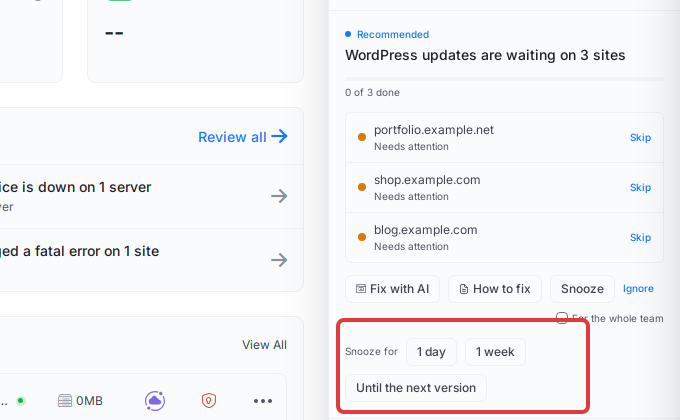
- Snooze hides the card for 1 day, 1 week or Until the next version.
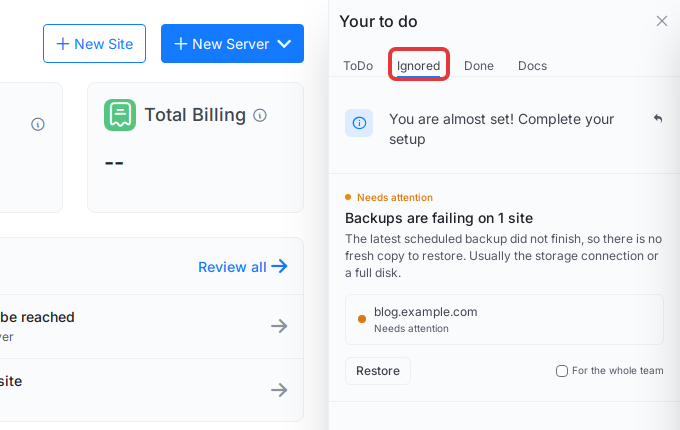
- Ignore moves the card to the Ignored tab for 7 days. It comes back after that if the problem is still there.
- Skip sets aside one row on a card, such as one site out of three. Click Restore on that row to bring it back.
- Restore on the Ignored tab brings a card back straight away.
See what was fixed
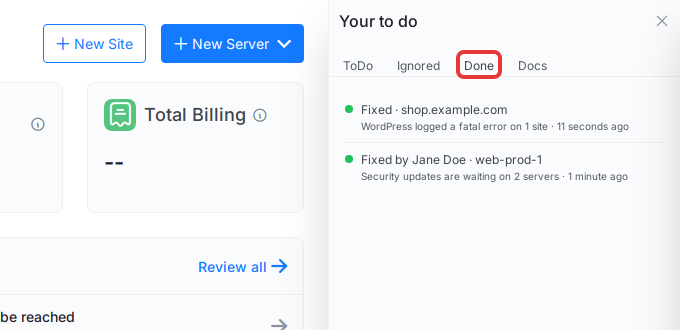
Open the Done tab to see what was fixed in the last 30 days. Each line says who did it, such as Fixed by a team member or The AI assistant fixed this. It also lists rows someone skipped and any fix that did not finish.
Team roles and white label
Team members see cards only for the servers and sites they can open, and their role decides which fixes they can run. See team roles and permissions.
Team owners and admins also see a For the whole team checkbox. Tick it before Snooze or Ignore to hide a card for everyone. Only an owner or admin can lift that decision.
White label: on a reseller’s dashboard and for their client teams, the list still works. It leaves out the AI buttons, How to fix and the Docs tab, because those belong to xCloud.
Turn the list off for your team
Team owners and admins can turn the list off and go back to page banners.
Step 1: Open the setting
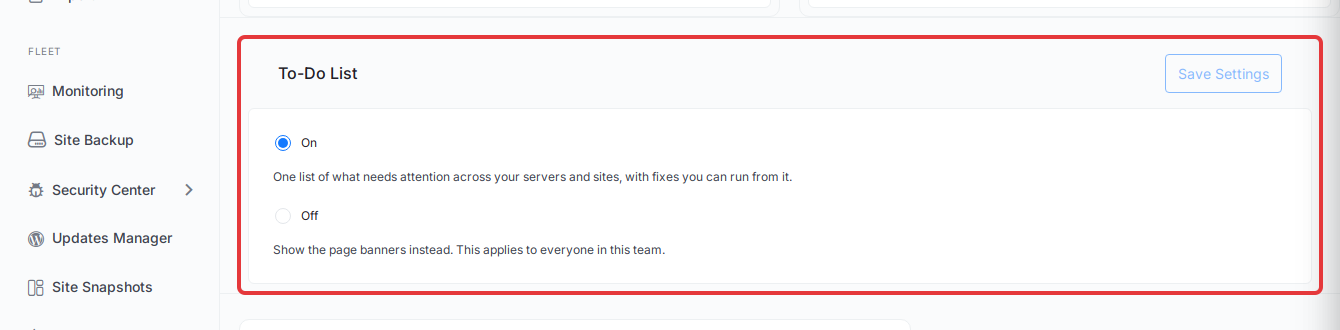
Go to Settings → Customization and find To-Do List.
Step 2: Save your choice
Select Off and click Save Settings. Choose a reason in the Turn off the To-Do list? window, then click Turn off.
Everyone in the team now sees the page banners instead. xCloud keeps tracking problems, so the list is up to date if you switch back to On.
For developers: Public API and MCP
The same list is available to your scripts and AI tools.
GET /api/v1/todoslists the open items. It needs theread:serversandread:sitestoken abilities. Add?status=pending,ignoredorsnoozedto filter.POST /api/v1/todos/{key}/actions/{action}runs an action:fix,fix_all,skip,restore_target,snooze,ignore,restoreormark_done. It needswrite:serversandwrite:sites, and allows 30 requests a minute.- The optional body takes
target(one row),duration(1d,1wornext_version) andscope(meorteam). - Requests are safe to retry: send an
Idempotency-Keyheader and a repeated request never runs twice. - The Ask AI buttons exist only in the dashboard. Over the API or MCP, your own agent reads the item and acts on it.
- The MCP tools are
todos_indexandtodos_actions_run. Fixes made through MCP show in the Done tab as made by the AI assistant.
See the fleet overview guide for how tokens and MCP connections work.
Frequently asked questions
Does the To-Do Center fix anything without asking me?
No. A Fix button shows what will change, any downtime and how long it takes, and nothing runs until you click ‘Fix now’. The AI assistant also asks you before it changes anything.
What is the difference between ‘Fix with AI’ and ‘Ask AI why’?
‘Fix with AI’ works toward fixing the problem and asks you before each change. ‘Ask AI why’ reads your site or server and explains the cause. It changes nothing unless it offers a next step and you approve it.
What happens when I click ‘Ignore’ on a card?
The card moves to the ‘Ignored’ tab for 7 days. After that it comes back if the problem is still there. You can bring it back sooner with ‘Restore’.
Why do I not see ‘Ignore’ on some cards?
Cards for problems that can take your sites down, such as a required service that stopped or a server xCloud cannot reach, can only be snoozed. A PHP security patch can be snoozed for 1 day at most.
Can I turn the To-Do Center off?
Yes. A team owner or admin can open ‘Customization’, set ‘To-Do List’ to ‘Off’ and save. Everyone in the team then sees the page banners again. xCloud keeps tracking problems, so the list is up to date if you turn it back on.
How long does the ‘Done’ tab keep my fixes?
The ‘Done’ tab keeps fixed items and their history for 30 days.
If you run into any issues with the To-Do Center, feel free to reach out to our support team.