

WordPress 7.1.4 is a security release published on 28 October 2026 that fixes 22 vulnerabilities, including a race condition during core updates that could lead to remote code execution and a long list of stored XSS issues. Update every site now: fixed versions exist for every branch from 4.7 to 7.1.
Most of the fixes need a logged-in Contributor or higher, which sounds reassuring until you count how many sites hand out those accounts. Multi-author blogs, membership sites, LMS platforms and agencies that give clients logins are exactly where this release matters most. If you read our WordPress 7.0 overview, the Interactivity API features covered there are where most of these bugs live.
This guide gives you every fix grouped by the role an attacker needs, the full branch table (your version, the fixed version and how many of the 22 issues affect it), and how to update one site or hundreds, from the WordPress dashboard, with WP-CLI or with xCloud.
TL;DR
Short on time? Here is the whole advisory in a few lines:
- WordPress 7.1.4 shipped on 28 October 2026. WordPress.org says to update immediately.
- It fixes 22 vulnerabilities. The most serious is a race condition during core updates that could lead to remote code execution.
- 8 of the 17 listed items need only a Contributor account. One needs Author, one needs Editor, one is open to unauthenticated visitors.
- Older branches get backports: 7.0.8, 6.9.11, 6.8.12 and so on down to 4.7.39. WordPress 4.6 and older get nothing.
- WordPress.org published no CVE IDs, no CVSS scores and no reports of exploitation. Ignore anyone quoting numbers it did not publish.
- Sites with automatic background updates usually update on their own. Check anyway.
- On xCloud, the Updates Manager updates WordPress core on one, some or all of your sites at once, and the AI Assistant and xCloud MCP can do it from a chat, with a backup first.
The Finding: Most of These Fixes Need Only a Contributor Login
Here is what the official notes do not spell out: sort the 17 items on the version page by the role they require, and the picture changes. Eight are marked Contributor+, the lowest role that can write posts. One is Author+, one is Editor+, one is reachable by unauthenticated visitors, and the update race condition has no role stated.
That means the risk of WordPress 7.1.4 is not spread evenly. A single-admin brochure site is in a much better position than a WooCommerce store, a membership site or a client site where five people can write drafts. If anyone you do not fully trust can create content on a site, that site goes to the top of your update list.
The two official pages word the fixes differently. The tables below follow the WordPress 7.1.4 version page, which lists 17 items (some combine several reports) that WordPress counts as 22 vulnerabilities, plus a root-certificate update. The release announcement groups them into 12.
What WordPress 7.1.4 Fixes
Every item below comes from the version page. “Role” is the minimum role the official wording names; “not stated” means the page does not name one.
Remote code execution and information disclosure
| Issue | Type | Who can exploit it | Reported by |
|---|---|---|---|
| Race condition during core updates | Could lead to remote code execution | Not stated (during the update window) | Umut Bayram |
| Unpublished Customizer changes exposed | Information disclosure | Unauthenticated visitors | Antonio Lorensius Silaban |
| Custom comment-moderating roles could read, edit and delete Notes on posts they can’t edit | Permissions | Custom moderating roles | Ramon (WordPress Security Team) |
Interactivity API
| Issue | Type | Who can exploit it | Reported by |
|---|---|---|---|
| Bindings let object elements load admin pages | Unsafe element loading | Contributor+ | rekter0 |
| javascript: URLs in bindings | Stored XSS | Contributor+ | Luis Herranz and multiple independent reporters |
| Event handler bindings | Stored XSS | Contributor+ | Jon Surrell |
| Prototype pollution in context namespaces | Stored XSS | Contributor+ | rekter0 |
| Bindings issues | Stored XSS and denial of service | Contributor+ | rekter0, Marcel Karlsson, Jon Surrell, Alex Concha |
| Interactivity Router via uploaded text files | Stored XSS | Author+ | Anas cherni |
| Post content shadowing Script Module data via a matching element ID | Data integrity | Not stated | Weston Ruter |
Blocks and the Customizer
| Issue | Type | Who can exploit it | Reported by |
|---|---|---|---|
| Whitespace in block delimiters | Stored XSS | Contributor+ | Rafie Muhammad (Awesome Motive) |
| Customizer selective refresh | Stored XSS | Contributor+ | Rafie Muhammad (Awesome Motive) |
| Labels of Comments Pagination and Post Navigation Link blocks | Stored XSS | Contributor+ | Alex Concha (WordPress Security Team) |
| Categories block via format string injection | XSS | Not stated | Ben Bidner |
| Unsafe preg_replace() in Image and Playlist blocks | Hardening | Not stated | Ben Bidner (WordPress Security Team) |
Admin screens
| Issue | Type | Who can exploit it | Reported by |
|---|---|---|---|
| Personal data erasure requests screen | Stored XSS | Editor+ | Anthropic |
| Unescaped usernames on multisite Network Users screens | Hardening | Not stated | Anthropic |
The release also updates the bundled root certificates because of the eMudhra revocation. That is not a vulnerability, but it matters if your site makes outbound HTTPS calls.
Stored XSS means an attacker saves malicious script inside content, and it runs in the browser of whoever views that content later, often an administrator. Think of it as a note slipped into a stack of paperwork that only does damage when the boss reads it.
Which WordPress Version You Need
You do not have to jump to 7.1 today to be patched. As a courtesy, WordPress.org backported the fixes to every branch from 4.7. This table is the whole list from the version page.
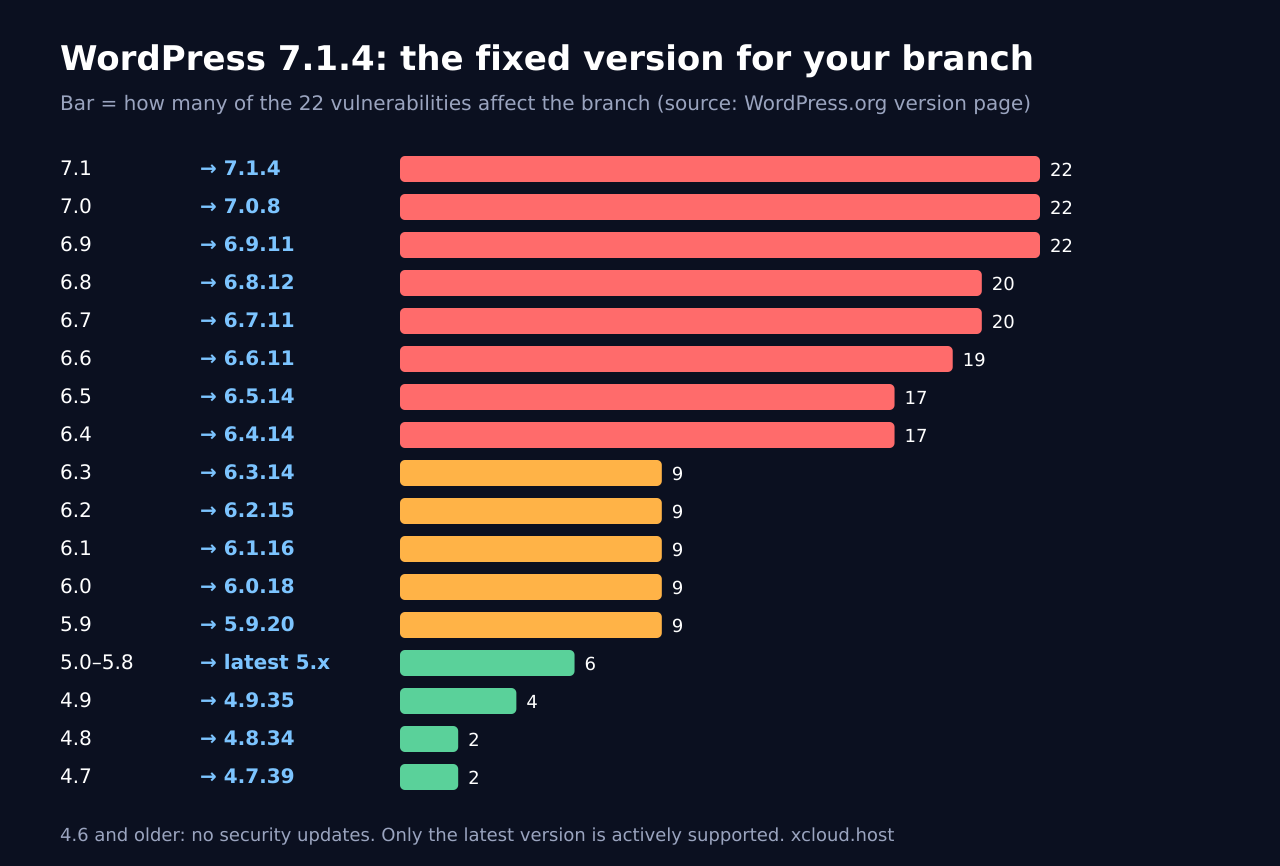
| Your branch | Update to | Issues (of 22) that affect it |
|---|---|---|
| 7.1 | 7.1.4 | 22 |
| 7.0 | 7.0.8 | 22 (all) |
| 6.9 | 6.9.11 | 22 (all) |
| 6.8 | 6.8.12 | 20 |
| 6.7 | 6.7.11 | 20 |
| 6.6 | 6.6.11 | 19 |
| 6.5 | 6.5.14 | 17 |
| 6.4 | 6.4.14 | 17 |
| 6.3 | 6.3.14 | 9 |
| 6.2 | 6.2.15 | 9 |
| 6.1 | 6.1.16 | 9 |
| 6.0 | 6.0.18 | 9 |
| 5.9 | 5.9.20 | 9 |
| 5.8 to 5.0 | 5.8.19, 5.7.21, 5.6.23, 5.5.24, 5.4.25, 5.3.27, 5.2.30, 5.1.28, 5.0.31 | 6 |
| 4.9 | 4.9.35 | 4 |
| 4.8 | 4.8.34 | 2 |
| 4.7 | 4.7.39 | 2 |
| 4.6 and older | No fix | Unsupported |
The version page does not say which of the 22 apply to which branch, only how many. Read the counts as a rough guide: the jumps at 6.4 and 6.9 show that newer branches carry more of the affected code.
The catch worth knowing: a backport keeps you patched, not supported. Only the most recent version of WordPress is actively supported. Treat 6.x backports as a bridge to 7.1, not a place to stay.
Who Is Most at Risk
Rank your sites in this order and update from the top:
- Sites where outsiders can hold a Contributor or Author account: multi-author blogs, news sites, membership sites, LMS platforms, and community sites.
- WooCommerce and membership stores where staff or vendors have editorial roles.
- Agency-managed client sites, where clients and freelancers often get Editor or Author logins.
- Multisite networks, because one network can expose many sites at once and two fixes touch multisite screens.
- Single-admin sites are lower risk for the XSS items, but the update race condition and the Customizer disclosure still apply. Update them too.
If a site has accounts you do not recognize, review them before or right after the update. Remove any you cannot explain.
How to Check Your WordPress Version
You have three quick ways to see where a site stands.
- WordPress dashboard: go to Dashboard → Updates. It shows your current version and whether a newer release is available.
- WP-CLI: run
wp core versionover SSH in the site’s folder. - xCloud: open Updates Manager → WordPress Core to see every site with a pending core update across your team, or ask the AI Assistant “Check WordPress updates”.
# Run inside the site's web root
wp core version
wp core check-update
Update Hundreds of WordPress Sites to 7.1.4 in One Go
This is where agencies lose a day. Logging in to 80 dashboards and clicking Update Now 80 times is slow, and somewhere around site 40 you miss one. On xCloud you have three ways to do it in one pass, and you can pick whichever fits how your team works.
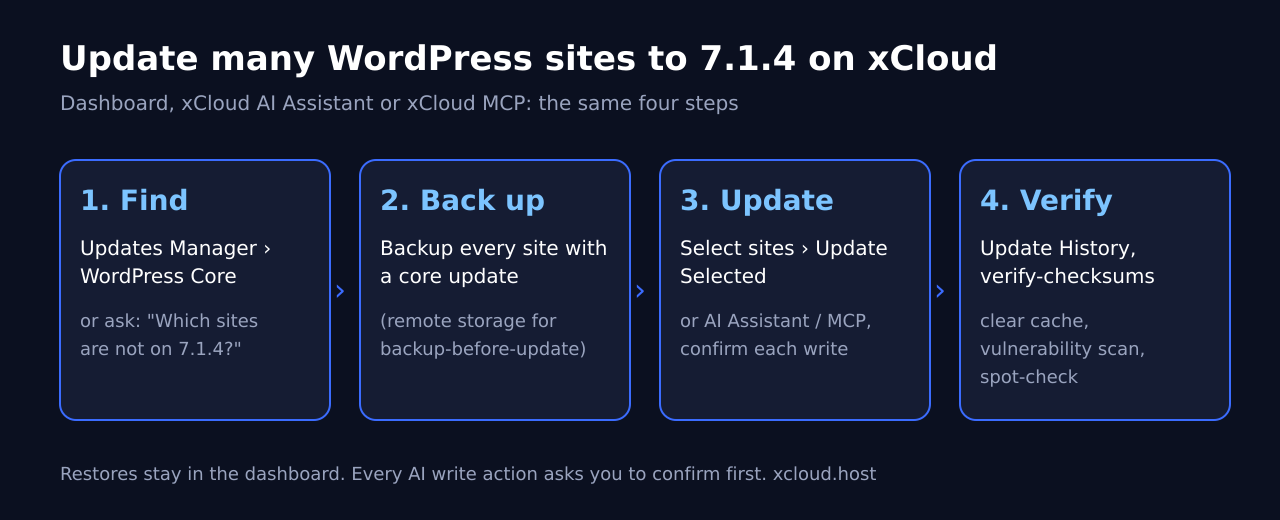
Option 1: The Updates Manager (dashboard, a few clicks)
The Updates Manager lists plugins, themes and WordPress core updates for every site in your team on one screen.
- Open the top-right menu in your xCloud dashboard and click ‘Updates Manager’.
- Go to ‘WordPress Core’ to see the sites with a core update waiting.
- Select the core update, then choose the sites: one, a few or all of them.
- Click ‘Update Selected’. xCloud applies the update to all the selected sites at once.
- Open ‘Update History’ afterwards. It logs the date, time, the sites and the files that changed.
For a single site, go to the site and open ‘WordPress’ → ‘Updates’. You can pick the core version there, and roll back with a backup option if something goes wrong. The core and plugin update guide has screenshots.
Option 2: xCloud AI Assistant (inside the dashboard)
The xCloud AI Assistant is the chat panel behind the icon in your dashboard header. It can list available WordPress updates, take backups and run WordPress updates for you.
Two things to set up first, both covered in how to use xCloud AI Assistant:
- Switch its access to Read & Write under My Profile → Developers → API Tokens → Assistant Access.
- Expect an ‘Action required’ card before every change. Nothing runs until you click Confirm, and the assistant can only do what your team role allows.
Option 3: xCloud MCP from Claude, ChatGPT or Cursor
If your team already works in an AI client, connect xCloud MCP to your AI agent and run the rollout from there. Under the hood, xCloud MCP reports each site’s current and available core version and flags whether the pending update is a security update. It can trigger an on-demand backup, queue a core update and check the operation until it finishes.
The token needs the write:sites scope and your role needs permission to manage updates. Write actions ask for confirmation in MCP clients. Our post on what you can ask xCloud MCP to do shows more prompts.
Example prompts for the rollout
These are examples. They work the same way in the AI Assistant and in an MCP client, and every write step asks you to confirm.
| Step | Example prompt |
|---|---|
| Find the gap | “Which of my sites are not on WordPress 7.1.4 yet? List them with their current version.” |
| Triage | “For every site: core version, pending security updates, vulnerability count and last backup date, worst first.” |
| Back up and update | “Take a backup of every site that has a WordPress core update, then update core to 7.1.4, one site at a time, and stop if one fails.” |
| Spot-check | “Give me a magic login link for the shop site so I can check it.” |
One honest detail: the backup-before-update option in the API takes the pre-update backup only when the site has remote (cloud) backup storage set up. If a site has local backups only, ask for a separate on-demand backup first. Set up remote storage once with backups in xCloud.
Why this matters for agencies: one team view, one bulk action, one history log you can show a client, and a chat-based path for the people who prefer it. Nobody has to log in to each client dashboard, and nobody has to remember which site they skipped. See how xCloud handles client sites at scale on the agency hosting page.
How to Update WordPress to 7.1.4 on One Site
If you manage a handful of sites yourself, any of these works.
Step 1: Back up first
Take a full backup of files and database. On xCloud, take a site backup from the site’s backup settings; anywhere else, use your host’s tool or a backup plugin.
Step 2: Update from the WordPress dashboard
Go to Dashboard → Updates and click Update to version 7.1.4. On older branches, WordPress offers the latest release of your branch.
Step 3: Or update with WP-CLI
The wp core update command updates to the latest release. Use --minor to stay inside your current branch, or --version to pick a release.
wp core update                 # latest release (7.1.4)
wp core update --minor         # stay on your branch, e.g. 6.8 -> 6.8.12
wp core update-db              # database upgrade, if needed
wp core update-db --network    # multisite: upgrade every site in the network
wp core version                # confirm the new version
Step 4: Check automatic updates
WordPress.org says sites with automatic background updates enabled update on their own. If you disabled core updates with AUTOMATIC_UPDATER_DISABLED or a plugin, they will not. xCloud has no dashboard switch for WordPress’s own automatic updates; that setting lives inside WordPress, as our automatic updates guide explains.
Before and After the Update
A security release is small, but a broken checkout in your busiest week is not. Here is the routine we suggest.
- Before: take a backup, and for business-critical sites, test on a staging copy first. Pay attention to custom blocks and anything built on the Interactivity API.
- After: run
wp core verify-checksumsto confirm core files match the official release. Any modified core file is worth a closer look. - Clear the cache so visitors and editors get the patched front end. Our guide on how to clear website cache covers page, object and CDN caches.
- Scan: run the xCloud Vulnerability Checker to catch outdated plugins and themes while you are in there.
- Spot-check the front end, the login page and one admin screen.
wp core verify-checksums
wp cache flush
If the Update Fails
Most failed core updates come down to a few causes: file permissions, low disk space, a stuck maintenance lock or a plugin that breaks during the upgrade. Our WordPress updates not working guide walks through each.
Quick checks:
- If the site shows “Briefly unavailable for scheduled maintenance”, remove the
.maintenancefile in the web root. - Check free disk space on the server.
- Re-run
wp core updateover SSH to see the real error. - If the site is broken after the update, roll back from ‘WordPress’ → ‘Updates’ in xCloud or restore the backup you took.
Of the 21 xCloud support tickets in the last 90 days that matched “WordPress update”, the recurring themes were not core failures. They were plugin updates that did not apply, and update counts in WordPress admin that did not match the dashboard. If that happens, refresh the update list and check the site directly before assuming the update failed.
What This Release, and xCloud, Do Not Do
Be clear about the limits before you mark this done.
- WordPress 7.1.4 does not patch plugins or themes. They have their own updates and their own vulnerabilities. Update those too, from the same Updates Manager screen.
- It does not fix anything below WordPress. A PHP vulnerability like PHP2Shell needs a PHP update, not a WordPress one.
- It does not remove malicious content already saved. If a Contributor account was abused before you updated, the update stops new attacks but does not clean old posts. Review recent drafts and accounts.
- Do not assume your host already did it. Check each site’s version after the rollout; the Updates Manager’s ‘WordPress Core’ list should be empty for 7.1.
- xCloud MCP and the AI Assistant do not restore backups. Restores happen in the dashboard.
- To undo the update, use the core rollback on the site’s ‘WordPress’ → ‘Updates’ page, or restore the backup. Rolling back to an older 7.1 release puts the 22 vulnerabilities back, so treat it as a short stop while you fix the conflict.
Patch Every Site Before the Week Is Out
WordPress 7.1.4 is a quiet release with loud consequences for any site where other people can write content. The update itself takes minutes. The work is making sure none of your sites gets skipped.
This week, do three things: list every site and its version, take backups, then update in bulk and verify with checksums and a quick scan. If you manage many WordPress sites, the Updates Manager turns that into a few clicks, and the xCloud AI Assistant turns it into one prompt.
If you have found this blog helpful, feel free to subscribe to our blogs for valuable tutorials, guides, knowledge, and tips on web hosting and server management. You can also join our Facebook community to share insights and engage in discussions.
Frequently Asked Questions
Is WordPress 7.1.4 safe to install?
Yes. It is a short-cycle security release on the 7.1 branch with no new features, and WordPress.org recommends updating immediately. Take a backup first and test business-critical sites on a staging copy if you have custom blocks or Interactivity API code.
Will automatic updates install WordPress 7.1.4 for me?
Usually, yes. WordPress.org says sites with automatic background updates enabled update on their own, and minor security releases are covered by default. If you or a plugin disabled core auto-updates, you have to update manually.
I’m still on WordPress 6.x. Which version do I need?
Update to the latest release of your branch: 6.9.11, 6.8.12, 6.7.11, 6.6.11, 6.5.14, 6.4.14, 6.3.14, 6.2.15, 6.1.16 or 6.0.18. Those backports are a courtesy, though. Only the most recent version is actively supported, so plan the move to 7.1.4.
Is there a CVE for the WordPress 7.1.4 vulnerabilities?
Not from WordPress.org. Neither the release post nor the version page lists CVE IDs or CVSS scores, and neither reports exploitation in the wild. Security vendors may assign their own IDs later; check the official version page before you quote one.
Can WordPress 7.1.4 break my plugins?
It is unlikely for most sites, because it only patches existing code. The changes touch blocks, the Interactivity API, the Customizer and admin list tables, so test sites with custom blocks or front-end interactivity on staging first.
When is WordPress 7.2 coming out?
WordPress 7.2 is planned for 8 December 2026. WordPress 7.2 Beta 3 already contains all the applicable fixes from 7.1.4, so test sites on the beta are covered too.