


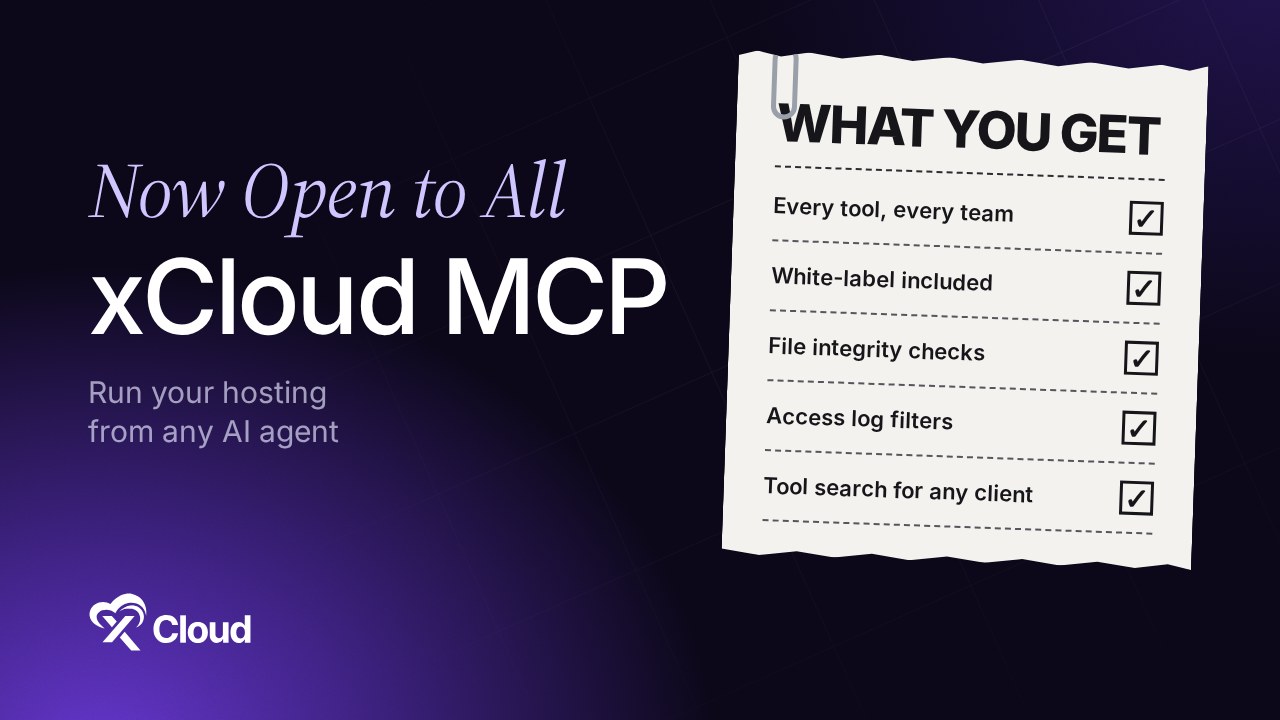
xCloud’s hosting MCP server works for every xCloud team, white-label teams included. Any AI agent you connect over MCP (Claude, ChatGPT, Cursor and others) can check which WordPress core and plugin files failed the integrity check, start a fresh check, filter a site’s access log, and find the right tool when you just describe the job.
White-label teams can use xCloud MCP, and replies show the reseller’s brand. If you already read what you can ask xCloud MCP to do, think of this post as the update: what an agent can do now, who can use it, and what still stays in the dashboard.
TL;DR
- Every team, white-label included: a reseller’s clients can connect an agent, and replies show the reseller’s brand.
- Tool search and step-by-step guides let the agent find the right tool when you just describe the job.
- WordPress file integrity: the agent sees which core and plugin files failed the check, and can start a fresh one.
- Access-log filters: narrow a site’s access log by IP address, response status, path and time.
- Also new: one-click apps show their version, category, GitHub stars and official links before install, PostgreSQL 17 sits in the server creation database dropdown, and the Git app form shows which folders are kept between deploys.
White-Label Teams Can Use xCloud MCP, in Their Own Brand
White-label teams can use xCloud MCP, and replies show the reseller’s brand, not xCloud’s.
For an agency that resells hosting under its own name, that means its team, or its clients’ developers, can manage sites from an AI agent without the xCloud name showing up in the conversation. They connect at the reseller’s dashboard address followed by /mcp, and links in the agent’s answers point to the reseller’s domain. Regular xCloud teams connect the same way at app.xcloud.host/mcp: no beta invite, no special plan.
What a Hosting MCP Server Lets Your AI Agent Do
MCP (Model Context Protocol) is an open-source standard that lets an AI app connect to outside systems and act in them. A hosting MCP server is the piece that connects your agent to your hosting account. xCloud’s is built in, at one address: https://app.xcloud.host/mcp.
Once connected, you stop opening tabs to check on things. You ask “which of my sites have pending plugin updates?” or “purge the cache on the staging site”, and the agent does it through your xCloud account, with the permissions you approved. The setup is in How to Connect xCloud MCP to Your AI Agent, and the xCloud MCP page lists every client with its own guide.
Every Tool, Every Team
Here is what you get in plain terms.
| What | What you get |
|---|---|
| Tools an agent can use | All of xCloud’s MCP tools, for every team |
| White-label teams | Every tool, with replies in the reseller’s brand |
| Tool search and guides | On for everyone |
| Address to use | Any xCloud MCP address you already use now reaches every tool |
Tool search matters more than it sounds. You do not need to know tool names: describe the job, and the agent searches xCloud’s tools and step-by-step guides to find the right one. It can also answer “how does X work in xCloud” questions from the same guides.
The catch worth knowing: some clients cap how many tools a server may list. If yours refuses the full list, connect with https://app.xcloud.host/mcp?profile=unified, which serves a small set of tools that search for and run all the others.
For developers: the addresses /mcp, /mcp?profile=unified and /mcp/v2 all reach the same tools. /mcp/v2 is kept for clients that were set up with it.
What Your Agent Can Do on Your Sites
Two jobs that used to need the dashboard.
1. Read WordPress File Integrity Results and Start a Fresh Check
Ask “did any core or plugin files change on the shop site?” and the agent gets which files failed, how many, and when the check ran. It can also start a fresh check when the last one is old.
Here is the shape of the answer, built from the fields xCloud returns for a failed check (site and file names are placeholders):
You: Did any core or plugin files change on example.com?

Agent: The last integrity check on example.com ran today at 09:12 and failed.
- WordPress core: 1 file does not match the original (wp-includes/example.php)
- Plugins: 1 plugin has 2 files that do not match
This compares files against the original WordPress and plugin files.
It is not a malware scan. Want me to start a fresh check?
The agent knows the check is not a malware scan because xCloud says so in every answer it sends back, along with the counts of core and plugin issues. If you ask it to start a fresh check, xCloud tells the agent to read the result again until the check time changes, so it does not report an old result as new.
This works on WordPress sites only. On any other site, xCloud tells the agent integrity checks are only available for WordPress sites. If a check flags files, the next step is in My WordPress Site Was Hacked: What to Do on xCloud.
2. Filter Access Logs
The agent can narrow a site’s access log by IP address, response status, path and time, and read the firewall log to see which requests the built-in firewall blocked. “Show me every 404 on /checkout/ in the last hour” becomes one request.
How to Connect Your Agent
- Add
https://app.xcloud.host/mcpto your AI client. In Claude Code that isclaude mcp add xcloud --transport http https://app.xcloud.host/mcp. - Sign in when the browser opens, tick the teams this connection may use, and pick Read-only or Full access.
- Ask “Who am I on xCloud?” to check it works.
A reseller’s clients on a white-label dashboard connect at the reseller’s dashboard address followed by /mcp instead of app.xcloud.host/mcp. Every client’s steps are in How to Connect xCloud MCP to Your AI Agent. One connection can act on several teams; see Multi-Team Access with One API Token or MCP Connection. Using ChatGPT? Read how to manage cloud hosting from ChatGPT with xCloud MCP.
Also New on xCloud
One-Click Apps Show What They Install
Before you install a one-click app, the catalog and the app page now show the version it installs, its category and its GitHub stars. The app page adds links to the official website, source code and documentation, its license, and a note that the app is a third-party project, not made by xCloud. The same links appear on the credentials card after install. More in How to Use One-Click App Templates.
PostgreSQL at Server Creation
On Nginx servers, PostgreSQL 17 is now an option in the Select Database Server dropdown, next to MySQL and MariaDB. You pick one database type when you create the server and can add the others later from Server Management. See Install Managed PostgreSQL and pgAdmin, and the PostgreSQL 17 release notes for what the version brings.
See the Folders Kept Between Deploys for Git Apps
When you deploy a Python, Ruby, Go, Java or Bun app from Git, the form tells you which folders are kept between deploys. /app/data is kept for every stack, plus /app/media for Django and /app/storage for Rails. Everything else resets on deploy. The full walkthrough is in Deploy Python, Ruby, Go, Java and Bun Apps on xCloud.
What xCloud MCP Still Does Not Do
Being clear about limits is part of trusting an agent with your hosting.
- No payments. Buying bandwidth, paying bills and changing payment methods stay in the dashboard.
- Integrity checks are WordPress-only and are not a malware scan.
- Your permissions still apply. A Read-only connection cannot change anything, and a team member’s agent cannot change settings only an admin can.
To undo access, revoke the connection on the API Tokens page of your xCloud dashboard. The steps are in How to Connect xCloud MCP to Your AI Agent.
Put Your AI Agent to Work on Your Hosting This Week
Start with a Read-only connection, ask for a fleet check (“which WordPress sites failed the integrity check?”), then move to Full access once the answers look right.
Agencies and white-label resellers get the most from this. Connect once, tick each client team, and let the agent handle the morning checks. For fleet-wide jobs, see AI hosting for agencies, or compare plans on the pricing page.
If you have found this blog helpful, feel free to subscribe to our blogs for valuable tutorials, guides, knowledge, and tips on web hosting and server management. You can also join our Facebook community to share insights and engage in discussions.
Frequently Asked Questions
Do I need a special plan or a beta invite to use every xCloud MCP tool?
No. xCloud MCP is open to every xCloud team, white-label teams included. You connect your agent once and approve the teams it may act on.
Can a white-label reseller’s clients use xCloud MCP?
Yes. White-label teams can use xCloud MCP, and replies show the reseller’s brand rather than xCloud’s. Their sites and settings are the same ones they see in their dashboard.
Does the file integrity check scan my WordPress site for malware?
No. It tells you which WordPress core and plugin files failed the integrity check, meaning they no longer match the original files. It is not a malware scan, and it works on WordPress sites only.
My AI client refuses to load all of xCloud’s tools. What should I do?
Connect with https://app.xcloud.host/mcp?profile=unified. It serves a small set of tools that search for and run every other one, so clients with a tool limit can still reach everything.