

How to Install Managed PostgreSQL and pgAdmin in xCloud
Updated October 28, 2026 · 6 min read
xCloud can run one managed PostgreSQL service per Nginx server. Every PostgreSQL site on that server shares it, you manage databases and roles in a managed pgAdmin, and native Git sites (PHP App, Laravel and Node.js) can choose PostgreSQL instead of MySQL when you create them. This guide shows how to install PostgreSQL, enable pgAdmin and create a PostgreSQL site.
Before you start
- An Nginx server. Managed PostgreSQL is only available on the Nginx stack. See Available Server Stacks in xCloud.
- Docker Engine 28 or newer on the server. PostgreSQL and pgAdmin run as private containers. If Docker is older, the install fails with “Private data services require Docker Engine 28 or newer. Upgrade Docker before retrying.”
- No PostgreSQL one-click app on the server. If the server already runs the catalog PostgreSQL app, the managed install is not offered.
- Permission to manage the server’s services. Team members need server service access to install PostgreSQL or use pgAdmin.
You can also install PostgreSQL while creating a new server: on the server form, pick the Nginx stack and tick Install PostgreSQL under the database settings. The steps below cover an existing server.
Step 1: Install PostgreSQL from Server Management
Open your server and go to ‘Management’ → ‘Settings’. Scroll to Install a Service (the Install a Service button at the top jumps there) and click Install on the PostgreSQL row (“Private PostgreSQL shared by sites on this server”).
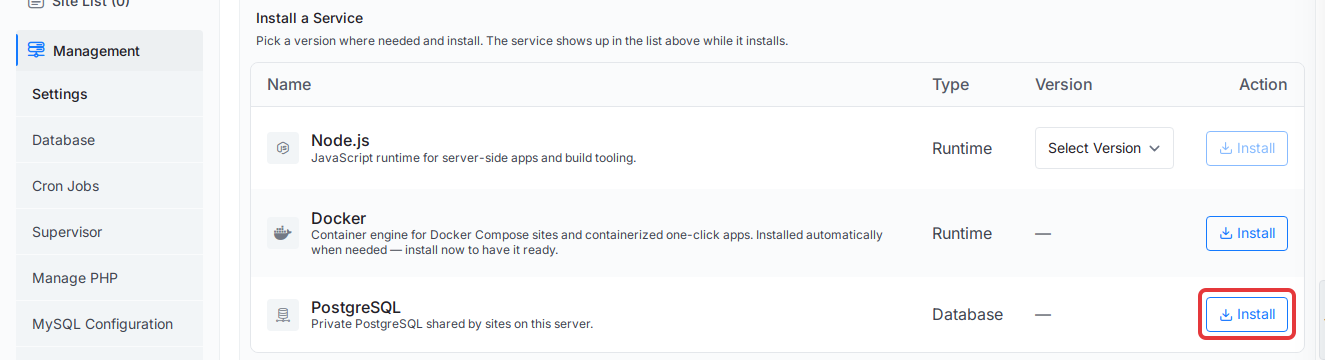
PostgreSQL moves to the Server Utilities list at the top of the page and shows Queued, then Installing…. The page refreshes the status on its own.
Step 2: Wait for Ready, or retry a failed install
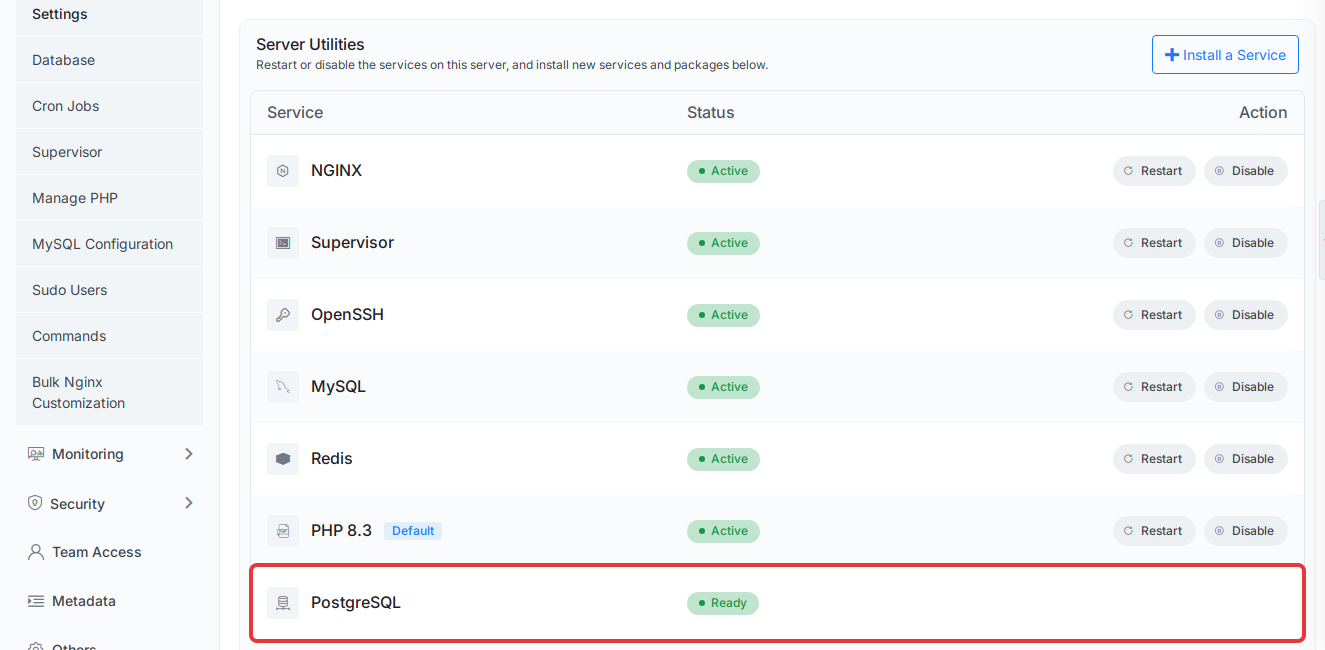
When the install finishes, the PostgreSQL row shows Ready.
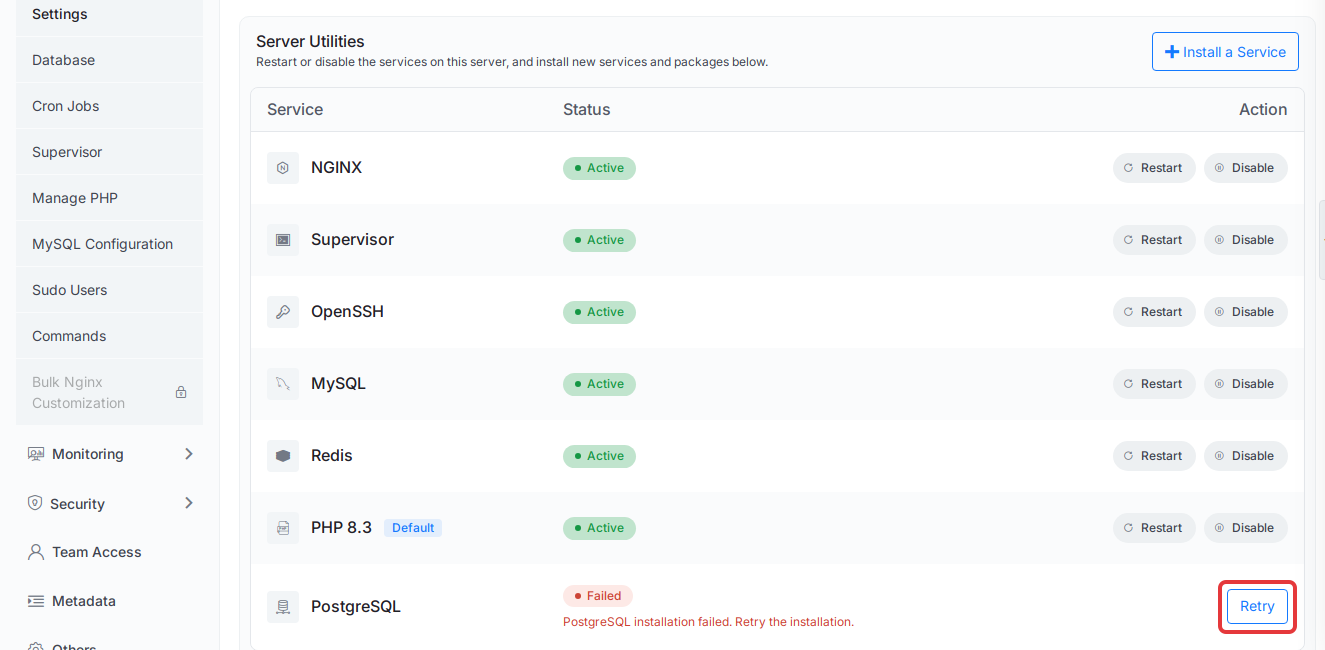
If the row shows Failed, read the message under the status. It names the cause, for example an outdated Docker Engine or another managed database operation still running. Fix the cause, then click Retry on the row.
Step 3: Enable pgAdmin
Go to ‘Management’ → ‘Database’. Once PostgreSQL is ready, a pgAdmin card appears above phpMyAdmin. Click Enable pgAdmin.
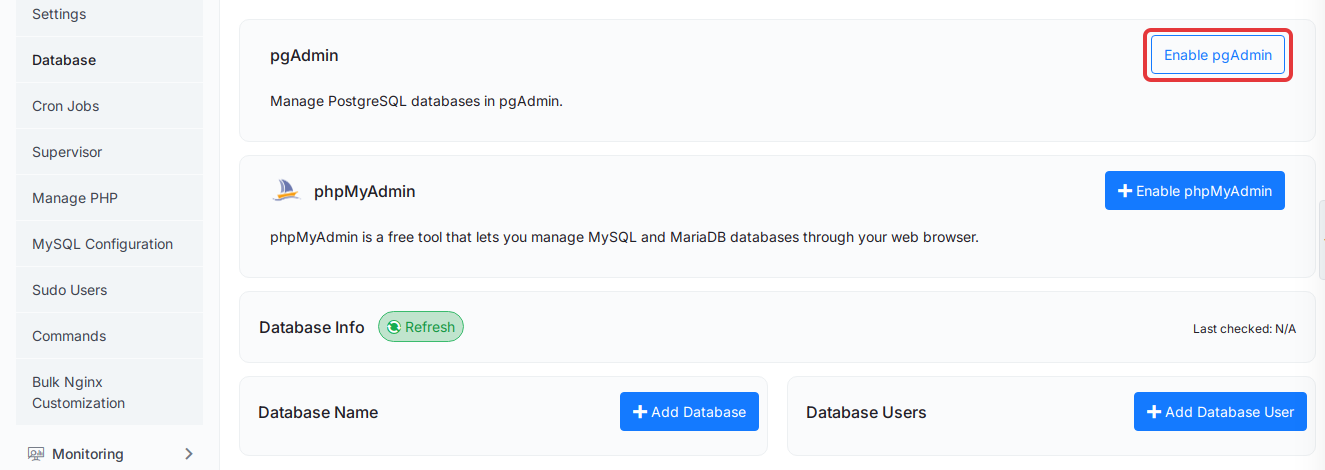
The card shows Provisioning… while xCloud installs pgAdmin. If it fails, click Retry on the card.
Step 4: Open pgAdmin and sign in
When pgAdmin is ready, the card shows Open pgAdmin, Show credentials and Disable pgAdmin.
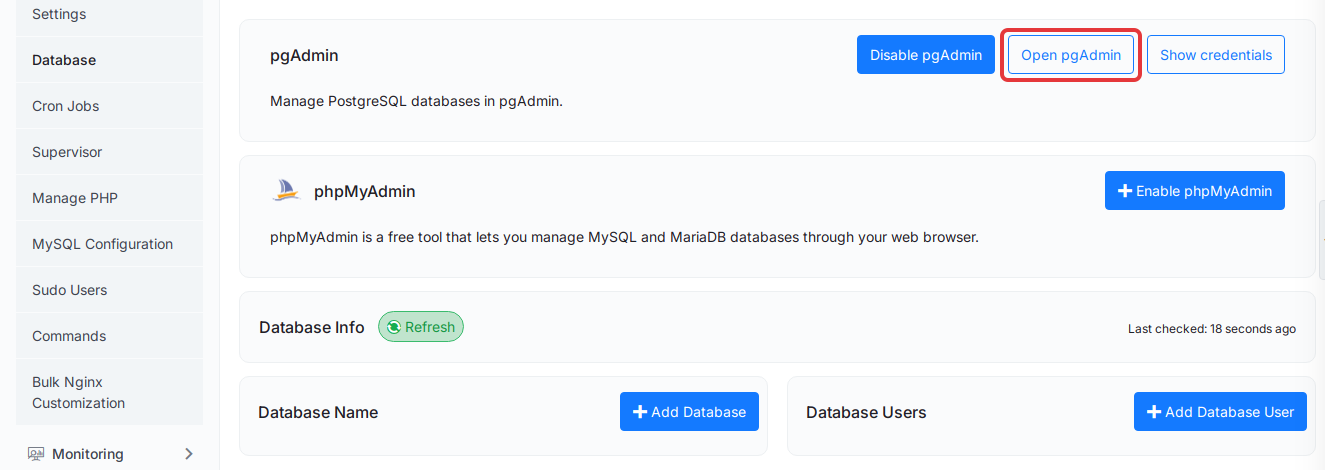
- Click Show credentials to see the pgAdmin Email and Password. pgAdmin has its own web login: the email is the one on the xCloud account that enabled pgAdmin, and the password is shown only to members who can manage the server.
- Click Open pgAdmin. pgAdmin opens over HTTPS in a new tab.
- Sign in with those credentials. You can now create databases and roles, run queries, and export data.
Click Hide credentials when you’re done.
Step 5: Create a site that uses PostgreSQL
With PostgreSQL ready, native Git sites on this server can use it. Start a new site with Deploy via Git (see Deploy Git Projects in One Click), choose the repository, and pick PHP App, Laravel or Node.js as the App Type. Set Database engine to PostgreSQL.
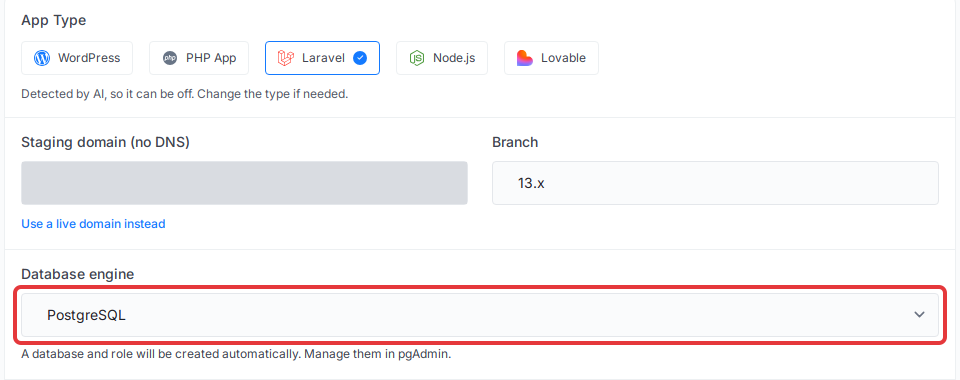
The form notes “A database and role will be created automatically. Manage them in pgAdmin.” Click Deploy. xCloud creates a database and role for the site and writes the connection to the site’s environment:
DB_CONNECTION=pgsql
DB_HOST=127.0.0.1
DB_PORT=<port>
DB_DATABASE=<site database>
DB_USERNAME=<site role>
DB_PASSWORD=<generated password>
DATABASE_URL=postgresql://<site role>:<generated password>@127.0.0.1:<port>/<site database>
The same choice is in the white-label site form. If Database engine does not appear, PostgreSQL is not Ready on the server yet, or the app type is not PHP App, Laravel or Node.js.
Limits to know
| Area | What happens with PostgreSQL |
|---|---|
| Services per server | One managed PostgreSQL, shared by every PostgreSQL site on the server |
| Server stack | Nginx only, with Docker Engine 28 or newer |
| Site types | Native Git sites: PHP App, Laravel and Node.js |
| Backups | PostgreSQL databases are not in xCloud site backups yet. Export them from pgAdmin |
| Clone, migrate, staging, snapshots | Not supported for PostgreSQL sites yet |
| Deleting a site | The site’s database and role are kept |
| Disabling pgAdmin | Nothing is deleted. Databases created in pgAdmin move to the xcloud_pg_owner role |
The site’s Backups page shows a reminder that its PostgreSQL database isn’t included in xCloud backups. For MySQL databases, see Create a database for your site.
Disable pgAdmin
To remove pgAdmin, click Disable pgAdmin on the card in ‘Management’ → ‘Database’ and confirm. xCloud removes pgAdmin and moves the databases you created there to xcloud_pg_owner. PostgreSQL and your sites keep running. If disabling fails, the card lists the affected databases and offers Retry.
Frequently asked questions
Which servers can run managed PostgreSQL?
Nginx servers with Docker Engine 28 or newer. Each server runs one managed PostgreSQL service that every PostgreSQL site on it shares. OpenLiteSpeed servers cannot install it, and a server that already runs the PostgreSQL one-click app cannot add the managed service.
Are PostgreSQL databases included in xCloud site backups?
Not yet. xCloud site backups do not include PostgreSQL databases, so export them from pgAdmin before you rely on a backup. PostgreSQL sites also cannot be cloned, migrated, staged or snapshotted yet.
What happens to my data when I disable pgAdmin?
Nothing is deleted. xCloud removes pgAdmin and moves the databases you created in pgAdmin to the xcloud_pg_owner role. PostgreSQL itself keeps running.
Does deleting a PostgreSQL site delete its database?
No. xCloud keeps the site’s PostgreSQL database and role when you delete the site, and tells you so. Remove them in pgAdmin if you no longer need them.
If you run into any issues with managed PostgreSQL or pgAdmin, feel free to reach out to our support team.